1
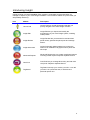
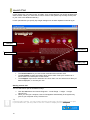
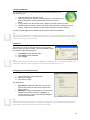
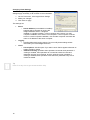
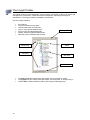
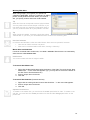
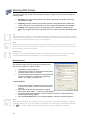
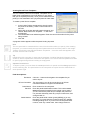
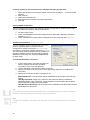
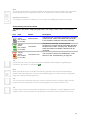
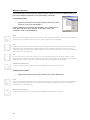
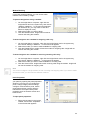
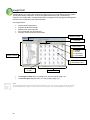
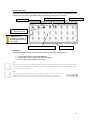
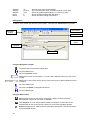
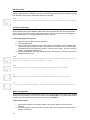
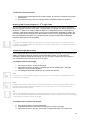
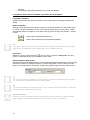
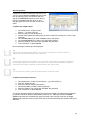
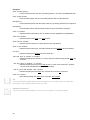
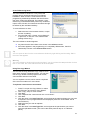
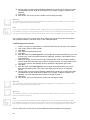
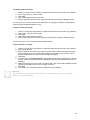
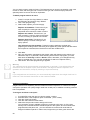
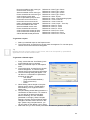
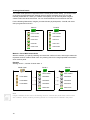
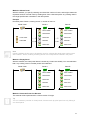
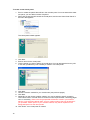
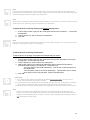
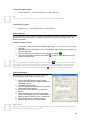
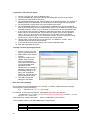
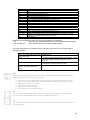
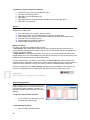
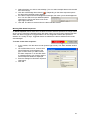
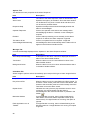
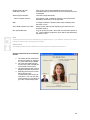
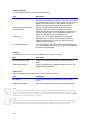
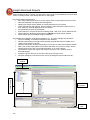
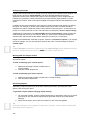
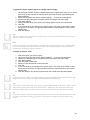
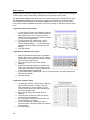
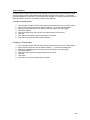
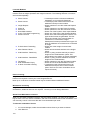
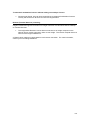
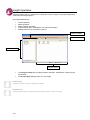
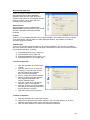
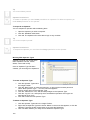
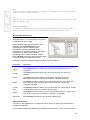
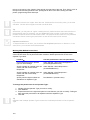
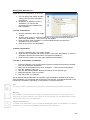
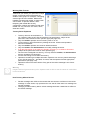
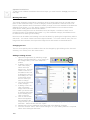
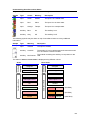
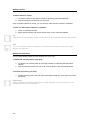
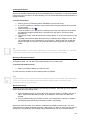
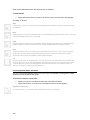
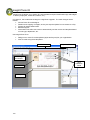
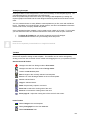
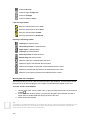
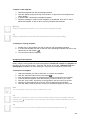
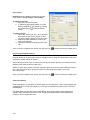
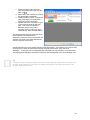
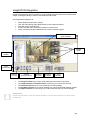
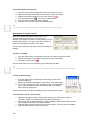
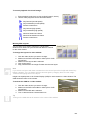
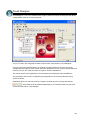
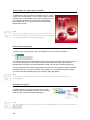
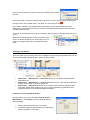
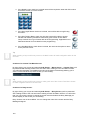
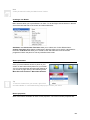
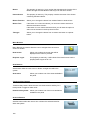
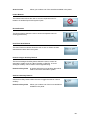
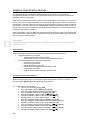
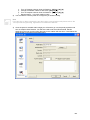
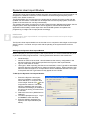
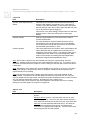
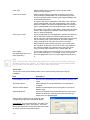
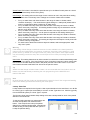
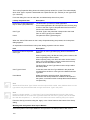
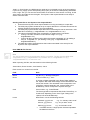
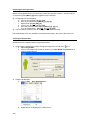
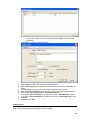
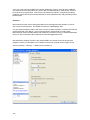
Card Type Select a radio button to match the type of access cards programmed in the panel. Card Pool for Cards When importing user programming via a CSV file, the card numbers and/or card allocation can be automatically entered into the Card Pool system, assuming the Insight installation has a valid Card Pool licence. The type of the card pool selected in this dialog must match the type of card specified in the user programming in the CSV file. No action is taken if the Card Pool specified does not match the type of card specified in the user programming in the CSV file. For example, if the Card Pool specified is a Site Code Card Pool and the user programming indicates a Direct Entry Card Pool, then no cards are assigned. User Type Lookup Check the ‘Multi-storey hotel application’ checkbox if interfacing with a Hotel PMS system and importing data using the .INI format. This links a floor (derived from the guest's room number) with a matching User Type in the panel. The “Room Digits” setting (see below) is only active if this item is checked. When interfacing with a system using the .CSV format, leave this checkbox unchecked. In this case, a User Type defined in the .CSV file is linked to a particular User Type in the panel using a Lookup Table defined in the “Lookup Table” tab.. Room Digits (Not applicable when not a hotel application) The number of digits to remove from the room number to get the floor number (hotel floor). For example, if room 12 on the 4th floor was designated Room 412, Room Digits should be set to 2. Note When using CSV files, specific items of programming for a user can be cleared by populating the field(s) with the entry, <blank>. The <blank> entry cannot be used for the following fields: PIN, First Name, Second Name, Gender, Date of Birth, Card Number. Panels Tab The Dynamic User Import Module needs to know which panel(s) is/(are) servicing the installation. Item Description Panel Selection Icon List A list of icons representing the panels used for dynamic user import. ‘Properties’ Button Allows settings for the selected panel to be viewed and changed. ‘Remove Panel’ Button Deletes the selected panel from the Dynamic User Import Module setup. ‘Add Panel’ Button Used to add panels to the list that the Dynamic User Import Module will deal with. Selecting this button will bring up a dialog which is explained below. Adding Panels (‘Add Panel’) or modifying them (‘Properties’) brings up the ‘Add Panel’ dialog: Panel Name: Type the panel name in this field. (The panel must already exist in the system). The Panel Name field must exactly match the name of the Panel as shown within the Insight Edit module. 174