1
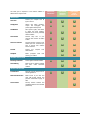
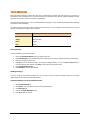
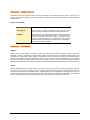
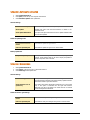
Schedule for deleting Reports and Quarantine file
Delete Reports after
You can delete the reports of Quick Heal AntiVirus at specific
intervals.
Delete Quarantine/Backup
files after
You can delete the quarantine files (including backup of the infected
files) at specific intervals.
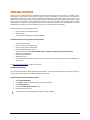
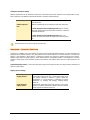
Prevent unauthorized access to option settings of Quick Heal
To protect Quick Heal AntiVirus options from being changed without your permission, you can choose to protect it by enabling
password protection for the same. If you specify a password, you are asked to enter a password every time when you wish to view
or change the Options.
Enable password
protection
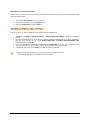
To specify a password:
1.
At the top of the main window, click Options.
2.
In the Options window, under the Miscellaneous tab, click
General.
3.
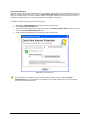
Select Enable password protection and press Change
Password.
4.
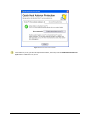
In the password dialog box, type a password.
5.
Click OK.
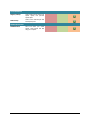
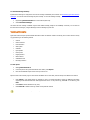
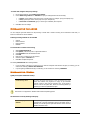
Application Status
Show application icon at
system tray
If this option is enabled, Quick Heal AntiVirus icon will be visible at the
system tray. User can easily access Quick Heal AntiVirus from this icon
directly.
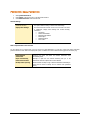
Scan removable devices
Scan removable device
when plugged into the
system
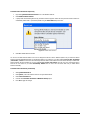
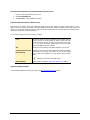
If this option is enabled, then Quick Heal will prompt you to perform a
scan of removable device except CDs or DVDs. The user has two
options:
•
Scan files on root of drive only
•
Scan full drive
Select the necessary option and click Scan button. We recommend
that you scan any USB removable storage devices before using it, but
if you wish to use the device without scanning it first, then click Do
Not Scan button to exit from the scanner prompt.
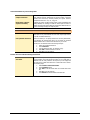
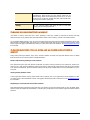
Self Protection
Start Self Protection at
Windows Startup
If this option is enabled, then Quick Heal AntiVirus will protect itself by
safeguarding Quick Heal files, folders, configurations and registry
entries against malwares and also against tamper from other
applications.
69