1
Bunkspeed Drive Suite User Guide
Saving and Outputting
Outputting Images
Snapshot (High Speed)
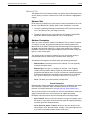
Taking a Snapshot of an open Bunkspeed DriveSuite project uses the current
camera to capture what you see in the 3D Viewport. Here’s how:
Configure Snapshots
You must do the following things before you take Snapshots:
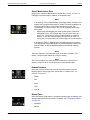
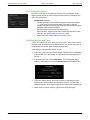
1. Press CTRL-K to display the Options dialog. In the 3D Viewport Tab of
that dialog, set the Maximum Resolution to the desired size (in pixels) of
Snapshots.
Take a Shot
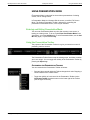
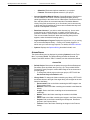
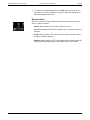
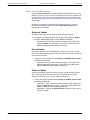
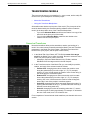
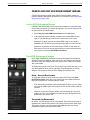
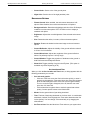
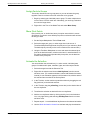
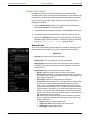
2. Click the Render Button located in the right corner of the Toolbar. In the
Render Options dialog that then appears, choose the Snapshot tab.
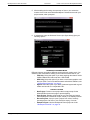
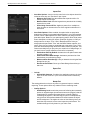
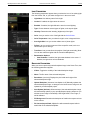
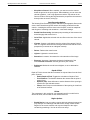
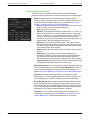
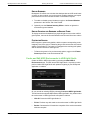
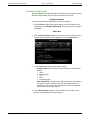
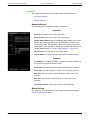
3. In the Snapshot tab of the Render Options dialog:
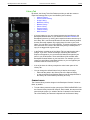
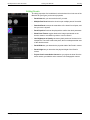
– Image Format: Select the desired output format from the following
options:
» JPEG
» Bitmap (bmp)
» TIF
» PNG
» Photoshop (psd)
– Save Camera File: If enabled, then DriveSuite will save the camera
you used to take the snapshot along with the snapshot itself. The
camera file will be saved in the Cameras Library, and the snapshot
will be saved in the Images Library.
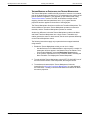
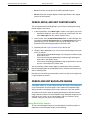
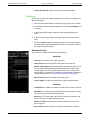
4. Click Take Snapshot to finish, or Save and Close to save the current
position and composition for later reference.
Copyright © Bunkspeed, Inc. 2002-2014
102