1
Bunkspeed Drive Suite User Guide
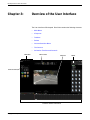
Overview of the User Interface
Main Menu
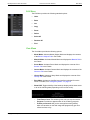
File Menu
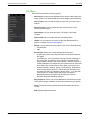
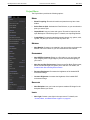
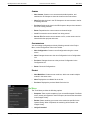
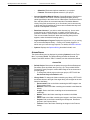
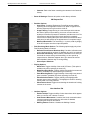
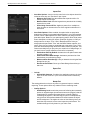
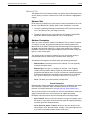
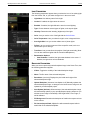
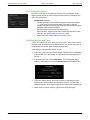
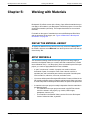
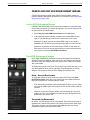
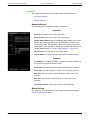
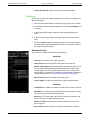
The File Menu provides the following options:
Copyright © Bunkspeed, Inc. 2002-2014
•
New Project: Creates a new Bunkspeed Drive project. New projects are
empty except for the default HDR environment image to provide lighting.
•
Open Project: Lets you load an existing project from your hard drive or
network.
•
Recent Projects: Lets you select and open a project from a list of
recently opened projects.
•
Open Image: Lets you locate and open a 2D image in the Image
Viewport.
•
Open Palette: Lets you locate and open a material palette.
•
Import: Lets you import a 3D model into the open Bunkspeed Drive
project. For details, see Importing Models.
•
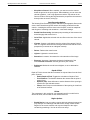
Export: Lets you export the open project to any of the following formats:
– Autodesk FBX
– OBJ
•
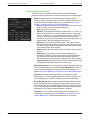
Save Project: Saves your current Bunkspeed Drive project:
– in native BIF format, overwriting the same location and filename as
the original.
– as a Palette file. You can generate read-only Presets consisting of
any combination of materials, scene elements (backplates, HDR
images, lights), cameras, and render settings – and then save each
Preset combination as a Palette file. Non-expert users can then open
these Palette files, which default to Easy Mode, and view (but not
change) materials, cameras, scenes, render settings. Downstream
users can then load a Palette file, import their own geometry into it,
and apply the read-only materials in various ways -- i.e. to play with
various uses of a company-approved project. Pre-Defined
Bunskpeed Palettes are a good way to distribute content to
designers, while still controlling materials.
•
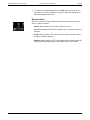
Save Project As: Saves your current Bunkspeed DriveSuite project file
in BIF format, using the arbitrary file name and location that you specify.
•
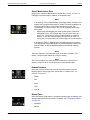
Close: Closes the current project and leaves Bunkspeed DriveSuite
running.
•
Exit: Exits Bunkspeed DriveSuite.
20