1
vSphere Agent 7.1 User Guide
8.
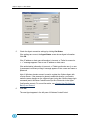
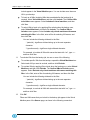
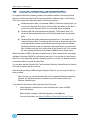
From the Encryption type list, select the type of encryption for the
backup data. If you encrypt the data, enter an encryption password in the
Password and Verify Password fields. The password is case-sensitive.
In the Password Hint field, enter a password hint to help you remember
the encryption password during a restore.
9.
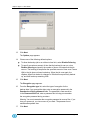
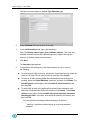
To set retention, compression or logging options, click Advanced
Backup Options. The Advanced Options screen opens.
From the Retention list, choose a retention scheme that specifies the number
of days for keeping backups, number of backups to store online, and days to
archive the data.
From the Compression list, choose the level of data compression. Data
compression allows you to optimize the volume of data sent against the speed
of transmission.
To generate log files for the job, select the Create log file check box. From the
Log detail level list, choose the level of log detail. To automatically delete log
files when a backup is deleted, select the Automatically purge expired log
files check box. To delete the oldest log file after reaching a certain number of
log files, enter a number in the Keep the last x log files field.
Click OK.
10.
Click Next.
The Schedule screen appears.
11.
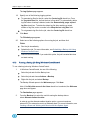
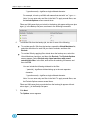
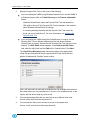
To create a backup schedule and set retention options for the scheduled
job, click Add. The Schedule Details page opens. From the Schedule
View list, choose Days of Week, Days of Month, or Custom, and
specify when to run the backup.
From the Retention Scheme menu, choose a retention scheme that specifies
the number of days for keeping backups from the scheduled job, number of
backups to store online, and days to archive the data.
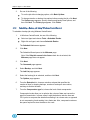
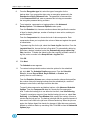
To specify data compression and deferral options, click Advanced Schedule
Options. From the Compress file data list, choose the file compression
level.To allow the backup job to run without a time limit, clear Use Deferring.
To specify a maximum amount of time that the backup job can run, select Use
Deferring. In the Backup Time Window fields, specify the number of hours or
minutes that the job can run. The backup job stops after the specified amount of
time even if some VMs in the job have not been backed up. When the job runs
again, the vSphere Agent first checks for changes in VMs that were previously
backed up, and then backs up remaining VMs. Click OK to close the Advanced
Options page.
Page 32