1
6.2 TROUBLESHOOTING
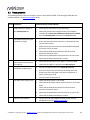
The following table lists the most common causes of issues with the DDRC. If following this table does not
provide a solution, see Obtaining Support below.
Item#
Symptoms
Troubleshooting recommendation
1
DDRC-22 doesn’t appear in
the Sound System tab
a.
Check that the USB cable is firmly connected.
b.
Check that you have the miniDSP version of the software
installed, called Dirac Live Calibration Tool Stereo for miniDSP.
c.
Go to the Sound System tab and click the Rescan button
a.
Check the Output volume slider.
b.
Ensure that the Dirac Series processor is connected correctly
into the audio system.
c.
(DDRC-22D only) Confirm that the connected DAC accepts 96
kHz sample rate on its input.
d.
Check that the downstream device has the Dirac Series
processor selected for input.
e.
Check that any downstream volume control is not set to zero.
f.
Check that no downstream device is muted.
No input from measurement
microphone
a.
Check that the USB cable to the UMIK-1 is securely seated
b.
Check that the UMIK-1 is selected in the Mic config tab.
Insufficient recording level
a.
Increase microphone level in the Output & Levels tab.
b.
Go to the Control Panel and view the Recording tab of the
Sound pane. Select the UMIK-1 and view its Properties. In
Levels, set the gain to 100.
c.
Increase system output volume.
a.
Check that the processor is not muted.
b.
Check that the processor master volume control is not turned
down.
c.
Check that the downstream device has the Dirac Series
processor selected for input.
d.
Check that any downstream volume control is not set to zero.
e.
Check that no downstream device is muted.
a.
Confirm that you downloaded and installed the required
frameworks first (see Software Installation).
2
3
4
5
6
The measurement test signal
produces no output
No audio when playing music
Cannot install software
miniDSP Ltd – Hong Kong / Email : [email protected] / Features and specifications subject to change without prior notice
34