1
14
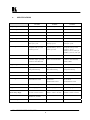
TROUBLESHOOTING
Note - If the recommended actions still do not result in satisfactory operation, please consult your Kramer
Dealer. Before calling for technical assistance, if the problem is image related, please try to find out the screen
resolution and refresh rate being used, from the computer - and if the problem only affects one particular
resolution.
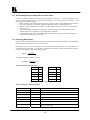
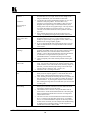
Problem
The picture on the video
display is black and
white.
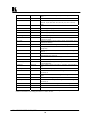
There is no picture on
the video monitor.
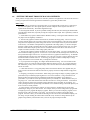
There is no picture on
the computer monitor.
The display on the TV
has a huge border around
it.
Remedy
1. If you are using the S-Video or Composite outputs, then make
sure that all these cables are connected correctly.
2. Make sure that the Scan Converter is adjusted to the right video
standard PAL/NTSC (The procedure to change this is found
elsewhere in this manual).
3. Ensure that the color controls on your TV or video monitor are all
set correctly.
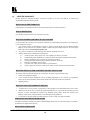
1. If you're using the unit with a laptop computer, make sure the
laptop is set to enable an external display device. Some laptops
automatically detect external video connections, but others will
need setting up to do so. This is often accomplished by pressing
two keys simultaneously on the keyboard.
2. If the Power LED on the Scan Converter is off, ensure that the
proper AC Power is being supplied to the unit and check the fuse
(The procedure located elsewhere in this manual).
3. If the Power LED is on: a) Check that the monitor output from the
computer is connected to the Scan Converter’s VGA IN
connector, b) Check that the output you are using from the Scan
Converter is also connected at the unit and the video monitor, and
c) Check that your video monitor is switched on and set to the
correct input (AUX or A/V is selected), also make sure that the
Brightness and Contrast on the video monitor are set correctly.
1. Check that the VGA output from the computer is connected to the
Scan Converter’s VGA IN connector.
2. Check that the computer monitor is connected to the VGA OUT
connector on the back of the Scan Converter.
3. Check that your computer monitor is turned on and the Brightness
and Contrast are set correctly.
1.
2.
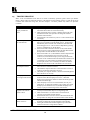
The unit does not
respond to the Infrared
remote control.
1.
2.
3.
There is excessive
flicker on the TV.
1.
2.
KRAMER ELECTRONICS, LTD.
This usually means that you are using a laptop computer at a
resolution lower than the laptop's own screen. When this
happens, the laptop fits the smaller resolution into the larger with
a border around the edge.
Since the laptop's screen is of a fixed resolution, the only two
solutions are: a) change the resolution you're running at to match
the laptop's own internal screen, or b) disable the laptop's own
screen, so you just see the image on the video monitor.
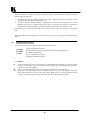
Ensure that there are batteries in the Remote Control unit are
correctly inserted and that they have enough charge left.
Make sure that there is no obstruction in front of the Scan
Converter's Front Panel Infrared Window.
Ensure that the Scan Converter is set for control from the IR unit
(The procedure to change this is found elsewhere in this manual).
Try using a different Flicker Reduction Filter setting (The
procedure to change this is found elsewhere in this manual).
Turning the contrast down and the brightness up on the video
monitor can also have a large effect on flicker.
23