1
4
Using the CTERA Agent in Cloud Mode
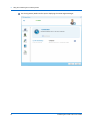
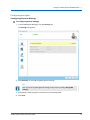
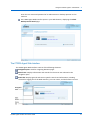
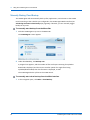
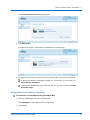
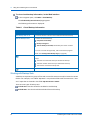
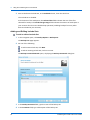
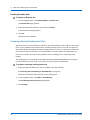
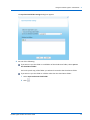
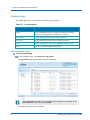
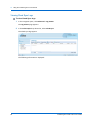
To view cloud backup information, in the Web interface
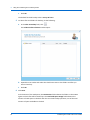
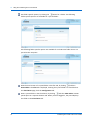
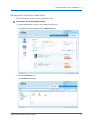
In the navigation pane, click Main > Cloud Backup.
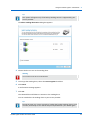
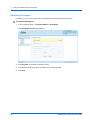
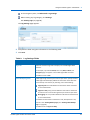
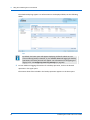
The Cloud Backup Control Panel page appears.
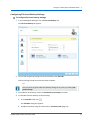
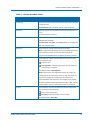
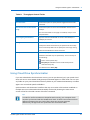
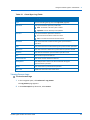
The following information is displayed:
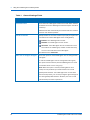
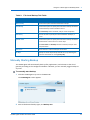
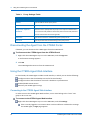
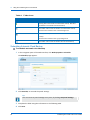
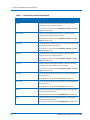
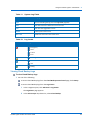
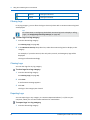
Table 6: Cloud Backup Information
This field...
Displays...
Next backup will run in
The amount of time until the next scheduled automatic backup.
The last backup result
The status of the last backup:
Completed successfully
Backup in Progress
The last backup has failed, followed by the reason it failed
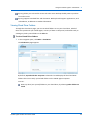
If an error occurred during backup, refer to the backup logs for
details. See Viewing Cloud Backup Logs (on page 85).
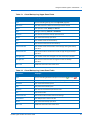
Mouse-over this icon to view the following information about the last
backup:
The total size of the files that you selected for backup
The total number of files that you selected for backup
The amount of time the backup took
The amount of time since the last backup ended.
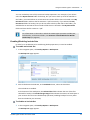
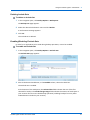
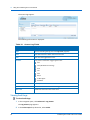
Working with Backup Sets
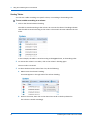
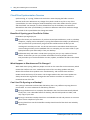
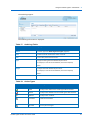
A backup set represents a group of files with certain file extensions and/or located in certain
folders. For example, a set called "My Music" may include all files with the extensions *.wav
and *.mp3 that are located in the folder My Documents > Music.
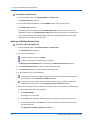
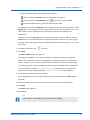
There are two types of backup sets:
Include Sets. Files that should be included in each backup
Exclude Sets. Files that should be excluded from each backup
54
CTERA Agent for Mac OS-X User Guide