1
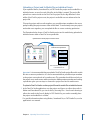
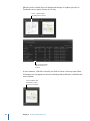
Warning: Use the Search Devices window with caution. When you search a device, you
are searching for files, not Final Cut Server assets. Devices can contain files that both
have and have not been added to the Final Cut Server catalog. From the Search Devices
window, you can add a media file to your Final Cut Server catalog, and copy, delete,
and download the file to your local system; taking some of these actions could result
in making duplicate copies of an asset in your Final Cut Server server system or deleting
all copies of a file from a device.
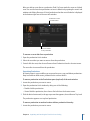
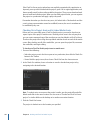
To search a device
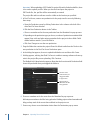
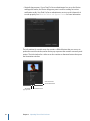
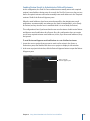
1 Click the Server button, then choose Search Devices from the Server pop-up menu.
2 In the Search Devices window that appears, choose the device to search from the Device
pop-up menu.
3 Click the Search button to search from the device’s root level. You can also click the
Choose button to open a dialog that allows you to specify a folder to search.
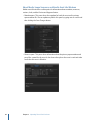
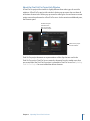
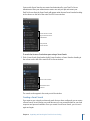
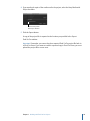
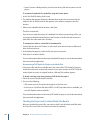
4 If you want to limit the search, enter a term in the search field or click the search disclosure
triangle to reveal advanced searching options.
Important: Be sure to enter entire words in the search field. Unlike the search field in the
Final Cut Server main window, the Search Devices search field does not return full words
if you search for a partial word. For example, if you want to find all assets that contain
the word frame, you must search for the entire word. Searching for fra only finds assets
with the characters fra and the word frame is not found.
5 Click the Search button.
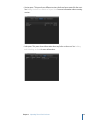
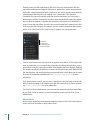
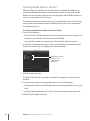
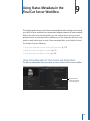
After you select one or more items, you can choose to do the following actions by
Control-clicking the filename in the list of search results and choosing one of these options
from the shortcut menu:
• Catalog asset: Adds the file to the Final Cut Server catalog.
Chapter 4 Organizing and Searching the Final Cut Server Catalog
73