1
5
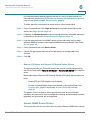
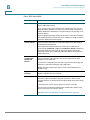
Viewing Customer Networks
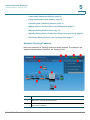
Using the Device Listing View
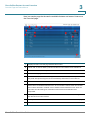
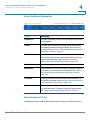
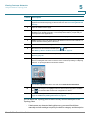
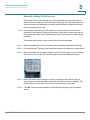
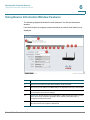
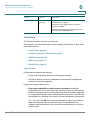
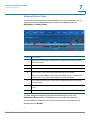
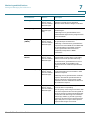
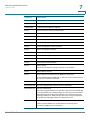
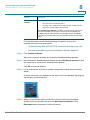
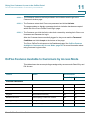
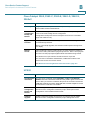
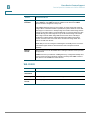
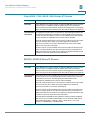
Callout
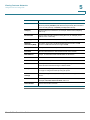
Description
7
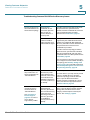
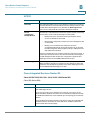
Dashboard toolbar that includes options for using tools, specifying view settings, and
filtering devices. See Using the Dashboard Toolbar, page 62.
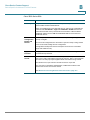
8
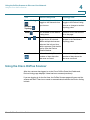
WAN IP address (public IP address of this customer site).
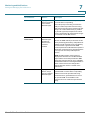
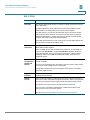
9
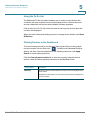
Dashboard To-Do list. See Using the To-Do List, page 64.
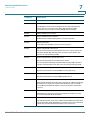
10
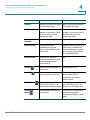
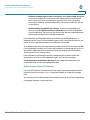
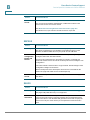
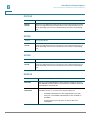
Click the column headers in the Dashboard view to sort the rows in ascending or
descending order.
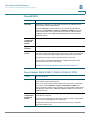
11
Click the checkbox for a device to select it. When you select one or more devices,
the Dashboard toolbar displays an
or
icon that you can click to access
the Device window (see Using Device Information Window Features, page 86.
Click the checkbox at the top of the column to select or deselect all devices. See
Editing and Performing Actions on Multiple Devices, page 103.
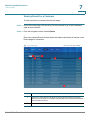
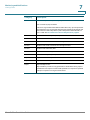
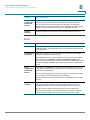
12
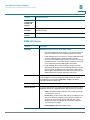
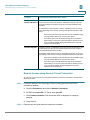
Device icons. Right-click a device icon to access options for editing and performing
actions on the device or opening a Web, RDP, or VNC connection to the device with
the current connection parameters for that device. See Working with Customer
Devices, page 85.
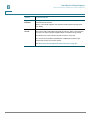
13
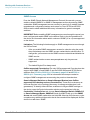
Color coded status indicates the level of alarms for the devices. The Legend (3)
provides a description of each code.
14
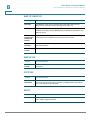
The highlight indicates the currently selected customer.
15
Labels are user-defined tags that identify individual items or groups of items.
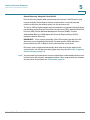
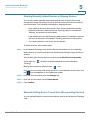
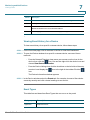
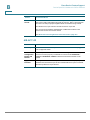
Customizing the Device Listing
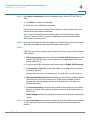
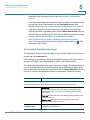
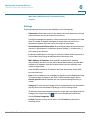
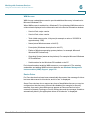
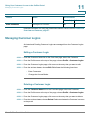
To customize the Device Listing view, move the mouse over the Customize link on
the Dashboard and choose Device Listing Settings.
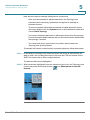
Click the checkboxes to add or remove columns from the view. Click Select All or
Select None to quickly toggle column selection.
Your selections are saved for the device that you are using to access the portal. If
you use a different device to access the portal, the default settings will be used,
and you will need to re-enter your custom settings. Click Reset Defaults to access
options for resetting all dashboard settings or settings for a specific category.
Cisco OnPlus Portal User Guide
79