1
Basic Operations
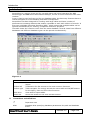
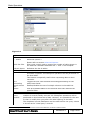
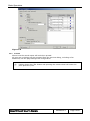
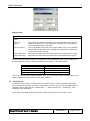
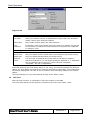
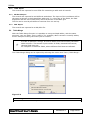
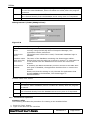
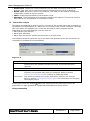
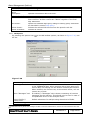
Figure 3-13
Time View
Predefined time
scope
Offers a number of pre-defined time scopes.
Adjust to
scope...
If checked, the date/time settings will be adjusted every time a
table is refreshed. I.e. the date/time settings will be adjusted to
the current date/time of the PC.
Refresh button
Is only available when the time scope differs from "User defined".
When pushed, the date/time settings are adjusted to match the
current time scope setting.
Start Date/Time
Specifies the start date and start time of the desired time scope.
Stop Date/Time
Specifies the stop date and stop time of the desired time scope.
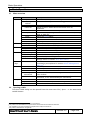
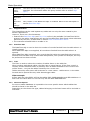
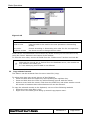
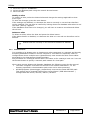
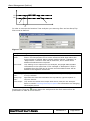
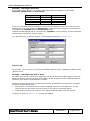
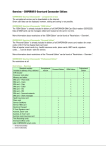
Please note that under certain circumstances, the SmartClient may force a date/time
format different from the Windows settings, as shown in the table below.
Windows setting
12-hour clock (AM/PM)
2-digit year (00-99)
Space as time separator
Space as date separator
SmartClient forced format
24-hour clock
4-digit year
':' as time separator
'-' as date separator
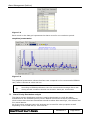
The Time View can be enabled/disabled from the on/off tool button located next to the
table navigator on the toolbar in the main window.
3.7
Find Record
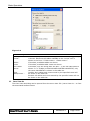
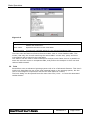
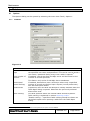
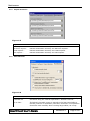
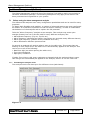
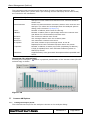
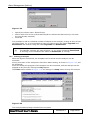
In addition to the query function there is a faster way to locate a specific field value.
The Find Record function can locate information found in any one of the table fields. It
supports search facilities like "Starts with...", "Whole word only", "Substring", case
sensitivity and wildcards.
The Find Record dialog can be opened by selecting the menu item Edit | Find...
SmartClient User's Guide
Release 4.0
Page 21/58