1
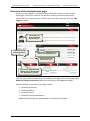
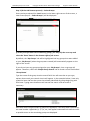
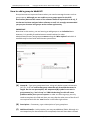
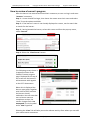
bksbLIVE (PLTS) User Guide Copyright © 2013 Vision West Notts College Support: 01623 413333 Overview of the assessment interface At the bottom of the assessment screen is the user interface. Please note: Unlike other assessments, there is NO audio facility for this assessment. (A) (B) (A) The ‘Menu’ button provides a sub-set of options to assist (C) (A) the student in configuring the assessments to suit their particular needs. Animation – Adjust speed of animation or turn on/off. Styles – Provides a range of options to suit individual needs and preferences, to adjust the colour of the background, fonts (but not size) and buttons. Exit Activity – Exits the assessment. Close This Menu – Closes the Menu. (B) Progress Bar – The progress bar is used to display the student’s progress through the assessment and will update after each question has been answered. Above the progress bar is the description of the current active assessment. Note: when taking certain assessments or resources (e.g. Initial Assessments), the assessment may be divided into segments and the user may notice the progress bar resetting to zero. This is normal and indicates that a segment has been completed. (C) Back / Next Buttons – Select the ‘NEXT’ button to move to the next question. Select the ‘BACK’ button to review answers to previous questions and amend if necessary. [18]