1
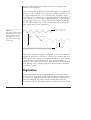
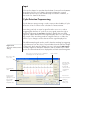
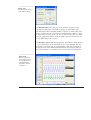
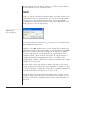
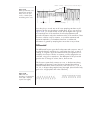
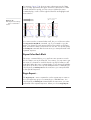
If a comment is selected and the Go To button is pressed, the Chart View
becomes active, the comment is located and centered in the data
display area, and an animation draws your attention to the comment
box. This is very useful for locating commented features in the file. As a
shortcut, you can double-click a comment to go to it as well. If you have
multiple comments selected, the comment at the top of the selection is
the one centered in the data display area. If Chart is sampling, then the
comment is only located and centered if the Chart View is in Review
mode. If the data display area is split into two panes, comments are
located and centered in whichever pane is in Review mode (or in the
right-hand pane if both are).
Comment Numbering
When comments are deleted, the numbers for the remaining comments
in a file do not change (this helps to prevent confusion when editing
files). When a file is appended to another file, the comments in the
appended file remain in the same order, but are renumbered following
on from the highest comment number in the file to which it was
appended. Comments in a pasted selection retain their order within the
selection, and are renumbered in the same way.
Identifying a Data Point
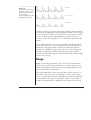
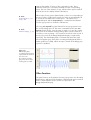
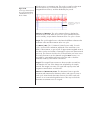
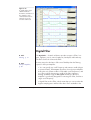
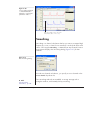
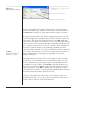
If the Marker is dragged to a comment box in the Chart View, the box
will highlight. When released, the Marker will locate itself on a data
point recorded when the comment was made. If the comment is
channel-specific, the Marker will be located on the waveform of that
channel; if the comment applies to all channels, the Marker will be
located on the waveform of the uppermost channel.
Printing Comments
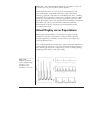
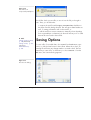
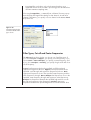
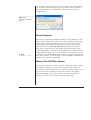
If the Print Comments checkbox is selected in the Print dialog (in the
Options panel when printing from the Chart View), comments are
printed following on from the end of the data print-out whether you are
printing a whole file or a selection. If you are printing a selection, only
the comments that appear in that selection are printed. Comments are
printed out as a numbered list, with the numbers boxed as they are in
the Chart View.
126
Chart Software