1
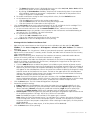
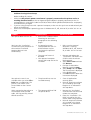
PRINTER CONTROL PANEL
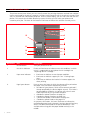
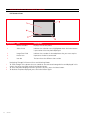
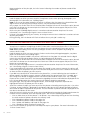
The printer control panel allows you to manually control the printing of photos received from a digital
camera connected to the printer, stored in a memory card inserted in one of the printer’s memory card
slots, or received from a Bluetooth peripheral. With its colour display, you can also scroll and view the
photos. This console also includes buttons by means of which you can select your photos and
customise print jobs. The icons on the buttons illuminate to indicate the selection currently active.
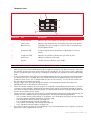
1
2
3
12
4
5
11
6
10
7
8
9
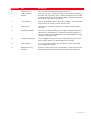
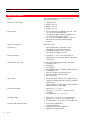
Reference
Part
Description
1
On/Off Button
Turn your printer on or off.
2
Out of ink indicator
Flashes or illuminates to indicate an out ink condition, in which
case it is suggested that you replace the ink cartridge. See
"Replacing the Ink Cartridge".
3
Paper error indicator
•
•
•
4
6
CHAPTER 1
Page layout button
Illuminates to indicate an out of paper condition.
Illuminates to indicate a paper jam. See "Clearing Paper
Jams".
Illuminates to indicate the feed of an incorrect paper size
when printing.
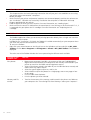
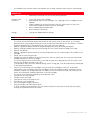
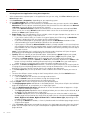
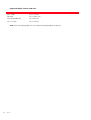
Press to select the layout in which the photos will be printed on
the paper. Press this button sequentially to select:
• the index of your pictures, which will be correctly printed if
already compiled by the device (digital camera). If an index is
not provided by the device, the printer will create its own
index of pictures by it may not be complete.
• 4 borderless photos fitted on the page size
• 2 borderless photos fitted on the page size
• 1 photo with borders and fitted on the page size
• 1 borderless photo fitted on the page size
As you press this button, the icons illuminate to indicate the
corresponding page layout selected. If the icons do not illuminate,
there is no device connected to the printer. Borderless is not
available when using plain A4 paper folded vertically in the
middle.