1
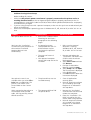
VIEWING PHOTOS ON YOUR PRINTER’S DISPLAY
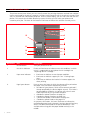
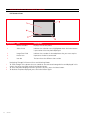
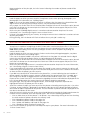
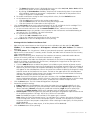
Full-Screen Views
1
2
3
16
Reference
Part
Description
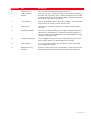
1
Browse window
Displays the current photo.
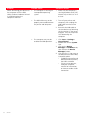
2
Select frame
Indicates the selection state, highlighted when the Select button
is pressed to select the photo displayed.
3
Image Total field
Indicates the number of selected photos that you want to print.
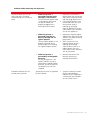
4
Device icon
Represents the device connected.
5
Icon bar
The bar where the different icons reside.
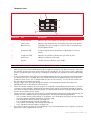
Navigating Through Full-Screen Views and Selecting Photos
To scroll through all the photos that are stored on the connected storage device and displayed in this
screen view, press the Right and Left Navigation button.
To select the photo displayed and that you want to print, press the Select button.
To deselect the photo displayed, press the Select button again.
CHAPTER 2