1
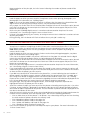
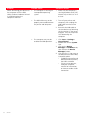
Printing Problems
Problem
Possible Cause
Corrective Action
Your printer does not print when
you click on the Print icon on the
task bar of the application you
are using.
•
1
Your printer is not set as the
default printer.
2
•
Your printer is not properly
connected to the computer.
1
2
The printing stops in the middle
of a print job.
•
The paper is jammed.
1
2
Click Start > Settings >
Printers.
Right-click on your printer’s
icon and select Set as
Default.
Turn off your printer and
computer, and then unplug
the USB cable from these
two devices.
Reattach the USB cable, then
turn on the printer first
followed by your computer.
Clear the paper jam. See
"Clearing Paper Jams".
Press the Cancel button to
reset the error condition. The
print job continues from the
next page.
Horizontal streaks are printed.
•
The ink cartridge is dirty.
•
Clean the ink cartridge. See
"Cleaning the Ink Cartridge
Nozzles".
The printed characters are not
properly defined.
•
The ink cartridge is no longer
aligned.
•
Align the ink cartridge from
your computer. See
"Aligning the Ink Cartridge
From the Toolbox".
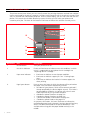
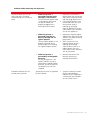
Meaning of the Indicators on the Control Panel
38
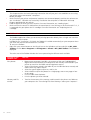
Problem
Possible Cause
Corrective Action
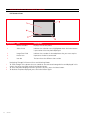
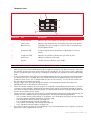
The out of ink icon on the
control panel is flashing.
•
The ink cartridge is almost
out of ink.
•
You can continue to print
until the icon is illuminated.
The out of ink icon on the
control panel is illuminated.
•
The ink cartridge is out of
ink.
•
Replace the ink cartridge. For
information, see "Replacing
the Ink Cartridge".
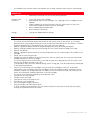
The paper error icon on the
control panel is illuminated.
•
You launched a print job and
there is no paper loaded in
the printer.
•
Load paper. For information
see "Loading Paper".
•
The size of the paper that is
loaded does not match the
paper size that you selected
from the Toolbox application
or from the PictBridgecompliant digital camera
connected to the printer.
•
Load the correct paper. For
information see "Loading
Paper".
•
A paper jam has occurred.
•
Clear the paper jam. For
information see "Clearing
Paper Jams".
CHAPTER 5