1
Warning and Error Messages
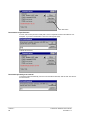
If TORUS encounters problems, it will pop up a window in the middle of the screen to tell you
what went wrong and normally provides you with a number of options to proceed, depending on
the type of problem it encountered. There are two types of messages; Warning and Error.
Warning messages are usually caused by minor hardware failures or user's errors, such as
mistyping or the printer not being ready or no diskette in the floppy drive when trying to run
backup..etc. Warning messages are very informative and recoverable by the user. Some minor
warning messages are not listed here.
Below is a list of possible warning and error messages in alphabetical order.
Can't connect to remote Modem!
TORUS can't talk to the remote modem.
There may be something wrong with the remote modem. Local modem may be OK.
Can't initialise Modem!
TORUS cannot communicate with your modem. There could be any number of
reasons why your modem is not responding in TORUS.
1. If you have an external modem (one that is separate from the computer,
connected by a short cable), check that it is turned on. If it is already turned on,
turn it off, then back on. Restart TORUS and see if the problem persists.
2. If you have another communications program installed on your computer, make
sure that you are not trying to use both it and TORUS simultaneously. TORUS is
fundamentally a communications program. Because of the way your computer's
operating system functions, each communication program installed on your
computer requires dedicated use of a modem attached to a COM port to operate.
Thus, you can run only one communications program at a time. Running TORUS
and another communications program simultaneously causes a conflict.
3. Modem may not be compatible. TORUS requires a Hayes Compatible modem to
function correctly.
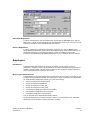
Communications to Timelink unit failed!
TORUS can't send messages to the Timelink unit. This could be that the COM port
was wrongly set up. Check Baud rate, parity, data bits etc. Use the System Menu
then select the COM Port option to set them up. Check they are the same on the
Timelink unit.
Download Data corrupted. Process Abandoned!
TORUS detects illegal data in the time information downloaded. Try to download data
again and the problem may not occur.
Wrong Password!
This message is shown if you typed in your password wrongly. Try again.
Product Support
Technical support should be sought initially from your supplier but may be obtained ultimately
from Torus Software Systems: UK Tel-0115 939 1204 Fax-0115 939 1201.
When you call, you should be at your computer with TORUS running and this User's Guide at
hand. Have your document open and be prepared to give the following information:
1. The Serial Number of the TORUS system.
2. The type of hardware that you are using, including network hardware, printer and modem.
3. The exact wording of any messages that appeared on your screen.
4. What happened and what you were doing when the problem occurred.
Version 7
36
TORUS for Windows User’s Guide
TCS-UG-T7-2