1
Preferences – A Quick Check for Matching Default Settings
Before we continue, let's take a quick detour to the Preferences screen to check the software's default growth
rates, account fees and calculation settings.
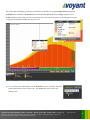
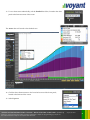
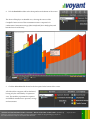
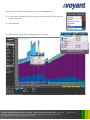
At various times during this tutorial, we will be checking our progress in the Let's See charts. If you want to
compare the numbers in your client case against those presented in the guide, it's a good idea to first verify that
the default preferences in your version of the software match those that were used when this guide was written.
3.
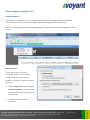
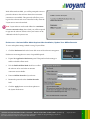
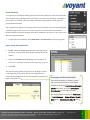
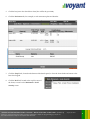
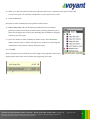
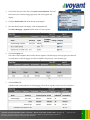
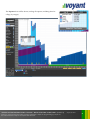
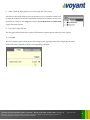
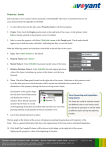
Click the Preferences link in the lower-left corner of the screen, in the left navigation.
4.
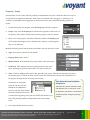
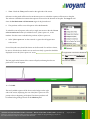
Go to the Plan Preferences on the right side of the screen. Preferences are arranged
into a series of expandable panels.
5.
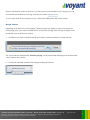
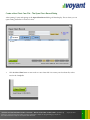
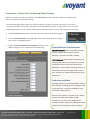
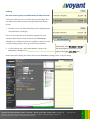
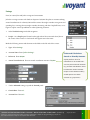
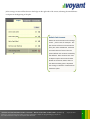
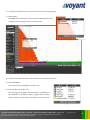
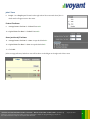
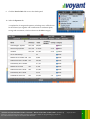
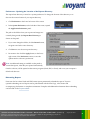
Expand the Default Inflation/Growth Rates panel and verify
that the settings on your computer match the following.
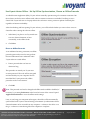
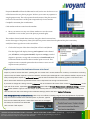
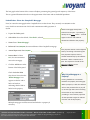
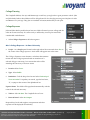
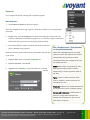
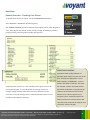
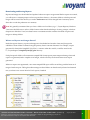
System Preferences, Plan Preferences
System Preferences (left) are the default settings
that the software will use from the outset,
whenever a new client case file is created.
Plan Preferences (right) show the settings that are
being applied to the plan currently in view. These
preferences are plan specific and could be set
differently in various what-if planning scenarios. If
the defaults need to be changed within a client's
plan, be certain to make these updates in the Plan
Preferences.
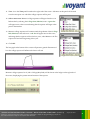
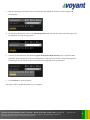
Preferences are Defaults
Although preferences provide the defaults, many of
these settings, including growth and inflation rates
and account fees, can still be modified for items
individually, within the plan.
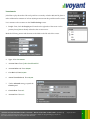
Expenses, for example, are grown using a default
inflation rate taken initially from the Plan
Preferences. This rate can be changed for an
individual expense, however, by editing the default
inflation rate on the Expense screen's Inflation
VOYANT ADVISOR INTRODUCTORY TUTORIAL – BUILD YOUR FIRST CLIENT CASE
(Tutorial 1)
Voyant, Inc. proprietary information which is privileged, confidential, or subject to copyright belonging to Voyant, Inc.
Use of this information is solely for the recipient of this document.
Voyant, Inc. 2011
17