1
AudaEnterprise Gold User Guide
NOTE: In step 1, if after opening the assessment you authorised it and subsequently amended the repair
details, and the calculation value no longer matches the authorised value, you are given the
option to:
• Continue with the send. The values in the authorisation mail will be updated with the current
calculation value.
or
• Cancel the send. The Assessment Job Log is displayed. You can either re-authorise the
assessment or delete the existing authorisation mail.
4.11 Closing an assessment without sending
To close an assessment without sending
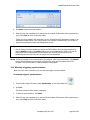
1. To close an assessment without sending it, from the Assessment Job Log toolbar, click
.
You are given the option to save or discard changes to the assessment.
2. Select Yes or No.
Selecting No means that any changes to Local Notes and Mails will be discarded but any new
images are kept. The Main Index is displayed. If you have created a mail or entered a Salvage
Category of A,B,C,D,X or Z in the assessment or the Engineer’s Salvage Message, you are not
given the option to discard any changes. The assessment is always saved and the Main Index
displayed.
NOTE: If, after opening the assessment you authorised it and subsequently amended the repair details,
and the calculation value no longer matches the authorised value, you are given the option to:
• Continue closing the assessment. The values in the authorisation mail are updated with the
current calculation value.
or
• Cancel. The Assessment Job Log is displayed. You can either re-authorise the assessment or
delete the existing authorisation mail.
4.12 Completing an assessment
When you have finished working on an assessment and no longer need to see it displayed on your
Main Index, we recommended you mark the assessment as ‘complete’. This is to keep the number
of assessments in your folders manageable, both for you and for the performance of
AudaEnterprise. If a large number of assessments build up in a folder, the folder will take longer to
open or refresh.
Completed assessments remain on the AudaEnterprise server, so you can still search for and reopen
them. For further information about searching, see Searching for an Assessment on page 26.
In the event that a completed assessment receives an update, the assessment will automatically be
reopened and redisplayed in your Main Index.
©Audatex (UK) Ltd, 2007
Page 21 of 46