1
Ctrack Online User Guide
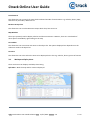
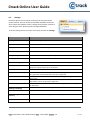
Option: Map
Explanation
Map info display
Choose what information is displayed on the vehicle flag in the map
(standard, detail, skillset)
Allows you to change the way vehicle flags are displayed on the map
Status flag detail
Default zoom level
Default Latitude
Default Longitude
Show all vehicles on map
Show all POIs on map
Show all tasks on map
Show OSGB36 (UK OS grid) on
map
This shows the zoom level at start up for the map and is defined by the default map
view you set
This shows default Latitude at start up for the map and is defined by the default
map view you set
This shows default Longitude at start up for the map and is defined by the default
map view you set
Tick the checkbox if you want your vehicles to be displayed on the map when you
login
Tick the checkbox if you want your POIs to be displayed on the map when you login
Tick the checkbox if you vehicles have cCom units fitted and you want to display all
tasks on the map when you login
Tick the checkbox if you want to OS grid to display on the map
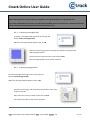
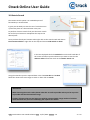
When you have made your changes please remember to click on Save in the top left corner of the screen.
You will then see a message asking you if you wish to reload the workspace now. Click Yes to see your
changes now or No if you want them to be applied next time you login
5. Displaying vehicles on the map
5.1.
Displaying all vehicles
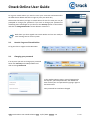
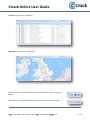
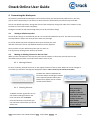
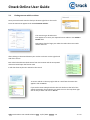
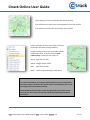
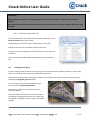
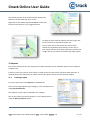
To show all of the vehicles on the map at the
same time click on Vehicles on the map toolbar
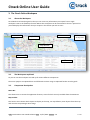
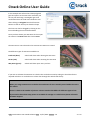
If a blue, yellow or red circle is shown this
indicates there are multiple vehicles in the
area. If you click on the circle it will zoom the
map in to show you the vehicles
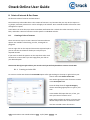
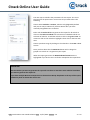
To remove the vehicles from the map click
again on Vehicles on the map tool bar
IMPORTANT!
Please remember that when you click on Vehicles on the map toolbar it will display
the vehicles shown in the list view. If the vehicles you require are not shown on the
map then check that you have the correct business group selected by looking in the
Business Group Filter in the top right hand corner of the screen
Title: Ctrack Online User Guide Online2 Date: 27/11/2014 Version: 1.0
10 of 26