1
Ctrack Online User Guide
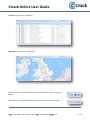
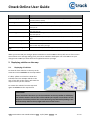
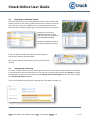
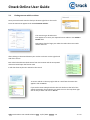
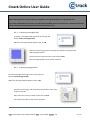
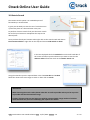
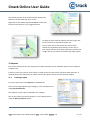
To see all of the Geo Zones that have been created click on the Geo Zones
tab in the List View
Double clicking on a Geo Zone will display it on the map
Clicking on the red cross will delete the Geo Zone
Clicking on the pencil symbol on the far left will let you edit the Geo Zone
The filter field below name can be used to search for a particular Geo Zone
name
IMPORTANT
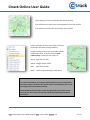
If a Geo Zone does not have a red cross to the left of it this means that it assigned to a vehicle or
vehicles and therefore cannot be deleted
The Geo Zone will have to be unassigned first by using the Edit facility to untick the box to the left
of the vehicle registration, After this has been done the Geo Zone can be deleted
9. Contacts
Although you may be a user within Online that does not mean that you may be a Contact
In order for you to receive an alert for a Geo Zone, as discussed in the previous section, you need to be
created as a Contact. The same also applies for emailed reports, in order to receive them you must be
created as a contact
9.1.
Creating a Contact
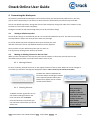
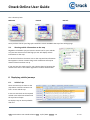
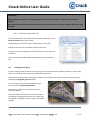
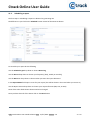
To create a Contact on the Menu bar hover over Setup then click on Contacts
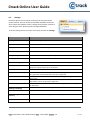
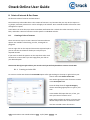
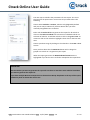
Once the Contacts box has opened up click on Add, the Add Contact
window is now shown
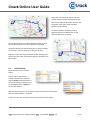
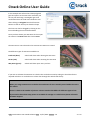
The fields you must fill in are, Name, Cell Number and Email. You
must also select the correct Time Zone from the drop down
All number must be put in with the international prefix
Once all has been completed click on Save then Close
Title: Ctrack Online User Guide Online2 Date: 27/11/2014 Version: 1.0
21 of 26