1
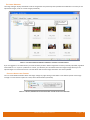
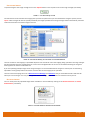
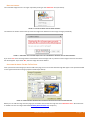
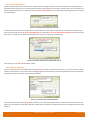
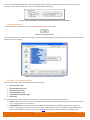
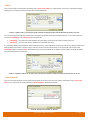
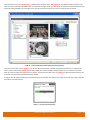
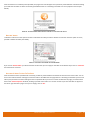
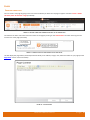
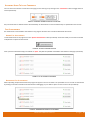
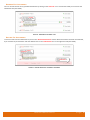
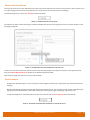
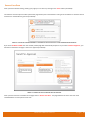
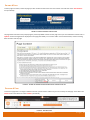
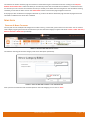
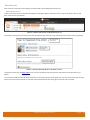
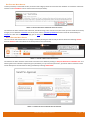
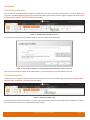
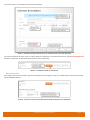
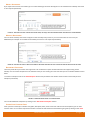
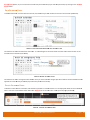
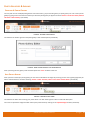
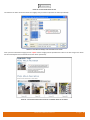
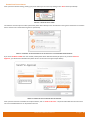
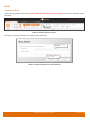
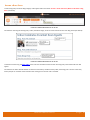
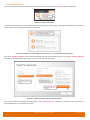
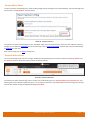
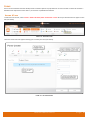
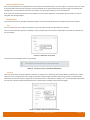
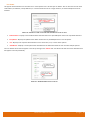
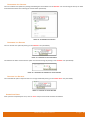
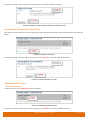
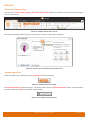
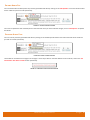
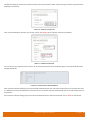
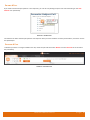
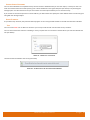
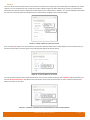
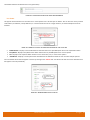
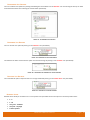
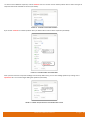
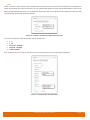
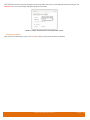
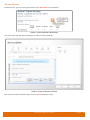
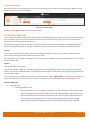
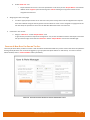
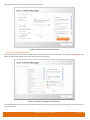
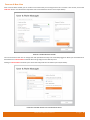
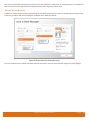
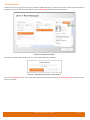
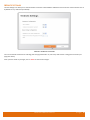
This will then allow you to enter the question that the end user will need to answer and also the type of list the responses will be displayed in (see below). FIGURE 152 – ADDING A POLL QUESTION Once you have added your question you can then click on the ‘Values’ tab to enter the responses (see below). FIGURE 153 ‐ ADDING POLL RESPONSES You can add as many responses as you need to. As you add responses they will automatically appear on the left hand side of the window (see below). FIGURE 154 ‐ THE RESULTED POLL PREVIEW WINDOW Once you have finished creating your poll you will need to decide how the user responses will be saved. You can either save them to a database so they can be exported at a later date or you can get the responses automatically sent to an email address that can be specified. Once you have finished creating your poll and you have decided how the results will be stored, click on ‘Save’ to save the poll. e4education CMS User Guide 4.0 P a g e | 69