1
2 | How to change your print job settings
1
l
l2
l3
l4
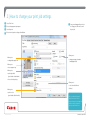
Select File & Print.
Choose the appropriate print queue.
Select Properties.
l5
Once you are happy with your choice
of settings, press OK twice to send
the print job.
Choose from the printer settings outlined below.
Allows you to:
• enlarge/reduce paper size
Allows you to:
• change your page orientation
(landscape/portrait)
Allows you to:
• choose a paper tray
Allows you to:
• print single-sided
(your default is double-sided)
• choose booklet printing
Allows you to:
Allows you to:
• select from the different
collation/
• print in colour
(your default is black & white)
NB. If you have a hole punch
unit you can access the hole
punch facility on the Finishing tab
and choose which hole punch
option you would like to use.
©COPYRIGHT OF CANON UK LTD