1
4 | How to copy
l
l2
1
l3
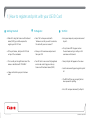
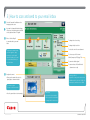
Select ‘Use Copier’ option once logged on to
a Canon MFD.
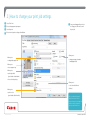
If you wish to change the default settings,
choose from the copying options outlined.
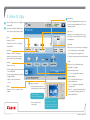
Enter quantity.
Specify the copy quantity with the numeric keys.
If you enter a wrong number press the ‘C’ key to
clear and start again.
Paper Source
Allows you to choose the paper source to copy
from. If Auto is selected, the device will select the
most appropriate.
Colour
Allows you to choose:
• Auto Colour Select for colour copying
Original Type
• Black & White
Allows you to choose from a mixture of image types:
Copy Ratio
• Photo if making copies from photographs
Allows you to reduce or enlarge your
document. You may choose from preset
options or dial in your own percentage.
• Text if making copies from typed sheets
• Text/photo if making copies from mixed documents
2-Sided
Finishing
Allows you to choose double-sided copy
(single-sided is the default).
Allows you to choose:
• Collate to have your documents produced
in sets (ABC) (ABC)
Double-sided options include:
• Group to have your documents produced
by pages (AA) (BB)
• 1 to 2 – to copy single-sided originals to
double-sided copies
• Staple to collate your documents
into sets
• 2 to 2 – to make an identical copy of a
double-sided document
Density
Allows you set to Auto or adjust to lighter
or darker.
4
l
Copy your document.
• Place your document either onto
the platen glass or document feeder
Face down on glass
Face up on document feeder
• 2 to 1 – to copy a double-sided original
to separate sheets
• Book to 2 – to copy the left and right sides of
a ‘book’ placed on the platen glass onto a
double-sided document
Main Menu
• Press the green button to
start copying
If you wish to choose another
function, press the home button
to navigate back to main menu
©COPYRIGHT OF CANON UK LTD