1
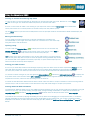
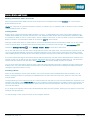
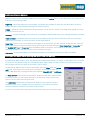
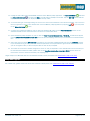
Using the Adventurer 3000 with Memory-Map on your PC Connecting the GPS to Memory-Map on your PC Unlike PDA’s, Garmin or other GPS units the Adventurer 3000 is seen by your PC as a removable drive. This means in MemoryMap you do not interact with the device using the options under the GPS or Mobile Device menu. Overlays and Maps can be sent to the device using the steps in the following sections. Transferring routes, marks and tracks to the Adventurer 3000 Routes, marks or tracks can be transferred from Memory-Map software on your PC to the Adventurer 3000 by following the steps below: 1. Exit the Memory-Map application on the ADV3000 if it is running by tapping Exit ( ) (you may need to tap Extended Menu ( ) first) and then connect your Adventurer 3000 to your PC with the supplied USB cable. Tap the Press to Connect button on the Adventurer 3000 screen and it will connect to the PC as a removable drive. 2. In Memory-Map on your PC, right-click on the route, track or mark you want to send to the Adventurer and left-click the Save As… option. 3. In the Save As window choose the Removable Drive that contains the MicroSD card inside the unit. It can be easily identified as it will contain a number of Memory-Map folders and a Userdata folder as shown below: Double-click on the Userdata folder and give the file a name so that you can recognise it on the device and then click Save. 4. Safely remove the ADV3000 from your PC by right-clicking on the drive in Computer and selecting Eject from the menu. If you are using Windows XP you will need to use the Safely Remove Hardware option in the system tray to remove the device. 5. Unplug the USB cable from the ADV3000 and then launch Memory-Map application. Tap Extended Menu ( ) followed by Settings & Overlays ( ) and then tap Overlay > Open. A list of files will be displayed, select the file you just saved and your route, mark or track should now be displayed on the screen on top of the map. If you cannot see the file that you saved then please ensure that you have saved it in a supported file type; the Adventurer 3000 supports the following overlay file types: GPS eXchange files (.gpx) Memory-Map Overlay files (.mmo) If you have a route, mark or track that uses a different file type then you will need to import it into the Memory-Map software on your PC and then save it as one of the file types listed above. ADV3000 User Guide v1.3 Page 11 of 16