1
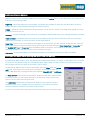
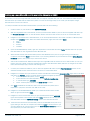
5. In the Browse for Folder window navigate to the Adventurer removable drive. It can be easily identified as it will contain a number of Memory-Map folders and a Userdata folder. Double-click the Maps folder to select it and then click OK to send the map to the device. 6. A License Management window may appear stating that the mapping/resource requires online activation, click Activate… 7. An Activation window will then appear (as pictured) prompting you to use your mobile device sqkm to activate that particular area of mapping on the device: If you are happy with the amount of sqkm the system is quoting and have sufficient sqkm credit then click the Activate button. If it is more sqkm than you were expecting or you don’t have enough sqkm credit then you can click the Cancel button to abort the activation process. This will then allow you to adjust your enclosed area and follow steps 3-6 again. 8. Safely remove the ADV3000 from your PC by right-clicking on the drive in Computer and selecting Eject from the menu. If you are using Windows XP you will need to use the Safely Remove Hardware option in the system tray to remove the device. 9. Unplug the USB cable from the ADV3000 and then launch the Memory-Map application. Tap Extended Menu ( followed by Settings & Overlays ( ) ) and then tap Map… this will load up the Map List window. 10. Tap the Refresh button to refresh the map list and then select either the OS 1:1m Route Planner or OS 1:250k Road Atlas map. 11. Move the map to the area covered by the Digital Map Shop map you just sent. Tap the Map List ( ) icon and then select the relevant map from the list. Your Digital Map Shop map will now be displayed on the screen. ADV3000 User Guide v1.3 Page 14 of 16