1
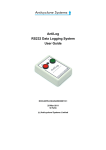
AntiLog
RS232 Data Logging System
User Guide
DOC/ANTILOG/UG/2003001/4.0e
17-Sep-2007
G Hatto
(c) Anticyclone Systems Limited
DOC/AntiLog/UG/2003001_4.0e
Page 1 of 71
Copyright (c) Anticyclone Systems Ltd, 2007.
All rights reserved.
No reproduction in any form of this publication, in whole or in part
(except for brief quotation in critical articles or reviews),
may be made without prior written authorisation from
Anticyclone Systems Ltd.
Anticyclone Systems Ltd reserves the right to make changes
in the product design without reservation and without notification to its users.
www.anticyclone.co.uk
Disposal of your old product
AntiLog hardware is constructed from high quality materials and components, which can
be recycled and reused. This product is covered by the European Directive 2002/96/EC.
Please inform yourself about the local separate collection system for electrical and
electronic products. Please act according to your local rules and do not dispose of your
AntiLog product with your normal household waste.
DOC/AntiLog/UG/2003001_4.0e
Page 2 of 71
Table of Contents
1. Introduction................................................................................................................................................. 7
1.1 Example Application.............................................................................................................................. 7
2. Important Information................................................................................................................................. 8
2.1 User Guide Applicability........................................................................................................................ 8
2.2 Intended Use......................................................................................................................................... 8
2.3 Safety.................................................................................................................................................... 8
2.4 Maintenance......................................................................................................................................... 8
2.5 Recording Considerations..................................................................................................................... 8
2.6 Playback Considerations....................................................................................................................... 8
2.7 Battery Life............................................................................................................................................ 9
2.8 AntiLog Customer Options.................................................................................................................... 9
3. Quick Start Guide ..................................................................................................................................... 9
4. Getting Started.......................................................................................................................................... 10
4.1 The 'On' and 'Off' Buttons................................................................................................................... 10
4.2 Fitting an Internal Battery.................................................................................................................... 11
4.3 Supplying External Power................................................................................................................... 11
4.4 Switching On for the First Time........................................................................................................... 12
5. Basic Operation......................................................................................................................................... 12
5.1 Recording Channels............................................................................................................................ 12
5.2 Single Serial Port Mode....................................................................................................................... 12
5.2.1 Half duplex bus snooping............................................................................................................ 13
5.3 Dual Serial Port Mode......................................................................................................................... 14
5.3.1 Dual serial port on the OEM product........................................................................................... 14
5.3.2 Full duplex bus snooping............................................................................................................. 15
5.4 The Recording Mode........................................................................................................................... 15
5.4.1 Terminating a recording session................................................................................................. 15
5.5 Playback Mode.................................................................................................................................... 16
5.5.1 Playback connections................................................................................................................. 16
5.6 Turning Your Unit Off.......................................................................................................................... 17
5.7 User Equipment Commands............................................................................................................... 17
5.8 Digital Bit State Logging...................................................................................................................... 17
5.9 Playback and Menu Port Reset ........................................................................................................ 18
5.10 Erasing Stored Data.......................................................................................................................... 19
5.11 AntiLog Date and Time..................................................................................................................... 19
5.12 Automated Data Recovery................................................................................................................ 20
5.13 Media Compatibility........................................................................................................................... 20
6. The Playback Menu System..................................................................................................................... 20
6.1 Menu System for Dual Serial Port Use................................................................................................ 22
6.2 Main Menu Detailed Discussion.......................................................................................................... 22
7. General Options Menu.............................................................................................................................. 22
7.1 System Time and Date Options.......................................................................................................... 23
7.1.1 Date and time transfers to other units......................................................................................... 24
7.2 Menu System Port Settings................................................................................................................. 25
DOC/AntiLog/UG/2003001_4.0e
Page 3 of 71
7.3 Menu Quiet......................................................................................................................................... 25
7.4 Enabling the Dual Serial Port Mode.................................................................................................... 25
7.5 Two Button Erase................................................................................................................................ 26
7.6 Power Saving Mode............................................................................................................................ 26
7.7 Media Data Recovery......................................................................................................................... 26
7.8 AntiLog Software Upgrades................................................................................................................ 27
7.9 Restoring Factory Defaults.................................................................................................................. 27
7.10 User Option Management................................................................................................................. 28
7.10.1 Saving a set of user options...................................................................................................... 28
7.10.2 Loading a set of user options.................................................................................................... 29
7.10.3 Erasing a set of user options..................................................................................................... 29
7.10.4 Resetting all user options.......................................................................................................... 30
8. Locking User Options............................................................................................................................... 30
9. Battery Check............................................................................................................................................ 31
10. Shut Down Menu..................................................................................................................................... 32
11. Recording Options Menu....................................................................................................................... 32
11.1 Dual Channel Data Logging.............................................................................................................. 33
11.2 User Equipment Command Management........................................................................................ 33
11.2.1 Defining User Equipment Commands....................................................................................... 33
11.2.2 Defining User Equipment Commands as Hexadecimal............................................................. 34
11.2.3 Viewing the current user command definition............................................................................ 36
11.3 Configuring a Serial Port for Record.................................................................................................. 36
11.4 Recording All Data............................................................................................................................ 37
11.5 Filtering GPS NMEA messages........................................................................................................ 37
11.6 Sub Sampling ASCII Line Data......................................................................................................... 38
11.7 Time Stamping Recorded Data......................................................................................................... 39
11.7.1 ASCII line time stamping........................................................................................................... 40
11.7.2 8 bit line time stamping............................................................................................................. 40
11.7.3 'N' byte binary time stamping.................................................................................................... 40
11.7.4 Specifying date and time for $EVENT message....................................................................... 41
11.8 Defining the End Of Line Character................................................................................................... 41
11.9 Defining the 'On' and 'Off' button functions for record....................................................................... 42
11.9.1 Logging Button Events.............................................................................................................. 43
11.9.2 Logging Digital Bit State on a button push................................................................................. 43
11.9.3 Sending User Commands on a button push.............................................................................. 43
11.10 Polled User Equipment Commands and Functions......................................................................... 44
11.10.1 Defining the polling period....................................................................................................... 45
11.10.2 Logging Digital Bit State at the polling rate ............................................................................. 45
11.11 Controlling Front Panel LEDs for Record........................................................................................ 45
11.12 Erasing Recorded Data................................................................................................................... 46
11.13 Entering Record Mode from the Menu System................................................................................ 46
12. Playback Options Menu.......................................................................................................................... 46
12.1 Serial Port Configuration for Playback............................................................................................... 47
12.2 Raw Playback................................................................................................................................... 48
12.3 Real Time Playback.......................................................................................................................... 48
12.4 Hexadecimal Playback Dump .......................................................................................................... 49
12.4.1 Hexadecimal playback with time stamps................................................................................... 50
12.5 Line Triggered Playback.................................................................................................................... 50
12.6 Session Headers............................................................................................................................... 50
12.7 Time Stamp Playback....................................................................................................................... 51
12.7.1 Inserting the Channel Number in the playback Stream............................................................. 52
12.8 Controlling the Front Panel LEDs for Playback................................................................................. 52
DOC/AntiLog/UG/2003001_4.0e
Page 4 of 71
13. The About Menu...................................................................................................................................... 53
13.1 Port Settings Overview...................................................................................................................... 53
13.1.1 Recording port settings............................................................................................................. 54
13.1.2 Playback port settings............................................................................................................... 54
13.1.3 Menu Port Settings.................................................................................................................... 55
14. Baud Rate Selections............................................................................................................................. 55
14.1 Baud Rate Menu Examples............................................................................................................... 55
15. The AntiLog Data Transfer protocol...................................................................................................... 57
16. RTC Backup Battery .............................................................................................................................. 57
17. Problem Solving...................................................................................................................................... 58
17.1 General Problems............................................................................................................................. 58
17.1.1 AntiLog will not switch on.......................................................................................................... 58
17.1.2 I can't see the terminal menu in playback mode........................................................................ 59
17.1.3 I see a single red or green flash at start up but nothing else..................................................... 59
17.1.4 My PC says it wants to install new drivers when I boot up......................................................... 59
17.1.5 The unit won't respond to either the 'On' or 'Off' button............................................................. 59
17.1.6 The last digit of the current date and time in main menu acts strangely.................................... 60
17.2 Recording Problems ........................................................................................................................ 60
17.2.1 The data I logged appears corrupted........................................................................................ 60
17.2.2 I see three or four flashing red LEDs in recording mode .......................................................... 60
17.2.3 I see five flashing red LEDs in recording mode ........................................................................ 61
17.3 Playback Problems........................................................................................................................... 61
17.3.1 The output 'breaks up' on my terminal screen during playback. .............................................. 61
17.3.2 I can't stop the playback once it has started.............................................................................. 61
17.3.3 I have started playback but nothing is coming out..................................................................... 61
18. Abbreviations.......................................................................................................................................... 62
19. Appendix A – Standard Feature Set....................................................................................................... 63
19.1 AntiLog Standard Feature Set........................................................................................................... 63
19.1.1 General features....................................................................................................................... 63
19.1.2 Recording features.................................................................................................................... 63
19.1.3 Playback Features.................................................................................................................... 63
19.1.4 Configuration features............................................................................................................... 63
19.2 Feature Set for Hardware REV C and Later...................................................................................... 64
19.3 Feature Set for Hardware REV E and Later...................................................................................... 64
19.4 Feature Set for Hardware REV F and Later...................................................................................... 64
20. Appendix B – Option Packs................................................................................................................... 65
20.1 Option Pack Codes........................................................................................................................... 65
20.2 Software Options............................................................................................................................... 65
20.2.1 'D' Option – Force Dual Serial Port Operation........................................................................... 65
20.2.2 'L' Option – Menu Port lock....................................................................................................... 65
20.2.3 'M' Option – ICD-GPS-15x........................................................................................................ 66
20.2.4 'N' Option – NOLOG.................................................................................................................. 66
20.2.5 'X' Option – Extended Playback 'On' delay................................................................................ 67
20.3 Hardware Options............................................................................................................................. 67
20.3.1 'P' Option – Forced Power......................................................................................................... 67
20.3.2 'R' Option – OEM Real Time Clock........................................................................................... 67
20.3.3 '[R]' Option – External Real Time Clock.................................................................................... 67
21. Appendix C – RS232 Connections......................................................................................................... 68
21.1 DC Power.......................................................................................................................................... 68
21.2 Dual Serial Port Cable....................................................................................................................... 68
22. Appendix D – LED Flash Codes............................................................................................................. 69
22.1 Recording Errors............................................................................................................................... 69
22.2 Recording Modes.............................................................................................................................. 69
22.3 Playback Modes................................................................................................................................ 70
DOC/AntiLog/UG/2003001_4.0e
Page 5 of 71
22.4 Playback Error Codes.......................................................................................................................
22.5 LEDs During Media Data Recovery...................................................................................................
23. Appendix E – Equipment Specifications...............................................................................................
23.1 Absolute Maximum Parameters........................................................................................................
23.2 Normal Operation..............................................................................................................................
70
70
71
71
71
Index of Figures
Figure 1: Battery access..................................................................................................................................
Figure 2: Single port recording configuration ..................................................................................................
Figure 3: Single port playback configuration....................................................................................................
Figure 4: Example of single port bus snooping...............................................................................................
Figure 5: Recording from two data sources simultaneously............................................................................
Figure 6: Example dual serial port configuration.............................................................................................
Figure 7: Example of dual port bus snooping..................................................................................................
Figure 8: Playback configuration.....................................................................................................................
Figure 9: Dual serial port playback..................................................................................................................
Figure 10: Dual serial port cable wiring...........................................................................................................
DOC/AntiLog/UG/2003001_4.0e
11
12
13
13
14
14
15
17
17
69
Page 6 of 71
1. Introduction
AntiLog is a very effective way to log RS232 data from a vast range of products including
GPS navigation receivers, laboratory equipment, process control systems and serial output
from application programs. It can operate stand alone with its own PP3 battery, or it can be
fed with an external DC power source for extended operation.
The design goal was to establish an incredibly simple to operate data logging system that only
required two panel mounted buttons - 'On' and 'Off'. Even though AntiLog is simple to
operate, there is no compromise on its capabilities. The embedded microcontroller in the
product is able to perform full speed real time capture of RS232 data without any hold off
(e.g. flow control) which could, for example, upset the timing of equipment under
investigation.
The key to the success of AntiLog lies in the ability to configure the system before trials or
other recording sessions take place. AntiLog units are configured for operation using an
interactive menu system. The menu system is operated by a standard RS232 terminal
application connected to the AntiLog serial port. All user options and recorded data are stored
in non-volatile memory so flat batteries or battery changes have no effect on the selected
options or on any previously recorded data.
New in V4.0 is the ability to log two independent serial port data streams at the same time on
supported hardware. This is a very powerful feature which can be likened to having two V3
single channel AntiLog units in one box. As an example, with dual serial port logging, you
are now able to monitor RS232 data in both directions on an existing full duplex RS232 link,
even if the two data paths have different baud rates and port settings.
The default user options shipped with AntiLog will almost certainly need changing to suit
your recording and playback needs. To simplify unit configuration, you are able to group
together and store up to four named sets of user options so that you can later recall these in
one go for different sets of trials you may be involved in.
1.1 Example Application
As an example, you could use AntiLog to test GPS navigation receiver application software
on a PC in a repeatable way. To do this, you would use the AntiLog terminal menu system to
configure the record and playback baud rates to be the same as the GPS receiver being used.
Next, you would configure AntiLog for NMEA real time playback. You would then record
the NMEA output from a real receiver for a representative period of time and switch the unit
off.
Next, you would connect the AntiLog unit to the PC using a NULL modem cable and press
and hold the 'On' button so that the unit powers up in playback mode. You can then stop and
start the playback of the recorded data using 'On' and 'Off' button presses or even restart from
the beginning of the log data at any time just by pressing the 'On' button.
Note that in this example, once the terminal menu system has been used to configure AntiLog,
no further contact with a host machine is required. Simply use the unit with the 'On' and 'Off'
buttons to conduct data logging and playback sessions.
DOC/AntiLog/UG/2003001_4.0e
Page 7 of 71
2. Important Information
2.1 User Guide Applicability
This manual refers to the AntiLog product from Anticyclone Systems Ltd running release
V4.0e of the embedded software and all hardware release revisions up to and including REV
F. The embedded software release version number and hardware revision codes can be
determined from the playback terminal menu system described in section 13 of this document.
Separate supplement guides are available for the OEM versions of the product and for the
additional option packs which extend AntiLog capability for specific users. For more details,
see section 20.
AntiLog V4.0 embedded software is available for all existing AntiLog hardware revisions.
Note that some of the earlier AntiLog hardware may not be able to support some of the latest
features (for example, not all older hardware supports the new dual serial port feature).
2.2 Intended Use
AntiLog is intended exclusively for use as a low voltage RS232 data recording and playback
system. Anticyclone Systems Ltd is not liable for any damage resulting from improper use.
2.3 Safety
Avoid exposure to extreme humidity (e.g. do not spray or submerge in water).
Never apply more than 18.0V to the DC supply input to avoid damage and always ensure
mains power adapters are safe, correctly insulated and correctly earthed before use.
• Ensure the equipment to be connected to your AntiLog unit is correctly earthed and does
not apply power in any form to the RS232 signal connections.
• Do not expose the AntiLog enclosure to any solvents.
• Do not store or operate this product within the reach of children – this product is not a toy!
2.4 Maintenance
Clean boxed AntiLog units with a dry cotton cloth which should be slightly moistened in case
of heavy staining. Never use cleaning agents which contain solvents.
2.5 Recording Considerations
Always select the correct RS232 baud rate and the correct number of RS232 data bits for data
recording. Any data collected using AntiLog where there is a difference between the
recording baud rates and/or the number of data bits per character may result in severely
corrupted or lost data. In common with any other RS232 data recording system, it is not
normally possible to recover any information from data recorded at the wrong baud rate or
data recorded with the wrong number of RS232 data bits per character.
2.6 Playback Considerations
The playback baud rates are completely independent of the baud rates you used to record the
data. You may select any combination of baud rate and RS232 bits per character which suite
your needs. However, If you attempt to use a terminal program to view the AntiLog playback
menu system you may see nothing if the terminal baud rate and/or data bit selection is
different to the currently set AntiLog menu baud rate. Section 5.9 describes how to reset the
menu port settings if this happens. Additionally, if you have hardware that supports the Dual
DOC/AntiLog/UG/2003001_4.0e
Page 8 of 71
Serial Port feature, playback and/or the menu system may be assigned to different hardware
serial ports and so output may not be seen on the primary port.
Also note that if you choose to playback data with less RS232 bits per data character than the
recorded data format, data corruption may occur if any of the output bytes don't fit into the bits
specified. The safest policy is to leave the number of RS232 bits per character set to eight for
playback and for the menu system unless your host equipment requires other settings.
2.7 Battery Life
If you are running from an internal battery, always use a new one when recording important
trials data. To maintain the life of the battery, it is recommended that it is disconnected
completely from the system if AntiLog is not to be used for more than a week or so. This is
because AntiLog supports active power management which means that there is a very small
current drain on the battery when AntiLog is switched off. Over extended periods of time,
this standby current will effect the total charge remaining in a given battery. Use the battery
check feature at the main playback terminal menu to ensure the battery is in good condition.
If you do not need to transmit to your unit in record mode (e.g. you are not transmitting
polling or other equipment initialisation requests) then you can save power by not physically
connecting the transmit pin from AntiLog. This power saving tip works because AntiLog
must drive the fixed load in the equipment if this connection is made which will consume a
small amount of power.
When AntiLog is idle, it will consume less power starting with V4.0. Typically, AntiLog can
reduce the running power consumption by 25% compared to V3.x when idle. If your data
source has data gaps (such as with GPS NMEA sentence transmission) then you will observe
lower power consumption compared to V3.x units and hence increased battery life.
For AntiLog boxed units fitted with the Real Time Clock (RTC) feature (hardware REV F and
above and RTC upgrades), there is an internal RTC backup battery fitted to the upper PCB
card mounted on the lid section which may need replacing after several years use. A warning
will be displayed via the terminal menu system if an RTC power failure has been detected.
Replacing this battery will require screwdriver access to remove the lid assembly.
2.8 AntiLog Customer Options
The standard hardware and embedded software provide a core level of functionality that is
designed to meet the vast majority of customer data logging needs. Section 19 gives a
complete list of features that apply to the various existing hardware revisions.
For specific customers, extra software and hardware options are available in the form of
option packs. Option packs simply extend the capability of the standard AntiLog product.
For example, the 'M' option pack provides effective logging of serial data from Military or
Government GPS receivers. See section 20 for a summary of the option packs available.
3. Quick Start Guide
When you first receive your AntiLog unit, you will want to check that it functions. You may
also want to change the settings from the factory defaults. The following very top level
description will allow you to connect AntiLog to a PC, power it up for the first time, turn it
DOC/AntiLog/UG/2003001_4.0e
Page 9 of 71
off, turn it back on in record mode and turn it off again. For more details on all of these
actions, see the rest of the user guide.
• Connect a NULL modem 9 way D cable (Supplied with boxed AntiLog) between the
AntiLog unit and a PC.
• Configure a terminal program of your choice (such as Microsoft Hyperterminal) on the PC
to 115200 baud, 8 bits, no parity, handshaking set to none.
• Fit battery to AntiLog or connect a regulated 4.5V to 18V (maximum) to the DC power
jack, centre pin +ve.
• Switch on AntiLog in playback mode by holding down the 'On' button until the LED lights
green then release.
• Terminal should now show the main menu (use terminal space bar to refresh the display).
AntiLog V4.0e, Serial number ASL/16/001, 07-Jul-2007 21:30:53.042
(0 bytes recorded, 0% of 1040892928)
(PLAYBACK mode. Data transfer and 'On' button aware)
<S>
<R>
<P>
<G>
<L>
<B>
<A>
<U>
?
Start playback now (or use 'On' button)
Recording options
Playback options
General options
Lock user options
Battery check
About AntiLog
Shut down
• Use terminal keyboard input to select sub menus and change AntiLog settings.
• To turn AntiLog off, hold the 'Off' button down for more than 1 second. You should see
both LED colours flash briefly to confirm power down, then release.
• To turn AntiLog on in record mode, simply press the 'On' button for a short period (i.e. less
than 1.75 seconds), LED will flash red. Note that LED will flash red followed by a number
of green (and/or yellow) flashes to show you AntiLog is writing data to FLASH store in
record mode.
• To turn AntiLog off again, hold 'Off' button down for more than 1 second, wait for LED
confirmation, then release.
4. Getting Started
4.1 The 'On' and 'Off' Buttons
There are two push buttons and a single bi-coloured, high intensity LED mounted on the front
panel of the boxed unit. The buttons are sensitive to the amount of time they are held down to
allow the unit to operate in different ways (e.g. to start the recording and playback modes).
The green push button labelled 'On' is used to switch the unit on and
the red push button labelled 'Off' is used to switch the unit off.
The buttons can also be used when AntiLog is already powered on to
perform other functions. For example, the 'On' button can be used to
start the playback of recorded data or log events and send selected
user commands to connected equipment in record mode. The 'Off'
DOC/AntiLog/UG/2003001_4.0e
Page 10 of 71
button can stop data playback and can also be used in the record mode for selected event
recording and user command output.
All that is required to get AntiLog working is a power source and an RS232 data cable
connection. The main power source can be a PP3 battery fitted internally, or an external
source plugged into the external DC power connector.
4.2 Fitting an Internal Battery
To fit a new PP3 battery, remove the battery compartment cover on the back of the AntiLog
enclosure by pressing down on the marked area and sliding the cover back.
Figure 1: Battery access
Fit the PP3 battery to the PP3 flying lead clip inside observing the polarity of the connector.
Note that it is not possible to damage AntiLog by making a connection with the wrong
polarity, the unit will simply not power up when requested. Refit the battery cover.
4.3 Supplying External Power
A 6.5mm DC power jack (2.1 mm inner pin size) can be used to supply DC power to AntiLog.
AntiLog accepts regulated DC power in the range 4.5 to 18V which means for example that
the unit can be fed directly from a 12V car battery source for vehicle trials. NEVER APPLY
MORE THAN 20V ABSOLUTE MAXIMUIM to the DC feed at any time otherwise you may
permanently damage your unit.
Note that AntiLog gets its power either from an internal battery or from the external source. If
an internal battery is fitted then the external power source MUST have a higher voltage than
the terminal voltage of the battery fitted, otherwise the external DC power source will be
ignored and instead, power will be taken from the internal battery. For this reason, it is
recommended that the external DC voltage should be 10V to 18V if an internal PP3 is already
fitted.
Anticyclone Systems Ltd recommend fitting an internal battery if you are supplying an
external power source because if for some reason the external supply of power to the AntiLog
unit is interrupted for a short time (e.g. A car adapter gets knocked or vibrated out of position
during a car trial) then the internal battery power source will automatically take over and cover
for the drop out period.
The external DC power source will never attempt to charge any internally fitted cell. If you do
fit a PP3 rechargeable cell into AntiLog, this is OK, but it must be removed from the unit and
recharged separately when required.
For supplying external power, the centre pin of the external DC power connector must be
positive with respect to the outer barrel to supply power to AntiLog. It is not possible to
damage AntiLog by applying power with the wrong polarity. However, if an internal PP3
DOC/AntiLog/UG/2003001_4.0e
Page 11 of 71
battery is fitted, the power will be taken from this instead of the external source and hence the
system may give the impression of being powered externally, but will stop working when the
internal battery runs out.
4.4 Switching On for the First Time.
Connect you AntiLog unit to a PC using a NULL modem cable (the cable is supplied with the
boxed version of the product). Configure a terminal port application (such as Microsoft
Hyperterminal) to 115200 baud, 8 bits no parity with no flow control.
Press and hold the 'On' button until the green LED lights to enter the playback mode and
release. You have now started AntiLog in the playback mode (LED will flash green) and a
menu will appear on the terminal screen.
5. Basic Operation
5.1 Recording Channels
There are two recording 'channels' built into AntiLog V4.0. If you configure your unit for dual
serial port operation you can think of each channel as being a separate single channel AntiLog
unit. Therefore, each channel can be completely independently configured for use and each
has its own hardware serial port connections. For single serial port operation, all recording
and playback is performed on channel 1. By default, channel 1 is assigned to the primary
serial port and channel 2 is assigned to the secondary serial port hardware but you can choose
to swap them over if you wish using the AntiLog terminal menu system.
Each channel can define its own response to 'On' and 'Off' button pushes whilst in the
recording mode. You can assign equipment user commands and log events from button
pushes during the record mode. Each channel has its own independent polling mechanisms
which can even output messages on the other channel output port if required. You can for
example easily log GPS NMEA sentences on one channel and poll a radio frequency power
meter for readings and record the output on another.
5.2 Single Serial Port Mode
With the standard single serial port configuration you must perform all serial port activities
through the one primary hardware serial port. For example, this means you will need to
disconnect the recording data source from the AntiLog serial port connector to plug in a
NULL modem cable or equivalent for data replay into a host computer such as a PC. You are
also only able to record or play back into a single RS232 connection.
When recording data in single channel mode, AntiLog is designed to look like a PC COM port
so that equipment designed to plug into the serial port of a PC will plug straight into AntiLog
without any need for additional cabling.
RS232 data source.
E.g. GPS receiver.
1:1 RS232 cable
AntiLog
Figure 2: Single port recording configuration
DOC/AntiLog/UG/2003001_4.0e
Page 12 of 71
If the cable connecting the equipment to AntiLog is incorrect or the baud rate specified within
AntiLog does not exactly match that of the source data, then successful recording will not be
possible.
When playing back data in single channel mode, the connection appears as though it is
coming from a PC. To connect AntiLog to a real PC therefore requires a NULL modem cable.
A NULL modem cable crosses over the transmit and receive lines as well as handshake lines
to achieve successful communications. A NULL modem cable is supplied with a boxed
AntiLog unit.
PC, PDA or other
RS232 host
RS232 NULL modem cable
AntiLog
Figure 3: Single port playback configuration
If the cable is not correct, or the host machine (e.g. a PC) is not configured to the baud rate
and data bits which exactly matching the AntiLog settings then successful communication will
not be possible.
If the Dual Serial Port option is not available or it has been deselected, the RTS/CTS line
functionality is available in the playback menu options. If dual serial port mode is enabled,
the RTS/CTS lines become the secondary serial port transmit and receive lines.
5.2.1 Half duplex bus snooping.
In single serial port mode you can 'listen in' to one of the lines on an existing RS232
connection without upsetting the data flow because AntiLog does not require any form of
handshaking to slow down the data source. To listen to a single line on an existing
connection, you need a connection from the primary AntiLog Receive Data (Rx1) line and
ground (GND) to the cable RS232 signal line of interest (normally pin 2 or 3 on the
equipment connector depending on whether you want to listen in to the Transmit or the
Receive line) and Ground. See section 21 for AntiLog connector wiring details.
Transmit
User Equipment 1
Receive
User Equipment 2
Ground
Rx1
Gnd
AntiLog
Figure 4: Example of single port bus snooping
A half duplex bus snooping adapter cable is available from your local AntiLog supplier if you
do not want to construct a cable for your own application.
DOC/AntiLog/UG/2003001_4.0e
Page 13 of 71
5.3 Dual Serial Port Mode
If you have hardware revision C or later, you may select the Dual Serial Port operating mode.
In Dual Serial Port mode, AntiLog is able to use the primary serial port and an additional
secondary serial port for all data recording, playback and terminal menu system activities. A
special 'V' or 'Y' shaped lead is used to plug into the single AntiLog 9 way D connector to give
two 9 way D connections, each of which look like PC serial ports to connected equipment.
If you need to log the output from two pieces of equipment at the same time, you can use the
following configuration. Note the data paths below are shown bi-directional because you can
independently transmit user commands as well as receive data from the two serial ports.
RS232 data source.
E.g. GPS receiver.
1:1 RS232 cable
Primary serial port
'Y' Lead
RS232 data source
E.g. Power Meter
AntiLog
1:1 RS232 cable
Secondary serial port
Figure 5: Recording from two data sources simultaneously
The terminal menu system is used to configure independently which AntiLog serial ports are
used for record, playback and for the terminal menu itself. The ability to assign which port is
used for the different serial port functions greatly increases the flexibility of the system and
can simplify installation in completely standalone installations.
RS232 data source.
E.g. GPS receiver.
PC, PDA or other
RS232 host
1:1 RS232 cable
RS232 NULL
modem cable
Primary serial port
'Y' Lead
AntiLog
Secondary serial port
Figure 6: Example dual serial port configuration
The 'V' or 'Y' lead is also used if you need to play back on both channels at the same time.
5.3.1 Dual serial port on the OEM product
The boxed AntiLog product requires RS232 line levels on both the primary and secondary
ports to function. The OEM design allows a configuration to provide a direct connection to
CMOS 3V3 RS232 levels (on the secondary serial port only) when in dual serial port mode.
This allows data logging from direct connections to OEM equipment that does not contain
RS232 level shifting hardware (such as most OEM GPS receiver modules). See the OEM
supplement supplied with the AntiLog OEM product for more details on how to access the
CMOS RS232 levels.
DOC/AntiLog/UG/2003001_4.0e
Page 14 of 71
5.3.2 Full duplex bus snooping.
In dual serial port mode you can 'listen in' and record both data paths on an existing RS232
connection without upsetting the data flow. You need to connect one of the signal lines to the
primary AntiLog Receive Data (Rx1) input and the other signal line to the secondary AntiLog
Receive Data (Rx2) input. You also need to connect the AntiLog ground (Gnd) to the cable
ground. See section 21 for AntiLog connector details.
Transmit
User Equipment 1
Receive
User Equipment 2
Ground
Rx1
Rx2
Gnd
AntiLog
Figure 7: Example of dual port bus snooping
A full duplex bus snooping adapter cable is available from your local AntiLog supplier if you
do not want to construct a cable for your own application.
5.4 The Recording Mode
If you press the 'On' button momentarily (i.e. hold it for less than 1.75 seconds) when the unit
is powered down then the unit will switch on and enter the recording mode. The bi-coloured
LED will light red for a second or so and then proceed to flash red to show the unit is in
recording mode. The unit is now recording any data seen on the 9 way D connector using
your selected recording method. You will know if data is being written to the flash store
because the panel LED will flashes once in red and then flash one or more times (depending
on the data filtering currently selected, see section 22.2) in green and then yellow followed by
a pause. If no new data is being written to the flash store, only a single red flash is seen.
The number of green or yellow LED flashes that immediately follow the red flash indicate the
data filtering mode active during record. Green flashes represent the state of the first
recording channel (Channel 1) and any following yellow flashes represent the state of the
second recording channel (Channel 2). When configured for single channel operation, only
green flashes following the red will be seen.
If AntiLog is configured to record everything it sees on the RS232 port, one coloured flash
will appear when data is present for a given channel. If AntiLog is configured to filter
incoming NMEA sentences, then two LED flashes will be seen when data accepted by the
filter is written to the flash media store. If the ASCII line sub sample filter is enabled, then
four LED flashes will be seen when the accepted filtered data is written to the flash media
store. To see a table of these flash codes, see section 22.2.
5.4.1 Terminating a recording session
To terminate a data logging session, the 'Off' button is used. However, you cannot simply
press the 'Off' button momentarily to turn the unit off, you must hold it down for at least one
whole second to terminate the logging and to turn the power off. This feature helps to reduce
DOC/AntiLog/UG/2003001_4.0e
Page 15 of 71
the incidence of data recording loss due to accidental activation of the 'Off' button by
knocking it during trials and it also allows user events to be logged using a normal momentary
push of the 'Off' button during the record process. When you do attempt to terminate a
logging session, you will see both red and green LED segments light up simultaneously for a
brief period indicating the shut down request has been actioned.
You may repeat the 'On' and 'Off' cycling of the power in record mode as many times as
required to append more data to the AntiLog media store without the fear of losing data
already stored. Data is simply appended to the current media store in a new session. Every
time you switch the unit on and start recording more data, AntiLog will create a new time
stamped session. During playback, it is possible to embed this session information into the
playback data stream so you know when each logging session commenced.
If the storage media is ever completely filled, the unit will stop recording and the panel LED
will flash five times followed by a pause, continuously. It is therefore not possible to
overwrite (and hence delete) recorded data with any new data at the RS232 port.
5.5 Playback Mode
With AntiLog switched off, press and hold the 'On' button (for more than 1.75 seconds) until
the bi-coloured LED shines green . At this point you can release the button and the unit is in
playback mode. The bi-coloured LED will now flash green to indicate playback mode. If you
have a terminal program connected to AntiLog set to the current AntiLog playback baud rate
then you will see the main menu on the terminal's display.
With the unit already power up in playback mode, you can press the 'On' button again
momentarily to start the replay of recorded data straight from the AntiLog store. You can
alternatively initiate playback from the terminal menu system. Data can be replayed at full
rate, or you can use a real time playback mode for selected types of recorded data to simulate
the source equipment's original output. There is also an option to play back the data as a
combined hexadecimal and ASCII dump for low level equipment data analysis.
When playing back data, you must use the 'Off' button if you wish to stop output early. Menu
keyboard input during playback has no effect. The 'On' button can be used to restart playback
from the beginning of the recorded data store even if the unit is currently playing back data.
Pressing the 'On' and 'Off' buttons in this way can be repeated as may times as required.
The number of green or yellow LED flashes that immediately follow the playback green flash
indicate the playback mode active for each channel. Green flashes represent the state of the
first recording channel (Channel 1) and any following yellow flashes represent the state of the
second recording channel (Channel 2). See section 22.3 for more details on the playback flash
codes. When configured for single channel playback, only green flashes following the first
green playback flash will be seen.
5.5.1 Playback connections
When playing back data in single channel mode, the connection appears as though it is
coming from a PC. To connect AntiLog to a real PC therefore requires a NULL modem cable.
A NULL modem cable crosses over the transmit and receive lines as well as handshake lines
to achieve successful communications. A NULL modem cable is supplied with a boxed
AntiLog unit.
DOC/AntiLog/UG/2003001_4.0e
Page 16 of 71
PC, PDA or other
RS232 host
RS232 NULL modem cable
AntiLog
Figure 8: Playback configuration
If the cable is not correct, or the host machine (e.g. a PC) is not configured to the baud rate
and data bits which exactly matching the AntiLog settings then successful communication will
not be possible.
When dual serial port playback is required, the 'V' or 'Y' lead can be used to provide the two
serial port outputs from the single AntiLog connector on the end panel.
PC, PDA or other
RS232 host
PC, PDA or other
RS232 host
RS232 NULL
modem cable
RS232 NULL
modem cable
Primary serial port
'Y' Lead
AntiLog
Secondary serial port
Figure 9: Dual serial port playback
5.6 Turning Your Unit Off
To turn off AntiLog at any time, press and hold the 'Off' button for at least a second. You will
see both red and green LED segments light up simultaneously for a brief period indicating the
shut down request has been actioned. It is not possible to turn off the unit by briefly touching
the 'Off' button. This feature helps prevent accidental shut down events which could be
caused by knocking into the buttons in a trials environment.
5.7 User Equipment Commands
V4.0 allows you to define up to four user equipment commands which can be transmitted to
connected equipment in record mode. For a given recording channel, you can assign a user
equipment commands to the 'On' and 'Off' buttons and/or assign one to the channel's polling
feature. In this way, you are able to poll equipment periodically for measurements (e.g. from a
power meter) and issue commands such as equipment reset or configuration requests using the
'On' and 'Off' buttons during record. Section 11.2 describes the User Equipment Command
system in more detail.
Note that there is a maximum four user equipment commands shared across both recording
channels. If you change the definition of a user command, it may effect both channels.
5.8 Digital Bit State Logging
V4.0 introduces the ability to log the state of selected digital input lines on AntiLog and insert
these as events or messages in a channel's log file. This may help you log the status of one or
more discrete line outputs from your equipment.
DOC/AntiLog/UG/2003001_4.0e
Page 17 of 71
You can configure AntiLog to record the current digital bit state in response to a button push
or you can use a channel's polling function to record the bit state at a user defined rate.
Currently, the following digital lines are able to be monitored:Bit number
Pin location
1
Secondary serial port (Rx2)
2
Secondary serial port CMOS (Tx2)
3
Primary serial port (Rx1)
4
Event in
* Not applicable to AntiLog hardware revisions less than C.
AntiLog boxed
AntiLog OEM
not accessible
*
not accessible
*
Note that bits 1 and 3 will be inverted if you use the 9 way D connector inputs for these
signals rather than CMOS levels (on the OEM version for example). The reason is because
these RS232 inputs go through an inverting function before they reach the microcontroller.
The advantage to using the RS232 inputs as digital input lines is the wide voltage range these
inputs will tolerate (-20 to +20V) which will often mean that external level conversion is not a
requirement to log the signal line state from user equipment.
A digital bit state event is inserted into a channel log file as a single ASCII event message.
The event records each logic input level as either a logic 1 or 0. The format of the digital bit
monitor event is as follows:$EVENT,DMON,n,d1,d2,d3,d4,f,date,time*csum
Where:
n = Number of digital bit states recorded in this message
d1 to d4 = 'n' lots of bit state readings, each either a '0' to a '1'.
f = Date and Time flag. 'V' for Valid date and time, 'R' for relative date and time.
date = Date string. Format defined in time options in the General menu.
time = Time string as HH:MM:SS.sss (millisecond resolution)
csum = NMEA compatible EXOR checksum
The following is an example of a digital bit state event:$EVENT,DMON,4,1,0,1,1,V,07-Jul-2006,21:43:03.256*43
5.9 Playback and Menu Port Reset
The default playback and terminal menu system port settings are a baud rate of 115200, eight
bits per character, no parity, one stop bit and RTS/CTS disabled, single channel mode. The
playback and menu port settings can be set via the terminal menu system to a wide range of
combinations. If the Dual Serial Port option is enabled, the playback and menu systems can
additionally be configured to operate on either the main or secondary serial port. The default
is to use the primary serial port for both the playback and menu system. If you change the
menu or playback port settings and forget what you have set them to (or you suspect someone
else has altered the port settings without your knowledge) then there is a simple way to return
the playback and menu port settings back to the factory defaults.
DOC/AntiLog/UG/2003001_4.0e
Page 18 of 71
With AntiLog switched off, press and hold the 'On' button for at least ten seconds until the
LED turns solid yellow (both red and green segments light up). Release the 'On' button and
this will force the playback and menu port settings to the factory defaults. AntiLog will enter
playback mode with a flashing green LED. The terminal menu system will be reset to the
primary serial port with a baud rate of 115200, eight bits per character, no parity and one stop
bit. No other settings (e.g. record port settings, playback modes, etc.) are modified during this
process and all recorded data is preserved.
5.10 Erasing Stored Data
Normally, you can erase all stored data in AntiLog via the terminal menu system. However, it
is possible to erase all stored flash data using the 'On' and 'Off' buttons together during power
up. To do this, ensure the unit is switched off then hold down the 'Off' button. Whilst holding
it down, press and hold the 'On' button until the LED lights up green. The unit has started in
playback mode. Now release the buttons. The LED turns solid yellow briefly (both red and
green segments light up) to confirm the erase operation has been actioned. If you have a
terminal connected to AntiLog a message appears informing you that the media has been
erased. If you do not hold the 'On' button down for long enough, the system will not power up
and no data will be erased. This is done to prevent accidental media erasure which could be
caused by accidentally pressing both buttons simultaneously for a short period of time with the
power off.
You may not want this two button erase sequence to be available to operators in the field for
critical trials work so it is possible to disable this facility using the terminal menu system. In
this case, the only way data can be erased from the system is via the terminal menu system.
5.11 AntiLog Date and Time
AntiLog references all dates to the 1st January 2000 and time is maintained as the number of
milliseconds since midnight. If your AntiLog system does not contain Real Time Clock
hardware then any date and time information displayed or written to the file system defaults to
relative time from switch on (amount of time elapsed assuming switch on was 1st January
2000 00:00:00.000). Even without Real Time Clock hardware, you can enter date and time
manually from the terminal menu system and enter into the recording mode directly from the
menu system to allow data recordings to appear with real date and time stamps.
AntiLog is able to date and time stamp recording sessions, events and ASCII line data. The
system maintains a software clock and the battery backed hardware real time clock (if
available). The internal software clock is used to maintain time and date in normal operation.
However, if power is removed (i.e. the unit is switched off), these date and time values are
lost. When AntiLog is switched on, the software clock is set automatically from the hardware
Real Time Clock (if available) or it defaults to the 1st January 2000, 00:00:00.000.
It is now possible to transfer date and time from one AntiLog unit (running V3.1d and above)
to any other AntiLog unit running any V3 or later version of the embedded software. (See
section 7.1.1).
Date and time stamps are generally maintained with at least 1mS resolution but time stamp
accuracy can be effected by FLASH media performance.
DOC/AntiLog/UG/2003001_4.0e
Page 19 of 71
5.12 Automated Data Recovery
When AntiLog is in record mode, all data collected is written to the single media FLASH
store. When the 'Off' button is pressed and held, AntiLog will automatically flush the current
recording buffer (up to 508 bytes) to the media store, update the media directory entry and
then power down the unit. If the internal battery slowly discharges below 4.25V then AntiLog
switches itself off as though the user pressed and held the 'Off' button. In both these cases, the
current recording buffer and the directory entry are processed and flushed to the media store
before the unit is actually switched off.
However, if no internal main battery is fitted and an external supply is used, media storage
problems can occur. If the supply power is simply switched off during record then AntiLog
does not have enough time (or power left) to flush the current recording buffer and update the
directory entry and so when the system is next powered up in playback mode, it will appear
that no data has been recorded (the directory entry will not have changed).
Release V3.0 and above of the AntiLog software can now detect this situation and will
automatically rebuild the entire directory structure including session information as soon as
the unit is powered up in either record or playback mode. During media data recovery, both
LED segments are flashed together (yellow). When the recovery has finished, AntiLog
continues with data recording or the playback mode. In the playback mode it is possible to
view the recovery in progress on the terminal screen. You may press the 'Off' button during
media data recovery if you want to abort the recovery action and make no changes to the
directory structure.
Data recovery can be initiated at any time from within the General Options menu. Media data
recovery will even 'undelete' data which was erased from the Recording Options 'Erase' menu.
The media data recovery feature is unable to recover any data that was in the 508 byte
recording buffer when power was removed. This means that up to a maximum of 508 bytes
may be lost if power is suddenly removed from AntiLog instead of using the 'Off' button to
shut the unit down in recording mode.
5.13 Media Compatibility
AntiLog V4.0 now uses a new dual port file system. This new file system is backward
compatible with all previous AntiLog versions but is designed to be more interoperable when
using media card readers fitted to a PC.
AntiLog does not use the Microsoft FAT filing system for data storage, but if you ever need to
remove the media card from an AntiLog system and fit it into a PC media card reader then the
V4.0 file system is more 'FAT friendly' in that it does not write to FAT sensitive areas of the
media. You still need special application software to remove the recorded data from the
media but in AntiLog V3.2 systems and earlier, the File Allocation Table used by the FAT
system could be overwritten which could cause the PC to not recognise media placed into a
media card reader slot.
6. The Playback Menu System
If you connect an RS232 terminal set to the correct port and baud rate settings to AntiLog via
a NULL modem cable and power AntiLog on in playback mode, the system main menu will
appear. The default menu baud rate is 115200, 8 bits, no parity. The menu system allows you
DOC/AntiLog/UG/2003001_4.0e
Page 20 of 71
to change all the recording and playback settings within AntiLog. All settings are non-volatile
which means that they will remain active even if all sources of power are removed.
Keys are typed into the terminal to select different menu options. Keyboard selections
available are enclosed in either angled (<>) or square ([]) brackets. If a menu item is shown
in angle brackets, it means that a sub menu or other prompt or action will follow this menu
item if selected, else square bracketed items show that an item is selectable directly on the
page. A '*' character next to a menu item indicates that item is active or is selected.
The terminal keyboard 'Escape' key is used to abort operations and to exit sub menus. For
selected sub menu functions, the 'On' or 'Off' buttons must be used to confirm or reject user
input. The current menu content can generally be refreshed to the terminal by typing the
terminal space bar at any time.
The following is an example of an AntiLog main menu:AntiLog-[R] 4.0e, Serial number ASL/16/001, 07-Jul-2007 21:09:10.234
(Ch1=602475, Ch2=2113535 bytes recorded in 2 sessions, 1% of 256605696)
(PLAYBACK mode. Data transfer and 'On' button aware)
<S>
<R>
<P>
<G>
<L>
<B>
<A>
<U>
?
Start playback now (or use 'On' button)
Recording options
Playback options
General options
Lock user options
Battery check
About AntiLog
Shut down
The first line shows the product name (AntiLog) followed by a dash and any options you
have installed (in the example, [R] means the hardware real time clock is present). Following
on this line is the embedded software version number, a unique product serial number and the
current date and time (if available).
The next line shows how many bytes (characters) are currently recorded (both channels when
applicable) to the flash media store, how many sessions have been recorded and how full the
store currently is (as a percentage) and the total data storage capacity of the installed media (in
bytes).
The next line shows that AntiLog is in playback mode and it is ready for special AntiLog
specific 'Data Transfers' upon request, and it will start transmitting data from the start of the
store as soon as the 'On' button is pressed.
The items in the main menu allow you to enter the recording menu, playback menu and a
general options menu (which includes system and menu options). The other items allow you
to start playing back data now (equivalent to pressing the 'On' button on the front panel), lock
the user options (to prevent accidental modification to the settings in trials), check the battery
status and to show more about the current settings and embedded software. You can also
request a system power shut down (equivalent to holding the 'Off' button) form the main
menu.
DOC/AntiLog/UG/2003001_4.0e
Page 21 of 71
The <A> About Antilog menu item is an important option which allows you to see a
summary of AntiLog's port settings. It also gives an overview of detected options and current
hardware configuration. You should use this feature frequently to check your settings before
you commit to recording important data in a trials environment for example. The about menu
feature is described in more detail later in section 13.
6.1 Menu System for Dual Serial Port Use
When dual serial port operation is selected in the General Options menu, dual port recording
and/or dual serial port playback can be selected in the Recording Options and the Playback
Options menu respectively. In this case, the menu system will always show which channel the
current menu refers to when the content is channel specific. To help with the definition of dual
port features, you are able to quickly switch backward and forward between the channel
settings at various menu levels. In some menus, you are also able to copy the settings from
one channel to another to speed up unit configuration time.
As an example, most channel specific menus have one or more of the following options
present:[G] Go to the other channel
[+] Copy these options to the other channel
Use the <G> item to flick between channel 1 and channel 2 settings at the same menu level.
Use the '+' item to copy these settings to the other channel. You will be prompted to confirm
this action before the copy actually takes place. Note that the copy is intelligent in that if you
copy port settings from one channel to the other, it ensures both ports are not assigned to the
same serial port hardware for example.
6.2 Main Menu Detailed Discussion
A description now follows in the next section of the main menu items, but not in the order
they appear in the main menu. The description starts with the General Options menu,
followed by the settings lock feature, the battery check facility and shut down item. A
detailed description then follows for the record and playback items and finally, the output
generated by the [A] About AntiLog item is covered.
7. General Options Menu
The general options menu is used to configure whether AntiLog is able to operate in single or
dual serial port mode and it allows access to the system date and time options as well as the
menu system settings and general system features. The general options menu also gives
access to the User Option Management menu and provides an menu item to initiate embedded
software upgrades.
General Options
(Data transfer and 'On' button aware)
<T>
: :
*[P]
<U>
[Q]
: :
[D]
System time and date options
Menu system on playback port settings
Menu system on user defined port settings
Menu is not displayed until key press (Quiet)
Dual serial port operation
DOC/AntiLog/UG/2003001_4.0e
Page 22 of 71
*[E] Keypad two button hold ERASE enabled
*[W] Power saving mode enabled
: :
<M> Media data recovery
<!> Perform embedded software upgrade
: :
<R> Reset current user options to factory defaults
<O> User option management
: :
<S> Start playback now (or use 'On' button)
<Esc>
?
7.1 System Time and Date Options
Select the <T> item to enter the System Time and Date options menu. If your system does not
contain Real Time Clock hardware and a date and time has not already been manually entered,
the following menu appears:System Time and Date options
(Data transfer and 'On' button aware)
(No Real Time Clock hardware detected)
!!! Current Time and Date Not Valid !!!
<T> Enter new Date and Time
: :
*[0] Playback date format: dd-mmm-yyyy e.g. 21-Aug-2006
[1] Playback date format: dd/MM/yyyy e.g. 21/08/2006
: :
<S> Start playback now (or use 'On' button)
<Esc>
?
Use the Return (or Enter) key or space bar to update this menu and hence show the current
time if a valid time and date is set.
Use this menu to select how you would like the date formatted in AntiLog. Select either text
format ([0]) or numeric format ([1]).
Use the <T> item in this menu to enter a date and time manually. You must enter a time and a
date to have the entry accepted. Anticyclone Systems Ltd recommend you always use UTC
time and date for data recording to ensure you don't get confused with time zones during data
analysis.
New Date and Time Entry
Date formats: dd-mmm-yyyy, dd/mmm/yyyy, dd-MM-yyyy or dd/MM/yyyy
Time formats: HH:MM:SS.sss, HH:MM:SS or HH:MM
Example: 21-Jul-2007 23:30:45 (Control-P to edit the current time)
New Date and Time:
The date and time are only set when you hit the Enter or Return key at the terminal, so it is
possible to type in a date and time slightly ahead of real time and hit Enter at the moment the
DOC/AntiLog/UG/2003001_4.0e
Page 23 of 71
time and date become valid. This will set the date and time as accurately as possible from
keyboard input.
If a real time clock is present, the entered time and date will be written to it during this
process, else the time and date will be valid while the unit remains in playback mode with the
power on. You can use the 'Record Data Now' option in the Recording menu to use this date
and time without powering down your unit so that recording time stamps contain valid time
and dates.
Internally, all time and dates are related to 1st January 2000 at midnight. If no real time clock
is available, this time will be set at power up and all timing will be relative to this time and
date. See the description of AntiLog date and time in section 5.11 for more details.
7.1.1 Date and time transfers to other units
If you need to use a number of AntiLog units in a trial, it is a good idea to ensure the date and
time held on each is as accurate as possible. To transfer date and time effectively from one
unit to another (and to save time setting up your units) use the date and time transfer function
in the 'System Time and Date Option' menu.
Ensure all units ready to receive time and date are switched on in playback mode with the
same menu serial port settings as this transmitting unit and also ensure the settings locks are
off on all receiving units.
System Time and Date options
(Data transfer and 'On' button aware)
(Real Time Clock hardware detected)
04-Jul-2007 14:38:20.753
<T> Enter new system Time and Date
: :
<X> Perform time transfer to another AntiLog unit
: :
*[0] Playback date format: dd-mmm-yyyy e.g. 21-Aug-2006
[1] Playback date format: dd/MM/yyyy e.g. 21/08/2006
: :
<S> Start playback now (or use 'On' button)
<Esc>
?
Select the <X> item to enter the time transfer mode on the transmitting unit.
Time Transfer to another AntiLog Unit
Replace this terminal connection now with a NULL modem connection
for each AntiLog unit you want to transfer date and time to.
Press the 'On' button on this unit to perform each date and time transfer.
: :
<Esc>
?
Connect a NULL modem cable from this unit to the first AntiLog unit to receive date and time
and press the 'On' button on the transmitting unit. Wait about two seconds and then you can
DOC/AntiLog/UG/2003001_4.0e
Page 24 of 71
disconnect and reconnect additional units as you want, pushing the 'On' button to perform the
date and time transfer to each.
The units that receive date and time in this way should be synchronised to within about a
millisecond of each other when the transfer occurs. Note that the receiving AntiLog units do
not need to be running V4.0 to accept the date and time. All V3.0 and above versions will
accept time transfers. However, you need V3.1d (or above) to support transmitting date and
time.
7.2 Menu System Port Settings
By default, the terminal menu system is displayed on the serial port assigned for data playback
([P] selected in the General Options menu). In this case, changes to the playback port
settings (channel 1) will automatically apply to the menu system.
Use the <U> menu item in the General Options menu to define the terminal menu system's
own serial port settings which are then independent of any other settings. If the Dual Serial
Port option is enabled, you can assign the menu system to one port and the data playback to
another. This would then prevent any menu display text being transmitted to equipment
connected to the playback port.
If you request the 'Reset all options to factory defaults' item from the main General menu, the
Menu port settings are reset to defaults and the menu system is linked back to the playback
port.
7.3 Menu Quiet
If the Menu Quiet ([Q]) item is selected, AntiLog will not display the opening system menu
until the user has entered a key (such as the space bar or return keys). This can be useful if
you want AntiLog to transmit recorded data to equipment exactly as it was recorded without
the main AntiLog system menu being transmitted to the equipment first if the terminal menu
is assigned to the playback serial port. Press and hold the 'On' button to put AntiLog in
playback mode and then push the 'On' button again to start transmitting data. The AntiLog
menu won't appear at the end of the transfer until a key has been pressed even if the menu
quiet option is not selected.
Please note that with Menu Quiet selected, other users who may have used older versions of
the AntiLog embedded software may think your AntiLog unit is not functioning because a
menu does not appear in playback mode. You can always use the keyboard Space bar or the
Return key to refresh any AntiLog terminal menu.
7.4 Enabling the Dual Serial Port Mode
Select the [D] item in the General Options menu to enable/disable the dual serial port feature.
When disabled, the primary AntiLog serial port supports RTS/CTS hardware handshaking.
When dual serial port mode is enabled, the RTS/CTS lines on this port become the secondary
serial port transmit and receive lines and a custom Dual Serial Port cable is required ('V' or 'Y'
lead). If the Dual Serial Port feature is not enabled in this menu then dual serial port options
in the recording, playback and menu user defined port settings menus will not be available.
If you do not need to use the dual serial port feature for record or playback, don't enable it.
This will simplify the menu system and the RTS/CTS lines will default to the correct line state
DOC/AntiLog/UG/2003001_4.0e
Page 25 of 71
(even if RTS/CTS playback handshaking for the serial port is not actually selected). In dual
serial port mode, the RTS/CTS lines are the second serial port and when these are idle, they
are not in the correct state for RTS/CTS handshaking. For this reason, you should always use
a custom Dual Serial Port cable for dual serial port mode or ensure that equipment connected
to AntiLog (e.g. a PC) is not configured for hardware handshaking.
7.5 Two Button Erase
If you are working on important trials you may want to minimise the chances of losing
important recorded data. As such, you can disable the ability of a user in the field to erase the
contents of the flash media by holding down the 'Off' and the 'On' buttons at start-up (See
section 5.10). If a star character (*) does not appear to the left of the menu item then the only
way to erase stored data is via the Recording Options menu using a serial port terminal.
[E] Keypad two button hold ERASE enabled
7.6 Power Saving Mode
In common with other electronic computing devices, it is possible to reduce the overall power
consumption if you are able to reduce the effective system clock frequency used. AntiLog is
able to dynamically change this value to give power consumption savings during operation.
When the power saving mode is disabled, AntiLog runs at full clock speed regardless of user
selected baud rates and whether the unit is in recording or playback mode. However, enabling
power saving mode can reduce power consumption by about 40% when operating with baud
rates equal to or less than 38400.
Power saving mode is enabled by default and only has an effect if baud rates are in use less
than 115200. AntiLog automatically chooses the optimum microcontroller clock frequency
for the current mode of operation. If you are operating AntiLog in recording mode, the
recording baud rates are used for this calculation, else the playback baud rates are used.
There are no disadvantages to using the power save mode for recording data. For playback,
there can be a slight reduction in the data transfer rates (<10%) which is only true if a
playback baud rate less than 115200 is selected. For this reason, you are able to disable the
power saving mode for ultimate playback performance if you do not use 115200 baud and
above for playback.
7.7 Media Data Recovery
Select the <M> option in the General Options menu to force the Media Data Recovery feature
to start. You will be asked for confirmation and then the recovery will take place. On screen
you will see progress made so far, both red and green LEDs will flash together and the 'Off'
button can be used at this time to terminate the action without making any changes to the
media store.
When data recovery has finished, AntiLog returns to and displays the main menu. You can
then see exactly how much data and how many sessions have been recovered.
Note that the media data recovery feature can even 'undelete' data which was erased with the
Erase All item in the Recording Options menu as long as no new data has been written to
AntiLog in record mode since the erase command was issued.
DOC/AntiLog/UG/2003001_4.0e
Page 26 of 71
7.8 AntiLog Software Upgrades
The embedded AntiLog software can be upgraded via the serial port. Instructions on how to
do this are supplied with a specific upgrade. If you shave to select this item you will be asked
if you really want to do this and if you confirm this action, the system bootloader will be
activated.
If you accidentally activate the bootloader, simply switch the unit off as normal by holding the
'Off' button down for at least one second. When you next switch the unit on, it will run the
existing software again as normal.
Note that if your system is a custom solution which is not supplied with the bootloader option,
the '!' menu option will not be present and you cannot upgrade the embedded software via the
serial port.
7.9 Restoring Factory Defaults
You can reset the unit to factory defaults to ensure you know the exact state of AntiLog before
making changes yourself. You will be prompted to confirm this operation before it takes
place. Setting the factory defaults DOES NOT erase any recorded data existing in the media
flash store. The factory defaults are as follows:
Option
Default State
Dual Serial Port Mode
Off
Record baud rate
4800
Record RS232 data bits
8
Playback baud rate
115200
Playback RS232 data bits
8
Playback parity
None
Playback stop bits
1
Menu system locked to playback port
Yes
Menu Quiet
Off
Menu system baud rate
115200
Menu system RS232 data bits
8
Menu system parity
None
Menu system stop bits
1
Record data filter
Record All
Time stamp line data
Off
Date and time added to $EVENT messages
Yes
End Of Line Character Selection
Auto
Record 'On' and 'Off' button events
Disabled
Record 'On' button sends user command
No
Record LEDs enabled
Yes
Playback LEDs enabled
Yes
DOC/AntiLog/UG/2003001_4.0e
Page 27 of 71
Option
Default State
Playback mode
RAW
Playback insert session headers
Off
Playback insert time stamps
Off
Playback RTS/CTS handshaking
Disabled
Two button erase
Enabled
Power save mode
Enabled
Lock User Options
No
Note that if your hardware supports Dual Serial Port operation, the Dual Serial Port Mode in
the General menu will be disabled by default. However, it is possible to force this to enabled
by default as a factory set option for those who will always using the system in the dual serial
port configuration.
7.10 User Option Management
Starting with V4.0, you can now save and load complete sets of user options to prevent having
to reconfigure a unit using all the menu items each time. Up to four option sets can be saved
into non volatile storage which means the saved option sets will not be lost when all sources
of power are removed. This feature is useful if you are involved with different projects where
the settings are different for each project but you need to share an AntiLog unit between the
projects.
User Option Management
*[1]
[2]
[3]
[4]
?
Store
Store
Store
Store
1:
2:
3:
4:
<empty>
<empty>
<empty>
<empty>
<L> Load into current user options from selected store
<S> Save current user options to selected store
<E> Erase selected store
<R> Reset current user options to factory defaults
<Esc>
7.10.1 Saving a set of user options
To save the current active options to a named options store, first select a store by typing '1' to
'4'. The currently selected store is the one marked with a '*' character. Select the <S> item to
request a save. You will be prompted to enter a descriptive name for the new option set. The
store name can be up to a maximum of 32 characters and doesn't have to be unique.
Enter a new store name for these options.
- You must use the 'On' button to confirm, 'Off' button or <Esc> key
to abort.
- Use Control-P to use the currently stored name
New store name: Ch1=My Inertial Nav, Ch2=My GPS
While entering the store name, you can pull back the existing name for this store for editing (if
present) using the Control-'P' keyboard combination. The store name can contain spaces and
DOC/AntiLog/UG/2003001_4.0e
Page 28 of 71
printable characters such as +, _, &, etc. If you do not enter a store name but proceed with the
save operation then the name will appear in the list as <no name>.
Press the 'On' button to confirm the save operation or the 'Off' button or terminal Escape key
to abort the operation. Pressing the 'On' button will start the saving process and you may have
to wait a few seconds for the process to complete.
[Saving current options, please wait...Save complete]
Pressing the keyboard Enter or Return keys during store name entry will not start the save, you
must use the 'On' button to prevent accidental overwriting of stored options from random
character input to the menu system. If the store chosen already had options saved to it, these
will now be overwritten with the currently active options.
The following example shows a set of user options written to store 2:User Option Management
[1]
*[2]
[3]
[4]
?
Store
Store
Store
Store
1:
2:
3:
4:
<empty>
Ch1=My Inertial Nav, Ch2=My GPS
<empty>
<empty>
<L> Load into current user options from selected store
<S> Save current user options to selected store
<E> Erase selected store
<R> Reset current user options to factory defaults
<Esc>
7.10.2 Loading a set of user options
Ensure the store number is selected for the set of options you wish to retrieve by entering a
number '1' to '4'. The active store is the one with the '*' symbol next to it. Select the <L> item
to load the saved set of options into the currently active options.
Load options from named store: Inertial navigation+GPS trials
You must use the 'On' button to confirm, 'Off' button or <Esc> key to
abort.
You must confirm the operation using the 'On' button, not the keyboard Enter or Return key.
If you push the 'On' button, the loading operation will start and a confirmation will be printed
to the terminal screen. The saved settings are now the active settings and you may now need
to change your terminal port settings and baud rate to match any changes to the menu port and
baud settings (you will be prompted for this if such action is required).
Once a set of options have been loaded, they can be altered as usual using the menu system.
For example, it may be quicker to load in a set of known options and modify them rather than
modify factory default settings for a given trial.
7.10.3 Erasing a set of user options.
For completeness, if you would like to erase a store's content you can select the store first and
then use the <E> item. You must confirm the erase operation using the 'On' button, not the
DOC/AntiLog/UG/2003001_4.0e
Page 29 of 71
keyboard Enter or Return key. When the erase has completed, the store location will show
<empty> for the selected store name. Note that you do not need to erase a selected store
before writing new content to that store location, just use the save item as a save will always
overwrite any existing store content.
7.10.4 Resetting all user options
Select the <R> option to reset the currently active options to factory defaults. The default
options that will become active are listed in section 7.9. Note that the current settings are
always non-volatile so powering off and powering on again will not effect the currently active
settings.
Note that no modifications to any of the option stores will occur when resetting options to
factory defaults and any recorded data in the media flash store is preserved.
8. Locking User Options
The user is able to change the recording, playback and general options with simple key presses
using the terminal menu system in playback mode. However, if AntiLog is accidentally
connected to a live source of RS232 data and the unit is powered on in playback mode instead
of the intended recording mode, AntiLog will think the incoming characters are user menu
input and settings may be altered. For example, if the incoming input stream just happens to
have the characters 'REY' at the point when AntiLog is at the root menu, then AntiLog will go
into the recording options (<R>), select 'Erase all recorded data' (<E>) and will confirm the
deletion ('Y').
The user options lock prevents any input in playback mode from altering any of the AntiLog
system settings. For this reason, Anticyclone Systems Ltd strongly recommends always using
the settings lock feature to protect the settings on your AntiLog unit. It does not stop the unit
functioning in playback mode, it just prevents any alteration to the data and/or user settings.
Enabling the lock has been made very easy. Simply type an 'L' key at the root menu and the
main menu will change as in the example that follows:AntiLog V4.0e, Serial number ASL/16/nnn, 07-Jul-2007 21:33:53.042
(3148395 bytes recorded in 1 session, 9% of 31860744)
(PLAYBACK mode, Data transfer and 'On' button aware)
?
<S> Start playback now (or use 'On' button)
!LOCKED! Recording options
!LOCKED! Playback options
!LOCKED! General options
<L> UnLock user options
<B> Battery check
<A> About AntiLog
<U> Shut down
It is now only possible to start data playback (which is always a non destructive action),
attempt to unlock the options lock (discussed here later), display more about AntiLog (read
only) or to safely shut the system down. Attempts to request the Recording, Playback and
General options menu are ignored.
DOC/AntiLog/UG/2003001_4.0e
Page 30 of 71
To unlock the options lock, you need to go through a set sequence. With the root menu
locked, type 'L' and confirm that you want to release the options lock by typing a 'Y' key at the
'Are you sure?' prompt. The following display shows the screen output to this stage:Are you sure?
<Y> Yes
<N> No
<Esc>
? Y
Unlock User Options
**** Press the 'On' button now to unlock user options ****
?
Escape key or 'Off' button to cancel the operation
<Esc>
At this moment in time the options lock is STILL active. Press the main green 'On' button to
actually release the lock. If instead you press the 'Off' button at this point the operation is
cancelled and the options lock will remain on. If you type a space character, RETURN or
LINEFEED character then the display is refreshed waiting for the 'On' key once more but no
other actions are taken. Any other keyboard input will cancel the unlock operation and the
options lock will remain on.
9. Battery Check
A battery check will show the current condition of the AntiLog power source. The testing is
performed against the current power supply input which is either through the external DC
socket or via the internal PP3 clip. Note that if a PP3 battery is fitted but an external power
source is simultaneously applied with a terminal voltage higher than the PP3 voltage, then the
test results will relate to the external power source, not the PP3 battery. Select the <B> item at
the AntiLog main menu to show the battery condition check menu.
Battery condition check
If power goes off during a check then battery needs replacing.
A check will take approximately 20 seconds to complete.
?
<B> Start a battery condition check.
<Esc>
Select the <B> item in the Battery Condition Check menu to actually perform a battery check.
During the check, a number of '#' characters are filled into a bar style display as shown below.
When all of the '#' characters have been drawn (which will take no more than about 20
seconds), the test results are shown. An example of a typical battery condition check follows.
Performing battery condition check
[--------------------]
[####################]
*** Test Results:*** Battery voltage, min load = 9.0V
*** Battery voltage, max load = 8.9V
DOC/AntiLog/UG/2003001_4.0e
Page 31 of 71
*** ADVISE: More than 24 hours remaining
*** Testing complete
If the bar display appears to lock up (i.e. The display is not completed within about 20
seconds) then the check detected that the supply had fallen below an internal cut-off voltage
limit and the unit has automatically shut down. This action indicates the the source battery
needs replacing immediately.
You may terminate a battery check when it is running at any time by pressing the 'Off' button.
In this case, the battery test will be aborted and no test results are reported.
10. Shut Down Menu
Normally, you shut down (switch off) your AntiLog unit by pressing and holding the 'Off'
button for at least a second until both LED segments light briefly, indicating the shut down
process has been actioned. However, you are also able to shut down AntiLog from the main
menu. Select the <U> item at the main menu and AntiLog will ask you confirm the action:Shut down...
Are you sure?
?
<Y> Yes
<N> No
<Esc>
Type a 'Y' key to proceed with the shut down or an 'N' key (or any other key other than the
space bar which will just refresh the display) to cancel the request.
11. Recording Options Menu
The recording options menu controls how AntiLog records RS232 data in record mode. The
actual menu content may vary depending on whether dual serial port mode has been enabled
in the General Options menu and whether Dual channel data logging is selected. The
following example shows a typical Recording Options menu with dual serial port enabled in
the general Options menu, but not selected here for record (single channel record):Recording Options
[D]
: :
<P>
: :
*[A]
<N>
<S>
: :
<T>
<X>
<B>
<F>
: :
<U>
: :
*[L]
Dual channel data logging
Configure serial port (M:4800,8,N,1,-)
Record all data
Record filtered GPS NMEA
ASCII line sub sample filter
Enable
Define
Define
Polled
time stamping
ASCII end of line character
'On' and 'Off' button actions
user equipment commands and functions (1000 mS)
User equipment command management
Panel LEDs enabled
DOC/AntiLog/UG/2003001_4.0e
Page 32 of 71
?
<E> Erase all recorded data
<R> Record data now
<Esc>
11.1 Dual Channel Data Logging
Select the '[D] Dual channel data logging' item to toggle between single and dual
channel recording mode. Note that this item will not be active if dual serial port mode is
switched off in the General Menu. The Recording Options menu changes to the example
below if dual serial port record is selected:Recording Options
*[D] Dual channel data logging
: :
<1> Configure data recording for Channel 1
<2> Configure data recording for Channel 2
: :
<U> User equipment command management
: :
*[L] Panel LEDs enabled
<E> Erase all recorded data
<R> Record data now
<Esc>
?
Enter a '1' to edit channel 1's options, enter a '2' to edit channel 2 options. The User
Equipment Command management item and the lower items in the menu are not channel
specific.
11.2 User Equipment Command Management
You can transmit selected user defined commands from AntiLog to connected equipment
during record to allow measurement polling or equipment set up and initialisation. AntiLog
can store up to four user equipment commands which can be assigned for output on any
channel. The first user equipment command can be up to 255 bytes in length but the other
three can only contain up to 64 bytes each.
For each recording channel, any user equipment command can be assigned to the 'On' and 'Off'
buttons and they can be assigned to the channel's own polled output mechanism which means
a command can be transmitted repeatedly at a user defined rate for a given channel.
The selection of user commands is independent for each recording channel but unlike all other
options, the actual user equipment command definitions are shared across the two channels
which means that if you make a change to a user equipment command definition, it may effect
both channels if the definition is in use by both channels.
11.2.1 Defining User Equipment Commands
You can define the content of a user equipment command as you use the <B> and <F> items in
the 'Recording Options' menu, but you can also make changes directly using the '<U> User
Equipment Command Management' menu item from the 'Recording Options' menu.
DOC/AntiLog/UG/2003001_4.0e
Page 33 of 71
User Equipment Command Management
(User command 1 can contain up to 255 bytes)
(Other user commands can contain up to 64 bytes each)
*[1] User command 1 (empty)
[2] User command 2 (empty)
[3] User command 3 (empty)
[4] User command 4 (empty)
: :
<D> Define selected user command
<M> Modify selected user command using hexadecimal data entry
[S] Show selected user command content
<Esc>
?
Select one of the user equipment commands by typing '1' to '4', then either select the <D> or
<M> items to define the content of the selected user command. In the example, we are about
to define user command 1.
If you select the <D> item, the following prompt appears
Enter user equipment command.
ON button to accept, OFF button to cancel.
Now send down any command sequence you require from your host device at the current
menu baud rate. If you have application software that would normally control your
equipment, you may wish to use that at this point and capture the command output. You must
then use the AntiLog 'On' and 'Off' buttons with this menu option to terminate input because it
is designed to accept real equipment commands which can be binary in nature. Typing the
Return or Enter key in during this mode would simply enter an ASCII return key code into the
user command definition rather than terminate user input. Similarly, typing the Escape key
will not cancel the current user input, it will enter an Escape ASCII character into the current
user command. Hence to accept any entered user command when input is complete, press the
'On' button. To reject any new user command input and restore the current user command,
press the 'Off' button.
You can dump the captured command to the terminal as a hexadecimal and ASCII string using
the [S] item to ensure you have exactly what you expect as the user command.
11.2.2 Defining User Equipment Commands as Hexadecimal
If you would like to enter a user command as a series of hexadecimal values (with an optional
initial position offset), then select the <M> item in the User Equipment Command
Management menu. This method is an ideal way to enter complex equipment commands that
may contain binary values.
As an example, if we wanted to set user command 1 to HELLO then we would select the <M>
item in the User Equipment Command Management menu with User Command 1 selected
and enter the following:-
DOC/AntiLog/UG/2003001_4.0e
Page 34 of 71
User Equipment Command 1 Hexadecimal Data Entry
00: <empty>
Data entry format xx xx xx xx......
Data entry format oo: xx xx xx xx......
Where oo = Hexadecimal position offset, xx = Hexadecimal byte values.
: :
[Z] Clear command (set to zero length)
<Esc> Escape key to terminate data entry
? Data Entry: 48 45 4C 4C 4F
This data entry would give the following result when the Enter or Return key is pressed as we
have entered the hexadecimal equivalent of “HELLO” into the user command. Note the
hexadecimal values are shown in a column on the left together with their position offset and
the equivalent printable ASCII characters are shown in a column on the right when the menu
is refreshed.
[Setting user command: Please wait...complete]
User Equipment Command 1 Hexadecimal Data Entry
00: 48 45 4C 4C 4F
HELLO
Data entry format xx xx xx xx......
Data entry format oo: xx xx xx xx......
Where oo = Hexadecimal position offset, xx = Hexadecimal byte values.
: :
[Z] Clear command (set to zero length)
<Esc> Escape key to terminate data entry
? Data Entry:
You can use the Hexadecimal data entry menu to edit an existing command by specifying a
position offset (which defaults to zero if not specified) and new values for those locations.
For example, entering 02: 58 58 would set the two 'L' characters in HELLO to 'X' giving:[Setting user command: Please wait...complete]
User Equipment Command 1 Hexadecimal Data Entry
00: 48 45 58 58 4F
HEXXO
Data entry format xx xx xx xx......
Data entry format oo: xx xx xx xx......
Where oo = Hexadecimal position offset, xx = Hexadecimal byte values.
: :
[Z] Clear command (set to zero length)
<Esc> Escape key to terminate data entry
? Data Entry:
If you specify a position offset greater than the number of bytes already defined in the current
command definition then the menu system will fill the gaps with the last byte value in the
current definition (or zero if the current command is empty). Using the HEXXO example
above, entering 0A: 21 would request that the eleventh byte be set to ASCII '!' but filled to
that position with the last existing character (which is 'O') to give:00: 48 45 58 58 4F 4F 4F 4F 4F 4F 21
DOC/AntiLog/UG/2003001_4.0e
HEXXOOOOOO!
Page 35 of 71
Any data specified beyond the maximum length allowed for a given User Equipment
Command will be ignored.
11.2.3 Viewing the current user command definition
You can show the current user command on the terminal screen by selecting the <S> item at
the 'User Equipment Command Options' menu. The current command will be listed both as a
hexadecimal dump and as ASCII listing to the screen. Each line shows 16 bytes and nonprintable characters shown in the ASCII area on the right will be shown as a '.' character.
If the following is entered as the user command:$PQNQS,RSET,RSET111111<CR><LF>
Then showing the user command will display the following to the menu terminal:00: 24 50 51 4E 51 53 2C 52 53 45 54 2C 52 53 45 54
10: 31 31 31 31 31 31 0D 0A -- -- -- -- -- -- -- --
$PQNQS,RSET,RSET
111111..
Note that the first two characters in the above lines (followed by ':') are the hexadecimal index
into the command so that a visual check can be made to ensure longer command sequences
are the correct length and characters and bytes appear where expected.
11.3 Configuring a Serial Port for Record
Use the configure serial port (<P>) option in the 'Recording Options' menu to set the serial
port BAUD rate and number of RS232 data bits per character to use when recording data. If
Dual Serial Port operation is selected in the General Menu, this option also allows you to
specify which port is connected to the data source and you will see options [1] and [2] as
displayed in the following example, otherwise these options will not be present.
Serial Port Settings For Record (M:4800,8,N,1,-)
<B> Set serial port BAUD rate
*[1] Record from main serial port
[2] Record from secondary serial port
: :
[5] 5 data bits
[6] 6 data bits
[7] 7 data bits
*[8] 8 data bits
: :
*[N] No parity
[E] Even parity
[O] Odd parity
*[W] One stop bit
[T] Two stop bits
--- RS232 Request To Send (RTS) enabled
<Esc>
?
Select <B> to enter the baud rate select sub menu (see section 14). You can also use this
menu to configure the parity and stop bit settings for record. If Dual Serial Port operation is
not selected in the General Menu, the 'RS232 Request To Send (RST) enabled' item is
available to select.
DOC/AntiLog/UG/2003001_4.0e
Page 36 of 71
11.4 Recording All Data
You may wish to record everything that appears at the RS232 port during record mode or have
AntiLog automatically filter the data it stores to the flash media. Select the [A] item in the
Recording Options menu to record everything without any filtering.
If you are recording ASCII line data (e.g. GPS NMEA data), you can optionally select the <T>
item and choose time and date tagging options for the start of each data line. The line time
and date can then be optionally embedded into the playback data stream and can also be used
directly to assist real time data playback.
11.5 Filtering GPS NMEA messages
If you are logging GPS data, you can choose to record everything using the 'Record all data'
item in the Recording Options menu, or you can select which NMEA sentences to log from a
list of GPS NMEA sentence names. Logging only selected NMEA sentences helps to reduce
storage requirements and subsequent data upload times. It may even simplify data processing.
To select which GPS NMEA sentences to record, select the <N> item in the Recording
Options menu and then select which sentences to record. A star ('*') to the left of the
keyboard option indicates that this sentence will be recorded and it is toggled each time the
menu item is selected. Incoming sentences which are not selected in this list will not be
logged during a recording session. The example below shows that only GPS NMEA
sentences starting with GPGGA and GPRMC will be logged.
NMEA Sentence Filter
*[0] GPGGA [1] GPGSA [2] GPGSV *[3] GPRMC [4] GPBOD [5] GPGLL [6] GPRTE [7] GPVTG [8] GPZDA [9] POLYP [E] POLYS [F] POLYT [G] PQNQP [H] PQNQV [I] PQNQT [J] PRWIZCH
<Esc>
?
GPS Solution
DOP and Active Satellites
Satellites in View
Recommended Minimum GPS
Bearing, Origin to Destination
Geographic Position, Lat/Long
Routes
Track and Ground Speed
UTC Date and Time
ParthusCeva Position
ParthusCeva Satellites in view
ParthusCeva Time and Date
QinetiQ HS-GPS Extended Position
QinetiQ HS-GPS Extended Satellites in View
QinetiQ HS-GPS Time and date
- NAVMAN Jupiter specific
If you select all of the sentence names in the list (all items appear with a '*') then only these
sentences selected will be recorded, ALL OTHERS WITH OTHER NAMES ARE NOT
LOGGED. If you need to record ALL incoming data again, return to the Recording Options
menu and select <A>. If you want to filter NMEA sentences again, select the <N> item from
the Recording Options menu once more and the sentences you previously selected will still be
remembered.
DOC/AntiLog/UG/2003001_4.0e
Page 37 of 71
11.6 Sub Sampling ASCII Line Data
If your source data is formatted as ASCII text lines (e.g. NMEA, equipment sensor data, etc.)
it is possible to write a sub sampled selection of this data to the flash store to help reduce the
overall storage requirements and to reduce data upload times. AntiLog supports a simple, but
powerful method of selecting sub sampled data. Selecting [S] from the 'Recording Options'
menu brings up the following sub menu.
ASCII Line Sub Sample Filter Options
?
<S> First line of frame starts with:
<N> Record 1 in every: {2} frames
<Esc>
When AntiLog is in record mode with the sub sample filter selected, it looks for an ASCII text
line starting with the characters specified (case sensitive). No data is recorded during this
process. The line detected and any following data lines are then recorded until this line is
found again in the source data. At this point, data recorded is disabled until the line is found
again. If this is the 'Nth' time this data line has been detected, data recording will be enabled
again, and so on. in this way, sub sampled frames of text line data are recorded.
Select the <S> item in the 'ASCII Line Sub Sample Filter Options' menu allow data entry of
the first few characters of the first line you want sub sampled in the data (in the example
above, $GPGGA has been entered). As you enter new characters, they will be echoed to the
terminal. Type the RETURN key to accept these changes or the Escape key to cancel data
entry and restore the previous value. If you want to delete the last character typed, use the
keyboard BACKSPACE key (or on some keyboards, the DEL key) and the current entry will
be re-written to the terminal on the next line. The first line string pattern is limited to a
maximum of 25 characters. If an empty string is entered, the sub sampling system will match
all text lines regardless of content.
Select the <N> item in the 'ASCII Line Sub Sample Filter Options' menu to enter the frame
selection rate. The menu system prompts for a new value below the sub menu. Enter a
number in the range 2 to 99999999. Use a backspace (or on some keyboards, the DEL key) to
delete the last digit typed. The frame periods are automatically restricted to the range 2 to
99999999 when the RETURN key is used to confirm a new entry. Use the Escape key to
cancel data entry and restore the previous value. The previous value is also restored if
RETURN is typed with no digits entered.
The example below demonstrates the sub sampling of a NMEA data source for the following
Sub Sample filter options:ASCII Line Sub Sample Filter Options
?
<S> First line of frame starts with: $
<N> Record 1 in every: 3 frames
<Esc>
Event
Recording Started->
Second logged Frame->
DOC/AntiLog/UG/2003001_4.0e
Source Data
$GPGSV,3,3,11,16,.....
$GPRMC,173840,A,5.....
$PRWIZCH,13,7,10,.....
$GPGGA,173841,511.....
Sub Sample Logic: N = 3, Start=$
<- First line Match '$', start logging
<- Line match 1, stop logging
<- Line match 2, stop logging
<- Line match 3, start logging
Page 38 of 71
Event
Third logged Frame->
Forth logged Frame->
Fifth logged Frame->
Sixth logged Frame->
Seventh logged Frame->
Eighth logged Frame->
Ninth logged Frame->
Source Data
$GPGSA,A,3,13,10,.....
$GPRMC,173841,A,5.....
$PRWIZCH,13,7,10,.....
$GPGGA,173842,511.....
$GPGSA,A,3,13,10,.....
$GPGSV,3,1,11,13,.....
$GPGSV,3,2,11,01,.....
$GPGSV,3,3,11,16,.....
$GPRMC,173842,A,5.....
$PRWIZCH,13,7,10,.....
$GPGGA,173843,511.....
$GPGSA,A,3,13,10,.....
$GPRMC,173843,A,5.....
$PRWIZCH,13,7,10,.....
$GPGGA,173844,511.....
$GPGSA,A,3,13,10,.....
$GPGSV,3,1,11,13,.....
$GPGSV,3,2,11,01,.....
$GPGSV,3,3,11,16,.....
$GPRMC,173844,A,5.....
$PRWIZCH,13,7,10,.....
$GPGGA,173845,511.....
$GPGSA,A,3,13,10,.....
.....
Sub Sample Logic: N = 3, Start=$
<- Line match 1, stop logging
<- Line match 2, stop logging
<- Line match 3, start logging
<- Line match 1, stop logging
<- Line match 2, stop logging
<- Line match 3, start logging
<- Line match 1, stop logging
<- Line match 2, stop logging
<- Line match 3, start logging
<- Line match 1, stop logging
<- Line match 2, stop logging
<- Line match 3, start logging
<- Line match 1, stop logging
<- Line match 2, stop logging
<- Line match 1, stop logging
<- Line match 2, stop logging
<- Line match 3, start logging
<- Line match 1, stop logging
<- Line match 2, stop logging
<- Line match 3, start logging
<- Line match 1, stop logging
<- Line match 2, stop logging
<- Line match 3, start logging
The next example demonstrates the sub sampling of the same NMEA data source but using a
specific start line string shown in the following Sub Sample filter options:ASCII Line Sub Sample Filter Options
?
<S> First line of frame starts with: $GPGGA
<N> Record 1 in every: 3 frames
<Esc>
Event
Recording Started->
First logged Frame->
Second logged Frame->
Source Data
$GPGSV,3,3,11,16,.....
$GPRMC,173840,A,5.....
$PRWIZCH,13,7,10,.....
$GPGGA,173841,511.....
$GPGSA,A,3,13,10,.....
$GPRMC,173841,A,5.....
$PRWIZCH,13,7,10,.....
$GPGGA,173842,511.....
$GPGSA,A,3,13,10,.....
$GPGSV,3,1,11,13,.....
$GPGSV,3,2,11,01,.....
$GPGSV,3,3,11,16,.....
$GPRMC,173842,A,5.....
$PRWIZCH,13,7,10,.....
$GPGGA,173843,511.....
$GPGSA,A,3,13,10,.....
$GPRMC,173843,A,5.....
$PRWIZCH,13,7,10,.....
$GPGGA,173844,511.....
$GPGSA,A,3,13,10,.....
$GPGSV,3,1,11,13,.....
$GPGSV,3,2,11,01,.....
$GPGSV,3,3,11,16,.....
$GPRMC,173844,A,5.....
$PRWIZCH,13,7,10,.....
$GPGGA,173845,511.....
$GPGSA,A,3,13,10,.....
.....
Sub Sample Logic: N = 3, Start=$GPGGA
<- Line ignored
<- Line ignored
<- Line ignored
<- First line Match, start logging
<- Line match 1, stop logging
<- Line match 2, stop logging
<- Line match 3, start logging
<- Line match 1, stop logging
11.7 Time Stamping Recorded Data
AntiLog can automatically time stamp incoming data and embed this information in the
recorded data for each recording channel. You are then able to optionally expand this date
and time information later when you play back the data. AntiLog uses its own clock reference
for the time stamping (See section 5.11).
DOC/AntiLog/UG/2003001_4.0e
Page 39 of 71
AntiLog uses efficient data compression to ensure embedded date and time stamps do not
require excessive storage. For example, although the date and time stamp when played back
in ASCII is up to 25 bytes long (depending on the chosen output format), the actual overhead
in storing date and time for ASCII line time stamping is only an extra six bytes giving a full
date and time resolution to 1mS.
As an example, if you have the 'Record all data' item selected in the 'Recording Options'
menu, then entering a <T> at this menu will bring up the 'Time Stamping options for Record'
menu as follows:Time Stamping Options for record
*[D] Disable time stamping
[A] ASCII line time stamping (ASCII line data, e.g. GPS NMEA)
[B] Binary line time stamping (line data is 8 bit)
<N> Insert time stamp before every (1) binary byte
: :
*[E] Add explicit date and time to inserted $EVENT messages
<Esc>
?
Note that not all of the options in the Time Stamping menu will always be available
depending on the recording mode. For example, if the 'Record filtered GPS NMEA' item is
selected in the 'Recording Options' menu, the 'N' byte time stamping item will not be present.
Use the [D] item to disable time stamping for this channel.
11.7.1 ASCII line time stamping
Use the [A] item to select ASCII line time stamping. A time stamp will be inserted at the
start of each ASCII line. This is ideal for GPS NMEA sentences and power meter readings for
example. In this mode, the top bit in each eight bit character received is cleared before being
written to the FLASH store and so this mode is not suited to binary data recording but does
consume the least amount of data storage on the FLASH media.
11.7.2 8 bit line time stamping
Use the [B] option to time stamp ASCII line data where full eight bit recording is required
(e.g. line data may have characters above decimal value 127 embedded).
11.7.3 'N' byte binary time stamping
If you are recording pure binary data, you may wish to select 'N' byte time stamping. Without
knowing the format of the data itself, it would not normally be possible to time stamp binary
data. However, in this mode, a time stamp is recorded ahead of every 'N' bytes of incoming
data. The time stamp refers to the time the first byte in a block of 'N' bytes was received. The
time stamp information can be expanded in the playback data or not output at all. The time
stamp can also be used to assist with real time playback. Using this time stamping method
allows full binary data capture but with the addition of embedded timing information.
It is possible to set N to 1, so a time stamp exists for every byte recorded in a session. This
increases the FLASH media file size by a factor of 7 but this feature can be extremely valuable
DOC/AntiLog/UG/2003001_4.0e
Page 40 of 71
for debugging system output. Selecting <N> in the 'Time Stamping Options for Record' menu
prompts for a value for 'N':Enter number of bytes to follow each time stamp: 5
Enter a number followed by the Enter or Return key on your terminal keyboard.
Time Stamping Options for record
[D] Disable time stamping
[A] ASCII line time stamping (ASCII line data, e.g. GPS NMEA)
[B] Binary line time stamping (line data is 8 bit)
*<N> Insert time stamp before every (5) binary bytes
: :
*[E] Add explicit date and time to inserted $EVENT messages
<Esc>
?
When you play back data recorded in a session with 'N' byte time stamping, the session header
contains the 'N' value to help with data post processing.
11.7.4 Specifying date and time for $EVENT message
When you request event logging (for example, button events, see section 11.9), the $EVENT
messages written to a channel log file by default contain a date and time field. The date and
time are stored in ASCII rather than a compressed binary format. You therefore have the
option to turn off date and time output in $EVENT messages to reduce storage requirements if
you are recording high volumes of events.
If you record with time stamping enabled, the $EVENT messages will be time stamped anyway,
so you may not need date and time added to the ASCII $EVENT messages. A '*' character to
the left of the [E] item in the Time Stamping Options for Record menu means date and time
will be added to ASCII $EVENT message written to the channel log file.
11.8 Defining the End Of Line Character
When reading in lines of ASCII data, AntiLog needs to know when a complete ASCII line has
been read in. ASCII text lines generally end in carriage return (<CR>) followed by line feed
(<LF>), carriage return only or line feed only.
ASCII End Of Line Character Selection
[R] ASCII Return (<CR>, 13 dec, 015 oct, 0x0d hex)
[L] ASCII Line Feed (<CR><LF> or <LF>, 10 dec, 012 oct, 0x0a hex)
<U> User defined
: :
*[A] Auto detect (<CR>, <LF> or <CR><LF>)
<Esc>
?
If you leave Auto Detect selected ([A]), AntiLog will attempt to determine the end of line
sequence itself based on the assumption that lines will end in either <CR>, <LF> or
<CR><LF>. If you know what the line termination character is, select it here and AntiLog
will not have to perform a search for possible end of line combinations. The advantage in
telling AntiLog in advance what the end of a line will be is that the auto detect mechanism can
DOC/AntiLog/UG/2003001_4.0e
Page 41 of 71
never be 100% reliable in every situation (because of possible data corruption for example).
However, for most users, the auto detect end of line feature will perform well in nearly all
situations.
Starting with V4.0, you now have the ability to user define the end of line character. This can
be any single character in the value range 0 to 255 so it is possible in some circumstances to
use this feature for time stamping binary data. In the example that follows, a character value
of 35 (the '#' character) has been entered to represent the character used at the end of incoming
data lines from a custom data source. Select the <U> item to enter a line character value:Enter end of line character value (in decimal): 35
ASCII End Of Line Character Selection
[R] ASCII Return (<CR>, 13 dec, 015 oct, 0x0d hex)
[L] ASCII Line Feed (<CR><LF> or <LF>, 10 dec, 012 oct, 0x0a hex)
*<U> User defined (35 dec, 0x23 hex)
: :
[A] Auto detect (<CR>, <LF> or <CR><LF>)
<Esc>
?
11.9 Defining the 'On' and 'Off' button functions for record
The <B> item in the 'Recording Options' menu defines the response to the 'On' and 'Off'
buttons during record. If there is a '*' character to the left of this item, this indicates that at
least one button has been configured to perform an action during record.
If you select the <B> item from the 'Recording Options' menu then the following sub-menu
will appear:Define 'On' and 'Off' button actions during record
*[0] 'On' button performs no function
[1] 'On' button sends event to log file
[A] 'On' button sends digital bit state to log file
<2> 'On' button transmits user command
: :
*[5] 'Off' button performs no function
[6] 'Off' button sends event to log file
[B] 'Off' button sends digital bit state to log file
<7> 'Off' button transmits user command
<Esc>
?
If 'Dual channel data logging' is enabled in the 'Recording Options' menu, then this menu will
be extended as follows to allow the output serial port to be changed. Use the [G] item to
toggle between the settings for the other recording channel.
Define 'On' and 'Off' button actions during record: CHANNEL 1
*[0]
[1]
[A]
<2>
-----
'On' button performs no function
'On' button sends event to log file on this channel
'On' button sends digital bit state to log file on this channel
'On' button transmits user command
Transmit 'On' user command to channel serial port (M:4800,8,N,1,-)
Transmit 'On' user command to other serial port
(S:4800,8,N,1,-)
DOC/AntiLog/UG/2003001_4.0e
Page 42 of 71
: :
*[5] 'Off' button performs no function
[6] 'Off' button sends event to log file on this channel
[B] 'Off' button sends digital bit state to log file on this channel
<7> 'Off' button transmits user command
--- Transmit 'Off' user command to channel serial port (M:4800,8,N,1,-)
--- Transmit 'Off' user command to other serial port
(S:4800,8,N,1,-)
[G] Go to the other channel
<Esc>
?
Select the [0] item to ensure the 'On' button performs no function during record, similarly,
select the [5] item to ensure the 'Off'' button performs no function (other than to terminate a
logging session and turn the unit off as normal).
11.9.1 Logging Button Events
If the [1] or [6] items are enabled, then the assigned button push insert an event into the
logged data stream during record mode for the selected channel. An event is packed into an
ASCII string which looks like a NMEA sentence. The format of an event written to the flash
store is as follows:$EVENT,button,number,f,date,time*csum<CR><LF>
Where:
button = Button type, either ON or OFF
number = Sequential button event number.
f = Date and Time flag. 'V' for Valid date and time, 'R' for relative date and time.
date = Date string. Format defined in time options in the General menu.
time = Time string as HH:MM:SS.sss
csum = NMEA compatible EXOR checksum
The button field will be either ON or OFF depending on which button was pressed. The
number is a sequence number which increments from zero every time a button is pushed.
There are two button counters maintained inside AntiLog, one for 'On' button pushes and one
for 'Off' button pushes. Therefore pushing the 'On' button will not effect the sequence number
for the 'Off' button. An example showing the fourth time the 'On' button has been pushed is
shown here:$EVENT,ON,3,V,03-Jun-2004,12:34:56.352*4D<CR><LF>
11.9.2 Logging Digital Bit State on a button push
If the [A] or [B] items are enabled, then the current state of selected digital I/O lines is
written to the log file as an inserted event when the appropriate button is pressed. See section
5.8 for more details on digital bit state logging.
11.9.3 Sending User Commands on a button push
Select item <2> or <7> to attach user commands to the 'On' and 'Off' buttons respectively for
transmission during record. When configured, every time you push a button in record mode,
the connected user command is transmitted at the user equipment. This is useful if you need to
send initialisation commands to your equipment or mode the equipment mid way through a
trial. You could even attach 'power up' and 'power down' type commands to the AntiLog 'On'
and 'Off' buttons to control the user equipment power during record.
DOC/AntiLog/UG/2003001_4.0e
Page 43 of 71
Assigning a command to the 'Off' button is as easy as assigning a command to the 'On' button,
so an example of how to set up the 'On' button only follows. When you select the <2> item
from the define on and off button actions menu, the following sub-menu will appear:Select User Equipment Command for 'On' button: CHANNEL 1
*[0] No user command
[1] User command 1 (empty)
[2] User command 2 (empty)
[3] User command 3 (empty)
[4] User command 4 (empty)
: :
--- Define selected user command
--- Modify selected user command using hexadecimal data entry
--- Show selected user command content
<Esc>
?
If you would like user command 1 to be assigned to your 'On' button, type a '1' to select User
Command 1.
Select User Equipment Command for 'On' button: CHANNEL 1
[0] No user command
*[1] User command 1 (empty)
[2] User command 2 (empty)
[3] User command 3 (empty)
[4] User command 4 (empty)
: :
<D> Define selected user command
<M> Modify selected user command using hexadecimal data entry
[S] Show selected user command content
<Esc>
?
If there is no content in the selected User Command definition (as in the example above), or
you need to change the existing content, you can use the <D> or <M> items to enter a new user
command. Full details on how to enter user commands are given in section 11.2 but as an
example, you could select the <D> item, enter the command you need using the terminal input
and confirm the input entry by pressing the 'On' button. Now, every time you press the 'On'
button during record, the selected user command will be transmitted on the channel 1 assigned
serial port.
11.10 Polled User Equipment Commands and Functions
For each recording channel you can transmit a selected user command at a defined repeat
period. This feature is ideal if you need to poll equipment for readings. For example, if you
are recording data from a power meter, you may need to repeatedly send a command to return
readings to record.
Select the <F> item in the Recording Options menu to define how polling is handled in a
channel. If you need to transmit a user command repeatedly, select one from the list. An
example of selecting User Command 1 is follows:-
DOC/AntiLog/UG/2003001_4.0e
Page 44 of 71
Polled User Equipment Commands and functions
[0] No user command
*[1] User command 1 (empty)
[2] User command 2 (empty)
[3] User command 3 (empty)
[4] User command 4 (empty)
: :
<D> Define selected user command
<M> Modify selected user command using hexadecimal data entry
[S] Show selected user command content
: :
[E] Enable polling of digital bit state to log file
: :
<P> Define polling repeat period (1000 mS)
<Esc>
?
If there is no content in the selected User Command definition (as in the example above), or
you need to change the existing content, you can use the <D> or <M> items to enter a new user
command. Full details on how to enter user commands are given in section 11.2 but as an
example, you could select the <D> item, enter the command you need using the terminal input
and confirm the input entry by pressing the 'On' button.
11.10.1 Defining the polling period
If you select the <P> item from the Polled User Equipment Commands and functions menu,
you can define the polling repeat interval (in milliseconds). The text to the right of the <P>
item in the menu shows the current setting. When you select the <P> item, the following text
appears:Enter new user command repeat period (>=50 mS)
Repeat period (mS):
Enter a new value in the range 50 to 99999999.
11.10.2 Logging Digital Bit State at the polling rate
If you toggle the [E] item in the Polled User Equipment Commands and functions menu until
there is a '*' character to the left if it, then you can record the digital bit state to the channel log
file at the defined polling rate. You do not have to select a User Command as well to do this.
However, the rate is shared between the functions so it is not possible to save the digital bit
state at a different rate to the polled User Command output for a given channel.
If you do need to poll the digital bit state at the same time as outputting User Commands, but
at a different rate, try recording in dual channel mode and using the other channels polling
function to define a different rate.
11.11 Controlling Front Panel LEDs for Record
Select the <L> item in the Recording Options menu to toggle the state of the LEDs during
record mode. You might need this function if you are working in a dark room environment or
you would prefer no visual distractions during a trial.
DOC/AntiLog/UG/2003001_4.0e
Page 45 of 71
If a star character (*) appears to the left of the item, the LEDs will be active during recording.
If you want to run for as long as possible from a battery supply then disabling the flashing
LEDs will help to conserve energy slightly to extend battery life.
Note that if this unit is given to another operator to use, there could be confusion over whether
the unit is working properly if the LEDs are disabled during record. It may look as though
your AntiLog unit is not working at all in record mode.
11.12 Erasing Recorded Data
Use the '<E> Erase all recorded data' item in the Recording Options menu to erase all
data currently in the AntiLog FLASH media store. You will be prompted to confirm this
action. You can also erase media contents using a special start up holding the 'Off' button
down. This procedure is described in section 5.10.
If you accidentally erase your media and decide you want to 'undo' the erase operation, use the
media recovery feature in the General menu (see section 7.7).
11.13 Entering Record Mode from the Menu System
You can go straight into recording mode using the '<R> Record data now' menu item in
the Recording Options menu instead of using the 'Off' and 'On' buttons to switch modes. You
will be prompted to confirm this action. If you do, AntiLog will display the message
(Recording mode) and it will enter recording mode. It is not be possible to issue further
menu commands until the unit is powered down out of record mode and then back up in the
playback mode.
One advantage of starting the record mode in this way is if your AntiLog unit does not have
real time clock hardware fitted. In this case, if you power your unit off and then on again in
record mode then any time and date active in AntiLog will be lost. If however, you use the
General Options menu to define the current date and time, you can enter the record mode from
the menu system without powering down the unit and hence preserving real date and time for
the recording session. Note that a recording session must be terminated by pressing and
holding the 'Off' button.
12. Playback Options Menu
Once data has been recorded in the flash media store in AntiLog you are able to replay the
data in many ways. You are not restricted to playing back the data at the same baud rate or at
the same playback rate or even the same port hardware that was specified during the recording
processes. You can play back data at full rate or in 'real time'. If your hardware supports dual
channel operation then you are able to playback two data channels simultaneously, again with
the option of 'real time' playback on both channels.
You are also able to upload data from AntiLog V4.0 using a new serial port Data Transfer
protocol (ASLMTx) while menus are active which state 'Data Transfer aware' in the text. This
new upload capability supersedes the X-Modem capability offered in the AntiLog V3.x
release. X-Modem is no longer supported in V4.0 because V4.0 supports dual channel
operation and X-Modem does not.
When menus are 'On' button aware, you simply press the 'On' and 'Off' buttons to stop/start the
data playback as often as you like. You are also able to embed extra information which was
DOC/AntiLog/UG/2003001_4.0e
Page 46 of 71
collected during the recording processing in the output data stream. Examples include date
and time stamps and session header information. You can also playback data in a special
hexadecimal dump mode for recorded data analysis.
The Playback Options menu defines how data is replayed from the FLASH media store. The
following is an example of a Playback Options menu for single channel playback. For single
channel playback, you can define how the data is played back and from what recorded channel
on the media. In the example, data replay will occur from data recorded as 'Channel 1'.
Playback Options
(Data transfer and 'On' button aware)
*[1] Playback data recorded on Channel 1
[2] Playback data recorded on Channel 2
: :
<P> Configure serial port (115200,8,N,1,-)
: :
*[R] RAW playback
[N] Real time playback: NMEA and time stamped data
[X] Hex dump playback
: :
[H] Embed session header in playback data
<T> Time stamp and channel number playback
: :
*[L] Panel LEDs enabled
: :
<S> Start playback now (or use 'On' button)
<Esc>
?
The following is an example of a Playback Options menu for dual channel playback:Playback Options
(Data transfer and 'On' button aware)
*[D] Dual channel playback
: :
<1> Configure data playback for Channel 1
<2> Configure data playback for Channel 2
: :
*[L] Panel LEDs enabled
: :
<S> Start playback now (or use 'On' button)
<Esc>
?
In dual playback mode, both recorded channels will be played back simultaneously and you
can choose the playback options you need for each playback channel. If you need 'real time'
playback from both channels, make sure you select real time playback for both channels.
12.1 Serial Port Configuration for Playback
When you type <P> to configure the serial port in the Playback Options menu, the following
sub menu appears:-
DOC/AntiLog/UG/2003001_4.0e
Page 47 of 71
Serial Port Settings For Playback (115200,8,N,1,-)
(Data transfer and 'On' button aware)
<B> Set serial port BAUD rate
: :
[5] 5 data bits
[6] 6 data bits
[7] 7 data bits
*[8] 8 data bits
: :
*[N] No parity
[E] Even parity
[O] Odd parity
*[W] One stop bit
[T] Two stop bits
[R] RS232 Request To Send (RTS) enabled
: :
<S> Start playback now (or use 'On' button)
<Esc>
?
Select <B> to enter the baud rate select sub menu (described later). If the Dual Serial Port
option is available, you will see options [1] and [2] as displayed in the example, otherwise
these options will not be present. Options [5] through to [8] select how many data bits are
generated for each character sent from AntiLog. You can also select output parity and the
number of stop bits which will be generated.
If the Dual Serial Port feature is enabled and the 'Playback data to main serial port' option is
currently selected you can also choose to enable hardware handshaking on the main serial port
RTS/CTS lines. This option is also always present in the Single Serial Port mode. Ensure the
receiving hardware correctly supports RTS/CTS handshaking before using this option for
playback otherwise no output from AntiLog in playback mode will be seen.
12.2 Raw Playback
When the '[R] RAW playback' item is selected for a channel, data is simply sent straight
out of AntiLog at maximum speed for the current playback baud rate when the [S] option (or
'On' button) is activated. A star character (*) next to the [R] option shows this mode is
active. The output stream will additionally contain session headers or time stamps if these are
currently enabled.
Note that when dual channel playback is active, you may see delays in raw playback on one
channel due to a real time option being selected on the other channel. Also note there may be
very considerable delays to the start of any data output if you have recorded more than one
session of multi channel data. For example, if you record five sessions of channel 2 data and
then one session of channel 1 data, AntiLog will have to play through all of the first four
sessions to get to the channel 1 data.
12.3 Real Time Playback
When '[N] Real time playback: NMEA and time stamped data' is selected,
AntiLog will attempt to replay the selected channel data in real time as it was sent by the
source equipment. It does this by using any embedded time stamps in the recording data it can
find. If the data contains no embedded time stamps, AntiLog assumes it is NMEA 0183 GPS
DOC/AntiLog/UG/2003001_4.0e
Page 48 of 71
data and line output is delayed based on NMEA 0183 format content to give effective output
based on decoded time stamps embedded in the NMEA data. If no time stamps exist and the
data is not NMEA then output will be at full rate.
If you have '[D] Dual channel playback' selected in the Playback Options menu then
you will need to select real time playback options on BOTH channels if you want to play back
in real time form both channels. It is however not a requirement to play back in real time on
the other channel, you will however see output on the other channel which appears not to be in
time synchronization with the first channel.
Note that to prevent excessive delays during playback with unusual time stamp values, there is
a built in maximum delay of ten seconds before AntiLog will resume playback of the next
time stamp. This means that if there is a massive time jump in the data (e.g. A GPS receiver
goes from cold start to the current time and date, you will not have to wait several years for
the next NMEA sentences to be transmitted!
12.4 Hexadecimal Playback Dump
The '[X] Hex dump playback' item when selected shows the recorded channel data as a
hexadecimal column dump with an ASCII listing on the right hand side. This is useful if you
want to visualise recorded binary data or suspect your equipment is transmitting wrong
character sequences, non printable characters, etc.
Each text line output contains a 32 bit hexadecimal index from the beginning of the current
session followed by 16 hexadecimal logged data byte values and the ASCII for these values to
the right of the display.
Non printable characters in the ASCII area are shown as '.' characters. As an example, the
following NMEA sentences were recorded with AntiLog:$GPRMC,163402,A,5116.5228,N,00048.4485,W,14.7,149.8,270903,2.8,W,A*25
$GPRMB,A,9.99,L,,Portland,4532.300,N,12239.494,W,999.999,321.0,-15.2,V,A*64
$GPGGA,163402,5116.5228,N,00048.4485,W,1,05,2.1,85.0,M,47.9,M,,*6C
$GPGSA,A,3,,06,09,14,,,24,,30,,,,2.4,2.1,1.0*39
$GPGSV,3,1,10,04,18,053,41,06,24,197,45,09,30,128,44,14,47,270,48*74
The hexadecimal playback dump output for the above recorded data is shown below:00000000:
00000010:
00000020:
00000030:
00000040:
00000050:
00000060:
00000070:
00000080:
00000090:
000000A0:
000000B0:
000000C0:
000000D0:
000000E0:
000000F0:
00000100:
00000110:
00000120:
24
35
38
39
2C
39
2C
39
33
36
32
30
32
4D
2C
34
2C
33
2C
47
31
2E
2E
41
2E
34
2E
32
34
2C
34
2E
2C
33
2C
31
2C
34
50
31
34
38
2A
39
35
34
31
0D
35
38
31
2C
2C
2C
2E
31
31
52
36
34
2C
32
39
33
39
2E
0A
31
2E
2C
2A
2C
33
30
2C
2C
DOC/AntiLog/UG/2003001_4.0e
4D
2E
38
32
35
2C
32
34
30
24
31
34
38
36
30
30
2A
31
30
43
35
35
37
0D
4C
2E
2C
2C
47
36
34
35
43
36
2C
33
30
36
2C
32
2C
30
0A
2C
33
57
2D
50
2E
38
2E
0D
2C
2C
39
2C
2C
31
32
57
39
24
2C
30
2C
31
47
35
35
30
0A
30
2C
0D
30
32
36
38
2C
30
47
50
30
39
35
47
32
2C
2C
24
39
2C
0A
34
34
33
2C
31
33
50
6F
2C
39
2E
41
32
57
4D
47
2C
32
24
2C
2C
34
4E
34
2C
52
72
4E
39
32
2C
38
2C
2C
50
31
2E
47
31
31
30
2C
2E
32
4D
74
2C
2E
2C
31
2C
31
34
47
34
34
50
38
39
32
30
37
2E
42
6C
31
39
56
36
4E
2C
37
53
2C
2C
47
2C
37
2C
30
2C
38
2C
61
32
39
2C
33
2C
30
2E
41
2C
32
53
30
2C
41
30
31
2C
41
6E
32
39
41
34
30
35
39
2C
2C
2E
56
35
34
2C
34
34
57
2C
64
33
2C
2A
30
30
2C
2C
41
32
31
2C
33
35
$GPRMC,163402,A,
5116.5228,N,0004
8.4485,W,14.7,14
9.8,270903,2.8,W
,A*25..$GPRMB,A,
9.99,L,,Portland
,4532.300,N,1223
9.494,W,999.999,
321.0,-15.2,V,A*
64..$GPGGA,16340
2,5116.5228,N,00
048.4485,W,1,05,
2.1,85.0,M,47.9,
M,,*6C..$GPGSA,A
,3,,06,09,14,,,2
4,,30,,,,2.4,2.1
,1.0*39..$GPGSV,
3,1,10,04,18,053
,41,06,24,197,45
Page 49 of 71
00000130: 2C 30 39 2C 33 30 2C 31 32 38 2C 34 34 2C 31 34
00000140: 2C 34 37 2C 32 37 30 2C 34 38 2A 37 34 0D 0A --
,09,30,128,44,14
,47,270,48*74..
12.4.1 Hexadecimal playback with time stamps
If you enable time stamps during playback in the hexadecimal dump mode then a time stamp
will appear followed by a hexadecimal block of data. This sequence repeats until the end of
the media file is reached. This is especially useful when playing back binary data recorded
with the 'N' byte time stamping mode. You will see a time stamp followed by the 'N' bytes of
data.
12.5 Line Triggered Playback
Select the [E] item in the Playback Options menu to enable Line Triggered real time
playback.
Playback Options
(Data transfer and 'On' button aware)
*[1] Playback data recorded on Channel 1
[2] Playback data recorded on Channel 2
[D] Dual channel playback
: :
<P> Configure serial port (M:115200,8,N,1,-)
: :
[R] RAW playback
*[N] Real time playback: NMEA and time stamped data
[M] Real time playback: ICD-GPS-15x
[X] Hex dump playback
: :
*[E] Use primary serial input line to trigger real time playback
[-] Hardware event input triggered on falling edge
[H] Embed session header in playback data
<T> Time stamp and channel number playback
: :
*[L] Panel LEDs enabled
: :
<S> Start playback now (or use 'On' button)
<Esc>
?
In this mode, whenever the playback system encounters an embedded playback time stamp (or
a playback delay), it will halt data playback until it sees a rising (or falling if selected) signal
edge transition on the primary serial port Rx line (port pin 2 – see section 21). Any time value
in the embedded time stamp is ignored during playback in this mode. The line triggered
playback is ideal if you want to sequence information out of AntiLog from a hardware signal
such as a 1 pulse per second output from a GPS receiver or a GPS simulator.
If you are playing back data to a terminal application, typing characters will step the playback
output because negative edges will be seen on the serial port Rx line. You can use this feature
to step through recorded ASCII data a line at a time to help you analyse your captured data.
12.6 Session Headers
Use the [H] item in the Playback Options menu if you want to output a session header at the
start of each logged data session during data playback for a given channel. If enabled, this
session header will appear embedded in the output data stream for the selected output channel
DOC/AntiLog/UG/2003001_4.0e
Page 50 of 71
at the start of each recorded session, even if the recorded data is in a binary format. The
session header feature simplifies post processing of recorded data by allowing data processing
applications to know when you started and stopped the data recording process and it also
defines the serial number of the AntiLog unit used to record the session data.
The general format for a session header appearing in the output stream is as shown below:<CR><LF>$SESSION,n,f,date,time,ASL/16/nnn,nbyte*csum<CR><LF>
Where:
n = Session number 1 to 65535
f = Date and Time flag. 'V' for Valid date and time, 'R' for relative date and time.
date = Date string. Format defined in time options in the General menu.
time = Time string as HH:MM:SS.sss
nnn = Product serial number of AntiLog unit used to record the data in this session.
nbyte = Number of bytes ('N') used in this session if 'N' byte binary time stamping was
used. This item only appears in the session header after a comma if a session
was recorded with 'N' byte binary time stamping. See section 11.7.3.
csum = NMEA compatible EXOR checksum
Example:
<CR><LF>$SESSION,1,V,05-Dec-2004,22:16:23.266,ASL/16/200*25<CR><LF>
If valid date and time was available when the session was created, a 'V' character will appear
in the Date and Time flag field ('f' above) to indicate the absolute date and times given in this
session are valid. If no valid date and time was available for this session, an 'R' appears in the
flag parameter and this means the time and date will be relative to an assumed switch on date
and time of 01-Jan-2000 00:00:00.000
12.7 Time Stamp Playback
Select the <T> item in the Playback Options menu to set how time stamp output is to be
handled per output channel. If you have recorded data with time stamping enabled, it is now
possible to show the time stamps as embedded ASCII strings or messages in the output data
stream. The following shows an example of the Time Stamping and Channel Number
Playback Options menu:Time Stamping and Channel Number Playback Options
(Data transfer and 'On' button aware)
*[T] Embed
*[I] Embed
: :
[R] Embed
: :
<S> Start
<Esc>
?
time stamps in playback data
channel number in playback data
time stamps and channel number as 6 byte binary
playback now (or use 'On' button)
Note that the content of this message varies depending on other playback options selected.
For example, if hexadecimal playback is set for a channel, then you are not able to expand
time stamps in binary (the [R] option will not be available).
DOC/AntiLog/UG/2003001_4.0e
Page 51 of 71
If the [T] item is enabled in the Playback Options menu, any date and time stamps found in
the recorded data (e.g. ASCII line date and time stamps) will be embedded into the playback
data stream. If this item is not enabled, there will be no time stamp output so the output data
will look exactly like the input data when the data was recorded. You are therefore able to
selectively enable or disable playback of date and time stamps in recorded data depending on
your data playback and processing needs. For ASCII time stamp playback, the date and time
fields are comma separated so that the resulting line imports easily into a spreadsheet
application, such as Microsoft Excel.
The format of the date string can be set in the General Options menu. The time string is
always output in the following format:HH:MM:SS.sss
where:
HH = Hours from midnight (00 to 23)
MM = Minutes into hour (00 to 59)
SS = Seconds into minute (00 to 59)
sss = Milliseconds into second (000 to 999)
The following example shows two lines of NMEA data played back with the playback time
stamps enabled.
20-Oct-2004,22:05:29.228,$GPGGA,,,,,,0,07,,,,,,,*61
20-Oct-2004,22:05:29.290,$GPGSA,A,1,,,,,,,,,,,,,1.47,0.90,1.16*0D
12.7.1 Inserting the Channel Number in the playback Stream
If the [I] option is enabled in the Time Stamping and Channel Number Playback Options
menu then a channel number representing which channel the data was recorded on is written
to the output stream (in front of any time stamps that may also be selected for output).
Channel number output will only work if the recorded data contains time stamps because the
time stamps themselves contain the channel number information.
Channel 1 data is output as '1,' and channel 2 data is output as '2,'. Events logged from
button pushes of digital state readings will have a channel number of zero and be output as
'0,'.
The following example shows two lines of NMEA data and an 'On' button event played back
with the playback time stamps and channel number output enabled where the data was
recorded on channel 2.
2,20-Oct-2004,22:05:29.228,$GPGGA,,,,,,0,07,,,,,,,*61
2,20-Oct-2004,22:05:29.290,$GPGSA,A,1,,,,,,,,,,,,,1.47,0.90,1.16*0D
0,20-Oct-2004,22:05:31.120,$EVENT,ON,26*49
12.8 Controlling the Front Panel LEDs for Playback
Select the <L> item in the Playback Options menu to toggle the state of the LEDs during
playback. You might need this function if you are working in a dark room environment or
you would prefer no visual distractions during a trial.
DOC/AntiLog/UG/2003001_4.0e
Page 52 of 71
If a star character (*) appears to the left of the item, the LEDs will be active during playback
(the default). If you want to run for as long as possible from a battery supply then disabling
the flashing LEDs will help to conserve energy slightly to extend battery life.
Note that if this unit is given to another operator to use, there could be confusion over whether
the unit is working properly if the LEDs are disabled during playback. It may look as though
your AntiLog unit is not working at all in playback mode.
13. The About Menu
The 'About Menu' provides an overview of the current AntiLog record, playback and menu
port settings and gives a detailed description of the embedded software and hardware used in
AntiLog. The About Menu is important as it can give the user a top level view of all the
major port settings as a check before starting an important trial.
The About Menu is a key press away from the main menu and is unique in that it does not
accept input options like other menus, it is only designed to display information text. The
menu content alters depending on the options selected. The About Menu is displayed by
selecting the <A> item in the main menu. The following is an example of the output when a
unit has been reset to factory defaults.
FIRMWARE: AntiLog-[R] 4.0e, build 17-Sep-2007
HARDWARE: ASL/16/050, REV E
(c) Anticyclone Systems Ltd, 2007
WEB www.anticyclone.co.uk
- Bootloader detected: AntiLog_Bootloader,2.1,21-May-2006
- Real Time Clock detected: (12026) ASL/18/001
Record
=
4800,8,N,1,- (Record All)
Playback Ch1 = 115200,8,N,1,- (RAW)
Menu
= 115200,8,N,1,- (As Playback)
?
<Press RETURN or SPACE BAR key to return to main menu>
The first line of text in the About Menu contains the text FIRMWARE: followed by the
application name AntiLog. This is followed by a dash character and any options that are
installed. A full list of possible option codes which could appear in this position is given in
section 20.1. The line ends with the embedded software version number and build date.
The second line starts with the text HARDWARE: followed by the unit serial number and the
hardware main circuit board revision. The third line contains fixed text with a web address
reference. Lines following this preceded by a dash (-) character show hardware and software
features that have been detected by AntiLog. Examples include bootloader detection and real
time clock hardware detection.
13.1 Port Settings Overview
The serial port settings are then listed for record, playback and the terminal menu system.
Each setting is shown with the following format:baud_rate,bits_per_char,parity,stop_bits,rts
where:
baud_rate = Serial port baud rate.
DOC/AntiLog/UG/2003001_4.0e
Page 53 of 71
bits_per_char = In the range 5 to 8.
parity = N for NONE, E for EVEN or O for ODD.
stop_bits = 1 or 2
rts = R for RTS/CTS hardware handshake, - for None.
Example:
115200,8,N,1,-
If the Dual Serial Port option is enabled, the serial port format is extended as follows:p:baud_rate,bits_per_char,parity,stop_bits,rts
where:
p = M for main serial port, P for secondary serial port.
Example:
M:115200,8,N,1,-
13.1.1 Recording port settings
The following is an example of the Recording port settings for dual channel recording:Record
Ch1 = M:
Ch2 = S:
4800,8,N,1,- (Filtered NMEA,AscTStamp,Buttons)
9600,8,N,1,- (ASCII Line sub sample,PollFn)
Note that hardware handshaking (RTS) is not required for recording and so this element of the
port setting output is always '-'. The feature codes in brackets can be any one or more of the
following:Text Code
Description
Record All
Records all incoming data without any data filtering
Filtered NMEA
Records only selected ASCII NMEA sentences
ICD-GPS-15x
Records ICD-GPS-15x compatible data
ASCII Line sub sample
Record using ASCII line sub sampling
AscTStamp
Embed time stamps into data stream by removing data byte top bit.
8BitTStamp
Embed time stamps into data stream allowing full 8 bit binary
recording
NByteTStamp
Embed a time stamp before every 'N' bytes of data
MsgTStamp
Insert time stamp messages into recording stream
PollFn
Polling function has been activated for this recording channel
Buttons
At least one button event has been activated for this recording
channel
13.1.2 Playback port settings
The following is an example of the Playback port settings for dual channel playback:Playback Ch1 = M:115200,8,N,1,- (Real Time,SessionHdr,TStamp)
Ch2 = S:115200,8,N,1,- (Hexadecimal Dump,SessionHdr)
DOC/AntiLog/UG/2003001_4.0e
Page 54 of 71
The feature codes in brackets can be any one or more of the following:Text Code
Description
RAW
RAW playback mode (full rate output, not real time)
Real Time
Real Time playback using time stamp information or NMEA
message content.
Real Time ICD-GPS-15x
ICD-GPS-15x compatible real time playback mode
Hexadecimal Dump
Hexadecimal binary and ASCII column dump mode
QinetiQ Prg
QinetiQ Ltd High Sensitivity GPS Production Programming mode
SessionHdr
Insert a session header in output stream at the start of each session
TStamp
Insert ASCII time stamps or time stamp messages in output stream
RAWTStamp
Insert raw 6 byte binary time stamps in output stream.
ChanID
Insert ASCII channel ID used for record in output stream
13.1.3 Menu Port Settings
The following is an example of the Menu port settings:Menu
= M:115200,8,N,1,- (As Playback,Quiet)
The feature codes in brackets can be any one or more of the following:Text Code
Description
As Playback
Menu port settings are locked to playback channel 1 port settings
Quiet
Main menu will not automatically be shown when unit is powered on
14. Baud Rate Selections
Selecting the correct port settings and baud rate are critical to the successful operation of
AntiLog. To make baud rate setting as easy as possible, a list of baud rates are provided and a
single key press selects the active rate. In all cases, you are additionally able to specify a user
defined baud rate for non standard rates.
14.1 Baud Rate Menu Examples
The following menu is used to select the record baud rate from the Port Options in the
Recording Options menu:Set RS232 serial port BAUD rate for recording
[0]
[1]
*[2]
[3]
[4]
[5]
[6]
[7]
[8]
460800
230400
115200
76800
57600
38400
28800
19200
14400
DOC/AntiLog/UG/2003001_4.0e
Page 55 of 71
?
[9] 9600
[E] 4800
[F] 2400
[G] 1200
[H] 600
[I] 300
[J] 110
[U] User Defined BAUD rate: 11111 (Rate Error=0.0%)
<ESC>
The following menu us used to set playback and menu system baud rates:Set RS232 serial port BAUD rate for playback
(Data Transfer and 'On' button aware)
[0] 460800
[1] 230400
*[2] 115200
[3] 76800
[4] 57600
[5] 38400
[6] 28800
[7] 19200
[8] 14400
[9] 9600
[E] 4800
[F] 2400
[G] 1200
[H] 600
[I] 300
[J] 110
[U] User Defined BAUD rate: 11111 (Rate Error=0.0%)
<S> Start playback now (or use 'On' button)
<ESC>
?
These two baud rate selection menus appear when a change of baud rate is requested. The star
character (*) shown which baud rate is currently active. Note that for playback baud rate
selection, there is an additional option to allow immediate playback of stored data and the
menu is 'On' button and 'Data Transfer' aware.
If you have set a playback baud rate which you cannot remember, you may not be able to view
the terminal menu system again until you select the correct terminal baud rate on the host
machine. Use the 'Playback and Menu Port Reset' power up sequence (See section 5.9) to
restore the playback baud rate to a known value if you do not know the current setting.
If the baud rate you need does not appear in the list, you can enter one manually. Use the <U>
item and enter a baud rate in the range 50 to 460,800. It is not possible to select every
possible baud rate combination from 50 to 460,800 with the single clock source that AntiLog
uses and so a baud rate bit error may be present for a selected baud rate. The above menu
shows any baud rate bit error, the bigger the error, the more prone to data errors the serial
connection will be. In general, errors of 2% and more are not acceptable and may cause data
link errors.
DOC/AntiLog/UG/2003001_4.0e
Page 56 of 71
15. The AntiLog Data Transfer protocol
As soon as AntiLog is switched on in playback mode it is able to respond to a host request for
logged data using a special AntiLog Data Transfer Protocol. Called ASLTx, the built in
transfer protocol allows recorded data to be transferred over a serial port connection to a host
machine in a reliable way. Menus that support the Data Transfer protocol appear with the
following text below the title:(Data transfer and 'On' button aware)
If AntiLog is connected to the host machine via an appropriate cable (e.g. a NULL modem
cable) and the menu shows the Data Transfer aware text then there is no need to perform any
other action other than to ensure the AntiLog menu baud rate matches the baud rate of the
software intending to perform the data transfer. If the menu system baud rate and host baud
rate settings are different, no data transfer can take place.
The transfer protocol is robust and can even allow for momentarily disconnect of the NULL
modem cable during a transfer without causing loss of data. Each transmitted data packet has
a 16 bit check sum quantity (CRC) added to ensure data integrity at the host. You can use this
connection to upload recorded data from either of the two hardware serial ports that the menu
system is currently assigned to.
At the time this user guide was prepared, there is one existing application already available
called AntiLogReader (which is available free of charge from the www.anticyclone.co.uk web
site) which is able to use the ASLTx protocol to upload recorded data to a PC.
Such host software may give a real time indication of the Data Transfer progress and AntiLog
will repeatedly flash four green LED flashes in a row followed by a time gap to show it is in
the ASLTx Data Transfer mode. When a transfer has completed, the green LED will go back
to flashing once followed by a time gap to indicate it has returned to the main menu system.
16. RTC Backup Battery
The boxed version of the AntiLog product with the Real Time Clock option installed includes
a backup battery. The backup battery is required to supply approximately 2uA in standby
mode to the Real Time Clock. If AntiLog stops showing a valid time and date on the main
menu when AntiLog is powered up or an RTC failure message is shown then the backup
battery will need replacing. The battery is a standard 2032 coin cell mounted to a PCB fitted
to the AntiLog lid.
To gain access to the backup battery, open the battery compartment and remove any PP3 cell
fitted. Remove the four screws in the base of the box and carefully pull the two box parts
apart. The coin cell in the lid can now be replaced. Take care when replacing the coin cell to
ensure new battery is inserted with the correct polarity and that no damage occurs to the coin
cell holder.
Carefully align and fit the two box halves together, don't fit the screws at this stage but refit a
PP3 battery to test the new cell. Turn AntiLog on in playback mode. The main menu will
report an RTC power failure – this is OK because you have just replaced the cell. Go to the
General Menu and set a new time and date. Turn the unit off and back on again in playback
DOC/AntiLog/UG/2003001_4.0e
Page 57 of 71
mode. The new time and date should appear in the main menu. If all is well, replace the four
screws.
If there is still a problem, remove the PP3 battery again, pull the box halves apart and inspect
the lid PCB. Refit the battery and reassemble and test again.
17. Problem Solving
17.1 General Problems
17.1.1 AntiLog will not switch on
AntiLog is switched on by pressing the 'On' button either briefly (recording mode) or for just
over a 1.75 seconds (playback mode). You should then see a solid red (recording mode) or
green (playback mode) long flash from the bi-coloured LED. If pressing the 'On' button
appears to have no effect then work through these checks.
For internal battery operation.
• If the menu system comes up but no LED flashing is seen, you may have LEDs disabled in
the recording or playback menus.
• Remove the battery cover and ensure the battery connection is correctly made. Important do this actively by disconnecting the battery using the PP3 clip and reconnecting it. Try
switching on again.
• Either replace the battery immediately with another cell or check the voltage of the battery
with a meter. For a PP3 battery, this should be at least 8V or more. Even though the
battery may register sensible looking results off load, attempt to switch the unit on whilst
monitoring the battery voltage. You may find the voltage drops to 3V or less under load –
replace the battery.
• In an extreme case, the media card may have partially come out of its holder and caused a
problem at power up. Check the insertion of the card. Undo the four main screws on the
underside of the unit and carefully pull the lid and base apart. Undo the single screw
securing the PCB to the base of the box and carefully lift the whole PCB out. On the
underside of the card you will see the flash memory card and holder. Remove and replace
the flash memory card a couple of times to ensure a positive connection. Refit the PCB
into the case, fit the board retaining screw, and replace the lid and four screws ensuring no
wires are trapped as you secure the lid.
For an external DC power source.
• Ensure you really are supplying the power you expect with the positive supply being fed to
the centre pin in the DC external power feed. If the unit has an internal battery fitted and
appears to have been working before but has suddenly stopped it may be because the
external power is not really present and the unit has run down the internal cell instead.
• Ensure the DC power socket is designed to fit with the 6.5 mm barrel and 2.1 mm inner pin
size and not the larger 2.5mm inner pin type.
• The external power source should be regulated and able to supply at least 50mA during
start up and about 20mA (5V supply) or 10mA (9V supply) for normal continuous
operation.
DOC/AntiLog/UG/2003001_4.0e
Page 58 of 71
17.1.2 I can't see the terminal menu in playback mode.
• Ensure you are using the right RS232 cable. For connections to a PC or PDA you should
be using an RS232 NULL modem cable, not a cable with 1:1 pin connections.
• Your host (e.g. PC) terminal program has stopped operating properly. Restart the terminal
program or maybe even reboot the host. Can you see serial output from other hardware on
the host system's serial port?
• If you have the Dual Serial Port feature enabled, ensure you are using a custom dual serial
port lead for serial port connections because the RTS/CTS lines on the AntiLog port
connector will no longer act as RTS/CTS in this mode.
• Try the secondary serial port if you have the Dual Serial Port hardware to see if the menu is
output there.
• Check the baud rate and data bits per character of the terminal program matches the menu
port settings last set.
• Ensure you are seeing a single flashing green LED from AntiLog. If there is more than one
green flash then AntiLog thinks it is transmitting data so press the 'Off' button momentarily
and check again.
• You may have 'Menu Quiet' active in the 'General' menu. Type the space bar to see if
terminal menu appears.
• To restore AntiLog to known playback and menu port settings, switch off AntiLog by
holding down the 'Off' button for more than one second. With the unit switched off, press
and hold the 'On' button until both LED segments light (yellow), then release. This has
forced AntiLog to reset the playback and menu baud rate to a known 115200 speed with 8
bits per RS232 character on the main serial port. Configure your terminal to this speed and
try again.
17.1.3 I see a single red or green flash at start up but nothing else
If the LED flashes once only red for record mode or once only green for playback mode when
you hold the 'On' button to switch on then the LEDs may have been disabled in the recording
or playback menu. Switch on in playback mode and use a terminal program to look at the
'LED enabled' settings in the menu system.
17.1.4 My PC says it wants to install new drivers when I boot up
If you boot your Windows PC with AntiLog switched on in playback mode, you may see
messages saying your system has found new hardware and wants to install new driver
software (for example it may say it has found a new bus mouse). This is because the plug and
play system under Microsoft Windows wants to recognise equipment connected to the serial
bus and may send commands to the serial bus to establish what equipment is connected. If it
does do this, and you don't have the options lock active in the playback menu system then it is
possible that AntiLog settings could get changed.
• Cancel any requests to install new hardware.
• Insure your AntiLog settings are still correct using a terminal program.
• If you want to boot your PC with AntiLog switched on, consider using the options lock.
17.1.5 The unit won't respond to either the 'On' or 'Off' button.
In an extreme situation, it may just be possible to cause the unit to stop responding to the 'On'
and 'Off' buttons. Remove any external source of power and then remove the battery cover
and disconnect the battery for a few seconds and reconnect it. The unit should now work as
normal.
DOC/AntiLog/UG/2003001_4.0e
Page 59 of 71
17.1.6 The last digit of the current date and time in main menu acts strangely.
If you keep refreshing the main menu (with the space bar key for example) the last digit in the
time field of the main menu date and time display may look like there is some kind of problem
with time in AntiLog. You may expect this last digit to appear almost random because it is
the millisecond field responding to your keyboard input. It may appear to count up or down
slowly for each update. This is perfectly normal operation and the apparent 'counting' is down
to the way AntiLog time slices the menu update and is not due to a clock resolution problem.
17.2 Recording Problems
17.2.1 The data I logged appears corrupted
• If you are using a terminal program on a PC and the terminal output is broken up on
playback, it may be that the recorded data isn't corrupt. It is highly likely that the PC
terminal program cannot keep up with the data rate transmitted from AntiLog. Either
reduce the output baud rate, use a more capable terminal program and/or PC hardware
and/or upload the data to the host using an ASLTx compatible application to upload the
data, such as the AntiLogReader application.
• Some PC terminal applications respond badly to binary data being transmitted at them. In
particular, if a binary zero is transmitted at some terminal applications, subsequent
characters may not appear at all or may appear corrupt. The problem in this case is with
the terminal application, and not AntiLog. Try using a different PC terminal application.
• The record baud rate and RS232 data bits per character must match the source baud rate
and data bits. Double check on these settings using the terminal menu system.
• The cable used for recording (or playback) may be defective (e.g. The ground wire may be
disconnected giving the illusion of working properly some of the time).
• Cable length excessive at high baud rates. You may need to use short cable lengths for
recording 230,400 and 460,800 baud data sources.
• Make sure you have selected the correct recording mode. If filtered GPS NMEA or the sub
sample filter is activated in error you will not record the data you expect.
• If you intended to record binary or 8 bit data, make sure the ASCII line time stamp feature
is not active in the Recording Options menu.
• Are you sure you are playing back the correct channel data? You may be looking at data
recorded on the other channel.
• Use the AntiLog playback hexadecimal dump mode to see exactly what did get recorded at
the byte level. This may give a clue as to why the data is not as expected.
17.2.2 I see three or four flashing red LEDs in recording mode
The flash media card cannot be detected or it may be defective. In an extreme situation (i.e.
the unit gets dropped) the flash memory card may have become unseated from its holder.
Undo the four main screws on the underside of the unit and carefully pull the lid and base
apart. Undo the single screw securing the PCB to the base of the box and carefully lift the
whole PCB out. On the underside of the card you will see the flash memory card and holder.
Remove and replace the flash memory card a couple of times to ensure a positive connection.
Refit the PCB into the case, fit the board retaining screw, and replace the lid and four screws
ensuring no wires are trapped as you secure the lid.
DOC/AntiLog/UG/2003001_4.0e
Page 60 of 71
17.2.3 I see five flashing red LEDs in recording mode
The flash media is full. Switch off AntiLog using the 'Off' button and upload the recorded
data in playback mode. You will need to erase the data on the card before attempting to
record more.
17.3 Playback Problems
17.3.1 The output 'breaks up' on my terminal screen during playback.
If you are using a terminal program on a PC which is configured with a baud rate of 19200 or
higher you may see corrupt data on screen (especially using Microsoft's own Hyperterminal
program) during AntiLog data playback. The effects are especially noticeable with the
hexadecimal playback mode. This is because the PC cannot keep up with the supplied data
rate from AntiLog. Use a slower baud rate for playback or a faster PC.
Note that Desktop PCs appear to work better than laptop or notebook PCs for capturing
RS232 data. Do not try to capture important data that has been recorded with AntiLog by
simply playing it back into a terminal program with logging enabled. Use an application that
supports the ASLTx transfer protocol such as the AntiLogReader application because this has
more integrity with CRC checksums built into the transfer protocol.
17.3.2 I can't stop the playback once it has started.
Use the 'Off' button to stop playback, followed by typing a space bar at the terminal if required
to refresh the menu system. Terminal keyboard entry will not stop data playback, you must
briefly press the 'Off' button.
17.3.3 I have started playback but nothing is coming out
• If you are playing back with a real time playback option selected, you may have to wait for
up to ten seconds for the first data to be played back if the first time stamp and a second
time stamp are very different (e.g. years apart).
• If you are playing back dual channel data and the other channel has lots of data recorded
before you actually have data recorded for the first channel, then you must wait for AntiLog
to seek to the point where the first channel data appears. This is true if you record for
example a single session on channel one then a dual session and try and play back channel
2 data – you have to wait until AntiLog reads past the first session before data is output.
• Use the About menu to check if the playback port settings are at the same rate as your
terminal and that the output is set to the hardware port you are connected to.
DOC/AntiLog/UG/2003001_4.0e
Page 61 of 71
18. Abbreviations
ASCII
COM
CTS
DC
EXOR
FAT
GPS
LED
NMEA
OEM
PC
PCB
PDA
PP3
RS232
RTC
RTS
UTC
American Standard Code for Information Interchange
Serial communications port
Clear To Send (RS232)
Direct Current
Logical Exclusive OR operation
File Allocation Table (Microsoft file system)
Global Positioning System
Light Emitting Diode
National Marine Electronics Association
Other Equipment Manufacturer
Personal Computer
Printed Circuit Board
Personal Data Assistant
9 Volt battery with stud connections on the top.
A common physical interface standard specified by the Electronic
Industries Association (EIA) for the interconnection of devices.
Real Time Clock
Request To Send (RS232)
Universal Coordinated Time
DOC/AntiLog/UG/2003001_4.0e
Page 62 of 71
19. Appendix A – Standard Feature Set
19.1 AntiLog Standard Feature Set
All OEM and boxed AntiLog products are supplied with the following capabilities as
standard:19.1.1 General features
•
•
•
•
•
•
•
•
•
•
Fully unattended operation possible including automatic power and log file shut down.
Up to 4GByte non volatile storage options supported.
At least 48 hours of recording time possible from a single PP3 Alkaline battery
Extended operation possible with long life PP3 Alkaline cells.
Dynamic battery health check via menu system with terminal load voltage report.
Dynamic power management saves power when using slower baud rates.
Can operate from an external DC power source in the range 4.5 to 18V.
File system supports real time date and time tagging of session and event information.
Media recovery feature for comprehensive data recovery.
Built in system 'bootloader' to allow embedded software upgrades via the serial port.
19.1.2 Recording features
•
•
•
•
•
•
•
•
•
Can log ASCII text, binary data or any other combination.
Can log 230,400 baud data at full rate (no handshaking required) with suitable media.
Selected GPS NMEA sentences can be logged using the built in NMEA sentence filter.
Intelligent data frame sub-sampling for ASCII line formatted data sources (e.g. NMEA).
ASCII line data can be time tagged with millisecond resolution.
Binary data can be time tagged using 'N' byte time tagging mode.
User equipment commands can be sent at user defined repeat rate (for equipment polling).
Can log 'user events' during data logging using the 'On' and 'Off' buttons.
Can log the logical state of selected digital input lines during record.
19.1.3 Playback Features
•
•
•
•
•
•
•
Full rate RAW playback available.
'Real time' playback to simulate original equipment output.
Playback can be synchronised to external event input (wait on hardware pulse).
Hexadecimal playback mode to display recorded data as a ASCII hexadecimal dump.
Selectable RTS/CTS handshaking for playback (single serial port mode only).
Session headers and time stamp date and time can be embedded in output stream.
ASLTx Data Transfer protocol built in for uploading recorded data to a host machine.
19.1.4 Configuration features
•
•
•
•
•
•
Independently programmable transmit and receive baud rates from 110 to 460,800.
User selectable parity, data bits per character (5 to 8) and stop bits.
Non standard baud rate support (e.g. 11111 baud).
Complete sets of user options can be saved with a name and recalled for later use.
Up to four user equipment commands can be stored for output during record mode.
Time transfer function to accurately transfer time and date to another AntiLog unit.
DOC/AntiLog/UG/2003001_4.0e
Page 63 of 71
19.2 Feature Set for Hardware REV C and Later
For users of AntiLog hardware with revision C or later, the following additional features are
available:•
•
•
•
•
•
•
•
Support for two independent serial ports including dual port logging.
Full rate data capture possible from two 115,200 baud data sources.
User can select which ports are used for record and playback and the menu system.
Real time dual serial port playback available.
Independent equipment polling on both channels
Independent button even logging on both channels.
Both serial ports available from front panel 9 way D connector with adapter cable.
OEM version of the product also allows access to CMOS 3V3 level RS232 connections for
the secondary serial port for direct connection to data source (e.g. a GPS OEM engine).
19.3 Feature Set for Hardware REV E and Later
For users of AntiLog hardware with revision E or later, the following additional features are
available:• Support for new Real Time Clock (RTC) hardware (lid mounted RTC – available as a
hardware upgrade).
• About menu shows lid mounted RTC serial number.
19.4 Feature Set for Hardware REV F and Later
For users of AntiLog hardware with revision F or later, the following additional features are
available:• Support for Real Time Clock (RTC) hardware on board (OEM REV F and above + lid
mounted RTC hardware).
• Hardware support for Secure Digital (SD) as well as MultiMedia Card (MMC) storage.
• Support for new factory fit forced Power Option ('P' Option).
DOC/AntiLog/UG/2003001_4.0e
Page 64 of 71
20. Appendix B – Option Packs
20.1 Option Pack Codes
The following table lists all software and hardware option pack codes recognised in V4.0.
Option
Option Function (software)
D
Force Dual Serial Port Operation during reset to factory defaults.
L
Menu baud rate lock
M
Military/Government ICD-GPS-15x GPS receiver Instrumentation Port protocol
N
NOLOG option. Allows unit to operate without media present in record mode for
equipment initialisation purposes.
X
Extended 'On' button push for playback mode during start up.
Option
Option Function (hardware)
P
Forced Power On Hardware
R
Real Time Clock (RTC) detected on board (e.g. OEM hardware)
[R]
Real Time Clock (RTC) detected externally (e.g. In the lid of the boxed variant).
The root menu shows which options are in use in a given system as a series of option codes
after the word “AntiLog-”. For example, the following unit has the 'P', 'M' and 'L' options
active and the OEM Real Time Clock present, 'R'.
AntiLog-PMLR 4.0e, Serial number ASL/16/001, 19-Jun-2007 17:24:56.876
20.2 Software Options
Software options can be added after purchase if required. Contact your AntiLog supplier for
more details.
20.2.1 'D' Option – Force Dual Serial Port Operation
On a standard AntiLog unit, the “<R> Reset all options to factory defaults” item in
the “General Options” main menu resets all settings back to factory defaults including the
“[D] Dual Serial Port Mode” flag. With the 'D' option active, it will be set instead of
cleared and hence the unit will default to dual serial port operation. This option is useful if
you are installing an AntiLog unit into a system which will always use both hardware serial
ports.
20.2.2 'L' Option – Menu Port lock
The 'L' option prevents users from activating the menu port reset function if the settings lock
is active. Holding down the 'On' button at start up for more than ten seconds would normally
cause AntiLog to reset the menu and playback port settings to the factory defaults.
If you have the 'L' option installed and the settings lock is active, then your root menu may
look like the following example:-
DOC/AntiLog/UG/2003001_4.0e
Page 65 of 71
AntiLog-L[R] 4.0e, Serial number ASL/16/916, 19-Apr-2007 17:29:45.867
(24682934 bytes recorded in 5 sessions, 2% of 1034800572)
(PLAYBACK mode, Data transfer and 'On' button aware)
<S> Start playback now (or use 'On' button)
!LOCKED! Recording options
!LOCKED! Playback options
!LOCKED! General options
<L> Lock user options
<B> Battery check
<A> About AntiLog
<U> Shut down
?
If you attempt to perform a menu port reset with the settings lock on, the request is ignored
and no settings will be changed. The 'L' option in combination with the menu settings lock is
useful if you know exactly how you have set up units in the field and want to prevent users
having any means to change the settings without access to a terminal program and a NULL
modem cable.
20.2.3 'M' Option – ICD-GPS-15x
The AntiLog 'M' option provides additional menu items to control the recording and real time
playback of ICD-GPS-150, ICD-GPS-153, and other compatible military/government/civil
GPS Instrumentation Port (IP) data streams. The 'M' option adds the following capabilities to
the standard AntiLog feature set for all hardware revisions:
•
•
•
•
•
•
•
•
•
•
•
ICD-GPS-150, ICD-GPS-153 (ICD-GPS-15x) data stream compatible.
Start of incoming messages can be time tagged to millisecond resolution.
Message 'autoconnect' feature to automatically request selected message IDs.
Up to eight message IDs can be defined for connection per logging session.
Automatically sends acknowledgements to equipment acknowledge requests.
Can inserts IP compatible custom messages to log button events during record.
Can inserts IP compatible custom messages to log digital bit state during record.
Compatible with SPGR, PLGR, DAGR GPS receiver RS232 outputs.
Real time playback (including dual channel) option for recorded ICD-GPS-15x data.
Time stamp information can be used for real time playback.
Option to enable output of custom time stamping information in IP data stream.
More detail can be found in the “AntiLog-'M' RS232 Data Logging System ICD-GPS-15x
supplement” [Ref 2004001] supplied with the option.
20.2.4 'N' Option – NOLOG
If you need to initialise equipment in the field but do not want to log data from the equipment
(because the data from the equipment may be sensitive) then you can use the NOLOG option
to allow AntiLog to operate in record mode without media present. This option is particularly
useful in combination with the military 'M' option where you wish to initialised a GPS
receiver using, say, the ICD-GPS-153 protocol so that it outputs specific IP messages, but you
are not permitted to record the data output from the receiver.
DOC/AntiLog/UG/2003001_4.0e
Page 66 of 71
20.2.5 'X' Option – Extended Playback 'On' delay
When the 'X' option is active, the 'On' button is required to be pressed for more than 5 seconds
before playback mode is activated at start up instead of the normal more than 1.75 seconds.
20.3 Hardware Options
Hardware Options are usually factory fit options but in some circumstances it is possible to
perform customer upgrades. For example, it is possible to convert a boxed AntiLog unit
without the Real Time Clock (RTC) function to one with RTC simply by ordering and fitting
a new box lid which contains the RTC hardware.
20.3.1 'P' Option – Forced Power
The standard AntiLog hardware requires the user to push the 'On' button to
start data logging. AntiLog units that are supplied with the Forced Power
('P') option do not require button pushes to start logging, the application of
a power source is all that is required to start a data logging session. The 'P'
option hardware is therefore ideal in environments where no user
intervention is possible or desirable for data recording, such as in vehicle
installations.
• 'On' button (when fitted) still allows playback mode and normal 'On' button events.
• Robust data logging in situations where the power source cannot be guaranteed.
• Same full feature set as a standard AntiLog unit including dual channel data logging.
Please note that it is not possible to retro-fit the 'P' option to existing AntiLog hardware. See
the “Forced Power option for AntiLog ('P' option)” [Ref 2006005] user guide supplied with
this option pack for more details.
20.3.2 'R' Option – OEM Real Time Clock
If a Real Time Clock (RTC) device is detected on the main AntiLog PCB, then the 'R' option
is displayed. This is the case with the OEM version of AntiLog with RTC fitted.
20.3.3 '[R]' Option – External Real Time Clock
If a Real Time Clock (RTC) device is detected on the AntiLog I2C bus then the '[R]' option is
displayed. This is the case for the boxed version of AntiLog with the
RTC circuit built into the lid assembly.
If a boxed unit was ordered without the RTC hardware option, it is
possible to simply replace the existing lid assembly with an RTC version
if required to add this hardware option at a later date. The lid assembly is
self contained with its own backup battery and it still operates even when it is unplugged from
the base of the unit. Replacement lid upgrades are available from your AntiLog supplier.
DOC/AntiLog/UG/2003001_4.0e
Page 67 of 71
21. Appendix C – RS232 Connections
Pin
RS232 Function
AntiLog connection
Direction
1
Carrier Detect
[Not connected]
-
2
Receive Data
Main Port, Receive Data (Rx1)
in
3
Transmit Data
Main Port, Transmit Data (Tx1)
out
4
Data Terminal Ready
Data Terminal Ready (DTR)
out
5
Signal Ground
Signal Ground (GND)
-
6
Data Set Ready
Data Set Ready (DSR)
in
Request To Send
Request To Send (RTS) or
Secondary Port, Transmit Data[1] (Tx2)
out
Clear To Send
Clear To Send (CTS) or
Secondary Port, Receive Data[1] (Rx2)
in
Ring Indicator
[Not connected]
-
7
8
9
[1] Only available on AntiLog hardware revision C or higher with Dual Serial Port Enabled.
Table 1: Connector Wiring
21.1 DC Power
External DC power can be supplied via the 6.5/2.1mm power jack. Note that the power jack
does not disable the internal PP3 cell so the voltage supplied must exceed the battery terminal
voltage of the fitted PP3, otherwise power will be taken from the battery in preference to the
external source.
Power supplied through the DC socket cannot charge the internal cell. If a rechargeable PP3
battery is used then this must be taken out of the AntiLog case and charged separately.
21.2 Dual Serial Port Cable
The dual serial port feature is only available to users of AntiLog hardware with REV C or
later. A 'V' shape or 'Y' shape cable is required to access both serial ports from the single 9
way D connector fitted to AntiLog. The cable presents two 9 way plugs that look like PC
connections. Each of these plugs has connections to maintain hardware handshaking to allow
most connected equipment to function normally. The 9 way D socket on the cable connects to
the main 9 way plug on the end of the AntiLog unit.
DOC/AntiLog/UG/2003001_4.0e
Page 68 of 71
Figure 10: Dual serial port cable wiring
22. Appendix D – LED Flash Codes
22.1 Recording Errors
A time gap immediately followed by a flashing red LED indicates AntiLog is in record mode.
If a red LED flash is immediately followed by one or more green LED flashes then this
indicates that data is being read in from the RS232 port and is being written to the internal
flash media store. If no green LED flashes follow the single red LED flash then the system is
not seeing new data.
If more than one red LED flash is seen (and no green flashes are seen), this indicates an error.
The total number of red LED flashes following each time gap indicates an error as follows:Total Number of red LED flashes
during recording mode
Error Condition
2
Flash media is write protected
3
Flash media store not present (not detected)
4
Flash media is not responding to commands
5
Flash media store is full
22.2 Recording Modes
AntiLog can record data in one of four modes. The number of green LED flashes that follows
the red recording flash indicates the recording mode. Green flashes only appear after the
single red flash if new data is being written to the flash store. In filtered modes, AntiLog may
be processing incoming data but not actually writing the data to store because the filter is
required to ignore the data seen.
Total Number of green LED
flashes during record mode
Recording Mode
1
Recording all data seen at the RS232 input.
2
Recording filtered NMEA sentences output.
3
[reserved for Military option]
4
Recording ASCII line sub sample filter output
DOC/AntiLog/UG/2003001_4.0e
Page 69 of 71
22.3 Playback Modes
A gap immediately followed by a flashing green LED indicates AntiLog is in playback mode.
Total Number of green LED
flashes during playback mode
Playback Mode
1
Playback mode, terminal menu system active.
2
Playing back data in RAW playback mode.
3
Playing back data in 'real time NMEA' playback mode.
4
ASLTx data transfer in progress.
5
[reserved for Military option]
6
Hexadecimal Dump Playback
22.4 Playback Error Codes
If one or more of the LED flashes immediately following the first green flash is red, then an
error condition has been detected. The following table shows the errors detected in terms of
the total number of red flashes seen following the playback green flash.
Total Number of red LED flashes
during playback mode
Error Condition
2
Flash media store not present (not detected)
3
Flash media is not responding to commands
22.5 LEDs During Media Data Recovery
When AntiLog is performing media data recovery, both the red and the green LEDs will flash
together six times followed by a gap. This sequence will repeat until the recovery process has
completed. The media recovery process may be terminated early by momentarily pressing the
'Off' button.
DOC/AntiLog/UG/2003001_4.0e
Page 70 of 71
23. Appendix E – Equipment Specifications
23.1 Absolute Maximum Parameters
Parameter
Min
Max
External DC voltage
-30V
20.0V
PP3 clip supply voltage (operating)
-30V
20.0V
-25.0V
25.0V
-0.5
7V
Min
Typical
Max
48 Hours
60 Hours
-
Operating temperature (8)
0oC (8)
-
70oC (8)
Supply voltage (operating)
4.3V
-
18V
36mW
58mW
72mW (1)
-
91μW
-
External DC Operating voltage
4.5V
12V
18V
RTC Backup battery voltage(2)
1.9V
3V
3.3V
-
<2uA
-
-
150g
-
110
115,200
460,800 (4)
-
115,200 (6,7)
230,400 (4,5,7)
RS232 switching input threshold - Low
0.6V
1.2V
-
RS232 switching input threshold - High
-
1.5V
2.4V
Size (W x L x D)
-
65 x 93 x 31mm
-
Media life expectancy (FLASH media card
specific, card supplied)
-
1,000,000 write
operations
-
500,000
-
-
RS232 data input voltage levels
RTC Battery Backup voltage
23.2 Normal Operation
Parameter
Nominal operating duration from internal PP3
cell (1)
Power consumption
Power consumption (off - standby)
RTC Backup battery current
(3)
Weight (with battery fitted)
RS232 baud rate
Maximum guaranteed sustained full rate data
logging speed
Number of changes to system settings.
1. Test conditions: Continuous data logging of GPS NMEA data at 4800 baud using a Duracell Plus PP3 cell and
128MByte flash media option.
2. Only applies to AntiLog units supplied with Real Time Clock hardware.
3. RTC Backup current drops to below 1uA when AntiLog is switched on. New 12026 RTC hardware uses < 1uA.
4. The RS232 driver chips used in the AntiLog board revisions 'A' to 'C' are only rated for transmit at up to 140kbaud into a
full 3kOhm, 1000pF load. Similarly, the drivers for AntiLog board revisions up to 'F' are rated to 400kbaud.
Performance may therefore be effected by long cable lengths. Recording data at the upper baud rate of 460,800 is
possible with short cable lengths even with revision 'C' hardware. Note that the 'standard' serial port UART fitted to most
PCs cannot operate at such a high speed, the top baud rate available is normally limited to 115,200.
5. Test conditions: Continuous data logging of replayed test data at full data rate 230,400 baud, single channel, using a
Duracell Plus PP3 cell, 128MByte flash media option and a 1.8m RS232 connecting cable.
6. Test conditions: Continuous data logging of replayed test data on two channels simultaneously, each at full data rate
115,200 baud, using a Duracell Plus PP3 cell, 128MByte flash media option and a 1.8m RS232 connecting cable.
7. Maximum recording rate and unit power consumption is ultimately limited by performance of FLASH media card in use.
8. Environmentally tested extended temperature range versions available upon request.
DOC/AntiLog/UG/2003001_4.0e
Page 71 of 71