1
The Basics
Tra y menu
Right click on the Integrator icon in your notification area. If you're sitting ‘in
available’ it'll be a green circle, if you're on a call it will be red.
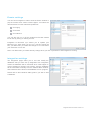
This will open the tray menu, which should look like this. From
the top down we have;
Quick dial box - you can type a number to dial or enter
a name to find a contact
Recent menu - quickly see recently dialled numbers
and click to redial them
Features menu - amend call settings such as do not
disturb and call forwarding
Phone - opens up the phone window, covered in more
detail below
Presence - opens up the presence window, covered in
more detail below
Address book – you can search for a user in your
company directory or one that’s in a connected CRM
Call history - opens the call history window that details
your recent incoming, outgoing and missed calls
Configuration - used to configure which CRM packages
you integrate with
Exit - use this to exit the software
Phone w indow
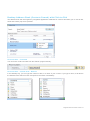
The phone window can be accessed by either selecting it from the tray menu (as shown above) or by double
clicking the Integrator icon in the bottom right of the screen. The screenshot below shows the window during an
active call.
Integrator Soft Client User Guide v1.0