1
Sonavision Ltd.
Aberdeen, Scotland
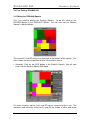
corresponding axis. The value in the middle of the axis corresponds to the E1
and E2 value pointed to by the mouse cursor in the RoxAnn Square.
•
Clicking the HIDE button removes the RoxAnn Square from the screen.
•
Clicking the NORMAL button displays the RoxAnn Square in normal
mode.
•
Clicking the GRID ON button places a 32x32grid over the RoxAnn
Square. The button the changes to GRID OFF.
•
Clicking GRID OFF removes the grid. The button then changed to
GRID ON.
•
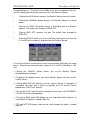
Clicking SCALES allows you to set minimum and maximum values for
E1 and E2 base ranges as displayed on the RoxAnn Square.
E1 and E2 minimum and maximum values are altered by clicking on the arrow
boxes. Note that maximum possible values for E1 and E2 in RoxMap is 2.03
volts.
• Clicking the CANCEL button returns you to the RoxAnn Square
disregarding any changes.
• Clicking the OK button returns you to the RoxAnn Square with the new E1
and E2 values.
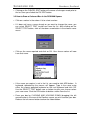
• Clicking ANALYSIS will allow you to start, stop or refresh a scatterplot. A
scatterplot will show, with a mark, the position of all E1 and E2 values
plotted after START was clicked.
• To view ALL the E1 and E2 values collected for that track, click REFRESH.
Click STOP to end scatterplotting.
• Click on the SAVE and LOAD buttons to save and load RoxAnn Squares. A
saved RoxAnn Square is called a Box File.
• TOP and BOTTOM arrows allow you to scroll through the colour / seabed
type list.
Issue 5
5249-32-0001
Page 29 of 42