1
Man 230
VWnote
User Manual
Soil Instruments Limited has an ongoing policy of design review and reserves the right to amend these specifications without notice.
Man230 VWnote – MN0814 – Rev1.0.4
1
What’s this manual about? This manual tells you about the VWnote and how to
use it to take readings from VW sensors.
Who does this apply to?
QUESTION
2
Installers, field engineers and technicians who need to
acquire readings from VW sensors and to maintain the
VWnote system.
Welcome!
Thank you for choosing the VWnote.
This manual has been written to help you utilise all of the
functions of the VWnote. Please read this manual thoroughly
before use to help avoid any problems and keep it handy
when using the VWnote.
VWnote
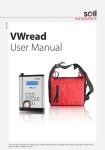
The VWnote is a handheld device which takes readings from
Vibrating Wire (VW) sensors and stores them on an internal
memory for retrieval later via a USB pen drive. It uses the Fast
Fourier Transformation (FFT) based reading algorithm, which
not only gives more reliable readings, but also gives the user
the ability to check the quality of each reading, rejecting it
when there is too much interference. The VWnote can read
almost all commercially available vibrating wire sensors.
Built with state-of-the-art electronic components and the
latest firmware technology, each VWnote comes with many
powerful built-in functions. These functions will allow you to
customise how readings from each sensor are taken, displayed,
stored and managed in order to assure correct and repeatable
readings every time.
3
Contents
PART I – GENERAL USER GUIDE
6
Introduction7
Important information7
System Description8
Things You Need to Know About VWnote
8
Features8
Benefits8
System Components9
Quick Start Guide11
PART II – DETAILED VWNOTE USER GUIDE 13
Charging the VWnote14
Connecting Sensors to the VWnote
15
How to Use the Keypad
16
Menu Structure18
Main Menu18
The READ Menu20
The SETUP Menu24
How to Set Up Sensor Configuration
28
The DATA TO USB Menu32
The DATE/TIME Menu33
The CFG EXPORT Menu34
The CFG IMPORT
Menu35
The INFO Menu36
PART III – GUIDE TO THE CONFIGURATION FILE AND THE DATA FILE 38
VWnote Sensor Configuration39
Building a Sensor Configuration File
40
Finding and Interpreting Data Files
48
PART IV – MAINTENANCE GUIDE 51
Routine Maintenance52
Battery Maintenance52
Calibration53
Firmware and Software Updates
53
PART V – APPENDICES54
Appendix A – How to Apply Calibration Factors for Sensors
55
Appendix B – Definition of Fast Fourier Transform (FFT)
57
Appendix C – Frequently Asked Questions/Troubleshooting Guide 58
4
PRECISELY MEASURED
instrumentation and monitoring
5
Part I – General
User Guide
Contents
This section contains the following topics.
TOPIC
Introduction
Important Information
System Description
Things you need to know about the VWnote
Features
Benefits
System Components
Quick Start Guide
6
SEE PAGE
7
7
8
8
8
8
9
11
Introduction:
Important information
The following symbols are used throughout the manual
IMPORTANT
INFORMATION
WARNING
TIP
! Important: Failure to adhere to the warnings in this manual
may result in network disruption and possible data loss.
Failure to observe the warning may result in injury, product
malfunction, unexpected readings or damage to the product
that may invalidate its warranty.
WARNING
Tips give additional information that may be helpful when
using VWnote.
TIP
PRODUCT
CHANGES
Soil Instruments has an on-going policy of design review and
reserves the right to amend the design of their product and this
instruction manual without notice.
WARRANTY
Refer to our terms and conditions of sale for warranty information.
The batteries are a consumable item and are excluded from
the warranty.
DISPOSAL
Products marked with the symbol are subject to
the following disposal rules in European countries:
• This product is designated for separate collection at an
appropriate collection point
• Do not dispose of as household waste
• For more information, contact Soil Instruments or the local
authority in charge of waste management
WEE/DE3326WV
7
System Description
Things You Need to Know About VWnote
8
FEATURES
• Portable and rugged
• Compatible with most commonly used VW sensors
• Real-time display of VW sensor readings in engineering units as
well as in Hz, Hz2/1000 and period
• FFT-based data reading algorithm for interference-free readings
• Reads with the default full sweep frequency range (450-6000Hz)
or any user definable range
• Fully configurable reading and displaying parameters of
each sensor
• Large data storage (2GB) and easy data retrieval via a USB
pen drive
• Firmware upgradable via USB pen drive by the user – no need
for a PC and no need to return it back to factory
• Powered by a Nickel Metal Hydride (NiMH) rechargeable battery,
30 hours without backlight and 15 hours with backlight. User
selectable backlight for the display, auto shutdown after six
minutes of inactivity.
BENEFITS
• Powerful features in a rugged and portable package; makes it
easy to carry and operate in all site conditions
• Advanced FFT-based reading algorithm ensures readings are
accurate, repeatable and free from interferences
• Easy to follow menu makes taking readings on site simple, fast
and error free
• The optional 15 VDC excitation, which provides higher energy
excitation than the default excitation of 5 VDC, ensures quality
readings for sensors with long cables
• A site ID and a sensor name are assigned to each sensor. This
facilitates management of a large quantity of VW sensors from
a large site or multiple sites
• Saved readings are grouped by dates which, together with the
large internal memory, minimises data loss
• Each reading is displayed and recorded with readings in raw
and engineering units together with reading quality indices
and optional waveform data. This ensures that each reading is
quality assured
• The VWnote does not require a PC in the field to set up or
download data, which means users of VWnote do not need to
carry a site PC nor need to be computer literate to use VWnote.
System Components
THE VWNOTE
The VWnote is a handheld readout unit as well as a data logger for
VW sensors. Below is a picture of the VWnote showing the various
parts that you will use to interact with it.
Sensor connector
Backlit LCD display
Keypad
Rechargeable battery
charging point
USB PEN DRIVE
USB port for
pen drive
Each VWnote will be supplied with a USB pen drive. Apart from being
the distribution medium for the VWnote Configuration Tool software,
you can also use it for data off-loading from the VWnote, as well as
importing the configuration file to, and exporting it from, the VWnote.
VWNOTE
Distributed on the USB pen drive with every VWnote is the VWnote
CONFIGURATION Configuration Tool. This is a Windows-based software that you will
TOOL SOFTWARE use to create and edit the sensor configuration file, which will contain
information on how readings from each sensor will be read, displayed
and stored.
9
10
VW SENSOR
LEAD
The VW sensor lead is shown in the picture below. One end of the lead
has a Lemo plug that you will plug into the sensor connector on the
top left of the VWnote. On the other end of the lead are four crocodile
connectors coloured red, black, green and white, for connecting to the
wires in the signal cable of a sensor with matching colours.
RECHARGEABLE
BATTERY &
CHARGER
The VWnote contains a Nickel Metal Hydride (NiMH) rechargeable
battery and is supplied with a trickle charge battery charger.
VWNOTE
CARRY CASE
The VWnote is supplied with a padded carry case with shoulder strap
and pockets for the sensor connecting lead and the USB pen drive.
We recommend that you carry and store the VWnote in the carry case
whenever it is not being used.
Quick Start Guide
BEFORE YOU
GO TO SITE:
1. Place the VWnote on charge, ensuring that you follow the charging
procedure outlined in Part 11 - Detailed VWnote user Guide Charging the VWnote
2. Switch on the VWnote.
3. Select ‘DATE/TIME’ from the main menu to set the VWnote internal
clock to the current date and time.
4. Select ‘INFO’ to confirm that the firmware version is V1.17 or later.
If the firmware needs updating, follow the instructions for firmware
update in Part IV of this manual.
5. Test the reading function as follows:
• Connect a VW sensor to the VWnote using the sensor lead
• Go to ‘READ’ in the main menu and select ‘DEFAULT’ on the top of the site list and ‘DEFAULT_VW’ from the top of the sensor list
• Press
to start reading
• Check the VW reading and the temperature reading
Follow the troubleshooting guide in Appendix C in Part V of this
manual if the readings are unstable or incorrect.
TIP
6. If you have a pre-prepared configuration file containing your
custom sensor list, go to ‘CFG IMPORT’ in the main menu to load the
sensor list into the VWnote (for more details, see CFG IMPORT in Part
II of this manual).
7. Switch off the VWnote by going to ‘OFF’ in the main menu and
pressing
.
8. Unplug the sensor lead from the VWnote. Replace the sensor
connector cap and the USB port cap.
9. Place the VWnote in its carry case along with the sensor lead and
a pen drive, ready to take to site.
WHEN YOU
ARE IN THE
FIELD:
1. Remove the VWnote from its carry case.
2. Switch on the VWnote, go to ‘READ’ in the main menu and follow
the procedures below to take a reading:
• Connect a VW sensor to the VWnote using the
sensor lead
• Select your site from the site list and then your sensor from the sensor list
11
• If you do not have a pre-prepared sensor list, you can read the VW sensor by selecting ‘DEFAULT_VW’ from the sensor list, or you can add sites and sensors by going to ‘SETUP’ in the main menu (please refer to Part II for detailed instructions)
• Press
to start reading
• If necessary, press
again to view the reading quality indices. Press
to return to the readings
• Press ‘Save’ to send the current readings to the VWnote internal memory
• Press
once to return to the sensor list to select another sensor from the same site, or press
twice to go to the site list to select another site
• Disconnect the sensor cable from the crocodile clips
3. Repeat the procedures in Step 2 for any other sensors you wish
to read, taking care to ensure that the sensor you are reading
matches with the unique site and sensor ID in the VWnote.
4. After you have finished taking readings for the current site, you
can transfer the data straightaway to a pen drive in the field
without the need for a site PC as follows:
• Plug a USB pen drive into the USB port on the bottom
of the VWnote
• Go to ‘DATA TO USB’ in the main menu, and then press
to display ‘DO NOT ERASE INTERNAL DATA’
• Press and arrows to select between ‘DO NOT ERASE
INTERNAL DATA’ and ‘ERASE INTERNAL DATA’ before pressing ‘Save’ to initiate the transfer
• The transfer is successful when the VWnote displays ‘DATA SAVED TO USB’. Press
5. Before you move to the next sensor location or the next site,
please ensure that you disconnect the sensor lead from the
VWnote, replace all caps and return the VWnote back to its
carry case for safe transport.
BACK IN THE
OFFICE:
1. If you have not already downloaded the data to a pen drive (see
Step 4 above), then do so now.
2. Transfer the data on the USB pen drive to a PC for further transfer
or processing.
Please refer to Part II – Detailed VWnote user guide in this manual for
more details of each step.
12
Part II –
Detailed VWnote
User Guide
Contents
This section contains the following topics.
TOPIC
SEE PAGE
Charging the VWnote
14
Connecting Sensors to the VWnote
15
How to Use the Keypad
16
Menu Structure
18
Main menu
18
The READ menu
20
The SETUP menu
24
How to set up sensor configuration
28
The DATA TO USB menu The DATE/TIME menu
32
The DATE/TIME menu
33
The CFG EXPORT menu
34
The CFG IMPORT menu
35
The INFO menu
36
13
Charging the VWnote
The VWnote is supplied with a Nickel Metal Hydride (NiMH) rechargeable
battery. It is important to follow the charging procedure outlined below
at all times to correctly maintain the battery.
STEP
ACTION
1
Make sure the VWnote is switched off
Remove the protective cap from the charging point, located on the
top of the VWnote
Plug the connector into the charging point on the VWnote, making
sure to align the connections correctly
2
3
4
Plug the charging unit into a mains power socket
5
Switch on the mains power to the charging unit
The LED on the charging unit will follow the sequence outlined in
the table below
Place the protective cap back into the charging point on the
VWnote when charging is complete
6
7
Charging Unit LED Sequence
STEP
LED
STATUS
1
Red - Green
2
Red - Green
3
Red
Charging in progress
4
Green
VWnote charged; switched to trickle charge mode
Analysing battery status
Follow the charging procedure outlined in this manual at all times
to properly maintain the battery.
WARNING
14
Connecting Sensors to the VWnote
You can connect only one Vibrating Wire sensor at a time to the VWnote;
this sensor can be with or without a built-in temperature sensor.
VW SENSOR
WITH BUILT-IN
TEMPERATURE
SENSOR
All sensor connections to the VWnote are made via the Lemo plug which
is located under a cap on the top of the VWnote; see figure below:
CLIP COLOUR
SENSOR TERMINAL
Red
VW +
Black
VW -
Green (or Blue)
Temperature +
White
Temperature -
Consult the sensor user manual for the sensor connections.
If you are still unsure, please contact Soil Instruments.
Please ensure that the bare parts of the clips do not touch each other
and cause shorts among the four wires.
VWnote is only compatible with the 3K ohm thermistor
temperature sensors. It will not work with the RTD-based
temperature sensor in some of the VW sensors.
WARNING
VW SENSOR
WITHOUT
BUILT-IN
TEMPERATURE
SENSOR
For a VW sensor without built-in temperature sensor, only connect
the sensor to the red and the black crocodile clips.
Only a qualified person trained in the use of VWnote and the
VW sensors may connect sensors.
WARNING
15
How to Use the Keypad
Below is a picture showing the keypad of the VWnote. Each key on
the keypad has multiple functions depending on its context within
the VWnote menu.
KEY
On
Up (
16
FUNCTION
The On button has two functions:
1. When the VWnote is off, pressing it turns the VWnote on.
2. When the VWnote is already on, pressing it will toggle the LCD
displays backlight between on and off.
)
The
key acts as an ‘up’ instruction in the situations below:
1. It moves the cursor up in the currently displayed list such as the
main menu, list of sites, list of sensors, current readings, quality
indices and various reading and display parameters.
2. It increases the value of the current field when updating date/time.
3. It moves upward through a list of alphanumeric letters when the
site name, sensor name and sweep frequency are entered one
character at a time.
KEY
Down (
Left (
Right (
Save
FUNCTION
)
)
The
key acts as a ‘down’ instruction in the situations below:
1. It moves the cursor down in the currently displayed list such as
the main menu, list of sites, list of sensors, current readings, quality
indices and various reading and display parameters.
2. It decreases the value of the current field when updating date/time.
3. It moves downward through a list of alphanumeric letters when
the site name, sensor name and sweep frequency are entered one
character at a time.
The
acts as a back instruction or ‘NO’ to a question. When a menu
option is selected or a question is displayed on the screen, pressing this
key will take you back to the previous menu selection.
)
The
acts as a ‘next’ instruction in the situations below:
1. When a menu option is displayed, pressing this key will take you to
the next screen or stage of the menu functions. For example, when
pressed while READ is selected, this key takes you to the list of sites;
when a sensor is selected, this key will take you to the sensor
reading screen.
2. When VWnote asks you to enter a site name, a sensor name, a
frequency, this key will take you to the next character position.
3. When VWnote asks you to change date/time, this key will take you
to the next field.
The Save button has several functions:
1. When you set a new DATE/TIME for the VWnote, it commits the
change to VWnote memory.
2. When you use SETUP to enter or edit reading, displaying and
calibration parameters of a sensor in the sensor list, it commits the
changes to VWnote memory.
3. When the sensor reading is displayed, it saves the latest reading.
4. It is also used as YES in response to the question ‘ARE YOU SURE?
YES(Save)/No(
)’. For example, when CFG EXPORT or CFG
IMPORT is selected by pressing
, you will need to press Save to
confirm that you want to proceed with the exporting or importing.
17
Menu Structure
MAIN MENU
Normal Mode Menu
Advanced Mode Menu
>READ
SETUP
>READ
SETUP
>SETUP
DATA TO USB
>SETUP
DATA TO USB
>DATA TO USB
DATE/TIME
>DATA TO USB
DATE/TIME
>DATE/TIME
CFG EXPORT
>DATE/TIME
CFG EXPORT
>CFG EXPORT
CFG IMPORT
>CFG EXPORT
CFG IMPORT
>CFG IMPORT
INFO
>CFG IMPORT
FIRMWARE UPDATE
>FIRMWARE UPDATE
>INFO
18
>INFO
OFF
>INFO
OFF
>OFF
READ
>OFF
READ
READ
Select this menu item to take a reading of the VW sensor that is
currently connected to the VWnote.
SETUP
Select this item to add sensors to the list of sensors or to edit the reading
and displaying parameters and calibration factors of an existing sensor.
DATA TO USB
Select this menu item to transfer data stored in the VWnote internal
memory to the USB pen drive that is plugged into the VWnote USB port.
DATE/TIME
Select this menu item to display the date and time of the real-time clock
in the VWnote and to update it when necessary.
CFG EXPORT
Select this option to copy the sensor list in the VWnote to the USB
pen drive plugged into the VWnote USB port. If you add sensors or
revised the sensor configuration in the VWnote using the keypad,
you will need to make a copy of the new sensor configuration to
the USB pen drive for backup or for further editing on your PC.
CFG IMPORT
This option is used to copy a new sensor configuration file from
a USB pen drive to the VWnote, overwriting the existing sensor
configuration in the VWnote.
FIRMWARE
UPDATE
This option is only available in the Advanced Mode. You only need
to perform a firmware update when instructed to do so by our
support department. Instructions on how to access the Advanced
Mode and how to perform firmware update will be provided.
INFO
Choosing this option to display the following information about
the VWnote:
• Serial number (S/N) of the VWnote
• Version number and version date of firmware
• Unit date and time
• Battery Voltage
• Storage (free) in %
• Storage (used) in %
You can press the
OFF
and
arrows to scroll through the information.
To avoid accidental power down, the VWnote does not have an OFF
button. You can switch off the VWnote by choosing ‘OFF’ in the menu
and then pressing
. You will see a message saying ‘POWER OFF.
Bye! See you later!’ before the unit switches off.
As a power conservation measure, the VWnote will switch itself off
automatically after six minutes of inactivity.
You can navigate through the main menu by pressing
The selected menu item is shown by a > in front of it.
and
.
TIP
19
The READ Menu
(List of Sensors
in DEFAULT site)
>SITE: DEFAULT
SITE: ABC_STN
>READ
SITE: BCC_ST_STN
SITE: XYZ_QUARRY
SITE: XYZ_STN
.........................
Notes:
1) List is sorted by SITE name
2) DEFAULT site is alwayd on the top of list
20
>DEFAULT_VW
Notes:
1) List is sorted by SENSOR name
2) DEFAULT site has only one SENSOR
DEFAULT_VW
3) Other sites may have more sensors
LIST OF SITES
1. The list of sites you specified will be displayed on the LCD screen,
two sites per screen and sorted alphabetically. Use
and
to
navigate up and down the list.
2. The top of the list is always ‘DEFAULT’, which is hard coded in the
VWnote and cannot be changed by the user.
LIST OF
SENSORS
1. The list of sensors you specified in the site you selected will be
displayed on the LCD screen, two sensors per screen and sorted
alphabetically. Use
and
to navigate up and down the list.
2. If you select the ‘DEFAULT’ site, the top of the list is always
‘DEFAULT_VW’, which is hard coded in the VWnote and cannot
be changed by the user.
3. The ‘DEFAULT_VW’ is a generic sensor created in the VWnote for
you to use to read VW sensors before you have the chance to set
up a sensor list in the VWnote.
AMPL: 2.3mV
SNR: 5.2
NOISE F: 1245.23Hz
DECAY RATIO: 0.65
Notes:
1) Reading quality indices displayed on 2 screens
12.651 psi
TEMP = 23.5 °C
Save
FRQ = 2654.221 Hz
TEMP = 23.5 °C
Hz2/1K = 7044.965
TEMP = 23.5 °C
PER = 376.76 uS
TEMP = 23.5 °C
READING SAVED
PRESS -->
Notes:
1) VW readings displayed on four screens
2) First line of first screen is reading in engineering unit
3) Other screens are readings in raw unit
TIP
Sensor ‘DEFAULT_VW’ uses the following default parameters of
reading and displaying:
• Site name: DEFAULT
• Sensor name: DEFAULT_VW
• Sweep frequency: 450-6000 Hz
• Excitation V = 5V
• Display Resolution = 0.001
• Unit (raw) = Hz2/1K
• Unit (eng) = Hz2/1K
• R0=0
• G=-1
• Calibration=linear
• Unit (temp)=oC.
In most cases, the ‘DEFAULT_VW’ sensor will allow you to take
readings from most type of VW sensors before you have the
chance to define a sensor list for the VWnote.
21
SENSOR
READING
After you have selected which sensor to read by pressing
, the
readings of the currently connected VW sensor will be displayed
on four consecutive screens:
1. Screen 1 – The VW reading in engineering units (as calculated using
the raw reading and the calibration factors and zero reading you
specified) and temperature reading in °C (or °F).
2. Screen 2 – The VW reading in Hz and temperature reading in
°C (or °F).
3. Screen 3 – The VW reading in Hz2/1000 and temperature reading in
°C (or °F).
4. Screen 4 – The VW reading in period (μS) and temperature reading
in °C (or °F).
5. You can navigate among the four screens by pressing
and .
The readings will be automatically refreshed every two seconds.
Due to limited display space on the LCD screen, Hz2/1000 is
displayed as Hz2/1K.
TIP
If no sensor is connected, or the sensor or signal cable is faulty,
Screen 1 will display ‘No VW sensor?’ and/or ‘No Therm. Sen.?’
alerting you to the problem. In this case, you will not be able to
navigate away from the first screen.
TIP
READING
QUALITY
INDICES
When the readings of the VW sensor are displayed, you can press
to view the four ‘reading quality indices’ as follows:
1.AMPL – AMPL is short for amplitude. It is an index for the signal
strength from the sensor.
2.SNR – SNR is an acronym for ‘Signal to Noise Ratio’ . It is an index
for the sensor signal strength in relation to the noise signal strength.
3. NOISE F – This is the frequency of the noise signal.
4. DECAY RATIO – This is an index of how quickly the signal
becomes weaker.
5.The AMPL and SNR are displayed on the first screen and NOISE F
and DECAY RATIO are on the second screen. You can navigate
between the two screens by pressing
and . Pressing
will take you back to the sensor readings screen.
22
Any time-varying signal (a musical sound for instance) will be
composed of one or more component frequencies of different
amplitudes.
TIP
The Fast Fourier Transform (FFT) algorithm is a fast and efficient
method of determining what those component frequencies are,
along with their respective amplitudes.
below is some simple guidance on how these indices can be used
to determine the quality of the reading.
1.AMPL: The value of this index depends on the type of sensor but
it should be more than 0.5 mV.
2.SNR: When the signal is good and noise is low, this value will be
200, 500, or more. It can drop to single figures in a very noisy
environment. Based on experience, any reading with SNR less
than 5 should be ignored and re-taken.
3. NOISE F: Ideally, this value should be far away from the sensor
reading in Hz. If this value is very near the sensor reading you
expect, then the result you are getting may be invalid.
4. DECAY RATIO: The value of this index is dependent upon the type
and quality of the sensor. The value should be between 0 and 1
(representing 0%-100%). While the higher the value the better,
a value greater than 1 would suggest a bad sensor.
5. When you encounter unstable readings, you should check the
four quality indices to determine whether the reading is good.
If not, then you should take another one. For quality assurance,
these four indices are saved with the sensor readings.
SAVE
1. Pressing the ‘Save’ key while you are on the sensor reading screen
will send the current VW readings, temperature reading and the
reading quality indices with time stamp to the VWnote internal
memory. VWnote will display ‘READING SAVED. PRESS
‘
to acknowledge the readings have been saved successfully.
2. Pressing
will take you back to the sensor reading. From there you can save another set of readings for the same
sensor, or you can press
to return to the sensor list to select
another sensor to read.
23
The SETUP Menu
SET UP
You can enter a new sensor configuration into VWnote or edit the
existing sensor configuration in the VWnote using the keypad on
the VWnote. The process is slow because there are only six keys on
VWnote. It is designed for use on site when you need to add sensors
or change the sensor configuration in an emergency. To set up sensor
configuration in bulk, please use the VWnote Configuration Tool (more
details are in Part III).
LIST OF SITES
1. The list of sites you specified will be displayed on the LCD screen,
two sites per screen and sorted alphabetically. Use
and
to
navigate up and down the list.
2. The top of the list is always ‘ADD A SITE’; when selected it will allow
you to add a new site to the list of sites in the VWnote.
3. Press
to display a screen where you can enter a site name.
4. While you are on this screen, press
to go to the next character
position, press
and
to go through the valid letters (A-Z, 0-9
and “_”). After you have entered the site name, press ‘Save’ to enter
the site name into VWnote.
The site name is limited to 10 characters and can contain only
A-Z, 0-9 and “_”.
TIP
Pressing
during entry or edit will not move the cursor one
character to the left. It will cancel the entry or edit and take you
back to the previous menu.
WARNING
LIST OF
SENSORS
24
1. The list of sensors in the site you selected will be displayed on the
LCD screen, two sensors per screen and sorted alphabetically.
Use
and
to navigate up and down the list.
2. The top of the list is always ‘ADD A SENSOR’; when selected it will
allow you to add a new sensor to the list of sensors for the site you
selected.
3. Press
to display a screen where you can enter a sensor name.
After you have entered the sensor name, press Save to enter the site
name into VWnote.
4. While you are on this screen, pressing
will move the cursor to
the next character position; press
and
to go through the valid
letters (A-Z, 0-9 and “_”).
The sensor name is limited to 15 characters and can contain only
A-Z, 0-9 and “_”.
TIP
Pressing
during entry or edit will not move the cursor one
character to the left. It will cancel the entry or edit and take you
back to the previous menu.
WARNING
The name of each sensor should be in the ‘Site + Sensor’ format.
This will allow you to manage the sensors and their readings more
efficiently by grouping them according to site names and with the
sensors arranged in alphabetical order.
TIP
CONFIGURE A
NEW SENSOR
After you add a new sensor VWnote will automatically assign the
following default values to the reading and displaying parameters
listed below:
• Sweep frequency = 450-6000Hz
• Excitation V = 5V
• Unit (temp) = oC
• Save wave form = No
• Display Resolution = 0.001
• Unit (raw) = Hz2/1000
• Unit (eng) = blank
• Calibration = linear
• R0 = 0
• G = -1.
More detailed descriptions on these parameters are given in the
next section. By pressing
once, you can view and revise the
values of the above sensor parameters.
CONFIGURE
AN EXISTING
SENSOR
After you have selected an existing sensor from the sensor list from
the selected site, press
once to view and revise the value of
the sensor configuration parameters stored in the VWnote.
25
FLOW DIAGRAM
> ADD A SITE
(New SITE)
SITE: ABC_QUARRY
SITE: ABC_STN
SITE: BCC_ST_STN
SITE: XYZ_QUARRY
SITE: XYZ_STN
>SETUP
(Existing SITE)
..........................
(List sorted by SITE name)
DEFAULT:
450 - 6000 Hz
SWEEP FREQUENCY:
450 - 6000 HZ
EXCITATION
VOLTAGE : 5V (or 15V)
TEMPERATURE
UNIT : °C (or F)
SAVE WAVE FORM:
No (or YES)
DISPL. RESOL.:
1 (or 0.1, 0.01, 0.001, 0.0001)
RAW DATA UNIT:
Hz2/1000 (or Hz)
ENG. UNIT NAME:
kPa (user input)
CAL. FACTORS:
PRESS -->
CUSTOM:
PRESS --> TO SPECIFY
Save
SETTINGS SAVED
PRESS -->
LINEAR (G and R0):
PRESS -->
POLYNOMIAL (ABC):
PRESS -->
26
SITE:
XXXXXXXXXXXX
Save
(New SENSOR)
(List of Sensors in one SITE)
SENSOR:
XXXXXXXXXXXX
>ADD A SENSOR
EXTENSOMETER_1
EXTENSOMETER_2
PIEZOMETER_1
PIEZOMETER_2
PIEZOMETER_3
Save
(Existing SENSOR)
(List sorted by SENSOR name)
Save
SWEEP FREQ SAVED
PRESS -->
START
0450 -
END
6000 Hz
Save
GAUGE FACTOR (G):
0.1499E-2
Save
BASE READING: (R0)
4561.02
A
0.3286405E-8
SWEEP FREQ SAVED
PRESS -->
CAL. FACTORS SAVED
PRESS -->
B
0.1450402E-2
C:
-7.3120702
Cor R0:
PRESS -->
R0:
4985.1
Save
27
How to Set Up Sensor Configuration
The following eight parameters define how each sensor is read and how
the readings are displayed. The current settings for these parameters are
presented on eight screens that you can scroll through using
and .
Pressing
while each parameter is displayed will take you to further
screens where you can edit their values.
1. SWEEP
FREQUENCY:
• At the top of the list of sensor configuration parameters is the
range of sweep frequency currently used by VWnote to read
this sensor.
• Press
to open up another screen to select the default
range or to define a custom range (using and
).
• If you select the custom range and press
, you will be
presented with another screen where you can enter the start
and end frequencies.
• When entering a sweep frequency, use
to move the cursor
to the next character position and use
and
to move
through 0-9. Press the Save key to confirm the edit, or
to
cancel the change and return back to the previous screen.
Pressing
during entry or edit will not move the cursor one
character to the left. It will cancel the entry or edit and take you
to the previous menu.
WARNING
In most cases, the default sweep frequency range (450-6000 Hz)
works well because VWnote uses FFT reading algorithm to derive
readings from the sensor. Optionally, you can customise the sweep
frequency to any range between 450 Hz and 6000 Hz, such as 4501250 Hz or 1200-2800 Hz.
TIP
VWnote will issue error messages if you enter a frequency that is
less than 450 Hz, greater than 6000 Hz, or if the end frequency is
less than the start frequency.
TIP
28
2. EXCITATION
VOLTAGE:
• The default excitation voltage that VWnote uses to energise the
sensor before taking a reading is 5 V. This is sufficient for most
site conditions where the sensors have a short cable length
• You can select the optional 15 V excitation if the sensor has
a long cable
• Press
to toggle between 5 V and 15 V. Press ‘Save’ to commit
the change to VWnote or
to cancel.
The maximum cable length that 5 V excitation will work is
dependent on factors such as the gauge size of the wires. However,
as a rule of thumb, cable lengths greater than 200m (600ft) are
usually considered to be long.
TIP
3. TEMPERATURE • The default temperature unit that VWnote uses to display the
UNIT:
sensors built-in temperature sensor is ºC
• You can select the optional ºF
• Press
to toggle between C and F. Press ‘Save’ to commit
the change to VWnote or
to cancel the change you have
just made.
4. SAVE WAVE
FORM:
• VWnote can be set up to capture the wave form of the sensor
signal from the selected sensor for diagnostic purposes.
• The default selection is ‘NO’ (do not save wave form).
• You can change it to ‘YES’ (save wave form)
• Press
to toggle between ‘NO’ and ‘YES’. Press ‘Save’ to
commit the change to VWnote, temporarily for this sensor
and for this session, or
to cancel the change you have
just made.
Every time the VWnote is switched on, the setting for save wave form
for all sensors in VWnote will be reset to ‘NO’.
TIP
5. DISPLAY
RESOLUTION
(DISPL. RESOL.):
• The display resolution for each sensor reading (in raw or
engineering units) can be set to match your needs.
• The default value for this parameter is 0.001 (3 digits after
the decimal point).
• You can select from 1, 0.1, 0.01, 0.001, 0.0001 (equivalent to
0, 1, 2, 3 and 4 digits after decimal point).
• Press
until the one you wish to use is displayed for this
sensor. Press Save to commit the change to VWnote or
to cancel the change you have just made.
29
6. RAW DATA
UNIT:
• Although three raw data formats (Hz, Hz2/1000 and period) are
displayed by VWnote while the sensor is read, only one raw
reading (in Hz or Hz2/1000) is saved and used for conversion
into reading in engineering units
• The default value for this parameter is Hz2/1000
• Press
to toggle between Hz2/1000 and Hz
• Press Save to commit your selection to VWnote or
to
cancel the change you have just made.
You can find the raw data unit on the calibration sheet of the
VW sensor.
TIP
7. ENGINEERING • This is the name of the engineering unit that you would like to
UNIT NAME (ENG.
use when the reading of this sensor is displayed and saved, such
UNIT NAME):
as kPa, psi and mH2O
• It is a text string with up to eight characters. Except “(comma)”, all
other alphanumeric characters and symbols (such as +, -, %, &,
etc) are allowed.
• The default value for this parameter is ‘blank’
• When entering an engineering unit name, use
to move the
cursor to the next character position and use
and to move
through allowed characters
• Press ‘Save’ to commit your entry to VWnote or
to cancel the
change you have just made.
Pressing
during entry or edit will not move the cursor one
character to the left. It will cancel the entry or edit and take you
to the previous menu.
WARNING
8. CALIBRATION
FACTORS (CAL
FACTORS):
30
• Calibration factors are used to convert sensor raw readings
(defined above) into values in engineering units (also
defined above)
• The default calibration is linear which requires a gauge factor
(G) and a base reading (R0)
• Press
to go to the screen where you can select between
‘LINEAR (G and R0)’ and ‘POLYNOMIAL (ABC)’
• If you select ‘LINEAR’, pressing
will take you to the two
screens where you can review, enter or edit G and R0
• If you select POLYNOMIAL:
1. Pressing
will take you to the next screen where you can
view, enter or edit the value of A.
2. Pressing up and down will display other screens displaying
value of B and ‘R0 or C? PRESS
‘.
3. Pressing
when ‘R0 or C?’ is displayed will take you to two
further screens for R0 and C.
4. Use
and
to select which option you want. The last one
you view before you press ‘Save’ will be used in the calculation
from raw reading to engineering unit.
• When entering a numeric value, use
to move the cursor to
the next character position and use and to move through
0-9 and ‘-’ and ‘E’, where ‘E’ is for entering numeric values with
exponent, for example 1.234E-8 for 1.234 x 10⁻⁸.
• When you are making an edit, press ‘Save’ to commit your entry
to VWnote or
to cancel the change you have just made.
Pressing
during entry or edit will not move the cursor one
character to the left. It will cancel the entry or edit and take you
to the previous menu.
WARNING
The value for R0 is in raw data units, such as Hz or Hz2/1000.
More information on sensor calibration factors is given later in
Appendix A in Part V.
TIP
31
The DATA TO USB Menu
You don’t need a site PC to download saved data from the VWnote.
Instead, you transfer the saved data to a USB pen drive then transfer
the data to a PC, which need not be in the same office or the same
site as the VWnote.
DO NOT ERASE
INTERNAL DATA
>DATA TO USB
Save
ERASE
INTERNAL DATA
STEP
DATA SAVED TO USB
PRESS -->
ACTION
1
Insert the USB pen drive into the USB slot on the bottom of the VWnote.
2
On the VWnote, navigate through the menu to ‘DATA TO USB’ and
press
.
3
You then have two options ‘DO NOT ERASE INTERNAL DATA’ or ‘ERASE
INTERNAL DATA’; scroll between the two options using
and ,
choose your option and press the ‘Save’ button.
4
Note: choosing ‘ERASE INTERNAL DATA’ will erase the data after the
transfer to the USB; choosing ‘DO NOT ERASE INTERNAL DATA’ will
keep whatever data is in the VWnote internal memory intact.
5
6
The screen will say ‘DATA SAVED TO USB. PRESS
Pressing
will take you back to the menu.
‘.
Remove the USB pen drive from the VWnote, remembering to replace the
protective cap on the USB port.
The data is now on the USB.
The format of the data files will be discussed in more detail in Part III.
32
The DATE /TIME Menu
Select this menu item to update the date and time of the VWnote
internal clock. The date is in ISO format (YYYY-MM-DD). Use
to
move the cursor from the field of year to fields of month, day, hour,
minute, second and back to year, and so on. While in each field, use and
to increase or decrease the value of that field. Press ‘Save’
to commit the changes to VWnote internal clock. This menu only
needs to be executed occasionally.
yyyy-mm-dd
hh:mm:ss
>DATE/TIME
(Press --> to move from field to
field and press UP to increase and
DOWN to decrease digit value)
Save
DATE/TIME SAVED
PRESS -->
33
The CFG EXPORT Menu
If you have added new sensors to the VWnote or made changes to the
sensor configuration in the VWnote using the keypad, you can back up
the sensor configuration to a pen drive using this menu item.
>CFG EXPORT
ARE YOU SURE?
Save
YES (Save) /NO (<--)
STEP
PLEASE WAIT...
DONE.
PRESS -->
ACTION
1
Ensure the VWnote is switched on.
2
Insert the USB pen drive into the USB port on the base of VWnote.
3
Press
and
to scroll through the main menu until you find
‘CFG EXPORT’.
4
Select this option using the
, you will see a message saying
‘ARE YOU SURE? YES (Save)/NO (
)’
5
Press ‘Save’ to proceed or
to cancel and return to the previous screen.
The sensor configuration in the VWnote will be saved in the root
folder on the USB pen drive with the file name ‘VW_CONF0.vwn’.
It will overwrite any file with the same name in the root folder.
WARNING
34
The CFG IMPORT Menu
In addition to entering sensor configuration using the keypad, you
can produce a sensor configuration file on your PC using the VWnote
Configuration Tool software. For the import to work, the configuration
file must be named as ‘VW_CONF0.vwn’ and reside in the root folder
on the USB pen drive.
ARE YOU SURE?
>CFG IMPORT
STEP
Save
YES (Save) /NO (<--)
PLEASE WAIT...
DONE.
PRESS -->
ACTION
1
Ensure the VWnote is switched on.
2
Insert the USB pen drive into the USB port on the base of VWnote.
3
Press
and
to scroll through the main menu until you find
‘CFG IMPORT’.
4
Select this option using the
SURE? YES (Save)/NO (
)’.
5
Press ‘Save’ to proceed or
, you will see a message saying ‘ARE YOU
to cancel and return to the previous screen.
The sensor configuration in the VWnote will be overwritten by
that in the configuration file.
WARNING
35
The INFO Menu
This menu item allows you to view information about the VWnote.
The information includes:
• VWnote serial number
• Firmware version number and compilation date of firmware
• Data and time of the VWnote’s internal clock
• Storage capacity in MB (used)
• Storage capacity in MB (free).
S/N:
XXXXXXXXXXXX
>INFO
36
Firmware: V1.9
2011.12.01
Unit Date/Time:
2011.03.28 15:12
Battery Voltage:
5.0 V
Storage (used):
1885 MB 99%
Storage (free):
0.625 MB 0%
37
Part III – Guide to
the Configuration
File and the
Data File
Contents
This section contains the following topics.
TOPIC
38
SEE PAGE
VWnote Sensor Configuration
39
Building a Sensor Configuration File
40
Finding and Interpreting Data Files
48
VWnote Sensor Configuration
Two of the most powerful features of the VWnote are:
• It provides you with a default reading method that will allow you
to read most of the sensors most of the time.
• It allows you to define:
1. A list of sensors, stored in the VWnote, to be monitored.
2. The unique way that each sensor is energised and read.
3. The unique way that results from each sensor are displayed
and stored.
Content of the Sensor Configuration File
The Sensor Configuration File contains the following eight parameters
that define how each sensor is read and how the readings are displayed.
1. SWEEP
FREQUENCY:
In most cases, the default sweep frequency range (450-6000 Hz) works
well because VWnote uses FFT reading algorithm to derive readings
from the sensor. Optionally, you can customise the sweep frequency
to any range between 450 Hz and 6000 Hz, such as 450-1250 Hz or
1200-2800 Hz.
2. EXCITATION
VOLTAGE:
The default excitation voltage that VWnote uses to energise the
sensor before taking a reading is 5 VDC. This is sufficient for most site
conditions where the sensors have a short to medium cable length.
You can select the optional 15 VDC excitation if the sensor has a long
cable. The maximum cable length that 5 VDC excitation will work is
dependent on factors such as the gauge size of the wires.
However, as a rule of thumb, cable lengths greater than 200m (600ft)
are usually considered to be long.
3. TEMPERATURE By default, temperature readings will be displayed as °C. Optionally, you
UNIT:
can select °F
4. SAVE WAVE
FORM:
VWnote can be set up to capture the wave form of the sensor signal
from the selected sensor for diagnostic purposes. The default selection
is ‘NO’ (do not save wave form). You can change it to ‘YES’ (save wave
form) temporarily for a selected sensor. Every time the VWnote is
switched on, the setting for save wave form for all sensors in VWnote
will be reset to ‘NO’.
39
5. DISPLAY
RESOLUTION:
The display resolution for each sensor reading (in raw or engineering
units) can be set to match your needs. The default value for this
parameter is 0.001 (3 digits after the decimal point). You can select
from 1, 0.1, 0.01, 0.001, 0.0001 (equivalent to 0, 1, 2, 3 and 4 digits
after decimal point).
6. RAW DATA
UNIT:
This defines the raw reading (in Hz or Hz2/1000) that is saved and
used for conversion into reading in engineering units. The default
value for this parameter is Hz2/1000.
7. ENGINEERING
UNIT NAME:
This is the name of the engineering unit that you would like to use
when the reading of this sensor is displayed and saved, such as kPa,
psi and mH2O. It is a text string with up to 8 characters. The default
value for this parameter is “blank”.
8. CALIBRATION
FACTORS:
Calibration factors are used to convert sensor raw readings (defined
above) into values in engineering units (also defined above). The
default calibration is linear which requires a gauge factor (G) and a
base reading (R0). If you select polynomial you will need to enter A, B
and R0 or C, where the value for R0 is in raw data units, such as Hz or
Hz2/1000.
Please see Appendix A in Part V of this manual for a more detailed
description of the calibration factors.
Building a Sensor Configuration File
You can build the list of sensors with configuration in two ways:
• Using the keypad on the VWnote to create and edit the list in
the VWnote’s internal memory.
• Using the VWnote Configuration Tool software (supplied free of
charge) to create and maintain the Sensor Configuration File on
your PC, then transfer it to the VWnote’s internal memory using
a USB pen drive.
40
BUILDING
WITH VWNOTE
KEYPAD
This was covered in detail in Part II.
BUILDING
WITH VWNOTE
CONFIGURATION
TOOL
VWnote Configuration Tool is a piece of Windows PC-based software
written to create and maintain the sensor configuration files. It is
supplied free with the VWnote. You can also download a copy of
the latest version from www.itmsoilsupport.com.
INSTALLING
THE VWNOTE
CONFIGURATION
TOOL
The latest version of VWnote Configuration Tool is distributed free on
the USB pen drive delivered with each VWnote. It is a single exe file
named ‘VWnote Configuration Tool .exe’ residing in the VWnote
software folder on the USB pen drive. There is no need to run a set
up program to install it.
VWnote Configuration Tool requires ‘Microsoft .NET Framework
3.5’ to run. On modern PCs running ‘Windows 7’ or above, ‘.NET
Framework’ is already installed. Download a copy from Microsoft.com
if you are running an older operating system, such as ‘Windows XP’,
and do not have it on your PC yet.
TIP
RUNNING
You will need the following items before running the Tool:
THE VWNOTE
• A Windows PC with the following minimum PC requirements
CONFIGURATION
• A USB pen drive with the VWnote Configuration Tool software.
TOOL
The PC running the VWnote software must have the following
minimum requirements:
• ‘Windows XP’ and above operating system
• Pentium 4, 1 GHz or better specification
• 1 GB RAM
• 40 GB hard drive or solid state drive
• USB port interface.
You can run the Tool directly on the USB pen drive or you can copy it on
to the hard drive on your PC and run it from there.
41
STEP
1
ACTION
Insert the VWnote USB pen drive into the PC.
2
Open the VWnote software folder on the pen drive and run
‘VWnote Configuration Tool.exe’.
3
Click on ‘File’ then ‘New’ to create a new configuration file.
4
After you elect to create a new configuration file, the ‘Add New Sensor’
window will be displayed to allow you to add a new sensor to the
configuration file.
This missing image will need to be supplied
42
STEP
5
ACTION
Click on either the ‘General Settings’ or ‘Calibration Factors’ tab on the
Sensor Configuration Window.
Clicking on the Cancel button will cancel the addition of a new
Sensor Configuration.
6
Hovering over an input field with the mouse will bring up a short
description of that field.
43
STEP
7
44
ACTION
When you have finished filling in the details, click ‘OK’ to continue.
If there is an error in any field, it will be highlighted in red – mouse
over the highlighted field to show the error message on the bottom
left of the window.
8
If there was no error, the ‘Sensor Configuration’ Window will close
and you will see the new ‘Sensor Configuration’ in the data table
on the main ‘Configuration Tool Window’.
9
To add another Sensor Configuration, go back to step 4.
STEP
10
ACTION
To edit an existing Sensor Configuration, select the configuration
you want to edit and go to ‘Edit’ then ‘Edit Sensor’.
11
This will bring up the ‘Sensor Configuration’ window, with the details
for the selected configuration. Clicking on the ‘Cancel’ button will
cancel any changes to the selected ‘Sensor Configuration’.
12
Click the ‘OK’ button to save the changes. You will be returned to the
main ‘Configuration Tool’ Window.
45
STEP
13
14
46
ACTION
To delete a ‘Sensor Configuration’, select the configuration you want
to delete and click on ‘Edit’ then ‘Delete Sensor’. This will remove the
Sensor Configuration from the list.
To save the ‘Sensor Configurations’, go to ‘File’ then ‘Save’. If you
created a new file, the ‘Save File Dialogue’ will display. Type in a name
for the file or accept the recommended name and click ‘Save’.
STEP
15
ACTION
If you edited an existing file, ‘File’-’Save’ will save it over the existing
configuration file without asking.
16
When you are asked to enter or confirm a file name, a warning
message will appear alerting that VWnote will only recognise
‘VW_CONF0.vwn’ while performing ‘CFG IMPORT’.
17
To exit the program, click on ‘File’ then ‘Exit’, or click the red ‘X’ in the
upper right corner of the window.
47
Finding and interpreting data files
LOCATING
DATA FILES
The data collected from a VWnote is stored internally and retrieved
using a USB pen drive.
When you open the pen drive folder on a PC or laptop, you will find a
folder has been created with the name made up of the prefix ‘VN’ and
the download date in the format YYMMDD, for example ‘VN130321’
shows the data downloaded on 21 March 2013.
Double-click on the folder to open it and you will see one or more
Excel-compatible ‘.CSV files’. Each file is named by the date of the
readings taken in the format YYYYMMDD; for example, ‘20130321.csv’
is a file of the readings taken on 21 March 2013. Only one file per day
is created.
If you downloaded the data when older readings had not been erased
from the internal memory on the previous download, each set of
readings will be shown in an Excel-compatible ‘.CSV file’. However, if
you downloaded data after all internal data had been erased during a
previous download, then there should only be one reading file plus a
Logfile (LOGFILE.CSV).
48
The Logfile is simply a record of events such as powering on or low
battery, with a note of the battery voltage; this is for diagnostic purposes
only and you may ignore it.
Click on a readings file to open it (further explanation of the data
shown is given in the next subsection).
49
INTERPRETING
THE DATA FILE
The data file is in ‘comma separated value’ (CSV). The field delimiter
symbol is the “,” (comma) character. The record delimiter string in the
CSV file is ‘CR+LF’ characters (carriage return and line feed).
There is a header line appearing as the first line of the file with the
same format as normal record lines. This header contains names
corresponding to the fields in the file and contains the same number
of fields as the records in the rest of the file.
The table below shows the fields in the data file for each line.
COLUMN
FIELD NAME
FORMAT
1
Date/Time
yyyy-mm-dd hh:mm:ss
2
Site name
Text, 10 chrs, A-Z, 0-9, _
3
Sensor name
Text, 15 chrs, A-Z, 0-9, _
4
VW raw reading
Number, floating point
5
VW raw reading unit name
Hz or Hz2/1000
6
VW reading in engineering unit
Number, floating point
7
Engineering unit name
Text, 8 chrs
8
Temperature reading
Number, floating point
9
Temperature
10
Start sweep frequency
11
End sweep frequency
12
VWnote internal temp. in C
Number, floating point
13
VWnote battery voltage
Number, floating point
14
AMPL in mV
Number, floating point
15
SNR
Number, floating point
16
Noise frequency
Number, floating point
17
Decay ratio
Number, floating point
DATA STORAGE
AND HANDLING
C or oF
o
Number, integer
Number, integer
o
The standard internal memory capacity of the VWnote is 2GB, which is
sufficient to store over 6 million sets of readings and the configuration
parameters of several thousands of sensors.
It is possible to increase the memory size but research at Soil
Instruments has shown that 2GB is more than ample storage.
50
Part IV –
Maintenance
Guide
Contents
This section contains the following topics.
TOPIC
Routine Maintenance
SEE PAGE
52
Battery Maintenance
52
Calibration
53
Firmware and Software Updates
53
51
Routine Maintenance
BATTERY
MAINTENANCE
The VWnote is manufactured with a multi-layer circuit board containing
surface mount components. For this reason there are no parts which
require routine maintenance.
The VWnote is supplied with a Nickel Metal Hydride (NiMH)
rechargeable battery. Although the battery requires no maintenance as
such, it is important to follow the charging procedure outlined below at
all times to correctly maintain the battery.
As rechargeable batteries decay over time, the VWnote battery will be
tested and replaced if necessary, during annual re-calibration.
STEP
ACTION
1
Make sure the VWnote is switched off
Remove the protective cap from the charging point, located on the
top of the VWnote
Plug the connector into the charging point on the VWnote, making
sure to align the connections correctly
2
3
4
Plug the charging unit into a mains power socket
5
Switch on the mains power to the charging unit
The LED on the charging unit will follow the sequence outlined in
the table below
Place the protective cap back into the charging point on the
VWnote when charging is complete
6
7
Charging Unit LED Sequence
52
STEP
LED
STATUS
1
Red - Green
2
Red - Green
3
Red
Charging in progress
4
Green
VWnote charged; switched to trickle charge mode
Analysing battery status
Follow the charging procedure outlined in this manual at all times
to properly maintain the battery.
WARNING
Battery life: Battery life is a function of a combination of the
following factors;
• Battery type
• Sensor type
• How often the VWnote is used to take reading
• How often the data are offloaded
• How often the backlight is switched on
• Ambient temperature.
In designing the VWnote system, Soil Instruments have produced
firmware routines to maximise the battery life. As a rule of thumb, the
VWnote can achieve battery life of up to 30 hours without backlight and
15 hours with the backlight switched on.
To maximise battery life, the VWnote has an inbuilt off timer. When the
VWnote has been inactive for six minutes it will automatically turn off.
Battery voltage: The VWnote saves its battery voltage with every
reading to enable batteries to be monitored and recharged in a timely
manner. The battery voltage in the VWnote should be above 5.0 volts
for the VWnote reading circuitry to work. If the voltage goes below 3.6
volts, the VWnote will shut off.
CALIBRATION
Each VWnote is calibrated before it is shipped. To meet your calibration
needs, we offer re-calibration services at our facilities. If you intend
shipping the VWnote back to our factory. please contact Soil
Instruments or our distributors for more information.
FIRMWARE AND
SOFTWARE
UPDATE
From time to time, Soil Instruments may issue updates to the firmware
and the VWnote Configuration Tool for additional features or bug fixes.
Details of how to update these will be provided as the situation arises.
53
Part V –
Appendices
Contents
This section contains the following topics.
TOPIC
54
SEE PAGE
Appendix A – How to Apply CalibrationFactors for Sensors
55
Appendix B – Definition of Fast Fourier Transform (FFT)
57
Appendix C – Frequently Asked Questions/Troubleshooting Guide
58
Appendix A – How to apply Calibration Factors for VW Sensors
The calibration certificate for your VW sensor will provide you with
the information on how to convert the raw readings into readings in
engineering units.
Below is an example of calibration certificate from Soil Instruments:
55
Calculation of engineering units from frequency readings of VW sensors
The mathematical relationship between the resonance frequency of
a tensioned wire and the force applying the tension is represented by
a near straight line relationship between the square of the frequency
(Hz2) and the applied force.
The sensor readings in frequency can be converted to
measurements in engineering units (such as mm, kPa or psi)
using the following equations:
CALCULATION
USING LINEAR
EQUATION
The following equation is used for readings in Hz2/1000:
E = G x (R0 - R1)
where:
E is the resultant Engineering unit
G is the linear Gauge factor for the units of calibration
R0 is the ‘base’ or ‘zero’ reading (in Hz2/1000) taken at the time
of installation
R1 is the current reading in Hz2/1000.
CALCULATION
USING
POLYNOMIAL
EQUATION
The polynomial formula for all Soil Instruments VW sensors is:
E = A x R12 + B x R1 + C
where:
E is the resultant value in Engineering units
A, B and C are the polynomial factors from the calibration sheet
R1 is the current reading in Hz2/1000
It should be noted that C is an offset value derived from a ‘base’
reading in the factory where the sensor calibration is performed.
Soil Instruments recommend the value for C should be recalculated
at the time of installation from the R0 as follows:
C = - (A x R02 + B x R0)
VWnote allows you to enter either C or R0 in the sensor configuration.
If you choose to enter R0, the VWnote will recalculate the C for you
before performing the raw to engineering unit conversion.
56
Appendix B – Definition of Fast Fourier Transform (FFT)
FFT
(FAST FOURIER
TRANSFORM)
Any time-varying signal (a musical sound for instance) will be composed
of one or more component frequencies of different amplitudes.
The Fast Fourier Transform (FFT) algorithm is a fast and efficient method
of determining what those component frequencies are, along with their
respective amplitudes.
How to make use of the quality indices
Below is some simple guidance on how quality indices can be used to
determine the quality of the reading.
• AMPL: The value of this index depends on the type of sensor
but it should be more than 0.5 mV
• SNR: When the signal is good and noise is low, this value will
be 200, 500, or more. It can drop to single figures in a very
noisy environment. Based on experience, any reading with
SNR less than 5 should be ignored and retaken
• NOISE F: Ideally, this value should be far from the sensor
reading in Hz. If this value is very near the sensor reading
you expect, then the result you are getting may be invalid
• DECAY RATIO: The value of this index is dependent upon the
type and quality of the sensor. The value should be between
0 and 1 (representing 0%-100%). While the higher the value
the better, a value greater than 1 would suggest a bad sensor.
57
Appendix C – Frequently Asked Questions/Troubleshooting guide
What happens if I drop the VWnote unit?
QUESTION
The VWnote has been subjected to a drop test from a one metre
height onto a concrete surface. The VWnote is supplied with a wrist
strap so you can keep it attached to your wrist when there is a drop
risk. Please make use of it to avoid drop damage.
What do I do if my reading is unstable?
Answer 1: It may be that you have too many digits after the decimal
point when you display the reading. The default setting is three digits.
You may need to adjust the Display Resolution (DISPL. RESOL).
Answer 2: When you encounter unstable readings, you should check
the four quality indices to determine whether the reading is good.
If not, then you should take another reading. If the problem persists,
you should re-try using a narrower sweep frequency range.
Why am I getting a display of “No VW sensor?” or “No
Therm Sen.?”?
This means no VW sensor or no thermistor sensor is connected, or the
sensor or the signal cable is faulty. Check the sensor lead is properly
connected and then check the signal cable and the sensors.
What sweep frequency range should I use to read my
VW sensors?
In most cases, the default sweep frequency range (450-6000 Hz) works
well because VWnote uses FFT reading algorithm to derive readings
from the sensor. Optionally, you can customise the sweep frequency
to any range between 450 Hz and 6000 Hz, such as 450-1250 Hz or
1200-2800 Hz.
Will VWnote work at very low or very high temperatures?
The VWnote was tested and working after it had been in a
temperature chamber for an hour at -10°C. At temperatures lower
than -10°C, the LCD screen may become unreadable. The same test
was conducted at +50°C and the VWnote functioned normally.
58
How do I make use of the quality indices?
Below is some simple guidance on how these indices can be used to
determine the quality of the reading.
• AMPL: The value of this index depends on the type of sensor
but it should be more than 0.5 mV.
• SNR: When the signal is good and noise is low, this value will
be 200, 500, or more. It can drop to single figures in a very noisy
environment. Based on experience, any reading with SNR less
than 5 should be ignored and retaken.
• NOISE F: Ideally, this value should be far from the sensor
reading in Hz. If this value is very near the sensor reading
you expect, then the result you are getting may be invalid.
• DECAY RATIO: The value of this index is dependent upon the
type and quality of the sensor. The value should be between
0 and 1 (representing 0%-100%). While the higher the value
the better, a value greater than 1 would suggest a bad sensor.
What unit is Hz2/1K?
Due to limited display space on the LCD screen, Hz2/1000 is displayed
as Hz2/1K.
Why is my engineering unit displayed as ‘blank’?
Before you can set up sensor configuration with proper engineering
unit names in the VWnote, the engineering unit will be displayed as
‘blank’, alerting you that it is not yet set.
SUPPORT
www.itmsoilsupport.co.uk
+44 (0) 1825 765044
59
Bell Lane, Uckfield, East Sussex
TN22 1QL United Kingdom
t:
f:
+44 (0) 1825 765044
+44 (0) 1825 744398
e: [email protected]
w: www.soil.co.uk
Soil Instruments Ltd. Registered in England. Number: 07960087. Registered Office: 34 Bell Lane, Uckfield, East Sussex, TN22 1QL.
60