1
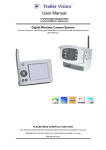
User Manual
Model: Digi-Max
Digital Wireless Camera System
This is a driving aid, safe driving, good observation and
use of the rear-view/wing mirror are still necessary.
er’
PLEASE READ CAREFULLY AND SAVE
This manual contains important information about this product's operation.
If you are installing this product for others, you must leave this manual,
or a copy, with the end user.
Digi-Max
Contents
System Parts
Safety Precaution and Hazard Notice / FCC Warning / Disposal
The System Parts
Getting Started
Step 1: System Connections
Step 2: Basic Operation
Monitor Function Buttons and Indicators
View Mode
Step 3: Advanced Operation
The Menu
Skip Certain Camera During Manual Scan
Setting QUAD Display
Pairing a Camera
System Setup and Reset
Trouble Shooting
Trouble Shooting Table
Product Specification
System Parts
(1) Digital Wireless IP65 Colour Camera
(2) 7" LCD Colour Monitor
(3) Antenna for the camera
(4) 5V Cigarette Power Adapter for the Monitor
(5) Screw/fixings bag
(6) Windscreen holder for the Monitor
(7) Dash-board mount for the Monitor
(8) IR Remote Control for the Monitor
(9) User Manual
1
WELCOME
Dear Customer,
Product Specification
Thank you for purchasing this unique product, which utilises the latest digital wireless technology ensuring ZERO
interference. Please read the following information carefully before installing and using this product.
Maximum Channels
Camera
Monitor
1
4
Communication Range
200 metres in open space
Resolution
640 × 480 (VGA)
Operating Temperature
-10˚C + 50˚C
C
DC 5V
Operating Voltage
DC 12V~24V
Current Consumption
160mA(max)
Night View Range
3~5 M
Dimension
95 × 92 × 80 mm
850mA(max)
Important Safety Precautions
Damage caused by non-compliance with this operating manual will void the warranty! We will not assume any liability
for damage to items or persons caused by improper handling or non-compliance with the safety notices! Any warranty
claim will be null and void in such cases.
1. Do not drop, puncture or disassemble the camera or monitor; otherwise the warranty will be void.
2. Avoid all contact with water, and dry hands before using the monitor.
3. Never tug on the power cords.
4. Do not expose the monitor to high temperature, or leave it positioned in direct sunlight (e.g. permanently fixed to the
windscreen). Doing so may cause damage, or temporary malfunction.
5. Use the devices with care; only gentle pressure is required to use the monitor buttons.
6. For your own safety, avoid using the camera or power off the camera when there is a storm or lightning.
7. Remove the monitor power adapter during long periods between use.
8. Use only the accessories and power adapters supplied by the manufacturer.
9. To meet the regulations pertaining to parental responsibility, keep the devices out of the reach of infants.
10. Ensure that power cables do not get crushed or damaged by sharp edges.
233 × 145 × 36 mm
Products with CE Marking comply with EMC Directive
FCC Compliance Statement: This device complies with
(2004/108/EC); Low Voltage Directive (73/23/EEC);
Part 15 of the FCC Rules. Operation is subjected to the
R&TTE(1999/5/EC) issued by the Commission of the
following two conditions: (1) this device may not cause
European Community. Compliance with these directives
harmful interference, and (2) this device must accept
implies conformity to the following European Norms:
any interference received, including interference that
EMC: EN 301 489
may cause undesired operation.
LVD: EN 60950
Radio: EN 300 328
FCC/CE WARNING
This equipment has been tested and found to comply with limits for a Class B digital device, pursuant to Part 15 of the FCC rules and ETSI (EN)
300328. These limits are designed to provide reasonable protection against harmful interference in residential installations. This equipment
generates, uses, and can radiate radio frequency energy, and if not installed and used in accordance with the instructions, may cause harmful
interference to radio communications. However, there is no guarantee that interference will not occur in a particular installation. If this equipment
does cause interference to radio or television equipment reception, which can be determined by turning the equipment off and on, the user is
encouraged to try to correct the interference by one or more
of the following measures:-Reorient or relocate the receiving antenna.-Move the equipment away from the monitor.-Plug the equipment into an outlet
on a circuit different from that to which the monitor is connected.-Consult the dealer or an experienced radio/television technician for additional
suggestions. You are cautioned that any change or modifications to the equipment not expressly approved by the party responsible for compliance
could void your authority to operate such equipment.
ser’
Disposal
If the camera system no longer functions or can no longer be repaired, it must be disposed of according to the valid statutory regulations. Disposal of
spent batteries / accumulators:
You are required by law (Battery Ordinance) to ret urn all spent batteries and accumulators. Disposing of spent
U
batteries/accumulators with common household waste is prohibited! Batteries/accumulators that contain hazardous
substances are marked with the symbols on the side. These symbols indicate that it is prohibited to dispose of
these batteries/ accumulators in the household waste. The abbreviations for the respective heavy metals are: Cd=
cadmium,
Hg= mercury, Pb= lead. You can return spent batteries and accumulators that can no longer be charged to the
designated collection points in your community, outlets or wherever batteries or accumulators are sold. Following these
instructions will allow you to fulfil the legal requirements and contribute to the protection of our environment!
17
2
Trouble Shooting Table
The System Parts
Before requesting service, please complete the checks detailed below.
If you are in doubt about any of the following, or if the solutions
described in the chart do not solve the problem, please contact us.
Wireless Camera
Problem
System
Message
shows “No
Signal” on
the monitor
screen.
Low signal,
or unstable
signal.
1. Camera Lens
2. Pairing Key (cover/sealed)
3. Mounting Bracket
4. IR LED (Night Vision)
5. EDS (light sensor)
6. Antenna
7. Power Cord
8. Link/Pair LED Indicator
9. Power LED Indicator
USB
12
5 6 7 8 9 10
Channel is not
paired with
camera.
To complete Pairing, select reverse gear,
with the hand brake ON, then press the
camera pair button. See [Advanced
Operation - Pairing Camera] section as a
guide.
Adjust & secure camera antenna, position
camera & monitor antenna vertically.
Antenna
directional
limitation.
Dim / over
bright image
on monitor
screen.
Powerful
transmitter /
radio signal in
vicinity of
monitor/camera.
Monitor
brightness
incorrectly
adjusted.
Check that the reversing light (if the camera
is powered from the reversing light) is
working. Check the camera wiring, ensure
the polarities are correctly connected and
12-24V is available.
Relocate source of radio signal, or
reposition the camera/monitor.
Press [OK] button, select menu, enter
[System Setup]; adjust [Brightness].
See [Advance Operation – System Setup]
for detail.
15
13
14
16
2 3 4
Remedy
Low signal
or unstable
signal
7" LCD Wireless Monitor
1
Possible
Cause
No power
supply to
corresponding
camera(s).
11
For technical support please email:
[email protected]
1. Antenna
2. Pairing Indicator
3. Signal Indicator
4. Power On/Off
5. Change Channel/Pair Camera
6. Menu Selection
3
7. Cursor Down
8. Cursor Left
9. Cursor Right
10. IR Sensor
11. Back Flip Stand
12. A/V Out
13. USB Out (none functional)
14. DC In
15. Cigarette Power Adaptor
16. Windscreen Holder
17. Dashboard Mount
16
Trouble Shooting
This section offers some helpful information to overcome most of the problems that you may
encounter. We also hope that this section assists you to achieve a quick and easy
installation/setup.
Getting Started
Step1: System Connections
Camera Connection:
Problem Diagnosis
This innovative digital wireless solution integrates advance Frequency Hopping Spread
Spectrum (FHSS) technology. This technology greatly reduces the interference that comes
from other devices using the same radio frequency (2.4GHz), e.g. WIFI, Bluetooth, cordless
phones etc. You now can enjoy superior wireless picture quality without a flickering or noisy
image. However, weaker signal (lag or still image) may be observed from time to time,
depending on the environment where the system is installed.
The system complies with FCC part 15.247, ETSI (EN) 300 328, audio/video signals transmitted
about, or over 500 feet / 150 metre in the ‘line of sight’. However, ‘line of sight’ installation is
difficult to achieve due to obstacles etc. Factors affecting transmission include microwave ovens
and/or other high frequency electromagnetic waves. Reinforced concrete walls, large-scale metal
products and objects should not be located near to the camera, or the monitor. Water also creates
an obstacle to signal transmission, as it absorbs the signal and should be avoided. People etc
passing through the transmission area may also cause unstable signal quality. However, in ‘normal
use’ as a rear-view or interior (vehicle) camera, the system should offer excellent performance and
provide a clear and interference-free image/view.
How to improve the wireless signal quality?
If possible, remove any obstacles from between the camera and monitor that might reflect/absorb
the signal. Obstacles could include furniture, cabinets or walls. If the wireless signal strength is low,
position the monitor/antenna at a new angle (ideally vertically), or readjust camera/monitor position
until an improvement is achieved. Or, if possible, relocate the camera closer to the monitor.
Why Image Compression?
In order to achieve a secure and interference free signal, this digital wireless system utilises a
narrow 2Mb frequency-hopping bandwidth. Different from traditional 2.4GHz analogue wireless
systems, the digital wireless signal is compressed and then transmitted in Motion JPEG (MJPEG)
format. By digitising and compressing the raw analogue data the available bandwidth is used more
efficiently/securely. Consequentially, you might observe an indent image line if you are using a
larger display monitor, or a plasma TV.
3.
1.
2.
AB-168
1. For reversing, choose a location on the rear bumper etc that you wish to
install t h e c a m e r a (usually in the middle of bumper), for a HGV etc high up
and looking down, usually gives the best view. For inside a horsebox/trailer,
mount the camera high up and ideally behind the horse(s).
2. Screw the camera's mounting bracket to the desired location.
3. For reversing, connect the power cable to the reversing light of the vehicle
and th e c a mer a will be automatically powered when the vehicle is in reverse;
otherwise connect to any available power source (ideally use a switched
source to prevent inadvertent battery drain).
Antenna Installation to the Camera:
Screw the dipole antenna to the antenna
connector.
How to improve the image quality when using large display screens?
When QVGA is selected, ‘pixel scattering’ is unavoidable. However, you can change the image to
VGA and by doing so, more pixels are ‘scattered’ on the screen. Therefore to achieve the best
display performance, when outputting the video/signal, a 32" or smaller monitor / TV is
recommended.
OR
AB-168
15
4
Windscreen Holder Installation Guide
System Setup and Reset
(Please use the dash-board mount for permanent fixture).
Resolution
QUAD
CA M1
QVGA
OFF
ON
A. Select [System Setup], press [OK] to enter.
CA M2
ON
CA M3
ON
CA M4
ON
Pair CAM
1234
System Setup
Factory Reset
0
Brightness
8
Frequency
50Hz
15
B. Use
to adjust monitor brightness.
Brightness setting takes effect on LCD monitor
only.
Brightness
Frequency
0
8
50Hz
15
B. Use
to select the required frequency (for
the UK, please set the frequency to 50Hz).
Fasten the screws to the metal panel as shown above.
5
14
LCD Monitor Connection
Pairing a Camera(s)
Proceed with this function ONLY when the camera cannot be found by the system or when you
have a n additional/new camera(s) to view.
Before pairing the camera, make sure t ha t t h e camera power cord is correctly connected to a live
power source & the blue LED is illuminated.
A. Simply pair the camera by selecting the
desired channel in Menu Mode.
B. Only assign one camera to one channel.
2
Channel memory will be overwritten if
C. Pairing a new camera to channel 3, settings
3
B
1234
S
Pair CAM
1
another camera is assigned to the same channel.
as shown:
D. Press
Please Press
Pair Key
on Camera Side
(Pair).
E. System will count down within 60
seconds, system message as shown:
Pairing key
1. Fasten the metal panel to the monitor.
2. Attach the rubber pad to the windscreen. Make sure the glass is clean and dry to ensure that the
holder fixes securely.
3. Pull the lock knob down to fix the holder (this holder is not designed to be left permanently in the
windscreen – please use the dashboard mount for permanent fixture).
F. Within t h e 60-second
DC Input
S
B
count down, press the
Link/Pairing Key on the
camera cable.
To complete Pairing, the camera needs to
be powered, which may mean that the
reverse gear will need to be selected
(without the engine running and with the
hand-brake applied).
Cigarette Power
Source
G. Once pairing is
completed, the
camera and
monitor status
indicators will
illuminate.
13
4. Connect the cigarette adaptor to the DC power jack of the LCD monitor.
ONLY use the pr ov ided pow er adaptor (a hard-wire power adapter is available separately).
5. Plug the power unit to the cigarette power source ( w hic h may operate via the ignition).
6. Position the monitor antenna (& camera antenna) vertically to achieve the best reception.
6
Step 2: Basic Operation
Setting QUAD Display
Monitor Function Buttons and Indicators
This function is available for multi cameras use. Before setting QUAD display, make sure all cameras are
paired to assigned channels. See [Advance Operation – Pair Camera] section as a guide.
QUAD display will be restored to one camera display after pressing the directional keys for manual scan.
To ensure correct display, turn all available channels ON PRIOR to entering QUAD mode.
R esolution
QUAD
Q VG A
OFF
CAM 1
ON
CAM 2
ON
CAM 3
ON
A. Use
to turn all available channels ON.
B. Use
to turn QUAD Mode on.
CA M 4
ON
Pair CAM
12 3 4
System Setup
F actory R eset
R esolution
Q VG A
QUAD
ON
C AM1
ON
C AM2
C AM3
ON
ON
C AM4
ON
Pair CAM
123 4
System Setup
Factory Reset
1
2
3
4
5
6
1. [Power Button]
Press t h e button to power ON, hold it down to switch power OFF.
CH1
CH2
2. (View Mode) [Scan Channels] / (Menu Mode) [Pair Camera]
In View mode, manually scan available camera channels. In Pair
mode, assign and pair a camera to a specified channel.
C. QUAD display as shown. Unavailable channels will be
displayed as a blank screen.
To leave Q UAD display, simply press
3. (Menu Mode) [Menu / Enter Button]
4. (Menu Mode) [Cursor DOWN] / (QUAD View Mode)
= CAM 4
5. (Menu Mode) [Cursor Left] / (QUAD View Mode)
In QUAD display/ [Pair] functions are not available.
6. (Menu Mode) [Cursor Right] / (QUAD View Mode)
7
to go
to a specific channel.
CH3
= CAM 3
= CAM 2
CH4
12
Skip Certain Camera(s) During Manual Scan
View Mode
Before setting Scan and Skip, make sure all cameras are paired to assigned channels, see next pages for
Channel Indicator
Resolution Indicator
Signal Indicator
detail.
Make sure the channel assigned to the reversing camera is turned ON.
Resolution
QUAD
C AM 1
QVG A
ON
ON
C AM 2
OF F
C AM 3
ON
C AM 4
OF F
Pair CAM
1234
System Setup
Factory Reset
QVGA
A. Simply set the skip camera(s) OFF by
pressing
(Left / Right).
1
B. To skip Camera 2 and 4 by pressing
(Cam), settings as shown:
A. Signal Indicator shows signal strength, more bars indicate a stronger signal.
Display as shown:
Signal Level
1
3
Indicator
VGA Frame Rate
QVGA Frame Rate
Perfect
5~10Fps
15~30Fps
Good
3~5Fps
12~20Fps
Fair
2~4Fps
8~15Fps
Low
0~1Fps
0~4Fps
Zero
0Fps
0Fps
It’s recommended
that QVGA
resolution is utilised
to ensure that a
smooth image is
displayed. To do so,
simply select
[Resolution]
to switch to QVGA as
shown on the
[Resolution Indicator].
B. Reversing Camera Operation Steps:
1. Press [Power] button to power ON.
2. Switch to QVGA mode if necessary.
3. Select Reverse Gear (if the camera is powered by the reversing light).
4. Reverse image will be displayed.
5. If the/a camera is used to view the interior of a vehicle/horsebox, then it
should be powered from an ignition controlled circuit, or a lighting circuit could
be used.
STOP REVERSING when [NO Signal] shows on the monitor.
Press [Cam] button to locate the reversing camera channel if necessary.
This is a driving aid, safe driving, good observation and use of the rear-view/wing
mirror are still necessary.
11
8
Step3: Advanced Operation
C. Channel indicator shows the current camera being displayed by the monitor.
By pressing
(Cam), you can manually switch between cameras.
Knowing the Menu
By Pressing
1
2
(Menu), you can enter / exit Menu Mode
You can Use
(Left / Right / Down) to select and change the
settings.
Resolution
QUAD
CAM1
Camera 1
Camera 2
3
Camera 3
4
Camera 4
QVGA
OFF
ON
CAM2
ON
CAM3
ON
CAM4
ON
Pair CAM
1234
System Setup
Factory Reset