1
IT & Telecoms Systems User Guide
o
o
The unit is set to not auto answer any calls.
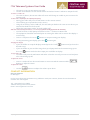
Use the arrow buttons on the remote control and select ‘Answer’ and OK to accept the call.
To answer a 2 video call
nd
o
The same as above, the current video call screen will change to enable to you to answer the
incoming call.
To add a video call (multiple site call/add participants)
o
o
o
o
During your Video call press the OK button on the remote control.
This will bring up a separate box on the screen.
Using the arrow keys select ‘Add Call’, this will take you back to the same screen where you
entered the details for the first call.
Follow the instructions under ‘To make a video call’.
Add other video/visuals/presentations, i.e. from a laptop (NEEDS TO BE REQUESTED IN ADVANCE)
o
o
You will need to set the laptop resolution for the 2nd monitor to 1024 x 768
The equipment should be connected prior to starting the Video Call to ensure the display is
set correctly.
o
Once in a call press the Green
o
To stop presenting your display, press the
o
If you would like to swap the displays around, press the ‘Call’
button until you have the
desired set up.
If you would like to just send the image from your laptop and not the camera image, press
Changing the displays
o
the near
To end a video call
o
button to start presenting your display.
button again.
button and select the output you would like to display.
To end the call press the OK button and either select the one call you want to end and press
ok or select Hang Up All’
To adjust the camera
o
Once in a Video call use the arrow buttons to move around the camera and the
buttons to adjust the zoom.
To adjust the volume
o
Use the
buttons to adjust the volume up or down.
CONTACT INFORMATION
Kim Carrington
IT Manager
In the event that you encounter any problems with your service please do not hesitate to
contact Kim Carrington
Tel: +44 (0)207 654 3869
3869 if calling from house phone
Email: [email protected]
5|Page