1
AWS CloudFormation User Guide
Step 6: Use your stack resources
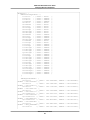
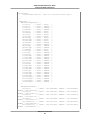
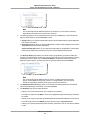
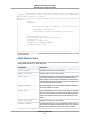
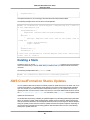
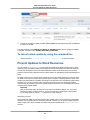
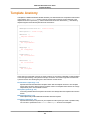
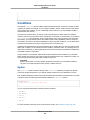
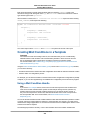
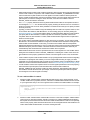
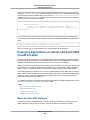
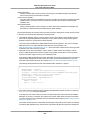
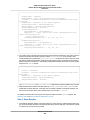
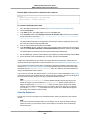
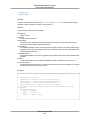
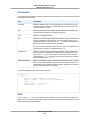
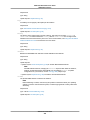
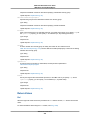
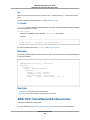
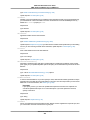
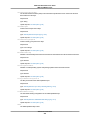
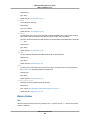
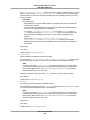
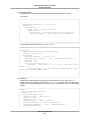
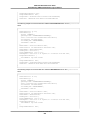
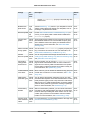
The Events tab displays each major step in the creation of the stack sorted by the time of each event,
with latest events on top.
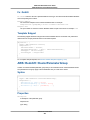
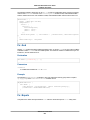
The first event (at the bottom of the event list) is the start of the stack creation process:
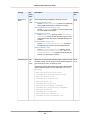
2013-04-24 18:54 UTC-7 CREATE_IN_PROGRESS AWS::CloudFormation::Stack
MyWPTestStack User initiated
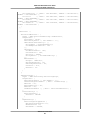
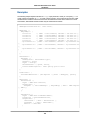
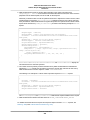
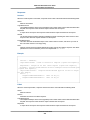
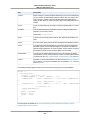
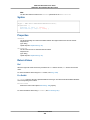
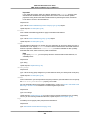
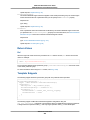
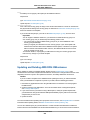
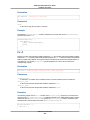
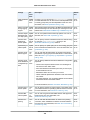
Next are events that mark the beginning and completion of the creation of each resource. For example,
creation of the DBSecurityGroup security group results in the following entries:
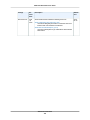
2013-04-24 18:59 UTC-7 CREATE_COMPLETE AWS::RDS::DBSecurityGroup...
2013-04-24 18:54 UTC-7 CREATE_IN_PROGRESS AWS::RDS::DBSecurityGroup...
The CREATE_IN_PROGRESS event is logged when AWS CloudFormation reports that it has begun to
create the resource. The CREATE_COMPLETE event is logged when the resource is successfully created.
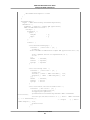
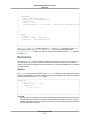
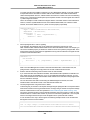
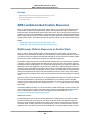
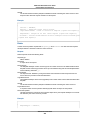
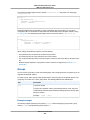
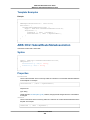
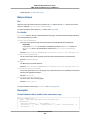
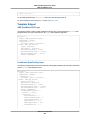
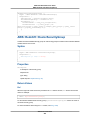
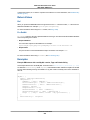
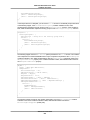
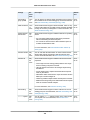
When AWS CloudFormation has successfully created the stack, you will see the following event at the
top of the Events tab:
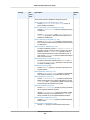
2013-04-24 19:17 UTC-7 CREATE_COMPLETE AWS::CloudFormation::Stack MyWPTestStack
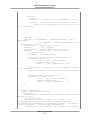
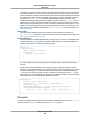
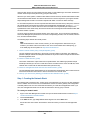
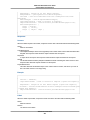
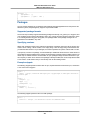
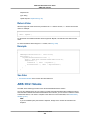
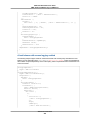
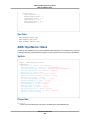
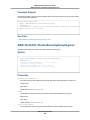
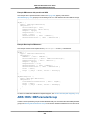
If AWS CloudFormation cannot create a resource, it reports a CREATE_FAILED event and, by default,
rolls back the stack and deletes any resources that have been created. The Status Reason column
displays the issue that caused the failure. For example, if you specified an invalid database password,
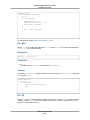
you might see something like the following event for the AWS::RDS::DBInstance resource:
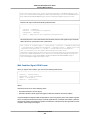
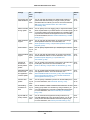
2013-04-24 19:21 UTC-7 CREATE_FAILED AWS::RDS::DBInstance DBInstance The
parameter MasterUserPassword is not a valid password because it is shorter than
8 characters.
Step 6: Use your stack resources
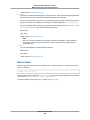
When the stack MyWPTestStack has a status of CREATE_COMPLETE, AWS CloudFormation has finished
creating the stack, and you can start using its resources.
The sample WordPress stack creates a WordPress website. You can continue with the WordPress setup
by running the WordPress installation script.
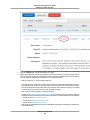
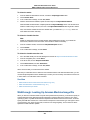
To complete the WordPress installation
1.
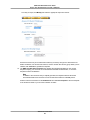
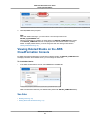
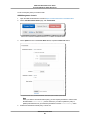
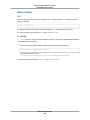
On the Outputs tab, in the WebsiteURL row, click the link in the Value column.
2.
The WebsiteURL output value is the URL of the installation script for the WordPress website that
you created with the stack.
On the web page for the WordPress installation, follow the on-screen instructions to complete the
WordPress installation. For more information about installing WordPress, see http://
codex.wordpress.org/Installing_WordPress.
After you complete the installation and log in, you are directed to the dashboard where you can set
additional options for your WordPress blog. Then, you can start writing posts for your blog that you
successfully created by using a AWS CloudFormation template.
API Version 2010-05-15
13