1
Using a New Protocol Template Without Saving It
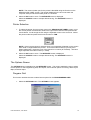
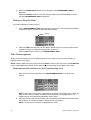
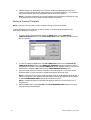
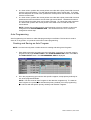
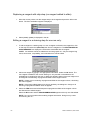
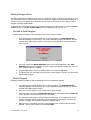
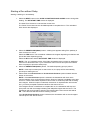
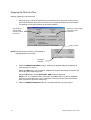
1. After a Protocol Template has been created or modified, click on the USE TEMPLATE
button in the PROTOCOL TEMPLATE DESIGN screen. A dialog box asking “Save on
disk now?” is displayed.
2. Select the NO button and the PROGRAMMING GRID is displayed with the new protocol
template in the header row.
NOTE: If a staining run had already been programmed and the new protocol template
omits previously programmed steps, a warning message is displayed stating that
programmed steps will be discarded if the new protocol template is applied.
Using a Saved Protocol Template
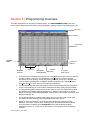
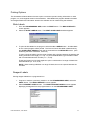
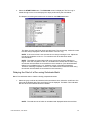
1. Select the PROTOCOL TEMPLATE button in the PROGRAMMING GRID. The
PROTOCOL TEMPLATE DESIGN screen appears with the default protocol template
displayed in the Protocol Outline column.
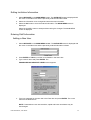
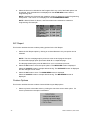
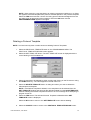
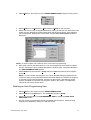
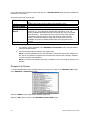
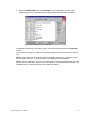
2. Select the GET TEMPLATE button. The GET TEMPLATE screen is displayed with the
cursor in the File Name box.
3. Select the template by clicking on it. The name appears in the file name box.
4. Press ENTER or click on the OK button. The PROTOCOL TEMPLATE DESIGN screen
appears with the selected protocol template displayed in the Protocol Outline column.
5. Click on the USE TEMPLATE button. The PROGRAMMING GRID appears with the
selected protocol template displayed in the grid header.
Using a Saved Protocol Template for a Specific Auto Program
NOTE: Auto Programming is a feature for making slide programming more efficient. (See
Programming Slides section 10)
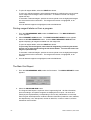
1. Select the PROTOCOL TEMPLATE button in the PROGRAMMING GRID. The
PROTOCOL TEMPLATE DESIGN screen appears with the default protocol template
displayed in the Protocol Outline column.
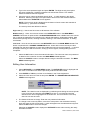
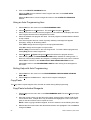
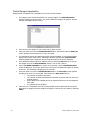
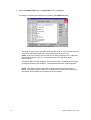
2. Select the GET TEMPLATE button. The GET TEMPLATE screen is displayed with the
cursor in the File Name box.
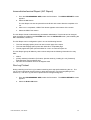
3. Check the Auto file check box. All Auto Program names will be displayed.
4. Select the desired Auto Program by clicking on it. The name appears in the file name
box.
50
Dako Autostainer | User Guide