1
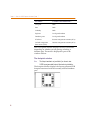
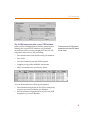
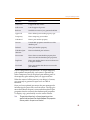
OrCAD® Component Information System
User’s Guide
Copyright © 1998 OrCAD, Inc. All rights reserved.
Trademarks
OrCAD, OrCAD Layout, OrCAD Express, OrCAD Capture, OrCAD PSpice, and
OrCAD PSpice A/D are registered trademarks of OrCAD, Inc. OrCAD Capture CIS,
and OrCAD Express CIS are trademarks of OrCAD, Inc.
Microsoft, Visual Basic, Windows, Windows NT, and other names of Microsoft
products referenced herein are trademarks or registered trademarks of Microsoft
Corporation.
All other brand and product names mentioned herein are used for identification
purposes only, and are trademarks or registered trademarks of their respective
holders.
60-30-616
First edition 30 November 1998
Technical Support
Corporate offices
OrCAD Japan K.K.
OrCAD UK Ltd.
Fax
(503) 671-9400
(503) 671-9500
81-45-621-1911
44-1256-381-400
(503) 671-9501
General email
Technical Support email
[email protected]
[email protected]
World Wide Web
http://www.orcad.com
OrCAD Design Network (ODN) http://www.orcad.com/odn
9300 SW Nimbus Ave.
Beaverton, OR 97008 USA
Contents
Before you begin
ix
Welcome to OrCAD . . . . . .
How to use this guide . . . . .
Symbols and conventions
Related documentation . .
Chapter 1
Chapter 2
.
.
.
.
.
.
.
.
.
.
.
.
.
.
.
.
.
.
.
.
.
.
.
.
.
.
.
.
.
.
.
.
.
.
.
.
.
.
.
.
.
.
.
.
.
.
.
.
.
.
.
.
.
.
.
.
.
.
.
.
.
.
.
.
.
.
.
.
.
.
.
.
.
.
.
.
.
.
.
.
.
.
.
.
.
.
.
.
.
.
.
.
ix
x
x
xi
Overview . . . . . . . . . . . . . . . . . . . . . . . . . . . . .
CIS product history . . . . . . . . . . . . . . . . . . . . . . .
The internet component assistant (ICA) . . . . . . . . . . . .
CIS in the PCB design process . . . . . . . . . . . . . . . . .
The CIS work environment . . . . . . . . . . . . . . . . . . .
The part manager window . . . . . . . . . . . . . . . . .
The CIS explorer window . . . . . . . . . . . . . . . . .
The footprint window . . . . . . . . . . . . . . . . .
The part window . . . . . . . . . . . . . . . . . . . .
The visibility window . . . . . . . . . . . . . . . . .
The explorer window . . . . . . . . . . . . . . . . . .
The database parts window . . . . . . . . . . . . . .
The ICselector window . . . . . . . . . . . . . . . . .
The OrCAD component data server (CDS) window
.
.
.
.
.
.
.
.
.
.
.
.
.
.
.
.
.
.
.
.
.
.
.
.
.
.
.
.
.
.
.
.
.
.
.
.
.
.
.
.
.
.
.
.
.
.
.
.
.
.
.
.
.
.
.
.
.
.
.
.
.
.
.
.
.
.
.
.
.
.
.
.
.
.
.
.
.
.
.
.
.
.
.
.
.
.
.
.
.
.
.
.
.
.
.
.
.
.
.
.
.
.
.
.
.
.
.
.
.
.
.
.
1
3
4
5
6
6
7
8
9
9
9
10
10
11
.
.
.
.
.
.
.
.
.
.
.
.
.
.
.
.
.
.
.
.
.
.
.
.
.
.
.
.
.
.
.
.
.
.
.
.
.
.
.
.
.
.
.
.
.
.
.
.
.
.
.
.
.
.
.
.
.
.
.
.
.
.
.
.
13
14
14
16
21
22
22
24
What is the OrCAD Component Information System™?
Setting up OrCAD CIS
.
.
.
.
.
.
.
.
1
13
Overview . . . . . . . . . . . . . . . . . . . . . . . . . .
Creating a part database . . . . . . . . . . . . . . . . .
Choosing a database format . . . . . . . . . . . . .
Determining part properties . . . . . . . . . . . . .
Setting the field format . . . . . . . . . . . . . . . .
Using more than one table . . . . . . . . . . . . . .
Creating a part database from an existing design .
Extracting part information from an MRP database
.
.
.
.
.
.
.
.
.
.
.
.
.
.
.
.
.
.
.
.
.
.
.
.
Contents
Setting up the ODBC data source . . . . . . . . . . .
Creating and setting up a configuration file . . . . .
Creating a configuration file and setting options
Defining part reference associations . . . . . . .
Setting administrative preferences . . . . . . . .
Setting ICA supplier preferences . . . . . . . . .
Saving the configuration file . . . . . . . . . . .
Setting up the ICA to access external part data . . .
Creating Crystal Reports templates . . . . . . . . .
Chapter 3
iv
.
.
.
.
.
.
.
.
.
.
.
.
.
.
.
.
.
.
.
.
.
.
.
.
.
.
.
.
.
.
.
.
.
.
.
.
.
.
.
.
.
.
.
.
.
.
.
.
.
.
.
.
.
.
.
.
.
.
.
.
.
.
.
26
29
29
35
39
42
44
45
46
Overview . . . . . . . . . . . . . . . . . . . . . . . . . . . . . .
Using the CIS interface . . . . . . . . . . . . . . . . . . . . . . .
Using the part manager window . . . . . . . . . . . . . . .
Using the CIS explorer window . . . . . . . . . . . . . . .
Using docking windows . . . . . . . . . . . . . . . . .
Using the database parts and OrCAD CDS windows .
Placing database parts on your schematic . . . . . . . . . . . .
Using the explorer to locate a database part . . . . . . . .
Using the query feature to locate database parts . . . . . .
Creating and executing a query . . . . . . . . . . . . .
Placing a local database part on your schematic . . . . . .
Browsing part properties . . . . . . . . . . . . . . . . . . . . .
Creating a new database part . . . . . . . . . . . . . . . . . . .
Deriving a new database part from the local part database
Using the ICA to locate and create a new database part . .
Learning about ICselector search techniques . . . . . .
Using the ICA to locate a part . . . . . . . . . . . . . .
Using the ICA to create and place a part . . . . . . . .
Linking a placed part to a database part . . . . . . . . . . . . .
Copying part properties using the part manager . . . . . . . .
Viewing and updating part status . . . . . . . . . . . . . . . .
Opening the part manager . . . . . . . . . . . . . . . . . .
Updating the part status for your design . . . . . . . . . .
Saving the status report . . . . . . . . . . . . . . . . . . . .
Creating design variants . . . . . . . . . . . . . . . . . . . . . .
Creating design variant names . . . . . . . . . . . . . . . .
Setting design variant properties . . . . . . . . . . . . . . .
Generating design variant reports . . . . . . . . . . . . . .
Previewing or printing design variant schematic pages . .
Creating reports . . . . . . . . . . . . . . . . . . . . . . . . . .
.
.
.
.
.
.
.
.
.
.
.
.
.
.
.
.
.
.
.
.
.
.
.
.
.
.
.
.
.
.
.
.
.
.
.
.
.
.
.
.
.
.
.
.
.
.
.
.
.
.
.
.
.
.
.
.
.
.
.
.
.
.
.
.
.
.
.
.
.
.
.
.
.
.
.
.
.
.
.
.
.
.
.
.
.
.
.
.
.
.
.
.
.
.
.
.
.
.
.
.
.
.
.
.
.
.
.
.
.
.
.
.
.
.
.
.
.
.
.
.
.
.
.
.
.
.
.
.
.
.
.
.
.
.
.
.
.
.
.
.
.
.
.
.
.
.
.
.
.
.
.
.
.
.
.
.
.
.
.
.
.
.
.
.
.
.
.
.
.
.
.
.
.
.
.
.
.
.
.
.
49
50
50
52
53
55
57
57
58
58
60
62
63
63
66
66
67
69
73
76
78
78
79
82
83
84
85
87
90
92
Working with OrCAD CIS
.
.
.
.
.
.
.
.
.
.
.
.
.
.
.
.
.
.
.
.
.
.
.
.
.
.
.
.
.
.
.
.
.
.
.
.
.
.
.
.
.
.
.
.
.
49
Contents
Creating a standard CIS bill of materials . . . . . . . . . . . . . . . . . 92
Creating a report using a Crystal Reports template . . . . . . . . . . . 96
Glossary
Index
101
111
v
Contents
vi
Tables
Table 1
Table 2
Required part properties . . . . . . . . . . . . . . . . . . . . . . . . . . . . 17
Optional part properties . . . . . . . . . . . . . . . . . . . . . . . . . . . . 20
Tables
viii
Before you begin
Welcome to OrCAD
OrCAD offers a total solution for your core design tasks:
schematic- and VHDL-based design entry; FPGA and
CPLD design synthesis; digital, analog, and mixed-signal
simulation; and printed circuit board layout. What's more,
OrCAD's products are a suite of applications built around
an engineer's design flow—not just a collection of
independently developed point tools. OrCAD
Component Information System™ (CIS) is just one element
in OrCAD's total solution design flow.
OrCAD CIS is a part management system that is available
as an option for use with OrCAD Capture. OrCAD CIS
helps you manage part properties (including part
information required at each step in the printed circuit
board design process, from implementation through
manufacturing) within your schematic designs.
Before you begin
How to use this guide
This guide is designed so you can quickly find the
information you need to use OrCAD CIS. To help you
learn and use CIS efficiently, this manual is separated into
the following sections:
•
What is the OrCAD Component Information System™? on
page -1
•
Setting up OrCAD CIS on page -13
•
Working with OrCAD CIS on page -49
Symbols and conventions
OrCAD printed documentation uses a few special
symbols and conventions.
Notation
Examples
Description
C+r
Press C+r
Means to hold down the C key while
pressing r.
A, f, o
From the File menu, choose Open (A, f,
o)
Means that you have two options. You
can use the mouse to choose the Open
command from the File menu, or you
can press each of the keys in
parentheses in order: first A, then f,
then o.
Monospace font
In the Part Name text box, type PARAM.
Text that you type is shown in
monospace font. In the example, you
type the characters P, A, R, A, and
M.
UPPERCASE
In Capture, open CLIPPERA.DSN.
Path and filenames are shown in
uppercase. In the example, you open
the design file named CLIPPERA.DSN.
Italics
In Capture, save design_name.DSN.
Information that you are to provide is
shown in italics. In the example, you
save the design with a name of your
choice, but it must have an extension of
.DSN.
x
How to use this guide
Related documentation
In addition to this guide, you can find technical product
information in the online Help, the online interactive
tutorial, online books, OrCAD’s technical web site, as well
as other books. The table below describes the types of
technical documentation provided with Capture CIS.
This documentation component . . .
Provides this . . .
This guide—
A comprehensive guide for understanding and using the
features available in Capture CIS.
OrCAD Component Information System User’s
Guide
Online Help
Comprehensive information for understanding and using
the features available in Capture CIS.
You can access Help from the Help menu in Capture CIS,
by choosing the Help button in a dialog box, or by pressing
1. Topics include:
• Explanations and instructions for common tasks.
• Descriptions of menu commands, dialog boxes, tools on
the toolbar and tool palettes, and the status bar.
• Error messages and glossary terms.
• Reference information.
• Product support information.
You can get context-sensitive help for a error message by
placing your cursor in the error message line in the session
log and pressing 1.
Online interactive tutorial
A series of self-paced interactive lessons. You can practice
what you’ve learned by going through the tutorial’s
specially designed exercises that interact directly with
Capture CIS. You can start the tutorial by choosing
Learning Capture from the Help menu.
Online OrCAD Component Information System
User’s Guide
An online, searchable version of this guide.
Online OrCAD Component Information System
Quick Reference Card
Concise descriptions of the commands, shortcuts, and tools
available in Capture CIS.
xi
Before you begin
This documentation component . . .
Provides this . . .
ODN—OrCAD Design Network at
www.orcad.com/odn
An internet-based technical support solution. ODN
provides a variety of options for receiving and accessing
design and technical information. ODN provides:
• A Knowledge Base with thousands of answers to
questions on topics ranging from schematic design
entry and VHDL-based programmable logic design to
printed circuit board layout methodologies.
• A Knowledge Exchange forum for you to exchange
information, ideas, and dialog with OrCAD users and
technical experts from around the world. A list of new
postings appears each time you visit the Knowledge
Exchange, for a quick update of what’s new since your
last visit.
• Tech Tips that deliver up-to-the-minute product
information in your email box. Stay informed about the
latest advances, tips, and announcements on your
OrCAD product.
• Online technical support via the Tech Support
Connection. Use this service to submit technical support
incidents online. Create submissions, upload files, track
your incidents and add comments directly into
OrCAD’s support database.
xii
What is the OrCAD Component
Information System™?
1
Overview
OrCAD Component Information System™ (CIS) is a part
management system that is available as an option for use
with OrCAD Capture. OrCAD CIS helps you manage part
properties (including part information required at each
step in the printed circuit board design process, from
implementation through manufacturing) within your
schematic designs.
CIS provides access to local (preferred parts database) and
remote part databases that contain all relevant
information for the parts used in your designs. This
information may include company part numbers, part
descriptions, PCB layout footprints, technical parameters
(such as speeds, tolerances, and ratings), and purchasing
information.
With CIS, you can select a part from your preferred parts
database or a remote database and place it directly in your
schematic design. You can configure CIS to transfer any or
all properties associated with that part to the schematic
Chapter 1 What is the OrCAD Component Information System™?
when you place the part. CIS maintains a link to the
engineering database part so that you can retrieve other
part properties at any time. Linking placed parts to your
preferred parts database gives you access to complete part
information during the schematic design process.
If you need a part for your design that is not yet in the
parts database, you can create the part in the design and
add the part to your part database immediately or at a
later time. You can also link a non-database part you’ve
created before to a database part at any time.
UNC, URLs,
path to
browsable
files
Local
Preferred
Part
Data
OrCAD
Layout
Libraries
OrCAD
Capture
Libraries
Corporate Database
(MRP/ERP/PDM)
Combined or
separate
databases
Upload BOM
to corporate
system
OrCAD Capture
Preferred Parts
Database
ODBC
Reports
Tab delimited ASCII
Comma delimited ASCII
OrCAD CIS
Internet
External
New
Part
Data
OrCAD
Layout
Libraries
2
ICselector
MS Access database format
ICA
Seagate Crystal Reports
Component Data
Server (CDS)
OrCAD
Capture
Libraries
Supplier
Pricing &
Availability
URLs to
Mfr. Spec
Sheets
To
File
To
Exchange
Folder
To
Lotus
Notes
Database
To
MS Mail
CIS product history
CIS product history
OrCAD CIS Release 9 is the latest version of the OrCAD
Enterprise CIS product offering. With the release of
version 7.2 in April 1998, the OrCAD Enterprise CIS
family was the evolution and final merging of two
popular OrCAD CIS product lines—Enterprise Edition
and EDA-Bridge.
Enterprise Edition evolved from the DDL product
originally developed by an OrCAD Industry Partner
called Q-Point. Q-Point was acquired by OrCAD in June
1997. OrCAD Enterprise Edition was packaged and
shipped under the product names OrCAD Capture EE
and OrCAD Express EE. Version 7.1 was the last release of
both these products lines. They were replaced by OrCAD
Enterprise CIS v7.2.
EDA-Bridge was acquired as part of The T.E.A.M.
Corporation merger in April 1997. The product was sold
as a stand-alone option and was available until the release
of OrCAD Capture v7.1 and OrCAD Express v7.1.
Subsequently, EDA-bridge was replaced by OrCAD
Enterprise CIS version 7.2.
Enterprise CIS v7.2 merged features of EDA-Bridge and
Enterprise Edition, and can be used with both OrCAD
Capture v7.2 and OrCAD Express v7.2.
With the Release 9.0, the name OrCAD Enterprise CIS has
been shortened to OrCAD CIS. OrCAD Capture is
available with CIS as a product called OrCAD Capture
CIS. OrCAD Capture CIS has additional options that can
be purchased, including digital simulation and
programmable logic functionality from the OrCAD
Express family and analog simulation from the OrCAD
PSpice family.
As part of an effort by OrCAD to simplify
packaging and licensing of the Design
Desktop for Windows product line, the
architecture of Express has changed with
Release 9.0 to be a plug-in for Capture
and Capture CIS.
3
Chapter 1 What is the OrCAD Component Information System™?
The internet component
assistant (ICA)
The CIS internet component assistant (ICA) allows you to
access new components over the Internet by providing a
web link to the ICselector database and to the OrCAD
component data server (CDS). With a valid registration
number, you can download component information to
create temporary parts in your local preferred part
database for immediate use in your schematic designs.
Temporary parts can then be elevated through your
enterprise approval process, assigned corporate part
numbers, and accepted as preferred parts within the
database.
4
CIS in the PCB design process
CIS in the PCB design process
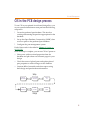
To use CIS in your printed circuit board design flow, you
or your system administrator must perform the following
setup tasks.
1
Create the preferred part database. This involves
creating and entering the part data appropriate for the
database.
2
Set up the Open Database Connectivity (ODBC) data
source to point to the preferred part database.
3
Configure the part management system.
Each of these tasks is described in Chapter 2, Setting up
OrCAD CIS.
Once the setup is complete, you can use CIS in Capture to:
•
Select parts with associated properties from the
database and place them on schematic pages in your
design.
•
Check the status of placed parts and update placed
part properties to reflect changes to the database.
•
Generate bills of materials and other reports using
both design and part database information.
Setup
Create the
part database
Set the ODBC
data source
Configure
CIS
Place
database part
Update
part status
Create
reports
Design
5
Chapter 1 What is the OrCAD Component Information System™?
The CIS work environment
For descriptions of how to use the CIS
Windows interface, see Using the CIS
interface on page 50.
The CIS work environment includes two specialized
windows that allow you to manage your local part
database and explore sources of part data—the part
manager and the CIS explorer. All the CIS functionality
for these windows is integrated into Capture menus.
The part manager window
The part manager window summarizes the status of all
the parts in your design.
The part manager displays information for each part in
your design including:
6
•
Schematic page on which the part is placed
•
Part reference designator
•
Part value
•
Part number
•
Status of the placed part relative to the part database
•
Database table that contains the placed part’s
associated database part
•
Capture source library from which the part was
placed
•
Capture source package to which the part belongs
The CIS work environment
The CIS explorer window
The CIS explorer window allows you to search for and
retrieve a variety of part information. The main window
contains two tabbed windows—the local part database
and the internet component assistant (ICA). The following
table lists the windows available for each tabbed window.
7
Chapter 1 What is the OrCAD Component Information System™?
This window...
Is available in this tabbed window...
Footprint
Both
Part
Both
Visibility
Both
Explorer
Local part database
Database parts
Local part database
ICselector
Internet component assistant (ICA)
OrCAD component
data server (CDS)
Internet component assistant (ICA)
The CIS explorer window displays in one of two modes,
depending on whether you are placing or linking a
database part. The mode is displayed as part of the
window title bar.
The footprint window
Note
The footprint window is only available if you chose to view
OrCAD Layout-generated footprint libraries during installation.
The footprint window displays the Layout-generated PCB
footprint associated with the currently selected database
part.
8
The CIS work environment
The part window
The part window displays the Capture library part
associated with the currently selected database part. If the
part has a convert (such as a DeMorgan equivalent), you
can select it. For a multiple-part package, you can select
the specific part in the package.
The visibility window
The visibility window displays the default settings for
which part properties are visible on your schematic page.
You can use the visibility window to override these
default settings. You can also set custom visibility settings
for the current part selection.
You can also use the visibility window to
display a compact summary of the part
properties and their contents for the part
you have selected in the parts database or
OrCAD component data server (CDS)
window. You can see more of the properties
and contents in this view because the
visibility window displays them in rows
rather than columns.
The explorer window
The explorer window allows you to search for parts using
local data from your preferred part database. The window
contains two tabbed sections—explore and query. In the
explore tab, you can search for parts using a hierarchical
tree organized by part type. The query tab allows you to
further filter your selection based on parametric or field
data.
9
Chapter 1 What is the OrCAD Component Information System™?
The database parts window
The database parts window displays the results of your
part browsing and database queries.
The ICselector window
The ICselector window allows you to search the extensive
EDTN part database over the Internet. Because this is a
live link to the database, you always have access to the
most recent part information.
You search the database for parts using a hierarchical tree
organized by part type and by querying for part
properties. When you find the right part, you can place it
directly onto your working schematic using the OrCAD
component data server (CDS).
10
The CIS work environment
The OrCAD component data server (CDS) window
When you have obtained part records by querying and
filtering the Aspect EDTN database, the parametric
information for the records is displayed in the OrCAD
component data server (CDS), including:
•
Part manufacturers and manufacturer part numbers
•
Part values
•
OrCAD schematic parts and PCB footprints
•
Supplier pricing and availability information
•
URLs of manufacturer specification sheets
CIS users have access to OrCAD schematic
representations of parts and PCB footprints
over the Internet.
You can then transfer the following information:
•
Part information displayed in the CDS as a temporary
record to your local preferred part database
•
OrCAD schematic representations of parts and PCB
footprints to your local libraries
11
Chapter 1 What is the OrCAD Component Information System™?
12
Setting up OrCAD CIS
2
Overview
This chapter describes the three tasks necessary to set up
OrCAD Component Information System (CIS), including:
1
Create a part database. See Creating a part database on
page 14.
2
Set up the Open Database Connectivity (ODBC) data
source name. See Setting up the ODBC data source on
page 26.
3
Create a configuration file to enable CIS to access and
use the part database. See Creating and setting up a
configuration file on page 29.
Also included are procedures for setting the up the CIS
work environment. These are:
•
Setting up the ICA to access external part data on page 45
•
Creating Crystal Reports templates on page 46
Chapter 2 Setting up OrCAD CIS
Creating a part database
The part database is the entity that contains all the
relevant information for the parts you use in your designs.
You can think of a part database as one or more tables,
with each row in a table representing a part and each
column representing a part property.
You can create a database from an existing
Capture design. For more information, see
Creating a part database from an
existing design on page 2-22.
You can also extract information for your
part database from an MRP database. For
more information, see Extracting part
information from an MRP
database on page 2-24.
Before you create your part database, you need to choose
whether to use a database or spreadsheet application.
Then, when you create your part database, you need to
carefully setup its structure and organization, including:
•
Part property assignments. See Determining part
properties on page 2-16.
•
Field formats for properties. See Setting the field format
on page 2-21.
•
Number of tables used in the database
implementation. See Using more than one table on
page 2-22.
Using ODBC, CIS interfaces directly with your ODBC
compliant database or spreadsheet. This means you can
use your preferred application to create and maintain
your part database.
Choosing a database format
Note OrCAD developed, wrote, and tested
CIS in the Access 97 and SQL Server 6.5
environment. Access offers high
performance queries with databases of
several thousand parts. If your database
outgrows Access, moving to SQL Server is a
seamless process. Using the upsize wizard,
Access can easily transfer the database to
SQL Server and still serve as an interface
for maintaining data.
14
To take full advantage of the speed and power of CIS, you
may want to use a database application rather than a
spreadsheet application. As a general rule, you should use
a database application for databases with more than 1,000
parts. Database applications offer the following
advantages over spreadsheets:
•
Comprehensive data management features
•
Better performance for part searching
•
Form-based entry for entering part information
•
Safeguard against duplicate part numbers
Creating a part database
The disadvantages of spreadsheets and delimited text files
include:
Lack of structure. During data entry, spreadsheets
allow you to configure every cell in a different format.
This makes querying fields (columns) very difficult
because CIS expects queried fields to be in a consistent
format.
Lack of ANSI SQL compliance. Because true
databases are ANSI SQL compliant, their drivers do very
little work in relaying SQL commands to connected data
sources. In contrast, with non-SQL compliant
spreadsheets, the ODBC driver is responsible for
translating the SQL commands into functions that the
spreadsheet can understand. This results in a dramatic
increase in the time your queries can be processed. Query
time increases are even more dramatic with text files
because the driver must search for and compile a
matching list entirely on its own. An optimized,
SQL-compliant database format is several times faster
than a spreadsheet with more than 100 parts or a text file
of over 20 parts.
Structured query language (SQL) is used in
querying, updating, and managing
relational databases.
Lack of replication support. If you have users in more
than one location accessing your database, you have either
a single, central database or a replicated database.
Replication is a method of storing a single database in
more than one location. True databases support
scheduled synchronization: they maintain data integrity
by checking separate database transaction logs and
replicating modifications on multiple systems. If you are
using a spreadsheet or text program, you must check
manually because your format does not support
replication.
15
Chapter 2 Setting up OrCAD CIS
You may want to look at the sample part
databases provided with CIS. Two samples
are provided in the SAMPLES folder. The
first part database, BENCH.MDB, is an
Access 97 database. The second,
BENCH.XLS, is an Excel spreadsheet. As you
read this section, refer to these samples to
get a better understanding of how to set up
your part database.
Example: You can name the Part Number
property My Company Part Number.
Example: you may call a property
Tolerance in the database and Tol on the
placed part.
Determining part properties
The first step in creating a part database is to determine
the properties to include for each part. Typical properties
in a part database include part number, part description,
tolerance, rating, speed, timing parameters, PCB
footprint, manufacturer, and cost. CIS supports an
unlimited number of properties, so you can include as
much information in your part database as you want.
There are no restrictions on database table property
names. Also, the names you use in the database can be
different than the property names you assign to the placed
parts. Database property types and placed-part property
names are defined during database configuration. For
more information, see Creating and setting up a configuration
file on page 2-29.
Note
Do not use the same property name more than once. For example,
if you have two manufacturer columns in your database, call them
Manufacturer 1 and Manufacturer 2.
When you transfer a property, that property is included in
the schematic as an attribute of the placed part. Normally,
you transfer properties that are required by CIS (such as
Part Number and Schematic Part), used in the design
process (such as Value, Tolerance, and Rating), or needed
for use by other software products (such as PCB
Footprint). Properties that aren’t transferred can still be
included in a bill of materials report.
Parts in your database must include all of the properties in
Table 1. Any of the optional properties in Table 2 may also
be added. Recommendations on whether to transfer
properties to your design are included in both tables.
Properties recommended for transfer to the design are
either likely to be required for netlisting or are generally
needed on printouts of the design.
16
Creating a part database
Table 1
Required part properties
Transfer to
design?
Property
Description
Part Number
Required to identify the part in association with the CIS
Part_Number property type. This property is required by
the part manager and the bill of materials report. CIS lets
you enter more than one database part with the same
number in the database. However, you should use a unique
part number for each part and have no duplicate part entries
in your database.
Required
Part Type
Identifies the part type. The Part Database Explorer uses this
property to define the part database folder hierarchy. Use
this property to facilitate part searches. Typical contents are
resistor, resistor\fixed, capacitor, capacitor\electrolytic, IC,
IC\Memory\SRAM, connector, and so on. The levels of the
hierarchy are defined using the backslash (\) character (or
any character you define in the configuration). You can
define any number of levels in the hierarchy.
No
This property is also used by the Part Reference Associations
option. (See Defining part reference associations on page
35.)
This property is case-sensitive. Make sure you use
uppercase-lowercase conventions consistently when
entering values for this property.
17
Chapter 2 Setting up OrCAD CIS
Property
Description
Schematic Part
(Symbol)
The part name. This property is required to use the Place
Database Part command. Only the part name is necessary if
the part is stored in the same directory as any part library
that is configured in Capture. (See the OrCAD Capture User’s
Guide for more information about configuring part libraries.)
However, to make sure that you don’t accidentally place an
identically named part, you should include the library
name, a backslash (\), and then the part name. Examples
include:
DEVICE\CAP
DEVICE\DIODE
ANALOG\CMP01
In addition, you can use the explicit path so CIS can locate
an unconfigured library. For example:
C:\MYLIB\DEVICE\CAP
You can also assign multiple schematic part names to a
single part. Use the same format as above for each name and
separate each one with a comma. For example:
DEVICE\CAPACITOR NON-TOL, DEVICE\CAP NT,
BENCH\SMALL CAP
Then, when you update your design’s part status, CIS can
approve and make current a schematic part which has
several acceptable names. Also, if a database part has several
different valid schematic parts, you will be able to choose
any one of them when you are placing parts from the parts
database or the OrCAD component data server (CDS). All
the configured schematic parts for the database part will be
available from a drop-down list under the Schematic Part
property name.
CIS locates the Capture library using the following set of
prioritized rules:
18
1
Search the library at the explicit path, if provided.
2
Search the first library listed in CAPTURE.INI that has a
matching library filename.
3
Search all directories that contain configured libraries.
4
If no libraries are included specifically in your Capture
design, CIS searches the ORCAD\CAPTURE\LIBRARY
directory.
Transfer to
design?
Automatic
Creating a part database
Transfer to
design?
Property
Description
Value
The part value. Examples are 1.2K, 10.0uF, and 74ALS374.
CIS supports the use of common magnitude identifiers (such
as K and uF).
Required
The database query feature (available in the part database
explorer) uses intelligent unit conversion to interpret
common magnitude identifiers encountered in part
definitions, since entries in a part database are often
inconsistent (for example, the Value for a 2.7K resistor might
be in the database as 2.7K, 2,700, 2.70K, 2.700K, 2700.0,
0.0027M, and so on). Unit suffixes (such as F for farads or H
for henries) are ignored in translation.
The magnitude identifiers supported in CIS are shown
below.
Identifier
Represents
Magnitude
f
femto
10-15
p
pico
10-12
n
nano
10-9
u
micro
10-6
m
milli
10-3
K
kilo
103
M
mega
106
G
giga
109
T
tera
1012
19
Chapter 2 Setting up OrCAD CIS
Table 2
Optional part properties
Transfer to
design?
Property
Description
Availability
Number of the parts in stock at your company.
Not
recommended
Data Sheet
The name of the detailed datasheet for this part. Set the
Browsable check box in the configuration for CIS to
automatically launch the appropriate browser for this
property.
Not
recommended
Examples include: 74ALS374.PDF,
http://www.chipmaker.com/specs/74ALS374, and
RES1K1/4W.DOC.
You can browse any format you want. CIS uses the
application assigned to that file extension in your Windows
registry. (Extension assignments are managed in the
Windows Explorer. See your MS Windows documentation
for more information.) For example, a .DOC entry might
cause CIS to launch Microsoft Word, and a URL entry might
cause it to launch your default web browser.
Note CIS uses the PATH environment variable and the current working directory
to find the specified document.
Description
A brief description of the part.
Not
recommended
Distributor
Name of part distributor.
Not
recommended
Distributor Part
Number
Part number used to order from the distributor.
Not
recommended
Manufacturer
Name of part manufacturer.
Not
recommended
Manufacturer
Part Number
Part number used to order from the manufacturer.
Not
recommended
20
Creating a part database
Property
Description
PCB Footprint
The PCB footprint name (from the footprint library)
assigned to a part.
Transfer to
design?
Recommended
You can assign multiple PCB footprints to a single part by
entering them in the part’s footprint field in your part
database and separating each footprint name with a comma.
Then, when you update your design’s part status, CIS can
approve and make current a schematic part which has
several acceptable footprint names. Also, if a database part
has several different valid PCB footprints, you will be able to
choose any one of them when you are placing parts from the
parts database or the OrCAD component data server (CDS).
All the configured PCB footprints for the database part will
be available from a drop-down list under the PCB Footprint
property name.
Price
Part price. Use this information when selecting parts to
design for cost. Include this property in reports to get a cost
roll-up of your design.
Not
recommended
Rating
The maximum rating for the part (for example, maximum
voltage or power dissipation).
Optional
Tolerance
The percent tolerance specified for the part.
Optional
Voltage
The voltage requirement of the part.
Optional
Setting the field format
CIS can work with database text and number format fields
(known as the cell format in spreadsheets). As a general
rule, set each database field (that is, each table column) to
text format. CIS converts other database field formats,
such as float, to text format when properties are
transferred to placed parts.
21
Chapter 2 Setting up OrCAD CIS
Using more than one table
CIS can reference more than one table or worksheet in
your part database. For example, you can group your
parts into several tables according to type. That is, you can
place resistors in one table, ICs in another, capacitors in
another, and the remaining parts in a fourth table. When
you’re viewing database parts with CIS, each table has a
unique view. You can arrange the column settings for
each table independently, allowing you to view different
properties for each.
Creating a part database from an existing design
You can obtain a wizard from the OrCAD
Design Network (ODN) that automates this
process. The wizard also automatically
derives schematic part and source library
information for the placed parts in your
Capture schematic. If you use the manual
procedure detailed here, you will have to
manually reference your placed parts to
your libraries.
To download the CIS wizard, visit the OrCAD
website and log in to ODN at
www.orcad.com.
22
You can also create a part database by extracting part
properties from an existing Capture design using the CIS
Bill of Materials command.
Tip
If your designs are created in another schematic capture program
that creates bills of materials for part properties, you can still create
a part database from an existing design. Follow the instructions
supplied with the program to create the appropriate bill of
materials file from your design. Then, use the bill of materials file
to create a part database based on that design.
Creating a part database
Consider the example in the following illustration. The
Standard Bill of Materials dialog box lists a typical set of
properties to extract from the design.
In the Output Format list, CIS lists a number of properties
that will be extracted to the bill of materials. You can add
to this list by selecting properties from the Select
Properties list and clicking the Add button. You can
remove properties from the Output Format list by
selecting them and clicking the Remove button.
When you click OK in the Standard Bill of Materials dialog
box, CIS creates a file with the property information for all
the parts in the design. You can directly import this file
into your database.
23
Chapter 2 Setting up OrCAD CIS
Note
Your database should have a unique part number for each part and
no duplicate part entries. Although some database applications will
not import more than one occurrence of a keyed property, you may
need to eliminate duplicate part entries manually. To do this, sort
the database by part number, then delete duplicate entries using
your database or spreadsheet program.
Extracting part information from an MRP database
You can also extract information from an existing
manufacturing resource planning (MRP) database, to
create a part database. Save the MRP database as an ASCII
file, then use that file as your part database file or as a
source for a true part database file (for example, an MS
Access format file).
You may need to enhance the information in an MRP
database, since it generally will not include everything
required for schematic design. However, an MRP
database usually contains a complete list of your
company’s parts, part numbers, part descriptions, costs,
quantities in stock, lead times, manufacturers, and
alternate manufacturers.
24
Creating a part database
Often, the data in an MRP database exists in a format that
does not lend itself to ease of use. For example, the part
value may be merged with the description, such as:
RES 1K 5% 1/4W
This makes searching for parts more difficult. If you can,
split this information out in the MRP database into
separate database properties, such as Part Type, Value,
Tolerance, and Rating.
You can also contact the OrCAD Enterprise Services
group for assistance in converting your data into a more
convenient format.
To take advantage of updated information
in an MRP database, you need to set up a
means of extracting MRP data on a regular
basis and using it to update your part
database. That way, your part database will
include information that changes
frequently, such as quantity in stock and
lead time.
25
Chapter 2 Setting up OrCAD CIS
Setting up the ODBC data source
You must define the data source on each
user’s system. When you do so, use the
same data source name. This allows users
to share the same configuration file.
Note If your workgroup is sharing a
configuration file, make sure to
write-protect the file.
Before you can set the CIS configuration, you must define
the open database connectivity (ODBC) data source for
your database. CIS interfaces to your part database using
a defined ODBC data source name. A data source consists
of a database filename and an associated ODBC driver
with which to access it. If you are setting up a client-server
database, the data source also references the database
server. You define the data source name, assign the
database file name, and specify the ODBC driver using the
32-bit ODBC Windows control panel.
To set the data source for the local database
1
From the Windows Settings menu, choose Control
Panel.
2
Double-click on the ODBC icon. Depending on your
system configuration, Windows displays the ODBC
Data Source Administrator or a Data Sources dialog
box.
Note
26
If you do not see an icon for 32-bit ODBC, run the Capture CIS
installation program to install ODBC.
Setting up the ODBC data source
3
Click the ODBC Drivers tab and make sure the driver
appropriate to your database or spreadsheet is
installed on your system.
If the driver for your application is not
present, you must install it. Check the CIS
installation disk or contact the database or
spreadsheet program supplier.
4
Click the User DSN tab then choose the Add button.
Windows displays the Create New Data Source dialog
box.
If you are using Windows NT, you should
click the System DSN tab to create new data
sources. If you do not use the System DSN
tab, users with different logins will not be
able to use the ODBC source.
27
Chapter 2 Setting up OrCAD CIS
5
Choose the appropriate driver for your program
(Microsoft Access, in this example), then click the
Finish button.
6
Assign a name for the data source. If desired, enter a
description for the data source name.
Note
See Setting administrative
preferences on page 39 for more
information on temporary parts.
28
Step 7 may be different depending on the type of program you
used to create your database.
7
Under Database, click the Select button, and locate the
database.
8
Click the Options button, and clear the Read Only
check box so users can create new parts and add them
to the database using CIS.
9
Click OK to set the data source.
Creating and setting up a configuration file
Creating and setting up a
configuration file
CIS requires a configuration (.DBC) file to make use of
your part database. The configuration file:
•
Identifies the ODBC data source to use as the part
database and specifies the tables to use within that
database.
•
Identifies the part properties that are transferred to
your design when you place or link a database part.
•
Sets the visibility for each of the transferred
properties.
•
Contains the part type associations.
Note
Keep the configuration (.DBC) file in a
read-only directory that is accessible to all
CIS users. You should make the directory
read-only to prevent users from
inadvertently changing the configuration.
If you use a CIS v7.2 configuration file with CIS Release 9, the file
will be updated to support the new features of this release. After
CIS updates the file, though, you cannot use it again with CIS v7.2.
If you are using a configuration file from before CIS v7.2, you must
recreate the file because the configuration file format was changed
for CIS v7.2.
Creating a configuration file and setting options
When you create a configuration file, you are creating an
interface between CIS and your database using your
defined ODBC data source name. You need to set the
options for the file so that CIS knows how to handle your
database table part properties.
If you haven’t set up an ODBC data source
for your database, see Setting up the
ODBC data source on page 2-26.
To create a configuration file and set options
1
Open a new or existing schematic design in Capture.
29
Chapter 2 Setting up OrCAD CIS
30
2
From the project manager’s Options menu, choose CIS
Configuration. CIS displays the CIS Configuration File
dialog box.
3
Click the New button. CIS displays the Configure
Database dialog box.
Creating and setting up a configuration file
4
Click the Browse button. CIS displays the Browse Data
Source dialog box.
5
Select the data source name you defined for your
ODBC driver, then click OK. The Configure Database
dialog box lists the tables found in your data source.
31
Chapter 2 Setting up OrCAD CIS
6
In the Tables list, click in the check box for the table
containing the parts you want to configure.
When you select a table, the Configuration area lists
the properties it contains. Each row represents a part
property, and each property has the following
characteristics:
Table Property Name. This is the name of the
property as it is defined in the part database.
Table Property Type. This is the data type for the
property. Most properties are type Text, but there may
be other data types.
Property Type. The Property Type determines how
CIS interprets the property. Your database must
include a property of type Part_Number in every
table.
32
Creating and setting up a configuration file
Set the following property types:
•
The Part_Type type for the database property that
defines the part type. (This defines the field for
folder view in CIS explorer.)
•
The Schematic_Part type for the database property
that contains the schematic part (symbol) name.
•
The PCB_Footprint type for the database property
that contains your Layout footprint name.
•
If you want the database to include footprints not
generated by OrCAD Layout, set the property type
to Normal. This prevents the footprint viewer from
trying to interpret them.
folder view in CIS explorer
Transfer To Design. Setting this characteristic (by
selecting the appropriate check box) causes CIS to
transfer the property along with the part when the part
is placed or linked to a schematic part.
Caution CIS will not work unless your transfer at least the
Part_Number and Value properties.
OrCAD Property Name. This defines the name of the
property when it is transferred to the placed part. By
default, it uses the name of the property as it appears
in the database. Note that the OrCAD Property Name
applies only to properties for which you have enabled
the Transfer to Design characteristic.
ICA Property Name. This maps property names on
new parts created with the internet component
assistant (ICA) to corresponding database property
names.
Visible. This sets the default visibility of the property
when it is copied to the placed part. There are three
visibility choices:
Example: If the property name in the
database is Component Tolerance and you
want to call it Tolerance on the placed part,
type Tolerance or choose Tolerance
from the drop-down list.
Example: You can map the ICA property
name Mfr to your database property name
Manufacturer.
Visible. CIS displays the property with the
part on the schematic page.
Invisible. CIS does not display the property
with the part on the schematic page.
33
Chapter 2 Setting up OrCAD CIS
No Change. CIS does not modify the
property visibility. If the property does not
exist, it is set to invisible. You can override
the default visibility for specific parts when
you place or link database parts. Cells that
you cannot change are shown with a light
gray background in this column.
For more information about placing and
linking database parts, see Placing
database parts on your schematic
on page 3-57 and Linking a
placed part to a database part on
page 3-73.
Key. This sets the property as a key during the initial
part search. The key is used when you are linking a
database part to a previously placed part. Normally,
you set only the Value property as a key so that when
you want to link a part, CIS searches the part database
for parts with a specific value. If you don’t have a
Value property in your database, do not set a key.
For more information about linking
database parts, see Linking a placed
part to a database part on
page 3-73.
Browsable. This sets browse capability for the
property. It allows you to put references to datasheets,
drawings, and documents in your part database. For
example, you can reference Adobe Acrobat (.PDF)
files, Microsoft Word (.DOC) files, and even
worldwide web addresses (URLs). You can then view
these items online in CIS when browsing the part
database.
You can browse any format you want. CIS uses the
application assigned to that file extension in your
Windows registry. (Extension assignments are
managed in the Windows Explorer.) For example, a
.DOC entry might cause CIS to launch Microsoft
Word, and a URL entry might cause it to launch your
default web browser.
Note
7
For more information about linking
database parts, see Linking a placed
part to a database part on
page 3-73.
34
CIS uses the PATH environment variable and the current
working directory to find the specified document.
(Optional) Type the part reference prefixes in the
Allowed Part Reference Prefixes text box.
This is useful when your database consists of several
part tables that are organized by device type (for
example, capacitors in one table, resistors in another,
and so on). When you are linking database parts to
placed parts, CIS uses allowed part reference prefixes
Creating and setting up a configuration file
to limit your search to the appropriate tables. The
result is that your search takes less time.
For example, if a table contains only capacitors, you
could enter C as the allowed part reference prefix.
Then, when you choose the Link Database Part
command, CIS searches that table only when the
placed part you are linking has a part reference prefix
of C.
Note
Leave this box blank if you want the table to be searched
regardless of the part reference prefix.
8
Repeat steps 6 and 7 for each table in the database.
9
Click OK or choose another tab to continue
configuring your database.
Defining part reference associations
Part reference associations are used to improve the speed
and accuracy of the search for database parts to link to
placed parts. You create associations between a particular
part type and the prefixes in the part database for that part
type. For example, you can create a part reference
association for resistors such that all resistors in the part
database use the R prefix.
Note
Defining part reference associations only improves part search
speeds for true databases (for example, Microsoft Access)—there
is no speed improvement from setting up associations if you are
using a spreadsheet or a text file for your database.
Once you’ve defined part reference associations for your
database, when you choose the Link Database Part
command, CIS displays database parts of the appropriate
type. Without defined part reference associations, CIS
displays all parts in the database that match the keyed
property value, regardless of the part type. By defining an
appropriate reference association, you can limit the
number of parts that CIS displays.
You must create a configuration file for
your database before you can define its
part reference associations. If you have not
already created a configuration file for
your database, see Creating a
configuration file and setting
options on page 2-29.
Example: If you select an inductor, L1, on
the schematic page with a value of 100uH,
then choose the Link Database Part
command, CIS displays all parts in the
database having a value of 100 x 10-6. This
may include capacitors, inductors, or other
parts with a similar value.
By defining a reference association
between inductors and the L prefix, you can
limit the parts that CIS displays to inductors
only.
35
Chapter 2 Setting up OrCAD CIS
Defining part reference associations is optional. You can define
associations later if you need to improve the search performance
during database part linking.
Note
When you define part reference associations for your part
database, keep the following points in mind:
Example: An association between the part
reference prefix C and the part type
Capacitor applies to part types of Capacitor,
Capacitor\Electrolytic, and
Capacitor\Ceramic\Fixed. Note that a part
reference prefix associated with the part
type Capacitor\Ceramic does not apply to
part types of Capacitor or
Capacitor\Electrolytic.
•
Part reference associations apply to all database tables.
•
The Part Type Property Contents value in the dialog
box is case-sensitive.
•
You can associate one prefix with several different
part types.
•
An association applies to its level in the part type
hierarchy and all lower levels.
•
A part reference prefix without a defined part type
association can be matched to any part type in the
database.
•
If a particular part in the database does not have its
Part Type property contents defined, that part will be
matched only to part reference prefixes with no
defined part type associations.
To define part reference associations
You can add icons for custom part
references that will automatically display in
the Part Reference column of the part
manager window. Add your custom icons to
the standard icons used for the Part
Reference column located in the directory:
ORCAD\CAPTURE\VENDOR
Each icon’s filename corresponds to a part
reference prefix (for example, the icon for
the part reference prefix R is stored in
R.BMP).
Caution You can use a bitmap editor
(such as Microsoft Paint) to modify the
bitmaps, but be careful not to change the
image size.
36
1
In your local preferred parts database, make sure that
the Part Type property field is indexed.
2
If you are not already in the Configure Database
dialog box, do the following:
a
Open a new or existing schematic design in
Capture.
Creating and setting up a configuration file
b
From the project manager’s Options menu, choose
CIS Configuration. CIS displays the CIS
Configuration File dialog box.
c
If necessary, click Browse to locate the database
configuration file you want to setup.
d
Click Setup. CIS displays the Configure Database
dialog box.
37
Chapter 2 Setting up OrCAD CIS
3
In the Configure Database dialog box, choose the Part
Reference Associations tab.
4
Enter a part type in the Part Type Property Contents
column and a corresponding part reference prefix (or
set of prefixes) for that part type in the Applicable Part
Reference Prefixes column. Separate prefix entries
with commas.
Note
5
38
Part prefixes need not be unique to a particular part type. That
is, you can make an association between one prefix and
several different part types.
Click OK or choose another tab to continue
configuring your database.
Creating and setting up a configuration file
Setting administrative preferences
Administrative preferences allow you to customize some
CIS features for your work environment.
To set administrative preferences
1
If you are not already in the Configure Database
dialog box, do the following:
a
Open a new or existing schematic design in
Capture.
b
From the project manager’s Options menu, choose
CIS Configuration. CIS displays the CIS
Configuration File dialog box.
c
If necessary, click Browse to locate the database
configuration file you want to setup.
d
Click Setup. CIS displays the Configure Database
dialog box.
39
Chapter 2 Setting up OrCAD CIS
If you want a database part to work with
two or more different layout footprints, you
can enter multiple PCB footprint names in
your part database. For more information,
see the PCB Footprint property entry in
Table 2 on page 21.
Example: The database could have part
types Capacitor\Electrolytic and
Capacitor\Ceramic.
Example: Speed Grade does not apply to
resistors.
40
2
In the Configure Database dialog box, choose the
Administrative Preferences tab.
3
Select the Allow Duplicate Part Numbers check box to
allow the same part number to appear more than once
in the database.
4
In the Part Type Delimiter text box, type the character
that indicates a hierarchical level within a path in the
database. Normally, the delimiter is a backslash (\)
character.
5
Check the Transfer Blank Properties box to create a
property on the placed part even if the database part
property does not have a specific value. This is useful
if all your database parts are in a single table since, in
that case, you will have properties in the table which
are not relevant to certain types of parts.
Creating and setting up a configuration file
6
Select the Assign Temporary Part Numbers
Automatically check box so that CIS will create and
track temporary part numbers for you. That way
when you create a new part, CIS automatically assigns
a temporary part number to that part and enters the
part number into the part record in the database as
well as in a special table named TMPPRTS.
Caution CIS automatically creates the TMPPRTS table. Do not remove,
rename, or modify the structure of this table or temporary
part number tracking will not operate properly. Also, never
remove temporary part records, even after you have assigned
them approved part numbers. If you do, designs that have not
yet been updated with the new part numbers will have to be
updated manually.
7
In the Temporary Part Number Prefix text box, enter
the prefix to use for temporary part numbers. CIS
automatically increments the temporary part number
each time you create a new part. The temporary part
number is then appended to this supplied prefix.
8
In the Part Not Present Display Value text box, enter
the text description that you want CIS to use for
variant parts set to Not Present. The property is
displayed in the following locations:
9
•
Part Number and Value fields in the part manager
•
Design variant columns in variant reports
•
Variant parts on schematic page previews and
printouts. For more information, see Previewing or
printing design variant schematic pages on page 3-90.
Click OK or choose another tab to continue
configuring your database.
To promote a temporary part to an
approved part, do the following:
1 Using your database application, enter
the approved part number in the
TMPPRTS table next to the
corresponding temporary part
number.
2 Replace the temporary part number
with the approved part number in the
part table.
CIS automatically monitors the TMPPRTS
table and notifies you if a temporary part
in the design has been promoted to an
approved part.
If your workgroup is using a shared,
read-only database configuration file, all
users must use the same temporary part
prefix.
The Part Not Present Display Value does not
display in Capture’s schematic page editor.
This property also cannot be repositioned or
edited in the schematic page editor. For this
reason, you will have to print preview or
print a schematic page to make sure that
the value you assign the property does not
overlap another part or property display.
Because a long value is more likely to
overlap a display, you should use a fairly
short text equivalent for the default Not
Present value.
41
Chapter 2 Setting up OrCAD CIS
Setting ICA supplier preferences
ICA supplier preferences allow you to specify which
component suppliers you wish CIS to search for part
pricing and availability.
To set ICA supplier preferences
1
42
If you are not already in the Configure Database
dialog box, do the following:
a
Open a new or existing schematic design in
Capture.
b
From the project manager’s Options menu, choose
CIS Configuration. CIS displays the CIS
Configuration File dialog box.
c
If necessary, click Browse to locate the database
configuration file you want to setup.
d
Click Setup. CIS displays the Configure Database
dialog box.
Creating and setting up a configuration file
2
In the Configure Database dialog box, choose the ICA
Supplier Preferences tab.
3
In the list on the left, select the name of a supplier to be
added to the list on the right, and click the Add button.
or
You should select as many part distributors
as possible in case your preferred
distributor does not carry a part you need.
In the list on the right, select the name of a supplier to
remove, and click the Remove button.
4
In the list on the right, select a supplier name, and use
the arrow buttons to move the supplier higher or
lower in the order of preference.
Note
5
The internet component assistant only shows information for
the first supplier that has the part you want, in the order of the
preference you set here.
Click OK or choose another tab to continue
configuring your database.
43
Chapter 2 Setting up OrCAD CIS
Saving the configuration file
44
1
(Optional) In the CIS Configuration File dialog box,
choose Save As to save the configuration for future
use.
2
Choose OK to set the configuration for the current
session and close the CIS Configuration File dialog
box.
Setting up the ICA to access external part data
Setting up the ICA to access
external part data
Note
Internet Explorer 4 must be installed on your system for the
internet component assistant (ICA) to run.
Setup of the ICA is handled during the Capture CIS
installation process. CIS uses the OrCAD product
registration number to control your access to the internet
component assistant web databases. You enter the
registration number when you install Capture CIS.
The first time you use the ICA Query tab,
the ICselector requests some general user
information.
If you need assistance accessing the ICA,
email OrCAD at [email protected].
45
Chapter 2 Setting up OrCAD CIS
Creating Crystal Reports
templates
Crystal Reports is a widely-used report
design software produced by Seagate
Technology, Inc.
If you want to make a standard CIS bill of
materials template, see Creating a
standard CIS bill of materials on
page 3-92.
You can use Crystal Reports in conjunction with CIS to
make customized report templates with more advanced
features than the standard CIS bill of materials, including
precision formatting and formulas that total, filter, and
analyze data for highly specific results. When you create
customized Crystal Reports templates, you can use all of
the part properties included in your preferred parts
database and your individual design projects.
Note
You must have Crystal Reports Designer installed on your system
with CIS to create Crystal Reports templates. If you do not own a
copy of Crystal Reports Version 6 software, visit OrCAD’s website at
www.orcad.com/cis/crystal.htm for reseller information.
Once you have created Crystal Reports templates, any CIS
user with access to them can generate, preview, print, and
export reports with their design’s database part
information from within CIS. They will not need to have
copies of Crystal Reports installed locally on their
workstations to use these templates.
These are the main steps you will follow to create your
Crystal Reports templates:
You only need Crystal Reports software to
create templates, not to use them. For this
reason, you only need to buy one copy of
the software for your entire workgroup.
1
Create an Access database bill of materials (.MDB) file
using a standard CIS bill of materials.
2
Create report template (.RPT) files in Crystal Reports
using the Access database file.
3
Store the Crystal Reports template files where CIS can
use them.
To create an Access database (.MDB) file for use by Crystal
Reports
You should use a schematic design that has
all the non-database part properties
defined that you want to use when
designing your Crystal Reports templates.
46
1
Open a new or existing schematic design in Capture.
2
From the project manager’s Reports menu, point to
CIS Bill of Materials and choose Standard. CIS
displays the Standard Bill of Materials dialog box.
Creating Crystal Reports templates
3
In the Template Name text box, type in a name for the
report (for example, Report for Crystal Reports
template).
4
In the Select Properties list on the left, double-click
each of the part properties until all of them are moved
to the Output Format list on the right.
5
Click OK. The report may take several minutes to
generate.
6
From the File menu, choose Save As. CIS displays the
Save As dialog box.
7
In the Save As Type list, select Access format (*.MDB).
8
Specify the file name and location and click OK.
Do not try to be selective about the part
properties you include at this time.
Generating this report with all the
properties in your database allows you to
create a single database file with all the
headings you might want to use to design
your templates in Crystal Reports. This way,
you will not have to repeat this procedure
again unless the part properties used in
your database change.
47
Chapter 2 Setting up OrCAD CIS
To create a Crystal Reports template
Note
1
To avoid having to browse for your
template, store the file in the same
directory as your database configuration
(.DBC) file. The template will automatically
appear in the Crystal Reports Bill of
Materials dialog box.
You only need Crystal Reports software to
create templates, not to use them. For this
reason, you only need to buy one copy of
the software for your entire workgroup.
48
You must have Crystal Reports Designer installed on your system
with CIS to create Crystal Reports templates. If you do not own a
copy of Crystal Reports Version 6 software, visit OrCAD’s website at
www.orcad.com/cis/crystal.htm for reseller information.
Using Crystal Report Designer, create a custom report
using the Access database bill of materials (.MDB) file
as your data file.
To store a template file for use by CIS
1
Store your Crystal Reports template (.RPT) file where
all users in your workgroup have access to it.
Working with OrCAD CIS
3
Overview
This chapter describes the various procedures you use
when working with the OrCAD Component Information
System (CIS), including the following:
Using the CIS interface on page 50
Placing database parts on your schematic on page 57
Browsing part properties on page 62
Creating a new database part on page 63
Linking a placed part to a database part on page 73
Copying part properties using the part manager on page 76
Viewing and updating part status on page 78
Creating design variants on page 83
Creating reports on page 92
Chapter 3 Working with OrCAD CIS
For descriptions of the functions of the
windows in the CIS interface, see The
CIS work environment on
page 1-6.
Using the CIS interface
The CIS user interface includes standard Windows
interface functionality along with a few additional
features to make your work environment easy to use. You
can also customize the layout of CIS windows for each of
your Capture projects. The main CIS interface is
comprised of the part manager and CIS explorer
windows. Additional CIS menu commands are
interspersed throughout the menus in Capture.
Using the part manager window
To open the part manager window, do the
following:
You can adjust the work environment for the part
manager in the following ways:
1 From the project manager’s Tools
menu, point to Part Manager and
choose Open.
•
Sort the part manager data by any one of the data
columns.
•
Adjust the part manager display by changing data
column width and splitting the window into panes.
•
Display the toolbar.
For information about how to use the part
database management features of the part
manager, see Viewing and updating
part status on page 3-78.
50
Using the CIS interface
To sort information in the part manager
1
Click the heading of the column you want to sort by.
To reverse the sort order, click the same column
heading again.
column heading
column heading border
The column by which the data in the part
manager is currently sorted is indicated by
a triangle icon. If the triangle points
upward, the data is sorted in ascending
order. If it points downward, the data is
sorted in descending order.
To adjust the part manager display
1
To adjust the width of a column, select the right border
of the column heading and drag it to the left or right.
2
To split the part manager into panes, choose Split from
the part manager’s Window menu.
To display the part manager toolbar
1
Move or dock the toolbar as desired.
2
To display the name of the button command, point at
the button briefly.
3
To display the toolbar, choose Toolbar from part
manager’s View menu.
The tasks that you use these tools to
perform are described later in this section.
51
Chapter 3 Working with OrCAD CIS
4
To hide the toolbar, click the hide button in the top
corner of the toolbar.
Using the CIS explorer window
CIS displays the CIS explorer when you
choose Place Database Part or Link
Database Part from a schematic page in
Capture’s schematic page editor.
Information about how to use the database
part features of the CIS explorer is covered
in the following sections of this chapter.
52
The CIS explorer contains two tabbed windows—the
Local Part Database and the Internet Component
Assistant (ICA). You can navigate between these
windows by clicking either one of the tabs at the bottom of
the CIS explorer. Each window consists of a set of docking
windows that can be redisplayed as floating windows or
hidden. Both windows also contain a non-docking part
selection window that cannot be redisplayed as floating or
hidden (the database parts and OrCAD component data
server windows).
Using the CIS interface
Using docking windows
Docking windows can be positioned and sized
independently like standard windows. But, they allow
you added control over your workspace in relation to the
other windows inside the CIS explorer. Docking windows
have these unique features:
•
Docking to the main window
•
Expanding or contracting relative to other windows
•
Floating over other docking windows
Depending on the function of the window, you can also
choose to show or hide some docking windows.
docking window
CIS retains the size, position, and state of
the windows between Capture sessions.
To dock a window in the CIS explorer
1
Drag the window by the double bar over another
border of the CIS explorer. The other windows
automatically adjust to allow the window you are
moving to dock on that border.
hide button
expand/contract
arrow
double bar
To expand or contract a window relative to other windows
1
Click the arrow above the window’s double bar to
expand or contract the window in the direction of the
arrow. The bordering window automatically expands
or contracts to fit the new window size.
Since the expand/contract feature only
functions horizontally, the arrow is dimmed
if the window is not bordered by another
window on the left or right.
53
Chapter 3 Working with OrCAD CIS
To change a docked window to a floating window
1
Double-click in the window border. The docking
window redisplays with a title bar instead of the
double bar.
window border
To dock a floating window
1
Double-click the window title bar to return the
window to its previous docked location, or drag the
window by the title bar to a different docking border.
To position a floating window over a dock (without docking it)
1
Press and hold down C and drag the window by the
title bar.
To show or hide a window
54
1
To show a window, choose the window name (for
example, Visibility) from the View menu.
2
To hide a window, click the hide button in the top
corner of the window, or choose the window name
from the View menu.
Using the CIS interface
Using the database parts and OrCAD CDS windows
database parts window
OrCAD component data server (CDS) window
You can use the spreadsheet format of the database parts
and OrCAD component data server (CDS) windows to do
the following:
•
Sort rows using column values
•
Adjust column widths
•
Change the order of the columns
Note
For descriptions of the database parts window and the OrCAD
component data server (CDS), see The CIS explorer window
on page 1-7.
The database parts and OrCAD component
data server (CDS) windows are part of the
main CIS explorer window—you cannot
hide or dock them. This is so that they will
be present at all times to place and link
database parts.
Once you set up the columns, CIS saves the
new settings for your next session.
55
Chapter 3 Working with OrCAD CIS
To sort rows using column values
The column by which the data is currently
sorted is indicated by a triangle icon. If the
triangle points upward, the data is sorted in
ascending order. If it points downward, the
data is sorted in descending order.
1
Click a column heading to select the column, then click
the column heading again to sort by its values. Click
the same column heading again to reverse the sort
order.
column heading
column heading border
To adjust column widths
1
Select the right border of a column heading and drag
it to the left or right.
To change the order of the columns
56
1
Click on a column heading to highlight it.
2
Drag the column heading to the left or right until the
vertical red line is in the correct location.
Placing database parts on your schematic
Placing database parts on your
schematic
This section describes how to do the following:
•
Locate a part in your parts database.
•
Place a database part on a schematic page.
When you place a database part, CIS includes all database
part properties to be transferred.
Note
For information about locating and placing
parts from the internet component
assistant (ICA), see Using the ICA to
locate and create a new database
part on page 3-66.
The Place Database Part command will not work unless you have
entered the schematic part name in your database and have set the
Schematic_Part property type in the configuration.
Using the explorer to locate a database part
You can use the explorer to locate a particular part in your
database.
To locate a database part with the explorer
1
From the schematic page editor’s Place menu, choose
Database Part. CIS displays the explorer window.
2
In the explorer window, choose the Explore tab. The
drum icon (labeled Benchacc in this example)
represents the part database.
3
Choose or double-click the drum icon, to expand the
database into the configured part tables. Similarly,
choose on the table to expand the tree to display the
first-level part type folders.
57
Chapter 3 Working with OrCAD CIS
4
Locate the part you want to place. When you open a
part type folder at any given level, the database parts
at that level are displayed in the database parts
window.
Note
CIS uses the part type property contents from your part
database to determine the folder hierarchy. For a description
of how to define your part database hierarchy, see Creating
a part database on page 14.
Using the query feature to locate database parts
You can also use the query feature in the CIS explorer
window to locate all parts in the database that fit a set of
criteria. This is useful when you want to view all the
available parts that match a set of attributes. To use the
query feature, you must first create the query criteria, then
execute the database search.
Creating and executing a query
58
1
From the schematic page editor’s Place menu, choose
Database Part. CIS displays the CIS explorer window.
2
In the Explorer window, choose the Query tab.
Placing database parts on your schematic
3
In the first cell in the Property column, type in the
name of a property or choose one from the cell’s
drop-down list.
4
In the first cell in the Compare column, type in a
logical operator or choose one from the cell’s
drop-down list. The available logical operators
include the following:
This operator...
Means this...
=
Equal to
<
Less than
>
Greater than
<=
Less than or equal to
>=
Greater than or equal to
!=
Not equal to
Contains
Contains
5
In the first cell in the Value column, enter a value. If
you’re using the equal to (=) logical operator, you can
use wildcard characters for the value: an asterisk (*)
matches a group of characters, and a question mark (?)
matches any single character.
6
Repeat steps 3 through 5 as necessary to construct
subsequent rows of search criteria. You can delete a
query row by selecting the row and then
pressing D.
Since a database search identifies only
those parts that meet all the search criteria,
you can use additional rows of criteria to
pinpoint specific parts.
59
Chapter 3 Working with OrCAD CIS
7
To gain a better understanding of database
queries and their results, see the examples
in the CIS online Help.
To perform the query, press R or choose
Re-search Database from the Update menu. CIS
displays the results in the database parts window.
Placing a local database part on your schematic
You can define property place holder
positions in the schematic library for
properties which you want pre-positioned.
For example, you can define a Tolerance
property in the resistor schematic part and
position it so that when the part is placed,
the property position is satisfactory. See the
OrCAD Capture User’s Guide for more
information.
You can also use the library convert feature
to hold two different orientations of the
part, one for the normal orientation and
one for the 90-degree rotation. See the
OrCAD Capture User’s Guide for more
information.
60
After locating the database part from the local part
database, you can place it on your schematic page. If you
want to place a part from the ICA, see Using the ICA to
locate and create a new database part on page 3-66.
Any properties specified during configuration as
transferable are copied to the placed part and are present
in the placed part properties.
CIS sets the appropriate property visibility. If the property
is set to Visible and exists in the library, CIS uses the
property position defined in the library; otherwise, CIS
displays the property in a default position. If you change
the position of a property in the part editor, any
subsequent updates to the part (using the Link Database
Part command) retain the new position.
Placing database parts on your schematic
To place a database part on your schematic
1
In the database parts window, select the part you want
to place.
2
If the database part has multiple schematic parts
associated with it and you want to select a different
schematic part name, select one from the drop-down
list for the Schematic Part property name.
For information about associating multiple
schematic parts with a part in your
database, see the Schematic Part property
entry in Table 1 on page 18.
3
If you want to override the default visibility settings of
one or more transferable part properties, change the
settings in the visibility window.
There are three possible visibility settings:
4
5
Start placing the part by doing one of the following:
•
In the database parts window, double-click your
selected part.
•
From the Update menu, choose Place Database
Part.
Click to place the part. Press E when you’re finished
placing instances of this part.
CIS displays the property with
the part on the schematic page.
CIS does not display the property
with the part on the schematic
page.
CIS does not modify the property
visibility. If the property does
not exist, it is set to invisible.
You cannot change the visibility setting of
properties that have not been configured as
transferable in the database. The row of an
unchangeable property has a light gray
background in the Visible column.
61
Chapter 3 Working with OrCAD CIS
Browsing part properties
For information about configuring CIS, see
Creating and setting up a
configuration file on page 2-29.
Database parts may include browsable properties. These
properties actually specify links to documents or web
sites. CIS allows you to browse properties for which the
Browsable option was set during configuration.
To browse a database part property
Since the browsing feature is generic, you
can view virtually any kind of data. You can
include references to your component
datasheets on your company’s intranet, as
Word files, Acrobat files, or any other
format. For example, you may want to
view package drawings, mechanical
models, simulation models, and so on.
Example: If the part property value is a URL
such as:
http://www.chipmfgr.com/
datasheets/74ALS138.html
CIS starts your default web browser and
displays the web page for that URL.
62
1
In the database parts window, click the database part
property you want to browse. The cursor turns into a
hand when you point at a browsable property.
CIS launches the appropriate browser based on the
value of the part property.
Creating a new database part
Creating a new database part
Almost every design will use some new parts that aren’t
in your part database and do not have a company part
number. CIS lets you create a new part while you’re
working and save it to the database. This allows you to
continue working without having to stop for the part
approval process. When you save a temporary part to
your database, CIS can automatically assign a temporary
part number and track the part for you in the part
manager. Later, if the part is approved and assigned a
company part number, CIS can automatically update your
design with the new part information.
You can create new database parts using one of the
following methods:
•
Derive a new database part from your local part
database. See Deriving a new database part from the local
part database below.
•
Locate and create a new database part using the
internet component assistant (ICA). See Using the ICA
to locate and create a new database part on page 3-66.
Note
For more information about updating part
information on designs, see Viewing
and updating part status on page
78.
You must have write permission for the part and footprint libraries
to save a part with the internet component assistant (ICA).
Deriving a new database part from the local part
database
You can create new database parts using parts that are
already stored in your database. Once you have selected
and altered an existing database part, you can store it as a
temporary part in your database and place instances of the
new part on schematic pages.
63
Chapter 3 Working with OrCAD CIS
To create a new part in the part database
For more information about locating parts
in your local part database, see Placing
a local database part on your
schematic on page 3-60.
64
1
If a schematic page is not already open and active,
open a schematic page.
2
From the Place menu, choose Database Part. CIS
displays the CIS explorer.
3
Use the explore and query features to locate the part
you want to use as the basis for creating your new
database part.
4
Select the desired part in the database parts window.
Creating a new database part
5
From the Edit menu, choose Derive New Database
Part.
6
Enter the appropriate values for the new part’s
properties in the Contents cells.
Note
If you have selected Assign Temporary Part Numbers
Automatically in the configuration, a temporary part number
is already assigned which you cannot modify.
7
Modify the visibility settings for each property as
desired.
8
If desired, use the Browse buttons to choose an
alternate schematic part or footprint for this database
part.
9
Click the Place Part button. The dialog box closes, the
new part is added to the part database, and you are
returned to the schematic page with the pointer in
place part mode.
Note Once the new part is added to the
database, you must have administrative
privileges for the database to modify the
properties that you set above.
10 Click to place the part. Press E when you’re finished
placing instances of the part.
65
Chapter 3 Working with OrCAD CIS
Using the ICA to locate and create a new database
part
You can use the ICA to access the Aspect EDTN ICselector
database and the OrCAD component data server (CDS)
for parts that are not currently included in your local part
database.
You can learn how to effectively search the Aspect
database for part information using ICselector by
completing the tutorials on Aspect EDTN’s Internet web
site. To access these tutorials, see Learning about ICselector
search techniques below.
When you are ready to use the ICselector to locate and
create parts during a design session, do the following:
1
Locate a part using the ICA. See Using the ICA to locate
a part on page 3-67.
2
Create and place a part using the ICA. See Using the
ICA to create and place a part on page 3-69.
Learning about ICselector search techniques
The ICselector online Help is accessible
directly from the CIS internet component
assistant (ICA) interface.
To access the tutorial, you should use your
web browser as described in To access
the ICselector online tutorial
below.
The Aspect EDTN ICselector website has a tutorial in its
online Help that is very useful for learning how to use the
ICselector search capabilities. Once you register to use
ICselector during the Capture CIS installation, you will
have access to the ICselector online Help.
Once you understand how to use the ICselector search
capabilities, see Using the ICA to locate a part on page 67 and
Using the ICA to create and place a part on page 3-69 for
information about using the ICA to find, create, and place
parts.
To access the ICselector online tutorial
1
From within your web browser, open the following
URL:
http://orcad.aspectonline.com
2
66
Under About ICselector, click ICselector Demo.
Creating a new database part
3
Click the Demo Tutorial link.
4
Use the tutorial as described on ICselector Demo
Tutorial page.
Using the ICA to locate a part
You can use the ICA to locate a part from the Aspect
EDTN ICselector database. When you finish a query on
the database, the OrCAD component data server (CDS)
will display the associated PCB footprints, schematic
parts, supplier information, and URLs to manufacturer
specification sheets.
To use the ICA to locate a part
1
Open a new or existing schematic design in Capture
and, if a schematic page is not already open and active,
open a schematic page.
2
From the Place menu, choose Database Part. CIS
displays the CIS explorer.
Internet Component Assistant (ICA) tab
67
Chapter 3 Working with OrCAD CIS
68
3
Click the Internet Component Assistant (ICA) tab at
the bottom of CIS explorer window. CIS displays the
ICselector, along with at least one empty window.
4
In the ICselector, click the folder icons next to the part
category names to expand the categories, then choose
a category name (or choose Integrated Circuits to
search the entire ICselector database).
5
Type in your search criteria (such as the part number
SN74ALS???N in the example below), and click the
Search button.
Creating a new database part
CIS returns up to ten matching parts at a time in both
the ICselector and the OrCAD component data server
(CDS) window.
6
Scroll down the list in the ICselector or in the OrCAD
component data server (CDS) window to find the part
you want.
or
Click the Next Page button (at the bottom of the
ICselector list) to get the next group of up to ten
matching parts, if more are available.
7
For more information on using the
ICselector, click the Help buttons in the
explorer window.
When you have located the part you want to use as the
basis for creating your new database part, complete
Using the ICA to create and place a part below.
Using the ICA to create and place a part
When you have found the part you want to create, you can
add the part to your database and place instances of the
new database part on your schematic page.
If you have not already located a part in
the ICA to use as a basis for database part
creation, see Using the ICA to
locate a part on page 3-67.
69
Chapter 3 Working with OrCAD CIS
To use the ICA to create and place a part
1
In the OrCAD component data server (CDS) window,
select the part you want to use as the basis for creating
your new database part.
2
From the Edit menu, choose Derive New Database
Part. CIS displays Step 1 of the New Database Part
Wizard.
3
Select options in the wizard using the following table
as a guide:
The number of steps (1 to 3) in the wizard
and the options available (see the table
below) in Step 1 of the wizard will vary
depending on the following:
• The presence of the correct schematic
part for the database part in your local
libraries.
• The presence of the correct, configured
Layout footprint for the part in your
local libraries.
If you want to...
Do the following...
Save the part in your part
database*
Select the Save This Component In My Part
Database option, and choose the database
table in which you want the new database
part to be stored.
Save the schematic part
in a local library**
Select the Save the Schematic Part option.
Save the Layout footprint
in a local library**
Select the Save the Layout Footprint option.
* If you choose not to add the part to your part database, CIS will assign a temporary part
number to the placed part, but will not add the temporary part number to your database.
** These options will not be available if you already have the correct schematic part and Layout
footprint names for the new part stored in your local libraries.
70
Creating a new database part
4
If you are saving a schematic part or Layout footprint
to a local library, complete the subsequent wizard
steps. You will need to either accept the default library
name supplied by CIS or browse to find a library in
which to store the part or footprint.
When you finish the New Database Part wizard, CIS
displays the New Database Part dialog box.
If you accept the CIS default library name
and the library has not already been
created, Capture will prompt you to allow it
to create the library and add the new part
to that library. However, before you can
place the part from your local part
database, you must add the new library to
your Capture configuration by doing the
following:
1 From the schematic page editor’s Place
menu, choose Part.
2 In the Place Part dialog box, click the
Add Library button.
3 Browse for and select the new library
then click Open.
4 Click Cancel.
5 Exit and restart Capture.
5
Enter the appropriate values for the new part’s
properties in the Contents cells.
Note
If you have selected Assign Temporary Part Numbers
Automatically in the configuration, a temporary part number
is already assigned which you cannot modify.
6
Modify the visibility settings for each property as
desired.
7
If desired, use the Browse buttons to choose an
alternate schematic part or footprint for this database
part.
Note
You can now place the part from your local
part database.
Make sure that you have a schematic part selected before
continuing. If you do not, CIS will return an error when you attempt
to place the part and you will have to repeat this procedure to begin
placing the part.
selected schematic part
71
Chapter 3 Working with OrCAD CIS
Note If you chose to add the new part to
the database in step 3, a new record is
added for the part at this point. Once this
new part is added to the database, you
must have administrative privileges for the
database to modify the properties that you
set above.
72
8
Click the Place Part button. The dialog box closes and
you are returned to the schematic page with the
pointer in place part mode.
9
Click to place the part. Press E when you’re finished
placing instances of this part.
Linking a placed part to a database part
Linking a placed part to a
database part
You can use the part manager or the Link Database Part
command to assign a database part (and the associated
transferable properties) to one or more placed parts. By
linking a placed part to a database part, you replace the
part and its properties with the database part and its
transferable properties. If you are linking a part
occurrence to a database part, both the occurrence and
instance properties will be set to the database properties.
CIS warns you if you select a database part to link to a group of
placed parts whose part reference prefixes or values differ. CIS will,
however, allow you to link a placed part to a database part with a
different schematic part name.
Note
To link using the part manager
1
From the project manager’s Tools menu, point to Part
Manager and choose Open. CIS displays the part
manager window.
2
In the part manager, select a placed part or a group of
placed parts. To select a group of parts, do one of the
following:
3
•
For a group of nonadjacent parts, hold down C
and click the parts.
•
For a group of adjacent parts, hold down S
and click the first then the last part in the range.
Using the visibility window, you can
override the default visibility settings of
one or more part properties.
CIS displays the property with
the part on the schematic page.
CIS does not display the property
with the part on the schematic
page.
CIS does not modify the property
visibility. If the property does
not exist, it is set to invisible.
You cannot change the visibility setting of
properties that have not been configured as
transferable in the database. The row of an
unchangeable property has a light gray
background in the Visible column.
You can group similar parts in the part
manager by sorting on one of the columns
(for example, the Value column). Choose a
column heading to sort the list by the
information in that column; choose the
same heading again to reverse the sort
order.
From the Tools menu, choose Link Database Part.
or
Click the Link Database Part toolbar button.
4
In the part database explorer:
Double-click the database part you want.
or
Select the database part you want and, from the
Update menu, choose Link Database Part.
73
Chapter 3 Working with OrCAD CIS
If the schematic part property for the placed part is
different from that of the selected database part, CIS
will highlight the database part’s row yellow when
you select it in the database parts window. Then, if
you double-click or choose Link Database Part, CIS
will allow you to change the schematic part property
of the placed part to match the database part.
If your design has variants, you must make
the core schematic active before you can
link a placed part to a database part with a
different schematic part name.
Note
Because the schematic part used for the placed part will
change, you must check the schematic page to make sure that
you have correct connectivity when you are finished linking.
CIS links it to the placed part, and the appropriate
properties are transferred.
To link using the schematic page editor
1
Select one or more parts on a schematic page.
2
From the Edit menu, choose Link Database Part. CIS
performs a database query, using the keyed properties
for the database, then displays the results of the query
in the database parts window.
database parts window
74
Linking a placed part to a database part
Keyed properties are defined in the database
configuration. Generally, though, the Value property
is the primary keyed property. The initial query
searches for parts with a value matching that of the
placed part.
If you select several parts, CIS uses the
keyed properties and part reference prefix
of the first part in the group (from top left
to bottom right) for the initial query.
CIS also uses the configuration settings for Allowed
Part Reference Prefixes and Part Reference
Associations to filter the database for only those parts
that apply to the reference prefix of the selected parts.
3
Select the database part you want to apply to the
selected placed parts. You can also create a new query
if the initial query did not locate the part of interest.
4
In the part database explorer, do one of the following:
Double-click the database part you want.
or
Select the database part you want and, from the
Update menu, choose Link Database Part.
If the schematic part property for the placed part is
different from that of the selected database part, CIS
will highlight the database part’s row yellow when
you select it in the database parts window. Then, if
you double-click or choose Link Database Part, CIS
will allow you to change the schematic part property
of the placed part to match the database part.
Note
If your design has variants, you must make
the core schematic active before you can
link a placed part to a database part with a
different schematic part name.
Because the schematic part used for the placed part will
change, you must check the schematic page to make sure that
you have correct connectivity when you are finished linking.
The database part is linked to the placed parts, which
also receive the transferable properties, including the
part value.
If any of the selected placed parts are
multiple-part packages and have defined
part references, CIS updates all other parts
in the package at the same time. For
example, if the selected placed part is
U33B, CIS will update U33A, U33C, and
any other parts in the package as well. If
the selected placed part reference is
undefined, only the selected part is
updated.
75
Chapter 3 Working with OrCAD CIS
Copying part properties using
the part manager
For information about transferring
database part properties to placed parts,
see Linking a placed part to a
database part on page 73.
You can also use the part manager to copy properties from
one part to another (or to several others) in the design. CIS
copies only those properties defined in the database
configuration file as transferable.
To copy properties from one part to another
You can use the Split command (from the
part manager’s Window menu) to display
two areas of the part manager. This can
make copying properties from one part to
another much easier (by dragging the part
across split panes) if the two parts are
widely separated in the part manager.
76
1
Open the schematic design that contains the part
properties you want to copy.
2
From the project manager’s Tools menu, point to Part
Manager and choose Open. CIS displays the part
manager, showing all parts in the design, sorted by
part reference.
3
Select the part with the properties to be copied.
4
Drag the selected part onto the part on the schematic
page that is to receive the copied properties.
Copying part properties using the part manager
To copy properties from one part to a group of parts
1
Open the schematic design that contains the part
properties you want to copy.
2
From the project manager’s Tools menu, point to Part
Manager and choose Open. CIS displays the part
manager, showing all parts in the design, sorted by
part reference.
3
In the part manager, select the part with the properties
you want to copy.
4
From the Edit menu, choose Copy.
5
Select the destination parts by holding down C
while you select individual parts to add to the selected
group, or by holding down S and selecting a
contiguous group of parts.
6
From the Edit menu, choose Paste. CIS copies the
properties from the first part to all the selected
destination parts.
77
Chapter 3 Working with OrCAD CIS
Viewing and updating part
status
You can also set up how CIS sorts and
displays the information in the part
manager. For more information, see
Using the part manager window
on page 50.
Use the CIS part manager to view and update the database
status of placed parts in your design.
Note
You should always update part status prior to creating a report. By
making sure that all part status indicators are green before
creating your bill of materials and netlist, you ensure that your
report is complete.
Opening the part manager
When you open the part manager, CIS generates a report
describing the status of your design’s placed parts the last
time they were checked against the database parts. If you
have changed part properties on any placed parts or
placed any non-database parts since the last time you
updated part status, the report generated when you open
the part manager will not reflect the current status of your
design with respect to the database.
To open the part manager
If no configuration (.DBC) file has been
specified for use with the part manager, no
information will be displayed in these
columns when you open the part manager
for the first time. For information on setting
up a part database and configuration file,
see Chapter 2, Setting up OrCAD
CIS.
78
1
Open a new or existing schematic design.
2
From the project manager’s Tools menu, point to Part
Manager and choose Open. CIS displays the part
manager, showing all parts in the design, sorted by
part reference.
Viewing and updating part status
Updating the part status for your design
You can update the part status for your design using the
part manager. When you update the part manager, CIS
checks all the placed parts in your design against the part
database, and updates part properties where necessary.
Any properties that you have assigned to part instances
are retained when you update part status for your design,
even if they differ from the values in the database.
To update part status for your design
1
Do one of the following:
•
From the project manager’s Tools menu, point to
Part Manager and choose Update.
•
From the part manager’s Tools menu, choose
Update Part Status.
Example: Assume that an AND gate part in
your database has a Part Number value of
456. Suppose that you assign a Part
Number value of 123 to an instance of an
AND gate in your design. That Part Number
value applies only to that particular
instance of the AND gate. When you update
part status, CIS assigns the Part Number
value 456 to all instances of the AND gate
except that instance, which retains the
value 123.
CIS checks each placed part against the database part
to which it is linked. The part database is searched for
the Part Number property that matches the placed
part, then the transferred properties are compared.
For each placed part that is not current, you are
prompted with the Update Part dialog box. This
dialog box lets you decide whether or not you want to
update the placed part properties with the transferred
properties from the database part.
The first row lists the database part and its properties,
and the second row lists the placed part and its
properties. The differences between the database part
and placed part are highlighted in red.
79
Chapter 3 Working with OrCAD CIS
2
Click one of the following buttons:
Click this button...
To do this...
Yes
Update the placed part.
Yes All
Update all placed parts whose properties don’t
match the database part properties.
No
Not update the placed part.
No all
Not update any of the placed parts whose
properties don’t match the database part properties.
Note
In some cases, CIS cannot automatically determine the correct
database part with which to refresh the placed part. In these
cases, you must wait until the update is complete and link the
placed part to a database part. (See Linking a placed part
to a database part on page 73.)
When complete, the part manager window displays
the updated part status. The Part Status column
contains both text and color-coded icons that indicate
whether your placed part is linked to a part in a part
database. The following table lists all the possible
status conditions and what the each status condition
means.
80
Viewing and updating part status
This status...
Means the part...
Green icon
Is approved and current
Yellow icon
Is in the approval process
Red icon
Would be incorrect if you generated a BOM
Approved
Has a defined part number property type
Temporary
Has a temporary part number
Undefined
Has no part number property
Current
Transferable properties match those of the
database part
Defined
Has a part number property
Undefined part
reference
Has an undefined part reference
Not current
Has at least one transferable property that
does not match the database part properties
Duplicate
Has a part number that occurs more than once
in the part database
Not found
Has a part number that does not exist in the
part database
If your configuration specifies that CIS assign temporary
part numbers automatically, each status is preceded by
either Temporary Part (if the placed part number prefix is
the temporary part number prefix) or Approved Part.
When the status of all the parts in your design is Current,
you are ready to generate a report such as a bill of
materials.
Once you have updated part status, the part manager also
includes tips for parts with a red icon status. The tips give
more detail about the part’s status and about placed part
properties that do not match the database part properties.
To display a tip, point briefly over the status column.
Note
The part status is based only on the part properties you have
specified to be transferred from the part database. Other properties
that may reside in the part are not checked.
81
Chapter 3 Working with OrCAD CIS
Saving the status report
You can save the contents of the part manager window to
a text (.PRP) file. The report file is saved (in the current
sort order) in tab-delimited format which can be edited
with a spreadsheet program or word processor.
To save a status report
1
Example: If your design’s filename is
MYDESIGN.DSN, CIS automatically names
your report MYDESIGN.PRP when you
choose the Save command.
82
Choose one of the following options:
To do this...
Select this option...
Save the report file using the name
of your design file
From the File menu,
select Save
Save the report file using the name
of your choice
From the File menu,
select Save As
Creating design variants
Creating design variants
Design variants are different assembly configurations of
your basic or core design. When manufacturing design
variants, the fabricated board will match the core design
while the variants define how the board should be
populated with parts. You can create and maintain all of
your design variants within a single Capture project.
Examples of product variation
requirements include:
Because your design variations are captured within a
single project, you can print variant schematic sheets and
create variant bills of materials without having to
maintain separate designs. Design variations include
different property values for common components and
different or not present components for identical
footprints.
• Minor differences between product
• Use in geographical regions with
different performance requirements
for component attributes such as power
level, emissions standards, etc.
models such as the number and type of
resistors.
These are the main steps that you will follow to create
your design variants:
1
Create design variant names. For instructions on how
to do this, see Creating design variant names on page 3-84.
2
Set design variant properties. For instructions on how
to do this, see Setting design variant properties on
page 3-85.
Once you have created your design variants, you can
check or document them by doing any of the following:
•
Generate design variant reports. See Generating design
variant reports on page 3-87.
•
Preview or print design variant schematic pages. See
Previewing or printing design variant schematic pages on
page 3-90.
•
Generate CIS standard bills of materials or advanced
reports using Crystal Reports for your design variants.
See Creating reports on page 3-92.
83
Chapter 3 Working with OrCAD CIS
Creating design variant names
You can create an unlimited number of design variant
names. Once you have created your set of design variant
names, you can view and edit each design variant
individually in the part manager.
To create design variant names
1
Open the core schematic design in Capture.
2
From the project manager’s Tools menu, point to Part
Manager and choose Open. CIS displays the part
manager.
3
From the Edit menu, choose Variants. CIS displays the
Edit Variants dialog box.
To change a variant name you have
already entered:
4
Click
. CIS displays a blank variant name row with
an insertion point.
1 Double-click the name. CIS displays the
insertion point at the end of the
selected name.
5
Type the name of a variant and press R.
6
Repeat steps 4 and 5 until you are finished entering
variant names. You can add an unlimited number of
design variants.
2 When you have changed the variant
name, press R.
To delete a variant name, select the name
and click
.
84
Creating design variants
7
Click OK. CIS redisplays the part manager with the
active variant list in the toolbar and a variant column
heading.
active variant list
variant column heading
Setting design variant properties
Using the part manager, you can set each of your design
variants to have different properties for any core design
part. The variant properties you can set include the
following:
•
Part not assembled (not present)
•
Part linked to a different database part’s parametric
data using identical footprint
To set design variant properties
1
Open the core schematic design in Capture.
2
From the project manager’s Tools menu, point to Part
Manager and choose Open. CIS displays the part
manager.
3
From the part manager toolbar’s Active Variant list,
select the design variant you want to modify.
core design active
example: variant design active
85
Chapter 3 Working with OrCAD CIS
4
If you want any parts to be not present for this design
variant, do the following:
a
Although the default description is Not
present, you can configure CIS to display
any text description you want in the Value
and Part Number property columns. For
more information, see Setting
administrative preferences on
page 2-39.
5
Select the placed part you want to be not present.
To select a group of parts, do one of the following:
•
For a group of nonadjacent parts, hold down
C and click the parts.
•
For a group of adjacent parts, hold down
S and click the first then the last part in
the range.
b
From the Edit menu, choose Set Variant Part As
Not Present. CIS redisplays the part record with a
check mark in the variant column and, as shown in
this example, a value of Not present displayed in
the Value and Part Number property fields.
c
Repeat steps a and b for each remaining part you
want to set not present for this design variant.
If you want to change the parametric data of a variant
part, link the part to a database part by doing the
following:
Caution When linking a variant part to a database part, make sure that
the database part uses the same PCB footprint as the core
design part on which the variant part is based. Otherwise, you
will not be able to manufacture the design variant.
86
a
Select the placed part whose parametric data you
want to change.
b
From the Tools menu, choose Link Database Part
or double-click the selected part.
Creating design variants
c
In the part database explorer, do one of the
following:
Double-click the database part you want.
or
Select the database part you want and, from the
Update menu, choose Link Database Part.
d
Repeat steps a to c for each remaining part whose
parametric data you want to change for this design
variant.
6
From the project manager’s Tools menu, point to Part
Manager and choose Update.
7
Repeat steps 3 through 6 for each remaining design
variant you want to modify.
When you link your variant part to a
database part, CIS transfers the property
values (parametric data) automatically.
For more information about updating part
status, see Viewing and updating
part status on page 3-78.
Generating design variant reports
You can generate design variant reports to check what
part properties have changed on the variant compared to
those on the core schematic design. You can also print or
save the report.
To generate a design variant report
1
Open the core schematic design in Capture.
2
From the project manager’s Tools menu, point to Part
Manager and choose Open. CIS displays the part
manager.
87
Chapter 3 Working with OrCAD CIS
By default, CIS selects all of your design
variants for the variant report.
3
From the Reports menu, choose Variant Report. CIS
displays the Variant Report dialog box.
4
Modify the list of design variants selected for your
report by selecting a variant and doing either of the
following:
You can also modify the Selected Variants
to Report list using the following methods:
To do this...
Select this option...
• Move a single variant by
Remove a variant from the Selected
Variants to Report list
Click
Add a variant to the Selected
Variants to Report list
Click
double-clicking it.
• Move a set of non-consecutive variants
by C-clicking them one at a time.
• Move a set of consecutive variants by
selecting the first one then
S-clicking the last one.
88
Creating design variants
5
Click OK. CIS generates then displays the variant
report. You can sort data and adjust columns in your
variant report using the same methods you use in the
part manager window. For information about using
the part manager window, see Using the part manager
window on page 3-50.
6
To save your design variant report, choose one of the
following options:
To do this...
Select this option...
Save the report file using the name
of your design file
From the File menu,
select Save
Save the report file using the name
of your choice
From the File menu,
select Save As
Example: If your design’s filename is
MYDESIGN.DSN, CIS automatically names
your report MYDESIGN.VRT when you
choose the Save command.
CIS automatically assigns the suffix .VRT to the report
filename. The report is saved (in the current sort order)
in a tab-delimited file, which can be edited with a
spreadsheet program or word processor.
89
Chapter 3 Working with OrCAD CIS
Previewing or printing design variant schematic
pages
You can preview or print design variant schematic pages
in Capture the same way that you print non-variant
schematic pages. However, only the active design variant
is previewed or printed.
The value of the Part Not Present Display
Value property is the text description that
CIS uses for not present variant parts. The
property is displayed in the following
locations:
Note
• Part Number and Value fields in the
part manager
• Design variant columns in variant
reports
Because the Part Not Present Display Value property is not visible
in the schematic page editor, you should look at the print preview
of the page or print the page out to make sure that the property
value does not overlap other parts or properties on the page.
However, if the value does overlap other parts or properties, you
cannot edit how the variant displays on your schematic pages–only
the core schematic pages can be edited. You can do either or both
of the following to adjust the preview and print display of the
variant value on the schematic page:
• Shorten the text value of Part Not Present Display Value. This
• Variant parts on schematic page
value is set during database configuration. See Setting
administrative preferences on page 2-39.
previews and printouts
• From the schematic page editor, change the value position
relative to the part body using the part editor. See the Capture
User’s Guide for more information.
To preview or print a design variant schematic
90
1
Open the core schematic design in Capture.
2
From the project manager’s Tools menu, point to Part
Manager and choose Open. CIS displays the part
manager.
Creating design variants
3
From the part manager toolbar’s Active Variant list,
select the design variant you want to print.
core design active
example: variant design active
4
In the schematic page editor, preview or print the
schematic page. See the OrCAD Capture User’s Guide
for information about previewing and printing your
schematic pages.
91
Chapter 3 Working with OrCAD CIS
Creating reports
Mechanical parts like screws, washers, heat
sinks, and other hardware can be
documented as parts without pins. that
won’t appear in a netlist because they don’t
have pins. These will appear in the report
but not in the netlist.
A report contains relevant information about the parts in
your design. You can customize the report to include both
database and placed part properties. CIS supports the
following two types of reports:
•
Standard bills of materials that you create completely
within CIS. See Creating a standard CIS bill of materials
below.
Crystal Reports is a widely-used report
design software produced by Seagate
Technology, Inc.
•
Advanced reports that you generate from within CIS
using templates created in Crystal Reports. See
Creating a report using a Crystal Reports template on
page 3-96.
You can use Crystal Reports in conjunction
with CIS to make customized report
templates with more advanced features
than the standard CIS bill of materials,
including precision formatting and
formulas that total, filter, and analyze data
for highly specific results.
You must have Crystal Reports installed on
your system with CIS to create Crystal
Reports templates. If you do not own a copy
of Crystal Reports software, visit OrCAD’s
website at www.orcad.com/cis/crystal.htm
for reseller information.
If you want to make a Crystal Reports
template, see Creating Crystal
Reports templates on page 2-46.
92
Creating a standard CIS bill of materials
A bill of materials lists all the part in your design. You can
use the standard CIS bill of materials feature to create
multiple, named report templates so that you can generate
separate bills of materials for the different requirements of
engineering, purchasing, and manufacturing. You can
also create templates that generate part information only
for the design variant you select.
Creating reports
To create a standard CIS bill of materials
Note
1
Do not use the Bill of Materials command from the project
manager’s Tools menu to create your reports. This command does
not use your part database information to produce the bill of
materials. Only the CIS Bill of Materials commands from the
Reports menu utilize your part database information.
From the part manager’s Reports menu, point to CIS
Bill of Materials and choose Standard. CIS displays the
Standard Bill of Materials dialog box.
2
In the Template Name text box, type in a name for the
template, or select one from the drop-down list.
3
Select a part property you want in the bill of materials
and click the Add button. The part property moves to
the Output Format list. You can also double-click a
property to move it from one side to the other.
You can also access the CIS Bill of Materials
commands using the project manager’s
Reports menu.
You can create multiple, named templates
and define a different format for each.
However, since a bill of materials file is, by
default, saved using the design name and a
.BOM extension, you’ll have to save each
report under a unique filename using the
part manager’s Save As command (from
the File menu).
93
Chapter 3 Working with OrCAD CIS
The property types that appear in the Select Properties list box
include the following:
Note
Default CIS property names
Properties transferred from placed parts on schematics
You specify the properties that are
transferred from the database to your
placed parts when you configure CIS.
The order of the items in the Output Format
list box determines the order in which they
appear in the report. To change the order
of an item, select it and move it using the
up or down arrow buttons to the right of the
Output Format list box.
Properties transferred from database parts
4
Repeat step 3 until all the properties you want in the
bill of materials appear in the Output Format list box.
5
Select at least one property in the Output Format list
box then select the Keyed option. You must do this to
specify how CIS matches and groups records in the
report. Normally, you should set Part Number to
Keyed, so that parts with the same part number will be
grouped in the report.
Note
6
Keyed properties that are missing from the placed part or have
blank contents are not grouped, but remain as distinct items in
the report. This is so that undefined parts display as separate
line items.
Select one of the Part Reference Options from the
following table:
To do this...
Select this option...
Group parts with matching keyed
properties on a single line
Standard
Put each part on a separate line*
Standard – Separate
Line Per Part
Allow part ranges (such as R1–R14)
Compressed
* Item Number and Quantity are only listed in the first line of each grouping.
For more information about design
variants, see Creating design
variants on page 3-83.
94
7
In the Exclude Part Reference Prefixes field, specify
part reference prefixes for parts you do not want to
include in the report. Typically, you use this to omit
parts that are not purchased for manufacture.
8
If your design has design variants, select
<Core Design> or a variant from the Variant list.
Creating reports
9
Click the OK button. CIS automatically adds the
template name for the bill of materials you have
designed to the Template Name list so that you can
use the template again the next time you want to
generate a bill of materials.
If any design errors are encountered during report
creation, a dialog box prompts you to view the errors
in the session log.
If no design errors are encountered during report
creation, the bill of materials report appears in a
window.
10 From the File menu, choose Save or Save As to save
the report. CIS displays the Save As dialog box.
CIS checks for parts that are grouped (by
having the same part number, for
example), but that have different
properties or packaging or have duplicate
part references between instances of the
parts.
CIS creates a report of the entire physical
design regardless of the schematics and
pages selected in the project manager.
You can choose a column heading to sort
the rows by the values in that column, and
choose the same column heading again to
reverse the sort order. You can adjust the
column widths by dragging the vertical
lines between the column heading names to
the left or right. If you save the bill of
materials, it is saved with the current sort
order.
You can use a spreadsheet application to
sort the exported output by multiple keys.
11 Specify a filename, save location, and format type. By
default, CIS saves the report in tab-delimited format,
but you can choose any of the following formats:
•
TAB - Tab Separated Format
•
(Excel) CSV - Comma Separated Format
•
Access - Compatible with Microsoft Access as well
as Seagate Crystal Reports.
95
Chapter 3 Working with OrCAD CIS
Creating a report using a Crystal Reports template
If you want to make a Crystal Reports
template, see Creating Crystal
Reports templates on page 2-46.
In addition to the standard CIS bill of materials, the print
preview, print, and export functions of Seagate’s Crystal
Reports software have been integrated into CIS to allow
you to use Crystal Reports templates without having to
install the software on your system. You only need access
to the template files on your local drive or a network to
generate your custom reports.
When you export a report to a different file
format, you may lose some or all of the
formatting. The export function can only
preserve as much formatting as the export
format allows.
You can distribute reports you create in Crystal Reports in
many ways, including the following:
•
Print and distribute by hand
•
Export in Crystal Reports Designer format (.RPT)
•
Attach to an e-mail message in MS Word (.DOC) or
Excel (.XLS) format
•
Post in an MS Exchange folder in MS Word (.DOC) or
Excel (.XLS) format
•
Export to HTML and publish on the Internet
To select and setup a predefined Crystal Reports template
1
You can also access the CIS Bill of Materials
commands using the project manager’s
Reports menu.
96
From the part manager’s Reports menu, point to CIS
Bill of Materials and choose Crystal Reports. CIS
displays the Crystal Reports Bill of Materials dialog
box.
Creating reports
2
In the Crystal Report Template list, select a report
name, or click the Browse button and locate another
template.
3
Select one of the Part Reference Options from the
following table:
4
To do this...
Select this option...
Group parts with matching keyed
properties on a single line
Standard
Put each part on a separate line
Standard – Separate
Line Per Part
Allow part ranges (such as R1–R14)
Compressed
Sample Crystal Reports templates (.RPT
files) are provided in
ORCAD\CAPTURE\SAMPLES. These
templates are designed to be used only with
the BENCH.XLS and BENCH.MDB sample
part databases. You must create your own
Crystal Reports templates to work with your
preferred parts database.
If you want to create more templates, see
Creating Crystal Reports
templates on page 2-46. You must
have a copy of Crystal Reports software to
create your own templates. Visit OrCAD’s
website at www.orcad.com for reseller
information.
In the Exclude Part Reference Prefixes field, specify
part reference prefixes for parts you do not want to
97
Chapter 3 Working with OrCAD CIS
include in the report. Typically, you use this to omit
parts that are not purchased for manufacture.
For more information about design
variants, see Creating design
variants on page 3-83.
5
If your design has design variants, select
<Core Design> or a variant from the Variant list.
6
Select an option from the following table:
To do this...
Click this button...
Print your report
Print
Then proceed to...
To print a Crystal Reports report
below
Preview your report before printing or
exporting
Print Preview
To preview a Crystal Reports
report below
Export your report to a file, an MS
Exchange folder, a Lotus Notes
database, or MS Mail.
Export
To export a Crystal Reports report
on page 3-99
Note
CIS creates a report of the entire physical
design regardless of the schematics and
pages selected in the project manager.
After you select one of the above options, CIS generates the
report. This can take several minutes, depending on the
number of parts in your design and the complexity of the
Crystal Reports template. CIS checks for parts that are grouped
(by having the same part number, for example), but that have
different properties or packaging or have duplicate part
references between instances of the parts.
To print a Crystal Reports report
Depending on the design of the Crystal
Reports template, you might be required to
input some information about your design
(for example, part number or revision
level) before you print.
1
If you have not done so already, complete To select and
setup a predefined Crystal Reports template on page 3-96.
2
When CIS displays Crystal Report’s Print dialog box,
select the print options you want and click OK.
To preview a Crystal Reports report
1
98
If you have not done so already, complete To select and
setup a predefined Crystal Reports template on page 3-96.
Creating reports
2
When CIS displays Crystal Report’s print preview
window, you can browse through the report using the
navigation buttons on the toolbar.
3
total to be
processed
zoom setting
current page
page backward
controls
The toolbar also displays status information
about the records in your report.
percentage of
total processed
page forward
controls
number
read
When you are ready to print or export your report,
select one of the toolbar options from the following
table:
To do this...
Click this button...
Print your report
Export your report to a file, an MS
Exchange folder, a Lotus Notes
database, or MS Mail.
Then proceed to...
To print a Crystal Reports report on
page 3-98
To export a Crystal Reports report
below
To export a Crystal Reports report
1
If you have not done so already, complete To select and
setup a predefined Crystal Reports template on page 3-96.
2
When CIS displays Crystal Report’s Export dialog
box, select the format in which you want to export the
report. For example, if you want to convert the report
to Microsoft Excel 4.0 format, choose Excel 4.0 (.XLS)
from the list.
99
Chapter 3 Working with OrCAD CIS
3
When you export a report to a disk file, CIS
displays the Choose Export File dialog box.
Do the following:
1 Select a path and file name for your
file.
2 Click OK. The program exports the
report to a disk file in the format you
specify.
While the program assigns the native
extension to all files you export in a specific
word processor, database, or spreadsheet
format, it automatically assigns the .TXT
extension for all files you export in one of
the common data interchange formats.
However, the program you want to use the
data in may require an extension other
than .TXT. Consult the manual for that
program to determine the correct file
extension, and change the extension
accordingly in the File Name text box.
100
4
From the Destination list, select one of the following
options:
To do this...
Select this...
Save the report to a disk file
Disk file
Attach the report to a MS Mail e-mail
document
Microsoft Mail
(MAPI)
Store the report in an MS Exchange
folder
Exchange Folder
Attach the report to a Lotus cc:Mail
e-mail document
Lotus cc:Mail
(VIM)
Send the report to a Lotus Notes
database
Lotus Notes
Database
Click OK. The export process begins.
Glossary
administrative preferences
Options that you can set to customize database
configuration features (for example, allowing duplicate
part numbers or assigning temporary part numbers
automatically).
allowed part reference prefixes
The part reference prefixes that you assign to the data
source tables of a part database during configuration.
These assignments decrease search time when you are
linking database parts by limiting the data source tables
that CIS searches.
applicable part reference prefix
The part reference prefixes that you assign to the part
types of a part database during configuration. These
assignments decrease search time when you are linking
database parts by limiting the part types that CIS searches.
blank property
A database part property that does not have a value.
BOM
Bill of materials. A report that includes a set of properties
for all the physical parts required to build a design.
browsable property
A property that is set in the configuration (.DBC) file to
allow references to datasheets, drawings, and documents
in your part database. Referenced file locations can be
local or Internet URLs.
CDS
Component data server. The OrCAD component data
server supplies schematic representations of parts, PCB
footprints, supplier pricing and availability information,
and URLs of manufacturer specification sheets for parts
that you select from the internet component assistant
(ICA).
Glossary
CIS
Component Information System. A part management
system that helps you manage part properties within your
schematic designs, including part information required at
each step in the printed circuit board design process.
CIS explorer
The environment where you search for and retrieve a
variety of part information for use in your schematic
designs.
core design
A schematic design from which design variants can be
created.
Crystal Reports
A widely-used report design software produced by
Seagate Technology, Inc. The Crystal Reports Print, Print
Preview, and Export options have been integrated into
OrCAD CIS to create customized bill of materials reports
for printed circuit board designs.
data sheets
Documents published by component manufacturers that
contain the specifications engineers need to select the
correct parts for their printed circuit board designs.
data source
A data source consists of a database filename or server
name and an associated ODBC driver with which to
access the database.
database
A collection of information related to a particular subject
or purpose, such as maintenance of a list of approved
parts.
database configuration (.DBC) file
The file that enables CIS to access and use your part
database. When you configure CIS, you can specify the
database tables that CIS uses, the part properties that will
be transferred to your designs, the visibility of transferred
part properties, and the part type associations. This
information is stored in the .DBC file.
database field name
102
See table property name.
database part
A part whose identifiers and properties are collected in a
database.
database table
A subset of database information with a common
identifier or property, such as capacitors. Tables organize
data into columns (called fields) and rows (called records).
Glossary
design errors
Errors in the electrical connectivity of your design. If CIS
finds design errors while generating a bill of materials, a
dialog box will prompt you to view the errors in the
session log so that you can fix them and generate a valid
bill of materials.
design variant
A variation of the core design of a project that you can use
to create a bill of materials for a different version of the
project. All variations are kept within a single design.
Design variations include different property values for
common components and different or not present
components for identical footprints.
EE
Enterprise Edition. A previous release of the OrCAD
Enterprise CIS product offering. Enterprise Edition
evolved from the DDL product originally developed by
an OrCAD Industry Partner called Q-Point. The software
was packaged and shipped under the product names
OrCAD Capture EE and OrCAD Express EE. The current
release is OrCAD Capture CIS with the option to include
Express and PSpice.
ERP
Enterprise resource planning. See MRP.
ICA
Internet component assistant. A tabbed window of the CIS
Explorer that makes new components accessible to you
over the Internet by providing a web link to the Aspect
EDTN ICselector database and the OrCAD component
data server (CDS). Using the ICA, you can download
component information to create temporary parts in your
local preferred part database for immediate use in your
schematic designs.
ICA property name
A property that you select during database configuration
that maps property names on new parts created with the
internet component assistant (ICA) to corresponding
database property names in your preferred part database.
ICA supplier preferences
Preferences that you set when configuring your database
to specify the component suppliers you wish CIS to search
for part pricing and availability and the order in which
you want them searched.
103
Glossary
ICselector
instance
A part or a symbol that you have placed on a schematic
page.
intelligent unit conversion
The method that the database query feature uses to
interpret common magnitude identifiers in part
definitions. For example, intelligent unit conversion
recognizes 2.7K, 2,700, 2.700K, and 0.0027M to be equal.
keyed property
Link Database Part
MIS
MRP
not present
ODBC
104
A part database maintained by Aspect EDTN with an
interface in the ICA tab of the CIS explorer. Using the ICA
interface, you can search the database for parts over the
Internet using a hierarchical tree organized by part type
and by querying for part properties.
A part property that CIS searches your preferred part
database for when you are trying to link a placed part to a
database part. You set which properties are keyed when
you are configuring your database. Normally, you set
only the Value property as a key so that CIS searches the
database for parts with a specific value.
The command you use to link a part you’ve placed on a
schematic page with a part in your preferred parts
database. Once these parts are linked, you can
automatically update a placed part when the database
part changes.
Management information services. The department
responsible for creating and maintaining company-wide
information systems.
Manufacturing resource planning. The computerized
method for planning the use of a company's resources,
including scheduling raw materials, vendors, and
production equipment processes.
See part not present.
Open Database Connectivity. Microsoft technology that
provides a common interface for accessing heterogeneous
databases. Using ODBC, CIS interfaces directly with
whatever database or spreadsheet you want to use to
create and maintain your part database.
Glossary
package
A physical part that contains one or more logical parts. For
example, a 2N3905 transistor, a fuse, and a 74LS00 are
packages. Each part in a package has a unique part
reference comprised of a prefix common to all the parts in
the package, and a letter unique to each part. For example,
a 74LS00 whose part reference prefix is U15 would have
four parts whose part references are U15A, U15B, U15C,
and U15D.
part
A part is a basic building block of a design. A part may
represent a physical component, or it may represent a
function, a simulation model, or a text description for use
by an external application. A part's behavior is described
by a SPICE model, an attached schematic folder, HDL
statements, or other means. Parts usually correspond to
physical objects---gates, connectors, and so on---that come
in packages of one or more parts. Packages with more
than one part are sometimes referred to as multiple-part
packages. See also package.
part database
part description
A collection of part information. See also database.
A brief textual description of a part.
part instance
A part placed on a schematic page.
part manager
A CIS window that summarizes the status of all the parts
in a design. Using the part manager, you can update part
status, link database parts to placed parts, and create
design variants.
part not present
part number
part property
part reference association
part reference prefix
A variant part setting indicating that a core schematic’s
part is not installed in the footprint for a design variant.
You can set parts as present or not present when you
create design variants.
The number that uniquely identifies a part within the
database.
A property of a part. See also property.
An association between a particular part type and the part
reference prefixes used in the part database for that part
type.
A single letter designator for a part type. For example, C
is the part reference prefix for the part type capacitor.
105
Glossary
part status
The status of a placed part relative to the part database.
Part status can be approved and current (green), in the
approval process (yellow), or incorrect in the bill of
materials (red). For a complete list of possible part statuses
and their definitions, see the table on page 81.
part type
A group of parts that have similar electrical functionality,
such as capacitors or resistors.
part type delimiter
part type property contents
The part type as defined in your database's part type
property (such as resistor, capacitor, or IC). When you
configure your database, you can associate these part type
properties with part reference prefixes.
PATH environment variable
The directory path that a Windows application uses to
search for a file if the file is not in the application’s
installation directory or the current working directory.
PCB footprint
PDM
A description of the physical layout dimensions of pads
for a component on a printed circuit board.
Product data management. See MRP.
Place Database Part
The command you use to place a part on a schematic page
from your preferred parts database or the internet
component assistant (ICA). Once you have placed a part,
CIS can automatically update the placed part when the
database part changes.
PPD
Preferred parts database. The database in which you store
and maintain all the parts and part properties you use in
your designs. The database parts you place on or link to
your designs from the PPD remain linked to your PPD.
This way, when you change a database part, CIS can
automatically update the placed parts on your designs.
present
present part
106
The character that indicates a hierarchical level within a
path in the database. You can choose your part type
delimiter when you are configuring your database. By
default, the delimiter is a backslash (\) character.
See present part.
A variant part with a core schematic’s part installed in the
footprint. You can set parts as present or not present when
you create design variants.
Glossary
property
A characteristic of an object that can be edited. A property
consists of a name and a value. Examples of property
names are part value and color. Their respective property
values can be something such as .1uF and red.
property name
The name of a part property. You can use a different name
for the same property in your database than for your
placed parts. You define property names when you are
configuring your database. See also property.
property type
The property type determines how CIS interprets the
database property. Your database must include a property
of type Part_Number in every table. Other examples
include Normal, Schematic_Part, and Part_Type. See also
property.
property visibility
The default visibility setting of a property when it is
copied to from your database to a placed part. You set
property visibility when you are configuring your
database. See also visibility.
query
A question about the data stored in your database tables,
or a request to perform an action on the data. Using CIS,
you can query your preferred part database and the
internet-based ICselector database.
report
A report is an organized presentation of data. Using CIS,
you can create standard bills of materials as well as more
advanced reports using Crystal Reports templates.
schematic part
The name of a part as listed in a local Capture library
(.OLB files) or the OrCAD component data server (CDS).
The CIS explorer searches these sources for schematic
parts when you place, link, or derive database parts.
schematic part property
The part name property. This property is required to use
the Place Database Part command. When entering a name
for this property, you may include the library name, a
backslash (\), and then the name of the part as listed in the
Capture library.
source library
A Capture or Express library from which you can place a
part.
source package
The name of a part as it appears in a Capture or Express
library.
107
Glossary
SQL
Structured query language. A language used in querying,
updating, and managing relational databases.
tab-delimited file
A file whose discrete elements of data (such as part
property values) are separated by tabs. You can save CIS
report files in tab-delimited format and then modify the
information with a spreadsheet editor or word processor.
table property name
108
The name of a part property as it is defined in the part
database. Also known as the database field name.
table property type
The data type for a part property. Most properties are type
Text, but there may be other data types.
temporary part number
A part number that CIS automatically generates to track
newly created parts. CIS enters the number into the part
record in the database as well as in a special table named
TMPPRTS.
temporary part number prefix
The prefix that CIS appends to temporary part numbers.
You can set this prefix when you configure CIS.
TMPPRTS table
A table in your part database that CIS creates when you
enable temporary part number tracking. CIS
automatically monitors the TMPPRTS table and notifies
you if a temporary part in the design has been promoted
to an approved part.
transferable properties
Properties that CIS transfers from database parts to parts
you place on your schematic. You can set the properties
that CIS transfers to your designs during database
configuration.
Update Part Status
The command you use to update your design’s placed
part properties to reflect changes in the part database.
When you update part status for your design, CIS detects
property values that you have changed for part instances
and allows you to retain the values for the schematic part
or, when possible, choose to automatically update the
values to match those in the database. CIS displays the
updated part status in the part manager.
URL
Uniform resource locator. Text used for identifying and
addressing an item in a computer network (for example,
http://orcad.com). In short, a URL provides location
information so that your browser can find and display
items from a remote network.
Glossary
value
The part value. Examples are 1.2K, 10.0uF, and 74ALS374.
CIS supports the use of common magnitude identifiers
(such as K and uF).
variant property
A part property with a different set of values than the
same part property in the core design. Variant properties
are used to create design variants.
visibility
The setting that determines whether a part property is
visible on your schematic page. You can set the default
visibility for part properties during database
configuration. You can also override default visibility
settings when you place parts and when you select placed
parts on the schematic page.
109
Glossary
110
Index
A
administrative preferences
Administrative Preferences tab, 40
definition of, 101
setting, 39
allowed part reference prefixes
definition of, 101
setting, 34
applicable part reference prefixes
definition of, 101
setting, 38
B
bill of materials, See BOM
blank properties
definition of, 101
transferring, 40
BOM
creating a part database from a design , 22
creating Crystal Reports templates, 46
creating standard CIS, 92
creating using Crystal Reports templates, 96
definition of, 101
exporting Crystal Reports, 99
previewing Crystal Reports, 98
printing Crystal Reports, 98
Standard CIS Bill of Materials dialog box, 23, 93
browsable properties
definition of, 101
setting, 20, 34
browsing part properties, 62
C
CDS
definition of, 101
overview, 11
using the window, 55
CIS
definition of, 102
setting up, 13
working with, 49
CIS bill of materials, See BOM
CIS Configuration command, 30, 37, 39, 42
CIS Configuration File dialog box, 30, 37, 39, 42
CIS explorer
definition of, 102
Internet Component Assistant (ICA) tab, 7, 68
Local Part Database tab, 7
Index
overview, 7
using the window, 52
commands
CIS Bill of Materials
Crystal Reports, 96
Standard, 93
CIS Configuration, 30, 37, 39, 42
Link Database Part, 73–75, 87
Open Part Manager, 50, 73, 76–78
Place Database Part, 57, 61
Save, 82, 89, 95
Save As, 82, 89, 95
Toolbar, 51
Update Part Manager, 79
component data server, See CDS
Component Information System, See CIS
configuration files
creating and setting up, 29
definition of, 102
Configure Database dialog box, 30
copying properties, 77
core designs
creating design variants from, 83
definition of, 102
Crystal Reports
Bill of Materials dialog box, 96
creating a report from a template, 96
creating templates, 46
definition of, 102
exporting a report, 99
previewing a report, 98
printing a report, 98
D
data sheets, definition of, 102
data sources
definition of, 102
setting up ODBC, 26
database configuration (.DBC) files, See
configuration files
database field name, See table property name
database parts
browsing properties, 62
creating new, 64
definition of, 102
placing, 57
querying for, 58
database parts window
112
overview, 10
using, 55
database tables
configuring part properties, 29, 32
definition of, 102
databases
choosing a format, 14
creating a part database, 14
creating and setting up a configuration file, 29
creating from an existing design, 22
defining part reference associations, 35
definition of, 102
determining the part properties, 16
EDTN’s ICselector, 10
extracting part information from MRP, 24
setting the field format, 21
setting up the ODBC data source, 26
using more than one table, 22
design errors, definition of, 103
design variants
creating, 83
creating names, 84
definition of, 103
generating reports, 87
previewing or printing schematic pages, 90
setting properties, 85
dialog boxes
CIS Configuration File, 30, 37, 39, 42
Configure Database, 30
Administrative Preferences tab, 40
ICA Supplier Preferences tab, 43
Part Reference Associations tab, 38
Crystal Reports Bill of Materials, 96
Edit Variants, 84
New Database Part, 65
Standard Bill of Materials, 23, 93
Update Part, 79
Variant Report, 88
E
Edit Variants dialog box, 84
EE
definition of, 103
product evolution, 3
Enterprise Edition, See EE
enterprise resource planning, See ERP
ERP, definition of, 103
explorer window
Index
Explore tab, 9, 57
Query tab, 9, 58
F
L
Link Database Part command
definition of, 104
using, 73–75, 87
footprint window, 8
M
I
ICA
creating database parts, 69
definition of, 103
ICA property name, 33
locating parts, 67
overview, 4
placing parts on a schematic, 69
setting supplier preferences, 42
setting up access to external part data, 45
using ICA windows, 52
using the ICA, 66
ICA property names
definition of, 103
mapping to database property names, 33
ICA supplier preferences
definition of, 103
setting, 42
ICA Supplier Preferences tab, 43
ICselector, 66
definition of, 104
learning search techniques, 66
locating internet database parts, 67
overview, 10
instances
definition of, 104
deriving new database parts, 63
updating part status, 79
intelligent unit conversion
CIS database query feature, 19
definition of, 104
internet component assistant, See ICA
K
keyed properties
defining part reference associations, 35
definition of, 104
management information services, See MIS
manufacturing resource planning, See MRP
MIS, definition of, 104
MRP, definition of, 104
N
New Database Part dialog box, 65
not present, See part not present
O
ODBC
definition of, 104
setting up the data source, 26
using defined data source name, 29
Open Database Connectivity, See ODBC
Open Part Manager command, 73, 76–78
OrCAD component data server, See CDS
P
packages, definition of, 105
part databases
choosing a format, 14
creating, 14
creating and setting up a configuration file, 29
creating from an existing design, 22
defining part reference associations, 35
definition of, 105
determining the part properties, 16
EDTN’s ICselector, 10
extracting part information from MRP, 24
setting the field format, 21
setting up the ODBC data source, 26
using more than one table, 22
part descriptions
definition of, 105
determining part properties, 16
part instances, definition of, 105
113
Index
part manager
adjusting the display, 51
copying part properties, 76
definition of, 105
displaying the toolbar, 51
linking parts, 73
opening, 50, 78
overview, 6
saving the window contents, 82
sorting information, 51, 78
splitting into panes, 51
updating part status, 79
using the window, 50
viewing and updating part status, 78
part not present
definition of, 105
display value, 41
setting design variant properties, 85
part numbers
definition of, 105
determining part properties, 16
property, 17
temporary, 41
part properties
browsing, 62
checking and documenting variant parts, 87
configuring CIS for use, 29
creating reports for, 92
definition of, 105
determining for a part database, 16
optional for a database, 20
required for a database, 17
updating for placed parts, 79
part reference associations
defining, 35
definition of, 105
Part Reference Associations tab, 38
part reference prefixes
definition of, 105
limiting database tables searched, 34
matching to part types, 36
setting as allowed, 34
setting as applicable, 38
part status
definition of, 106
viewing, 6
viewing and updating, 78
part type delimiter
definition of, 106
setting, 40
114
part type property contents
definition of, 106
setting up part reference associations, 38
part types
defining part reference associations, 35
definition of, 106
property, 17
part window, 9
parts
browsing properties, 62
creating new, 64
definition of, 105
placing, 57
querying for, 58
PATH environment variables, definition of, 106
PCB footprints
definition of, 106
footprint window, 8
PDM, definition of, 106
Place Database Part command
definition of, 106
using, 57, 61
placing a local database part, 60
PPD, definition of, 106
preferred parts database, See PPD
present parts
definition of, 106
setting design variant properties, 85
present, See present parts
product data management, See PDM
properties
copying, 77
definition of, 107
part number, 17
part type, 17
transferring to the design, 16
property names
assigning, 16
definition of, 107
ICA property names, 33
OrCAD property names, 33
table property name, 32
property types
CIS interpretation, 32
definition of, 107
icons in Standard CIS Bill of Materials dialog
box, 94
table property types, 32
property visibility
default settings, 33
Index
definition of, 107
overriding default settings, 34, 61, 73
visibility settings, 33
visibility window, 9
Q
query
database, 19, 58
definition of, 107
using the ICA, 67
R
reports
creating a part database from a design, 22
creating Crystal Reports templates, 46
creating standard CIS, 92
creating using Crystal Reports templates, 96
definition of, 107
exporting Crystal Reports, 99
generating for design variants, 87
previewing Crystal Reports, 98
printing Crystal Reports, 98
Standard CIS Bill of Materials dialog box, 23, 93
S
Save As command, 82, 89, 95
Save command, 82, 89, 95
schematic part property
definition of, 107
using, 18
schematic parts, definition of, 107
sorting
bill of materials, 95
part manager, 51, 78
source libraries, definition of, 107
source packages, definition of, 107
standard CIS bill of materials, See BOM
T
tab-delimited files
definition of, 108
saving a part status report, 82
saving a standard CIS bill of materials, 95
table property names, definition of, 108
table property types, definition of, 108
temporary part number prefixes
definition of, 108
setting, 41
temporary part numbers
definition of, 108
description, 41
enabling, 41
promoting to an approved part, 41
TMPPRTS table
approving temporary parts, 41
definition of, 108
Toolbar command, 51
transferable properties
definition of, 108
using the Link Database Part command, 73
U
uniform resource locator, See URL
Update Part dialog box, 79
Update Part Status command
definition of, 108
using, 79
URL
accessing the ICselector online tutorial, 66
browsable properties, 34
browsing a database part property, 62
definition of, 108
V
values, definition of, 109
variant properties
definition of, 109
setting, 85
Variant Report dialog box, 88
visibility
default settings, 33
definition of, 109
overriding default settings, 34, 61, 73
property visibility settings, 33, 61, 73
visibility window, 9
visibility window, 9
W
windows
115
Index
database parts, 10, 61
explorer
Explore tab, 9, 57
Query tab, 9, 58
footprint, 8
ICselector, 10, 68
OrCAD component data server (CDS), 11, 70
part, 9
visibility, 9
116