1
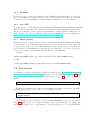
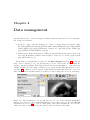
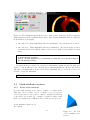
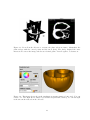
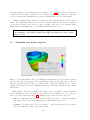
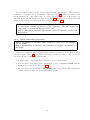
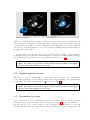
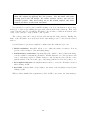
Figure 1.2: This zoom points out the principal structures of CardioViz3D. The main toolbar
on the top of the window gathers the most important functions of the software, such as the
open button to import any data, the DICOM import button, the sequence import button,
etc. You can see on the upper left corner the “Data Manager” that summarizes all imported
data. At the bottom of it, you see a set of buttons. Each button represents a toolobx, the
first and second ones rely to general purposes.
NOTE: Each action you might do in the toolboxes acts on the currently
selected dataset(s) and only on it(them).
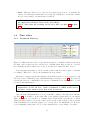
In the main toolbar (Fig. 1.2), you will find the most important functionnalities of
CardioViz3D. The first set of buttons rely on data import and export, please refer to Sect.
2 for specific imports such as DICOM or sequences. The second set of buttons are dedicated
to user interactions choices in the 2D views. Assuming you are visualizing an image in
CardioViz3D, this image is represented in 3 perpendicular plane sections (axial, coronal and
sagittal views) and a 3D representation of it. In the 2D views you have several kinds of mouse
interactions that are possible:
1. the arrow allows to navigate between slices in the different views.
2. The orange color map button allows you to change the window and the level of the
image. Note that these parameters are also available from the visualization toolbox
(see Sect. 3.1).
3. The zoom button allows to zoom in and out in the xurrent image slice. Press Shift to
translate the visualization.
TIP: Press Shift when the zoom interaction is ON to translate the current
slice.
8