1
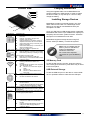
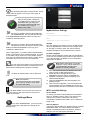
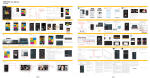
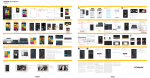
Product View Charging MediaShare 1 2 3 4 Using the supplied cable connect MediaShare to a powered USB port or USB charger in order to charge the built in battery. It may take up to 7 hours to fully charge the battery. Installing Storage Devices 5 9 6 8 COMPONENT 1. Battery Level LED 2. Read / Write LED 3. Wi-Fi LED 4. Internet LED 5. USB Host Port 6. Reset Button 7. SD Card Slot 8. USB Device Port 9. Power Button 7 DESCRIPTION Green ON: The battery charge level is more than 30%. Red ON: The battery charge level is between 10% and 30%. Red Fast Flashing: The battery charge is depleted and the unit will soon shut down. Green Slow Flash (every 2 seconds): The battery is charging. Green Slow Flash (every 1.5 seconds): The device is shutting down. LED off: The device is powered off. During Wi-Fi disk mode: Blue ON: Memory connection is successful. Blue Flashing: Memory is reading or writing. During cabled connection mode: Blue ON: Connected to a USB host Blue Flashing: Connected to USB2.0 and is reading or writing. Blue LED shows the Wi-Fi connection state. Flashing indicates that initiation is in process. ON indicates Wi-Fi initiation has completed. The LED is OFF when: Device is on, but the Wi-Fi signal is weak. Device is off. Device is in Mobile Mode but the Wi-Fi is off. Green: Connected to the internet via the bridge. Off: Not connected to the Internet. MediaShare contains no internal storage. You must attach either an SD Card or a USB storage device before you are able to use MediaShare with your smartphone or table. Once your SD Card or USB storage device is attached, MediaShare will reserve up to 200MB of its capacity for temporary files and other system functions. Therefore this space is not available for user data. MediaShare supports storage devices using FAT, FAT32, exFAT (for SDXC), or NTFS file systems. Note: Prior to installing the SD Memory Card or USB Device, make sure MediaShare WIreless is turned off. Do not touch the exposed connectors on your SD Memory card. SD Memory Card Locate the SD memory card slot. Insert the memory card. Gently push the memory card all the way in until it locks into its place. USB External Storage Locate the USB host port on the device. Insert a USB drive or portable hard drive cable into the USB port Insert a USB flash drive or USB hard drive for Wi-Fi access. In Power Off mode USB port can be used to charge connected smartphone or tablet. Insert a small tool (such as a paperclip) to press the button and reset the device to Factory Default configuration. Insert SD card for Wi-Fi access. Insert microSD card using appropriate adapter. Use the included USB cable to connect to a computer over USB 2.0 to enable data transfer. Use the included USB cable to connect to a USB port or USB charging adaptor to charge the device, Turns the device on/off. MediaShare Wireless for Kindle Fire User Manual 4