1
Using Mobile Devices
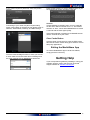
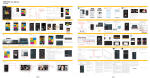
2. From the menu screen click on “Wireless”
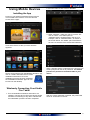
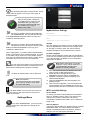
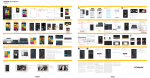
Installing the App
Power on your Kindle Fire tablet and ensure that it
is connected to the Internet. From the carousel
screen select “Apps”
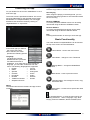
3. Under “Wireless”, make sure “Wi-Fi” is set to “On”
click on “Wi-Fi”. The SSID option for
“Verbatim-XXXX” should appear in the list. (For
example, click on “Verbatim-86DC”, as shown in
the screen below. The “86DC” part of the SSID is
the last 4 characters of the device MAC Address.)
Then select “Store” to take you to the Amazon
Appstore
Search and locate the free “MediaShare Wireless” app,
click on “Install” and follow the on-screen
installation instructions. Once the
installation process has been completed,
the “MediaShare Wireless” app icon can
be found on the desktop.
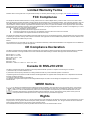
When “Verbatim-XXXX” is selected for the first time you
will be prompted for the Wi-Fi password. The default
password is printed on the bottom label of your
device.
Wirelessly Connecting Your Kindle
Fire Tablet
1. Turn-on MediaShare Wireless and wait for it to
initialize. The blue Wi-Fi LED on the device should
transition from blinking to fully ON to indicate that
the initialization process has been completed.
MediaShare Wireless for Kindle Fire
After the correct password is entered, the product will
show as “Connected” in the list.
User Manual
5