1
62
The Browser
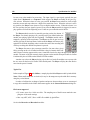
within the imported package. These can then be dragged and dropped to a new instrument folder,
or remain in the Imports directory. How things are ultimately organized, we leave entirely up to
you!
5.6
Customizing the browser
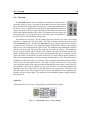
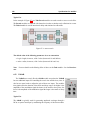
The Browser structure can be customized in various ways. New folders can be created from the
File drop down menu using the Create New Folder command. One can also move files from one
place in the Browser to another using the Copy and Paste commands from the Edit drop down
menu, or by simply dragging a file from one folder and dropping it into the folder of your choice.
While this open ended format makes it very easy to organize your instruments and presets, there
are some restrictions on what can go where:
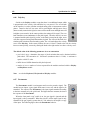
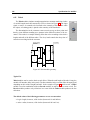
• Modules (green box icon) - May only appear within the modules folder. They cannot be
moved.
• Instruments (piano keys icon) - May appear in the Instruments directory, in separate folders
within the instruments directory, or in import folders (more on imports in a moment!).
• Sub-patches - May appear in the sub-patches directory, in separate folders with the subpatch directory, or within an instrument file.
• Presets - May appear within an instrument, sub-patch, or module file.
While this all may seem a little convoluted on paper, the Tassman’s browser performs in very
much the same way as various other programs you use everyday. The most important thing to
consider when organizing your synths, sub-patches, and presets within the Browser is how you feel
comfortable working. If you find yourself struggling to find the synths you’re looking for, it might
well be time to give the Browser a spring cleaning. As was mentioned in the ’Getting Started’
guide, creating an archive folder for synths you find you’re rarely using can help to eliminate
unnecessary clutter. This becomes of particular importance if you’re exchanging synths regularly
with other Tassman users.
Lost?
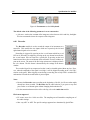
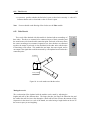
If you find yourself struggling to find the modules or presets you’re looking for, the browser’s
Locate function allows you to quickly jump to the instrument, module, or preset you currently have
selected. Simply click on the module or sub-patch you wish to find in the Builder, or anywhere on
the Player interface, hit Ctrl-L/Apple-L, and the browser will jump to the appropriate position.