1
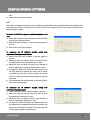
PRO FEATURE
Andriod, iPhone, Blackberry, Mac OS X access and CMS software
H.264 IP Camera
User Manual
Version 3.0
PLEASE DO NOT RETURN THIS PRODUCT TO THE STORE
Please contact our Technical support first regarding any additional information on product features,
specifications or assistance with set-up. You can contact us via email below.. Our support teach will
respone next working day after receiving your email.
Email: [email protected]
TABLE OF CONTEXT
TABLE OF CONTEXT
TABLE OF CONTEXT........................................................................................................................................0
INTRODUCTION ...............................................................................................................................................1
FEATURE ..........................................................................................................................................................2
INSTALLATION & CONNECTION.....................................................................................................................4
Memory Card Information ....................................................................................................................... 4
Connecting to the monitor....................................................................................................................... 4
Ethernet Connection................................................................................................................................. 4
Power Supply ............................................................................................................................................. 4
Connecting to Audio Input/Output ......................................................................................................... 5
Connecting Your Alarm System To The IP Camera.............................................................................. 5
Connecting Your IPC To The Router........................................................................................................ 7
NETWORK GUIDE ...........................................................................................................................................7
Requirements............................................................................................................................................ 7
Finding your Device’s IP Address using “DeviceManager” ................................................................. 8
Setting Up Wireless Connectivity (wireless camera models only) .................................................... 8
3G MOBILE VIEWING (ezLINK iPhone - Android).................................................................................. 9
Viewing Your IP Device Outside Of Your Network (ezLINK CMS) ..................................................... 12
Preparing Your PC for Viewing the IP Device (Internet Explorer):.................................................... 12
Method 2.................................................................................................................................................................. 14
Preparing Your Computer for Viewing the IP Device (Safari Chrome FireFox) .............................. 15
Viewing Your IP Device on Your Computer.......................................................................................... 15
Log in to the IP Device (Using Internet Explorer)................................................................................ 15
Installing the ActiveX controls .............................................................................................................. 16
Log in Your IP Devices (Using a Mac OS X Mountain Lion)............................................................... 16
Viewing Your IP Device Outside Of Your Netwrok (Port Forwarding) .............................................. 18
Configuring Your Router To View The IP Device Externally: ............................................................................. 18
Finding Your External IP ........................................................................................................................................ 19
Testing...................................................................................................................................................................... 20
Once Successful ..................................................................................................................................................... 20
To Configure IP Device To Work With DDNS ....................................................................................... 21
To View IP Device Through Hostname ................................................................................................. 22
3G MOBILE VIEWING (Port forwarding) ............................................................................................... 23
NETWORK VIEWING & PLAYBACK ............................................................................................................ 29
Live View................................................................................................................................................... 30
PTZ ontrol................................................................................................................................................. 31
Playback................................................................................................................................................... 34
CONFIGURATION OPTIONS......................................................................................................................... 35
Record ...................................................................................................................................................... 36
Record Conf............................................................................................................................................................. 37
GOLBONG Technologies Co., Ltd.
NVR/DVR/IPC
ng Technologies Co., Ltd
0
Alarm ........................................................................................................................................................ 39
Motion detect .......................................................................................................................................................... 39
Video Blind............................................................................................................................................................... 42
Video Loss................................................................................................................................................................ 42
Alarm Input.............................................................................................................................................................. 43
Alarm Output........................................................................................................................................................... 44
Intelligent Video Analysis (IVA)............................................................................................................................. 44
Abnormality............................................................................................................................................................. 45
System...................................................................................................................................................... 45
General..................................................................................................................................................................... 46
Encode ..................................................................................................................................................................... 49
Network.................................................................................................................................................................... 51
Netservice................................................................................................................................................................ 53
Mobile Monitor........................................................................................................................................................ 57
GUI Display .............................................................................................................................................................. 59
PTZ Config ............................................................................................................................................................... 61
Camera Param ....................................................................................................................................................... 61
Advanced.................................................................................................................................................. 63
HDD Manage........................................................................................................................................................... 64
Account .................................................................................................................................................................... 66
Auto Maintain.......................................................................................................................................................... 68
Default ..................................................................................................................................................................... 69
Reboot...................................................................................................................................................................... 69
Upgrade.................................................................................................................................................................... 69
Info ............................................................................................................................................................ 70
HDD info................................................................................................................................................................... 70
LOG ............................................................................................................................................................................71
Version ......................................................................................................................................................................71
TROUBLESHOOTING.................................................................................................................................... 72
INTRODUCTION
GOLBONG Technologies Co., Ltd.
NVR/DVR/IPC
ng Technologies Co., Ltd
1
Congratulations on your purchase of the IP Surveillance Products! Using the most advanced video compression,
H.264, your home or business will benefit from around the clock surveillance adding extra security to your
valuables. H.264 compression allows you to record and store more footage using less space, so you will never
miss an important event. This manual was written to ensure that you get the most out of your IP surveillance
Products
FEATURE
iPhone, Android, BlackBerry, WinCE, Symbian, Mac OS x Compatible
Access live video footage directly from your iPhone, Android, BlackBerry, WinCE, or Symbian Mac OS x. This IP
Device uses 3G technology, which is specifically designed to transmit high quality video and audio on your smart
phone.
Cutting Edge H.264 Compression
The IP Device . utilizes H.264 compression the latest and most advanced compression level available for a IP
Device system. You will see anamazing picture but save almost 30% on storage space versus IP Devices with
MPEG-4 compression! H.264 maximizes your hard drive space.
We'll Get You Online with Lifetime Live Customer Support
Assistance is available whenever you need it. Our customer support team can be reached by email or live web
chat services so that you will always have access to an expert.
Day & Night (ICR)
It automatically detects the time change of the day to switch to a mode that is appropriate to the current scene.
In a daylight scene, it switches to the color mode for maintaining the optimal color tones while it, at night,
switches to B/W mode for identifying the low contrast scene.
ezLINK – Free from Router Settings
ezLINK is designed to truly simplify the process of establishing Internet access to Golbong IP Devices. It
eliminates the need for setting up port forwarding and configuring firewall security. Simply mark down the
ezLINK ID on the label, then use CMS software or sign in vMEyecloud App with that ID to watch live videos and
playback from wherever you are
Stay Notified with Email Alerts
This system keeps you notified of events occurring in your monitoring location. You can set the unit to
automatically send alerts to your email inbox whenever motion is detected, the external alarm is triggered, the
camera is block-out, or cameras lose power.
Advanced Motion Activated Recording
You have the option to record video only when motion is detected. Finding important video footage using the
playback feature is easy, and will also save you time and conserve hard drive space. You can even set individual
cameras to detect motion while the others continuously record.
GOLBONG Technologies Co., Ltd.
NVR/DVR/IPC
ng Technologies Co., Ltd
2
Web Browser-based Monitoring
Using the Internet web browser to display the image in a local network environment..
WIFI connection
The IP Device (Some models) can connect to the wireless router with wireless USB Adapter (basing on RT3070
chipset). No need the cable, the IP Device will connect to your network easily.
Password Protection
You can define authority to each user. Ensure that they can conduct the only which is given, such as IP Device
settings or halt recording.
Advanced network Security
A comprehensive set of security features including IP address filtering, disable unused network services.
24/7 Scheduled Recording (for specific model)
You can fully customize a weekly recording schedule. You can choose which days of the week and hours of the
day you want to continuously record, motion record, alarm record, or not record at all. Each camera can be
scheduled with different settings.
Search by Date, Time, or Event
Simply choose the desired date and time range, and the requested video clips will appear. Clips are also labeled
by event, which makes it easy to find footage that was captured by motion detection.
ONVIF Compliance
This product supports ONVIF. For more information, refer to www.onvif.org.
GOLBONG Technologies Co., Ltd.
NVR/DVR/IPC
ng Technologies Co., Ltd
3
INSTALLATION & CONNECTION
INSTALLATION & CONNECTION
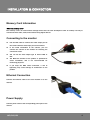
Memory Card Information
What is a memory card?
The memory card is an external data storage device that has been developed to offer an entirely new way to
record and share video, audio, and text data using digital devices.
Connecting to the monitor
z
z
z
z
z
Use the BNC cable to connect the video output port of
the camera with the video input port of the monitor.
In the initial installation of the camera, you can
connect the camera to the monitor for checking the
connection status.
You can set the video output type to either NTSC or
PAL.
The BNC Out terminal of the product is provided for
easier installation, and is not recommended for
monitoring purposes.
If you keep the BNC cable connected, a risk of
lightening may cause damage or malfunction to the
product.
Ethernet Connection
Connect the Ethernet cable to the local network or to the
Internet.
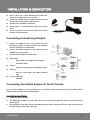
Power Supply
Connect power cable to the corresponding power port of the
camera
GOLBONG Technologies Co., Ltd.
NVR/DVR/IPC
ng Technologies Co., Ltd
4
INSTALLATION & CONNECTION
z
z
z
z
z
You can also use a router featuring PoE (Power over
Ethernet) to supply power to the camera.
If both PoE and DC 12V are supplied, the product will
operate with the first-applied power source.
AC 24V can be applied in non-polarity.
Use AC 24V in a low-temperature place of less than
-10°C.
Please make sure the monitor and camera are turned
off when connecting them.
Connecting to Audio Input/Output
1.
2.
3.
z
z
z
z
Connect the AUDIO IN port of the camera with the
microphone directly or LINE OUT port of the amplifier
that the microphone is connected to.
Connect the AUDIO OUT port of the camera with the
LINE IN port of the speaker.
Check the specifications for audio input
Audio Codec
G.711 PCM. µ-law 64kbps 8kHz sampling
Full duplex Audio
Audio in
Used for mono signal line input (Max.2.4 Vpp)
Audio out
Used for mono signal line output (Max.2.4
Vpp)
Line out impedance
600 Ohm
Connecting Your Alarm System To The IP Camera
The IP devices supports a 2 wire (normally open or normally closed) connection for external alarm devices
simultaneously using the built-in alarm adapter.
Alarm input port specification
1. Alarm input type unlimited.
2. The GND and the COM port of the alarm sensor has to be parallel ( When the alarm sensor uses external
power supply)
3. The grounding of the alarm and the IPC GND should be shared. The NC port of the alarm sensor must be
connected with the IPC alarm input port.
GOLBONG Technologies Co., Ltd.
NVR/DVR/IPC
ng Technologies Co., Ltd
5
INSTALLATION & CONNECTION
Alarm output port specification
1. There is external power supply when using the external alarm equipment. Please refer to the relay relevant
parameters to avoid the overload that damages IPC.
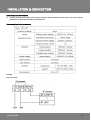
Alarm output port relay parameters
Example:
Two alarm input
GOLBONG Technologies Co., Ltd.
NVR/DVR/IPC
ng Technologies Co., Ltd
6
INSTALLATION & CONNECTION
Alarm output
The grounding of the power supply and the alarm sensor must be shared when used in external power supply.
Please see your alarm device manufacturer for further instructions on required connections and settings.
Connecting Your IPC To The Router
1.
2.
3.
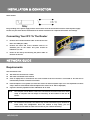
Connect the included network cable to the back of the
IPC in the RJ45 port (LAN).
Connect the other end of the network cable to an
available port on the router. The ports should be
labeled 1-4, or 1-8.
Power on the IPC by reconnecting the power cable on
the back of the IPC.
NETWORK GUIDE
Requirements
You will need to have:
z The IP Device connected to a router
z The router connected to the Internet
z A PC or laptop that is connected to the same network that the IP Device is connected to. The PC can be
connected by a wired or wireless connection
z Internet Explorer 6.0 or greater (to check the version of Internet explorer open I.E. In the top Menu bar select
"Help" and then select About Internet Explorer. The version of I.E. will be displayed.)
z A genuine and fully updated version of Windows XP or Vista
Note:
The computer and IP Device need to be connected to the same network for initial
setup. A computer will not always be necessary at the location to view the IP
Device.
Note:
For a wireless connection, the camera only needs to be wired to your network for
initial setup and configuration. Once the camera is fully setup, you can
disconnect the Ethernet cable and connect to your network wirelessly.
GOLBONG Technologies Co., Ltd.
NVR/DVR/IPC
ng Technologies Co., Ltd
7
NETWORK GUIDE
RECOMENDED SD/SDHC MEMORY CARD SPECIFICATIONS
z 2GB ~ 32GB
z To ensure proper recording of video data, it is recommended you use a memory card that supports at least
read/write speed 10Mbps and Class 6.
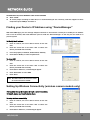
Finding your Device’s IP Address using “DeviceManager”
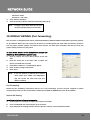
With DeviceManager, you can manage mutiple IP devices in the network. It allow you to modify the IP address
even it has IP conflict, and clone DNS from your PC. Find the “Devicemanager” on the CD, you can install it on
your PC system
To Modify the IP address
1. Click “IP search”, all our IP device will list on the left
side
2. Click the check box on the Row “NO” to select the
device you would like to modify
3. Fill in the properly IP address, Subnet Mark, Gateway
4. Click button “Modify” to save the parameter.
To clone DNS
1. Click “IP search”, all our IP device will list on the left
side
2. Click the check box on the Row “NO” to select the
device you would like to modify
3. Click button “Advance”; a new dialogue appear
4. Click “SametoPC” to clone DNS
5. Click “Save”
Note: The DNS needs to be set to the same
as local network for ezLINK
Setting Up Wireless Connectivity (wireless camera models only)
Prerequisite: Set up the camera through a wired connection.
For detail, please see Requirements above
To setup wireless connectivity:
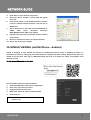
1. Click “IP search”, all our IP device will list on the left
side
2. Click the check box on the Row “NO” to select the
device you would like to modify
3. Click button “Advance”; a new dialogue appear
GOLBONG Technologies Co., Ltd.
NVR/DVR/IPC
ng Technologies Co., Ltd
8
NETWORK GUIDE
4.
5.
Click “WIFI” to enter wireless setup menu
Select box next to "Enable", a check mark will appear
in the box.
6. Click search button to find available wireless network.
If there's available wireless network, it will list out on
SSID board
7. The security mode on the router must be 64bit WEP or
128bit
WEP.
Lower
encryption
Technique
WPA/WPA2-personal (PSK) is not support.
8. highlight and select one of availabe wireless network
on the board.
9. Select the column next to Port, and input password.
10. Select "OK" to save your settings.
3G MOBILE VIEWING (ezLINK iPhone - Android)
ezLINK is designed to truly simplify the process of establishing Internet access to Golbong IP Devices. It
eliminates the need for setting up port forwarding and configuring firewall security. Simply mark down the
ezLINK ID on the label, then sign in vMEyeCloud App with that ID to watch live videos and playback from
wherever you are
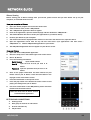
To find the ezLINK number on the label
NETWORK GUIDE
To Find ezLINK number thru Internet Explorer
1. Click DeviceCfg Tab to enter device configuration
2. Click “Info” tag to enter sub menu
3. Highlight and click Version icon
4. Mark down “Serial ID” which is ezLINK number
5. Click OK to exit
Note: The Net Status show whether the device is
online or not.
GOLBONG Technologies Co., Ltd.
NVR/DVR/IPC
ng Technologies Co., Ltd
9
NETWORK GUIDE
iPhone Viewing
Before viewing your IP Device footage from your iPhone, please ensure that you have iTunes set up on your
computer, an activated iTunes account.
From your computer or iPhone:
1. Open your iTunes program and access the iTunes store.
2. From the iTunes store, search "vMEyeCloud".
3. The " vMEyeCloud" application will then appear.
4. Click on the application, open the download page and then download " vMEyeCloud ".
5. The downloaded file will then be under your applications in your iTunes library.
6. Connect your iPhone to your computer.
7. Your iPhone will then be displayed under "Devices" to the left in the iTunes menu, open the device.
8. Open the applications menu from the top tab area and select "sync applications" and then select "
vMEyeCloud " to add the vMEyeCloud application to your iPhone.
9. The vMEyeCloud application will now appear on your iPhone screen.
From your iPhone:
1. Open and run the vMEyeCloud application.
2. Select the setup icon in the bottom right corner of the screen.
3. Select “By Device”
4. Fill in the following information:
Serial Number:
Input ezLINK number
User ID:
Input the user ID that you have in IP
Device
Password: Input the password that you have in IP
Device
5. Once all the proper information has been entered on your
iPhone and on your IP Device. Press the Save button in the
top right corner of the iPhone screen.
6. Press the Back button in the top left corner
7. Press the play button in the bottom left of the screen to start
playing live footage from your IP Device.
8. Fore more information on the vMEyeCloud, please review the
buttons and connections below.
Note: You must have an iTunes account
to download the application.
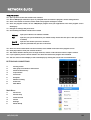
BUTTONS AND CONNECTIONS
1.
2.
3.
4.
Viewing screen
Next group of channels or PTZ control
Channel selection key
Play & Pause
GOLBONG Technologies Co., Ltd.
NVR/DVR/IPC
ng Technologies Co., Ltd
10
NETWORK GUIDE
5.
6.
7.
8.
9.
Full screen
Snapshot
Mobile recording
Alarm Info
Main Menu
Main Menu
1.
2.
3.
4.
5.
Video Records
Remote Play
Photos
Settings
About & help
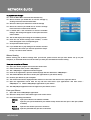
To playback the footage:
1. Click the Main Menu Icon and click Remote Play
2. Select the date you would like to view the footage by
clicking scroll lists located beside Date.
3. Select the device you would ike to view the footage
4. Select the channel you would like to view the footage
from scroll lists located beside channel
5. It should take a few moments to load the available
footage. The footage will appear in the space below the
search button.
6. The list will display the footage in the following format:
7. Click the box beside footage item number, a check
mark will appear in the corresponding box
8. click preview button to play it.
9. If you would like to play footage from another channel
at the same time. Then you need to repeat from step 1
to step 7 to search other channel.
Android OS Viewing
Install viewing software, from your computer:
1. Connect phone to computer and open the memory card folder.
2. Insert included CD into drive and open up to view files.
3. Copy and paste the viewing software onto the phone's memory card or installation folder.
From your phone:
1. Open up the area that the software was saved to.
2. Select vMEyeCloud software to open. If prompted where to
install the program, choose storage device.
3. Once a file location is selected, select install. The program
will begin to install.
GOLBONG Technologies Co., Ltd.
NVR/DVR/IPC
ng Technologies Co., Ltd
11
NETWORK GUIDE
4.
5.
6.
7.
Once the program installs, run the vMEyeCloud program from
your applications. The main program screen will display.
Select “By Device”
Navigate to settings and press enter.
the following information needs to be inserted
Serial Number:
Input ezLINK number
User ID:
Input the user ID that you have in IP Device
Password: Input the password that you have in IP Device
8. Once the correct information has been inserted, select “Save”
and "BACK" and return main program screen
9. Click play button to view your selected channel
10. The mobile software allows you to change channels, control a
PTZ camera as well as capture a video.
11. If you capture a picture it will be stored in the same file
location the program was installed.
12. You can convert normal display to full screen display by
clicking the screen from on mobile device.
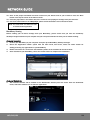
Viewing Your IP Device Outside Of Your Network (ezLINK CMS)
To make ezLINK on CMS software
1. Install CMS software on your PC computer
2. Login CMS with user name “super”, password (No
require)
3. Select “System” Æ “Device manager” A new dialogue
will appear
4. Click icon
to creat new zone
5. Click zone name under the zone list, and click
icon
to add the IP device
6. Select Check box next to “Myeye”
7. Fill in Serial ID with ezLINK number
8. Click “OK” to Save
9. Double click the device list on the left to connect the
device
Preparing Your PC for Viewing the IP Device (Internet Explorer):
Every computer that is accessing the IP Device will need to be configured to download and run ActiveX controls.
This change only needs to be made one time on the computer that is accessing the IP Device. This can be done
by following either of the two methods below. Method 1 only affects websites that you specifically add to the
trusted sites list. To change for all websites, use Method 2.
GOLBONG Technologies Co., Ltd.
NVR/DVR/IPC
ng Technologies Co., Ltd
12
NETWORK GUIDE
Method 1 (Recommended):
Add the IP Device's IP address to the
Trusted Sites in Internet Explorer.
1.
Open up Internet Explorer.
2.
Click on TOOLS.
3.
Click on INTERNET OPTIONS.
4.
Click on the SECURITY Tab.
5.
Click on TRUSTED SITES.
6.
Click on the SITES button.
7.
Type in the IP address of the IP
Device in the following format:
http://192.168.0.108 and click
ADD.
If Require server verification (https:)
for all sites ...” is selected you will
need to uncheck the selection box.
8.
Note: The IP address used in the example above is for
internal network viewing. If you are trying to
access the IP Device from a remote location you
will add the "External IP Address" to the trusted
sites list. See Finding your External IP Address.
9.
Click Apply.
10. Change the default settings for the TRUSTED
SITES zone to low. Click on DEFAULT LEVEL and
change the security level of the zone to "Low".
This can be done by running the slider to the
bottom. This will allow ActiveX controls from the
IP Device to be downloaded and the IP Device to
be viewed on the computer
GOLBONG Technologies Co., Ltd.
NVR/DVR/IPC
ng Technologies Co., Ltd
13
NETWORK GUIDE
11. Click OK
Method 2:
1.
Open up Internet Explorer.
2.
Click on TOOLS.
3.
Click on INTERNET OPTIONS.
4.
Click on the SECURITY Tab then the
CUSTOM LEVEL button.
5.
Change the ActiveX settings listed below.
z Download signed ActiveX controls:
PROMPT or ENABLED
z Download unsigned ActiveX controls:
PROMPT
z Initialize and script ActiveX controls
not marked as safe: PROMPT
z Run ActiveX controls and plug-ins:
ENABLE
z Script ActiveX controls marked as
safe for scripting: ENABLE
If this is an option:
z Allow automatic prompting for file
and code downloads: ENABLE
6.
7.
Press OK.
Close out of the Options window.
8.
Close out of the Options window.
Note:
This method needs to be done on every
computer you wish to view your IP Device
GOLBONG Technologies Co., Ltd.
NVR/DVR/IPC
ng Technologies Co., Ltd
14
NETWORK GUIDE
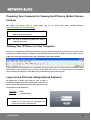
Preparing Your Computer for Viewing the IP Device (Safari Chrome
FireFox)
The quick time player need to install before you try to access thru Safari, Chrome Browser.
http://www.apple.com/safari/download/
Note:
Only live view and PTZ control is available in
Safari and Chrome browser.
Note:
Be sure to forward the RTSP port 554 in
default in your router
Viewing Your IP Device on Your Computer
Now that the computer is prepared to install the necessary ActiveX changes listed above you are ready to start
viewing the IP Device using your computer. Using Internet Explorer, type the IP address of the IP Device into the
address bar using the following format: http://192.168.1.19 and press ENTER.
If the computer and the IP Device are connected to the same router you can use the internal IP address to view
the IP Device. If the computer is not connected to the same router and is at a remote location you will need to
use the external IP address for the IP Device to view the IP Device from that computer.
Log in to the IP Device (Using Internet Explorer):
By default the IP Device will require a user to input a
username and password before being able to view the IP
Device online. The default username and password for the
web interface of the IP Device is:
Username:
Password:
admin
“” (NO Required)
Note: click "Connect All Video", a check mark will
appear on the box. Then the application will
connects all cameras automatically
GOLBONG Technologies Co., Ltd.
NVR/DVR/IPC
ng Technologies Co., Ltd
15
NETWORK GUIDE
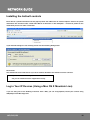
Installing the ActiveX controls
There will be a yellow information bar that pops up below the address bar in Internet Explorer. Click on the yellow
information bar and then select "Install This Add-on for All Users on This Computer…". Please be patient as the
installation process can take 1-2 minutes.
If your ActiveX settings are set correctly you will see the following dialogue box.
Click Install.
You should now see the web client. If you click “Connect All Video” You should see all the cameras.
Note: if you still don't above dialogue, click the ActiveX.exe in the
CD, you can install the active X application locally
Log in Your IP Devices (Using a Mac OS X Mountain Lion)
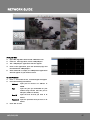
If you are using one of the Golbong IP devices with a Mac, you can view/playback/record your camera using
vMEyeSuper from Mac App store.
GOLBONG Technologies Co., Ltd.
NVR/DVR/IPC
ng Technologies Co., Ltd
16
NETWORK GUIDE
From your Mac:
1. Open Mac App Store built into OS X Mountain Lion
2. From the Mac App Store, search "vMEyeSuper".
3. The " vMEyeSuper" application will then appear.
4. Click on the application, open the download page and
then download " vMEyeSuper ".
5. After download is comple, the vMEyeCloud application
will now appear on your iPhone screen.
To add IP devices
1. Click “+” Icon under the list, a new dialogue will appear
2. Fill in the following information:
Address: Input your IP Device's IP address or
DDNS
Port:
Input the port you forwarded for your
mobile setup. Ensure that this port is
TCP port (34567 in default)
User ID:
Input the user ID that you have in IP
Device
Password: Input the password that you have in IP
Device
3. Click “OK” to save
GOLBONG Technologies Co., Ltd.
NVR/DVR/IPC
ng Technologies Co., Ltd
17
NETWORK GUIDE
To Live View
Click the device in the list which allows you to view the IP Device
To playback the footage:
1. Select the date you would like to view the footage by
clicking scroll lists located beside Date.
2. Select the device you would ike to view the footage
3. Select the channel you would like to view the footage
from scroll lists located beside channel
4. It should take a few moments to load the available
footage. The footage will appear in the space below the
search button.
5. The list will display the footage in the following format:
6. Click the box beside footage item number, a check
mark will appear in the corresponding box
7. click preview button to play it.
8. If you would like to play footage from another channel
at the same time. Then you need to repeat from step 1
to step 7 to search other channel.
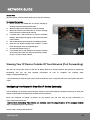
Viewing Your IP Device Outside Of Your Netwrok (Port Forwarding)
You also can set up your router to view the IP Device while at a remote location. This process is called Port
Forwarding and you can find detailed instructions on how to complete the required steps
athttp://www.portforward.com.
* Port forwarding is required if you want to view the IP Device from a computer that is not connected to the same
router.
Configuring Your Router To View The IP Device Externally:
Port forwarding is a necessary step that opens a path on your home/business network to allow you to view your
IP Device video feed from outside your network (over the Internet).
There are hundreds of brands of routers on the market, you can find step by step instructions on
http://www.portforward.com.
Easy to follow Networking Video Guides are available under the support section of the company website
(http://www.golbong.com/clipslist.asp)
Once on http://www.portforward.com:
GOLBONG Technologies Co., Ltd.
NVR/DVR/IPC
ng Technologies Co., Ltd
18
NETWORK GUIDE
z
z
z
z
z
Select your router make and model from the list of IP Devices
Skip any advertisements that may be seen by clicking "Click here to skip this advertisement…" in the top
right hand corner
You will see a list of various applications. Find a link for any IP Device or IP camera and click on it. If you
cannot find a IP Device of Camera link, you can pick any application, the instructions are all very similar
Follow the instructions using the HTTP port number and TCP port number assigned to the IP Device
By default the HTTP port is 80 and the TCP port is 34567. It can be verified by checking the NETWORK
section in the Menu of the IP Device
Once the port forwarding is complete you are ready to view your IP Device from a remote location:
z If you are going to be viewing your cameras on your mobile device you will also need to port forward the
mobile port. By default port 80 and 34599 need to be forwarded to the Internal IP address of the IP Device.
See "M
MOBILE DEVICE SETUP" of the manual for more information
These instructions have been created without a stand alone firewall in place. If you have a firewall, please consult
a computer systems technician to configure the firewall to allow the required ports to pass through
Note:
Your router may require a user name and password. If you do not know the username or
password, contact the person who setup your router. http://www.portforward.com will
provide you with the router's default user name and password.
Finding Your External IP
The external IP address of the IP Device is used to access the IP Device from any remote location with Internet
access. To find the external IP address of the IP Device go to www.whatsmyip.org or www.showmyip.com using a
computer that is connected to the same router as the IP Device. The web sites will display your external IP
address in the top of the web page for your reference.
GOLBONG Technologies Co., Ltd.
NVR/DVR/IPC
ng Technologies Co., Ltd
19
NETWORK GUIDE
Testing
Now that you know your external IP address, you can perform a test to ensure your IP Device is accessible from
outside your network (over the internet). This test should be performed by a computer that is not on the same
network as the IP Device. Although, using the external IP on the same network will sometimes work, it will not
work in all cases and it is best to test from a remote location.
1.
2.
Open Internet Explorer, and in the address bar type in the external IP address you acquired from
http://whatsmyip.org. It should be similar to the following: http://122.226.242.178. If using a port other
then the default port 80 it will need to be entered at the end of the IP address. Ex.
http://122.226.242.178:82.
Press ENTER
Once Successful
z
z
You will be prompted to enter your username/password and install the ActiveX controls
You are now able to view the IP Device from anywhere in the world with Internet access and proper
computer settings
If You Cannot Connect
If the Remote Viewing does NOT connect it could be caused by one of the following reasons:
NETWORK GUIDE
z
z
z
z
z
z
z
Make sure the browser is Internet Explorer 6.0 or later and is on a Windows PC
heck all your network connections and go through the above steps again to make sure a configuration error
was not made. You may have to configure PPPoE settings to match the settings provided to you by your
Internet Service Provider (ISP). Consult your ISP for more information on your PPPoE settings
Port forwarding is not set up correctly. Review the section "CONFIGURING YOUR ROUTER (PORT
FORWARDING)" and www.portforward.com for setup instructions
A pop-up blocker is preventing the ActiveX controls from prompting you to install
Your router is blocking your computer from using the external IP address from the same network as the IP
Device. Try connecting to the External IP Address from a remote computer that is not connected to the same
network
Port 80 is being blocked by your ISP (Internet Service Provider). Try changing the HTTP port to 2000. Port
forwarding will need to be setup for the new port
Port 34567 is being blocked by your ISP (Internet Service Provider). Try changing the TCP port to 6000. Port
GOLBONG Technologies Co., Ltd.
NVR/DVR/IPC
ng Technologies Co., Ltd
20
NETWORK GUIDE
z
forwarding will need to be setup for the new port
A DSL modem is preventing the connection because it is on a different sub-network. Contact your ISP to
assist with bridging the modem and router together
Note:
GOLBONG technical support cannot troubleshoot modems, since changing
these settings can potentially render your modem inoperable. Bridging or any
other modifications to the modem will need to be completed by the ISP.
To Configure IP Device To Work With DDNS
DDNS (Dynamic DNS)
Instead of having to type in the IP address to access the IP Device online you can use DDNS to create a easy to
remember website name to access the IP Device. The IP Device has many DDNS Provider web addresses built
into it. The following instructions are for DYNDNS.org. The sites are not owned nor operated by GOLBONG and
therefore support for these services will be done through their website.
To enable the DDNS using Device Manager
1. Click “IP search”, all our IP device will list on the
side
2. Click the check box on the Row “NO” to select
device you would like to modify
3. Click button “Advance”; a new dialogue appear
4. Click “enable” below DDNStype
5. Enter the hostname of your DDNS account.
pertersonIP Device.dyndns.org).
6. Enter the username of the DYNDNS account
created.
7. Enter the password of the DYNDNS account
created.
8. Click “Save”
left
the
(ex.
you
you
Note: Before
filling
in
the
DYNDNS.com
information on your IP Device, you must
create an account and a hostname for your
IP Device through the DYNDNS website.
DYNDNS.ORG ACCOUNT SETUP
(required if using DYNDNS.ORG)
1. Open Internet Explorer and type http://www.dyndns.org
in the address bar.
GOLBONG Technologies Co., Ltd.
NVR/DVR/IPC
ng Technologies Co., Ltd
21
NETWORK GUIDE
2.
Create a new account by clicking the "Create Account"
link in the top right hand corner of the site.
3. Enter your preferred user name, email address, and
password.
4. Optional information can be left blank, unless you
would like to enter it.
5. Read and agree to the Acceptable Use Policy (AUP) by
checking the box and click "Create Account".
6. An account verification email will be sent to the email
address you supplied. You need to follow instructions in
order to complete the account activation.
*Once the account has been confirmed you can log into
the account and setup for use with the IP Device.
7. Enter the DYNDNS.org username and password you
created and click login.
8. Click on the "Services" button located on the top Menu
bar.
9. Click on the Dynamic DNS link.
10. Click on the "Get Started" link located on right side of
the screen.
11. Type in a desired host name. We recommend you use
your name, company name, or something that is easy
for you to remember.
12. Choose a domain name from the drop down Menu. We
recommend using dyndns.org.
13. In the IP address field, type in the external IP address
of the IP Device. This will only need to be done for the
initial set up as the IP Device will connect and update
with its current IP address according to the UPDATE
SCHEDULE on the IP Device.
14. Leave all of the other options as is, and click "Create
New Host.
15. Follow on screen instructions to activate and "Check
out" your free DDNS hostname.
16. Your dynamic DNS settings have been created.
To View IP Device Through Hostname
1.
2.
Open up your Internet browser and type in your IP Device's hostname that you created on your DYNDNS
account.
You will be prompted for a Username and Password.
GOLBONG Technologies Co., Ltd.
NVR/DVR/IPC
ng Technologies Co., Ltd
22
NETWORK GUIDE
3.
4.
Username: admin
Password: "" (No need)
Click "Connect All Video"
Click OK and the IP Device software and footage will pop up.
Note:
If using a port other then 80, the port
must be specified after your hostname
3G MOBILE VIEWING (Port forwarding)
This IP Device is compatible with iPhone, Android, BlackBerry, Windows Mobile and Symbian operating systems
on 3G networks. Before you can access your IP Device on a mobile phone you must make sure that the IP Device
has the proper network settings, has opened extra stream, has been port forwarded, and that you have the
proper viewing software on your phone.
To start mobile monitor service using Device manager (for
Blackberry, Windows Mobile, Symbian only):
1. Click “IP search”, all our IP device will list on the left
side
2. Click the check box on the Row “NO” to select the
device you would like to modify
3. Click button “Advance”; a new dialogue appear
4. Click “enable” belong to PhoneInfo
5. Click “Save”
Note:
If you use iPhone or Android OS, it doesn’t
need mobile port 34599. The vMEyeSuper
App can receive the video from TCP port
34567 in default
Port Forwarding:
Follow the port forwarding instructions found in the "port forwarding" and use the port assigned in mobile
viewing setup screen. Be sure to forward the mobile port (34599) IN ADDITION to ports 80 and 34567.
Android OS Viewing
Install viewing software, from your computer:
4. Connect phone to computer and open the memory card folder.
5. Insert included CD into drive and open up to view files.
6. Copy and paste the viewing software onto the phone's memory card or installation folder.
GOLBONG Technologies Co., Ltd.
NVR/DVR/IPC
ng Technologies Co., Ltd
23
NETWORK GUIDE
From your phone:
13. Open up the area that the software was saved to.
14. Select vMEeySuper software to open. If prompted where to install the program, choose storage device.
15. Once a file location is selected, select install. The program will begin to install.
16. Once the program installs, run the vMEyeSuper program from your applications. The main program screen
will display.
17. Navigate to settings and press enter.
18. the following information needs to be inserted
Address:
Port:
Input your IP Device's IP address or DDNS
Input the port you forwarded for your mobile setup. Ensure that this port is TCP port (34567
in default)
User ID:
Input the user ID that you have in IP Device
Password: Input the password that you have in IP Device
19.
20.
21.
22.
23.
Once the correct information has been inserted, select "BACK" and return main program screen
Click play button to view your selected channel
The mobile software allows you to change channels, control a PTZ camera as well as capture a video.
If you capture a picture it will be stored in the same file location the program was installed.
You can convert normal display to full screen display by clicking the screen from on mobile device.
BUTTONS AND CONNECTIONS
1.
2.
3.
4.
5.
6.
7.
8.
9.
Viewing screen
Next group of channels or PTZ control
Channel selection key
Play & Pause
Full screen
Snapshot
Mobile recording
Alarm Info
Main Menu
Main Menu
1.
2.
3.
4.
5.
6.
Device List
Remote Play
Video Records
Photos
Settings
About & help
GOLBONG Technologies Co., Ltd.
NVR/DVR/IPC
ng Technologies Co., Ltd
24
NETWORK GUIDE
To playback the footage:
10. Click the Main Menu Icon and click Remote Play
11. Select the date you would like to view the footage by
clicking scroll lists located beside Date.
12. Select the device you would ike to view the footage
13. Select the channel you would like to view the footage
from scroll lists located beside channel
14. It should take a few moments to load the available
footage. The footage will appear in the space below the
search button.
15. The list will display the footage in the following format:
16. Click the box beside footage item number, a check
mark will appear in the corresponding box
17. click preview button to play it.
18. If you would like to play footage from another channel
at the same time. Then you need to repeat from step 1
to step 7 to search other channel.
iPhone Viewing
Before viewing your IP Device footage from your iPhone, please ensure that you have iTunes set up on your
computer, an activated iTunes account and that you have port forwarded for mobile viewing.
From your computer or iPhone:
10. Open your iTunes program and access the iTunes store.
11. From the iTunes store, search "vMEyeSuper".
12. The " vMEyeSuper " application will then appear.
13. Click on the application, open the download page and then download " vMEyeSuper ".
14. The downloaded file will then be under your applications in your iTunes library.
15. Connect your iPhone to your computer.
16. Your iPhone will then be displayed under "Devices" to the left in the iTunes menu, open the device.
17. Open the applications menu from the top tab area and select "sync applications" and then select "
vMEyeSuper " to add the vMEyeSuper application to your iPhone.
18. The vMEyeSuper application will now appear on your iPhone screen.
From your iPhone:
9. Open and run the vMEyeSuper application.
10. Select the setup icon in the bottom right corner of the screen.
11. Fill in the following information:
Address: Input your IP Device's IP address or DDNS
Port:
Input the port you forwarded for your mobile setup. Ensure that this port is TCP port (34567
in default)
User ID:
Input the user ID that you have in IP Device
Password: Input the password that you have in IP Device
GOLBONG Technologies Co., Ltd.
NVR/DVR/IPC
ng Technologies Co., Ltd
25
NETWORK GUIDE
12. Once all the proper information has been entered on your iPhone and on your IP Device. Press the Back
button in the top left corner of the iPhone screen.
13. Press the play button in the bottom left of the screen to start playing live footage from your IP Device.
14. Fore more information on the vMEyeSuper, please review the buttons and connections below.
Note: You must have an iTunes account
to download the application.
BlackBerry Viewing
Before viewing your IP Device footage from your BlackBerry, please ensure that you have the blackberry
desktop manager installed on your compute and you have port forwarded an extra port for mobile viewing.
From your computer:
1. Connect your BlackBerry to your computer and open up the BlackBerry desktop manager.
2. Select the "Application Loader" option from the main menu, from there, select the "Start" button for
adding/removing any applications to your BlackBerry.
3. Browse and select the .alx file from the blackberry folder on the software CD and click "Next".
4. Once installed on your BlackBerry, select the "Finish" button to complete the installation.
From your BlackBerry:
1. The installed software will be located in the "Downloads" directory from the menu. From the downloads
menu, select the software icon to start the application.
GOLBONG Technologies Co., Ltd.
NVR/DVR/IPC
ng Technologies Co., Ltd
26
NETWORK GUIDE
2.
Once the program has started, select the settings icon, from the settings screen, input the following
information.
Host:
Port:
Input your IP Device's IP address or DDNS
Input the port you forwarded for your mobile setup. Ensure that this port is also listed under
mobile settings on your IP Device (34599 in default)
User ID:
Input the user ID that you have in IP Device
Password: Input the password that you have in IP Device
Default:
Input the channel you would like to start watching - the program allows you to change
channels once the footage has loaded
Wi-Fi:
If connecting with mobile network select "No" for this option, if connection through a wireless
network, select "Yes" for this option
3.
4.
Once you have input all the proper information, select "Save" to save the information and close the settings
screen.
Once the settings screen is closed, select the play button to begin playing the footage.
GOLBONG Technologies Co., Ltd.
NVR/DVR/IPC
ng Technologies Co., Ltd
27
NETWORK GUIDE
Windows Mobile setup
Install viewing software, from your computer:
1. Connect phone to computer and open the memory card folder.
2. Insert included CD into drive and open up to view files.
3. Copy and paste the viewing software onto the phone's memory card or installation folder.
From your phone:
1. Open up the area that the software was saved to.
2. Select vMEye software to open. If prompted where to install the program, choose storage device.
3. Once a file location is selected, select install. The program will begin to install.
4. Once the program installs, run the vMEye program from your applications. The main program screen will
display.
5. Navigate to settings and press enter.
6. The following information needs to be inserted:
User name: Input the user ID that you have in IP Device
Password: Input the password that you have in IP Device
Server:
Input your IP Device's IP address or DDNS
Port:
Input the port you forwarded for your mobile setup. Ensure that this port is also listed under
mobile settings on your IP Device (34599 in default)
Channel: This will be the camera you would like displayed when you view your IP Device (only one
channel once available)
7. Once the correct information has been inserted, select "OK" and a separate screen viewing your selected
channel will appear.
8. The mobile software allows you to change channels, control a PTZ camera as well as capture a video.
9. If you capture a picture it will be stored in the same file location the program was installed.
10. You can convert normal display to full screen display by clicking the screen from on mobile device.
Symbian Mobile setup
Install viewing software, from your computer:
1. Connect phone to computer and open the memory card folder.
2. Insert included CD into drive and open up to view files.
3. Copy and paste the viewing software onto the phone's memory card or installation folder.
From your phone:
1. Open up the area that the software was saved to.
2. Select vMEye software to open. If prompted where to install the program, choose storage device.
3. Once a file location is selected, select install. The program will begin to install.
4. Once the program installs, run the vMEye program from your applications. The main program screen will
display.
5. Navigate to settings and press enter.
6. The following information needs to be inserted:
GOLBONG Technologies Co., Ltd.
NVR/DVR/IPC
ng Technologies Co., Ltd
28
NETWORK GUIDE
Default access point:
Server address:
Server Port:
User name:
Password:
Channel:
Choose the access point used to access the Internet
Input the IP Device's External IP address in this section
Insert the set port for the Mobile connection (34599 in default)
Insert the set user name
Insert the set password
Select the channel you would like to view from the start up (only one channel once
available)
7. Once the correct information has been inserted, select "OK" and a separate screen viewing your selected
channel will appear.
8. The mobile software allows you to change channels, control a PTZ camera as well as capture a video.
9. If you capture a picture it will be stored in the same file location the program was installed.
10. You can convert normal display to full screen display by clicking the screen from on mobile device.
Note:
Directions may vary depending on the type of phone that is being used. Refer to
your phone's instruction manual on how to access files from your mobile device.
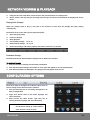
NETWORK VIEWING & PLAYBACK
Once you have your IP Device set to view online, the software to view the footage differs from the software that is
in the IP Device. Please refer to the following instructions when viewing live footage online.
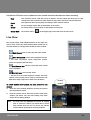
This is what the online viewing software will look like:
GOLBONG Technologies Co., Ltd.
NVR/DVR/IPC
ng Technologies Co., Ltd
29
Just like the IP Device menu, submenus have certain functions that have the same meaning:
Copy:
Paste:
OK:
Cancel:
This software can be used with many IP Device's and this option will allow you to copy
settings from one cameras (as other IP Devices may come with more camera channels).
This option will allow you to paste the setting to other camera channel
To save changes select "OK" at the bottom of the screen
To exit the menu, select "Cancel" at the bottom of the screen
Cancel Mark:
Click cancel mark (
) at the upper right corner will close the sub screen
Live View
The control button under NetSurveillance on the upper left
corner of the screen for online viewing which allows you to
view the IP Device, manage video stream for each channel.
Main Stream: Click to start/stop the main stream
Extra Stream icon: Click to start/stop Extra stream
* For more information about main/extra stream,
please see System->Encode setup
Local Record icon: Click to start/stop video record
on the computer
Start talk icon: start two-way audio
* This has to be an audio supported camera with front
speaker (not included) and it must be connected to the
RCA audio input/output at the back of the IP Device.
To switch between main stream and extra stream for one
channel
1. Click one of the viewing window to choose the camera
you would like to switch.
2. Click the stream icon to select the stream (main/extra
stream) you desire. You will start viewing new video
stream in the viewing window.
Note:
Viewing
window
You must click and highlight the window in viewing
area to select the camera you would like to switch
video stream first, You can not choose the camera
stream without appoiting the vieiwing windows
GOLBONG Technologies Co., Ltd.
NVR/DVR/IPC
ng Technologies Co., Ltd
30
NETWORK VIEWING & PLAYBACK
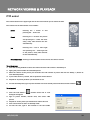
PTZ ontrol
The control button on the upper right side of the screen allows you to control the PTZ.
The controls for the PTZ camera are as follows:
Zoom:
Pressing the + zooms in and
pressing the – zooms out
Focus:
Pressing the + focuses the picture
and pressing the – takes the focus
away, many PTZ cameras do this
automatically
Iris:
Pressing the + lets in more light
and pressing the – takes light out
of the picture, many PTZ cameras
do this automatically
Directional Keys: Clicking on the directional arrows moves the camera around
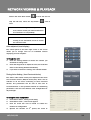
To set up preset:
1. Click the viewing window to select the channel that the PTZ camera is hooked up to
2. Typing the preset number in box beside preset.
3. Move the camera to the places you would like the PTZ camera to preset and click the Setup (+) button at
each desired position.
4. If you select the Del (-) button, the set positions will be cleared.
5. Repeat for all preset positions you would like to set.
6. To start the PTZ preset, type in preset number in the box beside preset and select the Go to button (
)
To set up tour:
1. Click the Edit button (
2.
3.
4.
5.
) beside Partrol No. A new
dialogue will appear
Type in preset number, interval time, and select "Add
preset"
Repeat for all the preset you would like to add in this tour
Click cancel mark to return to desktop mode
To start the tour, type in tour number in the box beside
GOLBONG Technologies Co., Ltd.
NVR/DVR/IPC
ng Technologies Co., Ltd
31
NETWORK VIEWING & PLAYBACK
Partrol and Click Start button (
) to start the tour. To
stop the PTZ tour, select the stop button (
) next to
start.
Note: Not all the PTZ support this way to start the
tours, Please consult your PTZ manufacturer
for information on compatibility
Note: You need to stop tour manually before
clicking on the directional arrows to moves
the camera around
Color adjusted (Local display)
The control panel at the down right corner of the screen
allows you to change color for an individual camera
displaying on local computer.
To Change the color
1. Click the viewing window to choose the camera you
would like to change color.
2. Click and drag the bar to adjust the color, the result will
effect in the viewing window immediately.
3. If you want to restore the setting, click "default" button
Timing Color Setting ( from Front-end device)
The “Color” under “Other” allow you to adjust the color from
the front-end devices (NVR/IP Device/IPC) which will be
effective to all the users connecting to those front-end
devices. The parameters will be sent to and save at
front-end devices. It also provides timeline for customizing
parameters. You can have different color configuration for
day and night.
To timing the color configuration
1. Click button “Other”, it bring a new dialog
2. Click button “Color”, a new screen appear
3. Click 2nd check box next to Period to enable 2nd
timeline for configuration
4. Specific the timeline on 2nd period, the result of
GOLBONG Technologies Co., Ltd.
NVR/DVR/IPC
ng Technologies Co., Ltd
32
NETWORK VIEWING & PLAYBACK
5.
6.
timeline will appear on 1st period.
Configure parameters for each timeline
Click OK to save parameters to front-end device.
Note: If you would like to usesame parameters for 24hr, disable 2nd period
and configure the parameters for 1st period
Note: The color parameters will be sent to and save at front-end devices. It
will be effective to all the users. This doesn’t like color Adjust (local
display) which only be effective to local computer
Aspect Ratio
The aspect ratio is the ratio of the width of a shape to its height when the width is larger than the height. Our
device support most common aspect ratio 16:9 and 4:3
To switch Aspect Ratio
1. Click button “Other”, it bring a new dialog
2. Click Ratio to switch aspect Ratio
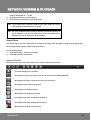
Addtional Function
The button on the under the screen allows you to switch to different screen view
:
full screen display all the cameras
:
Selecting this will open up a full screen view of the screen you have highlighted
:
Selecting this will open a quad screen view of all 4 cameras.
:
Selecting this will connnect all channel
:
Selecting this will stop all channel
:
Selecting this will snapshot of a video.
:
Selecting this will start recording for all channel
:
Selecting this will stop recording for all channel
:
Selecting this will start receiving audio
GOLBONG Technologies Co., Ltd.
NVR/DVR/IPC
ng Technologies Co., Ltd
33
NETWORK VIEWING & PLAYBACK
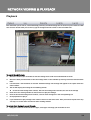
Playback
This tab allows you to search, view and backup previously recorded footage that is stored on your IP Device's HDD.
You can also narrow down your search by type of footage and what camera it was recorded from.
To search through footage:
1. Select the channel you would like to view the footage from scroll lists located beside channel
2. Select the date you would like to view the footage from on the calendar by clicking scroll lists located beside
Date.
3. It should take a few moments to load the available footage. The footage will appear in the space below the
search button.
4. The list will display the footage in the following format:
z Check box with footage item number; The time the footage was recorded, the size of the footage
5. Click one of the viewing window to choose where to play the footage.
6. Click the box beside footage item number, a check mark will appear in the corresponding box
7. click play button to play it.
8. If you would like to play footage from another channel at the same time. Then you need to repeat from step
1 to step 7 to search other channel for other viewing window.
To narrow down footage to search through:
1. Using the scroll lists located under the Type, select type of footage you would like to view.
GOLBONG Technologies Co., Ltd.
NVR/DVR/IPC
ng Technologies Co., Ltd
34
NETWORK VIEWING & PLAYBACK
2.
3.
Using the time slot under Date, select the time slot you would ike to see footage from
Select "search" and only the type of footage from the type and time slot selected will be displayed in the list
below.
Playing Back Footage:
When you prompt video to play, it may take a few minutes to load, then the footage will begin playing
automatically.
The bottom of the screen will have the playback options.
1. Open files/play/pause
2. Pause the footage
3. Stops playback
4. Fast forwards footage x1, x2, x3
5. Slow forwards footage x1, x2, x3
6. Pauses the footage, and moves playback next frame each time it is pressed
Download footage
The button allows you to download the footage from IP Device thru network.
To download footage
1. Search and find the footage you would like to download
2. Click the box beside footage item number, a check mark will appear in the corresponding box
3. Click download button to download it. The progress bar will appear below the list
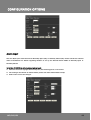
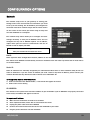
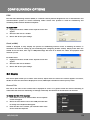
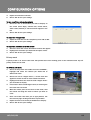
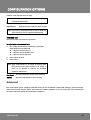
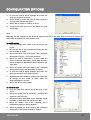
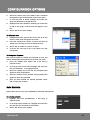
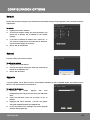
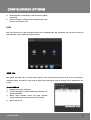
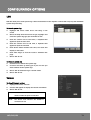
CONFIGURATION OPTIONS
There three ways to configure the IP Device. Most of the IP
Device setting can be done thru online software.
1. Click the DeviceCfg tab, a new dialog will appear for IP
Device configuration
2. Right click device name in live mode, highlight and
select DeviceCfg
3. After connect the video stream, right click one of
viewing windows, highlight and select DeviceCfg
Note:
We recommend the users to configure
the IP Device setting by online software
after network is setup properly
GOLBONG Technologies Co., Ltd.
NVR/DVR/IPC
ng Technologies Co., Ltd
35
CONFIGURATION OPTIONS
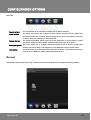
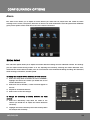
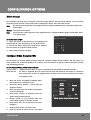
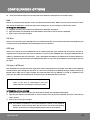
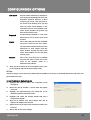
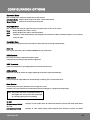
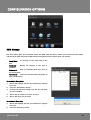
Icon Tab
Record options:
Alarm options:
This menu allow you to customize recording and snapshot schedule.
The alarm menu allows you to adjust for which alarms you would like set, adjust time
the internal buzzer will sound for, Show message on the screen, start preset, inital tour
as well as set email notifications and FTP upload.
System Options:
The system setup Menu allows you to set up the parameters of your IP Device. It holds
the general setup, encode configure, network setting, and many other options.
Advanced options: This menu allows you to configure advanced setting of your IP Device. It holds HDD
manage, account manage, Auto maintain, restore dafault as well as system reboot.
Info options:
This area allows you to view information about your IP Device .. The information you can
view consists of HDD info, system LOG and firmware version.
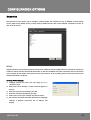
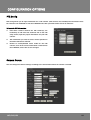
Record
Selecting this Record option opens up a separate sub menu that allows you to configure recording schedule
GOLBONG Technologies Co., Ltd.
NVR/DVR/IPC
ng Technologies Co., Ltd
36
CONFIGURATION OPTIONS
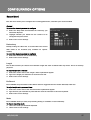
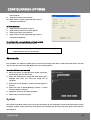
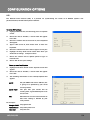
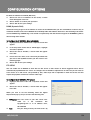
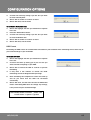
Record Conf.
This sub menu allows you to configure the recording parameters, customize your record schedule
Channel
To select the channel you want to configure
1. Select the drop down menu beside the channel(s) you
would like adjusted.
2. Highlight whether you would like the camera to be
configured and press select.
3. Select "OK" to save settings.
Redundancy
Backup writing the video files to second HDD. The second
HDD needs to be installed (only available for specific
models)
To select the channel you want to configure
1. Select the check-box next to Redundancy
2. Select "OK" to save settings.
Length
The IP device allows you choose the maximum length that each recorded video clip will be. This is for backup
purposes.
To adjust and/or set a file size:
1. Select the column next to the "lenght" and a keyboard will appear
2. Type in the length you would like to record for each file.
3. Select "OK" to save settings.
PreRecord
The IP DEVICE can prerecord the video before action is triggered such like motion detected, video lose.
To adjust and/or set a prerecord time:
1. Select the column next to the "Precord" and a keyboard will appear
2. Type the time you would like to prerecord then click the interface to close the keyboard.
3. Select "OK" to save settings.
Mode
The IP DEVICE allows you start/stop recording basing on schedule or record manually
To choose recording mode
1. Select the mode you would like adjusted.
2. Select "OK" to save settings.
GOLBONG Technologies Co., Ltd.
NVR/DVR/IPC
ng Technologies Co., Ltd
37
CONFIGURATION OPTIONS
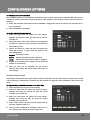
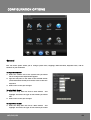
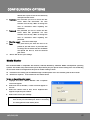
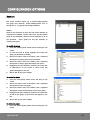
To customize your record schedule
This IP DEVICE allows you to set different schedules for each channel, what days the IP DEVICE will follow the set
schedule as well as select what record mode will be used. (Regular record, motion record or when the alarm is
detected.)
1. Select the drop down list beside the word "CHANNEL", highlight and select the camera you would like to set
that schedule for.
2. Select SCHEDULE in the Mode.
To set the schedule for each period:
1. Select the drop down list beside the word "Week",
highlight and select the date you would like to set that
schedule for.
2. Select the column next to the "Period 1" and a keyboard
will appear to input the start/stop time of schedule you
would like to record.
3. Next to the "Period 1", check the type of recording you
would like to insert, a check mark will appear in the
corresponding box
Regular: Constantly records
Detect: Records only when motion is detected
Alarm: Records only when external alarm is triggered
4. Repeat for all wanted times and days for each desired
camera (or all cameras).
5. Once you have set all schedules for the desired
cameras, days, times and record modes select "OK" to
save settings.
Schedule Copy Function
Selecting the COPY button will copy one days schedule and paste it into other days that you specify. This is useful
if you customize a schedule for a particular day and would like to apply the same schedule for other days of the
week.
To copy one day's schedule to another or all other days:
1. Press Copy button to copy the present setting
2. Select the drop down list beside the word "Channel",
highlight and select the channel you want the copied
schedule to be pasted into.
3. Select the drop down list beside the word "Week",
highlight and select the date you want the copied
schedule to be pasted into.
4. Press "Paste" button, the days you had selected will all
have the copied schedule in it.
5. Once you have completed all schedules, select "OK" to
save settings and exit back to record setup menu.
GOLBONG Technologies Co., Ltd.
NVR/DVR/IPC
ng Technologies Co., Ltd
38
CONFIGURATION OPTIONS
Alarm
The alarm menu allows you to adjust for which alarms you would like set, adjust time will sound for, Show
message on the screen, start preset, inital tour as well as set email notifications and FTP upload. This IP DEVICE
gives you the option to have email alerts sent when motion is detected.
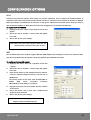
Motion detect
This sub-menu option allows you to adjust the motion detection settings for each individual camera. The settings
you can adjust include turning motion on or off, adjusting the sensitivity, selecting the motion detection area,
customize the motion detect schedule, turn on or off function in the IP DEVICE including recording, PTZ activation,
show message, send email, and FTP upload.
To change the status of motion detection for each camera:
1. Select the drop down list beside the word "CHANNEL",
highlight and select the camera you would like to turn
motion detection on/off.
2. Select box next to "Enable", a check mark will appear in
the box.
3. Repeat for all desired cameras.
4. Select "OK" to save the changes
To change the sensitivity of motion detection for each
camera:
1. Select the "Sensitivity" drop down list under to the
camera you would like to adjust the motion detection
sensitivity.
2. Highlight and select sensitivity level from the drop down
list to adjust the sensitivity.
GOLBONG Technologies Co., Ltd.
NVR/DVR/IPC
ng Technologies Co., Ltd
39
CONFIGURATION OPTIONS
3. Adjust the sensitivity for all desired cameras.
4. Select "OK" to save the changes.
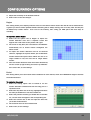
Region
This setting allows you to adjust particular areas of each camera where motion will and will not be detected. This
is good if you had a camera pointed towards something that is always moving, such as a busy road. This way the
IP DEVICE only records motion that is out of the ordinary, thus saving you HDD space and more days of
recording.
To adjust the motion Region
1. Select the set option next to Region to adjust the
motion detection area and a separate screen will
appear with a red mask on the picture and a grid.
2. The screen is fully blue; this is because the IP DEVICE is
automatically set to detect motion throughout the
whole screen.
3. To adjust the motion detection area for the desired
cameras, highlight the squares where you do NOT want
motion detected and press select. When the area is no
longer shaded in red, the area will no longer detect
motion.
4. Once the motion detection areas have been determined,
exit the screen by right clicking and select "up windows"
then select "OK", to save settings.
Period
This setting allows you to set motion detect schedules for each channel, when the IP DEVICE will begin to activate
the motion detected
To customize the period
1. Select the setting option next to Period to set the
motion detection schedule and this will bring you to a
separate screen.
2. Select the drop down list on the top, highlight and select
the date you would like to set that schedule for.
3. Select the period of that day you would like to schedule
for, a check mark will appear in the corresponding box.
4. Select the column next to box and input the time that
you enable motion detect.
5. The result will show on the schedule area
6. Select "OK", to save settings.
GOLBONG Technologies Co., Ltd.
NVR/DVR/IPC
ng Technologies Co., Ltd
40
CONFIGURATION OPTIONS
To turn on alarm output
1. Press the button next to Alarm output
2. Select the column next to Delay and input the time that you would like to the alarm to discontinued after it's
output.
3. Select "OK" to save the changes.
To set record channel
1. Press the button next to Record Channel to enable the recording when motion detect is triggered.
2. Select "OK" to save the changes.
To set video tour (loop)
1. Press the button next to tour to choose which channel you would like to add into the video loop when motion
detect is triggered.
2. Select "OK" to save the changes.
PTZ actviation
This setting allows you to set PTZ action when the motion detect is triggered
To set PTZ actviation
1. Select the setting button next to PTZ actviation and this
will bring you to a separate screen.
2. Select the drop down list beside the word "CAM 1",
highlight and select the action name you would like to
the PTZ to act.
3. Select the column next and input the action ID.
4. Repeat for all desired cameras
5. Select "OK" to save the changes.
Note:
The PTZ information must be entered in the DVR so that the DVR works with your PTZ
camera and all its functions. Please refer to [MainMenu] > [System] > [PTZ Config].
To set notifications:
1. Highlight and select box for each function you would
like to be notified on (Show Message, Send Email, FTP
upload). A check mark will appear in the corresponding
box.
2. Select "OK" to save the changes.
Note:
Make sure each function is setup properly in
system Menu please refer to [MainMenu] >
[System] > [Network].
GOLBONG Technologies Co., Ltd.
NVR/DVR/IPC
ng Technologies Co., Ltd
41
CONFIGURATION OPTIONS
Video Blind
You can set the IP DEVICE to archive video footage when it detects the camera is block-out. Video blind is a
serious issue for camera surveillance, it is important to be able to see what happened before the video blind
occurs. When camera video is blocked out, the IP DEVICE can record footage, activate PTZ function, show
message and buzzer, send email, and upload footage to assigned FTP server.
To Set the IP DEVICE to detect camera block-out:
1. Move the mouse to highlight VIDEO BLIND and press, this will bring you to a new screen.
2. The setting is the similiar as motion detect. please refer to page
3. Select "OK" to save the changes.
Video Loss
You can set the IP DEVICE to archive video footage when it detects video loss. Since video loss is a serious issue
for camera surveillance, it is important to be able to see what happened before the video loss occurs. When
video signal is loss, the IP DEVICE can record footage, activate PTZ function, show message and buzzer, send
email, and upload footage to assigned FTP server.
To Set the IP DEVICE to Detect Video Loss:
1. Move the mouse to highlight VIDEO LOSS DETECT and press, this will bring you to a new screen.
2. The setting is the similiar as motion detect. please see above motion detect setup.
3. Select "OK" to save the changes.
GOLBONG Technologies Co., Ltd.
NVR/DVR/IPC
ng Technologies Co., Ltd
42
CONFIGURATION OPTIONS
Alarm Input
You can adjust your external alarm for Normally Open (NO), or Normally Closed (NC). Please consult the external
alarm manufacturer for details regarding whether to set up the External Alarm Mode to Normally Open or
Normally Closed.
To Set the IP DEVICE to detect external alarm input:
1. Move the mouse to highlight alarm and press, this will bring you to a new screen.
2. The setting is the similiar as motion detect. please see above motion detect setup.
3. Select "OK" to save the changes.
GOLBONG Technologies Co., Ltd.
NVR/DVR/IPC
ng Technologies Co., Ltd
43
CONFIGURATION OPTIONS
Alarm Output
The IP DEVICE will allow you set configure your Alarm output options. This will decide whether or not to change
the viewing mode to focus on the camera that is detecting the alarm. There are three choices:
Auto:
The alarm will be output when the triggered event is happened (Motion Detect, Video Blind, Video Loss,
Alarm input).
Manaul: The alarm will be output.
Stop:
The alarm will not be output even the triggered event is happened (Motion Detect, Video Blind, Video
Loss, Alarm input).
To set the alarm output
1. Move the mouse or directional keys to highlight alarm
output and press, this will bring you to a separate screen.
2. Choose the alarm channel you would like to output to.
You can choose all or specific output channel.
3. Select "OK" to save the changes.
Intelligent Video Analysis (IVA)
Our IP devices (for specific model) provides advanced, accurate intelligent video analysis. The IVS engine can
track, classify and analyze the behavior of of objects over long distance to greatly improve parameter security
and monitoring efficiency.
To set” Presence Filter” /To Set “Enter and exit”
Presence Filter : (Tripwire) Detects when an object or individual has penetrated the defined perimeter.
Enter and exit:
An alarm is triggered when an object crosses from the outside to the inside of a detection
zone. Conversely, an alarm is triggered when an object crosses from the inside to the outside
of a detection zone.
1.
2.
3.
4.
5.
6.
7.
8.
Move the mouse to highlight Intelligent Video,
this will bring you a separate screen
Select box next to "Enable", a check mark will
appear in the box.
Select the drop down list beside the algorithm
and select perimeter
Click button “Setting”; a separate screen will
appear with activated channel
Choose Cordon to set Presence filter and
choose Warning Area to set Enter and exit
Click button “Set” next to the Rule; the screen
disappear
Right click the mouse and select “Edit”
Click the mouse to define the area you would
GOLBONG Technologies Co., Ltd.
NVR/DVR/IPC
ng Technologies Co., Ltd
44
CONFIGURATION OPTIONS
like to analyze.
9. Click Ok to confirm your selection
10. Right click the mouse again and select “OK” to
complete the definition.
To delete definition
1. Repeat above from step 1 to step 6
2. Right Click the mouse and select “Delete”
3. Click Ok to confirm your selection
4. Right click the mouse again and select "OK" to
complete the definition.
To set detect idle, removed objects and illegal parking
Please refer to To set "Presence Filter" above
Note: It can
not run mulitple algorithm synchronously. Siwtching algorithm
MAIN
MENU
required system reboot to be effective
Abnormality
The IP DEVICE can make an audible beep or show the message when HDD is under abnormal status. This will
alert the user that there's no HDD, HDD error or no recordnig space.
To set the HDD abnormal warming
1. Move the mouse to highlight alarm output and press,
this will bring you to a new screen.
2. Select the drop down list beside the word "Event type",
highlight and select the event you would like to
configure
3. Select box next to "Enable", a check mark will appear in
the box.
4. Select box next to "Show Message"/"buzzer", a check
mark will appear in the box.
5. Repeat for all events you desire to enable
6. Select "OK" to save the changes.
System
The system setup Menu allows you to set up the parameters of your IP DEVICE. It holds the general setup, encode
configure, network setting, and many other options. The following list describes what each option does and how
to configure it.
GOLBONG Technologies Co., Ltd.
NVR/DVR/IPC
ng Technologies Co., Ltd
45
CONFIGURATION OPTIONS
General
This sub menu option allows you to change system time, language, HDD Overwrite, Keyboard Lock, and ID
Number on your IP DEVICE.
To adjust system time
1. Select the column next to the system time you would
like to change and a keyboard will appear.
2. Type the date/time in the order of the selected format
(listed above date format) then mouse click to close the
keyboard.
3. Select "OK" to save your changes
To adjust Date format
1. Select the drop down list next to "date format" and
highlight and select the type of date format you would
like.
2. Select "OK" to save your changes
To adjust Time format
1. Select the drop down list next to "Time Format" and
highlight and select the type of time format you would
GOLBONG Technologies Co., Ltd.
NVR/DVR/IPC
ng Technologies Co., Ltd
46
CONFIGURATION OPTIONS
like.
2. Select "OK" to save your changes
DST
DST stands for daylight saving time; you can adjust the IP DEVICE to change automatically when daylight saving
time approaches, this is so you don't have to go back and do it yourself. You can also customize when the IP
DEVICE changes for DST
To set the IP DEVICE to adjust for daylight saving time on its
own:
1. Select the DST option next to Date format and this will
bring you to a separate screen.
2. Select box behind "Enable", a check mark will appear in
the box.
3. Select "OK" to save your changes
To customize the IP DEVICE's daylight saving time
adjustment (basing on Day of Week):
1. Select circle front "Day of Week", a dot will appear in
the box.
2. Adjust the time you want the clock to go back an hour
by adjusting the month/week/date next to "start".
3. Adjust the time you want the clock to go forward an
hour by adjusting the month/week/date next to "end".
4. To adjust the week and month that DST changes, use
the drop down list, highlight the week and/or month
you would like and press select or Select the column
next to the start/end, a keyboard will appear to type the
date/time.
5. Once everything has been adjusted to your liking, select
"OK" to save your settings.
To customize the IP DEVICE's daylight saving time
adjustment (basing on Date):
1. Select circle front "Date", a dot will appear in the box.
2. Adjust the time you want the clock to go back an hour
by adjusting the date next to "start".
3. Adjust the time you want the clock to go forward an
hour by adjusting the date next to "end".
4. To adjust the week and month that DST changes, use
the drop down list, highlight the date you would like and
press select or Select the column next to the start/end,
a keyboard will appear to type the date
GOLBONG Technologies Co., Ltd.
NVR/DVR/IPC
ng Technologies Co., Ltd
47
CONFIGURATION OPTIONS
5. Once everything has been adjusted to your liking, select
"OK" to save your settings.
To adjust the language:
1. Select the drop down menu beside "Language".
2. Highlight the language you would like and press select.
3. Select "OK" to save your settings and exit the menu.
4. The system will restart and open with your set language settings.
Overwrite
When the HDD has overwrite enabled, it will record over the oldest footage once the HDD fills up instead of
stopping the recording, this way the IP DEVICE is always recording. If you want to stop recording when the HDD is
full, disable overwrite.
To Enable/Disable overwrite mode:
1. Select the drop down menu beside HDD Full.
2. Select either "Overwrite" to turn overwrite on or "Stop record" to turn overwrite off.
3. Select "OK" to save your changes
To set IP DEVICE ID Number
1. Select the column next to the IP DEVICE No. and a keyboard will appear.
2. Type ID number then mouse click to close the keyboard.
3. Select "OK" to save your changes
To change the video system:
1. Select the scroll bar next to "video standarnd and list will appear.
2. Highlight the video system you would like and press select.
3. Select "OK" to save your changes, the system will restart.
To set the keyboard lock:
1. Select the column next to the Auto Logout. and a keyboard will appear.
2. Type in time you would like the system auto logout then mouse click to close the keyboard.
3. Select "OK" to save your changes,
To set the machine name
1. Select the column next to the Machine Name. and a keyboard will appear.
2. Type in the IP DEVICE name then mouse click to close the keyboard.
3. Select "OK" to save your changes.
GOLBONG Technologies Co., Ltd.
NVR/DVR/IPC
ng Technologies Co., Ltd
48
CONFIGURATION OPTIONS
Encode
This option allows you to adjust the resolution, change recording frame rate, pick a video quality, turn on or off
extra-stream for each camera channel.
Resolution
Changing the resolution will affect the picture quality. A higher resolution will produce a better quality picture;
however, footage recorded in a higher resolution will take up more space on the hard drive. The higher the
resolution causes the maximum number of FPS (frame per second) be lowered.
Frame Rate (FPS)
FPS stands for Frame Per Second and refers to how many pictures will be captured in 1 second. The more FPS,
the smoother the video, and the less FPS the more choppy the video will appear.
CBR/VBR
Constant bit rate (CBR) encoding persists the set data rate to your setting over the whole video clip. Use CBR only
if your clip contains a similar motion level across the entire duration. Variable bit rate (VBR) encoding adjusts the
data rate down and to the upper limit you set, based on the data required by the compressor. VBR takes longer to
encode but produces the most favorable results.
Extra stream
This is the video stream dedicate to poor network connection and mobile surveillance. The IP DEVICE PRO can
produce two video stream simultaneously. The maximum number of FPS may be lowered after you turn on the
sub-stream.
GOLBONG Technologies Co., Ltd.
NVR/DVR/IPC
ng Technologies Co., Ltd
49
CONFIGURATION OPTIONS
To Adjust the resolution:
1. Select the drop down list beside the word "CHANNEL", highlight and select the camera you would like to
adjust resolution
2. Select the drop down menu beside "Resolution", highlight the resolution you would like to change to and
press select. The resolutions depends on what video standard you are using (default is PAL). The resolutions
you have to choose from include: NTSC: D1 (720x480 pixels), HD1 (720x240 pixels), CIF (Default 360x240
pixels). PAL: D1 (704x576), HD1 (704x288) and CIF (352x288)
3. Select "OK" to save settings.
To Adjust Frame Rate:
1. Select the drop down menu beside "Frame Rate".
2. Highlight the frame rate you would like to change to and press select. The resolutions you have to choose
from include: NTSC 1~30 FPS. PAL 1~25 FPS.
3. Select "OK" to save settings.
To Adjust Bit Rate Type
1. Highlight the Bit Rate type you would like to change to (CBR/VBR) and press select.
2. Select "OK" to save settings.
To change the quality of the recorded video:
1. Highlight the quality you would like to change to (Best, Better, Good, General, Worse, Worst) and press select.
2. Select "OK" to save settings.
MAIN MENU
To turn audio recording On or Off:
1. Select second box next to "Video/audio", a check mark will appear in the box.
2. Select "OK" to save settings.
Note:
This has to be an audio supported camera (not included) and it
must be connected to the RCA audio input at the back of the IPC.
This has to be an audio supported camera (not included) and it must be connected to the RCA audio input at the
back of the IP DEVICE.
To open extra stream
1. Select the third box next to Audio/Video, a check mark will appear in the box
2. Adjust all the parameters as simliar as main stream
3. Select “OK” to save settings
Note:
The extra stream must be opened
for mobile phone surveillance
GOLBONG Technologies Co., Ltd.
NVR/DVR/IPC
ng Technologies Co., Ltd
50
CONFIGURATION OPTIONS
Network
The network setup menu is your gateway to viewing your
footage online. This menu holds the information you need
to set up on-line viewing. The IP DEVICE is pre-configured to
work with most basic network setups and the values shown
on the screen are the values you will be using to setup and
view the IP DEVICE on a computer.
The network setup menu allows you to configure the basic
settings necessary to view your IP DEVICE online. You can
configure the way the IP DEVICE acquires an IP address,
adjust which ports are used to communicate with the IP
DEVICE as well as adjust your DNS.
Note:
Advanced network setting (PPPoE, DDNS, UPnP, IP
filter) are included in the netservice menu.
DHCP:
DHCP (Dynamic Host Configuration Protocol) address is the most common setup for home or office networks.
This allows the IP DEVICE to automatically receive an IP address from the router. By default the IP mode will be
set to DHCP disable.
Static IP:
Static IP addresses are manually assigned by an administrator. Most home or office networks today do not use
static IP addresses. If you are unsure of whether you need a static or dynamic IP address, please contact your
network administrator. By default the static IP will be set to 192.168.1.19.
To Change from Static to DHCP Addresses:
1. Select second box front "DHCP Enable", a check mark will appear in the box.
2. Select "OK" to save setting
IP ADDRESS:
The numbers here represent the Internal IP address of your IP DEVICE. If your IP DEVICE is not properly connected
to the router, the address will appear as 0.0.0.0.
To acquire an IP address:
z Make sure the IP DEVICE's IP mode is set to DHCP
z Once adjusted to DHCP, select "OK" to save and exit the menu
z Unplug the power cable from the IP DEVICE
z Connect the network cable from the back of the IP DEVICE to your router
z Plug the power cable back into the IP DEVICE
GOLBONG Technologies Co., Ltd.
NVR/DVR/IPC
ng Technologies Co., Ltd
51
CONFIGURATION OPTIONS
z
Enter the network setup menu to verify that the IP Address is displayed on the network setup
DNS:
Stands for "Domain Name System" and is for advanced network setup. DNS is used to convert common names
into website IP Addresses. It is best to leave these settings as is as it us usually the same as the router.
To Change the DNS address:
1. Highlight and select the number next to DNS and a keyboard will appear.
2. Type the number you would like for a DNS address then mouse click to close the keyboard.
3. Select "OK" to save your changes.
TCP Port:
Refers to the port that your IP DEVICE will use to communicate with your network and Internet. Knowing this port
is necessary for the IP DEVICE to be viewed properly over the Internet.
HTTP port
Refers to the port that your IP DEVICE will use to communicate with your network and the Internet. This port is
required to be entered at the end of the IP address to connect to the IP DEVICE. (Ex. If using port 2000 and the IP
address is 192.168.1.103 you would type http://192.168.1.103:2000 in the address bar of Internet Explorer) If
using port 80 your Internet browser will automatically add it in at the end of the address, even though it may not
be visible.
TCP port vs. HTTP port
This IP DEVICE has two different ports required for online viewing, TCP Port and HTTP Port. Most of the IP DEVICE
communication goes through the TCP Port. It is used for accessing the IP DEVICE footage, software and the IP
DEVICE menu. HTTP Port is used to initiate the communication to the IP DEVICE. It is used as a gateway to the
main port. The HTTP port should be left as 80 unless port 80 being blocked by your ISP.
Note:
There still has mobile surveillance port which
refers to the port to communicate with your
mobile network. It's included in netservice menu.
To Change the port you are using:
1. Select the column next to the port you would like to change and a keyboard will appear.
2. Type the port number you would like to use then mouse click to close the keyboard. The ports cannot be the
same number
3. Select "OK" to save your changes.
Note: The internal IP address is the most important number on the Network
Setup Menu screen and the Ports will be used to set up Port Forwarding
which is necessary for viewing the DVR outside of the current network.
GOLBONG Technologies Co., Ltd.
NVR/DVR/IPC
ng Technologies Co., Ltd
52
CONFIGURATION OPTIONS
Netservice
The Netservice menu allows you to configure, enable/disable the netservice in the IP DEVICE. It holds PPPoE
service, NTP service, EMail service, IP filter service, DDNS serivces, FTP service, Mobile surveillance service as
well as UPnP service.
PPPoE:
PPPoE stands for Point-to-Point Protocol over Ethernet. PPPoE is used by (A)DSL Internet connections. Usually the
modem or router will store the PPPoE information so that the IP DEVICE and other computers that are connected
to the network do not require a password to access the Internet. If you use DSL, please contact your ISP for your
PPPoE information if required.
To Setup PPPoE Settings:
1. Highlight PPPoE and click, this will bring you to a
separate screen.
2. Select box next to "Enable", a check mark will appear in
the box.
3. Enter the Username provided by your ISP.
4. Enter the Password provided by your ISP.
5. Select "OK" to save your settings and exit the menu.
6. The system will restart and open with your set language
settings. If properly connected, the IP address will
display.
GOLBONG Technologies Co., Ltd.
NVR/DVR/IPC
ng Technologies Co., Ltd
53
CONFIGURATION OPTIONS
NTP:
The Network Time Protocol (NTP) is a protocol for synchronizing the clocks of IP DEVICE systems over
packet-switched, variable-latency data networks.
To Setup NTP settings:
1. Highlight NTP and click, this will bring you to a separate
screen.
2. Select box next to "Enable", a check mark will appear
in the box.
3. Select the column next to the server IP, and a keyboard
will appear.
4. Type in NTP server IP, then mouse click to close the
keyboard.
5. Select the column next to the Port to type in server port
6. Highlight the drop down menu beside Time Zone you
would like to change and press select.
7. Select the column next to update period to type in
intervial time
8. Select "OK" to save your settings.
To set up email notification:
1. Highlight and select "Email" and a separate screen will
appear.
2. Select box next to "Enable", a check mark will appear
in the box.
3. The following information to be entered/adjusted will
appear:
SMTP:
SMTP PORT:
SSL:
Set your SMTP mail server address, this
is going to be provided by your email
service provider.
The port that your emails will be
sending from; a good default port to set
this to is 25.
SSL allows for a more secure transfer of
data. This setting is defined by your
mail provider.
For example:
Google GMAIL: smtp.gmail.com
Yahoo! Email: smtp.mail.yahoo.com
AOL Mail:
smtp.aol.com
GOLBONG Technologies Co., Ltd.
NVR/DVR/IPC
ng Technologies Co., Ltd
54
CONFIGURATION OPTIONS
User Name:
Put your email username in (example: If
your email is [email protected]) your
username would be peterson. If when
checking your email, your username is
the entire email address, then you will
enter the entire email Address in the
username field on the IP DEVICE. Your
email service provider can provide you
with the username to use.
Password:
Put your email password in – this is the
password you use to access your email
account.
Sender:
This is the email you that the IP DEVICE
will use to send you the alert emails.
The username and password must have
permission to send emails from this
email account. Usually this will be the
same email address as the username
used to log on
Receiver:
This is the email that your IP DEVICE
will send the alerts to. This can be the
same as the sender's email or a
different email address.
4. Once you have entered all the information, select "OK"
to save settings and exit the email setup screen
IP Filter
IP Filter is simply a mechanism that decides which IP address can access to IP DEVICE (White list) and which will
be blocked (black list).
To add IP address to White/Black list,
1. Highlight and select "IP filter" and a separate screen
will appear.
2. Select box next to "Enable", a check mark will appear
in the box.
3. Highlight the Restricted Type you would like to set
(whitelist/blacklist) and press select.
4. Highlight and select the number beside Add and a
keyboard will appear.
5. Type the IP address then press button Add. The IP
address will display on the board
6. Repeat for all the IP adress you would ike to add to the
white list
7. Select "OK" to save your settings.
GOLBONG Technologies Co., Ltd.
NVR/DVR/IPC
ng Technologies Co., Ltd
55
CONFIGURATION OPTIONS
To delete IP address from White/Black list,
1. Select box next to IP address on the board, a check
mark will appear in the box.
2. Select "delete" to confirm your operation.
3. Select "OK" to save your settings.
DDNS (Dynamic DNS)
Instead of having to type in the IP address to access the IP DEVICE online you can use DDNS to create an easy to
remember website name. The IP DEVICE has a DDNS provider web address built into it. The following instructions
are for DYNDNS.org. DYNDNS.org is not owned nor operated by IPC and therefore support for DYNDNS.org will be
done through their website.
To Configure the IP DEVICE to Work with DDNS:
1. Highlight and select "DDNS" and a separate screen will
appear.
2. In the drop down menu next to "DDNS Type", highlight
and select "dyndns".
3. Select box next to "Enable", a check mark will appear
in the box.
4. Fill out the host name, user name and password that
you use for the DynDNS account you will create in the
following pages.
5. Select "OK" to save your settings.
FTP SETUP
You can enable the IP DEVICE to work with an FTP server so that motion or alarm triggered events will be
automatically uploadedonto the server. To configure the IP DEVICE to upload onto an FTP site you will need to
have access to an FTP server (not provided by IPC). Video clips will be uploaded in .264 file format and will
require the playback software to view the video clips.
To Configure the IP DEVICE to FTP upload:
1. Highlight and select "FTP" and a separate screen will
appear.
2. Select box next to "Enable", a check mark will appear
in the box.
When you click to set the following items the digital
keyboard will pop up for you to insert the following info:
3. FTP Server: The host name of your FTP server. This
could
be
a
full
hostname
like
ftp.golbong.com or in IP address form,
90.0.99.109
4. Port:
The port being used by the FTP server. By
GOLBONG Technologies Co., Ltd.
NVR/DVR/IPC
ng Technologies Co., Ltd
56
CONFIGURATION OPTIONS
5.
6.
7.
8.
9.
default this is port 21 and is the commonly
used port for FTP service.
Username: The username you use to access the FTP
server. Most FTP usernames are case
sensitive. Use the key "ABC" to change the
case of characters when inputting the
username.
Password: The password you use to access the FTP
server. Most FTP passwords are case
sensitive. Use the key "ABC" to change the
case of characters when inputting the
password.
Max File Lenght: The size of video clips
Path:
The path where you want the files to be
placed on your FTP server. If you would like
to change the file folder that the IP DEVICE
will upload the files to, enter the desired
path name.
Select "OK" to save your settings.
Mobile Monitor
The IP DEVICE PRO is compatible with iPhones, Android, BlackBerry, Windows Mobile and Symbian operating
systems. The mobile setup menu allows you to adjust which port your phone will be viewing from. Port forwarding
on the router must be configured for this port for mobile viewing to work.
z Instructions for viewing your IP DEVICE through a mobile phone are in the network guide of this manual
z Software is required to be installed on the mobile device
To turn on the mobile online viewer
1. Highlight and select "Mobile Monitor" and a separate
screen will appear.
2. Select box next to "Enable", a check mark will appear in
the box.
3. Select the column next to Port, and a keyboard will
appear to input the port number.
4. Select "OK" to save your settings.
Note: This port will be used to set up Port Forwarding as
well as TCP port and HTTP port which is necessary
for viewing the IPC with mobile phone.
GOLBONG Technologies Co., Ltd.
NVR/DVR/IPC
ng Technologies Co., Ltd
57
CONFIGURATION OPTIONS
UPnP
Universal Plug and Play (UPnP) allow devices to connect seamlessly and to simplify the implementation of
networks in the home and corporate environments. UPnP is a common way for instance to discover IP DEVICE.
When you connect a IP DEVICE for the first time, it may get an address from the DHCP server which you have no
idea of what this address is. With UPnP, the router will configure the port forward automatically.
To enable UPnP in IP DEVICE
1. Highlight and select "UPnP" and a separate screen will
appear.
2. Select box next to "Enable", a check mark will appear
in the box.
3. Select "OK" to save your settings.
Note: Make sure your router supports UPnP and the
UPnP function is enable in the router as well.
WIFI
The IP DEVICE PRO (some models) support Wireless USB Adapter (Not included) to connect the wireless router.
You don't need RJ45 cable for network connection between the IP DEVICE and router.
To configure wireless USB adapter
1. Highlight and select "wifi" and a separate screen will
appear.
2. Select box next to "Enable", a check mark will appear
in the box.
3. Click search button to find available wireless network.
If there's available wireless network, it will list out on
SSID board
The security mode on the router must be 64bit WEP or
128bit
WEP.
Lower
encryption
Technique
WPA/WPA2-personal (PSK) is not support.
4. highlight and select one of availabe wireless network
on the board.
5. Select the column next to Port, and a keyboard will
appear to input password.
6. Select "OK" to save your settings.
Note: The IP device only supports Wireless USB
Adapter basing on RT3070 chipset.
GOLBONG Technologies Co., Ltd.
NVR/DVR/IPC
ng Technologies Co., Ltd
58
CONFIGURATION OPTIONS
RTSP
The Real Time Streaming Protocol (RTSP) is a network control protocol designed for use in entertainment and
communications systems to control streaming media servers. The protocol is used for establishing and
controlling media sessions between end points.
To enable RTSP
1. Highlight and select "RTSP" and a separate screen will
appear.
2. Select the box next to " Enable"
3. Select "OK" to save your settings.
Cloud (ezLINK)
ezLINK is designed to truly simplify the process of establishing Internet access to Golbong IP Devices. It
eliminates the need for setting up port forwarding and configuring firewall security. Simply mark down the
ezLINK ID on the label, then sign in vMEyeCloud App with that ID to watch live videos and playback from
wherever you are
To enable Cloud
1. Highlight and select "Cloud" and a separate screen will
appear.
2. Select the box next to "Enable"
3. Select "OK" to save your settings.
GUI Display
This menu option allows you to name each camera, adjust where the title of the camera appears on screen,
decide on where the time will be displayed on screen, VGA output resolution as well as privacy mask.
Channel Title
This will be the name of the camera that is displayed on screen. It is good to name the camera something to
reflect what the camera is monitoring. Ex. Garage or Driveway. A maximum of 25 characters can be used.
To change the title of the cameras:
1. Press button set next to "Channel Title" and a separate
screen will appear
2. Select the title column next to the CAM you would like
to change and a keyboard will appear.
3. Enter the title of the camera you would like then mose
click to close the keyboard.
GOLBONG Technologies Co., Ltd.
NVR/DVR/IPC
ng Technologies Co., Ltd
59
CONFIGURATION OPTIONS
4.
5.
Repeat for all desired cameras.
Select "OK" to save your settings.
To turn on/off time information display
1. Select box next to information you want to display on
the screen (Time disply, channel titel, record status,
alarm status, Deflick), a check mark will appear in the
box
2. Select "OK" to save your settings.
To adjust the transparency
1. Adjust the scroll bar next to transparency from 128 to 255
2. Select "OK" to save your settings.
To adjust the resolution for a VGA device:
1. Select the scroll bar next to "Resolution" and list will appear.
2. Highlight the resolution you would like and press select.
3. Select "OK" to save your settings.
Privacy mask
A privacy mask is an area of solid color that prohibit users from viewing parts of the monitored area. Up to 4
privacy masks can be used.
To define a new mask:
1. Select the drop down list beside the word "CHANNEL",
highlight and select the camera you would like to
define new mask.
2. Select box next to "Region Cover", a check mark will
appear in the box as well as "Set" button & mask ID.
3. Highlight and select the mask ID under "Region Cover"
you would like to employ.
4. Press button "Set" beside Region Cover, it will bring the
full sceen with new mask
5. Move the mouse point to the centre of the mask, hold
the mouse and drag the mask to where you want to
cover.
6. Once new mask have been put to right position, exit
the screen by right clicking and select "up windows"
7. Repeat for all the new mask you would like to employ.
8. Select "OK" to save your settings.
GOLBONG Technologies Co., Ltd.
NVR/DVR/IPC
ng Technologies Co., Ltd
60
CONFIGURATION OPTIONS
PTZ Config
PTZ config allows you to input information for a PTZ camera. (PTZ cameras not included) The information must
be entered in the IP DEVICE so that the IP DEVICE works with your PTZ camera and all its functions.
To input the PTZ information:
1. Find which camera channel the PTZ camera(s) are
hooked up to and from that channels row on the PTZ
setup menu, input the proper information for your PTZ
camera.
2. The information you need to select will be specified in
the PTZ manufacturer manual.
3. Choose to enable/disable cruise mode for the PTZ
camera, once all the correct information is entered into
the IP DEVICE, select "OK" to save changes.
Camera Param
You can change the camera settings according to the environment where the camera is located.
GOLBONG Technologies Co., Ltd.
NVR/DVR/IPC
ng Technologies Co., Ltd
61
CONFIGURATION OPTIONS
Exporsure Mode
You can adjust the electronic shutter level of the camera.
Automatic Mode: Shutter speed range from 0.10 ~80.00 millisecond.
Manual Mode:
Control the shutter speed manually
Day/Night Mod
You can switch the mode to adjust the black and white level as well as the colors.
Color : Always displays the video in colors.
B/W :
Always displays the video in black and white.
Auto :
Displays in color mode during normal daytime and switches to black and white mode in a low contrast
scene at night.
Blacklight Com
You can fix the brightness level of the video or allow the level to change automatically.
Auto Iris
You can set the camera iris to AUTO or MANUAL to your preference.
AE Reference
The reference value to adjust the shutter speed
automatically according to the ambient brightness.
DNC Threshold
Adjust the brightness of the lighting where the mode switch occurs.
AE Sensitivity
Adjust the sensitivity where the trigger adjusting the shutter speed automtaically.
AGC limited
Set the limited to adjust AGC level automatically according to the screen luminance.
Slow Shutter
Automatically senses the darkness level at night or in a low
contrast scene and extends the accumulation time accordingly for a bright and sharp image.
Note: The greater the video accumulation factor is,
the brighter the screen is but the afterimage
of a moving object grows accordingly.
IR CUT
IR Synchronous Switch:
IR is ON.
Automatically Switch:
Displays in color mode when IR is OFF and switches to black and white mode when
Displays in color mode during normal daytime and switches to black and white
GOLBONG Technologies Co., Ltd.
NVR/DVR/IPC
ng Technologies Co., Ltd
62
CONFIGURATION OPTIONS
mode in a low contrast scene at night.
Note: If you set the day/night mode to color or B/W, IR
will be deactivated.
NOISE CUT
REDUCTION
DayNTLevel:
NightNTLevel:
Specify the noise reduction level at day
Specify the noise reduction level at night
Note: If you set the day/night mode to color or B/W, the
noise reduction level is adjusted automatically.
Front-End com
You can send the command to the camera
To adjust edge enhancement level
1. Key in edge enhancement command (e.g. dayee2)
edge enhancement command
z “dayee1” means low level
z “dayee2” means medium level
z “dayee3” means high level
2. Press "Send" to send
3. Press "Save"
Note: Edge enhancement is an image processing filter
that enhances the edge contrast of an image or
video in an attempt to improve its acutance
(apparent sharpness)..
Anti flicker.
IRSwap.
This will prevent the screen from flickering
This will swap sequence of IR cut filter
Advanced
This menu allows you to configure advanced setting of your IP DEVICE. It holds HDD manage, account manage,
Online User monitor, Output adjust, Auto maintain, firmware upgrade as well as device info. The following list
describes what each option does and how to configure it
GOLBONG Technologies Co., Ltd.
NVR/DVR/IPC
ng Technologies Co., Ltd
63
CONFIGURATION OPTIONS
HDD Manage
This menu option gives you information about your HDD (hard disk drive), allows you to enable overwrite mode,
and format the hard drive and/or USB drive.the information that this option gives you includes:
Read/Write:
the footage can be write/read in this
disk
Read only:
Writing the footage to this disk is
forbidden
Redundant:
work as redundant disk (this must be
the second disk)
format disk:
Erases all recorded video and audio on
your hard disk drive.
To set disk to Read/write
1. Select and highlight the disk you would like to operate
in the list.
2. Press the "Read/Write" button.
3. A screen will come up asking if you are sure you want
to set to work disk.
4. Select "Ok" to confirm or "Cancel" to abort
5. Select "Ok" then, exit the menu
To set disk to Read only
1. Select and highlight the disk you would like to operate
in the list.
2. Press the "Read only" button.
GOLBONG Technologies Co., Ltd.
NVR/DVR/IPC
ng Technologies Co., Ltd
64
CONFIGURATION OPTIONS
3.
4.
5.
A screen will come up asking if you are sure you want
to set to read only disk.
Select "Ok" to confirm or "Cancel" to abort
Select "Ok" then, exit the menu
To set disk to Redundant only
1. Select and highlight the disk you would like to operate
in the list.
2. Press the "Redundant" button.
3. A screen will come up asking if you are sure you want
to set to Redundant disk.
4. Select "Ok" to confirm or "Cancel" to abort
5. Select "Ok" then, exit the menu
HDD Format
Formatting the HDD erases all recorded video and audio on your hard disk drive. Formatting will not erase any of
your customsettings on your IP DEVICE.
To Format the HDD:
1. Select and highlight the disk you would like to operate
in the list.
2. A screen will come up asking you if you are sure you
want to format everything on your HDD.
3. Select "OK" to format the HDD or "Cancel" to prevent
formatting.
4. It may take a few minutes to format the HDD.
Formatting cannot be Stopped halfway through.
5. Once formatting has completed a screen will come up
and let you know that the HDD has formatted
successfully.
6. Select "OK" then, exit the menu and the IP DEVICE will
restart. Formatting HDD does not change any settings,
it only erases all your recorded footage
Note: Enable/disable Overwrite , please refer
to main menu --> system --> general
GOLBONG Technologies Co., Ltd.
NVR/DVR/IPC
ng Technologies Co., Ltd
65
CONFIGURATION OPTIONS
Account
This menu selection allows you to create/modifty/delete
the group with authority, create/modfity/delete user to
belong one of the group. and change password.
GROUP
Group is the collection of users who has same authority to
manage the IP DEVICE. "Admin" and "User" are two default
group in the IP DEVICE. "Admin" has full authority to do all
the operation. "User" group has only the authority to
monitor and replay.
To modify the group
1. Press the "Modify group" button and it will bring a new
screen
2. In scroll bar next to Group, highlight and select the
group you would like to modify
3. Select the column next to the Name, and a keyboard
will appear to change group name you desire.
4. Select the column next to the Memo, and a keyboard
will appear to change group description you desire.
5. Highlight and select whatever authority you would like
to add/remove on the board. A check mark will
appear/disappear in the box.
6. Select "OK" to save your settings
To create the group
1. Press the "Add group" button and it will bring a new
screen
2. Select the column next to the Name, and a keyboard
will appear to name new group.
3. Select the column next to the Memo, and a keyboard
will appear to type the description for this new group.
4. Highlight and select whatever authority you would like
to add to this group. A check mark will appear in the
box.
5. Select "OK" to save your settings
To delete the group
1. Press the "Delete group" button and it will bring a new
screen
GOLBONG Technologies Co., Ltd.
NVR/DVR/IPC
ng Technologies Co., Ltd
66
CONFIGURATION OPTIONS
2.
3.
4.
5.
In scroll bar next to Group, highlight and select the
group you would like to delete
Select "delete", A screen will come up asking if you are
sure you want to delete this group
Select "Ok" to confirm or "Cancel" to abort
A screen will come up to tell if you delete the group
successfully
User
Generally, the new created user will inherit all authority from one of the group which it belongs to. However you
can modify the authority for each different users
To modify the User
1. Press the "Modify User" button and it will bring a new
screen
2. In scroll bar next to User, highlight and select the user
you would like to modify
3. Select the column next to the Name, and a keyboard
will appear to change user name you desire.
4. Select box next to "Reuseable", a check mark will
appear in the box. "Reuseable" option allow the same
user ID to login in IP DEVICE from different place at the
same time.
5. Select the column next to the Memo, and a keyboard
will appear to change user description you desire.
6. In scroll bar next to Group, highlight and select the
group you would like to re-assign this user
7. Highlight and select whatever authority you would like
to change on the board. A check mark will
appear/disappear in the box.
8. Select "OK" to save your settings
To create the user
1. Press the "Add user" button and it will bring a new
screen
2. Select the column next to the Name, a keyboard will
appear to name new user.
3. Select box next to "Reuseable" if you would like this ID
reuseable, a check mark will appear in the box.
4. Select the column next to the Password, and a
keyboard will appear to input password.
5. Select the column next to the confirm, and a keyboard
will appear to input password again to confirm.
GOLBONG Technologies Co., Ltd.
NVR/DVR/IPC
ng Technologies Co., Ltd
67
CONFIGURATION OPTIONS
6.
7.
8.
9.
Select the column next to the Memo, and a keyboard
will appear to type the description for this new gropu.
In scroll bar next to Group, highlight and select the
group you would like to assign this user
Highlight and select whatever authority you would like
to add to this group. A check mark will appear in the
box.
Select "OK" to save your settings
To delete the user
1. Highlight and select the box next to the user ID on the
board, a check mark will appear in the box.
2. Press the "Delete user" button. A screen will come up
asking if you are sure you want to delete this user
3. Select "Ok" to confirm or "Cancel" to abort
4. A screen will come up to tell if you delete the user
successfully.
To Change the Password
You have the option to change the password for user and
admin. Both default passwords are set to blank (no need).
1. Press the "Modify Pwd" button and it will bring a
seperate screen
2. In scroll bar next to user name, highlight and select the
user you would like to change password
3. Select the column next to the old, and a keyboard will
appear to input old password.
4. Select the column next to the New, and a keyboard will
appear to input new password.
5. Once you have entered the desired password, select
"OK" to save your changes.
Auto Maintain
System allow you to set up your IP DEVICE for automatic maintenance
To set auto maintain
1. Highlight and press AutoMaintain, it will bring to
separate menu
2. In scroll bar next to beside "at", highlight and select the
day and time you would like to auto-reboot
3. Select "OK" to save your settings.
GOLBONG Technologies Co., Ltd.
NVR/DVR/IPC
ng Technologies Co., Ltd
68
CONFIGURATION OPTIONS
Default
Default will load the settings on your IP DEVICE to the default settings except upgrades, your passwords and time
adjustments.
To default
1. Highlight and select "default".
2. A screen will appear asking you what parameters you
would like to default the IP DEVICE to the default
settings.
3. If you want to default all default, click "select all" , if
not, select the parameters you would like to default. A
check mark will appear in the box(s)
4. Select "OK" to load default.
Reboot
A system reboot can be done manual
To reboot the system
1. Highlight and select Reboot.
2. A screen will appear asking you what you would like to
reboot the IP DEVICE or not.
3. Select "OK" to Reboot.
Upgrade
A system update can be done if there is new software available for your IP DEVICE model. This should only be
done if a our representative recommends it.
To upgrade the firmware:
1. Download
the
proper
upgrade
files
from
www.golbong.com and put the files onto your USB flash
drive.
2. Insert the USB flash drive into the back of the IP
DEVICE.
3. Highlight and select "Restore". A screen will appear
along with Upgrade position and Upgrade file
4. In the drop down menu, highlight and select Upgrade
position and Up:grade file.
GOLBONG Technologies Co., Ltd.
NVR/DVR/IPC
ng Technologies Co., Ltd
69
CONFIGURATION OPTIONS
5.
6.
Select Upgrade, it should take a few minutes to update
everything.
Once the update is complete your IP DEVICE will restart
with the new software on it
Info
This area allows you to view information about your IP DEVICE PRO. The information you can view consists of
HDD info, BPS, system LOG and software version.
HDD info
This option will allow you to view the total capacity of the connected hard drive as well as the percentage of
remaining space. This Menu is only used to display your HDD status, and no settings can be adjusted on this
screen.
To check HDD info
1. Highlight and select "HDD info".
2. A screen will appear to display HDD type, Capacity, left
Capcity and status
3. Select "View recording times" will bring separate
screen to display how long the HDD still can record
4. Select "OK" to exit.
GOLBONG Technologies Co., Ltd.
NVR/DVR/IPC
ng Technologies Co., Ltd
70
CONFIGURATION OPTIONS
LOG
LOG will allow you to view system log. It likes the black box in the airplane. It will record every step the IP DEVICE
system are processing.
To Search system Log
1. Highlight and select "LOG" and it will bring a new
screen
2. Select the drop down menu next to type, highlight and
select the system log type you would like to view
3. Click the column next to start time, a keyboard will
appear to input the start time
4. Click the column next to end time, a keyboard will
appear to input the end time
5. Click Search button beside start time, the result will
display on the board
6. Click "Next Page" to view the result is available next
page.
7. Select "OK" to exit.
To Remove system log
1. Click Remove to delete the system logs.
2. A screen will come up asking you if you are sure you
want to delete all the system logs.
3. Select "OK" to delete the log or "Cancel" abort.
4. Select "OK" to exit.
Version
To Check firmware version
1. Highlight and select "Version".
2. A screen will appear to display the version of firmware.
3. Select "OK" to exit.
Note:
The SerialNo is the ezLINK number which
allow to make the quick connection.
Note:
Net Status show whether the ezLINK is
connected or not.
GOLBONG Technologies Co., Ltd.
NVR/DVR/IPC
ng Technologies Co., Ltd
71
TROUBLESHOOTING
TROUBLESHOOTING
The cameras are not sequencing
Check if you have tour turned on under the system menu options
You must be in live viewing mode
Nothing is recording but all the
images are appearing on screen
z
z
z
The camera picture is too dark
z
z
z
The video plays choppy when
viewing live footage online
z
z
z
The browser keeps freezing/won't
let me play the footage
z
z
z
You must initiate the recording to start by pressing the record button
Check your record schedule to make sure the IP Device is set to record
that present hour
Verify that the HDD is installed and formatted in the device menu
Adjust the cameras brightness settings under Function Menu --> Color
setting
Try moving your camera to a brighter area
Make sure the camera is not pointing directly into a light source
When multiple people view the IP Device at the same time, it slows the
connection to the IP Device. Try accessing the IP Device at a later time
This could be due to the speed of your Internet connection. Check with
your Internet service provider if the video seems to be choppy no
matter when you check it
It is normal for there to be a small time delay between the camera live
footage and the network viewing
Make sure you have an up to date browser to view the footage with the
proper ActiveX options
Make sure the browser is Internet Explorer, the software will not play
on any other browser
Download all Windows Updates to make sure you have the latest
version of Windows and Internet Explorer
Cannot power off IP Device
The IP Device is set to run as long as it is plugged in. To power off the IP
Device disconnect the power cable
Playback video is choppy
Check the FPS for each camera that is recording the choppy video. Refer to
your settings in the main menu->System->Encode. The more FPS the
smoother the video. If the FPS is set too low the video will appear choppy
The schedule is not recording
properly to my set times
z
z
z
Check to see if you have the proper time set on your IP Device. Refer to
the instruction manual under System -> General, Date and Time
Double check your schedule record times – you may have it set on the
no record function
If you select 24 hour clock. 13:00 would be 1 o'clock PM
GOLBONG Technologies Co., Ltd.
NVR/DVR/IPC
ng Technologies Co., Ltd
72
TROUBLESHOOTING
There is a beeping noise whenever
motion is detected
Buzzer is set to on, go to the alarm set up and turn the buzzer function off
I cannot see (all/one) of the
camera(s) on the monitor
z
z
I have lost video footage
z
z
z
The hard drive is filling up too
quickly
z
z
Check if the cameras are properly hooked up to the back of the IP
Device and to a power source
If using the 4 to 1 power connector, make sure it is plugged into a
power source and each of the cameras
This could be from lost footage due to tampering of cameras. Make
sure to check all connections are secure and set properly
This could be because HDD overwrite is enabled. This means that once
the HDD is full the IP Device will begin overwriting the earliest stored
footage
Try unplugging the power to the cameras and/or IP Device and
plugging it back in
Check the video quality you are using. If you are using a high video
quality then the hard drive will fill up faster. Trying lowering the video
quality
Adjust your schedule or resolution – If you are on Normal Record for 24
hours a day the hard drive will fill up faster. Try switching some times
to alarm record
I am prompted to put in a
password for everything
Check the "Save password"
My IP Device is connected to my
router, and both devices have
DHCP enabled, but my IP Device
will not acquire an IP address
z
z
Check Ethernet connections, ensure that the connection lights are on
(on router and back of IP Device)
Try using a different Ethernet cable and/or a different port on your
router
z
I can't see the online footage
using my external IP address
z
z
z
Cannot view the IP Device through
a remote Internet connection
z
z
z
Sometimes your router will not allow you to view the footage with your
external IP address because the IP Device is hooked up to the same
router. Try putting the IP Device's internal IP address in the address bar
and try to connect
See the network set up section for set up instructions
If using a Port other than 80 add it to the end of the IP address
Port Forwarding may not be set up correctly
The external IP address of the IP Device may have changed. Try setting
up the DDNS account to always be up to date with the latest IP
information
The ISP may be blocking network traffic on Port 80. Try changing the
GOLBONG Technologies Co., Ltd.
NVR/DVR/IPC
ng Technologies Co., Ltd
73
TROUBLESHOOTING
z
Remote control is not working
z
z
z
The IP Device keeps beeping
z
z
The network settings on the IP
Device are not showing me any
information
z
z
z
The HDD light is blinking
HTTP port to 2000 and reconfigure the port forwarding
Refer to the Network Setup Section of the manual for more
troubleshooting and for detailed instructions on how to set up the IP
Device for remote viewing
Make sure the batteries are installed correctly
Make sure you are pointing the remote at the IR sensor (on the top
right side of IP Device)
Try replacing the batteries in the remote
There could be video loss, HDD loss, motion detection or no HDD space
on your IP Device. The IP DevicePRO is set to alarm when those actions
take place. This is to alert you if anything is tampering with the
camera to IP Device connections the alarm will go off. Check your
connections and keep the IP Device in a safe place where it will not me
tampered with or moved around
Disconnect and reconnect all camera connections to make sure they
are snug and tight fitting
Make sure the IP Device is properly connected to the router. There
should be green link indicator lights if the IP Device is properly
connected
Make sure the IP Device IP Allocation is set to DHCP. This is a standard
default setting that will work in most networking situations
Power cycle the IP Device is it is properly connected and the IP
Allocation is set to DHCP
This is completely normal. If the hard drive is playing back footage or
recording, the light will blink to notify you that there is activity
GOLBONG Technologies Co., Ltd.
NVR/DVR/IPC
ng Technologies Co., Ltd
74