1
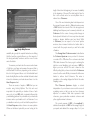
Press the Graph button to open the
Graph, then
select the Open File option. Navigate to your saved
bio-data, select it and then press the Open button.
Your bio-data files will be broken up into individual
training sessions. So if in a particular bio-data file you
completed all four parts of a step and then spent a few
minutes using the live
Graph there will be four parts
to your data file. The two Guided Trainings, the Practice
Event, and the
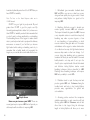
Graph session.You can move through
these sessions by pressing the arrow button immediately
below the Skin Response graph. The arrow pointing right
will move you to the next session, the arrow pointing to
the left will move you to the previous one. On the left side
of the screen you will see a thumbnail and text description
of where that session took place.
When viewing a saved data file you can see the
Average Heart Coherence and Heart Rate Meters.These
will both show an average of the session that you
are viewing. If you wish to print a session you may do so
by pressing the Print button. A print dialog box will
appear and you will have the option to select from
portrait and landscape modes.
To exit the
Graph just click the Finished
button at the bottom of the screen, or one of the other
navigation buttons along the top of the screen.
34
35