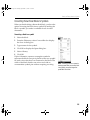
1
Scug.bk Page 179 Monday, September 13, 1999 12:57 PM
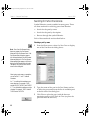
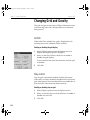
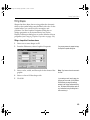
Drawing Symbol Graphics
2
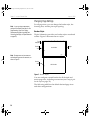
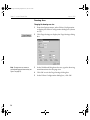
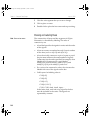
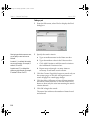
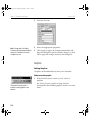
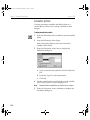
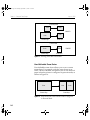
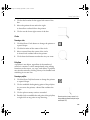
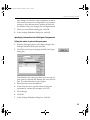
Click at the location for the upper-left corner of the
box.
3
Move the pointer down and to the right.
A dotted box outline follows the pointer.
4
Click to set the lower-right corner of the box.
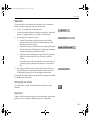
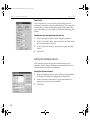
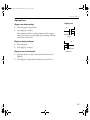
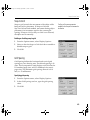
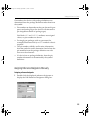
Circle
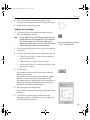
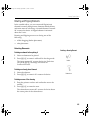
Drawing a circle
1
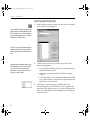
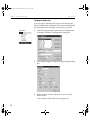
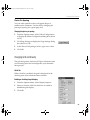
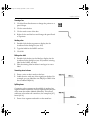
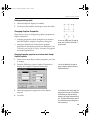
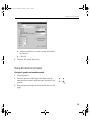
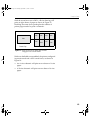
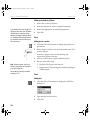
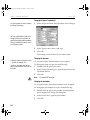
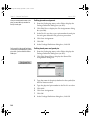
Click the Draw Circle button to change the pointer to
a pencil shape.
2
Click the location of the center of the circle.
3
Move outward from the center of the circle.
A dotted circle outline follows the pointer.
4
Click when the diameter reaches the size you want.
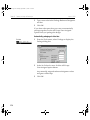
Polyline
A polyline is one object, regardless of the number of
vertices it contains. It can be manipulated using editing
functions such as move, cut, copy, and delete. A polyline
may also be resized by clicking on any of its handles and
stretching it to a new size.
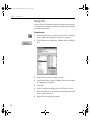
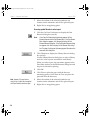
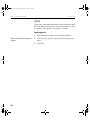
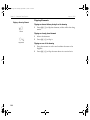
Drawing a polyline
1
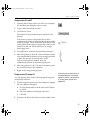
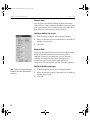
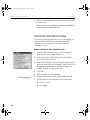
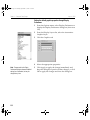
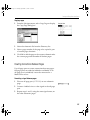
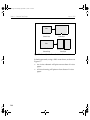
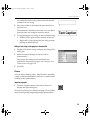
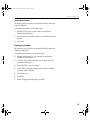
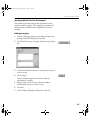
Click the Draw Polyline button to change the pointer
to a pencil shape.
2
Click to establish the beginning point of the polyline.
As you move the pointer, a dotted line outlines the
shape.
3
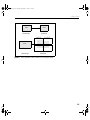
Click to place as many vertices as needed.
4
Double-click to establish the end point of the polyline,
or right-click at any point to stop drawing.
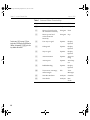
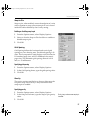
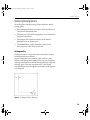
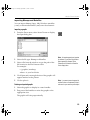
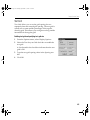
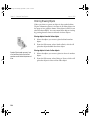
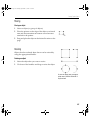
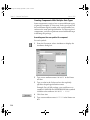
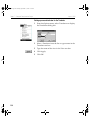
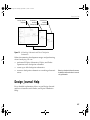
When the pointer is over a handle, it will
change shape to indicate the object may be
resized (see 187).
179