1
MODEL: MX-2300N
MX-2700N
DIGITAL FULL COLOR MULTIFUNCTIONAL SYSTEM
Quick Start Guide
General information
Functions of the machine and
procedures for placing originals and
loading paper.
Copying
Using the copy function.
Printing
Using the printer function.
Scanning
Using the scan function.
Document filing
Storing jobs as files on the hard
drive.
System settings
Keep this manual close at hand for reference
whenever needed.
Configuring settings to make the
machine easier to use.
MANUALS PROVIDED WITH THE MACHINE
Printed manuals and manuals in PDF format are provided with the machine. The manuals in PDF format are
stored on the hard drive in the machine.
The printed manuals contain information that you should know before using the machine, including the basic
procedures for operating the machine. Please read these manuals well.
The manuals in PDF format provide detailed explanations of the functions of the machine. When the machine is
used in a network environment, the PDF manuals can be viewed at any time by simply downloading them using a
Web browser.
Printed manuals
Quick Start Guide (this manual)
This manual is intended to help you get started using the many basic and convenient
functions of the machine.
When you are ready to learn about the machine in more detail, see the manuals in
PDF format described on the next page.
Troubleshooting
This manual explains how to remove paper misfeeds and provides answers to
frequently asked questions regarding the operation of the machine in each mode.
Refer to this manual when you have difficulty using the machine.
Safety Guide
This manual contains instructions for using the machine safely and the specifications
the machine and its peripheral devices.
Software Setup Guide
This manual explains how to install the software and configure settings to use the
machine as a printer or scanner.
Facsimile Quick Reference Guide
This manual explains the basic procedures for using the fax function of the machine,
and provides an overview of the features of the fax function, troubleshooting
procedures, and specifications.
For detailed information on using the fax function and the system settings for fax, see
the "Facsimile Guide" in PDF format.
Manuals in PDF format
Manuals in PDF format can be downloaded from the Web server* in the machine.
The manuals contain detailed explanations of the procedures for using the machine. To download the PDF
manuals, see "How to download the manuals in PDF format" (page 3).
User's Guide
This manual provides information, such as basic operation procedures, how to load paper, and machine
maintenance.
Copier Guide
This manual provides detailed explanations of the procedures for using the copy function.
Printer Guide
This manual provides detailed explanations of the procedures for using the printer function.
Facsimile Guide
This manual provides detailed explanations of the procedures for using the fax function and the "System
Settings" that are related to fax.
Scanner Guide
This manual provides detailed explanations of the procedures for using the scanner function and the Internet fax
function.
Document Filing Guide
This manual provides detailed explanations of the procedures for using the document filing function. The
document filing function allows you to save the document data of a copy or fax job, or the data of a print job, as
a file on the machine's hard drive. The file can be called up as needed.
System Settings Guide
This manual explains the "System Settings", which are used to configure a variety of parameters to suit the
aims and the needs of your workplace. Current settings can be displayed or printed out from the "System
Settings".
* You will need the IP address of the machine in order to access the Web server in the machine. The IP address
is configured in the Network Settings menu in the system settings.
1
ACCESSING THE WEB SERVER IN THE MACHINE
When the machine is connected to a network, the machine's built-in Web server can be accessed from a Web
browser on your computer.
Opening the Web pages
Access the Web server in the machine to
open the Web pages.
Start a Web browser on a computer that
is connected to the same network as the
machine and enter the IP address of the
machine.
Recommended Web browsers
Internet Explorer: 6.0 or higher (Windows®)
Netscape Navigator: 7.0 or higher
Safari: 1.2 or higher
The Web page will appear.
The machine settings may require that user
authentication be performed in order to open
the Web page. Please ask the administrator of
the machine for the password that is required
for user authentication.
Checking the IP address
To check the IP address of the machine, print out the all custom setting list in the system settings.
1
SYSTEM
SETTINGS
System Settings
Press the [SYSTEM SETTINGS] key.
Admin Password
Total Count
Default Settings
List Print
(User)
Paper Tray
Settings
Address Control
Fax Data
Receive/Forward
Printer Condition
Settings
Document Filing
Control
USB-Device Check
Exit
Select the all custom setting list in the
touch panel.
(1)
(1) Touch the [List Print (User)] key.
(2) Touch the [All Custom Setting List] key.
System Settings
OK
List Print (User)
1/2
All Custom Setting List
(2)
Printer Test Page
Sending Address List
2
2
The IP address is shown in the list that is
printed.
How to download the manuals in PDF format
Manuals containing detailed information on the machine can be downloaded from the Web pages.
Download a manual in PDF format.
(1) Click [Operation Manual Download] in
the menu of the Web page.
(1)
(2) Select the desired language.
(2)
(3)
(3) Select the manual that you wish to
download.
(4) Click the [Download] button.
The selected manual is downloaded.
(4)
3
TABLE OF CONTENTS
General information
PART NAMES AND FUNCTIONS . . . . . . . . . . . . . . . . . . . . . . . . . . . . . . . . . . . . . . . . . . . . . . . . . . .8
OPERATION PANEL . . . . . . . . . . . . . . . . . . . . . . . . . . . . . . . . . . . . . . . . . . . . . . . . . . . . . . . . . . . .10
USING THE TOUCH PANEL . . . . . . . . . . . . . . . . . . . . . . . . . . . . . . . . . . . . . . . . . . . . . . . . . . . . . .12
USER AUTHENTICATION . . . . . . . . . . . . . . . . . . . . . . . . . . . . . . . . . . . . . . . . . . . . . . . . . . . . . . . .13
PLACING ORIGINALS . . . . . . . . . . . . . . . . . . . . . . . . . . . . . . . . . . . . . . . . . . . . . . . . . . . . . . . . . . .14
CHANGING PAPER IN A TRAY . . . . . . . . . . . . . . . . . . . . . . . . . . . . . . . . . . . . . . . . . . . . . . . . . . . .15
Copying
MAKING COPIES . . . . . . . . . . . . . . . . . . . . . . . . . . . . . . . . . . . . . . . . . . . . . . . . . . . . . . . . . . . . . . .20
2-SIDED COPYING (Automatic Document Feeder). . . . . . . . . . . . . . . . . . . . . . . . . . . . . . . . . . . .21
COPYING ON SPECIAL PAPER (Bypass Copy) . . . . . . . . . . . . . . . . . . . . . . . . . . . . . . . . . . . . . .22
SELECTING THE EXPOSURE MODE . . . . . . . . . . . . . . . . . . . . . . . . . . . . . . . . . . . . . . . . . . . . . . .24
FITTING THE COPY IMAGE TO THE PAPER (Automatic Ratio Selection) . . . . . . . . . . . . . . . . .25
ENLARGEMENT/REDUCTION (Preset Ratios / Zoom) . . . . . . . . . . . . . . . . . . . . . . . . . . . . . . . . .27
INTERRUPTING A COPY RUN (Interrupt Copy) . . . . . . . . . . . . . . . . . . . . . . . . . . . . . . . . . . . . . .29
STORING COPY OPERATIONS (Job Programs) . . . . . . . . . . . . . . . . . . . . . . . . . . . . . . . . . . . . . .30
SPECIAL MODES . . . . . . . . . . . . . . . . . . . . . . . . . . . . . . . . . . . . . . . . . . . . . . . . . . . . . . . . . . . . . . .33
SELECTING A SPECIAL MODE . . . . . . . . . . . . . . . . . . . . . . . . . . . . . . . . . . . . . . . . . . . . . . . . . . .34
CONVENIENT COPY FUNCTIONS . . . . . . . . . . . . . . . . . . . . . . . . . . . . . . . . . . . . . . . . . . . . . . . . .35
Printing
PRINTING . . . . . . . . . . . . . . . . . . . . . . . . . . . . . . . . . . . . . . . . . . . . . . . . . . . . . . . . . . . . . . . . . . . . .44
CANCELING A PRINT JOB . . . . . . . . . . . . . . . . . . . . . . . . . . . . . . . . . . . . . . . . . . . . . . . . . . . . . . .46
USING PRINTER DRIVER HELP . . . . . . . . . . . . . . . . . . . . . . . . . . . . . . . . . . . . . . . . . . . . . . . . . . .47
PRINTER DRIVERS . . . . . . . . . . . . . . . . . . . . . . . . . . . . . . . . . . . . . . . . . . . . . . . . . . . . . . . . . . . . .48
SELECTING PRINTER DRIVER SETTINGS . . . . . . . . . . . . . . . . . . . . . . . . . . . . . . . . . . . . . . . . . .49
CONVENIENT PRINTER FUNCTIONS. . . . . . . . . . . . . . . . . . . . . . . . . . . . . . . . . . . . . . . . . . . . . . .50
PRINTING FROM A MACINTOSH . . . . . . . . . . . . . . . . . . . . . . . . . . . . . . . . . . . . . . . . . . . . . . . . . .52
4
Scanning
NETWORK SCANNER FUNCTION . . . . . . . . . . . . . . . . . . . . . . . . . . . . . . . . . . . . . . . . . . . . . . . . .56
SCANNING AN ORIGINAL . . . . . . . . . . . . . . . . . . . . . . . . . . . . . . . . . . . . . . . . . . . . . . . . . . . . . . . .57
CHANGING THE RESOLUTION. . . . . . . . . . . . . . . . . . . . . . . . . . . . . . . . . . . . . . . . . . . . . . . . . . . .59
SELECTING THE EXPOSURE AND EXPOSURE MODE . . . . . . . . . . . . . . . . . . . . . . . . . . . . . . . .60
CHANGING THE FILE FORMAT . . . . . . . . . . . . . . . . . . . . . . . . . . . . . . . . . . . . . . . . . . . . . . . . . . .61
STORING A DESTINATION . . . . . . . . . . . . . . . . . . . . . . . . . . . . . . . . . . . . . . . . . . . . . . . . . . . . . . .62
SENDING THE SAME IMAGE TO MULTIPLE DESTINATIONS (Broadcast Transmission) . . . .65
CONVENIENT TRANSMISSION METHODS . . . . . . . . . . . . . . . . . . . . . . . . . . . . . . . . . . . . . . . . . .66
SPECIAL SCAN MODES . . . . . . . . . . . . . . . . . . . . . . . . . . . . . . . . . . . . . . . . . . . . . . . . . . . . . . . . .68
SELECTING SPECIAL MODES FOR THE SCANNER FUNCTION . . . . . . . . . . . . . . . . . . . . . . . .69
CONVENIENT SCANNER FUNCTIONS. . . . . . . . . . . . . . . . . . . . . . . . . . . . . . . . . . . . . . . . . . . . . .71
Document filing
DOCUMENT FILING . . . . . . . . . . . . . . . . . . . . . . . . . . . . . . . . . . . . . . . . . . . . . . . . . . . . . . . . . . . . .74
QUICKLY SAVING DOCUMENT DATA (Quick File). . . . . . . . . . . . . . . . . . . . . . . . . . . . . . . . . . . .76
APPENDING INFORMATION WHEN STORING A FILE (File) . . . . . . . . . . . . . . . . . . . . . . . . . . . .77
ONLY SAVING DOCUMENT DATA (Scan to HDD) . . . . . . . . . . . . . . . . . . . . . . . . . . . . . . . . . . . .79
PRINTING A SAVED FILE . . . . . . . . . . . . . . . . . . . . . . . . . . . . . . . . . . . . . . . . . . . . . . . . . . . . . . . .80
System settings
SYSTEM SETTINGS . . . . . . . . . . . . . . . . . . . . . . . . . . . . . . . . . . . . . . . . . . . . . . . . . . . . . . . . . . . . .82
5
General information
This section provides general information about the machine, including the
names and functions of the parts of the machine and its peripheral devices,
and the procedures for placing originals and loading paper.
X PART NAMES AND FUNCTIONS . . . . . . . . . . . . . . . . . . 8
X OPERATION PANEL . . . . . . . . . . . . . . . . . . . . . . . . . . . 10
X USING THE TOUCH PANEL . . . . . . . . . . . . . . . . . . . . . 12
X USER AUTHENTICATION . . . . . . . . . . . . . . . . . . . . . . . 13
X PLACING ORIGINALS. . . . . . . . . . . . . . . . . . . . . . . . . . 14
X CHANGING PAPER IN A TRAY . . . . . . . . . . . . . . . . . . 15
7
PART NAMES AND FUNCTIONS
Exterior
(2)
(1)
(4) (5)
(6)
(3)
(14)
(8)
(1) Automatic document feeder
This automatically feeds and scans multiple originals.
Both sides of 2-sided originals can be scanned at
once.
(2) Document feeder tray
Place the originals in this tray when using the
automatic document feeder.
(3) Document glass
This is used to scan books and other originals that
cannot be scanned using the automatic document
feeder.
(4) Front cover
Open to replace a toner cartridge.
(5) Operation panel
(6) Exit tray unit (right tray)
When installed, output can be delivered to this tray.
(7) Output tray (center tray)
Copy jobs and print jobs are delivered to this tray.
(8) Saddle Stitch Finisher
This can be used to staple output. The saddle stitch
finisher can automatically staple output at the center
line and fold the pages to create a pamphlet. A punch
module can be installed to punch holes in output.
8
(9) (10) (11) (12) (13)
(7)
(9) Tray 1
This holds paper. Up to 500 sheets of paper can be
loaded.
(10) Tray 2
This holds paper. Up to 500 sheets of paper can be
loaded.
(11) Tray 3 (when a stand/1 x 500 sheet paper drawer
or stand/2 x 500 sheet paper drawer is installed)
This holds paper. Up to 500 sheets of paper can be
loaded.
(12) Tray 4 (when a stand/2 x 500 sheet paper drawer
is installed)
This holds paper. Up to 500 sheets of paper can be
loaded.
(13) Tray 5 (when a large capacity tray is installed)
This holds paper. Up to 3500 sheets of paper can be
loaded. When a stand/1 x 500 sheet paper drawer is
installed, this is tray 4.
(14) Finisher
This can be used to staple output. A punch module
can be installed to punch holes in output.
Interior
(15)
(15) Main power switch
(16)
(16) Bypass tray
This is used to power on the machine.
When using the fax function or Internet fax function,
always keep this switch in the "ON" position.
Special types of paper can be fed from the bypass
tray.
Peripheral devices
The following are some of the peripheral devices that are available. For information on the other peripheral
devices, see "4. PERIPHERAL DEVICES" in the User's Guide.
PS3 expansion kit (MX-PKX1)
This kit enables the machine to be used as a PostScript 3 compatible printer.
Facsimile expansion kit (MX-FXX1)
This kit enables the fax function of the machine to be used.
Internet fax expansion kit (MX-FWX1)
This kit enables Internet fax function of the machine to be used.
9
OPERATION PANEL
Touch panel
[SYSTEM SETTINGS] key
Messages and keys appear in the LCD
display.
Operations are performed by directly
touching the displayed keys with your
fingers.
When a key is touched, a beep sounds
and the selected item is highlighted. This
lets you check an operation as you
perform it.
Press this key to display the system settings screen.
The system settings can be adjusted to make the
machine easier to use, such as configuring paper tray
settings and storing addresses.
Print mode indicators
READY indicator
Print data can be received when this indicator is lit.
DATA indicator
This blinks while print data is being received and
lights steadily while printing is taking place.
Ready to scan for copy.
Full Color
Color Mode
Output
100%
Copy Ratio
81/2x11
PRINT
READY
DATA
2-Sided Copy
Original 81/2x11
Job Detail
Settings
Auto
Exposure
DOCUMENT
FILING
0
IMAGE SEND
Special Modes
1. 1/2
2. 1/2
8 x11
8 x11R
3. 81/2x14
4. 11x17
File
COPY
LINE
DATA
SYSTEM
JOB STATUS SETTINGS
Quick File
Mode select keys
[JOB STATUS] key
Use these keys to change the mode displayed in the touch panel.
The indicator of the selected key lights up.
Press this key to view the job
status screen. You can check
the status of jobs and cancel
jobs in the job status screen.
[DOCUMENT FILING] key
When you wish to print or send a file stored on the hard drive, press this key to
select document filing mode.
[IMAGE SEND] key
When you wish to use the scan or fax functions, press this key to select network
scanner / fax mode.
· LINE indicator
This lights up during transmission or reception in fax mode. The indicator also
lights up during transmission in scan mode.
· DATA indicator
When a received fax cannot be printed because of a problem such as out of
paper, the indicator blinks. The indicator lights steadily when there is data that is
waiting to be transmitted.
[COPY] key
When you wish to use the copy function, press this key to select copy mode. You can
hold down the [COPY] key to check the total page count and how much toner remains.
10
Numeric keys
[CLEAR] key
These are used to enter the number of
copies, fax numbers, and other numbers.
Press this key to return settings such as the
number of copies to "0".
[LOGOUT] key (
)
When user authentication is enabled,
press this key to log out after using the
machine. When using the fax function,
this key can be pressed to send tone
signals on a pulse dial line.
[#/P] key (
)
Press this key to use a job program
when using the copier function. When
using the fax function, press this key to
dial using a program.
[STOP] key
Press this key to stop a copy job or scanning of
an original.
[COLOR START] key
Use this key to copy or scan an original in
color.
Main power
indicator
This indicator lights
when the main power is
switched on.
[POWER] key
LOGOUT
Use this key to turn the
machine power on and
off.
[CLEAR ALL] key
[POWER SAVE] key
Press this key to redo an operation from
the beginning.
All settings will be cleared and operation
will return to the initial state.
Use this key to activate power save mode. The
[POWER SAVE] key blinks when the machine is
in power save mode. This key is also used to
deactivate power save mode.
[BLACK & WHITE START] key
Use this key to copy or scan an original in
black and white. This key is also used to
send a fax in fax mode.
11
USING THE TOUCH PANEL
The touch keys that appear in the touch panel are grouped for easy operation. The layout and functions of the
touch keys are explained below.
Settings related to the
original are generally
grouped together on the
left side of the base
screen.
This appears when one or more
special modes are selected.
Touch the icon to check what
modes are selected.
Ready to scan for copy.
This indicates that an original has
been placed in the automatic
document feeder.
81/2x11The size of the original appears
automatically.
0
Full Color
Color Mode
Original 81/2x11
Settings related to output are generally
grouped together on the top right side
of the base screen.
2-Sided Copy
Output
Job Detail
Settings
1/2
8 x11
Auto
Exposure
81/2x11
2. 81/2x11R
3. 81/2x14
4. 11x17
Special Modes
1.
100%
Copy Ratio
File
Advanced settings are grouped here.
You can have frequently used touch
keys displayed as shortcuts in this
position.
Quick File
This shows the status of the paper trays on the machine.
You can check the size of paper and amount
in each tray.
The currently selected tray is highlighted.
The job status screen normally appears behind the base screen of the currently selected mode. Only the left edge of
the job status screen appears, and this can be touched to bring the screen to the front.
Job Queue
Sets / Progress
Status
Spool
Job Queue
Complete
1/1
1
Copy
020 / 001
Copying
2
Copy
020 / 000
Waiting
3
Computer01
020 / 000
Waiting
Priority
4
0312345678
002 / 000
Waiting
Stop/Delete
A selected job can be given priority and
run ahead of other jobs, or a job
waiting in the queue can be canceled.
Detail
Print Job
Scan to
Fax Job
Jobs are displayed as a list of touch
keys. The job keys appear in the order
that they will be run. A job key can be
touched to select it.
Internet Fax
Using general keys
OK
Special Modes
System Settings
OK
Auto Clear Setting
2/4
Covers/Inserts
Transparency
Inserts
Multi Shot
Book Copy
Tab Copy
Card Shot
Set the time for auto clear.
60
(1)
(10~240)
sec.
(2)
Cancel Timer
(3)
(1) When the displayed screen is one of two or more screens, use the
keys to switch through the
screens.
(2) When a checkbox
is touched, a checkmark
will appear to indicate that the setting is enabled.
(3) The
keys can be used to increase or decrease a value. To make a value change quickly, keep your
finger on the key.
12
USER AUTHENTICATION
When user authentication is enabled in the system settings, you must log in before using the machine. User
authentication is initially disabled.
When you have finished using the machine, log out.
User authentication methods
There are two methods for performing user authentication: login by user number and login by login name and
password. Please ask the administrator of the machine for the information that is required to log in.
For more information on user authentication, see "USER AUTHENTICATION" in the User's Guide.
Login by user number
Enter your user number.
OK
This method requires that you log in by entering your
user number (5 to 8 digits), which is stored in the
system settings of the machine.
Admin Login
Login by login name and password
Please enter your login name /
password.
User Authentication
Login Name
User Name
Password
Auth to:
OK
This method requires that you log in by entering your
login name, password, and the login destination,
which are stored in the system settings of the
machine. Depending on how the machine
administrator has configured the system settings, an
e-mail address may also be used for authentication.
Logout
When you have finished using the machine, log out. Logging out prevents unauthorized use of the machine.
How to log out
You can log out from all modes of the machine by pressing the [LOGOUT] key (
). However, note that the
[LOGOUT] key cannot be used to log out when a fax number is being entered in fax mode, as the [LOGOUT] key
(
) functions as a numeric key (
) at this time.
If a preset duration of time elapses after the machine is last used, the auto clear function will activate. When auto
clear activates, logout automatically takes place.
13
PLACING ORIGINALS
The automatic document feeder can be used to automatically scan many originals at once. This saves you the
trouble of manually feeding each original.
For originals that cannot be scanned using the automatic document feeder, such as a book or a document with
notes attached, use the document glass.
Using the automatic document feeder
When using the automatic document feeder, place the originals in the document feeder tray.
Adjust the original guides to
the width of the originals.
Place the originals face up with the edges aligned
evenly.
The indicator line indicates approximately
100 originals.
The placed originals must not be higher than this line.
Using the document glass
Place the original face down. Align
the top left corner of the original
with the tip of the
mark in the
far left corner of the glass.
To place a thick original such as a
book with many pages, push up the
far edge of the automatic document
feeder and then close the automatic
document feeder slowly.
Place the original
face down.
14
CHANGING PAPER IN A TRAY
To change the paper in a tray, you must load the desired paper in the tray and then change the tray settings in the
machine to specify the loaded paper. As an example, this section explains how to change the paper in tray 1 from
8-1/2" x 14" (B4) plain paper to 8-1/2" x 11" (A4) recycled paper.
Loading paper in a tray
Pull out the paper tray.
If paper remains in the tray, remove it.
Move the two guides on the tray to change
the size from 8-1/2" x 14" (B4) to 8-1/2" x 11"
(A4).
Insert the paper with the print side face up.
Fan the paper well before inserting it.
Otherwise, multiple sheets may feed at
once and cause a misfeed.
Indicator line
The indicator line indicates the maximum
height of the paper that can be loaded in
the tray. When loading paper, make sure
that the stack is not higher than the
indicator line.
When using letter head paper or preprinted paper, insert the paper with the
print side face down. If "Disabling of
Duplex" is enabled in the system
settings, insert the paper with the print
side face up.
Gently push the tray into the machine.
15
Changing the tray settings
When you change the paper in a tray, the tray settings in the system settings must also be changed.
Press the [SYSTEM SETTINGS] key.
LINE
DATA
IMAGE SEND
COPY
1
PRINT
READY
DATA
DOCUMENT
FILING
SYSTEM
JOB STATUS SETTINGS
LOGOUT
System Settings
Admin Password
Total Count
Default Settings
List Print
(User)
Paper Tray
Settings
Address Control
Fax Data
Receive/Forward
Document Filing
Control
USB-Device Check
(1)
Printer Condition
Settings
2
Exit
Configure the tray settings in the touch
panel.
Some of the settings only appear when you have
administrator rights.
(1) Touch the [Paper Tray Settings] key.
System Settings
Paper Tray Settings
OK
(2) Touch the [Tray Settings] key.
OK
(3) Touch the [Tray 1] key.
Tray Settings
(2)
Paper Type Registration
Auto Tray Switching
System Settings
Paper Tray Settings
Type / Size
Tray 1
Print
Copy
(3)I-Fax
Fax
1/6
Fixed Paper Side
Plain / 81/2x14
Disable Duplex
Doc.
Filing
Disable Staple
Disable Punch
(4) Touch the [Recycled] key.
System Settings
Cancel
Tray 1 Type/Size Setting
Select the paper type.
1/2
Plain
Letter Head
Pre-Printed
Pre-Punched
Recycled
Color
1/2
2/2
(4)
(5) Touch the key of desired paper size.
System Settings
Type
Tray 1 Type/Size Setting
Type
Recycled
OK
(6)1/3
Size
11x17
81/2x14
81/2x13
81/2x11
71/4x101/2R
51/2x81/2R
(5)
2/2
16
(6) Touch the [OK] key.
The above steps change the paper settings for
tray 1 to 8-1/2" x 11" (A4) recycled paper.
Names of the trays
(6)
(5)
(1) Tray 1
(2) Tray 2
(3) Tray 3
(1)
(2)
(3)
(4)
(4) Tray 4
(5) Tray 5 (large capacity tray)
(6) Bypass tray
Paper that can be loaded in each tray
Type
Tray1/Tray2
Acceptable
paper sizes
Plain Paper, Pre-Printed, Recycled Paper, Letter Head, Pre-Punched, Color
Inch
AB
Type
Tray3/Tray4
Tray5
(large
capacity tray)
Acceptable
paper sizes
Inch
AB
Inch
AB
Bypass tray
A4, B5, 8-1/2" x 11"
12" x 18", 11" x 17", 8-1/2" x 14", 8-1/2" x 11", 8-1/2" x 11"R,
7-1/4" x 10-1/2"R, 5-1/2" x 8-1/2"R, A3, B4, A4, B5, (8K, 16K, 16KR)
AB
A3W, A3, B4, A4, A4R, B5, B5R, A5R, 11" x 17", 8-1/2" x 13", 8-1/2" x 11",
(8K, 16K, 16KR)
Labels
Inch
AB
8-1/2" x 11", 8-1/2" x 11"R
A4, A4R, B5, B5R
Transparency Film
Inch
AB
Type
Acceptable
paper sizes
8-1/2" x 11", A4
Inch
Type
Acceptable
paper sizes
A3, B4, A4, A4R, B5, B5R, 216 mm x 330 mm (8-1/2" x 13"), (8K, 16K, 16KR)
Plain Paper, Pre-Printed, Recycled Paper, Letter Head, Pre-Punched, Color,
Thin Paper, Heavy Paper
Type
Acceptable
paper sizes
11" x 17", 8-1/2" x 14", 8-1/2" x 11", 8-1/2" x 11"R, 7-1/4" x 10-1/2"R,
(8K, 16K, 16KR)
Plain Paper, Pre-Printed, Recycled Paper, Letter Head, Pre-Punched,
Color, Heavy Paper
Type
Acceptable
paper sizes
A3, B4, A4, A4R, B5, B5R, A5R, 216 mm x 330 mm (8-1/2" x 13"), (8K, 16K, 16KR)
Plain Paper, Pre-Printed, Recycled Paper, Letter Head, Pre-Punched, Color
Type
Acceptable
paper sizes
11" x 17", 8-1/2" x 14", 8-1/2" x 11", 8-1/2" x 11"R,
7-1/4" x 10-1/2"R, 5-1/2" x 8-1/2"R, (8K, 16K, 16KR)
8-1/2" x 11", 8-1/2" x 11"R
A4, A4R
Tab Paper
Inch
AB
Type
Acceptable paper sizes
8-1/2" x 11"
A4
Envelope
Monarch, Com-10, DL, C5
17
Other trays
Bypass tray
The side to be copied on
must be face down!
When loading 12" x 18", 11" x 17", 8-1/2" x 14", or 81/2" x 13"R size paper, pull out the tray extension.
The maximum number of sheets that can be loaded in
the bypass tray is approximately 100 for plain paper
and approximately 20 for postcards.
Special types of paper that cannot be loaded in other trays can be loaded in the bypass tray.
Loading special paper
Loading postcards
Place postcards face down in the indicated
orientation.
Loading envelopes
Only the address side of envelopes can be printed on.
Place envelopes with the address side face down.
Large capacity tray
Load paper in the large capacity tray as shown.
The size of paper used in the large capacity tray
can only be changed by a service technician.
For detailed information on the bypass tray, see "LOADING PAPER IN THE BYPASS TRAY" in the User's Guide.
18
Copying
This section explains the basic procedures for using the copier function.
This section also introduces the various types of copying that can be
performed using the special modes.
X MAKING COPIES. . . . . . . . . . . . . . . . . . . . . . . . . . . . . . 20
X 2-SIDED COPYING (Automatic Document Feeder) . . 21
X COPYING ON SPECIAL PAPER (Bypass Copy). . . . . 22
X SELECTING THE EXPOSURE MODE . . . . . . . . . . . . . 24
X FITTING THE COPY IMAGE TO THE PAPER
(Automatic Ratio Selection) . . . . . . . . . . . . . . . . . . . . . 25
X ENLARGEMENT/REDUCTION (Preset Ratios /
Zoom) . . . . . . . . . . . . . . . . . . . . . . . . . . . . . . . . . . . . . . . 27
X INTERRUPTING A COPY RUN (Interrupt Copy) . . . . . 29
X STORING COPY OPERATIONS (Job Programs) . . . . 30
X SPECIAL MODES . . . . . . . . . . . . . . . . . . . . . . . . . . . . . 33
X SELECTING A SPECIAL MODE . . . . . . . . . . . . . . . . . . 34
X CONVENIENT COPY FUNCTIONS . . . . . . . . . . . . . . . . 35
19
MAKING COPIES
This is the most basic procedure for making copies.
1-sided original
Press the [COPY] key.
LINE
DATA
IMAGE SEND
COPY
1
PRINT
READY
DATA
DOCUMENT
FILING
1-sided copy
SYSTEM
JOB STATUS SETTINGS
LOGOUT
The base screen of copy mode appears.
Ready to scan for copy.
0
Full Color
Color Mode
2-Sided Copy
Output
Job Detail
Settings
Auto
Exposure
100%
Copy Ratio
81/2x11
81/2x11
2. 81/2x11R
3. 81/2x14
4. 11x17
Special Modes
1.
File
Quick File
The side to be scanned must be face up!
2
Place the original.
When using the document glass, place the original
with the side to be scanned face down.
3
Set the number of copies and then press
the [COLOR START] key or the [BLACK
& WHITE START] key.
or
When [Auto] is selected for the color mode, the
machine automatically detects whether the original is
black and white or color when the [COLOR START]
key is pressed.
Correct sets
20
Cancel scanning
Cancel copying
2-SIDED COPYING (Automatic Document
Feeder)
You can use the automatic document feeder to make automatic
2-sided copies without the bother of manually turning the originals over
and re-inserting them.
This section explains how to copy 1-sided originals onto both sides of
the paper.
1-sided original
2-sided copy
1
The side to be scanned must be face up!
Place the originals.
Ready to scan for copy.
0
Full Color
Color Mode
Original 81/2x11
(1)
Output
Job Detail
Settings
Auto
Exposure
100%
Copy Ratio
2-Sided Copy
81/2x11
1.
4.
Select 2-sided copying in the touch
panel.
(1) Touch the [2-Sided Copy] key.
81/2x11
2. 81/2x11R
3.
Special Modes
2
File
81/2x14
11x17
Quick File
OK
2-Sided Copy
(3)
Binding
Change
(2) Touch the [1-Side to 2-Side] key.
(3) Touch the [OK] key.
(2)
3
or
Set the number of copies and then press
the [COLOR START] key or the [BLACK
& WHITE START] key.
Correct sets
Cancel scanning
Cancel copying
21
COPYING ON SPECIAL PAPER (Bypass Copy)
Use the bypass tray to copy on special types of paper such as heavy
paper, envelopes, and tab paper.
This section explains how to load 8-1/2" x 11" heavy paper in the
bypass tray.
Original
Copy on
heavy paper
1
The side to be scanned must be face up!
Place the originals.
When using the document glass, place the original
with the side to be scanned face down.
2
The side to be copied on
must be face down!
Full Color
Color Mode
2-Sided Copy
Auto
81/2x11
Paper Select
Auto
Original
Job Detail
Settings
Insert paper in the bypass tray.
Select paper settings in the touch panel.
Output
(2)Modes 8 x11
Special
1/2
Special Modes
(1)
Auto
Exposure
File
100%
Copy Ratio
(1) Touch the [Job Detail Settings] key.
(2) Touch the [Paper Select] key.
Quick File
Paper Select
(3) Touch the [Plain] key.
OK
Touch the key of the type of paper that is loaded
in the bypass tray.
81/2x11
81/2x11
Plain
81/2x11R
Plain
Plain
81/2x14
Plain
(3)
11x14
Plain
(4) Touch the [Heavy Paper] key.
Copy Mode
Cancel
Bypass Tray Type/Size Setting
Select the paper type.
1/2
Plain
Letter Head
Thin Paper
Transparency
Pre-Printed
Pre-Punched
Heavy Paper
Tab Paper
Recycled
Color
Labels
(4)
Envelope
22
3
1/2
Select paper settings in the touch panel.
(Continued)
System Settings
Type
Bypass Tray Type/Size Setting
Heavy Paper
Auto-Inch
(5)
Auto-AB
(5) Touch the [Auto-Inch] key.
OK
(6)
Size
12x18,11x17,81/2x14
81/2x11,81/2x11R,51/2x81/2R
71/4x101/2R,A3,A4,B4,B5
A3W,A3,A4,A4R,A5R,B4
B5,B5R,11x17,81/2x13
81/2x11
Type
8K
(6) Touch the [OK] key.
16K
16KR
Size Input
2/2
Paper Select
OK
(7) Touch the bypass tray key.
(8)
1. 81/2x11
Plain
81/2x11
2.81/2x11R
Plain
Heavy Paper
Pre-Printed
3.81/2x14
Plain
4.11x17
Plain
(8) Touch the [OK] key.
(7)
4
Set the number of copies and then press
the [COLOR START] key or the [BLACK
& WHITE START] key.
or
Correct sets
Cancel scanning
Cancel copying
Selecting a tray
Ready to scan for copy.
0
Full color
Color mode
2-sided Copy
Output
Job Detail
settings
Auto
Exposure
81/2x11
1.
4.
5. 81/2x11
81/2x14
11x17
File
Quick File
(2)
Paper Select
(1)
Special Modes
81/2x11
2. 81/2x11R
3.
100%
Copy Ratio
To select the paper to be used for a copy job, touch
the image of the machine in the base screen of copy
mode.
1. 81/2x11
Plain
2. 81/2x11R
Plain
3. 81/2x14
Plain
4. 11x17
Plain
OK
81/2x11
Plain
(3)
1/2
5.8 x11
Plain
(4)
Touch a key to select a tray.
(1) The keys appear in the following order from the
top: Tray 1, Tray 2, Tray 3, Tray 4.
(2) Touch this key to select the bypass tray.
(3) Touch this key to set the type of paper in the
bypass tray.
(4) Touch this key to select Tray 5 (large capacity
tray).
23
SELECTING THE EXPOSURE MODE
For a clearer copy result, select an exposure mode appropriate for the
original type.
The example of copying an original with light colors such as pencil
writing is explained below.
Light original
Exposure adjustment
1
The side to be scanned must be face up!
Place the original.
When using the document glass, place the original
with the side to be scanned face down.
Ready to scan for copy.
0
Full Color
Color Mode
2-Sided Copy
Original 81/2x11
Output
Job Detail
Settings
81/2x11
Auto
Exposure
1.
Special Modes
3.
4.
(1) Touch the [Exposure] key.
File
81/2x14
11x17
Quick File
Exposure
(2) Use the
screens.
OK
Auto
Manual
Select exposure settings in the touch
panel.
81/2x11
2. 81/2x11R
100%
(1)
Copy
Ratio
2
1/2
Text
Text/
Prtd.Photo
Text/Photo
Printed
Photo
Photo
keys to switch through the
(2)
(3) Touch the [Light Original] key.
Exposure
OK
Map
Manual
1
3
5
(4)
Light
Original
(4) Darken the exposure with the
key.
Nine levels are available for the exposure.
Darken the exposure with the
key, and
lighten the exposure with the
key.
(5)
2/2
(3)
(5) Touch the [OK] key.
3
or
Set the number of copies and then press
the [COLOR START] key or the [BLACK
& WHITE START] key.
Correct sets
24
Cancel scanning
Cancel copying
FITTING THE COPY IMAGE TO THE
PAPER (Automatic Ratio Selection)
You can copy an original onto any size of paper using automatic
enlargement/reduction.
This section explains how to copy an 8-1/2" x 11" original onto 11" x 17"
paper.
8-1/2x11
11x17
1
The side to be scanned must be face up!
Place the original.
When using the document glass, place the original
with the side to be scanned face down.
Full Color
Color Mode
2-Sided Copy
Auto
81/2x11
Paper Select
Auto
Original
Job Detail
Settings
Output
(2)Modes 8 x11
Special
1/2
(1)
Auto
Exposure
Special Modes
Quick File
Paper Select
(2) Touch the [Paper Select] key.
(3) Touch the tray that has the desired
paper size.
OK
1.81/2x11
Plain
2.81/2x11R
Plain
1/2
3.8 x14
Plain
4. 11x17
Plain
81/2x11
Select automatic ratio selection in the
touch panel.
(1) Touch the [Job Detail Settings] key.
File
100%
Copy Ratio
2
(4)
(4) Touch the [OK] key.
Plain
(3)
Ready to scan for copy.
0
Full Color
Color Mode
Original 81/2x11
2-Sided Copy
(5) Touch the [Job Detail Settings] key to
close the job detail settings screen.
(6) Touch the [Auto Image] key.
Output
Job Detail
Settings
81/2x11
Auto
(5)
Exposure
(6)
100%
Copy Ratio
Auto
Image
81/2x11
2. 81/2x11R
3. 81/2x14
4. 11x17
Special Modes
1.
File
Quick File
25
3
or
Set the number of copies and then press
the [COLOR START] key or the [BLACK
& WHITE START] key.
Correct sets
26
Cancel scanning
Cancel copying
ENLARGEMENT/REDUCTION (Preset
Ratios / Zoom)
In addition to selecting a preset ratio, you can adjust the ratio in
increments of 1% for precise adjustment of the copy size.
As an example, this section explains how to reduce the image to 55%.
55%
Original
Ratio-specified copy
1
The side to be scanned must be face up!
Place the original.
Ready to scan for copy.
0
Full Color
Color Mode
2-Sided Copy
Original 81/2x11
Output
Job Detail
Settings
81/2x11
Auto
Exposure
1.
3.
4.
Select the ratio in the touch panel.
(1) Touch the [Copy Ratio] key.
Special Modes
81/2x11
2. 81/2x11R
100%
Copy Ratio
2
File
81/2x14
11x17
Quick File
(1)
Copy Ratio
100
11x17 81/2x11
81/2x11 51/2x81/2
11x17 81/2x14
81/2x14 81/2x11
64%
77%
Auto Image
OK
%
Zoom
81/2x14
100%
81/2x11 11x17
129%
51/2x81/2 81/2x11
1
Menu
11x17 121%
XY Zoom
2
(2)
Copy Ratio
25%
(3) Touch the [50%] key.
OK
55 %
Zoom
50%
(3)
Auto Image
200%
Menu
(5)
400%
(4)
100%
1
(2) Change the ratio menu.
2
XY Zoom
(4) Set the copy ratio to 55% with the
key.
The ratio can be adjusted in increments of 1%.
Touch the
key to make the ratio smaller, or
the
key to make the ratio larger.
(5) Touch the [OK] key.
27
3
or
Set the number of copies and then press
the [COLOR START] key or the [BLACK
& WHITE START] key.
Correct sets
28
Cancel scanning
Cancel copying
INTERRUPTING A COPY RUN
(Interrupt Copy)
When the machine is busy printing another job, you can temporarily
stop the job and make a copy.
This feature is useful when you need to make an urgent copy during a
long copy run.
Original
Printing
Copies in progress from tray 1.
Ready to scan for next copy job.
Full Color
Color Mode
2-Sided Copy
Output
Job Detail
Settings
Auto
Exposure
100%
Copy Ratio
5
Interrupt
81/2x11
81/2x11
2. 81/2x11R
3. 81/2x14
4. 11x17
Interrupt
1
Touch the [Interrupt] key.
The [Interrupt] key appears in the base screen while
the machine is printing.
Special Modes
1.
File
Quick File
The side to be scanned must be face up!
2
Place the original.
When using the document glass, place the original
with the side to be scanned face down.
3
Set the number of copies and then press
the [COLOR START] key or the [BLACK
& WHITE START] key.
or
The interrupted copy job will resume when the copy
job is finished.
Correct sets
Cancel scanning
Cancel copying
29
STORING COPY OPERATIONS
(Job Programs)
You can store a group of copy settings. The settings can be called up and used whenever needed.
When you frequently use the same group of settings, this saves you the trouble of manually selecting the settings
each time you need to use them.
Storing a job program
1
Press the [#/P] key (
Exit
Job Programs
).
2
Store the job program in the touch panel.
Press program number.
1/6
1
2
3
4
5
6
7
8
Recall
(1) Touch the [Store/Delete] tab.
Store/Delete
(1)
Exit
Job Programs
Press program number.
1/6
1
2
3
5
(2)
6
7
Recall
Full Color
Color Mode
(4)
1/2
Original 8 x11
OK
2-Sided Copy
(3) Select the copy settings that you wish to
store.
(4) Touch the [OK] key.
Output
81/2x11
81/2x11
2. 81/2x11R
3. 81/2x14
4. 11x17
1.
(3)
30
8
Cancel
Job Detail
Settings
100%
Copy Ratio
4
Store/Delete
To store, make selections and press
[OK], to delete, press [Cancel].
Auto
Exposure
(2) Touch the key of the job program that
you wish to store.
Program Name
Touch the [Program name] key to display a text entry
screen. Enter a name for the program.
To enter text, see "6. ENTERING TEXT" in the
User's Guide.
Calling up a job program
1
Press the [#/P] key (
).
Place the original.
Exit
Job Programs
Press program number.
1/6
1
2
3
4
5
6
7
8
2
Touch the numeric key of the desired job
program.
Set the number of copies and start copying.
Recall
Store/Delete
Deleting a job program
1
Press the [#/P] key (
Job Programs
Press program number.
1
2
3
4
5
6
7
8
Recall
).
Exit
2
1/6
Delete the job program in the touch
panel.
(1) Touch the [Store/Delete] tab.
Store/Delete
(1)
Exit
Job Programs
Press program number.
1/6
1
2
3
4
5
6
(2)
7
8
Recall
(2) Touch the numeric key of the job
program that you wish to delete.
Store/Delete
31
Delete the job program in the touch
panel. (Continued)
A job program has been already stored
in this location.
Cancel
Delete
(3) Read the displayed message and touch
the [Delete] key.
Store
(3)
Exit
Job Programs
(4)
Press program number.
2
3
4
5
6
7
8
Recall
32
1/6
1
Store/Delete
(4) Touch the [Exit] key.
SPECIAL MODES
The special modes can be used for a variety of special-purpose copy jobs.
This section introduces the types of copies that can be made with the special modes. (The procedures for using
each of the special modes are not explained.)
Although each special mode has its own settings and procedures, the basic procedure is the same for all modes.
The basic procedure for selecting a special mode is explained on the next page using "Margin Shift" as an
example.
For the specific procedures for selecting each of the special modes, see "2. CONVENIENT COPY
FUNCTIONS" in the Copier Guide.
Special modes
Ready to scan for copy.
0
Full Color
Color Mode
2-Sided Copy
Output
Job Detail
Settings
81/A4
2x11
Auto
Exposure
Special Modes
81/2A4
x11
2. 81/2B5
x11R
3. 81/2B4
x14
4. 11x17
A3
1.
100%
Copy Ratio
File
Quick File
1st screen
To use a special mode, open the special modes
menu and touch the key of mode that you wish to
use. The menu consists of four screens. Use the
keys to switch through the screens.
Touch the [Special Modes] key in the base screen to
open the special modes menu. (You can also open
the special modes menu by touching the [Special
Modes] key that appears after the [Job Detail
Settings] key is touched.)
2nd screen
OK
Special Modes
OK
Special Modes
1/4
Margin Shift
Pamphlet Copy
Erase
Job
Build
2/4
Dual Page
Copy
Covers/Inserts
Transparency
Inserts
Multi Shot
Tandem
Copy
Book Copy
Tab Copy
Card Shot
3rd screen
4th screen
OK
Special Modes
Stamp
Image Edit
Color
Adjustments
Quick File
File
Proof Copy
3/4
OK
Photo Repeat
11x17
Full Bleed
Multi-Page
Enlargement
Centering
4/4
Mixed Size
Original
When the [Image Edit] key is touched in the 3rd screen, the
following menu opens.
Image Edit
OK
Special Modes
Slow Scan
Mode
When the [Color Adjustments] key is touched in the 3rd
screen, the following menu opens.
OK
Color
Adjustments
Mirror
Image
RGB Adjust
Sharpness
Suppress
Background
B/W
Reverse
Color Balance
Brightness
Intensity
When a special mode key encircled by
is touched, the key is highlighted and the setting is completed.
When any other special mode key is touched, a setting screen appears to let you select settings for that mode.
The keys that appear will vary depending on what peripheral devices are installed.
33
SELECTING A SPECIAL MODE
The procedure for selecting settings for a special mode is explained below. The settings that must be selected
vary for each special mode, however, the general procedure is the same. The procedure for selecting settings for
"Adding margins (Margin Shift)" is explained below as an example.
1
The side to be scanned must be face up!
Place the original.
When using the document glass, place the original
with the side to be scanned face down.
Ready to scan for copy.
0
Full Color
Color Mode
2-Sided Copy
Original 81/2x11
Output
Job Detail
Settings
1/2
8 x11
Auto
Exposure
Special Modes
81/2x11
2. 81/2x11R
3. 81/2x14
4. 11x17
1.
100%
Copy Ratio
2
Select the desired special mode
(example: margin shift) settings in the
touch panel.
(1) Touch the [Special Modes] key.
File
(1)
Quick File
OK
Special Modes
(2) Touch the [Margin Shift] key.
Settings to shift the left margin by 3/4" will be
selected.
1/4
Margin Shift
Dual Page
Copy
Erase
(2)
Tandem
Copy
Job
Build
Pamphlet Copy
OK
Special Modes
Cancel
Margin Shift
Side 1
Right
Left
Down
3/4
(4)
OK
Side 2
(0~1)
inch
3/4
(3) Select 3/4" for the front side and 3/4" for
the reverse side using the
keys.
(4) Touch the [OK] key.
The margin shift position is initially set to
"Right".
To change the position to "Left" or "Down",
touch the corresponding key.
(0~1)
inch
(3)
3
or
Set the number of copies and then press
the [COLOR START] key or the [BLACK
& WHITE START] key.
Correct sets
34
Cancel scanning
Cancel copying
CONVENIENT COPY FUNCTIONS
Adding margins (Margin Shift)
Use this function to shift the image on
the copy to create binding margins.
This function is convenient when you
will be binding the copies with a string
or placing them in a binder.
Erasing peripheral shadows (Erase)
Use this function to erase peripheral
shadows that occur when making
copies of books and other thick
originals.
With erase
Without erase
Copying each facing page of a bound document
(Dual Page Copy)
Use this function to make separate
copies of the left and right pages of a
bound document such as a pamphlet.
In addition, two facing pages can be
copied to both sides of one sheet of
paper.
Making copies in pamphlet format (Pamphlet Copy)
Use this function to make copies that
can be folded into a pamphlet.
Pamphlet copy makes it easy to create
pamphlets.
When a saddle stitch finisher is
installed, the output is automatically
folded at the center and stapled.
4
1
2
3
4
6
8
5
7
5
2
1
3
5
7
7
35
Copying a large number of originals at once (Job Build)
The maximum number of originals that
can be fed through the automatic
document feeder at once is 100 sheets.
If you need to copy more than 100 originals as
a single job, the job build function lets you
divide the originals into sets and feed each set.
(An automatic document feeder must
be installed.)
200
100
100
Using two machines to copy a large number of
originals (Tandem Copy)
You can divide a copy job between two
machines connected to the same
network.
This saves considerable time when
running a large copy job.
To use this function, the tandem
connection setting must be configured
in the system settings.
2 sets
4 sets
2 sets
Using a different paper type for covers (Covers/Inserts)
This function enables you to use a
different type of paper for the front and
back covers of a set of copies.
A different type of paper can also be
added as an insert at specified pages.
(An automatic document feeder must
be installed.)
Inser
t
Inser
t
Cove
r
Back
cove
r
Adding inserts when copying on transparency film
(Transparency Inserts)
When copying onto transparency film,
this function inserts sheets of paper
between the sheets of transparency film
to keep them from sticking together.
36
Pape
r
inser
t
Pape
r
inser
t
Pape
r inse
rt
Copying multiple pages onto one sheet of paper
(Multi Shot)
Use this function to copy two or four
original pages onto one sheet of paper.
12
34
1 2
3 4
Copying a pamphlet (Book Copy)
Use this function to copy a book,
pamphlet, or other bound original. The
copies will be arranged in the same
pamphlet-style layout.
When a saddle stitch finisher is
installed, the output is automatically
folded at the center and stapled.
1
3
5
7
1
3
5
7
Copying captions onto tab paper (Tab Copy)
Use this function to copy captions onto
the tabs of tab paper.
Original
Tab paper
INDEX
INDEX
Copying both sides of a card onto one sheet of
paper (Card Shot)
Use this function to copy the front and
reverse side of a card onto one sheet of
paper.
Front
Back
37
Printing the date or a stamp on copies (Stamp)
Use this function to print the date, a
stamp, the page number. or text on
copies.
A color can be selected to print a stamp
or text in color.
Date print
Stamp
08/01/2005
Page number
CONFIDENTIAL
Text
Planning Meeting
1
2
3
Repeating photos on a copy (Photo Repeat)
Use this function to print up to 24
copies of one photo on one sheet of
paper.
Creating a large poster (Multi-Page Enlargement)
Use this function to enlarge a copy
image and print it using multiple sheets
of paper. The sheets of paper can be
attached together to form one large
copy.
Inverting the image (Mirror Image)
Use this function to make a copy that is
a mirror image of the original.
38
Copying an 11" x 17" size original without cutting off
the edges (11x17 Full Bleed)
Use this function to copy an 11" x 17"
size original at full size without cutting
off the edges.
The original must be placed on the
document glass. (A right tray or finisher
must be installed.)
Copying in the center of the paper (Centering)
Use this function to position the copy
image at the center of the paper.
This is convenient when the image is
reduced or copied onto paper that is
larger than the original.
Reversing white and black in a copy (B/W Reverse)
This function reverses black and white
in a copy to create a negative image.
Use this function to save toner when
copying an original with large black
areas.
Adjusting red/green/blue in copies (RGB Adjust)
Use this function to strengthen or
weaken red, green, or blue (one color
only) and thereby change the overall
hue of the copy.
Red R+
Green G+
Blue B+
39
Adjusting the sharpness of an image (Sharpness)
Use this function to sharpen or soften a
copied image.
Soft
Sharp
Whitening faint colors in copies
(Suppress Background)
Use this function to suppress light
background areas of the copied image.
This is convenient for making a copy of
an original that is printed on colored
paper.
Adjusting the color (Color Balance)
Use this function to adjust the color
balance in a color copy. The densities
of the four colors cyan, magenta,
yellow, and black can be adjusted.
C Cyan+
M Magenta+
Y Yellow+
K Black+
Adjusting the brightness of a copy (Brightness)
Use this function to adjust the
brightness of a copy.
40
Adjusting the intensity of a copy (Intensity)
Use this function to adjust the intensity
of a copy.
Intensity +
Intensity +
Checking copies before printing (Proof Copy)
When this function is used, only one set
of copies is made, regardless of the
number of sets specified. After the first
set is checked for errors, the remaining
sets can be printed.
5 sets
Check
1 set
4 sets
Copying originals that are different sizes
(Mixed Size Original)
Even when a 5-1/2" x 8-1/2" original is
mixed in with 8-1/2" x 11" originals, all
originals can be copied at once.
(An automatic document feeder must
be installed.)
5-1/2x8-
5-1/2x8-
1/2
1/2
8-1/2x
11
8-1/2x
11
Copying thin originals (Slow Scan Mode)
Use this function to copy thin originals,
which misfeed easily, using the
automatic document feeder.
(An automatic document feeder must
be installed.)
41
Printing
This section explains the basic procedure for printing using the printer
driver of the machine. The settings that can be selected in the printer driver
are also introduced.
The explanations of screens and procedures are primarily for Windows® XP
in Windows® environments, and Mac OS X v10.3.9 in Macintosh
environments.
X PRINTING. . . . . . . . . . . . . . . . . . . . . . . . . . . . . . . . . . . . 44
X CANCELING A PRINT JOB. . . . . . . . . . . . . . . . . . . . . . 46
X USING PRINTER DRIVER HELP. . . . . . . . . . . . . . . . . . 47
X PRINTER DRIVERS . . . . . . . . . . . . . . . . . . . . . . . . . . . . 48
X SELECTING PRINTER DRIVER SETTINGS . . . . . . . . . 49
X CONVENIENT PRINTER FUNCTIONS . . . . . . . . . . . . . 50
X PRINTING FROM A MACINTOSH. . . . . . . . . . . . . . . . . 52
43
PRINTING
The basic procedure for printing a document or image from your computer is explained below.
The procedure shows how to print a letter-size document using WordPad.
1
Select the print command
in the application.
(1)
(1) Open the [File] menu.
(2) Select [Print].
(2)
2
Open the printer driver
properties window.
(1) Select the printer driver
of the machine.
(2) Click the [Preferences]
button.
(1)
(2)
44
In Windows 98/Me/NT 4.0,
click the [Properties] button.
In Windows 2000, the
[Preferences] button does not
appear. Click each tab in the
"Print" dialog box to adjust the
settings on that tab.
3
Select print settings.
(1)
(1) Click the [Paper] tab.
(2) Select the paper size.
(3) Click the [OK] button.
(2)
(3)
4
Click the [Print] button.
Printing begins.
In Windows 98/Me/NT 4.0, click the
[OK] button.
45
CANCELING A PRINT JOB
You can cancel a print job if you cancel before printing actually begins.
1
PRINT
READY
DATA
DOCUMENT
FILING
IMAGE SEND
COPY
Press the [JOB STATUS] key.
LINE
DATA
SYSTEM
JOB STATUS SETTINGS
LOGOUT
Job Queue
Sets / Progress
Spool
Status
1/1
Job Queue
1
Copy
020 / 001
Copying
2
Copy
020 / 000
Waiting
(2)
3
Computer01
020 / 000
Waiting
Priority
4
0312345678
002 / 000
Waiting
Stop/Delete
Complete
Detail
(3)
Print Job
Scan to
(4)
Fax Job
Internet Fax
(1)
Cancel the job in the touch panel.
(1) Touch the [Print Job] key.
(2) Change the print job status mode to
[Spool] or [Job Queue]
Change to the mode that shows the key of the
job that you wish to cancel.
(3) Touch the key of the print job that you
wish to cancel.
Delete the job?
Computer01
(4) Touch the [Stop/Delete] key.
No
Yes
(5)
46
2
(5) Touch the [Yes] key.
USING PRINTER DRIVER HELP
When selecting settings in the printer driver properties window, you can display Help to view explanations of the
settings.
1
Open the printer driver
properties window.
(1) Select the printer driver
of the machine.
(2) Click the [Preferences]
button.
In Windows 98/Me/NT 4.0,
click the [Properties] button.
In Windows 2000, the
[Preferences] button does not
appear. Click each tab in the
"Print" dialog box to adjust the
settings on that tab.
(1)
(2)
2
Click the [Help] button.
To view Help for a particular
setting, click the
button in the
upper right-hand corner of the
window and then click the setting.
If the information icon ( )
appears, you can click the icon to
view information on prohibited
combinations of settings and other
matters.
47
PRINTER DRIVERS
When using the printer function of the machine, you can configure a variety of settings in the printer driver
properties window. This section introduces the types of printer drivers and the printer driver settings.
Printer driver types
PCL printer driver (provided with the machine)
The machine supports the Hewlett-Packard PCL6 and PCL5c printer control languages. It is recommended that
you use the PCL6 printer driver. If you have a problem printing from older software using the PCL6 printer driver,
use the PCL5c printer driver.
PS printer driver (for use when the PS3 expansion kit is installed)
This printer driver supports the PostScript 3 page description language developed by Adobe Systems
Incorporated and enables the machine to be used as a PostScript 3 compatible printer.
For detailed information on using the drivers, see "PRINTER FUNCTION OF THE MACHINE" in the Printer
Guide.
Printer driver settings
The settings that can be selected in the printer driver are grouped on six tabs. Click on a tab to bring it to the front.
The settings on each tab are shown below.
Note that there are additional settings that are not shown below. For explanations of the other settings, see printer
driver Help.
Main tab
• Document Style
• N-Up Printing
• Staple
• Punch
• Black and White Print
• Pamphlet style / Pamphlet staple
• Margin Shift
• Rotate 180 degrees
Advanced tab
• Mirror Image (PS only)
• Overlays
• Tab Paper Settings
• Tandem Print
Watermarks tab
• Watermark
• Image Stamp
Paper Tab
• Fit To Paper Size
• Poster Printing
• Zoom / XY-Zoom
• Different Paper
• Transparency Inserts
• Carbon Copy
• Tab Paper Print (PCL only)
Job Handling tab
• Retention
• Document Filing Settings
Color tab
• Color Adjustment
• Text To Black/Vector To Black
• Image Type
48
SELECTING PRINTER DRIVER SETTINGS
The procedure for selecting settings in the printer driver is explained below using "Fit To Paper Size" as an
example.
The Fit To Paper Size function is used to automatically enlarge or reduce the print image to fit the selected paper
size. In this example, a letter-size image will be printed on ledger-size paper.
The procedures for configuring printer driver settings vary by setting.
For more information on each of the settings, see "2. CONVENIENT PRINTING FUNCTIONS IN WINDOWS"
in the Printer Guide.
1
Open the printer driver
properties window.
(1) Select the printer driver
of the machine.
(2) Click the [Preferences]
button.
(1)
(2)
In Windows 98/Me/NT 4.0, click the
[Properties] button.
In Windows 2000, the
[Preferences] button does not
appear. Click each tab in the "Print"
dialog box to adjust the settings on
that tab.
2
Select print settings.
(1)
(1) Click the [Paper] tab.
(2) Select [Letter].
Select the size of the print
image.
(2)
(3) Select [Fit To Paper Size].
(4) Select [Ledger].
Select the size of paper that
you want to print on.
(3)
(5) Click the [OK] button.
(4)
This completes the settings. Start
printing.
(5)
49
CONVENIENT PRINTER FUNCTIONS
2-sided printing (Document Style)
Use this function to print on both sides of
the paper. You can use 2-sided printing to
reduce the number of printed sheets when
you are printing a large number of pages
or when you wish to conserve paper.
12
34
1 3
Fitting the print image to the paper (Fit To Paper Size)
Use this function to enlarge or reduce the
print image to fit the paper size.
This is convenient for such purposes as
enlarging a letter or A4 size document to
ledger or A3 size paper to make it easier
to view, and to print when the same size of
paper as the print image is not loaded in
the machine.
Letter
Ledger
Printing multiple images on one sheet of paper
(N-Up Printing)
Use this function to reduce and print
multiple images on a single sheet of
paper.
2, 4, 6, 8, 9, or 16 images can be printed
on one sheet of paper. This is convenient
when you wish to show an overall view of
multiple pages or conserve paper.
12
34
Stapling printed pages (Staple)
Use this function to staple printed output.
(When a finisher is installed.)
50
1 2
3 4
Punching holes in output (Punch)
Use this function to punch holes in the
output.
(When a finisher/punch module is
installed.)
Printing a color image in grayscale
(Black and White Print)
Use this function print color images in
grayscale.
This lets you save color toner when color
printing is not necessary, such as when
you only need to check the contents of a
document.
The machine also has these functions
See "2. CONVENIENT PRINTING FUNCTIONS IN WINDOWS" in the Printer Guide for detailed information on
each function.
Functions convenient for creating pamphlets and posters
• Creating a pamphlet (Pamphlet/Pamphlet Staple)
• Adding margins (Margin Shift)
• Creating a large poster (Poster Printing)
Functions to adjust the size and orientation of data
• Rotating the print image 180 degrees (Rotate 180 Degrees)
• Enlarging and reducing the print image (Zoom/XY-Zoom)
• Inverting the image (Mirror Image)
Color mode adjustment function
• Adjusting the brightness and contrast of the image (Color Adjustment)
• Printing light text or lines in black (Text To Black/Vector To Black)
• Selecting color settings to match the image type (Image Type)
Functions that combine text and images
• Adding a watermark to printed pages (Watermark)
• Printing another image over the print image (Image Stamp)
• Creating overlays for print images (Overlays)
Print functions for special purposes
• Printing specified pages on different paper (Different Paper)
• Keeping sheets from sticking together when printing on transparency film (Transparency Inserts)
• Printing a carbon copy (Carbon Copy)
• Printing text on the tabs of tabbed paper (Tab Printing)
Convenient printer functions
• Using two machines to print a large print job (Tandem Print)
• Using the document filing function (Retention/Document Filing)
51
PRINTING FROM A MACINTOSH
This section explains the basic procedure for printing from a Macintosh.
The following example explains how to print a document from "TextEdit", which is a standard accessory program
in Mac OS X.
To print from a Macintosh, the PS3 expansion kit must be installed in the machine and the machine must be
connected to a network. For the procedure for installing the PPD file, see "3. SETUP IN A MACINTOSH
ENVIRONMENT" in the Software Setup Guide.
Setting the paper size
The following example explains how to set the paper size to "Letter".
1
Open the page setup
screen in the software
application.
(1)
(1) Open the [File] menu.
(2) Select [Page Setup].
(2)
2
Set the paper size in the
page setup screen.
(1) Make sure that the
correct printer is
selected.
(1)
The machine name that
appears in the "Format for"
menu is normally [SCxxxxxx].
("xxxxxx" is a sequence of
characters that varies
depending on your machine
model.)
(2)
(2) Select [US Letter].
(3)
52
(3) Click the [OK] button.
The window varies depending
on the operating system
version, the printer driver
version, and the application.
Printing a file
1
Select the print command
in the application.
(1)
(1) Open the [File] menu.
(2) Select [Print].
(2)
2
(1)
Select print settings and
click the [Print] button.
(2)
(1) Make sure that the
correct printer is
selected.
(3)
The machine name that
appears in the "Printer" menu
is normally [SCxxxxxx].
("xxxxxx" is a sequence of
characters that varies
depending on your machine
model.)
(2) Select print settings.
Click
next to [Copies &
Pages] ([General] in Mac OS
9.0 to 9.2.2) and select the
settings that you wish to
configure from the pull-down
menu. The corresponding
setting screen will appear.
(3) Click the [Print] button.
Printing begins.
The print window varies
depending on the operating
system version, the printer
driver version, and the
application.
53
Scanning
This section explains the uses of the network scanner function and the
basic procedure for using scan mode. In addition, special modes that can
be used with the network scanner function are introduced.
The Internet fax expansion kit is required to use the Internet fax function.
X NETWORK SCANNER FUNCTION . . . . . . . . . . . . . . . . 56
X SCANNING AN ORIGINAL . . . . . . . . . . . . . . . . . . . . . . 57
X CHANGING THE RESOLUTION . . . . . . . . . . . . . . . . . . 59
X SELECTING THE EXPOSURE AND EXPOSURE
MODE . . . . . . . . . . . . . . . . . . . . . . . . . . . . . . . . . . . . . . . 60
X CHANGING THE FILE FORMAT . . . . . . . . . . . . . . . . . . 61
X STORING A DESTINATION. . . . . . . . . . . . . . . . . . . . . . 62
X SENDING THE SAME IMAGE TO MULTIPLE
DESTINATIONS (Broadcast Transmission) . . . . . . . . 65
X CONVENIENT TRANSMISSION METHODS. . . . . . . . . 66
X SPECIAL SCAN MODES . . . . . . . . . . . . . . . . . . . . . . . . 68
X SELECTING SPECIAL MODES FOR THE SCANNER
FUNCTION . . . . . . . . . . . . . . . . . . . . . . . . . . . . . . . . . . . 69
X CONVENIENT SCANNER FUNCTIONS . . . . . . . . . . . . 71
55
NETWORK SCANNER FUNCTION
You can send a scanned image file to various destinations using the network scanner function of the machine.
The network scanner function has the following modes.
Scan modes
Scan to E-mail
The scanned file is sent by e-mail.
Scan to FTP
The scanned file is sent to a specified directory on an FTP server.
Scan to Network folder
The scanned file can be sent to a shared folder on a computer on your network. Transmission is
possible to computers running the following operating systems:
Windows 98/NT 4.0/2000/XP/Server 2003
Scan to Desktop
The scanned file is sent to a specified folder on your computer. (Software must be installed from
the "Sharpdesk/Network Scanner Utilities" CD-ROM provided with the network scanner expansion
kit that accompanies the machine. For the procedures for installing the software, see the
Sharpdesk Installation Guide.)
Internet Fax mode
A fax can be sent via the Internet.
This function requires the expense of an
Internet connection, however, if you
already have Internet service or
frequently send faxes, this function can
help reduce communication costs.
USB Memory mode
The scanned file is sent to and stored in
a USB memory device*1 connected to
the machine.
PC Scan mode
You can scan an original using a
TWAIN*2 compliant software application
on a computer on the same network as
the machine.
When you intend to edit the scanned
image, it is convenient to be able to
perform the scan operation from your
computer.
To use PC Scan mode, the scanner driver
must be installed from the "Software
CD-ROM" provided with the machine.
Operating systems that can be used are
Windows 98/Me/2000/XP/Server 2003.
*1 A USB memory device is a storage device that is connected via a USB interface.
*2 TWAIN is an interface standard used for scanners and other image input devices. When the TWAIN driver is
installed on your computer, you can use any TWAIN-compliant application to scan an image.
56
SCANNING AN ORIGINAL
The basic operation for scanning is explained below.
This section explains how to send a scanned file by e-mail.
Scan
transmission
Original
Press the [IMAGE SEND] key.
LINE
DATA
IMAGE SEND
COPY
1
PRINT
READY
DATA
DOCUMENT
FILING
Scanned image
SYSTEM
JOB STATUS SETTINGS
LOGOUT
Ready to send.
Resend
Scan
Mode Switch
Address Book
Image
Settings
Address Entry
Send Settings
Special Modes
The base screen of scan mode appears.
File
Quick File
2
The side to be scanned must be face up!
Place the original.
When using the document glass, place the original
with the side to be scanned face down.
Ready to send.
Scan
Mode Switch
Resend
Scan
Send
81/2x11
Address Book
3
Select the destination in the touch panel.
Auto
Image
Settings
Address Entry
Send Settings
Special Modes
(1) Touch the [Address Entry] key.
(1)
File
Quick File
Select addressee type.
To
(2)
Cc
(2) Touch the [To] key.
A text entry screen will appear. Enter the
destination e-mail address.
To enter text, see "6. ENTERING TEXT" in the
User's Guide.
57
4
or
Press the [COLOR START] key or the
[BLACK & WHITE START] key.
Cancel scanning
58
CHANGING THE RESOLUTION
You can select the resolution to match the original type.
This section explains how to set the resolution to "300x300dpi", which creates a clearer image than the default
resolution.
1
The side to be scanned must be face up!
Place the original.
When using the document glass, place the original
with the side to be scanned face down.
Scan
Mode Switch
Image
Settings
(1)
Send Settings
Address Book
2
Auto
Exposure
Mono2/Auto
Color Mode
Address Entry
Select the resolution in the touch panel.
200x200dpi
Resolution
TIFF/JPEG
File Format
Special Modes
(1) Touch the [Image Settings] key.
Special Modes
File
(2)
Auto
81/2x11
Original
(2) Touch the [Resolution] key.
Quick File
Scan
Resolution
100x100dpi
OK
200x200dpi
(4)
(3) Touch the [300x300dpi] key.
(4) Touch the [OK] key.
300x300dpi
(3)
400x400dpi
600x600dpi
3
or
Select the destination and then press the
[COLOR START] key or the [BLACK &
WHITE START] key.
Cancel scanning
59
SELECTING THE EXPOSURE AND
EXPOSURE MODE
The exposure can be set to match the darkness of the colors in the original and the exposure mode can be set to
match the original type.
This section explains how to darken a light original and set the exposure mode to "Text".
1
The side to be scanned must be face up!
Place the original.
When using the document glass, place the original
with the side to be scanned face down.
Scan
Mode Switch
Image
Settings
Address Book
Mono2/Auto
Color Mode
Auto
Exposure
Address Entry
(2)
200x200dpi
Resolution
TIFF/JPEG
File Format
Special Modes
Auto
81/2x11
Original
Special Modes
File
(1)
Send Settings
Quick File
2
Select exposure settings in the touch
panel.
(1) Touch the [Image Settings] key.
(2) Touch the [Exposure] key.
(3) Read the displayed message and touch
the [OK] key.
When Fax/I-Fax address is included,
exposure setting shared among Fax/
I-Fax/ Scanner mode is selected.
OK
(3)
Scan
Exposure
OK
Moiré Reduction
Auto
(4)
(7)
Text/
Prtd.Photo
Text/Photo
Text
Photo
(4) Touch the [Manual] key.
(5) Darken light colors with the
1
3
5
(6)
Printed
Photo
key.
Five levels are available for the contrast.
Darken light originals with the
key, and
lighten dark originals with the
key.
Manual
Map
(6) Touch the [Text] key.
(5)
(7) Touch the [OK] key.
3
or
Select the destination and then press the
[COLOR START] key or the [BLACK &
WHITE START] key.
Cancel scanning
60
CHANGING THE FILE FORMAT
The file format (file type and compression method) for sending a scanned image is specified when the destination
is stored in a one-touch key; however, you can change the format at the time of transmission.
The procedure below explains how to send a scanned image in full color TIFF format.
1
The side to be scanned must be face up!
Place the original.
When using the document glass, place the original
with the side to be scanned face down.
Scan
Mode Switch
Address Book
Auto
Exposure
Mono2/Auto
Color Mode
200x200dpi
Resolution
TIFF/JPEG
File Format
Auto
81/2x11
Original
Special Modes
Image
Settings
(1)
Send Settings
(2)
2
Address Entry
Select format settings in the touch panel.
Special Modes
(1) Touch the [Image Settings] key.
File
(2) Touch the [File Format] key.
Quick File
(3) Read the displayed message and touch
the [OK] key.
Select a file format to apply it to
all scan destinations.
OK
(3)
Compression Mode
File Type
PDF
TIFF
Encrypt PDF
None
MH (G3)
Programmed
MMR (G4)
Specified Pages per File
OK
(1-99)
(4) Change the mode to Color/Grayscale
mode.
B/W
Color/Gray
(4)
(5) Touch the [TIFF] key.
Compression Ratio
File Type
PDF
TIFF
Low
Encrypt PDF
(5)
Medium
JPEG
Programmed
Specified Pages per File
OK
(6) Touch the [High] key.
(7)
B/W
This sets the compression to high.
A higher compression ratio creates a smaller file
size.
Color/Gray
High
(6)
(1-99)
(7) Touch the [OK] key.
3
Select the destination and press the
[COLOR START] key.
If the file type is set to [Encrypt PDF], you will be
prompted to enter a password when you start
transmission.
Cancel scanning
61
STORING A DESTINATION
The procedure for storing e-mail addresses in one-touch keys for Scan to E-mail is explained below.
Stored e-mail addresses can be entered quickly and easily.
If you frequently send images to the same group of destinations, the e-mail addresses of those destinations can
be stored as a group. To store destinations for the other modes of the network scanner function, see "STORING
DESTINATION ADDRESSES FOR EACH SCAN MODE IN THE ADDRESS BOOK" in the Scanner Guide.
Storing a individual key
Press the [SYSTEM SETTINGS] key.
LINE
DATA
IMAGE SEND
COPY
1
PRINT
READY
DATA
DOCUMENT
FILING
SYSTEM
JOB STATUS SETTINGS
LOGOUT
System Settings
Admin Password
Exit
Total Count
Default Settings
List Print
(User)
Paper Tray
Settings
Address Control
Fax Data
Receive/Forward
Printer Condition
Settings
Document Filing
Control
(1)
USB-Device Check
Store the Scan to E-mail destination in
the touch panel.
(1) Touch the [Address Control] key.
(2) Touch the [Direct Address / Program]
key.
System Settings
OK
Address Control
2
Direct Address / Program
(2)
F-Code Memory Box
Custom Index
(3) Touch the [Individual] key.
System Settings
(4) Select the [E-mail] checkbox so that a
checkmark
appears.
OK
Direct Address / Program
Store
Individual
(5) Touch the [Search Number] key.
Group
Program
Modify/Delete
The "Search Number" is automatically
assigned. The search number can be changed
in the screen that appears when the [Search
Number] key is touched. However, a number
that is already in use cannot be used.
(3)
Next
Direct Address / Individual
(4)
E-mail
Search Number
(5)001
Name
AAA AAA
Initial
(7)
Address
A
(6)
Internet Fax
Exit
Fax
1/2
Index
(8)
(6) Touch the [Name] key.
A text entry screen appears. Enter the name of the
destination (max. of 36 characters). To enter text,
see "6. ENTERING TEXT" in the User's Guide.
(7) Touch the [Initial] key.
A text entry screen appears. Enter initials for the
destination (max. of 10 characters).
(8) Touch the [Index] key.
62
Next
Direct Address / Individual
Exit
Store the Scan to E-mail destination in
the touch panel. (Continued)
(9) Touch the [User 1] key.
No.001
OK
Index
Select the custom index where you register this address.
User 1
User 2
User 3
User 4
User 5
(10) Touch the [Yes] key.
(9)
Do you register this address at the [Frequent Use], too?
Yes
The user index selected here can be used in the
address book screen.
(11)
User 6
Touch the [Yes] key if you wish to have the
stored destination appear on the frequent use
tab of the address book. Otherwise, touch the
[No] key.
No
(10)
Next
Direct Address / Individual
E-mail
Search Number
Internet Fax
Exit
(13)
Fax
(12) Touch the [Address] key.
Registration is completed.
001
A text entry screen appears. Enter the E-mail
address that you want to store.
1/2
AAA AAA
Name
(11) Touch the [OK] key.
Initial
(12)
A
Address
[email protected]
Index
User 1
(13) Touch the [Exit] key.
Storing a group key
Press the [SYSTEM SETTINGS] key.
LINE
DATA
IMAGE SEND
COPY
1
PRINT
READY
DATA
DOCUMENT
FILING
SYSTEM
JOB STATUS SETTINGS
LOGOUT
System Settings
Admin Password
Total Count
Default Settings
List Print
(User)
Paper Tray
Settings
Address Control
Fax Data
Receive/Forward
Printer Condition
Settings
Document Filing
Control
(1)
Exit
Store the group in the touch panel.
(1) Touch the [Address Control] key.
USB-Device Check
System Settings
OK
Address Control
2
(2) Touch the [Direct Address / Program]
key.
Direct Address / Program
(2)
F-Code Memory Box
Custom Index
63
Store the group in the touch panel.
(Continued)
System Settings
OK
Direct Address / Program
(3) Touch the [Group] key.
Store
Individual
Group
Program
Modify/Delete
(3)
Next
Direct Address / Group
Search Number
(4)
004
Group Name
DDD DDD
Initial
Exit
A text entry screen appears. Enter the name of
the group (max. of 36 characters). To enter text,
see "6. ENTERING TEXT" in the User's Guide.
D
Index
(5) Touch the [Initial] key.
Address
(6)
(5)
Key Name
A text entry screen appears. Enter initials for the
destination (max. of 10 characters).
Next
Direct Address / Group
Exit
OK
User 2
User 3
User 4
User 5
(9)
User 6
(7)
Yes
Touch the [Yes] key if you wish to have the
stored destination appear on the frequent use
tab of the address book. Otherwise, touch the
[No] key.
No
(8)
Next
Direct Address / Group
Search Number
Initial
Index
Exit
(9) Touch the [OK] key.
004
(10) Touch the [Address] key.
DDD DDD
D
Address
User 1
(10)
Key Name
Direct Address / Group
OK
Select address.
AAA AAA
1/1
BBB BBB
(11)
CCC CCC
(12)
Direct Entry
Address Review
* 2
ABCD
Frequent Use
EFGHI
JKLMN
OPQRST
UVWXYZ
Search Number
Initial
004
D
User 1
Key Name
DDD DDD
64
Registration is completed.
DDD DDD
Index
Sort Address
Next
Direct Address / Group
Group Name
The user index selected here can be used in the
address book screen.
(8) Touch the [Yes] key.
Do you register this address at the [Frequent Use], too?
Group Name
(6) Touch the [Index] key.
(7) Touch the [User 1] key.
No.004
Index
Select the custom index where you register this address.
User 1
(4) Touch the [Group Name] key.
Address
2 Addresses
Exit
(13)
(11) Touch the destination key that you want
to store next.
The selected key is highlighted.
To store a destination that is not stored in a
one-touch key, touch the [Direct Entry] key and
enter the e-mail address.
(12) Touch the [OK] key.
(13) Touch the [Exit] key.
SENDING THE SAME IMAGE TO MULTIPLE
DESTINATIONS (Broadcast Transmission)
The same image can be sent to multiple destinations in a single operation. The destinations can also include fax
and Internet fax destinations.
The procedure for selecting multiple destinations stored in one-touch keys and sending an image to those
destinations is explained below.
1
The side to be scanned must be face up!
Place the original.
When using the document glass, place the original
with the side to be scanned face down.
Ready to send.
Scan
Mode Switch
Resend
Scan
81/2x11
Send
Address Book
Auto
Image
Settings
Address Entry
Send Settings
Special Modes
(1)
2
Select destination settings in the touch
panel.
(1) Touch the [Address Book] key.
File
Quick File
DDD DDD
[email protected]
To
Next Address
Condition
Settings
Cc
AAA AAA
CCC CCC
1/1
BBB BBB
(2)
Frequent Use
(4)
Global
Address Search
DDD DDD
EEE EEE
ABCD
FFF FFF
(3)
EFGHI
JKLMN
To
(3) Touch the one-touch keys of the other
desired destinations.
(4) Touch the [Address Review] key.
OPQRST UVWXYZ
Sort Address
OK
All Destinations
001 AAA AAA
Address Review
(2) Touch the one-touch key in which the
desired destination is stored.
002 DDD DDD
(5)
1/1
(5) Check the destinations and then touch
the [OK] key.
To delete a destination, touch the key of the
destination that you wish to delete. A message
will appear to confirm the deletion. Touch the
[Yes] key.
Cc
3
or
Press the [COLOR START] key or the
[BLACK & WHITE START] key.
Cancel scanning
65
CONVENIENT TRANSMISSION METHODS
Convenient transmission functions are available such as one-touch sending and resending that make it easy to
send an image.
One-touch key
A destination stored in a one-touch key can be called up by a simple touch of the key.
Ready to send.
Scan
Mode Switch
Scan
81/2x11
Resend
Send
(1) Touch the [Address Book] key.
Address Book
Auto
Image
Settings
Address Entry
Send Settings
Special Modes
(1)
File
Quick File
1/1
BBB BBB
AAA AAA
CCC CCC
Condition
Settings
(3)Cc
To
(2)
DDD DDD
EEE EEE
Address Review
(2) Touch the key of the desired
destination.
Global
Address Search
(3) Touch the [To] key.
FFF FFF
ABCD
Frequent Use
EFGHI
JKLMN
OPQRST UVWXYZ
Sort Address
If an e-mail address is stored in the one-touch
key, select [To] or [Cc] to specify the type of
recipient after selecting the key.
Resending
The [Resend] key can be touched to send an image to one of the most recent 8 transmission destinations.
Resending is not possible in some cases, such as when an image is sent using a one-touch key for a group.
(1) Touch the [Resend] key.
Ready to send.
Scan
Mode Switch
Scan
81/2x11
Resend
(1)
Send
Address Book
Auto
Image
Settings
Address Entry
Send Settings
Special Modes
File
Quick File
Cancel
No.01
AAA AAA
No.05
BBB BBB
No.02
CCC CCC
No.06
DDD DDD
No.03
EEE EEE
(2)
No.07
FFF FFF
No.04
GGG GGG
No.08
HHH HHH
66
(2) Touch the key of the desired destination.
The destinations that appear also include fax and
Internet fax destinations.
Speed sending
When you store a individual key or a group key, a 3-digit search number is assigned.
You can select a destination using the
key and the 3-digit search number.
To check a search number, print the appropriate list in the sending address list menu in the system settings.
(1) Touch the
Ready to send.
Scan
Mode Switch
Scan
81/2x11
key.
Resend
Send
Auto
Image
Settings
Send Settings
Address Book
(1)
Address Entry
Special Modes
File
Quick File
(2) Enter the 3-digit search number with the
numeric keys.
Enter address number.(001-999)
Scan
Mode Switch
(2)
Address Book
Image
Settings
Address Entry
Send Settings
Special Modes
File
Quick File
67
SPECIAL SCAN MODES
The special modes make it possible to perform a variety of scan transmissions for specific purposes.
The following pages show the types of scan transmissions that can be performed. (The procedures for using each
special mode are not explained.)
Each special mode has its own settings and procedures, however, the basic procedure is the same for all modes. The
basic procedure for selecting a special mode is explained on the next page using "Suppress Background" as an example.
For the specific procedures for using the special modes, see "7. CONVENIENT FUNCTIONS" in the
Scanner Guide.
Ready to send.
Scan
Mode Switch
Scan
Resend
Send
Address Book
81/2x11
Auto
Image
Settings
Address Entry
Send Settings
Special Modes
File
Quick File
To use a special mode, open the special modes menu
and touch the key of mode that you wish to use.
The menu varies depending on whether scan mode,
Internet fax mode, or USB memory scan mode is
selected.
Touch the [Special Modes] key in the base screen to
open the special modes menu. (You can also open
the special modes menu by touching the [Special
Modes] key that appears after the [Image Settings]
key is touched.)
Scan mode
1st screen
2nd screen
Scan
Special Modes
OK
Scan
Special Modes
OK
1/2
Program
Erase
Timer
Suppress
Background
Dual Page
Scan
2/2
Job
Build
File
Card Shot
Mixed Size
Original
Slow Scan
Mode
Quick File
Internet fax mode
1st screen
2nd screen
Internet Fax
Special Modes
OK
Internet Fax
Special Modes
OK
1/3
Program
Timer
Erase
2in1
2/3
Transaction
Report
Dual Page
Scan
Card Shot
3rd screen
Internet Fax
Special Modes
OK
3/3
Job
Build
File
Mixed Size
Original
Slow Scan
Mode
Quick File
USB memory scan mode
1st screen
2nd screen
USB Mem. Scan
Special Modes
OK
USB Mem. Scan
Special Modes
OK
1/2
Erase
Suppress
Background
Dual Page
Scan
2/2
Job
Build
Mixed Size
Original
Slow Scan
Mode
Card Shot
When a special mode key encircled by
is touched, the key is highlighted and the setting is completed.
The keys that appear will vary depending on what peripheral devices are installed.
68
SELECTING SPECIAL MODES FOR THE
SCANNER FUNCTION
The procedure for selecting a special mode for the scanner function is explained below.
The settings that must be selected vary for each special mode, however, the general procedure is the same.
The procedure for selecting "Suppress Background" is explained here as an example.
1
The side to be scanned must be face up!
Place the original.
When using the document glass, place the original
with the side to be scanned face down.
Ready to send.
Scan
Mode Switch
Scan
81/2x11
Resend
Send
Address Book
Auto
Image
Settings
Address Entry
Send Settings
Special Modes
File
(1)
2
Select the desired special mode
(example: suppress background)
settings in the touch panel.
(1) Touch the [Special Modes] key.
Quick File
Scan
Special Modes
OK
(2) Touch the [Suppress Background] key.
1/2
Program
Erase
Timer
Suppress
Background
Dual Page
Scan
Card Shot
(2)
(3) Read the displayed message and touch
the [OK] key.
This function may not apply if
sent by Black & White [Start].
(Mono2 selection)
(3)
OK
OK
Special Modes
Cancel
Suppress Background
OK
(5)
Light areas of the original may be suppressed as background.
(4)
1
3
(4) Set the darkness of the background that
will be left with the
keys.
Three levels are available. Touch the
key
to leave lighter backgrounds. Touch the
key to leave darker backgrounds.
Here, "1" is set for the lightest background.
(5) Touch the [OK] key.
69
3
Select the destination and press the
[COLOR START] key.
This function cannot be used when the color mode is
set to [Mono2].
Cancel scanning
70
CONVENIENT SCANNER FUNCTIONS
Erasing peripheral shadows (Erase)
Use this function to erase peripheral
shadows that occur when scanning books
and other thick originals.
Scan
Without erase
Scan
With erase
Scanning the left and right pages of a bound
document as two separate pages (Dual Page Scan)
Use this function to scan the left and right
pages of an open pamphlet or other
bound document as separate pages.
Scan
Whitening faint colors (Suppress Background)
Use this function to suppress light
background areas in the scanned image.
This is convenient for scanning an original
that is printed on colored paper.
This function does not operate in black
and white mode.
Scan
Scanning both sides of a card onto a single page (Card Shot)
Use this function to scan the front and
back of a card as a single image.
Front
Scan
Scan
Back
71
Sending a large number of pages (Job Build)
The maximum number of originals that
can be fed through the automatic
document feeder at once is 100 sheets.
If you need to scan more than 100
originals at once, the job build function lets
you divide the originals into sets and feed
each set.
(An automatic document feeder must be
installed.)
200
100
100
Scan
Sending two original pages as a single page (2in1)
Use this function to reduce two original
pages to half their size and send them as
a single page.
This is a special function in Internet fax
mode.
12
34
Scan
1 234
The machine also has these functions
For the specific procedures for using the special modes, see "7. CONVENIENT FUNCTIONS" or "8. INTERNET
FAX FUNCTIONS" in the Scanner Guide.
• Sending an image at a specified time (Timer)
• Using stored settings (Program)
• Scanning thin originals (Slow Scan Mode)
• Scanning different sizes of originals together (Mixed Size Original)
• Changing the print settings for the transaction report (Transaction Report)
• Forwarding a received Internet fax to an e-mail address (Inbound Routing Settings)
72
Document filing
The document filing function is used to store the document or print image
on the hard drive when performing a copy, print, or other job. A stored file
can be called up and used whenever needed.
This section introduces several of the document filing functions.
X DOCUMENT FILING . . . . . . . . . . . . . . . . . . . . . . . . . . . 74
X QUICKLY SAVING DOCUMENT DATA (Quick File) . . 76
X APPENDING INFORMATION WHEN STORING A
FILE (File). . . . . . . . . . . . . . . . . . . . . . . . . . . . . . . . . . . . 77
X ONLY SAVING DOCUMENT DATA (Scan to HDD) . . . 79
X PRINTING A SAVED FILE . . . . . . . . . . . . . . . . . . . . . . . 80
73
DOCUMENT FILING
The document filing function allows you to save the document data of a copy or fax job, as a file on the machine's
hard drive. The file can be called up as needed and printed or transmitted.
Uses of the document filing function
Copy
Fax
Print
Scan
Files that you want to store for later use
Store quickly and
easily
Store a file quickly and easily
with "Quick File".
Store and
organize
Store and
manage
Files stored with "File" can be managed with security and ease.
A user name and file name can be assigned and a folder can be
specified. If your objective is to store a document or image as a
file, use "Scan to HDD".
Quick File Folder
Main Folder
Custom Folder
This lets you quickly save a file
without the bother of configuring
settings.
If a folder is not specified when
using "File", the file is stored in
this folder.
A custom folder can be selected
for a file. Custom folders are
created in the system settings.
Stored files can be printed or transmitted whenever needed.
74
The document filing function is convenient in these
situations
You prepared copies of a many-page handout
for a meeting, but the number of participants
suddenly increases and you need to quickly
prepare more copies of the handout.
Ready to scan for copy.
0
Full Color
Color Mode
2-Sided Copy
Job Detail
Settings
Output
Auto
Exposure
81/2x11
1.
4.
Special Modes
81/2x11
2. 81/2x11R
3.
100%
Copy Ratio
81/2x14
11x17
File
Quick File
It takes time to scan all of the pages of the
handout. And the copy settings must be
selected again. In this situation, there is no need
to panic. Simply print the file that you stored
using document filing. There is no need to scan
the originals or select the copy settings again.
Forms for daily or weekly reports are kept in the
office, but they are often used up and you have
to print more using the original file.
If you store the forms for daily or weekly reports
together in a folder, users can obtain a form
using the Web page or the operation panel of
the machine.
HDD Status
Search
File Store
File Retrieve
Scan to HDD
File
Folder
Quick File
Folder
Features that make the document filing function even more convenient
When user authentication is enabled, "My Folder" can be specified in the user information of the users. When a
user calls up a stored file, "My Folder" appears first, saving the user the trouble of selecting the folder.
75
QUICKLY SAVING DOCUMENT DATA
(Quick File)
This section explains the Quick File feature of the document filing function using copying as an example. Quick
File is the easiest way to save a file using the document filing function.
1
The side to be scanned must be face up!
Place the original.
When using the document glass, place the original
with the side to be scanned face down.
Ready to scan for copy.
0
Full Color
Color Mode
Original 81/2x11
Output
Job Detail
Settings
Auto
Exposure
81/2x11
1.
4.
Special Modes
81/2x11
2. 81/2x11R
3.
100%
Copy Ratio
2-Sided Copy
File
81/2x14
11x17
2
Select Quick File in the touch panel.
Select settings in the same way as when making a
regular copy.
(1) Touch the [Quick File] key.
Quick File
(1)
(2) Touch the [OK] key.
Scanned data is automatically stored
in the quick file folder. Do not store
confidential data to the folder.
OK
(2)
3
Perform the copy operation.
or
The file is stored on the hard drive at the same time
as the copy is made.
Correct sets
76
Cancel scanning
Cancel copying
APPENDING INFORMATION WHEN
STORING A FILE (File)
As an example, the procedure for storing a scanned image in the main folder when using the copy function is
explained below. Unlike quick file, a file name and user name can be assigned to the file.
1
The side to be scanned must be face up!
Place the original.
When using the document glass, place the original
with the side to be scanned face down.
Ready to scan for copy.
0
Full Color
Color Mode
Original 81/2x11
Output
Job Detail
Settings
81/2x11
Auto
Exposure
81/2x11
2. 81/2x11R
3. 81/2x14
4. 11x17
(1)
User Unknown
File Name
Copy_08012005_134050
Stored to:
Main Folder
(4)
1
25
Name 4
(4) Touch the [OK] key.
Name 6
Name 8
Name 7
All Users
ABCD
EFGHI
JKLMN
OPQRST UVWXYZ
Cancel
File Information
Confidential
(5)
(6)
OK
Cancel
Name 2
Name 5
(2) Touch the [User Name] key.
(3) Touch the [Name 1] key.
Select user name.
(3)
OK
Password
User Name
Name 1
Select settings in the same way as when making a
regular copy.
(1) Touch the [File] key.
File
Cancel
Confidential
Select File settings in the touch panel.
Quick File
File Information
Name 3
Special Modes
1.
100%
Copy Ratio
(2)
2-Sided Copy
2
Password
User Name
Name 1
File Name
file-01
Stored to:
Main Folder
ABC
Group
OK
(5) Touch the [File Name] key.
A text entry screen appears. Enter the name of the
destination (max. of 30 characters). To enter text,
see "6. ENTERING TEXT" in the User's Guide.
(6) Touch the [Stored to:] key.
77
Select File settings in the touch panel.
(Continued)
Select the folder.
Main Folder
User 1
(8) 1/2
User 2
(7)
User 3
User 6
User 7
User 8
ABCD
(7) Touch the [User 1] key.
(8) Touch the [OK] key.
User 4
User 5
All Folders
OK
EFGHI
JKLMN
OPQRST UVWXYZ
Cancel
File Information
Confidential
User Name
Name 1
File Name
file-01
Stored to:
User 1
OK
(9) Touch the [OK] key.
(9)
Password
3
Set the number of copies and then press
the [COLOR START] key or the [BLACK
& WHITE START] key.
or
The file is stored on the hard drive at the same time
as the copy is made.
Correct sets
78
Cancel scanning
Cancel copying
ONLY SAVING DOCUMENT DATA (Scan
to HDD)
You can save document data without performing a copy, print, or send job.
The procedure for storing a file in a main folder is explained below.
1
DOCUMENT
FILING
Press the [DOCUMENT FILING] key.
HDD Status
Search
File Store
File Retrieve
Scan to HDD
File
Folder
The base screen of document filing mode appears.
Quick File
Folder
External Data
Access
2
The side to be scanned must be face up!
Place the original.
When using the document glass, place the original
with the side to be scanned face down.
File Store
File Retrieve
Scan to HDD
File
Folder
3
Touch the [Scan To HDD] key.
Quick File
Folder
External Data
Access
The Scan to HDD base screen appears.
Ready to scan to HDD.
Press [Start] to scan original.
Mono2/Auto
Color Mode
Back
Job Detail
Settings
Special Modes
Auto 81/2x11
Original
File
Information
4
or
Press the [COLOR START] key or
[BLACK & WHITE START] key.
79
PRINTING A SAVED FILE
You can call up a file stored by document filing and print or transmit it.
This section explains how to call up a file stored in the main folder and print it.
Press the [DOCUMENT FILING] key.
LINE
DATA
IMAGE SEND
COPY
1
PRINT
READY
DATA
DOCUMENT
FILING
SYSTEM
JOB STATUS SETTINGS
LOGOUT
File Store
File Retrieve
Scan to HDD
File
Folder
Select the file in the touch panel and print it.
(1)
Quick File
Folder
External Date
Access
Search
Custom Folder
Main Folder
Back
1
Date
User Name
File Name
2
(1) Touch the [File Folder] key.
When the [File Folder] key is touched, either the
[Main Folder] or the [Custom Folder] will open,
depending on which was last used.
(2) Touch the key of the file that you wish to
call up.
1
file-01
Name 1
08/01/2005
file-02
(2) Name 2
08/01/2005
Name 3
08/01/2005
file-03.tiff
All Files
Filter by Job
Batch Print
Cancel
Job Settings
g
file-01
Name 1
81/2x11
(3) Touch the [Print] key.
F. Color
Select the job.
Print
Send
Property
Change
(Move)
(3)
Delete
Detail
Cancel
Job Settings / Print
file-01
Auto
Paper Select
Name 1
1
(1~999)
(4)
Print and Delete the Data
Print and Save the Data
2-Sided
80
F. Color
Number of Prints
Output
Special Modes
8 x11
1/2
B/W Print
(4) Touch the [Print and Delete the Data]
key.
To delete the file after printing it, select [Print
and Delete the Data].
To keep the file after printing it, touch the [Print
and Save the Data] key.
System settings
The system settings let you adjust the operation of the machine to suit the
needs of your workplace. This section briefly introduces several of the
system settings.
For detailed explanations of the system settings, see the System Settings
Guide.
X SYSTEM SETTINGS . . . . . . . . . . . . . . . . . . . . . . . . . . . 82
81
SYSTEM SETTINGS
The date and time can be set, fax and scan destinations can be stored, document filing folders can be created, and
various other settings related to the operation of the machine can be configured in the system settings screen.
The procedure for opening the system settings screen and the items in the screen are explained below.
For detailed explanations of the system settings, see the System Settings Guide.
For system settings related to the fax function, see the "11. SYSTEM SETTINGS FOR FAX" in the Facsimile
Guide.
Displaying the system settings screen
Press the [SYSTEM SETTINGS] key.
PRINT
READY
DATA
DOCUMENT
FILING
LINE
DATA
IMAGE SEND
COPY
SYSTEM
JOB STATUS SETTINGS
LOGOUT
System Settings
Admin Password
Total Count
Default Settings
List Print
(User)
Paper Tray
Settings
Address Control
Fax Data
Receive/Forward
Printer Condition
Settings
Document Filing
Control
USB-Device Check
Exit
The system settings screen will appear.
The keys that appear will vary depending on what
peripheral devices are installed.
What you can do in the system settings
Settings
Description
Total Count
This displays the total number of pages printed by job type such as copy jobs and
print jobs, and the total number of pages output by each device, such as the
automatic document feeder and the stapler.
Default Settings
This lets you adjust the contrast of the touch panel, set the clock, and change the
software keyboard used for text entry.
List Print (User)
This lets you print lists showing the machine status and settings.
Paper Tray Settings
This is used to set the type and size of paper used in each tray, and to store new
paper types.
Address Control
Destinations for the image send function can be stored in one-touch keys, and
settings can be stored in program keys.
Fax Data Receive/Forward
This is used to configure settings for receiving faxes and Internet faxes, and
settings for forwarding received faxes and Internet faxes.
Printer Condition Settings
This is used to configure settings for printing without using the printer driver and
settings for the printer function.
Document Filing Control
This is used to store, edit, and delete custom folders for the document filing
function.
USB-Device Check
This is used to check the connection status of a USB device.
82
Please note
• For information on your operating system, please refer to your operating system manual or the online Help function.
• The explanations of screens and procedures in this manual are primarily for Windows® XP in Windows® environments, and
Mac OS X v10.3.9 in Macintosh environments. The screens may vary depending on the version of the operating system.
• Wherever "MX-xxxx" appears in this manual, please substitute your model name for "xxxx".
• Considerable care has been taken in preparing this manual. If you have any comments or concerns about the manual, please
contact your dealer or nearest SHARP Service Department.
• This product has undergone strict quality control and inspection procedures. In the unlikely event that a defect or other problem
is discovered, please contact your dealer or nearest SHARP Service Department.
• Aside from instances provided for by law, SHARP is not responsible for failures occurring during the use of the product or its
options, or failures due to incorrect operation of the product and its options, or other failures, or for any damage that occurs due
to use of the product.
Warning
• Reproduction, adaptation or translation of the contents of the manual without prior written permission is prohibited, except as
allowed under copyright laws.
• All information in this manual is subject to change without notice.
Illustrations and the operation panel and touch panel shown in this manual
The peripheral devices are generally optional, however, some models include certain peripheral devices as standard equipment.
The explanations in this manual assume that a right tray and stand/2 x 500 sheet paper drawer are installed.
To further explain certain functions and uses, some explanations assume that additional peripheral devices are installed.
The display screens, messages, and key names shown in the manual may differ from those on the actual machine
due to product improvements and modifications.
MODEL: MX-2300N
MX-2700N
DIGITAL FULL COLOR MULTIFUNCTIONAL SYSTEM
Software Setup Guide
Keep this manual close at hand for reference
whenever needed.
Thank you for purchasing this product. This manual explains how to install and configure the software that allows the
machine to be used as a printer or scanner for a computer.
This manual also explains how to install the printer drivers and software that are used when the expansion kits are
installed, and how to install the scanner driver.
If the software is not installed correctly or you need to remove the software, see "INSTALLATION" in the separate
"Troubleshooting" manual.
Please note
• The explanations in this manual assume that you have a working knowledge of your Windows or Macintosh computer.
• For information on your operating system, please refer to your operating system manual or the online Help function.
• The explanations of screens and procedures in this manual are primarily for Windows® XP in Windows® environments, and
Mac OS X v10.3.9 in Macintosh environments. The screens may vary depending on the version of the operating system.
• Wherever "MX-xxxx" appears in this manual, please substitute your model name for "xxxx".
• Considerable care has been taken in preparing this manual. If you have any comments or concerns about the manual, please
contact your dealer or nearest SHARP Service Department.
• This product has undergone strict quality control and inspection procedures. In the unlikely event that a defect or other problem
is discovered, please contact your dealer or nearest SHARP Service Department.
• Aside from instances provided for by law, SHARP is not responsible for failures occurring during the use of the product or its
options, or failures due to incorrect operation of the product and its options, or other failures, or for any damage that occurs due
to use of the product.
Warning
• Reproduction, adaptation or translation of the contents of the manual without prior written permission is prohibited, except as
allowed under copyright laws.
• All information in this manual is subject to change without notice.
Illustrations and the operation panel and touch panel shown in this manual
The peripheral devices are generally optional, however, some models include certain peripheral devices as standard equipment.
The explanations in this manual assume that a right tray and stand/2 x 500 sheet paper drawer are installed.
To further explain certain functions and uses, some explanations assume that additional peripheral devices are installed.
The display screens, messages, and key names shown in the manual may differ from those on the actual machine
due to product improvements and modifications.
SOFTWARE LICENSE
The SOFTWARE LICENSE will appear when you install the software from the CD-ROM. By using all or any portion of the
software on the CD-ROM or in the machine, you are agreeing to be bound by the terms of the SOFTWARE LICENSE.
TABLE OF CONTENTS
1
BEFORE INSTALLING THE
SOFTWARE
3
SETUP IN A MACINTOSH
ENVIRONMENT
CD-ROMS AND SOFTWARE. . . . . . . . . . . . . . . . . . . . 2
• SOFTWARE CD-ROM . . . . . . . . . . . . . . . . . . . . . . 2
• OTHER CD-ROMS. . . . . . . . . . . . . . . . . . . . . . . . . 4
MAC OS X (v10.3.3 TO 10.4) . . . . . . . . . . . . . . . . . . . 30
VERIFYING SYSTEM REQUIREMENTS . . . . . . . . . . . 5
• HARDWARE AND SOFTWARE
REQUIREMENTS. . . . . . . . . . . . . . . . . . . . . . . . . . 5
• DRIVER REQUIREMENTS . . . . . . . . . . . . . . . . . . 6
MAC OS 9.0 TO 9.2.2 . . . . . . . . . . . . . . . . . . . . . . . . . 38
CONNECTING THE MACHINE . . . . . . . . . . . . . . . . . . 7
• CONNECTING TO A NETWORK. . . . . . . . . . . . . . 7
• CONNECTING THE MACHINE WITH A USB
CABLE (Windows) . . . . . . . . . . . . . . . . . . . . . . . . . 7
2
SETUP IN A WINDOWS
ENVIRONMENT
MAC OS X (v10.2.8) . . . . . . . . . . . . . . . . . . . . . . . . . . 33
MAC OS X (v10.1.5) . . . . . . . . . . . . . . . . . . . . . . . . . . 36
4
USEFUL INFORMATION
INSTALLING THE PS DISPLAY FONTS . . . . . . . . . . 40
• WINDOWS ENVIRONMENT . . . . . . . . . . . . . . . . 40
• MACINTOSH ENVIRONMENT (Mac OS 9.0 to
9.2.2) . . . . . . . . . . . . . . . . . . . . . . . . . . . . . . . . . . 41
CHANGING THE PORT . . . . . . . . . . . . . . . . . . . . . . . 42
• CHECKING THE IP ADDRESS OF THE
MACHINE . . . . . . . . . . . . . . . . . . . . . . . . . . . . . . . 43
INSTALLING THE PRINTER DRIVER / PC-FAX
DRIVER. . . . . . . . . . . . . . . . . . . . . . . . . . . . . . . . . . . . . 8
• WHEN THE MACHINE IS CONNECTED TO A
NETWORK . . . . . . . . . . . . . . . . . . . . . . . . . . . . . . . 8
• WHEN THE MACHINE WILL BE
CONNECTED WITH A USB CABLE . . . . . . . . . . 15
• USING THE MACHINE AS A SHARED
PRINTER . . . . . . . . . . . . . . . . . . . . . . . . . . . . . . . 20
• USING THE STANDARD WINDOWS PS
PRINTER DRIVER (Windows 98/Me/NT 4.0) . . . 22
• CONFIGURING THE PRINTER DRIVER FOR
THE OPTIONS INSTALLED ON THE
MACHINE . . . . . . . . . . . . . . . . . . . . . . . . . . . . . . . 23
INSTALLING THE PRINTER STATUS MONITOR . . 26
INSTALLING THE SCANNER DRIVER . . . . . . . . . . . 28
1
1
BEFORE INSTALLING THE
SOFTWARE
This chapter describes the software programs that allow you to use the printer and scanner functions of the machine,
the CD-ROMs that contain the software, and the pages where the installation procedures can be found.
CD-ROMS AND SOFTWARE
The software that can be used with the machine is on the CD-ROMs that accompany the machine and the expansion kits.
Before installing the software, make sure that your computer and the machine meet the system requirements described
in "VERIFYING SYSTEM REQUIREMENTS" (page 5).
SOFTWARE CD-ROM
The "Software CD-ROM" contains the printer driver and other software. The "Software CD-ROM" consists of 2 disks.
Disc 1
Software for Windows
• Printer driver
These allow the machine to be used as a printer.
• PCL6 and PCL5c printer driver
The machine supports the Hewlett-Packard PCL6 and PCL5c printer control languages. It is recommended
that you use the PCL6 printer driver. If you have a problem printing from older software using the PCL6
printer driver, use the PCL5c printer driver.
• PS printer driver
The PS printer driver supports the PostScript 3 page description language developed by Adobe Systems
Incorporated.
• PPD driver
The PPD driver enables the machine to use the standard Windows PS printer driver.
☞ WHEN THE MACHINE IS CONNECTED TO A NETWORK (page 8)
☞ WHEN THE MACHINE WILL BE CONNECTED WITH A USB CABLE (page 15)
• Printer Status Monitor
This allows you to monitor the status of the machine on your computer screen.
☞ INSTALLING THE PRINTER STATUS MONITOR (page 26)
2
CD-ROMS AND SOFTWARE
Disc 2
Software for Windows
• PC-Fax driver
This enables you to send a file from your computer as a fax using the same procedure as when printing the file.
(When the fax option is installed.)
Even if the fax function is not installed, the PC-Fax driver can be updated using the CD-ROM in the Internet fax
expansion kit to enable you to send a file from your computer as an Internet fax in the same way as you print a file.
☞ INSTALLING THE PRINTER DRIVER / PC-FAX DRIVER (page 8)
• Scanner driver (TWAIN driver)
This allows you to use the scanner function of the machine from a TWAIN-compliant software application.
☞ INSTALLING THE SCANNER DRIVER (page 28)
• Printer Administration Utility
This allows the administrator to monitor the machine and configure machine settings from a computer. To install
and use the Printer Administration Utility, see the Readme file and the manual in PDF format on the "Software
CD-ROM" (Disc 2). The Readme file and manual are in the following folder on the CD-ROM. (Substitute the
letter of your CD-ROM drive for "R" in the following path.)
R:\Sadmin\Documents\EnglishA
Software for Macintosh
• PPD file
This is the printer description file which enables the machine to be used as a PostScript 3 compatible printer.
The PS3 expansion kit is required to use the machine in a Macintosh environment.
☞ MAC OS X (v10.3.3 TO 10.4) (page 30)
☞ MAC OS X (v10.2.8) (page 33)
☞ MAC OS X (v10.1.5) (page 36)
☞ MAC OS 9.0 TO 9.2.2 (page 38)
In a Macintosh environment, the PS3 expansion kit can be installed to use the machine as a network printer.
The scanner driver and PC-Fax driver cannot be used on the Macintosh.
3
CD-ROMS AND SOFTWARE
OTHER CD-ROMS
X "PRINTER UTILITIES" CD-ROM that accompanies the PS3 expansion kit
(for Windows/Macintosh)
This contains the display fonts that are used with the PS printer driver.
(Install the PS printer driver and Macintosh PPD file from the "Software CD-ROM".)
☞ INSTALLING THE PS DISPLAY FONTS (page 40)
X "PRINTER UTILITIES" CD-ROM that accompanies the Internet fax
expansion kit (for Windows)
This CD-ROM is used to update the PC-Fax driver on the "Software CD-ROM" so that it can be used to send
Internet faxes (PC-I-Fax function).
If you wish to use the PC-I-Fax function, first install the PC-Fax driver from the "Software CD-ROM" and then run the
installer on this CD-ROM. If the PC-Fax driver is already installed, run only the installer. (There is no need to reinstall
the PC-Fax driver.)
☞ INSTALLING THE PRINTER DRIVER / PC-FAX DRIVER (page 8)
X "Sharpdesk/Network Scanner Utilities" CD-ROM (for Windows)
This contains software that helps you get the most out of the images that you scan on the machine. The software
includes "Sharpdesk", a desktop document management application that enables integrated management of
scanned images and files created using a variety of applications.
To use the "Scan to Desktop" scanner function, the "Network Scanner Tool" must be installed from the CD-ROM. To
install and use the software on the CD-ROM, see the accompanying "Sharpdesk Installation Guide".
4
VERIFYING SYSTEM REQUIREMENTS
HARDWARE AND SOFTWARE REQUIREMENTS
Before installing the software described in this manual, make sure that your computer satisfies the following requirements.
Macintosh*5
Windows
Operating system*1
Windows 98, Windows Me,
Windows NT Workstation 4.0 (Service Pack 5 or later)*2,
Windows 2000 Professional, Windows XP Professional,
Windows XP Home Edition, Windows 2000 Server,
Windows Server 2003
Mac OS 9.0 to 9.2.2,
Mac OS X v10.1.5,
Mac OS X v10.2.8,
Mac OS X v10.3.3 to 10.4
Computer type
IBM PC/AT compatible computer
Equipped with a 10Base-T/100Base-TX LAN board or
equipped standard with a USB 2.0*3/1.1*4 port.
An environment in which any
of the operating systems
listed above can fully operate.
Display
800 x 600 dots (SVGA), 256 colors (or higher)
Other hardware requirements
An environment that allows any of the above operating
systems to fully operate.
*1 Printing is not possible in MS-DOS mode.
*2 USB is not supported. The scanner driver cannot be installed.
*3 The machine's USB 2.0 port will transfer data at the speed specified by the USB2.0 (Hi-Speed) standard only if the
Microsoft USB 2.0 driver is preinstalled in the computer, or if the USB 2.0 driver for Windows 2000 Professional/XP
that Microsoft provides through "Windows Update" is installed.
*4 Compatible with models preinstalled with Windows 98, Windows Me, Windows 2000 Professional, Windows XP
Professional, Windows XP Home Edition, Windows 2000 Server, or Windows Server 2003, and which are equipped
standard with a USB interface.
*5 Cannot be used when the machine is connected with a USB cable. The PC-Fax driver and scanner driver cannot be used.
Administrator's rights are required to install the software in Windows NT 4.0/2000/XP/Server 2003.
5
VERIFYING SYSTEM REQUIREMENTS
DRIVER REQUIREMENTS
The following requirements must be met to use the drivers described in this manual.
PS printer driver,
PPD driver
The PS3 expansion kit is required.
PC-Fax driver*
This can only be used when the facsimile expansion kit is installed.
When the Internet fax expansion kit is installed, the PC-Fax driver can be updated using the
"PRINTER UTILITIES" CD-ROM to enable the driver to be used as a PC-I-Fax driver. (In this
case, the driver can be used without the facsimile expansion kit.)
Scanner driver
This can only be used when the machine is connected to a network. (This cannot be used when
the machine is connected by a USB cable.)
Macintosh PPD file
This can be used when the PS3 expansion kit is installed and the machine is connected to a
network. (This cannot be used when the machine is connected by a USB cable.)
* To use the PC-Fax driver, Internet Explorer 4.0 or later must be installed on your computer.
6
CONNECTING THE MACHINE
CONNECTING TO A NETWORK
To connect the machine to a network, connect the LAN cable to the machine's network connector. Use a shielded LAN
cable.
After connecting the machine to a network, be sure to configure the IP address and other network settings before
installing the software. (The factory default setting for the IP address is to receive the IP address automatically when the
machine is used in a DHCP environment.)
Network settings can be configured using "Network Settings" in the system settings (administrator) on the machine.
• If the machine is used in a DHCP environment, the IP address of the machine may change. If this happens, printing will not
be possible. This problem can be avoided by using a WINS server or by assigning a permanent IP address to the machine.
• This manual explains how to set up the software in a Windows network environment and in a Macintosh network
environment.
CONNECTING THE MACHINE WITH A USB CABLE
(Windows)
The machine can be connected to a computer using a USB cable if the computer is a Windows computer. (The USB
interface on the machine cannot be used in a Macintosh environment.)
The machine and computer should be connected while the printer driver is being installed. If a USB cable is connected
before the printer driver is installed, the printer driver will not be installed correctly. For the procedure for connecting a
USB cable, see "WHEN THE MACHINE WILL BE CONNECTED WITH A USB CABLE" (page 15).
7
2
SETUP IN A WINDOWS
ENVIRONMENT
This section explains how to install the software and configure settings so that the printer and scanner function of the
machine can be used with a Windows computer.
INSTALLING THE PRINTER DRIVER / PC-FAX
DRIVER
To install the printer driver or the PC-Fax driver, follow the appropriate procedure in this section depending on whether
the machine is connected to a network or connected by USB cable.
☞ WHEN THE MACHINE WILL BE CONNECTED WITH A USB CABLE (page 15)
WHEN THE MACHINE IS CONNECTED TO A NETWORK
This section explains how to install the printer driver and the PC-Fax driver when the machine is connected to a
Windows network (TCP/IP network).
TCP/IP network (Local area network)
Printing using LPR protocol
Windows computer connected to the
same network as the machine
Supported operating systems: Windows 98/Me/NT 4.0*/2000*/XP*/Server 2003*
* Administrator's rights are required to install the software.
• The PS3 expansion kit is required to use the PS printer driver or the PPD driver.
• To install the PPD driver when Windows 98/Me/NT 4.0 is used, see "USING THE STANDARD WINDOWS PS PRINTER
DRIVER (Windows 98/Me/NT 4.0)" (page 22) and install the driver using the Add Printer Wizard.
• To use the machine as a network printer in Windows NT 4.0, "TCP/IP Protocol" must be installed on your computer. If this
is not installed, see Windows NT 4.0 Help to install "TCP/IP Protocol".
• To print to the machine over the Internet using the IPP function when the machine is installed in a remote
location, or to print using the SSL (encrypted communication) function, see "Printing using the IPP function and
the SSL function" (page 12) and install the printer driver or the PC-Fax driver.
• The installation procedure in this section is for both the printer driver and the PC-Fax driver, although the explanations are
centered on the printer driver.
8
INSTALLING THE PRINTER DRIVER / PC-FAX DRIVER
1
Insert the "Software CD-ROM" into your
computer's CD-ROM drive.
6
Click the [Printer Driver] button.
• To install the PC-Fax driver, click the [PC-Fax Driver]
button.
• To view information on the software, click the [Display
Readme] button.
• If you are installing the printer driver, insert the
"Software CD-ROM" that shows "Disc 1" on the front of
the CD-ROM.
• If you are installing the PC-Fax driver, insert the
"Software CD-ROM" that shows "Disc 2" on the front of
the CD-ROM.
2
Click the [start] button, click [My
Computer] ( ), and then double-click
the [CD-ROM] icon ( ).
In Windows 98/Me/NT 4.0/2000, double-click [My
Computer] and then double-click the [CD-ROM] icon.
3
Double-click the [Setup] icon (
4
The "SOFTWARE LICENSE" window
will appear. Make sure that you
understand the contents of the license
agreement and then click the [Yes]
button.
).
7
Click the [Next] button.
8
Click the [Standard installation] button.
You can show the "SOFTWARE LICENSE" in a
different language by selecting the desired language
from the language menu. To install the software in the
selected language, continue the installation with that
language selected.
5
Read the message in the "Welcome"
window and then click the [Next]
button.
When [Custom installation] is selected, you can change
any of the items below. When [Standard installation] is
selected, the installation will take place as indicated below.
• Machine connection method: LPR Direct Print
• Set as default printer: Yes (excluding the PC-Fax
driver)
• Printer driver name: Cannot be changed
• PCL printer display fonts: Installed
If you selected [Custom installation], select [LPR
Direct Print] and click the [Next] button.
If you selected other than [LPR Direct Print], see the
following pages:
• IPP: page 12 • Shared printer: page 20
• Connected to this computer: page 15
9
INSTALLING THE PRINTER DRIVER / PC-FAX DRIVER
9
Printers connected to the network are
detected. Select the machine and click
the [Next] button.
12
When you are asked whether or not you
want the printer to be your default
printer, make a selection and click the
[Next] button.
If you are installing multiple drivers, select the printer
driver to be used as the default printer.
If you do not wish to set one of the printer drivers as the
default printer, select [No].
If you clicked the [Custom installation] button in step 8,
the following windows will appear.
• Printer name window
If you wish to change the printer name, enter the
desired name and click the [Next] button.
• Window confirming installation of the display
fonts
To install the display fonts for the PCL printer driver,
select [Yes] and click the [Next] button.
• If the machine is not found, make sure that the
machine is powered on and that the machine is
connected to the network, and then click the
[Re-search] button.
• You can also click the [Specify condition] button and
search for the machine by entering the machine's
name (host name) or IP address.
10
11
A confirmation window appears. Check
the contents and then click the [Next]
button.
• When the PC-Fax driver is being installed, this
screen does not appear. Go to the next step.
• If you are not installing the PCL printer driver (you
are installing the PS printer driver or the PPD
driver), select [No] and click the [Next] button.
13
Read the message in the window that appears and click
the [Next] button.
Installation begins.
When the printer driver selection window
appears, select the printer driver to be
installed and click the [Next] button.
If you are using Windows 2000/XP/Server 2003
If a warning message regarding the Windows logo test
or digital signature appears, be sure to click the
[Continue Anyway] or [Yes] button.
Click the checkbox of the printer driver to be installed so
that a checkmark (
) appears.
14
• When the PC-Fax driver is being installed, this
screen does not appear. Go to the next step.
• The PS3 expansion kit is required to use the PS
printer driver.
• The [PPD] checkbox only appears if you are using
Windows 2000/XP/Server 2003.
10
Follow the on-screen instructions.
When the installation completed screen
appears, click the [OK] button.
INSTALLING THE PRINTER DRIVER / PC-FAX DRIVER
15
Click the [Close] button in the window
of step 6.
After the installation, a message prompting you to
restart your computer may appear. If this message
appears, click the [Yes] button to restart your
computer.
This completes the installation.
• After installation, see "CONFIGURING THE PRINTER
DRIVER FOR THE OPTIONS INSTALLED ON THE
MACHINE" (page 23) to configure the printer driver
settings.
• If you installed the PS printer driver or the PPD driver,
the PS display fonts can be installed from the
"PRINTER UTILITIES" CD-ROM that accompanies
the PS3 expansion kit. See "INSTALLING THE PS
DISPLAY FONTS" (page 40).
• If you are using the machine as a print server (with the
machine configured as a shared printer), see "USING
THE MACHINE AS A SHARED PRINTER" (page 20)
to install the printer driver on each of the client
computers.
11
INSTALLING THE PRINTER DRIVER / PC-FAX DRIVER
X Printing using the IPP function and the SSL function
The IPP function can be used to print to the machine over a network using HTTP protocol.
When the machine is in a remote location, this function can be used in place of the fax function to print a higher quality
image than a fax. The IPP function can also be used in combination with the SSL (encrypted communication) function to
encrypt the print data. This enables secure printing with no concern that the data will be leaked to others.
To use the SSL function, configure the "SSL Settings" in the system settings (administrator) of the machine. To configure the
settings, see the System Settings Guide.
1
Insert the "Software CD-ROM" into your
computer's CD-ROM drive.
6
Click the [Printer Driver] button.
• To install the PC-Fax driver, click the [PC-Fax Driver]
button.
• If you are installing the printer driver, insert the
"Software CD-ROM" that shows "Disc 1" on the front of
the CD-ROM.
• To view information on the software, click the [Display
Readme] button.
• If you are installing the PC-Fax driver, insert the
"Software CD-ROM" that shows "Disc 2" on the front of
the CD-ROM.
2
Click the [start] button, click [My
Computer] ( ), and then double-click
the [CD-ROM] icon ( ).
In Windows 98/Me/NT 4.0/2000, double-click [My
Computer] and then double-click the [CD-ROM] icon.
3
Double-click the [Setup] icon (
4
The "SOFTWARE LICENSE" window
will appear. Make sure that you
understand the contents of the license
agreement and then click the [Yes]
button.
).
You can show the "SOFTWARE LICENSE" in a
different language by selecting the desired language
from the language menu. To install the software in the
selected language, continue the installation with that
language selected.
5
Read the message in the "Welcome"
window and then click the [Next]
button.
12
7
Click the [Next] button.
8
Click the [Custom installation] button.
INSTALLING THE PRINTER DRIVER / PC-FAX DRIVER
9
10
When you are asked how the printer is
connected, select [IPP] and click the
[Next] button.
11
Enter the machine's URL and click the
[Next] button.
Enter the URL in the following format:
Normal format:
http://<the machine's domain name or IP address>:631*1/ipp
*1 Normally "631" should be entered for the port number.
If the IPP port number has been changed on the
machine, enter the new port number.
When SSL is used:
https://< the machine's domain name or IP address>:<port number*2>/ipp
*2 Normally the port number and the colon ":"
immediately preceding the port number can be
omitted. If the IPP port number for SSL has been
changed on the machine, enter the new port number.
If a proxy server is used, specify the
proxy server and click the [Next]
button.
To specify a proxy server, select [Print via the proxy
server] and then enter the [Address] and [Port number].
If your computer and the machine are connected to
the same local area network, you can click the
[Search] button to search for the machine. The
machine's URL will appear. Select the URL and click
the [OK] button. You will return to the above screen
and the machine's URL will be automatically entered.
12
When the model selection window
appears, select the model name of your
machine and click the [Next] button.
13
INSTALLING THE PRINTER DRIVER / PC-FAX DRIVER
13
When the printer driver selection
window appears, select the printer
driver to be installed and click the
[Next] button.
17
Read the message in the window that appears and click
the [Next] button.
Installation begins.
Click the checkbox of the printer driver to be installed so
that a checkmark (
) appears.
• When the PC-Fax driver is being installed, this
screen does not appear. Go to the next step.
• The PS3 expansion kit is required to use the PS
printer driver.
• The [PPD] checkbox only appears if you are using
Windows 2000/XP/Server 2003.
14
Select whether or not you wish the
printer to be your default printer and
click the [Next] button.
If you are installing multiple drivers, select the printer
driver to be used as the default printer.
If you do not wish to set one of the printer drivers as the
default printer, select [No].
15
When the printer name window
appears, click the [Next] button.
If you wish to change the printer name, enter the desired
name.
16
When you are asked if you wish to
install the display fonts, select an
answer and click the [Next] button.
• When the PC-Fax driver is being installed, this screen
does not appear. Go to the next step.
• If you are not installing the PCL printer driver (you are
installing the PS printer driver or the PPD driver),
select [No] and click the [Next] button.
14
Follow the on-screen instructions.
If you are using Windows 2000/XP/Server 2003
If a warning message regarding the Windows logo test
or digital signature appears, be sure to click the
[Continue Anyway] or [Yes] button.
18
When the installation completed screen
appears, click the [OK] button.
19
Click the [Close] button in the window
of step 6.
After the installation, a message prompting you to
restart your computer may appear. If this message
appears, click the [Yes] button to restart your
computer.
This completes the installation.
• After installation, see "CONFIGURING THE PRINTER
DRIVER FOR THE OPTIONS INSTALLED ON THE
MACHINE" (page 23) to configure the printer driver
settings.
• If you installed the PS printer driver or the PPD driver,
the PS display fonts can be installed from the
"PRINTER UTILITIES" CD-ROM that accompanies
the PS3 expansion kit. See "INSTALLING THE PS
DISPLAY FONTS" (page 40).
INSTALLING THE PRINTER DRIVER / PC-FAX DRIVER
WHEN THE MACHINE WILL BE CONNECTED WITH A
USB CABLE
Supported operating systems: Windows 98/Me/2000*/XP*/Server 2003*
* Administrator's rights are required to install the software.
• The PS3 expansion kit is required to use the PS printer driver or the PPD driver.
• To install the PPD driver when Windows 98/Me is used, see "USING THE STANDARD WINDOWS PS PRINTER DRIVER
(Windows 98/Me/NT 4.0)" (page 22) and install the driver using the Add Printer Wizard.
• To use the port created when the printer driver is installed for fax data transfer, install the printer driver first and then install
the PC-Fax driver.
1
Make sure that a USB cable is not
connected to your computer and the
machine.
If a cable is connected, a Plug and Play window will
appear. If this happens, click the [Cancel] button to close
the window and disconnect the cable.
4
Double-click the [Setup] icon (
5
The "SOFTWARE LICENSE" window
will appear. Make sure that you
understand the contents of the license
agreement and then click the [Yes]
button.
).
The cable will be connected in step 14.
2
You can show the "SOFTWARE LICENSE" in a
different language by selecting the desired language
from the language menu. To install the software in the
selected language, continue the installation with that
language selected.
Insert the "Software CD-ROM" into your
computer's CD-ROM drive.
Insert the "Software CD-ROM" that shows "Disc 1" on the
front of the CD-ROM.
3
Click the [start] button, click [My
Computer] ( ), and then double-click
the [CD-ROM] icon ( ).
6
Read the message in the "Welcome"
window and then click the [Next]
button.
In Windows 98/Me/2000, double-click [My Computer] and
then double-click the [CD-ROM] icon.
15
INSTALLING THE PRINTER DRIVER / PC-FAX DRIVER
7
Click the [Printer Driver] button.
11
When you are asked if you wish to
install the display fonts, select an
answer and click the [Next] button.
12
Follow the on-screen instructions.
To view information on the software, click the [Display
Readme] button.
Read the message in the window that appears and click
the [Next] button.
When the installation completed screen appears, click
the [OK] button.
If you are using Windows 2000/XP/Server 2003
If a warning message regarding the Windows logo test
or digital signature appears, be sure to click the
[Continue Anyway] or [Yes] button.
13
8
Click the [Next] button.
9
Click the [Custom installation] button.
10
When you are asked how the printer is
connected, select [Connected to this
computer] and click the [Next] button.
16
Click the [Close] button in the window
of step 7.
When a message appears prompting you to connect the
machine to your computer, click the [OK] button.
After the installation, a message prompting you to
restart your computer may appear. If this message
appears, click the [Yes] button to restart your
computer.
INSTALLING THE PRINTER DRIVER / PC-FAX DRIVER
14
Connect the machine to your computer
with a USB cable.
15
When the "Found New Hardware Wizard" appears,
select [Install the software automatically
(Recommended)], click the [Next] button, and follow the
on-screen instructions.
(1) Make sure that the machine is powered
on.
(2) Connect the cable to the USB
connector (B type) on the machine.
The USB interface on the machine complies with
the USB 2.0 (Hi-Speed) standard. Please purchase
a shielded USB cable.
(3) Connect the other end of the cable to
the USB connector (A type) on your
computer.
Installation of the PCL6 printer driver
begins.
If you are using Windows 2000/XP/Server 2003
If a warning message regarding the Windows logo test
or digital signature appears, be sure to click the
[Continue Anyway] or [Yes] button.
This completes the installation.
• After installing the printer driver, see "CONFIGURING
THE PRINTER DRIVER FOR THE OPTIONS
INSTALLED ON THE MACHINE" (page 23) to
configure the printer driver settings.
• If you are using the machine as a print server (with the
machine configured as a shared printer), see "USING
THE MACHINE AS A SHARED PRINTER" (page 20)
to install the printer driver on each of the client
computers.
The machine is found and a Plug and Play window
appears.
When installing the PCL5c printer driver, PS printer driver, PPD driver, or PC-Fax driver
Installation is possible even after the USB cable has been connected.
1
Insert the "Software CD-ROM" into your
computer's CD-ROM drive.
3
Double-click the [Setup] icon (
• If you are installing the printer driver, insert the
"Software CD-ROM" that shows "Disc 1" on the front of
the CD-ROM.
4
The "SOFTWARE LICENSE" window
will appear. Make sure that you
understand the contents of the license
agreement and then click the [Yes]
button.
• If you are installing the PC-Fax driver, insert the
"Software CD-ROM" that shows "Disc 2" on the front of
the CD-ROM.
2
Click the [start] button, click [My
Computer] ( ), and then double-click
the [CD-ROM] icon ( ).
In Windows 98/Me/2000, double-click [My Computer] and
then double-click the [CD-ROM] icon.
).
You can show the "SOFTWARE LICENSE" in a
different language by selecting the desired language
from the language menu. To install the software in the
selected language, continue the installation with that
language selected.
17
INSTALLING THE PRINTER DRIVER / PC-FAX DRIVER
5
Read the message in the "Welcome"
window and then click the [Next]
button.
6
Click the [Printer Driver] button.
9
When you are asked how the printer is
connected, select [Connected to this
computer] and click the [Next] button.
10
When the model selection window
appears, select the model name of your
machine and click the [Next] button.
11
When the printer driver selection
window appears, remove the [PCL6]
checkmark and click the [PCL5c], [PS]
or [PPD] checkbox so that a checkmark
( ) appears, and then click the [Next]
button.
• To install the PC-Fax driver, click the [PC-Fax Driver]
button.
• To view information on the software, click the [Display
Readme] button.
7
Click the [Next] button.
8
Click the [Custom installation] button.
• When the PC-Fax driver is being installed, this
screen does not appear. Go to the next step.
• The PS3 expansion kit is required to use the PS
printer driver.
• The [PPD] checkbox only appears if you are using
Windows 2000/XP/Server 2003.
18
INSTALLING THE PRINTER DRIVER / PC-FAX DRIVER
12
Select whether or not you wish the
printer to be your default printer and
click the [Next] button.
If you are installing multiple drivers, select the printer
driver to be used as the default printer.
If you do not wish to set one of the printer drivers as the
default printer, select [No].
13
When the printer name window
appears, click the [Next] button.
If you wish to change the printer name, enter the desired
name.
14
When you are asked if you wish to
install the display fonts, select [No] and
click the [Next] button.
When the PC-Fax driver is being installed, this screen
does not appear. Go to the next step.
15
Follow the on-screen instructions.
Read the message in the window that appears and click
the [Next] button.
Installation begins.
17
Click the [Close] button in the window
of step 6.
After the installation, a message prompting you to
restart your computer may appear. If this message
appears, click the [Yes] button to restart your
computer.
This completes the installation.
• After installation, see "CONFIGURING THE PRINTER
DRIVER FOR THE OPTIONS INSTALLED ON THE
MACHINE" (page 23) to configure the printer driver
settings.
• After installation, change the port of the installed
drivers to the port used by the PCL6 printer driver.
The port used by the printer driver of the machine is
indicated by a checkmark on the [Ports] tab of the
printer driver properties window. (In Windows 98/Me,
this is the port selected in [Print to the following port]
on the [Details] tab.)
☞ CHANGING THE PORT (page 42)
• If you installed the PS printer driver or the PPD driver,
the PS display fonts can be installed from the
"PRINTER UTILITIES" CD-ROM that accompanies
the PS3 expansion kit. See "INSTALLING THE PS
DISPLAY FONTS" (page 40).
If you are using Windows 2000/XP/Server 2003
If a warning message regarding the Windows logo test
or digital signature appears, be sure to click the
[Continue Anyway] or [Yes] button.
16
When the installation completed screen
appears, click the [OK] button.
19
INSTALLING THE PRINTER DRIVER / PC-FAX DRIVER
USING THE MACHINE AS A SHARED PRINTER
If you are going to use the machine as a shared printer on a Windows network with the printer driver or the PC-Fax
driver installed on a print server, follow the steps below to install the printer driver or the PC-Fax driver on the client
computers.
• Ask your network administrator for the server name and printer name of the machine on the network.
• For the procedure for configuring settings on the print server, see the operation manual or the Help file of the operating
system. The "print server" explained here is a computer that is connected directly to the machine, and "clients" are other
computers connected to the same network as the print server.
• Install the same printer driver on client computers as the printer driver that is installed on the print server.
• If the PPD driver is installed on the print server and the client computers are running Windows 98/Me/NT 4.0, see "USING
THE STANDARD WINDOWS PS PRINTER DRIVER (Windows 98/Me/NT 4.0)" (page 22) to install the printer driver using
the Add Printer Wizard.
1
Insert the "Software CD-ROM" into your
computer's CD-ROM drive.
6
Click the [Printer Driver] button.
• To install the PC-Fax driver, click the [PC-Fax Driver]
button.
• If you are installing the printer driver, insert the
"Software CD-ROM" that shows "Disc 1" on the front of
the CD-ROM.
• To view information on the software, click the [Display
Readme] button.
• If you are installing the PC-Fax driver, insert the
"Software CD-ROM" that shows "Disc 2" on the front of
the CD-ROM.
2
Click the [start] button, click [My
Computer] ( ), and then double-click
the [CD-ROM] icon ( ).
In Windows 98/Me/NT 4.0/2000, double-click [My
Computer] and then double-click the [CD-ROM] icon.
3
Double-click the [Setup] icon (
4
The "SOFTWARE LICENSE" window
will appear. Make sure that you
understand the contents of the license
agreement and then click the [Yes]
button.
5
).
Read the message in the "Welcome"
window and then click the [Next]
button.
20
7
Click the [Next] button.
INSTALLING THE PRINTER DRIVER / PC-FAX DRIVER
8
Click the [Custom installation] button.
11
When the model selection window
appears, select the model name of your
machine and click the [Next] button.
If you are installing the PC-Fax driver, go to step 13.
12
9
Be sure to select the same printer driver as the printer
driver installed on the print server.
Select [Shared Printer] and click the
[Next] button.
13
10
Select the machine (configured as a
shared printer).
If you are installing the PCL, the PS
driver or the PPD driver, select the
printer driver to be installed when the
printer driver selection window appears
and click the [Next] button.
Follow the on-screen instructions.
After the installation, a message prompting you to
restart your computer may appear. If this message
appears, click the [Yes] button to restart your
computer.
This completes the installation.
If you installed the PS printer driver or the PPD driver,
the PS display fonts can be installed from the "PRINTER
UTILITIES" CD-ROM that accompanies the PS3
expansion kit. See "INSTALLING THE PS DISPLAY
FONTS" (page 40).
(1)
(2)
(1) Select the machine (configured as a
shared printer) from the list.
You can also click the [Add Network Port] button
and select the printer to be shared (the machine) by
browsing the network in the window that appears.
(2) Click the [Next] button.
If the shared printer does not appear in the list, check
the settings on the print server.
21
INSTALLING THE PRINTER DRIVER / PC-FAX DRIVER
USING THE STANDARD WINDOWS PS PRINTER
DRIVER (Windows 98/Me/NT 4.0)
If the PS3 expansion kit is installed on the machine and you wish to use the standard Windows 98/Me/NT 4.0 PS printer
driver, follow the steps below to install the PPD driver using the Add Printer Wizard.
• If you are using Windows 2000/XP/Server 2003, you can install the PPD driver from the installer.
• Be sure to view the Readme file (Readme.txt) before installing the PPD driver. The Readme file is in the [EnglishA] folder
on the "Software CD-ROM". For the location of the folder, see step 4.
1
2
3
Click the [Start] button, select
[Settings] and then click [Printers].
4
Follow the on-screen instructions.
When you are asked to specify the path of the PPD file,
enter the path as follows.
Substitute the letter of your CD-ROM drive for "R" in the
following paths.
Insert the "Software CD-ROM" into your
computer's CD-ROM drive.
Operating system
PPD file path
Insert the "Software CD-ROM" that shows "Disc 1" on the
front of the CD-ROM.
Windows 98/Me
R:\Drivers\Printer
\EnglishA\PPD\9XME
Double-click the [Add printer] icon.
Windows NT 4.0
R:\Drivers\Printer
\EnglishA\PPD\NT40
The "Add Printer Wizard" will appear.
After installation, see "CONFIGURING THE PRINTER
DRIVER FOR THE OPTIONS INSTALLED ON THE
MACHINE" (page 23) to configure the printer driver
settings.
X Installing the resident font information (Windows 98/Me)
If you have installed the PPD driver on Windows 98/Me and will be using the resident fonts in the machine, you must
install the resident font information. Follow the procedure below to install the resident font information.
• Before installing the resident font information, be sure to install the PPD driver.
• In the event that a resident font cannot be selected in a software application, install the resident font information again.
1
Insert the "Software CD-ROM" into your
computer's CD-ROM drive.
3
Double-click the [Drivers] folder, the
[Printer] folder, the [EnglishA] folder,
the [PPD] folder, the [9XME] folder, and
then [PFMSetup.exe].
4
Follow the on-screen instructions.
Insert the "Software CD-ROM" that shows "Disc 1" on the
front of the CD-ROM.
2
Double-click [My Computer] ( ) and
then double-click the [CD-ROM] icon
( ).
22
After the resident font information has been installed,
restart your computer.
INSTALLING THE PRINTER DRIVER / PC-FAX DRIVER
CONFIGURING THE PRINTER DRIVER FOR THE
OPTIONS INSTALLED ON THE MACHINE
After installing the printer driver, you must configure the printer driver settings appropriately for the options that have
been installed and the size and type of paper loaded in the machine. Follow the steps below to configure the printer
driver.
If the PPD driver is installed, see "When the PPD driver is installed" (page 25).
X When the PCL printer driver or PS printer driver is installed
1
Click the [start] button and then click
[Printers and Faxes].
3
In Windows 98/Me, click the [Setup] tab and then click
the [Configuration] tab in the window that appears.
In Windows 98/Me/NT 4.0/2000, click the [Start] button,
select [Settings], and then click [Printers].
4
If [Printers and Faxes] does not appear in the [start]
menu in Windows XP, click the [start] button, click
[Control Panel], click [Printers and Other Hardware],
and then click [Printers and Faxes].
2
Click the [Configuration] tab.
Click the [Auto Configuration] button.
The settings are automatically configured based on the
detected machine status.
Open the printer properties window.
(2)
(1)
(3)
(1) Click the printer driver icon of the
machine.
(2) Click the [File] menu.
(3) Select [Properties].
23
INSTALLING THE PRINTER DRIVER / PC-FAX DRIVER
5
Configure the image of the machine.
An image of the machine is formed in the printer driver
configuration window based on the options that are
installed.
(1)
(2)
(1) Select the options that are installed on
the machine.
(2) Click the [OK] button.
If you click the [Cancel] button, the settings
automatically configured in Step 4 are canceled and
automatic configuration stops.
6
Click the [OK] button in the printer
properties window.
If automatic configuration fails, configure the settings manually.
• You can check the options that are installed and the tray settings by printing out the "All Customs Setting List" in the
system settings of the machine. Follow these steps to print out the "All Custom Setting List": Press the [SYSTEM
SETTINGS] key, touch the [List Print (User)] key, and then touch the [All Custom Setting List] key.
• Click the [Set Tray Status] button, the [Paper Type Name] button, and the [Set Tandem Print]* button to check the settings
of each.
Set Tray Status: The "Tray Settings" in "Paper Tray Settings" in system settings of the machine are reflected in the
settings shown here. Specify the size and type of paper loaded in each tray.
Paper Type Name: The "Paper Type Registration" settings in "Paper Tray Settings" in the system settings of the machine
are reflected in the settings shown here. If a user type name (1 to 7) was changed, enter the changed
name.
Set Tandem Print*: Enter the setting (the IP address of the slave machine) in "Tandem Connection Setting" in the system
settings (administrator) of the machine.
* "Set Tandem Print" can only be configured when the printer driver is installed using a "Standard installation" or a "Custom
installation" with "LPR Direct Print" selected.
24
INSTALLING THE PRINTER DRIVER / PC-FAX DRIVER
X When the PPD driver is installed
1
Click the [start] button and then click
[Printers and Faxes].
3
Configure the printer driver for the
options installed on the machine.
In Windows 98/Me/NT 4.0/2000, click the [Start] button,
select [Settings], and then click [Printers].
(1)
If [Printers and Faxes] does not appear in the [start]
menu in Windows XP, click the [start] button, click
[Control Panel], click [Printers and Other Hardware],
and then click [Printers and Faxes].
2
Open the printer properties window.
(2)
(1)
(2)
(3)
(1) Click the [Device Settings] tab.
In Windows 98/Me, click the [Device Options] tab.
(2) Configure each item based on the
machine configuration.
(3)
(1) Click the printer driver icon of the
machine.
(2) Click the [File] menu.
The items and the procedures for configuring the
items vary depending on the operating system
version.
(3) Click the [OK] button.
(3) Select [Properties].
You can check the options that are installed on the
machine by printing out the "All Custom Setting List" in
the system settings. Follow these steps to print out the
"All Custom Setting List": Press the [SYSTEM
SETTINGS] key, touch the [List Print (User)] key, and
then touch the [All Custom Setting List] key.
25
INSTALLING THE PRINTER STATUS
MONITOR
Printer Status Monitor is a printer utility that allows general users to check the current status of the machine on their
computer screen, such as whether or not the machine is ready to print. The Printer Status Monitor shows error
information (paper misfeeds and other error conditions), printer configuration information in the form of an image (the
number of trays and whether or not a finisher or other device is installed), the paper sizes that can be used, and the
amount of paper remaining.
The Printer Status Monitor cannot be used in the following situations:
• When the machine is connected by a USB cable.
• When printing to the machine using the IPP function.
Supported operating systems: Windows 98/Me/NT 4.0*/2000*/XP*/Server 2003*
* Administrator's rights are required to install the software.
1
Insert the "Software CD-ROM" into your
computer's CD-ROM drive.
5
Read the message in the "Welcome"
window and then click the [Next]
button.
6
Click the [Printer Status Monitor] button.
Insert the "Software CD-ROM" that shows "Disc 1" on the
front of the CD-ROM.
2
Click the [start] button, click [My
Computer] ( ), and then double-click
the [CD-ROM] icon ( ).
In Windows 98/Me/NT 4.0/2000, double-click [My
Computer] and then double-click the [CD-ROM] icon.
3
Double-click the [Setup] icon (
4
The "SOFTWARE LICENSE" window
will appear. Make sure that you
understand the contents of the license
agreement and then click the [Yes]
button.
).
You can show the "SOFTWARE LICENSE" in a
different language by selecting the desired language
from the language menu. To install the software in the
selected language, continue the installation with that
language selected.
26
To view information on the software, click the [Display
Readme] button.
INSTALLING THE PRINTER STATUS MONITOR
7
Follow the on-screen instructions.
8
When the installation completed screen
appears, click the [Finish] button.
To have the Printer Status Monitor start automatically
when your computer is started, select the [Add this
program to your Startup folder] checkbox
and click
the [Finish] button.
9
Click the [Close] button in the window
of step 6.
After the installation, a message prompting you to
restart your computer may appear. If this message
appears, click the [Yes] button to restart your
computer.
This completes the installation.
For the procedures for using the Printer Status Monitor, see the Help file. Follow these steps to view the Help file:
Click the Windows [start] button, select [All Programs] ([Programs] in versions of Windows other than Windows
XP/Server 2003), select [SHARP Printer Status Monitor] and then select [Help].
27
INSTALLING THE SCANNER DRIVER
The scanner driver (TWAIN driver) can only be used when the machine is connected to a network. When the scanner
driver is installed, PC scan mode of the image send function can be used.
Supported operating systems: Windows 98/Me/2000*/XP*/Server 2003*
* Administrator's rights are required to install the software.
1
Insert the "Software CD-ROM" into your
computer's CD-ROM drive.
6
Insert the "Software CD-ROM" that shows "Disc 2" on the
front of the CD-ROM.
2
Click the [Scanner Driver (TWAIN)]
button.
To view information on the software, click the [Display
Readme] button.
Click the [start] button, click [My
Computer] ( ), and then double-click
the [CD-ROM] icon ( ).
If you are using Windows 98/Me/2000, double-click [My
Computer], and then double-click the [CD-ROM] icon.
3
Double-click the [Setup] icon (
4
The "SOFTWARE LICENSE" window
will appear. Make sure that you
understand the contents of the license
agreement and then click the [Yes]
button.
).
7
You can show the "SOFTWARE LICENSE" in a
different language by selecting the desired language
from the language menu. To install the software in the
selected language, continue the installation with that
language selected.
5
Read the message in the "Welcome"
window and then click the [Next]
button.
28
Follow the on-screen instructions.
Read the message in the window that appears and click
the [Next] button.
8
When the finish setup window appears,
click the [OK] button.
INSTALLING THE SCANNER DRIVER
9
Click the [Close] button in the window
of step 6.
12
• Be sure to ask your system administrator (network
administrator) for the IP address of the machine.
After the installation, a message prompting you to
restart your computer may appear. If this message
appears, click the [Yes] button to restart your
computer.
• The name (host name) or IP address of the machine
can be directly entered in "Address".
• If the port number used by the scanner function of the
machine has been changed, enter a colon ":" following
the IP address and then enter the port number.
(Normally the port number does not need to be
entered.)
This completes the installation. Next, configure the
IP address of the machine in the scanner driver.
When the scanner driver is installed, the "Select Device"
utility is also installed.
The IP address of the machine is configured in the
scanner driver using "Select Device".
10
11
Click the [start] button, select [All
Programs] ([Programs] in versions of
Windows other than Windows
XP/Server 2003), select [SHARP MFP
TWAIN K], and then select [Select
Device].
Select the IP address of the machine
from the "Address" menu and click the
[OK] button.
13
Click the [OK] button.
Click the [Add] button.
This completes the configuration of the scanner
driver.
29
3
SETUP IN A MACINTOSH
ENVIRONMENT
This section explains how to install the PPD file to enable printing from a Macintosh and how to configure the printer
driver settings. The procedures vary by operating system version.
☞ MAC OS X (v10.3.3 TO 10.4): this page
☞ MAC OS X (v10.2.8): page 33
☞ MAC OS X (v10.1.5): page 36
☞ MAC OS 9.0 TO 9.2.2: page 38
• The PS3 expansion kit is required to use the machine as a printer in a Macintosh environment. In addition,
the printer function can only be used when the machine is connected to a network. The printer function
cannot be used when the machine is connected with a USB cable.
• The scanner driver and PC-Fax driver cannot be used in a Macintosh environment.
MAC OS X (v10.3.3 TO 10.4)
1
Insert the "Software CD-ROM" into your
computer's CD-ROM drive.
5
Double-click the [MX-PBX1] icon (
Insert the "Software CD-ROM" that shows "Disc 2" on the
front of the CD-ROM.
6
Click the [Continue] button.
2
Double-click the [CD-ROM] icon (
the desktop.
3
Double-click the [MacOSX] folder.
4
Double-click the [Version 10.3] folder.
If you are using Mac OS X v10.4, double-click the
[Version 10.4] folder.
30
) on
).
MAC OS X (v10.3.3 TO 10.4)
7
The License Agreement window will
appear. Make sure that you understand
the contents of the license agreement
and then click the [Continue] button.
11
Select [Utilities] from the [Go] menu.
12
Double-click the [Printer Setup Utility]
icon ( ).
A message will appear asking you if you agree to the
terms of the license. Click the [Agree] button.
If the license appears in the different language,
change the language in the language menu.
8
Select the hard drive where the PPD file
will be installed and click the [Continue]
button.
Be sure to select the hard drive on which your operating
system is installed.
If this is the first time you are installing a printer driver
on your computer, a confirmation message will
appear. Click the [Add] button.
13
9
Click [Add].
Click the [Install] button.
Installation begins.
If the "Authenticate" window appears, enter the
password and click the [OK] button.
10
When the message "The software was
successfully installed" appears in the
installation window, click the [Close] button.
This completes the installation of the software. Next,
configure the printer driver settings.
31
MAC OS X (v10.3.3 TO 10.4)
14
15
Configure the printer driver.
Display printer information.
(2)
(1)
(1)
(2)
(3)
(1) Click the machine's name.
(4)
(2) Click [Show Info].
(1) Select [AppleTalk].
• If multiple AppleTalk zones are displayed, select
the zone that includes the printer from the menu.
• If you are using Mac OS X v10.4, click the
[Default Browser] icon.
(2) Click the machine's model name.
16
Select the machine configuration.
If you selected [Auto Select] in (3) of step 14, the
machine configuration is detected and automatically
configured. Check the configured settings to make sure
they are correct.
The machine's model name usually appears as
[SCxxxxxx]. ("xxxxxx" is a sequence of characters
that varies depending on your model.)
(4)
(1)
(3) Select [Auto Select].
If you are using Mac OS X v10.4, make sure that
the PPD file of your model is selected.
(2)
(4) Click the [Add] button.
The PPD file of the machine is automatically
selected and the peripheral devices installed on the
machine are detected and automatically configured.
• [IP Printing] can be selected (in Mac OS X v10.4 the
[IP Printer] icon can be clicked) in (1) to print to the
machine over a network using the IPP function.
When the machine is in a remote location, this
function can be used in place of the fax function to
print a higher quality image than a fax. If you wish to
use the IPP function, follow these steps to configure
the printer driver.
(1) Select [Internet Printing Protocol] in "Printer
Type" ("Protocol" in Mac OS X v10.4). Enter the
address of the machine (IP address or domain
name) and the "Queue Name" (enter "lp" in
"Queue Name").
(2) Select [Sharp] in "Printer Model" ("Print Using"
in Mac OS X v10.4) and click the PPD file of
your model.
(3) Click the [Add] button.
• The PPD file is installed in the following folders on
the startup disk.
[Library] - [Printers] - [PPDs] - [Contents] [Resources] - [en.lproj]
32
(3)
(1) Select [Installable Options].
(2) Select the options that are installed on
the machine.
(3) Click the [Apply Changes] button.
(4) Click to close the window.
You can check the options that are installed on the
machine by printing out the "All Custom Setting List" in
the system settings. Follow these steps to print the "All
Custom Setting List":
Press the [SYSTEM SETTINGS] key, touch the [List
Print (User)] key, and then touch the [All Custom
Setting List] key.
This completes the configuration of the printer
driver.
MAC OS X (v10.2.8)
If Mac OS X v10.2 has not been updated to version 10.2.8, be sure to update to version 10.2.8 before installing the PPD
file. For information on how to update, see the Help file on your Macintosh computer.
1
Insert the "Software CD-ROM" into your
computer's CD-ROM drive.
8
Insert the "Software CD-ROM" that shows "Disc 2" on the
front of the CD-ROM.
2
Double-click the [CD-ROM] icon (
the desktop.
3
Double-click the [MacOSX] folder.
4
Double-click the [Version 10.2] folder.
5
Double-click the [MX-PBX1] icon (
Be sure to select the hard drive on which your operating
system is installed.
) on
).
If the "Authenticate" window appears, enter the
password and click the [OK] button.
6
9
Click the [Install] button.
Installation begins.
Click the [Continue] button.
10
7
Select the hard drive where the PPD file
will be installed and click the [Continue]
button.
The License Agreement window will
appear. Make sure that you understand
the contents of the license agreement
and then click the [Continue] button.
When the message "The software was
successfully installed" appears in the
installation window, click the [Close]
button.
This completes the installation of the software. Next,
configure the printer driver settings.
A message will appear asking you if you agree to the
terms of the license. Click the [Agree] button.
If the license appears in the different language,
change the language in the language menu.
33
MAC OS X (v10.2.8)
11
15
Select [Applications] from the [Go]
menu.
Configure the printer driver.
(1)
(2)
(3)
(4)
12
Double-click the [Utilities] folder.
13
Double-click the [Print Center] icon (
(5)
(1) Select [AppleTalk].
)
If this is the first time you are configuring the printer
driver on your computer, a message to confirm the
addition of a printer will appear. Click the [Add] button.
14
If multiple AppleTalk zones are displayed, select the
zone that includes the printer from the menu.
(2) Click the machine's model name.
The machine's model name usually appears as
[SCxxxxxx]. ("xxxxxx" is a sequence of characters
that varies depending on your model.)
(3) Select [Sharp].
Click [Add].
(4) Click the PPD file for your model.
(5) Click the [Add] button.
• [IP Printing] can be selected in (1) to print to the
machine over a network using the IPP function.
When the machine is in a remote location, this
function can be used in place of the fax function to
print a higher quality image than a fax. If you wish to
use the IPP function, follow these steps to configure
the printer driver.
(1) Enter the address of the machine (IP address or
domain name) in "Printer's Address".
(2) Select [Sharp] in "Printer Model" and click the
PPD file of your model.
(3) Click the [Add] button.
• The PPD file is installed in the following folders on
the startup disk.
[Library] - [Printers] - [PPDs] - [Contents] [Resources] - [en.lproj]
34
MAC OS X (v10.2.8)
16
Click the name of the machine in the
"Printer List" window.
18
Select the machine configuration.
(4)
(1)
(2)
17
Select [Show Info] from the [Printers]
menu.
(3)
(1) Select [Installable Options].
(2) Select the options that are installed on
the machine.
(3) Click the [Apply Changes] button.
(4) Click to close the window.
You can check the options that are installed on the
machine by printing out the "All Custom Setting List" in
the system settings. Follow these steps to print the "All
Custom Setting List":
Press the [SYSTEM SETTINGS] key, touch the [List
Print (User)] key, and then touch the [All Custom
Setting List] key.
This completes the configuration of the printer
driver.
35
MAC OS X (v10.1.5)
If Mac OS X v10.1 has not been updated to version 10.1.5, be sure to update to version 10.1.5 before installing the PPD
file. For information on how to update, see the Help file on your Macintosh computer.
1
Insert the "Software CD-ROM" into your
computer's CD-ROM drive.
8
Insert the "Software CD-ROM" that shows "Disc 2" on the
front of the CD-ROM.
2
Double-click the [CD-ROM] icon (
the desktop.
3
Double-click the [MacOSX] folder.
4
Double-click the [Version 10.1] folder.
5
Double-click the [MX-PBX1] icon (
Select the hard drive where the PPD file will
be installed and click the [Continue] button.
Be sure to select the hard drive on which your operating
system is installed.
) on
).
9
Click the [Install] button.
Installation begins.
If the "Authorization" window appears, click the lock
icon ( ), enter the password, and click the [OK]
button.
6
Click the [Continue] button.
10
7
The License Agreement window will
appear. Make sure that you understand
the contents of the license agreement
and then click the [Continue] button.
A message will appear asking you if you agree to the
terms of the license. Click the [Agree] button.
If the license appears in the different language,
change the language in the language menu.
36
When the message "The software was
successfully installed" appears in the
installation window, click the [Close] button.
This completes the installation of the software. Next,
configure the printer driver settings.
11
Select [Applications] from the [Go]
menu.
MAC OS X (v10.1.5)
12
Double-click the [Utilities] folder.
16
13
Double-click the [Print Center] icon (
Select the PPD file of the machine.
).
If this is the first time you are configuring the printer
driver on your computer, a message to confirm the
addition of a printer will appear. Click the [Add] button
and go to step 15.
(1)
(2)
14
Click the [Add Printer] button.
(1) Click the PPD file for your model.
Click [Startup disk name] - [Library] - [Printers] [PPDs] - [Contents] - [Resources] - [en.lproj], and
then select the PPD file for your model.
(2) Click the [Choose] button.
17
15
Click the [Add] button.
Configure the printer driver.
(1)
(2)
(3)
This completes the configuration of the printer
driver.
(1) Select [AppleTalk].
If multiple AppleTalk zones are displayed, select the
zone that includes the printer from the menu.
(2) Click the machine's model name.
The machine's model name usually appears as
[SCxxxxxx]. ("xxxxxx" is a sequence of characters
that varies depending on your model.)
(3) Select [Other].
[LPR Printers using IP] can be selected in (1) to print
to the machine over a network using the IPP function.
When the machine is in a remote location, this
function can be used in place of the fax function to
print a higher quality image than a fax. If you wish to
use the IPP function, follow these steps to configure
the printer driver.
(1) Enter the address of the machine (IP address or
domain name) in "LPR Printer's Address".
(2) Select [Other] in "Printer Model".
37
MAC OS 9.0 TO 9.2.2
If you are using Mac OS 9.0 to 9.2.2, make sure that "LaserWriter 8" has been installed and that the "LaserWriter 8"
checkbox is selected
in "Extensions Manager" in "Control Panels". If not, install it from the system CD-ROM supplied with
your Macintosh computer.
1
Insert the "Software CD-ROM" into your
computer's CD-ROM drive.
8
Select [Chooser] from the Apple Menu.
Insert the "Software CD-ROM" that shows "Disc 2" on the
front of the CD-ROM.
9
Create a printer.
(1)
2
Double-click the [CD-ROM] icon (
the desktop.
3
Double-click the [MacOS] folder.
(2)
) on
(3)
4
Double-click the [Installer] icon (
5
Click the [Install] button.
).
(1) Click the [LaserWriter 8] icon.
If multiple AppleTalk zones are displayed, select the
zone that includes the printer.
(2) Click the machine's model name.
The machine's model name usually appears as
[SCxxxxxx]. ("xxxxxx" is a sequence of characters
that varies depending on your model.)
(3) Click the [Create] button.
6
The License Agreement window will
appear. Make sure that you understand
the contents of the license agreement
and then click the [Yes] button.
7
Read the message in the window that
appears and click the [Continue]
button.
Installation of the PPD file begins.
After the installation, a message prompting you to restart
your computer will appear. Click the [OK] button and
restart your computer.
This completes the installation of the software. Next,
configure the printer driver settings.
38
MAC OS 9.0 TO 9.2.2
10
13
Select the PPD file.
Select the machine configuration.
(2)
(1)
(1)
(3)
(2)
(1) Select the options that are installed on
the machine.
(2) Select [Options 2] from the menu to
change the screen and continue
selecting the options that have been
installed on the machine.
(1) Click the PPD file for your model.
(2) Click the [Select] button.
In the [Options 2] screen, select whether or not a
"Right Tray" is installed.
• If the above dialog box does not appear and you
return to the "Chooser" dialog box, follow these
steps to select the PPD file manually.
(1) Make sure that the machine is selected in the
"Select a Post Script Printer" list, and then click
the [Setup] button followed by the [Select PPD]
button.
(2) Select the PPD file for your model and click the
[Open] button.
(3) Click the [OK] button.
(3) Click the [OK] button.
You can check the options that are installed on the
machine by printing out the "All Custom Setting List" in
the system settings. Follow these steps to print the "All
Custom Setting List":
Press the [SYSTEM SETTINGS] key, touch the [List
Print (User)] key, and then touch the [All Custom
Setting List] key.
• The PPD file is installed in the [Printer Descriptions]
folder in the [Extensions] folder.
11
12
Make sure that the machine is selected
in the "Select a PostScript Printer" list
and then click the [Setup] button.
Click the [Configure] button.
14
Click the [OK] button in the window of
step 12 to close the window.
15
Click the close box (
"Chooser".
) to close the
This completes the configuration of the printer
driver.
You can install the screen fonts from the "PRINTER
UTILITIES" CD-ROM that accompanies the PS3
expansion kit. See "INSTALLING THE PS DISPLAY
FONTS" (page 40).
To automatically configure the settings based on the
installed machine options that are detected, click the
[Auto Setup] button.
39
4
USEFUL INFORMATION
This chapter explains how to install PS display fonts and how to change the printer driver port in Windows.
INSTALLING THE PS DISPLAY FONTS
Fonts that can be used by the PS printer driver are contained on the "PRINTER UTILITIES" CD-ROM that accompanies
the PS3 expansion kit. Install these fonts as needed for the PS printer driver.
WINDOWS ENVIRONMENT
1
Insert the "PRINTER UTILITIES"
CD-ROM that accompanies the PS3
expansion kit into your computer's
CD-ROM drive.
2
Click the [start] button, click [My
Computer] ( ), and then double-click
the [CD-ROM] icon ( ).
6
Click the [PS Display Font] button.
7
Follow the on-screen instructions.
8
Click the [Close] button in the screen of
step 6.
If you are using Windows 98/Me/NT 4.0/2000,
double-click [My Computer], and then double-click the
[CD-ROM] icon.
3
Double-click the [Setup] icon (
4
The "SOFTWARE LICENSE" window
will appear. Make sure that you
understand the contents of the license
agreement and then click the [Yes]
button.
5
).
Read the message in the "Welcome"
window and then click the [Next]
button.
40
INSTALLING THE PS DISPLAY FONTS
MACINTOSH ENVIRONMENT (Mac OS 9.0 to 9.2.2)
Macintosh screen fonts are contained in the [Font] folder of the "PRINTER UTILITIES" CD-ROM that accompanies the
PS3 expansion kit. Copy the fonts that you wish to install to the [System Folder] of the startup disk.
If you experience problems that may be due to the installed screen fonts, immediately delete the installed fonts from the
system.
41
CHANGING THE PORT
When using the machine in a Windows environment, follow the steps below to change the port when you have changed
the IP address of the machine or have installed the PC-Fax driver when the machine is connected with a USB cable.
1
Click the [start] button and then click
[Printers and Faxes].
3
Adding or changing a port.
In Windows 98/Me/NT 4.0/2000, click the [Start] button,
select [Settings], and then click [Printers].
(2)
If [Printers and Faxes] does not appear in the [start]
menu in Windows XP, click the [start] button, click
[Control Panel], click [Printers and Other Hardware],
and then click [Printers and Faxes].
2
Open the printer properties window.
(2)
(1)
(3)
(1) Click the printer driver icon of the
machine.
(2) Click the [File] menu.
(3) Select [Properties].
42
(1)
(1) Click the [Ports] tab.
In Windows 98/Me, click the [Details] tab.
(2) Click the [Add Port] button.
To change to a previously created port such as USB
port, select the desired port (USB001, etc.) from the
list and click the [Apply] button. This changes the port.
CHANGING THE PORT
4
Select [SC2 TCP/IP Port] and then click
the [New Port] button.
5
Create the new port.
In Windows 98/Me, select [Other], [SC2 TCP/IP Port],
and then click the [OK] button.
• The "SC2 TCP/IP Port" is added when the printer
driver is installed using a "Standard installation", or
a "Custom installation" with "LPR Direct Print"
selected.
• If the printer driver is installed using a "Custom
installation" with "IPP" selected, the [SC-Print2005
Port] is added. If you need to change the printer port
when the machine is connected to an intranet or a
wide area network (WAN) using the IPP function,
select [SC-Print2005 Port], click the [New Port]
button (the [OK] button in Windows 98/Me), and
follow the on-screen instructions to create the port
again.
(1) (2)
(3)
(4)
(1) Enter the machine's IP address.
(2) Make sure that [LPR] is selected.
(3) Make sure that [lp] is entered.
(4) Click the [OK] button.
6
Click the [Close] button in the screen of
step 4.
In Windows 98/Me, this step is not required. Go to the
next step.
7
Make sure the created printer port is
selected in the printer properties
window and then click the [Apply]
button.
CHECKING THE IP ADDRESS OF THE MACHINE
You can check the IP address of the machine by printing out the "All Custom Setting List" in the system settings. Follow
these steps to print out the "All Custom Setting List".
Press the [SYSTEM SETTINGS] key, touch the [List Print (User)] key, and then touch the [All Custom Setting List] key.
43
Sharpdesk(Pastel)_install_E.book
1 ページ
2005年7月25日 月曜日 午後2時35分
Sharpdesk
INSTALLATION GUIDE
Please keep this manual as the information mentioned
below is very important.
Sharpdesk Serial Numbers
This product can only be installed on a number of
computers equal to the number of licenses. Any
additional computers will require additional licenses.
Sharpdesk(Pastel)_install_E.book
0 ページ
2005年7月25日 月曜日 午後2時35分
Please read
● The explanations in this manual assume that the person who will install the product and the users
of the product have a working knowledge of Microsoft Windows.
detailed information on the software in the CD-ROM, please view the user's guide (PDF
format) that is included on the CD-ROM.
● For information on the operating system, please refer to your operating system manual or the
online Help function.
● The explanations of screens and procedures in this manual are for Windows XP. The screens
may vary depending on your Windows version and settings.
● For
Warranty
While every effort has been made to make this operation manual as accurate and helpful as
possible, SHARP Corporation makes no warranty of any kind with regard to its content. All
information included herein is subject to change without notice. SHARP is not responsible for any
loss or damages, direct or indirect, arising from or related to the use of this operation manual.
© Copyright SHARP Corporation 2005. All rights reserved. Reproduction, adaptation or translation
without prior written permission is prohibited, except as allowed under copyright laws.
Trademark information
● Sharpdesk
is a trademark of Sharp Corporation.
Windows operating system is a registered trademark or trademark of the Microsoft
Corporation in the U.S.A. and other countries.
● Windows 98, Windows Me, Windows 2000, and Windows XP are registered trademarks or
trademarks of Microsoft Corporation in the U.S.A. and other countries.
● Netscape Navigator is a trademark of Netscape Communications Corporation.
● Adobe, the Adobe logo, Acrobat, the Adobe PDF logo, and Reader are registered trademarks or
trademarks of Adobe Systems Incorporated in the United States and other countries.
● All other company names and product names appearing in this manual are the trademarks of their
respective owners.
● Microsoft
Table of Contents
Sharpdesk CD-ROM (for Windows)................................................................... 1
Software Programs .................................................................................................................. 1
Sharpdesk (Desktop Document Management Software)...................................................... 1
Network Scanner Tool .......................................................................................................... 1
SHARP TWAIN AR/DM ........................................................................................................ 1
User's Guides for Software Programs ................................................................................... 2
Installing the Software Program ............................................................................................. 3
Installing Sharpdesk and Network Scanner Tool .................................................................. 3
Installing SHARP TWAIN AR/DM ......................................................................................... 5
Uninstalling the Software Program ........................................................................................ 5
Uninstalling the software program from the Control Panel ................................................... 5
Sharpdesk_install_E.fm
1 ページ
2005年8月5日 金曜日 午後1時25分
Sharpdesk CD-ROM (for Windows)
The CD-ROM contains the following software programs:
● Sharpdesk* (Desktop Document Management Software)
● Network Scanner Tool
● SHARP TWAIN AR/DM (Twain driver)
● OmniPage Pro Trial (ScanSoft, inc.)
* Sharpdesk can only be installed on the number of computers indicated in "Sharpdesk Serial
Numbers" on the cover of this manual. If you need to install Sharpdesk on additional computers,
please purchase the optional license kit.
(If the version of the software on the CD-ROM in the license kit is different from the version of
the software on the CD-ROM that accompanies the machine, it is recommended that you use
the newest version of the software.)
Software Programs
For detailed information on each of the software programs, please refer to the user's guides on the
CD-ROM. To view the manuals in PDF format, Acrobat® Reader or Adobe® ReaderTM of Adobe
Systems Incorporated is required. If neither program is installed on your computer, the programs
can be downloaded from the following URL: http://www.adobe.com/
Sharpdesk (Desktop Document Management Software)
Sharpdesk lets you manage a variety of electronic information such as scanned image data from a
Digital Laser Copier/Printer or documents created using word processing or spreadsheet
application software. Some of the important features of Sharpdesk are:
● Sharpdesk works with your scanner to let you read paper documents into your computer using a
full-featured set of scanning controls and options.
● Sharpdesk makes editing of your images and documents quick and easy.
● A text image scanned into Sharpdesk can be converted into editable text for use with your favorite
word processor. Sharpdesk uses an advanced Optical Character Recognition (OCR) engine that
even preserves your document layouts.
● Distributing documents by e-mail or printing a hard copy is as easy as dragging a file onto an icon
on the Sharpdesk OutputZone.
● Multiple files can be combined together into a single new file. After creating a combination file,
the page order can be changed or new pages added.
● You can search for an image or text file using a single word, phrase, or list of words. You can also
perform a detailed search by specifying the file type, modified data, or a keyword.
● A color image scanned on the machine can be saved as a PDF file using a high compression ratio to reduce the
file size. (To view a PDF file saved using a high compression ratio, the latest version of Adobe Reader is required.)
Network Scanner Tool
This is a utility that helps you use Scan to Desktop. It configures the necessary settings in the Digital
Laser Copier/Printer and client computer to receive data. In addition, Network Scanner Tool will
automatically start Sharpdesk upon receiving image data.
The scanned image received by your computer can automatically be:
● Saved in a folder.
● Passed to the application set in Network Scanner Tool.
● Sent as e-mail.
● Saved in Sharpdesk.
SHARP TWAIN AR/DM
SHARP TWAIN AR/DM imports image data from a Twain interface into a Twain-compliant
application. SHARP TWAIN AR/DM has the following features:
● A selected range of the image data can be imported.
● The image can be rotated when imported.
1
Sharpdesk(Pastel)_install_E.book
2 ページ
2005年7月25日 月曜日 午後2時35分
Sharpdesk CD-ROM (for Windows)
User's Guides for Software Programs
The Manual folder in the CD-ROM contains user's guides (in PDF format) for each of the software
programs.
● Sharpdesk Installation Guide
● Sharpdesk User's Guide
● Network Scanner Tool User's Guide
● SHARP TWAIN AR/DM User's Guide
In addition to explaining how to use the programs, the user's guides also give detailed instructions
for installing and setting up the programs. Be sure to read the user's guides before installing the
programs.
2
Sharpdesk(Pastel)_install_E.book
3 ページ
2005年7月25日 月曜日 午後2時35分
Sharpdesk CD-ROM (for Windows)
Installing the Software Program
Note the following when installing the software program from the CD-ROM:
● Be sure to check the system requirements for installation of each of the software programs in the
user's guides and on the Information screen during installation.
● The user's guides give detailed instructions for installing and setting up the programs. Be sure to
read the user's guides before installing the programs. In particular, if you are going to use
Network Scanner Tool, be sure to carefully read the instructions regarding network preparation
and setup procedures before installing the program. The network administrator should verify that
network preparation has been carried out correctly.
● If you are going to send an original scanned with the Digital Laser Copier/Printer to a computer
(Scan to Desktop), Network Scanner Tool must be installed.
● If you perform a standard installation of Sharpdesk (select "Typical" in the Setup Type selection
screen), Network Scanner Tool will be also be installed, alternatively you can also select
"Custom" installation and install only Network Scanner Tool.
● If Internet Explorer 6.0 or later is not installed on your computer, see the installation procedure
for Internet Explorer in the Readme file (Readme.txt) in the root folder of the "Disc 2" CD-ROM.
● If you intend to install SHARP TWAIN AR/DM, install Network Scanner Tool first. SHARP TWAIN
AR/DM cannot be installed alone.
● The contents of the Information screens that appear during installation can also be found in the
ReadMe files on the same CD-ROM. The ReadMe file for Sharpdesk is located in the root folder
of the CD-ROM, and the ReadMe file for SHARP TWAIN AR/DM is located in the Twain folder.
Installing Sharpdesk and Network Scanner Tool
1
Quit any software applications and/or resident programs that are
running on your computer.
2
Insert the "Disc 1" CD-ROM into your CD-ROM drive.
● The
● If
Sharpdesk installation screen appears. Proceed to step 5.
the screen does not appear, proceed to step 3.
3
Click the "start" button and then click "My Computer" (
4
Double click the CD-ROM icon (
● In
).
Windows 98/Me/2000, double click "My Computer".
). The Sharpdesk installer starts.
3
Sharpdesk(Pastel)_install_E.book
4 ページ
2005年7月25日 月曜日 午後2時35分
Sharpdesk CD-ROM (for Windows)
5
6
Follow the instructions on the screen.
When the "Customer Information" window appears, enter the
serial number that appears on the cover of the this manual, and
click the "Next" button.
Follow the instructions on the screen.
● If you select "Typical" in the Setup Type selection screen, Network Scanner Tool will
also be installed. If you only wish to install Network Scanner Tool, select "Custom"
in the Setup Type selection screen and then check only Network Scanner Tool.
● Sharpdesk Imaging* is installed together with Sharpdesk. If Imaging for Windows
was previously installed, Sharpdesk Imaging will overwrite Imaging for Windows.
● If Eastman Software's "Imaging for Windows Professional Edition" has already been
installed on your computer, Sharpdesk Imaging will not be installed.
● "Imaging for Windows Professional Edition" and Sharpdesk Imaging use common
registry entries, and installing "Imaging for Windows Professional Edition" after
Sharpdesk lmaging has been installed may result in abnormal operation. In this
case, uninstall Sharpdesk and Sharpdesk Imaging, and then install "Imaging for
Windows Professional Edition". After that, reinstall Sharpdesk.
● When Network Scanner Tool setup is finished, the "Search Setup Wizard" appears.
Follow the on-screen instructions to create an index database. For detailed
information, see the Sharpdesk Installation Guide and Sharpdesk User's Guide.
* Sharpdesk Imaging is a version of Eastman Software's Imaging for Windows
Professional Edition that has been customized by the Sharp Corporation.
4
Sharpdesk(Pastel)_install_E.book
5 ページ
2005年7月25日 月曜日 午後2時35分
Sharpdesk CD-ROM (for Windows)
Installing SHARP TWAIN AR/DM
1
Quit any software applications and/or resident programs that are
running on your computer.
2
Insert the "Disc 1" CD-ROM into your CD-ROM drive.
3
Click the "start" button and then click "My Computer" (
4
Click the CD-ROM icon (
menu.
5
Double-click the "Twain" folder, and then double-click the "Setup"
( ).
6
Follow the instructions on the screen.
● If
the Sharpdesk installation window appears, click "Cancel" to exit the setup
procedure.
● In
).
Windows 98/Me/2000, double click "My Computer".
) and select "Open" from the "File"
Uninstalling the Software Program
Uninstall the software with "Add or Remove Programs" in the Control Panel.
● When Sharpdesk is uninstalled, Network Scanner Tool is also uninstalled. Note that if Network
Scanner Tool is uninstalled, you will no longer be able to directly receive image data from the
Digital Laser Copier/Printer.
● If a user-created file is saved in the Sharpdesk desktop folder, the Sharpdesk desktop folder will
not be deleted when Sharpdesk is uninstalled.
● If you uninstall Sharpdesk Imaging in Windows 98/Me/2000, you will not be able to open image
files unless you re-install the Windows accessory Imaging for Windows.
● Removing SHARP TWAIN AR/DM will not delete the spooler folder which stores image data.
Uninstalling the software program from the Control Panel
1
Click "Control Panel" in the "start" menu.
2
Double click "Add or Remove Programs".
3
Select the application that you wish to delete ("Sharpdesk" or
"SHARP TWAIN AR/DM") from the list and click "Change/
Remove".
● In
● In
● In
Windows 98/Me/2000, click "Start", "Settings", and then "Control Panel".
Windows 98/Me/2000, double click "Add/Remove Programs".
Windows 98/Me, click "Add/Remove".
5
MODEL: MX-FXX1
FACSIMILE EXPANSION KIT
Facsimile Quick
Reference Guide
This manual explains the basic procedures for using the fax
function of the machine, and provides troubleshooting procedures
and specifications.
For detailed information on the fax function, see the Facsimile
Guide in PDF format that is stored on the hard drive in the
machine. For the procedure for downloading the Facsimile Guide,
see the Quick Start Guide.
Using the fax function
Troubleshooting
Specifications
Be sure to keep all operation manuals handy for
reference including this manual.
CAUTION:
To reduce the risk of fire, use only UL-Listed No.26 AWG or larger telecommunication line cord.
WARNING:
FCC Regulations state that any unauthorized changes or modifications to this equipment not expressly approved by the
manufacturer could void the user's authority to operate this equipment.
Note:
This equipment has been tested and found to comply with the limits for a Class B digital device, pursuant to Part
15 of the FCC Rules. These limits are designed to provide reasonable protection against harmful interference in a
residential installation. This equipment generates, uses and can radiate radio frequency energy and, if not
installed and used in accordance with the instructions, may cause harmful interference to radio communications.
However, there is no guarantee that interference will not occur in a particular installation. If this equipment does
cause harmful interference to radio or television reception, which can be determined by turning the equipment off
and on, the user is encouraged to try to correct the interference by one or more of the following measures:
• Reorient or relocate the receiving antenna.
• Increase the separation between the equipment and receiver.
• Connect the equipment into an outlet on a circuit different from that to which the receiver is connected.
• Consult the dealer or an experienced radio/TV technician for help.
FAX interface cable and Line cable:
These special accessories must be used with the device.
Note:
• Considerable care has been taken in preparing this manual. If you have any comments or concerns about the manual,
please contact your nearest SHARP Service Department.
• This product has undergone strict quality control and inspection procedures. In the unlikely event that a defect or other
problem is discovered, please contact your dealer or nearest SHARP Service Department.
• Aside from instances provided for by law, SHARP is not responsible for failures occurring during use of the product or its
options, or failures due to incorrect operation of the product and its options, or other failures, or for any damage that
occurs due to use of the product.
The display screens, messages, and key names shown in the manual may differ from those on the actual machine due to
product improvements and modifications.
Using the fax function
This section explains the basic procedures for using the fax function. In
addition, special modes for fax are introduced.
X SENDING A FAX . . . . . . . . . . . . . . . . . . . . . . . . . . . . . . . 2
X SELECTING THE RESOLUTION AND EXPOSURE. . . . 3
X CHANGING THE SIZE OF THE ORIGINAL . . . . . . . . . . 5
X STORING A FAX NUMBER . . . . . . . . . . . . . . . . . . . . . . . 6
X SENDING THE SAME FAX TO MULTIPLE
DESTINATIONS (Broadcast Transmission) . . . . . . . . 10
X FORWARDING RECEIVED FAXES (Fax Data
Forward). . . . . . . . . . . . . . . . . . . . . . . . . . . . . . . . . . . . . 12
X CONVENIENT DIALING METHODS . . . . . . . . . . . . . . . 13
X SPECIAL FAX MODES . . . . . . . . . . . . . . . . . . . . . . . . . 15
X SELECTING A SPECIAL MODE FOR FAX. . . . . . . . . . 16
X CONVENIENT FAX FUNCTIONS . . . . . . . . . . . . . . . . . 17
1
SENDING A FAX
The basic procedure for sending faxes is explained below.
In fax mode, color originals are sent as black and white images.
Transmission
Original
DOCUMENT
FILING
IMAGE SEND
COPY
Transmission result
1
PRINT
READY
DATA
Press the [IMAGE SEND] key.
LINE
DATA
SYSTEM
JOB STATUS SETTINGS
LOGOUT
Ready to send.
Speaker
Resend
Fax
Mode Switch
Address Book
Image
Settings
Sub Address
Memory TX
Special Modes
Direct TX
Auto Reception
Fax Memory:100%
The side to be scanned must be face up!
The base screen of fax mode appears.
(When the fax function is not installed, the base
screen of scan mode appears.)
File
Quick File
2
Place the original.
When using the document glass, place the original
with the side to be scanned face down.
3
Enter the fax number of the receiving fax
machine and press the [BLACK & WHITE
START] key.
In fax mode, the [COLOR START] key cannot be
used to send a fax.
Correct a mistake
2
Cancel scanning
SELECTING THE RESOLUTION AND
EXPOSURE
The resolution and exposure can be selected to match the characteristics of the original, such as text or photo,
the size of the text, and the darkness of the image.
When sending originals with small text or light colors, adjust the resolution and exposure.
Changing the resolution
The following example explains how to set the resolution to [Fine] and [Half Tone] when sending an original with
small text.
1
The side to be scanned must be face up!
Place the original.
When using the document glass, place the original
with the side to be scanned face down.
2
Select the resolution in the touch panel.
Fax
Mode Switch
Image
Settings
(1)
Memory TX
Direct TX
Auto
Exposure
Standard
Resolution
(2)
Auto
81/2x11
Auto Reception Original
Fax Memory:100%
Fax
Resolution
Address Book
(1) Touch the [Image Settings] key.
Sub Address
(2) Touch the [Resolution] key.
Special Modes
File
Special Modes
Quick File
(3) Touch the [Fine] key.
The resolution increases in the following order:
[Standard], [Fine], [Super Fine], [Ultra Fine].
OK
Standard
(5)
(4) Touch the [Half Tone] key.
Fine
Super Fine
(3)
Half Tone
Ultra Fine
(4)
Select [Half Tone] for a photo or illustration with
shading to further improve the image.
[Half Tone] cannot be selected when [Standard]
is selected.
(5) Touch the [OK] key.
3
Enter the fax number of the receiving fax
machine and press the [BLACK & WHITE
START] key.
Correct a mistake
Cancel scanning
3
Changing the exposure
The following example explains how to darken light colors in an original to make the image clearer.
1
The side to be scanned must be face up!
Place the original.
When using the document glass, place the original
with the side to be scanned face down.
Fax
Mode Switch
Image
Settings
(1)
Memory TX
Auto
Exposure
(2)
Standard
Resolution
Direct TX
Auto
8 x11
Auto Reception Original
Fax Memory:100%
1/2
Address Book
2
Sub Address
Select the exposure in the touch panel.
Special Modes
Special Modes
File
OK
(5)
Auto
1
(2) Touch the [Exposure] key.
Quick File
Fax
Exposure
(3)
(1) Touch the [Image Settings] key.
(3) Touch the [Manual] key.
(4) Darken light colors with the
Five levels are available for the exposure.
Darken light originals with the
key, and
lighten dark originals with the
key.
Manual
3
5
(4)
key.
(5) Touch the [OK] key.
3
Enter the fax number of the receiving fax
machine and press the [BLACK & WHITE
START] key.
Correct a mistake
4
Cancel scanning
CHANGING THE SIZE OF THE ORIGINAL
The size of the original and the paper size can be specified before transmission.
The procedure below explains how to fax both sides of a 8-1/2" x 11" original at 11" x 17" size.
1
The side to be scanned must be face up!
Place the original.
When using the document glass, place the original
with the side to be scanned face down.
Fax
Mode Switch
Image
Settings
(1)
Memory TX
Address Book
Auto
Exposure
Sub Address
Standard
Resolution
Special Modes
Direct TX
Auto
81/2x11
Auto Reception Original
Fax Memory:100%
File
Special Modes
Quick File
(2)
Fax
Original
Scan Size
Auto
81/2x11
100%
Send Size
Auto
OK
Select the original size settings in the
touch panel.
(1) Touch the [Image Settings] key.
(2) Touch the [Original] key.
(3) Touch the [2-Sided Booklet] key.
Touch this key to send a 2-sided original.
(4) Touch the [Send Size] key.
(4)
2-Sided
Booklet
2
Image Orientation
(3)
2-Sided
Tablet
Fax
Original
AB
Auto
51/2x81/2
1/2
Manual
1/2
OK
Inch
81/2x11R
1/2
5 x8 R
8 x13
81/2x11
81/2x14
11x17
(6)
(5) Touch the desired send size key
(example: 11x17).
(6) Touch the [OK] key.
(5)
81/2x11
Fax
Original
Scan Size
Auto
2-Sided
Booklet
81/2x11
129%
Send Size
11x17
OK
(7) Touch the [OK] key.
(7)
Image Orientation
2-Sided
Tablet
3
Enter the fax number of the receiving fax
machine and press the [BLACK & WHITE
START] key.
Correct a mistake
Cancel scanning
5
STORING A FAX NUMBER
You can store fax numbers in one-touch keys.
Stored fax numbers can be called up quickly and easily.
If you frequently send faxes to the same group of fax machines, the
numbers of those fax machines can be stored as a group (multiple fax
numbers can be stored in one key).
One-touch keys
Group key
A Corp.
Storing a individual key
Press the [SYSTEM SETTINGS] key.
LINE
DATA
IMAGE SEND
COPY
1
PRINT
READY
DATA
DOCUMENT
FILING
SYSTEM
JOB STATUS SETTINGS
LOGOUT
System Settings
Admin Password
Exit
Total Count
Default Settings
List Print
(User)
Paper Tray
Settings
Address Control
Fax Data
Receive/Forward
Printer Condition
Settings
Document Filing
Control
(1)
USB-Device Check
Store the fax number in the touch panel.
(1) Touch the [Address Control] key.
System Settings
OK
Address Control
2
(2) Touch the [Direct Address / Program]
key.
Direct Address / Program
(2)
F-Code Memory Box
Custom Index
(3) Touch the [Individual] key.
System Settings
OK
Direct Address / Program
Store
Individual
(3)
6
Group
Program
Modify/Delete
Next
Direct Address / Individual
(4)
E-mail
Search Number
Internet Fax
Exit
(4) Touch the [Search Number] key.
Fax
001
(5)
Name
1/2
AAA AAA
Initial
Index
A
(6)
(7)
Fax No.
Store the fax number in the touch panel.
(Continued)
The "Search Number" is automatically
assigned. The search number can be changed
in the screen that appears when the [Search
Number] key is touched. However, a number
that is already in use cannot be used.
(5) Touch the [Name] key.
Next
Direct Address / Individual
Exit
No.001
OK
Index
Select the custom index where You register this address.
User 1
User 2
User 3
User 4
(10)
User 5
User 6
(8)
(6) Touch the [Initial] key.
Do you register this address at the [Frequent Use], too?
A software keyboard appears. Enter initials for
the destination (max. of 10 characters).
No
Yes
A software keyboard appears. Enter the name
of the destination (max. of 36 characters). To
enter text, see "6. ENTERING TEXT" in the
User's Guide.
(9)
(7) Touch the [Index] key.
Next
Direct Address / Individual
E-mail
Search Number
Name
Internet Fax
Exit
Fax
The user index selected here can be used in the
address book screen.
001
1/2
AAA AAA
Initial
(9) Touch the [Yes] key.
Index
A
User 1
Touch the [Yes] key if you wish to have the
stored destination appear on the frequent use
tab of the address book. Otherwise, touch the
[No] key.
Fax No.
(11)
Direct Address / Individual
Next
Exit
Cancel
OK
(10) Touch the [OK] key.
No.001
Fax No.
Enter the Fax No. via the 10-Key pad, then press [OK].
(12)
(13)
Sub Address
Next
E-mail
Search Number
Internet Fax
001
Fax
A
Fax No.
0120000000
To enter a hyphen, touch the [Pause] key. To
enter a slash ("/"), touch the [Sub Address] key.
Exit
(13) Touch the [OK] key.
(14)
Correct a mistake
Registration is completed.
1/2
AAA AAA
Initial
(11) Touch the [Fax No.] key.
(12) Enter the fax number that you wish to
store with the numeric keys.
Pause
0120000000
Direct Address / Individual
Name
(8) Touch the [User 1] key.
Index
User 1
(14) Touch the [Exit] key.
7
Storing a group key
Press the [SYSTEM SETTINGS] key.
LINE
DATA
IMAGE SEND
COPY
1
PRINT
READY
DATA
DOCUMENT
FILING
SYSTEM
JOB STATUS SETTINGS
LOGOUT
System Settings
Exit
Admin Password
Total Count
Default Settings
List Print
(User)
Paper Tray
Settings
Address Control
Fax Data
Receive/Forward
Printer Condition
Settings
Document Filing
Control
(1)
USB-Device Check
Store the group in the touch panel.
(1) Touch the [Address Control] key.
System Settings
OK
Address Control
2
(2) Touch the [Direct Address / Program]
key.
Direct Address / Program
(2)
F-Code Memory Box
Custom Index
(3) Touch the [Group] key.
System Settings
OK
Direct Address / Program
Store
Individual
Group
Program
Modify/Delete
(3)
Next
Direct Address / Group
Search Number
(4)
004
Group Name
DDD DDD
Initial
(6)
(4) Touch the [Group Name] key.
A text entry screen appears. Enter the name of
the group (max. of 36 characters). To enter text,
see "6. ENTERING TEXT" in the User's Guide.
D
Index
Key Name
Exit
Address
(5)
(5) Touch the [Initial] key.
A text entry screen appears. Enter initials for the
destination (max. of 10 characters).
(6) Touch the [Index] key.
8
Next
Direct Address / Group
Exit
(7) Touch the [User 1] key.
No.004
OK
Index
Select the custom index where you register this address.
User 1
User 2
User 3
User 4
User 5
(9)
User 6
(7)
Touch the [Yes] key if you wish to have the
stored destination that appears on the frequent
use tab of the address book. Otherwise, touch
the [No] key.
No
Yes
(8)
Next
Direct Address / Group
Search Number
Initial
Index
Exit
(9) Touch the [OK] key.
004
DDD DDD
(10) Touch the [Address] key.
D
Address
User 1
(10)
Key Name
Direct Address / Group
OK
Select address.
1/1
BBB BBB
AAA AAA
(11)
CCC CCC
(12)
Direct Entry
Address Review
2
ABCD
Frequent Use
EFGHI
JKLMN
OPQRST
UVWXYZ
Search Number
Initial
004
Sort Address
Next
Direct Address / Group
Group Name
The user index selected here can be used in the
address book screen.
(8) Touch the [Yes] key.
Do you register this address at the [Frequent Use], too?
Group Name
Store the group in the touch panel.
(Continued)
Registration is completed.
Exit
(11) Touch the destination key that you want
to store next.
The selected key is highlighted.
To store a fax number that is not stored in a
one-touch key, touch the [Direct Entry] key and
enter the fax number with the numeric keys.
(12) Touch the [OK] key.
(13) Touch the [Exit] key.
(13)
DDD DDD
D
Index
User 1
Key Name
DDD DDD
Address
2 Addresses
9
SENDING THE SAME FAX TO MULTIPLE
DESTINATIONS (Broadcast Transmission)
The same fax can be sent to multiple destinations in a single
operation. The destinations can also include scan mode destinations
(except, Scan to Network Folder destinations) and internet fax
destinations.
If you frequently send faxes to the same group of destinations, it is
recommended that you store those destinations as a group in a
one-touch key.
The following procedure explains how to enter a fax number with the
numeric keys and then select a fax number that is stored in a
one-touch key.
Transmission
Original
Broadcast
1
The side to be scanned must be face up!
Place the original.
When using the document glass, place the original
with the side to be scanned face down.
2
Enter the fax number of the first
destination.
Correct a mistake
0120000001
Scan
Fax
Mode Switch
81/2x11
Image
Settings
Pause
Send
Address Book
Auto
(1)
Direct TX
Pause
Condition
Settings
Cc
(3)
Next Address
1/1
AAA AAA
BBB BBB
Memory
CCC CCCTX
DDD DDD
Global
FFF FFF
Sub Address
10
(1) Touch the [Address Book] key.
Quick File
CCC CCC
0120000000
(2)
Frequent Use
Select the stored fax number of the
second destination in the touch panel.
File
Auto Reception
Fax Memory:100%
EEE EEE
3
Sub Address
Special Modes
Memory TX
To
Next Address
ABCD
EFGHI
Address Review
(4)
JKLMN
OPQRST UVWXYZ
Sort Address
(2) Touch the one-touch key in which the
desired fax number is stored.
(3) Touch the [To] key.
(4) Touch the [Address Review] key.
Select the stored fax number of the
second destination in the touch panel.
(Continued)
OK
Address Review
001 0120000001
To
002 CCC CCC
(5)
1/1
(5) Check the destinations and then touch
the [OK] key.
To delete a destination, touch the key of the
destination that you wish to delete. A message
will appear to confirm the deletion. Touch the
[Yes] key.
Cc
4
Press the [BLACK & WHITE START] key.
Cancel scanning
11
FORWARDING RECEIVED FAXES
(Fax Data Forward)
When the machine cannot print because it is out of paper or out of toner, received faxes can be forwarded to
another fax machine.
To use this function, the fax number of the destination machine must be stored in "Set the Telephone Number for
Data Forwarding" in the system settings.
Press the [SYSTEM SETTINGS] key.
LINE
DATA
IMAGE SEND
COPY
1
PRINT
READY
DATA
DOCUMENT
FILING
SYSTEM
JOB STATUS SETTINGS
LOGOUT
System Settings
Admin Password
Total Count
Default Settings
List Print
(User)
Paper Tray
Settings
Address Control
Fax Data
Receive/Forward
Printer Condition
Settings
Document Filing
Control
USB-Device Check
Exit
2
Select fax forwarding in the touch panel.
(1) Touch the [Fax Data Receive/Forward]
key.
(1)
(2) Touch the [Fax Data Forward] key.
System Settings
OK
Fax Data Receive/Forward
1/2
Fax Receive Settings
Fax Data Forward
(2)
Internet Fax Manual Reception
(3) Touch the [Yes] key.
Transfer the received data to another
device?
No
Yes
(3)
12
CONVENIENT DIALING METHODS
Easy to dial one-touch keys and the resend function can be used to prevent dialing errors and save time.
One-touch keys
A fax number stored in a one-touch key can be called up by a simple touch of the key.
A one-touch key for a group can be selected to automatically send a fax to each of the destinations stored in the
group.
Ready to send.
Speaker
Scan
Fax
Mode Switch
(1) Touch the [Address Book] key.
Resend
Send
Address Book
81/2x11
Auto
Image
Settings
Sub Address
Memory TX
Special Modes
Direct TX
File
(1)
Auto Reception
Fax Memory:100%
Quick File
Condition
Settings
Cc
To
AAA AAA
(3)
BBB BBB
CCC CCC
DDD DDD
Global
FFF FFF
Sub Address
(2)
EEE EEE
Frequent Use
ABCD
EFGHI
1/1
JKLMN
OPQRST UVWXYZ
Address Review
(2) Touch the key of the desired
destination.
(3) Touch the [To] key.
Sort Address
Resending
The [Resend] key can be touched to send an image to one of the most recent 8 transmission destinations.
Resending is not possible in some cases, such as when a fax is sent using a one-touch key for a group.
Ready to send.
Fax
Mode Switch
Scan
81/2x11
Speaker
(1) Touch the [Resend] key.
Resend
(1)
Send
Address Book
Auto
Image
Settings
Sub Address
Memory TX
Special Modes
Direct TX
File
Auto Reception
Fax Memory:100%
Quick File
Cancel
No.01
AAAAAA
AAA
AAAAAA
AAA
No.05
EEE EEE
No.02
BBB BBB
(2)
No.06
FFF FFF
No.03
CCC CCC
No.07
GGG GGG
No.04
DDD DDD
No.08
HHH HHH
(2) Touch the key of the desired
destination.
The destinations that appear also include Scan
to E-mail and internet fax destinations.
13
Speed dialing
When you store an individual key or a group key, a 3-digit number is assigned.
You can dial using the
key and the 3-digit search number.
To check a search number, print the appropriate list in the sending address list menu in the system settings.
Ready to send.
Fax
Mode Switch
Scan
81/2x11
Speaker
Send
(1) Touch the
Address Book
Auto
(1)
Image
Settings
Sub Address
Memory TX
Special Modes
Direct TX
File
Auto Reception
Fax Memory:100%
Quick File
(2) Enter the 3-digit search number with the
numeric keys.
Enter search number.(001-999)
Fax
Mode Switch
key.
Resend
Scan
81/2x11
Send
(2)
Address Book
Auto
Image
Settings
Sub Address
Memory TX
Special Modes
Direct TX
File
Auto Reception
Fax Memory:100%
Quick File
Dialing using the speaker
When the speaker is used to dial, the fax is sent after the number is dialed and the connection is made. If a
person answers, you will be able to hear his or her voice, but you will not be able to speak.
Ready to send.
Fax
Mode Switch
Scan
81/2x11
Speaker
Resend
Send
Address Book
Auto
Image
Settings
Sub Address
Memory TX
Special Modes
Direct TX
Quick File
Telephone mode.
Scan
1/2
8 x11
Speaker
Send
Resend
Address Book
Auto
Image
Settings
Fax Receive
Special Modes
Speaker Volume
File
Fax Memory:100%
Quick File
14
You will hear the dial tone through the machine's
speaker.
File
Auto Reception
Fax Memory:100%
Fax
Mode Switch
Touch the [Speaker] key.
Dial the fax number of the destination with the numeric
keys or with the [Address Book] key.
When the connection is made, press the [BLACK &
WHITE START] key to send the fax.
SPECIAL FAX MODES
The special modes make it possible to perform a variety of fax transmissions for specific purposes.
The following pages show the types of fax transmissions that can be performed. (The procedures for using each
special mode are not explained.)
Each special mode has its own settings and procedures, however, the basic procedure is the same for all modes.
The basic procedure for selecting a special mode is explained on the next page using "Erase" as an example.
For the specific procedures for using the special modes, see "7. CONVENIENT FUNCTIONS" in the
Facsimile Guide.
Special modes
Ready to send.
Fax
Mode Switch
Scan
81/2x11
Speaker
Send
Resend
Address Book
Auto
Image
Settings
Sub Address
Memory TX
Special Modes
Direct TX
File
Auto Reception
Fax Memory:100%
Quick File
1st screen
To use a special mode, open the special modes
menu and touch the key of mode that you wish to
use. The menu consists of three screens. Use the
keys to switch through the screens.
Touch the [Special Modes] key in the base screen to
open the special modes menu. (You can also open
the special modes menu by touching the [Special
Modes] key that appears after the [Image Settings]
key is touched.)
2nd screen
Fax
Special Modes
Fax
Special Modes
OK
OK
1/3
Program
Timer
Erase
2in1
Dual Page
Scan
2/3
Own Number
Select
Transaction
Report
Polling
Card Shot
Memory Box
3rd screen
Fax
Special Modes
Job
Build
File
OK
3/3
Mixed Size
Original
Slow Scan
Mode
Quick File
When a special mode key encircled by
is touched, the key is highlighted and the setting is completed.
When any other special mode key is touched, a setting screen appears to let you select settings for that mode.
The keys that appear will vary depending on what peripheral devices are installed.
15
SELECTING A SPECIAL MODE FOR FAX
The procedure for selecting a special mode for fax is explained below. The settings that can be selected vary for
each special mode, however, the general procedure is the same. The procedure for selecting "Erasing peripheral
shadows (Erase)" is explained below as an example.
1
The side to be scanned must be face up!
Place the original.
When using the document glass, place the original
with the side to be scanned face down.
Ready to send.
Fax
Mode Switch
Scan
81/2x11
Speaker
Resend
Send
Address Book
Auto
Image
Settings
Sub Address
Memory TX
Special Modes
Direct TX
File
(1)
Auto Reception
Fax Memory:100%
OK
Timer
Erase
(2)
2in1
Dual Page
Scan
(4)
OK
Cancel
Edge+Center
Erase
(2) Touch the [Erase] key.
The erase settings will be configured to erase a
width of 3/4" around the edges of the original.
1/3
OK
Center
Erase
(1) Touch the [Special Modes] key.
Card Shot
Special Modes
Erase
Edge
Erase
Select the desired special mode
(example: erase) settings in the touch
panel.
Quick File
Fax
Special Modes
Program
2
(3) Set the erase width to 3/4" using the
keys.
The erase area is set to "Edge Erase" by
default.
To select "Center Erase" or "Edge+Center
Erase", touch the appropriate key.
Edge
3/4
(3)
(0~1)
inch
(4) Touch the [OK] key.
3
Select the destination and press the
[BLACK & WHITE START] key.
Cancel scanning
16
CONVENIENT FAX FUNCTIONS
Erasing peripheral shadows (Erase)
Use this function to erase peripheral
shadows that occur when faxing books
and other thick originals.
Without erase
Transmission
Transmission
With erase
Sending the left and right pages of a bound
document as two separate pages (Dual Page Scan)
Use this function to send the left and right
pages of a pamphlet or other bound
document as two separate pages.
Transmission
Sending two original pages as a single page (2in1)
Use this function to reduce two original
pages to half their size and send them as
a single page.
12
34
Transmission
1 234
Sending both sides of card as a single page (Card Shot)
Use this function to send the front and
back of a card as a single page in a single
transmission.
Front
Transmission
Transmission
Back
17
Sending a large number of pages (Job Build)
The maximum number of originals that
can be fed through the automatic
document feeder at once is 100 sheets.
If you need to fax more than 100 originals
as a single job, the job build function lets
you divide the originals into sets and feed
each set.
200
100
100
Transmission
Sending a fax directly from a computer (PC-Fax)
A document on a computer can be sent
via the machine as a fax. Select the
PC-Fax driver as the printer driver for your
computer and then select the print
command in the software application.
Image data for transmission will be
created and sent as a fax.
Transmission
For more information, see the Help file for the PC-Fax driver.
The machine also has these functions
For detailed information on each function, see "6. PRINTING A TRANSACTION REPORT / IMAGE SENDING
ACTIVITY REPORT" or "7. CONVENIENT FUNCTIONS" in the Facsimile Guide.
• Changing the print settings for the transaction report (Transaction Report)
• Sending a fax at a specified time (Timer)
• Using stored settings to send a fax (Programs)
• Temporarily changing the sender information (Own Number Select)
• Faxing different sizes of originals together (Mixed Size Original)
• Faxing thin originals (Slow Scan Mode)
• Calling a fax machine and initiating fax reception (Polling)
• Sending a fax when a fax machine polls your machine (Polling Memory)
• Using F-code communication
• Connecting and using an existing phone (Extension Phone Connection)
• Forwarding a received fax to an e-mail address (Inbound Routing Settings)
18
Troubleshooting
This section provides solutions to common faxing problems.
X TABLE OF CONTENTS FOR TROUBLESHOOTING . . 20
X PROBLEMS RELATED TO TRANSMISSION . . . . . . . . 21
X PROBLEMS RELATED TO RECEPTION . . . . . . . . . . . 23
X PROBLEMS RELATED TO AUDIBLE SIGNALS . . . . . 24
X PROBLEMS RELATED TO ONE-TOUCH INDIVIDUAL
KEYS / GROUP KEYS . . . . . . . . . . . . . . . . . . . . . . . . . . 25
19
TABLE OF CONTENTS FOR TROUBLESHOOTING
See the following table of contents to locate the appropriate page for your question or problem.
PROBLEMS RELATED TO TRANSMISSION
• Transmission does not take place. . . . . . . . . . . . . . . . . . . . . . . . . . . . . . . . . . . . . . . . . . . . . . . . . . . . 21
• The transmitted fax prints out blank at the receiving side. . . . . . . . . . . . . . . . . . . . . . . . . . . . . . . . . . . 22
• The transmitted fax is reduced by the receiving fax machine. . . . . . . . . . . . . . . . . . . . . . . . . . . . . . . . 22
• Transmission does not begin at the specified time. . . . . . . . . . . . . . . . . . . . . . . . . . . . . . . . . . . . . . . . 22
PROBLEMS RELATED TO RECEPTION
• Printing does not take place after reception. . . . . . . . . . . . . . . . . . . . . . . . . . . . . . . . . . . . . . . . . . . . . 23
• Manual reception / polling reception are not possible. . . . . . . . . . . . . . . . . . . . . . . . . . . . . . . . . . . . . . 23
• The received image is faint. . . . . . . . . . . . . . . . . . . . . . . . . . . . . . . . . . . . . . . . . . . . . . . . . . . . . . . . . . 23
• The machine does not begin fax reception. . . . . . . . . . . . . . . . . . . . . . . . . . . . . . . . . . . . . . . . . . . . . . 23
Problems Related to Audible Signals
• The volume is too low. . . . . . . . . . . . . . . . . . . . . . . . . . . . . . . . . . . . . . . . . . . . . . . . . . . . . . . . . . . . . . 24
• No sound is heard. . . . . . . . . . . . . . . . . . . . . . . . . . . . . . . . . . . . . . . . . . . . . . . . . . . . . . . . . . . . . . . . . 24
Problems Related to One-Touch Individual Keys / Group Keys
• A one-touch individual key or group key cannot be edited or deleted. . . . . . . . . . . . . . . . . . . . . . . . . 25
• You wish to delete or edit an individual key but do not know which group key it is stored in. . . . . . . . 25
• You wish to delete or edit an individual or group key but do not know which program key it is stored in. . . . 25
• If you cannot find the item that you are looking for in the above table of contents, See "OTHER PROBLEMS" in the
separate Troubleshooting.
• If you are unable to solve a problem using the solutions in this guide, switch off the [POWER] key (
) and the main
power switch. Wait at least 10 seconds, and then switch on the main power switch and the [POWER] key (
) in that
order.
* When the LINE indicator is lit or the DATA indicator is lit or blinking, do not switch off the main power switch or unplug
the power cord. This may damage the hard drive or cause the data being stored or received to be lost.
• System settings
Descriptions of the system settings similar to the following example appear in this manual.
Example: ➞ System Settings (Administrator) > "Image Send Settings" > "Fax Settings" > "Fax Default Settings" >
"Dial Mode Setting"
This is an abbreviated description of the procedure for selecting the setting. ">" indicates a level in the settings. Use
these descriptions as a quick guide to help you configure the settings. For information on the system settings for fax,
see "11. SYSTEM SETTINGS FOR FAX" in the Facsimile Guide.
20
PROBLEMS RELATED TO TRANSMISSION
Problem
Transmission does
not take place.
Point to check
Is the telephone line connected
securely?
Solution
Check the telephone line jack at the back of the right
side of the machine, the wall jack, and any extension
adapters to make sure that all connections are secure.
Telephone line jack
Is the correct dial mode set for your
line?
Ask your administrator to verify that "Dial Mode Setting"
is set correctly for the line you are using. (Default
setting: "Tone")
➞ System Settings (Administrator) > "Image Send
Settings" > "Fax Settings" > "Fax Default Settings" >
"Dial Mode Setting"
Is a busy signal received?
If a busy signal is received, the transmission is
temporarily canceled and then automatically
re-attempted after a brief interval. (Default setting: 2
attempts, 3 min. intervals)
➞ System Settings (Administrator) > "Image Send
Settings" > "Fax Settings" > "Fax Send Settings" >
"Recall in Case of Line Busy"
To cancel the transmission, press the [JOB STATUS]
key, touch the key of the job that you wish to cancel,
and then touch the [Stop/Delete] key.
Did a communication error occur?
If an error occurs that prevents transmission, the
transmission is temporarily canceled and then
automatically re-attempted after a brief interval.
(Default setting: 2 attempts, 3 min. intervals)
➞ System Settings (Administrator) > "Image Send
Settings" > "Fax Settings" > "Fax Send Settings" >
"Recall in Case of Communication Error"
To cancel the transmission, press the [JOB STATUS]
key, touch the key of the job that you wish to cancel,
and then touch the [Stop/Delete] key.
The machine supports error correction mode (ECM) and
is configured to automatically resend any part of a fax
that is distorted due to noise on the line.
➞ System Settings (Administrator) > "Image Send
Settings" > "Fax Settings" > "Fax Default Settings" >
"ECM"
Does a message appear indicating that
the memory is full?
If the memory becomes full, the transmission will be
canceled. Divide the originals into sets and fax each set
separately, or use direct transmission.
21
Problem
Transmission does
not take place.
Point to check
Solution
Does a message appear notifying you
that the original size was not detected?
Place the original again. If the original size is still not
detected correctly, specify the original size manually.
Does the job status screen (completed
jobs) or a transaction report indicate
that the transmission was not
successful?
If the transmission is still not successful after recalling is
performed as set in "Recall in Case of Line Busy" or
"Recall in Case of Communication Error", the
transmission failure will be indicated in the job status
screen and the transaction report.
Perform the transmission again.
➞ System Settings (Administrator) > "Image Send
Settings" > "Fax Settings" >"Fax Send Settings" >
"Recall in Case of Line Busy"
➞ System Settings (Administrator) > "Image Send
Settings" > "Fax Settings" > "Fax Send Settings" >
"Recall in Case of Communication Error"
Did you place a long size original on
the document glass when it is
scanned?
A long size original cannot be scanned from the
document glass. Place originals in the document feeder
tray of the automatic document feeder.
Did you place an original that is folded?
If a folded original is placed in the automatic document
feeder, an error will occur and scanning will be canceled
when the actual original size is detected during
scanning.
Following the instructions in the display, unfold the
original, place it in the automatic document feeder
again, and rescan.
Are the sub-address and passcode
correct?
(When using F-code communication)
Check with the operator of the other machine to make
sure that the sub-address and passcode are correct.
Is the original placed face up or face
down correctly?
When using the document glass, the original must be
placed face down. When using the automatic document
feeder, the original must be placed face up. Place the
original correctly and send the fax again.
If the receiving machine is using
thermal paper, was the thermal paper
loaded with the wrong side out?
Check with the operator of the other machine.
The transmitted fax is
reduced by the
receiving fax machine.
Has image rotation been enabled?
When "Rotation Sending Setting" is not enabled (the
image is not rotated), an original placed in the vertical
orientation may be reduced by the receiving machine.
Enable "Rotation Sending Settings" before
transmission.
Transmission does
not begin at the
specified time.
Is the machine's clock set to the correct
time?
Set the clock to the correct time.
➞ System Settings > "Default Settings" > "Clock"
The transmitted fax
prints out blank at the
receiving side.
22
PROBLEMS RELATED TO RECEPTION
Problem
Point to check
Solution
Printing does not take
place after reception.
Does a message appear in the display
instructing you to add toner or paper?
(Printing is not possible when this
screen appears.)
Restore printing capability as instructed by the
message.
Does a password entry screen appear?
"Hold Setting for Received Data Print" is enabled. Enter
the correct password with the numeric keys.
If you do not know the password, check with your
administrator.
Has cut-off printing been disabled in
the system settings (administrator)?
If "Print Actual Size Cut off Disabled" is enabled in
"Printer Style Setting" in the system settings
(administrator) and a fax is received that is larger than
any paper that is loaded, the fax will be received to
memory without being printed. (However, when a fax
longer than 11" x 17" (A3) size is received, it will be
printed using multiple sheets of paper.)
Load the same size of paper as the received fax.
Is forwarding (Inbound Routing
function) selected in the Web page for
a received fax?
When the Inbound Routing function is enabled in the
Web pages, received faxes are automatically forwarded
to a specified E-mail address. If "Print at Error" is
selected when Inbound Routing is enabled, received
faxes will only be printed when an error occurs. If you
need to print a received fax, ask your administrator.
Manual reception /
polling reception are
not possible.
Is little free memory remaining?
Try the operation again after currently stored jobs have
been completed.
The received image is
faint.
Is the original that was faxed also faint?
Ask the other party to send the fax again using a
suitable (darker) exposure setting.
The machine does not
begin fax reception.
Has the reception mode been set to
"Manual Reception" in the system
settings (administrator)?
When the reception mode is set to "Manual Reception",
the machine will not receive faxes automatically. To
have the machine receive faxes automatically, set the
reception mode to "Auto Reception".
➞ System Settings > "Fax Data Receive/Forward" >
"Fax Receive Settings"
23
PROBLEMS RELATED TO AUDIBLE SIGNALS
Problem
The volume is too low.
• Speaker
• Ringer Volume
Point to check
Solution
Has the volume setting been set to
"Low" in the system settings
(administrator)?
Ask your administrator to set the volumes in "Speaker
Settings" to "Medium" or "High".
➞ System Settings (Administrator) > "Image Send
Settings" > "Fax Settings" > "Fax Default Settings" >
"Speaker Settings"
Has the ringer volume been turned off
in the system settings (administrator)?
Ask your administrator to set the volumes in "Speaker
Settings" to "Low", "Medium", or "High".
➞ System Settings (Administrator) > "Image Send
Settings" > "Fax Settings" > "Fax Default Settings" >
"Speaker Settings"
• Line Monitor
• Fax Receive
Complete Signal
• Fax Send Complete
Signal
• Fax Communication
Error Signal
No sound is heard.
• Ringer Volume
• Line Monitor
• Fax Receive
Complete Signal
• Fax Send Complete
Signal
• Fax Communication
Error Signal
24
PROBLEMS RELATED TO ONE-TOUCH
INDIVIDUAL KEYS / GROUP KEYS
Problem
Point to check
Solution
A one-touch individual
key or group key
cannot be edited or
deleted.
Is the individual key included in a group
key?
Remove the key from the group and then edit or delete
the key.
➞ System Settings > "Address Control" > "Direct
Address / Program" > "Modify/Delete"
Is the key being used in a reserved
transmission or a transmission in
progress?
Wait until the transmission is finished or cancel the
transmission and then edit or delete the key.
Is the key that you wish to edit or delete
included in a program?
Remove the key from the program and then edit or
delete the key.
➞ System Settings > "Address Control" > "Direct
Address / Program" > "Modify/Delete"
Is the key that you wish to edit or delete
stored as a relay destination of an
F-code relay broadcast transmission?
An individual or group one-touch key that is stored as a
relay destination cannot be edited or deleted. Remove
the key from the relay destinations of the F-code relay
broadcast transmission and then edit or delete the key.
➞ System Settings > "Address Control" > "F-Code
Memory Box" > "Relay Broadcast" (Modify/Delete)
Have functions been disabled by the
administrator?
Some functions may have been disabled in the system
settings (administrator). Check with your administrator.
Has your administrator enabled a
function that prevents editing/deleting?
If your administrator has enabled settings such as
"Inbound Routing Settings" (in the Web pages),
editing/deleting will not be possible. Check with your
administrator.
You wish to delete or
edit an individual key
but do not know which
group key it is stored
in.
Are multiple group keys stored?
If multiple group keys have been stored, print the Group
List in "Sending Address List" in the system settings.
The list will show where the key is stored.
➞ System Settings > "List Print (User)" > "Sending
Address List" > "Group List"
You wish to delete or
edit an individual or
group key but do not
know which program
key it is stored in.
Are multiple program keys stored?
If multiple program keys have been stored, print the
Program List in "Sending Address List" in the system
settings. The list will show where the individual or group
key is stored.
➞ System Settings > "List Print (User)" > "Sending
Address List" > "Program List"
25
Specifications
X SPECIFICATIONS . . . . . . . . . . . . . . . . . . . . . . . . . . . . . 28
X FOR THE USERS OF THE FAX FUNCTION. . . . . . . . . 29
27
SPECIFICATIONS
Model
MX-FXX1
Applicable telephone
line
Public switched telephone network, PBX
Scanning resolution
(supports ITU-T
standards)
8 x 3.85 lines/mm (Standard), 8 x 7.7 lines/mm (Fine, Fine-Halftone), 8 x 15.4 lines/mm
(Super Fine, Super Fine - Halftone), 16 x 15.4 lines/mm (Ultra Fine, Ultra Fine - Halftone)
Transmission speed
33.6 kbps down to 2.4 kbps Automatic fallback
Compression method
MH / MR / MMR / JBIG
Transmission modes
Super G3, G3 (the machine can only send faxes to and receive faxes from machines that
support G3 or Super G3)
Input document size
Inch sizes: 11" x 17", 8-1/2" x 14", 8-1/2" x 13", 8-1/2" x 11", 8-1/2" x 11"R, A4, A4R, 5-1/2"
x 8-1/2"
AB sizes:
A3, B4, A4, A4R, 8-1/2" x 11", 8-1/2" x 11"R, B5, B5R, A5
Long originals (max. width 11-45/64" (297 mm) x max. length 31-31/64" (800 mm) can be
transmitted using the automatic document feeder.)
Paper sizes
11" x 17", 8-1/2" x 14", 8-1/2" x 13", 8-1/2" x 11", 8-1/2" x 11"R, 5-1/2" x 8-1/2"R (A3, B4,
A4, A4R, B5, B5R, A5R)
Transmission time *1
Approx. 2 seconds (Super G3 mode/33.6 kbps, JBIG)
Approx. 6 seconds (G3 ECM mode/14.4 kbps)
Power supply
Supplied from the machine
Dimensions
11-7/32" (W) x 2-39/64" (D) x 8-25/64" (H) (285 mm (W) x 66 mm (D) x 213 mm (H))
Weight
Approx. 3.4 lbs. (1.5 kg)
Remarks
Extension telephone connection
Possible (1 telephone)
Number of one-touch keys for
storing destinations*2
Maximum number of keys: 999
Number of destinations that can be
stored in a group (1 key)*2
Maximum number of destinations in one group (1
key): 500
Timer transmission
Yes
Program function
Yes (48 programs)
F-code transmission
Supported (SUB/SEP (sub-address) and
SID/PWD (passcode) signals can be transmitted /
received)
Image memory
8 MB standard
*1 Transmission speed is for an 8-1/2" x 11" or A4 document with approximately 700 characters at standard resolution (8 x
3.85 lines/mm) sent in high speed mode (33.6 kbps (JBIG) or 14.4 kbps). This is only the time required to transmit the
image information; the time required to send protocol signals is not included. Actual transmission times will vary depending
on the contents of the document, the receiving machine type, and telephone line conditions.
*2 Total number of all destinations (Scan to E-mail, Scan to FTP, Scan to Desktop, Scan to Network folder, Internet Fax, Fax
and Group)
28
FOR THE USERS OF THE FAX FUNCTION
ABOUT THE TELEPHONE CONSUMER PROTECTION ACT OF 1991
The Telephone Consumer Protection Act of 1991 makes it unlawful for any person to use a computer or other
electronic device, including FAX machines, to send any message unless such message clearly contains in a
margin at the top or bottom of each transmitted page or on the first page of the transmission, the date and time it
is sent and an identification of the business or other entity, or other individual sending the message and the
telephone number of the sending machine or such business, other entity, or individual.
(The telephone number provided may not be a 900 number or any other number for which charges exceed local
or long-distance transmission charges.)
In order to program this information into your FAX machine, you should complete the following steps:
See "Fax Own Name and Number Set" on page 178 of Facsimile Guide.
Important safety information
• If any of your telephone equipment is not operating properly, you should immediately remove it from your
telephone line, as it may cause harm to the telephone network.
• The AC power outlet shall be installed near the equipment and shall be easily accessible.
• Never install telephone wiring during a lightning storm.
• Never install telephone jacks in wet locations unless the jack is specifically designed for wet locations.
• Never touch uninsulated telephone wires or terminals unless the telephone line has been disconnected at the
network interface.
• Use caution when installing or modifying telephone lines.
• Avoid using a telephone (other than a cordless type) during an electrical storm. There may be a remote risk of
electric shock from lightning.
• Do not use a telephone to report a gas leak in the vicinity of the leak.
• Do not install or use the machine near water, or when you are wet. Take care not to spill any liquids on the
machine.
29
FCC Notice to users:
This equipment complies with Part 68 of the FCC rules and the requirements adopted by the ACTA.
On this equipment is a label that contains, among other information, a product identifier in the format
US:AAAEQ##TXXXX.
If requested, this number must be provided to the telephone company.
The REN is used to determine the number of devices that may be connected to a telephone line.
Excessive RENs on a telephone line may result in the devices not ringing in response to an incoming call.
In most but not all areas, the sum of RENs should not exceed five (5.0).
To be certain of the number of devices that may be connected to a line, as determined by the total RENs, contact
the local telephone company.
For products approved after July 23, 2001, the REN for this product is part of the product identifier that has the
format US:AAAEQ##TXXXX.
The digits represented by ## are the REN without a decimal point (e.g., 03 is a REN of 0.3).
For earlier products, the REN is separately shown on the label.
If this equipment causes harm to the telephone network, your telephone company may disconnect your service
temporarily. If possible, They will notify you in advance. If advance notice is not practical, you will be notified as
soon as possible. You will also be advised of your right to file a compliant with the FCC.
Your telephone company may make changes in its facilities, equipment, operations, or procedures that could
affect the operation of your equipment. If this happens, the telephone company will provide advance notice in
order for you to make necessary modifications to maintain uninterrupted service. If the equipment is causing harm
to the telephone network, your telephone company may ask you to disconnect the equipment until the problem is
resolved.
If you have any questions or problems which cannot be solved by reading this manual, please contact.
Sharp Electronics Corporation
P.O. Box 650
Mahwah, NJ 07430-1163
Telephone: 1-800-BE-SHARP
A plug and jack used to connect this equipment to the premises wiring and telephone network must comply with
the applicable FCC Part 68 rules and requirements adopted by the ACTA.
A compliant telephone cord and modular plug is provided with this product.
It is designed to be connected to a compatible modular jack that is also compliant. See installation instructions for
details.
This equipment connects to the telephone network through a standard USOC RJ-11C network interface jack.
If your home has specially wired alarm equipment connected to the telephone line, ensure the installation of this
equipment does not disable your alarm equipment.
If you have questions about what will disable alarm equipment, consult your telephone company or a qualified
installer.
This equipment may not be used on coin service provided by the telephone company.
Connection to party lines service is subject to state tariffs.
Contact your state's public utility commission, public service commission or corporation commission for more
information.
30
NOTICE FOR USERS IN
CANADA
"NOTICE : This product meets the applicable
Industry Canada technical specifications."
"NOTICE : The Ringer Equivalence Number is an
indication of the maximum number of devices allowed
to be connected to a telephone interface. The
termination on an interface may consist of any
combination of devices subject only to the
requirement that the sum of the RENs of all the
devices does not exceed five."
The REN of this equipment is indicated on the
facsimile expansion kit.
AVIS POUR NOS
UTILISATEURS AU CANADA
AVIS : Le présent matériel est conforme aux
spécifications techniques applicables d'Industrie
Canada.
Remarque : L'indice d'équivalence de la sonnerie
(IES) sert à indiquer le nombre maximal de terminaux
qui peuvent être raccordés à une interface
téléphonique. La terminaison d'une interface peut
consister en une combinaison quelconque de
dispositifs, à la seule condition que la somme
d'indices d'équivalence de la sonnerie de tous les
dispositifs n'excède pas 5.
L'indice d'équivalence de la sonnerie (IES) de cet
équipement est indiqué sur le kit d'extension
télécopieur.
Sharp Electronics of Canada Ltd.
335 Britannia Road East,
Mississauga, Ontario, L4Z 1W9
Canada
MODEL: MX-2300N
MX-2700N
DIGITAL FULL COLOR MULTIFUNCTIONAL SYSTEM
Troubleshooting
In the unlikely event of you experiencing a
problem with this product, please refer to this
manual before requesting service.
REMOVING MISFEEDS
The contents of this manual are grouped by
situation.
The chapters of the manual appear on the cover.
COPYING
PRINTING
SCANNING
DOCUMENT FILING
INSTALLATION
OTHER PROBLEMS
Problems Related to Machine
Operation
Problems Related to Paper
Feeding and Output
Problems Related to Quality /
Print Results
Problems Related to Peripheral
Device
Other Problems
Illustration of the machine
Keep this manual close at hand for reference
whenever needed.
ABOUT THIS MANUAL
This manual provides solutions to possible problems in a question and answer format. The questions are grouped into
the chapters "REMOVING MISFEEDS", "COPYING", "PRINTING", "SCANNING", "DOCUMENT FILING",
"INSTALLATION", and "OTHER PROBLEMS". Locate the question that relates to your problem and use the answer to
help correct the situation. If you are unable to solve a problem using this manual, please contact your dealer or nearest
SHARP Service Department.
Conventions used in this manual
• System settings
Descriptions of system settings similar to the following example appear in this manual.
Example: ➞ System Settings (Administrator) > "Copy Settings" > "Rotation Copy Setting" >
This is an abbreviated description of the procedure for selecting the setting. ">" indicates a level in the settings and
indicates the state of the setting after it has been enabled. Use these descriptions as a quick manual to help you configure the
settings.
For detailed explanations of the system settings, see the System Settings Guide.
• References to other sections
Some of the explanations in this manual refer to other pages. Refer to these pages as well to help solve your problem.
Example: ☞ Illustration of the machine (A) (page 36)
Please note
• For information on installing the drivers and software cited in this manual, please refer to the separate Software Setup Guide.
• For information on your operating system, please refer to your operating system manual or the online Help function.
• The explanations of screens and procedures in this manual are primarily for Windows® XP in Windows® environments, and
Mac OS X v10.3.9 in Macintosh environments. The screens may vary depending on the version of the operating system.
• Wherever "MX-xxxx" appears in this manual, please substitute your model name for "xxxx".
• Considerable care has been taken in preparing this manual. If you have any comments or concerns about the manual, please
contact your dealer or nearest SHARP Service Department.
• This product has undergone strict quality control and inspection procedures. In the unlikely event that a defect or other problem
is discovered, please contact your dealer or nearest SHARP Service Department.
• Aside from instances provided for by law, SHARP is not responsible for failures occurring during the use of the product or its
options, or failures due to incorrect operation of the product and its options, or other failures, or for any damage that occurs due
to use of the product.
Warning
• Reproduction, adaptation or translation of the contents of the manual without prior written permission is prohibited, except as
allowed under copyright laws.
• All information included herein is subject to change without notice.
Illustrations and the operation panel and touch panel shown in this manual
The peripheral devices are generally optional, however, some models include certain peripheral devices as standard equipment.
The explanations in this manual assume that an automatic document feeder, right tray, and stand/2 x 500 sheet paper drawer are
installed.
To further explain certain functions and uses, some explanations assume that additional peripheral devices are installed.
The display screens, messages, and key names shown in this manual may differ from those on the actual machine
due to product improvements and modifications.
1
MANUALS PROVIDED WITH THE MACHINE
This manual provides solutions to possible problems. For the detailed procedures for using the machine, see the
following manuals.
Printed manuals
Manual name
Contents
Safety Guide
This manual contains instructions for using the machine safely and lists the specifications of the machine
and its peripheral devices.
Software Setup
Guide
This manual explains how to install the software and configure settings to use the machine as a printer or
scanner.
Quick Start Guide
This manual provides easy-to-understand explanations of all the functions of the machine in a single
volume.
Detailed explanations of each of the functions can be found in the manuals in PDF format.
Troubleshooting
(This manual)
This manual explains how to remove paper misfeeds and provides answers to frequently asked questions
regarding the operation of the machine in each mode. Refer to this manual when you have difficulty using
the machine.
Facsimile Quick
Reference Guide
This manual explains the basic procedures for using the fax function of the machine, and provides an
overview of the features of the fax function, troubleshooting procedures, and specifications.
For detailed information on using the fax function and the system settings for fax, see the "Facsimile
Guide" in PDF format.
Operation manuals in PDF format
The manuals in PDF format provide detailed explanations of the procedures for using the machine in each mode. To
view the PDF manuals, download them from the hard drive in the machine. The procedure for downloading the manuals
is explained in "How to download the manuals in PDF format" in the Quick Start Guide.
Manual name
Contents
User's Guide
This manual provides information, such as basic operation procedures, how to load paper, and machine
maintenance.
Copier Guide
This manual provides detailed explanations of the procedures for using the copy function.
Printer Guide
This manual provides detailed explanations of the procedures for using the printer function.
Facsimile Guide
This manual provides detailed explanations of the procedures for using the fax function and the "System
Settings" that are related to fax.
Scanner Guide
This manual provides detailed explanations of the procedures for using the scanner function and the
Internet fax function.
Document Filing
Guide
This manual provides detailed explanations of the procedures for using the document filing function. The
document filing function allows you to save the document data of a copy or fax job, or the data of a print
job, as a file on the machine's hard drive. The file can be called up as needed.
System Settings
Guide
This manual explains the "System Settings", which are used to configure a variety of parameters to suit
the aims and the needs of your workplace. Current settings can be displayed or printed out from the
"System Settings".
2
REMOVING MISFEEDS
This chapter explains what to do when a paper misfeed occurs in the machine.
Removing misfeeds
When a paper misfeed occurs, "A misfeed has occurred." appears in the touch panel and printing stops. In this event,
touch the [Information] key in the touch panel. When the key is touched, instructions for removing the misfeed will
appear. Follow the instructions. (The approximate locations of possible misfeeds are indicated by blinking
marks as
shown below.)
Misfeed location
0
A misfeed has occurred.
Full Color
Turning M/C off now causes data loss.
Color Mode
2-Sided Copy
Output
Job Detail
Settings
Special Modes
Auto
Exposure
Information
100%
Copy Ratio
File
Quick File
Caution
The fusing unit is hot. Take care not to burn yourself when removing a misfeed.
Fusing
area
• When removing misfed paper, do not touch or damage the transfer belt.
• Carefully pull the paper out without tearing it.
• A misfeed may have occurred inside the machine. Check carefully and remove the misfeed.
• If the paper tears, be sure to remove all pieces from the machine.
Paper misfeed illustrations
If you require more information when reading the instructions in the touch panel, see the paper misfeed illustrations on
the following pages. Refer to the illustration below and then go to the appropriate illustration (1 to 14) for your situation.
☞ (1)-(4): page 4, (5)-(10): page 5, (11)-(14): page 6
(11)
(12)
(13)
(1) (2)
(3)
(10)
(4)
(5)
(6)
(7)
(14)
(8)
(9)
3
(1) Original misfeed
(3) Paper misfeed in the fusing unit
Open the document feeder
cover and remove the misfed
originals.
Rotate knob and remove the
misfed paper.
Pull out the document feeder
tray and remove the misfed
paper.
If the misfed paper is inside
the fusing area, turn down
the fusing unit open tab to
open the fusing unit and
remove the misfed paper.
Open the automatic
document feeder. Rotate the
transfer roller in the direction
of the arrow and remove the
original.
Rotate knob and remove the
misfed paper.
After removing the misfeed, open and close the
automatic document feeder (or the document feeding
area cover or document feeder tray) to clear the
misfeed display from the touch panel.
(2) Paper misfeed in the output area
Caution
The fusing unit area is hot. Take care not to burn
yourself. (Do not touch any metal parts.)
Unfused toner may remain on the paper that is
removed. Take care that it does not soil your hands or
clothing.
(4) Paper misfeed in the exit tray unit (right
tray)
4
(5) Paper misfeed in the reversing unit
Open the Paper reversing
section cover and remove
the misfed paper.
(6) Paper misfeed in the bypass tray
(9) Paper misfeed in tray 1 to tray 4 (in the
tray)
Before pulling the tray out,
open the right cover and
check if there is a paper
misfeed. If you pull the tray
out without checking, you
may tear misfed paper and
make it more difficult to
remove the pieces that remain in the machine.
☞ (7) Paper misfeed in tray 1 to tray 4 (side)
(10) Paper misfeed in the finisher
While pressing the lever over
to the left, slide the finisher to
the left until it stops.
(7) Paper misfeed in tray 1 to tray 4 (side)
The misfeed may have
occurred inside the machine.
Check carefully and remove
it.
(8) Paper misfeed in the transport area
Lower the lever in the
direction of the arrow to
remove the misfed paper.
Turn roller rotating knob in
the direction of the arrow to
remove the misfed paper.
Make sure that there is no
misfed paper in the machine.
5
(11) Paper misfeed in the saddle stitch
finisher (top)
Open the top cover and
remove the misfed paper.
(14) Paper misfeed in the saddle stitch
finisher (bottom)
(12) Paper misfeed in the paper pass unit
Pull out the paper pass unit
and remove the misfed
paper.
While pulling the lever, slide
the saddle stitch finisher to
the left until it stops.
Turn knob until a blue
indication is seen.
Check the paper reversing
section inside the tray and
remove any misfed paper.
*A misfeed has occurred
inside the machine. Look
inside to check.
Open the finisher right cover
and remove the misfed
paper.
Rotate knob and remove the
misfed paper.
(13) Paper misfeed in the large capacity tray
While holding the tray
release lever, carefully slide
the large capacity tray away
from the main unit until it
stops.
6
COPYING
This chapter provides solutions to possible copying problems. See the following table of contents to locate the
appropriate page for your question or problem.
Problems Related to Copying Operation
• Copying does not take place. . . . . . . . . . . . . . . . . . . . . . . . . . . . . . . . . . . . . . . . . . . . . . . . . . . . . . . . . . 7
• Auto selection of the color mode does not take place. . . . . . . . . . . . . . . . . . . . . . . . . . . . . . . . . . . . . . . 7
• Image rotation does not take place. . . . . . . . . . . . . . . . . . . . . . . . . . . . . . . . . . . . . . . . . . . . . . . . . . . . . 8
• Two-sided copying does not take place.. . . . . . . . . . . . . . . . . . . . . . . . . . . . . . . . . . . . . . . . . . . . . . . . . 8
• The paper size of a tray cannot be set.. . . . . . . . . . . . . . . . . . . . . . . . . . . . . . . . . . . . . . . . . . . . . . . . . . 8
Problems Related to Copy Results
• The image is too light or too dark.. . . . . . . . . . . . . . . . . . . . . . . . . . . . . . . . . . . . . . . . . . . . . . . . . . . . . . 9
• Colors are off. . . . . . . . . . . . . . . . . . . . . . . . . . . . . . . . . . . . . . . . . . . . . . . . . . . . . . . . . . . . . . . . . . . . . . 9
• Part of the image is cut off. . . . . . . . . . . . . . . . . . . . . . . . . . . . . . . . . . . . . . . . . . . . . . . . . . . . . . . . . . . . 9
• Copies come out blank. . . . . . . . . . . . . . . . . . . . . . . . . . . . . . . . . . . . . . . . . . . . . . . . . . . . . . . . . . . . . . 9
• If you cannot find the item that you are looking for in the above table of contents, see "OTHER PROBLEMS" (page 27).
• If you are unable to solve a problem using the solutions in this manual, switch off the [POWER] key (
) and the
main power switch. Wait at least 10 seconds, and then switch on the main power switch and the [POWER] key (
)
in that order.
* When the LINE indicator is lit or the DATA indicator is lit or blinking, do not switch off the main power switch or unplug
the power plug. This may damage the hard drive or cause the data being stored or received to be lost.
Problems Related to Copying Operation
Problem
Point to check
Solution
Copying does not take
place.
Have functions been disabled by the
administrator?
When user authentication is enabled, the functions that
you can use may be restricted in your user settings.
Check with your administrator.
Auto selection of the
color mode does not
take place.
Are you using one of the following types
of originals?
Black & White is not selected
When the color mode is set to "Auto", the machine
detects whether the original is black and white or color
when the [COLOR START] key (
) is pressed.
However, when an original similar to one of those at left
is used, automatic detection may not give the correct
result. In this event, specify the color mode manually.
• Are there colors or coloring in the
paper?
Color is not selected
• The color in the original is very light.
• The color in the original is very dark,
almost black.
• Is only a very small area of the
original colored?
7
Problem
Image rotation does
not take place.
Two-sided copying
does not take place.
The paper size of a
tray cannot be set.
8
Point to check
Solution
Did you select the paper size or copy
ratio manually?
Copy using automatic paper selection and automatic
ratio selection.
Is "Rotation Copy Setting" disabled in
the system settings (administrator)?
Check with your administrator.
If you are the administrator, enable "Rotation Copy
Setting".
➞ System Settings (Administrator) > "Copy Settings" >
"Rotation Copy Setting" >
Does the paper type setting of the
selected tray specify a type of paper that
cannot be used for two-sided copying?
Check "Tray Settings" in the system settings. If the
[Disable Duplex] checkbox is selected
, two-sided
copying using that tray will not be possible. Change the
paper type setting to a type that can be used for
two-sided printing.
➞ System Settings > "Paper Tray Settings" > "Tray
Settings"
Are you using a special size or type of
paper?
Two-sided copying is not possible on paper that is a
special type or size.
The only type of paper that can be used is plain paper
(16 lbs. to 28 lbs. (60 g/m2 to 105 g/m2)). Paper sizes
that can be used are 11" x 17", 8-1/2" x 14",
8-1/2" x 13", 8-1/2" x 11", 8-1/2" x 11"R, and
5-1/2" x 8-1/2"R (A3, B4, A4, A4R, B5, B5R, A5R, 8K,
16K, and 16KR).
Are you copying using settings that do
not allow two-sided copying?
Two-sided copying can generally be combined with
other special modes, however, some combinations are
not possible. If a prohibited combination is selected, a
message will appear in the touch panel.
Have functions been disabled by the
administrator?
Some functions may have been disabled in the system
settings (administrator). Check with your administrator.
When user authentication is enabled, the functions that
you can use may be restricted in your user settings.
Check with your administrator.
Have functions been disabled by the
administrator?
Some functions may have been disabled in the system
settings (administrator). Check with your administrator.
Problems Related to Copy Results
Problem
The image is too light
or too dark.
Point to check
Solution
Is the image too light or too dark?
Select an appropriate exposure mode for the original
being copied and adjust the exposure level manually.
Has an appropriate exposure mode for
the original type been selected?
A satisfactory copy result can be obtained by selecting a
suitable exposure mode for the original type. Select one
of the following modes depending on the original type.
• Text
Use this mode for regular text documents.
• Text/Prtd.Photo
This mode provides the best balance for copying an
original which contains both text and printed
photographs, such as a magazine or catalogue.
• Text/Photo
This mode provides the best balance for copying an
original which contains both text and photographs,
such as a text document with a photo pasted on.
• Printed Photo
This mode is best for copying printed photographs,
such as photos in a magazine or catalogue.
• Photo
Use this mode to copy photos.
• Map
This mode is best for copying the light color shading
and fine text found on most maps.
• Light original
Use this mode for originals with light pencil writing.
Colors are off.
Did you perform "Registration
Adjustment"?
Ask your administrator to perform "Registration
Adjustment".
➞ System Settings (Administrator) > "Device Control" >
"Registration Adjustment" > "Auto Adjustment"
If the color tones are off, perform "Auto Color
Calibration". (If the colors are still off after calibration,
repeating calibration may improve the results.)
➞ System Settings (Administrator) > "Copy Settings" >
"Auto Color Calibration"
Part of the image is
cut off.
Has an appropriate ratio been selected
for the original size and paper size?
Select an appropriate ratio setting.
Are you using an AB paper size?
When copying on an AB paper size, specify the original
size manually.
Is the original placed face up or face
down correctly?
When using the document glass, the original must be
placed face down. When using the automatic document
feeder, the original must be placed face up.
Copies come out
blank.
9
PRINTING
This chapter provides solutions to possible printing problems. See the following table of contents to locate the
appropriate page for your question or problem.
Problems Related to Printing Operation
• Printing does not take place.. . . . . . . . . . . . . . . . . . . . . . . . . . . . . . . . . . . . . . . . . . . . . . . . . . . . . . . . . 10
• Color printing does not take place. . . . . . . . . . . . . . . . . . . . . . . . . . . . . . . . . . . . . . . . . . . . . . . . . . . . . 12
• Two-sided printing does not take place. . . . . . . . . . . . . . . . . . . . . . . . . . . . . . . . . . . . . . . . . . . . . . . . . 12
• A tray, finisher, or other peripheral device installed on the machine cannot be used. . . . . . . . . . . . . . 13
Problems Related to Print Results
• The image is grainy. . . . . . . . . . . . . . . . . . . . . . . . . . . . . . . . . . . . . . . . . . . . . . . . . . . . . . . . . . . . . . . . 13
• The image is too light or too dark.. . . . . . . . . . . . . . . . . . . . . . . . . . . . . . . . . . . . . . . . . . . . . . . . . . . . . 13
• Colors are off. . . . . . . . . . . . . . . . . . . . . . . . . . . . . . . . . . . . . . . . . . . . . . . . . . . . . . . . . . . . . . . . . . . . . 13
• Text and lines are faint and difficult to see.. . . . . . . . . . . . . . . . . . . . . . . . . . . . . . . . . . . . . . . . . . . . . . 13
• Part of the image is cut off. . . . . . . . . . . . . . . . . . . . . . . . . . . . . . . . . . . . . . . . . . . . . . . . . . . . . . . . . . . 14
• The image is upside down. . . . . . . . . . . . . . . . . . . . . . . . . . . . . . . . . . . . . . . . . . . . . . . . . . . . . . . . . . . 14
• Many nonsense characters are printed. . . . . . . . . . . . . . . . . . . . . . . . . . . . . . . . . . . . . . . . . . . . . . . . . 15
• If you cannot find the item that you are looking for in the above table of contents, see "OTHER PROBLEMS" (page 27).
• If you are unable to solve a problem using the solutions in this manual, switch off the [POWER] key (
) and the
main power switch. Wait at least 10 seconds, and then switch on the main power switch and the [POWER] key (
)
in that order.
* When the LINE indicator is lit or the DATA indicator is lit or blinking, do not switch off the main power switch or unplug
the power plug. This may damage the hard drive or cause the data being stored or received to be lost.
Problems Related to Printing Operation
Problem
Point to check
Solution
Printing does not take
place.
Is your computer connected correctly to
the machine?
Make sure that the cable is connected securely to the
LAN connector or the USB connector on your computer
and the machine.
If you are on a network, check the connections at the
hub as well.
☞ Illustration of the machine (L) and (M) (page 37)
Is the machine connected to the same
network (LAN, etc.) as your computer?
The machine must be connected to the same network
as your computer.
If you do not know which network the machine is
connected to, ask the network administrator.
10
Problem
Printing does not take
place.
Point to check
Solution
Is the IP address selected correctly?
(Windows)
If the machine does not have a permanent IP address
(the machine receives an IP address from a DHCP
server), printing will not be possible if the IP address
changes. Print the "All Custom Setting List" in the
system settings and check the IP address of the
machine. If the IP address has changed, change the
port setting in the printer driver.
➞ System Settings > "List Print (User) > "All Custom
Setting List"
☞ Software Setup Guide
If the IP address changes frequently, it is recommended
that a permanent IP address be assigned to the machine.
➞ System Settings (Administrator) > "Network Settings"
> "IP Address Setting"
Is AppleTalk active?
(Macintosh)
In Mac OS X, click [Network] in [System Preferences]
and select "Built-in Ethernet" in "Show". Click the
[AppleTalk] tab and make sure that [Make AppleTalk
Active] is selected.
In Mac OS 9.0 to 9.2.2, open the [Chooser] from the
Apple menu and make sure that [Active] is selected.
Printing is not possible if [Active] is not selected.
Ask your administrator to check if "Enable EtherTalk" is
enabled in the system settings (administrator). (The
factory default setting is "Enable".)
➞ System Settings (Administrator) > "Network Settings"
> "Enable EtherTalk" >
Is "Connect via" set to [Ethernet] for
AppleTalk?
(Mac OS 9.0~9.2.2)
Open [AppleTalk] from the [Control Panels] and make
sure that [Ethernet] is selected in the "Connect via"
menu. Printing is not possible if [Ethernet] is not selected.
Is your computer in an unstable state?
Printing is sometimes not possible when you run
multiple applications at once or there is insufficient
memory or hard drive space. Restart your computer.
Is the machine specified correctly in the
software application that you are using
for printing?
Make sure that the printer driver of the machine is
selected in the Print window of the application.
If the printer driver does not appear in the list of
available printer drivers, it may not be installed correctly.
Remove the printer driver and then install it once again.
☞ INSTALLATION (page 24)
Are the network connection devices
operating normally?
Make sure that the routers and other network
connection devices are operating correctly. If a device is
not powered on or is in an error state, see the manual of
the device to correct the problem.
Is the I/O timeout setting too short?
If the I/O timeout setting is too short, errors may occur
while writing to the printer. Ask the administrator of the
machine to configure an appropriate time in "I/O Timeout".
➞ System Settings (Administrator) > "Printer Settings" >
"Interface Settings" > "I/O Timeout"
11
Problem
Printing does not take
place.
Point to check
Was a Notice Page printed?
Solution
A Notice Page will be printed to indicate the cause of the
problem if a print job cannot be performed as specified
and the cause is not shown in the display. Read the
printed page and take appropriate action.
For example, a notice page will be printed in the
following situations.
• The print job is too large to fit in memory.
• A function that has been prohibited by the
administrator is specified.
* By factory default, Notice Pages are not printed.
Color printing does
not take place.
Two-sided printing
does not take place.
12
Have functions been disabled by the
administrator?
When user authentication is enabled, the functions that
you can use may be restricted in your user settings.
Check with your administrator.
Is the color mode set to "Color"?
Select "Automatic" or "Color" for the color mode setting.
The color mode setting is configured as follows:
Windows:
On the [Color] tab of the printer driver.
Macintosh:
In the [Color] menu of the print window.
(In Mac OS X v10.1.5, the [Color] tab of [Printer
Features].)
In Windows, [Black and White Print] can also be
selected on the [Main] tab of the printer driver. If you
wish to print in color, make sure that the [Black and
White Print] checkbox on the [Main] tab is not selected
.
Have functions been disabled by the
administrator?
When user authentication is enabled, the functions that
you can use may be restricted in your user settings.
Check with your administrator.
Does the paper type setting of the
selected tray specify a type of paper that
cannot be used for two-sided printing?
Check "Tray Settings" in the system settings.
If the [Disable Duplex] checkbox is selected
,
two-sided printing using that tray will not be possible.
Change the paper type setting to a type that can be
used for two-sided printing (Plain Paper, Letter Head,
Pre-Printed, Pre-Punched, Recycled Paper, Color).
➞ System Settings > "Paper Tray Settings" > "Tray
Settings"
Are you using a special size of paper?
Two-sided printing is not possible on special sizes of
paper.
Paper sizes that can be used are Ledger, Letter, Legal,
Executive, Invoice, Foolscap, A2 (Fit To Page), A3, A4,
A5, B4, B5, 8K, and 16K.
Have functions been disabled by the
administrator?
Some functions may have been disabled in the system
settings (administrator). Check with your administrator.
When user authentication is enabled, the functions that
you can use may be restricted in your user settings.
Check with your administrator.
Problem
A tray, finisher, or
other peripheral
device installed on the
machine cannot be
used.
Point to check
Have the peripheral devices that are
installed on the machine been
configured in the printer driver?
Solution
Open the printer properties and click the [Auto
Configuration] button on the [Configuration] tab.
(Windows)
* If auto configuration cannot be executed, see the
Software Setup Guide.
Problems Related to Print Results
Problem
Point to check
Solution
The image is grainy.
Are the printer driver settings
appropriate for the print job?
(Windows)
If you are using the PCL printer driver, you can set the
resolution to [600 dpi] or [300 dpi] in the print settings at
the time of printing. When you need a very clear image,
select [600 dpi].
If you are using the PS printer driver, you can set the
resolution to [600x600 dpi] or [1200x600 dpi] (only for
black and white printing).
The resolution setting is selected in the [Advanced] tab
of the printer driver properties window.
The image is too light
or too dark.
Does the image (particularly a photo)
need correction?
(Windows)
Brightness and contrast can be corrected by performing
[Color Adjustment] on the [Color] tab of the printer
driver. These settings can be used for simple
corrections when you do not have image editing
software installed on your computer.
Colors are off.
Did you perform "Registration
Adjustment"?
Ask your administrator to perform "Registration
Adjustment".
➞ System Settings (Administrator) > "Device Control" >
"Registration Adjustment" > "Auto Adjustment"
If the color tones are off, perform "Auto Color
Calibration". (If the colors are still off after calibration,
repeating calibration may improve the results.)
➞ System Settings (Administrator) > "Printer Settings" >
"Color Adjustments" > "Auto Color Calibration"
Text and lines are faint
and difficult to see.
Was color data printed in black and
white?
(Windows)
When color text and lines are printed in black and white,
they may become faint and difficult to see. To have
color text or lines (areas) that are faint converted to
black, select [Text To Black] or [Vector To Black] on the
[Color] tab of the printer driver. (Correction of graphics
data such as bitmap image is not possible.)
13
Problem
Part of the image is
cut off.
The image is upside
down.
14
Point to check
Solution
Does the paper size specified by the job
match the size of paper loaded in the
tray?
Make sure that the paper size setting matches the size
of paper loaded in the tray.
The paper size setting is selected as follows:
Windows:
On the [Paper] tab of the printer driver.
If [Fit to Paper Size] is selected, check the loaded
paper and the paper size setting.
Macintosh:
In the [Page Setup] menu. (In Mac OS 9.0 to 9.2.2, in
the [Paper Settings] menu.)
Is the print orientation setting (portrait or
landscape) correct?
Set the print orientation to match the image.
The print orientation is selected as follows:
Windows: On the [Main] tab of the printer driver.
Macintosh: In the [Page Setup] menu.
Are the margins set correctly in the
layout settings of the application?
If the edge of the image extends outside the printable
area of the machine, the edge will be cut off. Select an
appropriate paper size and margins in the layout
settings of the application.
Are you using a type of paper (tab
paper, punch paper, etc.) that can only
be loaded in a fixed orientation?
When the image size and paper size are the same but
the orientations are different, the orientation of the
image is automatically rotated to match the paper.
However, when the paper can only be loaded in a fixed
orientation, this may result in the image being printed
upside down. In this event, rotate the image 180
degrees before printing.
The 180 degree rotation setting is selected as follows:
Windows:
On the [Main] tab of the printer driver.
Macintosh (OS X v10.3.3 to 10.4):
On the [Page Setup] menu. (Landscape orientation
only.)
(In Mac OS 9.0 to 9.2.2, in the [PostScript Options]
menu of the [Page Setup] menu.)
Is the correct binding position selected
for two-sided printing?
When two-sided printing is performed, every other page
is printed upside down when tablet binding is selected
for the binding position. Be sure to set the appropriate
binding position.
The binding position is selected as follows:
Windows:
On the [Main] tab of the printer driver.
Macintosh:
In the [Layout] menu of the print window. (In Mac OS
X v10.1.5, in the [Duplex] menu of the print window; in
Mac OS 9.0 to 9.2.2, in [Output/Document Style].)
Problem
Many nonsense
characters are printed.
Point to check
Is your computer or the machine in an
unstable state?
Solution
If little free space remains in the memory or hard drive of
your computer, or many jobs have been spooled on the
machine and it has little free memory remaining, printed
text may turn into nonsense characters. In this situation,
cancel printing, restart your computer and the machine,
and try printing again.
To cancel printing
Windows:
Double-click the printer icon that appears at the lower
right of the task bar and click "Cancel All Documents"
(or "Purge Print Documents") in the [Printer] menu.
Macintosh:
Double click the name of the machine in the printer
list, select the job that you wish to delete, and delete
it. (In Mac OS 9.0 to 9.2.2, double click the printer icon
on the desktop, select the print job that you wish to
delete, and delete it.)
At the machine:
Press the [JOB STATUS] key on the operation panel,
touch the [Print Job] key to change the screen, touch
the key of the print job that you wish to delete, and
touch the [Stop/Delete] key. A message appears to
confirm the cancelation. Touch the [Yes] key.
If nonsense characters are still printed after restarting,
ask your administrator to lengthen the timeout setting of
"I/O Timeout" in the system settings (administrator).
➞ System Settings (Administrator) > "Printer Settings" >
"Interface Settings" > "I/O Timeout"
* If nonsense characters are still printed after taking the
above measures, remove and then reinstall the printer
driver.
15
SCANNING
This chapter provides solutions to possible scanning problems. See the following table of contents to locate the
appropriate page for your question or problem.
Problems Related to Scanning Operation
• Transmission does not take place. . . . . . . . . . . . . . . . . . . . . . . . . . . . . . . . . . . . . . . . . . . . . . . . . . . . . 16
• An address cannot be specified.. . . . . . . . . . . . . . . . . . . . . . . . . . . . . . . . . . . . . . . . . . . . . . . . . . . . . . 17
• Mode cannot be selected.. . . . . . . . . . . . . . . . . . . . . . . . . . . . . . . . . . . . . . . . . . . . . . . . . . . . . . . . . . . 17
• Auto selection of the color mode does not take place correctly.. . . . . . . . . . . . . . . . . . . . . . . . . . . . . . 17
• The received image file cannot be opened. . . . . . . . . . . . . . . . . . . . . . . . . . . . . . . . . . . . . . . . . . . . . . 18
• Transmission takes a long time. . . . . . . . . . . . . . . . . . . . . . . . . . . . . . . . . . . . . . . . . . . . . . . . . . . . . . . 18
• A destination is pre-selected. . . . . . . . . . . . . . . . . . . . . . . . . . . . . . . . . . . . . . . . . . . . . . . . . . . . . . . . . 18
• Cannot write to USB memory. (When using USB Memory Scan.) . . . . . . . . . . . . . . . . . . . . . . . . . . . . 18
Problems Related to Scan Results
• The scanned image is clipped. . . . . . . . . . . . . . . . . . . . . . . . . . . . . . . . . . . . . . . . . . . . . . . . . . . . . . . . 19
• The quality of the scanned image is poor. . . . . . . . . . . . . . . . . . . . . . . . . . . . . . . . . . . . . . . . . . . . . . . 19
• The scanned image is blank. . . . . . . . . . . . . . . . . . . . . . . . . . . . . . . . . . . . . . . . . . . . . . . . . . . . . . . . . 19
• The scanned image is upside down or on its side. . . . . . . . . . . . . . . . . . . . . . . . . . . . . . . . . . . . . . . . . 19
• The [COLOR START] key (
) indictor is not lit. . . . . . . . . . . . . . . . . . . . . . . . . . . . . . . . . . . . . . 19
• JPEG was selected for the file type but the file was created as a TIFF file. . . . . . . . . . . . . . . . . . . . . . 20
• The image is too light or too dark. (When using PC Scan.) . . . . . . . . . . . . . . . . . . . . . . . . . . . . . . . . . 20
Problems Related to One-Touch Individual Keys / Group Keys
• A one-touch individual key or group key cannot be edited or deleted. . . . . . . . . . . . . . . . . . . . . . . . . . 21
• You wish to delete or edit an individual key but do not know which group key it is stored in. . . . . . . . 21
• You wish to delete or edit a group key but do not know which program key it is stored in. . . . . . . . . . 21
• If you cannot find the item that you are looking for in the above table of contents, see "OTHER PROBLEMS" (page 27).
• If you are unable to solve a problem using the solutions in this manual, switch off the [POWER] key (
) and the main
power switch. Wait at least 10 seconds, and then switch on the main power switch and the [POWER] key (
) in that order.
* When the LINE indicator is lit or the DATA indicator is lit or blinking, do not switch off the main power switch or unplug
the power plug. This may damage the hard drive or cause the data being stored or received to be lost.
Problems Related to Scanning Operation
Problem
Transmission does
not take place.
16
Point to check
Did you select the correct destination?
Is the correct information (e-mail
address or FTP server information)
stored for that destination?
Solution
Make sure that the correct destination information is
stored for the destination and that the destination is
correctly selected.
If delivery by e-mail (Scan to E-mail) is unsuccessful, an
error message such as "Undelivered Message" may be
sent to the designated administrator's e-mail address.
This information may help you determine the cause of
the problem.
Problem
Point to check
Solution
Does the image file exceed the e-mail
attachment limit set in the system
settings (administrator)?
If your administrator has set a limit on the size of
transmitted files, a file that exceeds the limit cannot be
transmitted. Check with your administrator.
Did the image file exceed the file
attachment size limit of your mail
server?
(When Scan to E-mail is used.)
Reduce the size of the file attachment (reduce the
number of pages scanned). The size of the file can also
be reduced by scanning using a lower resolution setting.
(Ask your mail server administrator what the file size
limit is for one e-mail transmission.)
Has the folder on the destination
computer been set as a shared folder so
that files can be sent to it?
(When using Scan to Network Folder.)
If the destination folder is not configured as a shared
folder, select "share" in the folder properties. If the folder
was moved or otherwise changed, the "share" setting
may have been canceled.
Did you place a long size original on the
document glass when it is scanned?
A long size original cannot be scanned from the
document glass. Place originals in the document feeder
tray of the automatic document feeder.
Did you place an original that is folded?
If a folded original is placed in the automatic document
feeder, an error will occur and scanning will be canceled
when the actual original size is detected during
scanning.
Following the instructions in the display, unfold the
original, place it in the automatic document feeder
again, and rescan.
An address cannot be
specified.
Have functions been disabled by the
administrator?
Some functions may have been disabled in the system
settings (administrator). Check with your administrator.
When user authentication is enabled, the functions that
you can use may be restricted in your user settings.
Check with your administrator.
Mode cannot be
selected.
Have functions been disabled by the
administrator?
Some functions may have been disabled in the system
settings (administrator). Check with your administrator.
When user authentication is enabled, the functions that
you can use may be restricted in your user settings.
Check with your administrator.
Auto selection of the
color mode does not
take place correctly.
Are you scanning one of the following
types of originals?
When Black & White is not selected:
When the color mode is set to "Auto", the machine
detects whether the original is black and white or color
when the [COLOR START] key (
) is pressed;
however, in the cases at left, automatic detection may
not give the correct result. In this event, specify the color
mode manually.
Transmission does
not take place.
• Are there colors or coloring in the
paper?
When Color is not selected:
• The color in the original is very light.
• The color in the original is very dark,
almost black.
• Is only a very small area of the
original colored?
17
Problem
The received image
file cannot be opened.
Point to check
Solution
Does the viewer program used by the
recipient support the format of the
received image data?
The recipient may be able to open the file if you change
the file type and compression mode selected at the time
of transmission. Use a software program that is capable
of opening the selected file type and compression mode.
Does a message appear prompting you
to enter your password?
The received file is an encrypted PDF file. Ask the
sender for the password, or have the image sent again
in a non-encrypted format.
Transmission takes a
long time.
Is the resolution setting appropriate at
the time of scanning?
To select resolution and data compression settings that
are suited to the purpose of transmission and create
image data that is balanced in terms of resolution and
file size, pay attention to the following points:
Resolution settings
The default resolution setting is [200x200 dpi] in
scanner and USB memory mode, and [200x100 dpi] in
Internet fax mode. If the original does not contain a
halftone image such as a photo or illustration, scanning
at the default resolution will create a practical and useful
image. A higher resolution setting or the "Half Tone"
setting (in Internet fax mode) should only be selected if
the original contains a photo and you wish to give
priority to the quality of the photo image. Exercise
caution in this case as a larger file will be created than
when the default setting is used.
A destination is
pre-selected.
Is "Default Address Setting" enabled in
the system settings (administrator)?
If you wish to send to a destination other than the
default destination, touch the [Cancel] key.
If you are the administrator and wish to change or
disable the default destination, change the settings as
appropriate in "Default Address Setting".
➞ System Settings (Administrator) > "Image Send
Settings" > "Scan Settings" > "Default Address
Setting"
Cannot write to USB
memory.
(When using USB
Memory Scan.)
Is the USB memory device connected
securely to the machine or USB hub?
Make sure that the USB memory device is connected
securely.
18
Problems Related to Scan Results
Problem
Point to check
Solution
The scanned image is
clipped.
Is the original scan size setting smaller
than the actual original size?
Set the scan size to the actual original size.
If you have intentionally set a smaller size than the
actual original size, note carefully the placement
position of the selected scan size when placing the
original. For example, when scanning an 8-1/2" x 11"
(A4) original using a 5-1/2" x 8-1/2" (B5) setting, align
the original using the scale at the left edge to fit the area
you wish to scan into the 5-1/2" x 8-1/2" (B5) scanning
area.
☞ Illustration of the machine (I) (page 37)
The quality of the
scanned image is
poor.
Is the original printed matter such as a
book or magazine?
When the original is printed matter, vertical patterns
(moiré) may occur. Touch the [Image Settings] key and
then the [Exposure] key to open the exposure setting
screen. The [Moiré Reduction] checkbox appears in this
screen. This checkbox can be selected
to reduce
the moiré effect. It may also be possible to reduce the
moiré effect by changing the resolution setting or
shifting the original (or changing its angle) slightly on the
document glass.
When scanning a color or grayscale
original, is the color mode set to "Mono
2"?
Setting the color mode to "Mono 2" replaces the colors
in the original with either black or white. This is suitable
for text-only originals; however, for originals that contain
illustrations, it is best to use the [BLACK & WHITE
START] key (
) with the color mode set to
[Grayscale], or set the color mode of the [COLOR
START] key (
) to [Full Color] or
[Auto]-[Grayscale] and then scan.
Is a destination included that has
[TIFF-S] selected for the format?
When a broadcast transmission is performed that
includes both scan mode destinations and Internet fax
destinations that have [TIFF-S] selected for the format,
the resolution will remain fixed at [200x200dpi] even if a
different resolution setting is selected. If you wish to
send an image scanned at high resolution to scan mode
destinations, send the image in a separate
transmission.
The scanned image is
blank.
Is the original placed face up or face
down correctly?
When using the document glass, the original must be
placed face down. When using the automatic document
feeder, the original must be placed face up.
The scanned image is
upside down or on its
side.
Are Internet fax addresses included in
the transmission?
When both scan mode and Internet fax destinations are
included in a broadcast transmission, the original
transmission orientation of Internet fax takes
precedence, and thus the file may not appear in the
correct orientation when viewed on a computer. In this
event, send the image to the scan mode destinations in
a separate transmission.
The [COLOR START]
key (
) indictor
is not lit.
Are Internet fax or fax destinations
included?
If Internet fax or fax destinations are included in the
destinations, only the [BLACK & WHITE START] key
(
) can be used.
19
Problem
Point to check
Solution
JPEG was selected for
the file type but the file
was created as a TIFF
file.
Did you press the [BLACK & WHITE
START] key (
) to begin scanning?
When [JPEG] is selected for the file type and the image
is scanned in Mono 2, the file will be created as a TIFF
file. To create the file as a JPEG file, change the color
mode to [Full Color] and then press the [COLOR
START] key (
).
The image is too light
or too dark.
(When using PC
Scan.)
Is the threshold value suitable?
When scanning from the TWAIN driver with [Mono 2
gradation] selected from the [Color Mode], check the
"B/W Threshold" setting. A large threshold value makes
the image darker and a small threshold value makes the
image brighter. To adjust the "B/W Threshold"
automatically, click the [Auto Threshold] button on the
[Image] tab of the "Custom Settings" window.
Are the brightness and contrast settings
suitable?
When the brightness and contrast settings are not
suitable (for example, the scanned image is too bright),
click the [Auto Brightness / Contrast Adjustment] button
on the [Color] tab of the "Custom Settings" window. You
can also click the [Brightness / Contrast] button to set
the brightness and contrast while viewing the scanned
image.
20
Problems Related to One-Touch Individual Keys /
Group Keys
Problem
Point to check
Solution
A one-touch individual
key or group key
cannot be edited or
deleted.
If the key is an individual key, is the key
included in a group?
Remove the key from the group and then edit or delete
the key.
➞ System Settings > "Address Control" > "Direct
Address / Program" > "Amend/Delete"
Is the key being used in a reserved
transmission or a transmission in
progress?
Wait until the transmission is finished or cancel the
transmission and then edit or delete the key.
Is the key included in a program key?
Remove the key from the program and then edit or
delete the key.
➞ System Settings > "Address Control" > "Direct
Address / Program" > "Amend/Delete"
Has your administrator enabled a
function that prevents editing/deleting?
If your administrator has enabled "Default Address
Setting" (on the machine) or "Inbound Routing Settings"
(in the Web pages), editing/deleting will not be possible.
Check with your administrator.
You wish to delete or
edit an individual key
but do not know which
group key it is stored
in.
Are multiple group keys stored?
If multiple group keys have been stored, print the Group
List in "Sending Address List" in the system settings.
The list will show where the key is stored.
➞ System Settings > "List Print (User)" > "Sending
Address List" > "Group List"
You wish to delete or
edit a group key but
do not know which
program key it is
stored in.
Are multiple program keys stored?
If multiple program keys have been stored, print the
Program List in "Sending Address List" in the system
settings. The list will show where individual and group
keys are stored.
➞ System Settings > "List Print (User)" > "Sending
Address List" > "Program List"
21
DOCUMENT FILING
This chapter provides solutions to possible document filing problems. See the following table of contents to locate the
appropriate page for your question or problem.
• Document filing does not take place. . . . . . . . . . . . . . . . . . . . . . . . . . . . . . . . . . . . . . . . . . . . . . . . . . . 22
• A filed data can not be printed. . . . . . . . . . . . . . . . . . . . . . . . . . . . . . . . . . . . . . . . . . . . . . . . . . . . . . . . 22
• A job cannot be stored in a custom folder. . . . . . . . . . . . . . . . . . . . . . . . . . . . . . . . . . . . . . . . . . . . . . . 22
• A stored file has disappeared. . . . . . . . . . . . . . . . . . . . . . . . . . . . . . . . . . . . . . . . . . . . . . . . . . . . . . . . 23
• A file cannot be deleted. . . . . . . . . . . . . . . . . . . . . . . . . . . . . . . . . . . . . . . . . . . . . . . . . . . . . . . . . . . . . 23
• The property of a file cannot be set to [Confidential]. . . . . . . . . . . . . . . . . . . . . . . . . . . . . . . . . . . . . . . 23
• A resolution setting cannot be selected. . . . . . . . . . . . . . . . . . . . . . . . . . . . . . . . . . . . . . . . . . . . . . . . . 23
• A file name cannot be stored or changed. . . . . . . . . . . . . . . . . . . . . . . . . . . . . . . . . . . . . . . . . . . . . . . 23
• A custom folder name cannot be stored or changed. . . . . . . . . . . . . . . . . . . . . . . . . . . . . . . . . . . . . . . 23
• A file name is cut off.. . . . . . . . . . . . . . . . . . . . . . . . . . . . . . . . . . . . . . . . . . . . . . . . . . . . . . . . . . . . . . . 23
• If you cannot find the item that you are looking for in the above table of contents, see "OTHER PROBLEMS" (page 27).
• If you are unable to solve a problem using the solutions in this manual, switch off the [POWER] key (
) and the
main power switch. Wait at least 10 seconds, and then switch on the main power switch and the [POWER] key (
)
in that order.
* When the LINE indicator is lit or the DATA indicator is lit or blinking, do not switch off the main power switch or unplug
the power plug. This may damage the hard drive or cause the data being stored or received to be lost.
Problem
Document filing does
not take place.
Point to check
Solution
Did you select document filing settings
in the printer driver?
In print mode, enable document filing on the [Job
Handling] tab of the printer driver.
In copy mode or image send mode, touch the [Quick
File Folder] key or the [File] key and then use the
document filing function.
Have functions been disabled by the
administrator?
Some functions may have been disabled in the system
settings (administrator). Check with your administrator.
When user authentication is enabled, the functions that
you can use may be restricted in your user settings.
Check with your administrator.
A filed data can not be
printed.
Have functions been disabled by the
administrator?
Some functions may have been disabled in the system
settings (administrator). Check with your administrator.
When user authentication is enabled, the functions that
you can use may be restricted in your user settings.
Check with your administrator.
A job cannot be stored
in a custom folder.
Do custom folders appear in "Folder
Information"?
(When printing)
Click the [Get Folder Name] button in the document
filing save screen of the printer driver to call up the
custom folders that have been created on the machine.
Does the custom folder have a
password?
Enter the password configured in the machine in the
document filing save screen.
22
Problem
Point to check
Solution
A stored file has
disappeared.
Did you touch the [Print and Delete the
Data] key to print a stored file?
A file that is printed using the [Print and Delete the Data]
key is automatically deleted after being printed. To print
a file without deleting it, use the [Print and Save the
Data] key.
A file cannot be
deleted.
Is the property of the file set to
[Protect]?
A file cannot be deleted when its property is set to
[Protect]. Change the property to [Sharing] and then
delete the file.
The property of a file
cannot be set to
[Confidential].
Is the file in the Quick File folder?
"Confidential" cannot be specified for a file in the Quick
File folder. Move the file to a different folder and then
specify "Confidential". (Note that "Protect" can be
specified for a file in the Quick File folder to prevent it
from being easily deleted.)
A resolution setting
cannot be selected.
Was the file saved at low resolution?
A saved file cannot be transmitted at a resolution higher
than the resolution at which it was saved.
A file name cannot be
stored or changed.
Does the name include characters that
cannot be used in a file or folder name?
The following characters cannot be used in a file or
folder name:
\?/";:,<>!*&#|
Was the file name stored in the
advanced transmission settings during a
scan or Internet fax transmission?
If the name was stored in the advanced transmission
settings before Quick File or File settings were
configured, that name will be used for the stored file. If
the number of characters in the name exceeds the
maximum number of characters allowed for a Quick File
name (30 characters), the characters after the 30th
character will be discarded.
A custom folder name
cannot be stored or
changed.
A file name is cut off.
23
INSTALLATION
This chapter provides solutions to possible installation problems. See the following table of contents to locate the
appropriate page for your question or problem.
• The software cannot be installed. . . . . . . . . . . . . . . . . . . . . . . . . . . . . . . . . . . . . . . . . . . . . . . . . . . . . . 24
• The machine is not detected (when connected to a network). . . . . . . . . . . . . . . . . . . . . . . . . . . . . . . . 24
• The plug and play screen does not appear (USB connection in Windows). . . . . . . . . . . . . . . . . . . . . . 25
• The printer driver is not installed correctly by plug and play (USB connection in Windows). . . . . . . . . 25
• The printer driver cannot be installed (Windows 2000/XP/Server 2003) . . . . . . . . . . . . . . . . . . . . . . . 26
• Removing the software . . . . . . . . . . . . . . . . . . . . . . . . . . . . . . . . . . . . . . . . . . . . . . . . . . . . . . . . . . . . . 26
Problem
The software cannot
be installed.
The machine is not
detected (when
connected to a
network).
24
Point to check
Solution
Is there sufficient free space on your
hard drive?
Delete any unneeded files and applications to increase
free space on your hard drive.
Are you using an operating system that
is not supported?
Make sure that the software can run on your operating
system.
For detailed information on installation requirements for
each software program in Windows, click the [Display
Readme] button in the installer.
☞ Software Setup Guide
Is the IP address of the machine
configured?
If the IP address of the machine is not configured, the
machine will not be detected. Make sure that the IP
address is configured correctly in "IP Address Setting"
in the machine's system settings (administrator).
➞ System Settings (Administrator) > Network Settings
> IP Address Setting
Is your computer connected to the same
network as the machine?
Windows:
If the machine and your computer are not connected
to the same local area network, the machine will not
be detected. If the two are connected to different
sub-networks, click the [Specify condition] button and
enter the machine's name (host name) or IP address
to search for the machine.
Macintosh:
If multiple AppleTalk zones exist, select the zone to
which the machine is connected from the menu.
Is the machine power on?
If the machine is powered off, it will not be detected.
Switch on the main power switch and the [POWER] key
(
) in that order. (In Windows, search again after
powering on the machine.)
Is your computer connected correctly to
the machine?
Make sure that the cable is connected securely to the
LAN connectors on your computer and the machine.
Check the connections at the hub as well.
☞ Illustration of the machine (M) (page 37)
Problem
The plug and play
screen does not
appear (USB
connection in
Windows).
Point to check
Solution
Is the machine power on?
When a USB cable is connected, make sure the power
of the machine is "ON" and then connect a USB cable to
the machine. When the machine is not powered on,
switch on the main power switch and the [POWER] key
(
) in that order.
Can your computer use a USB
connection?
Check your computer whether or not a USB interface
can be used on the Device Manager in your computer.
(For information on "Device Manager", see Help in
Windows.)
If USB can be used, your controller chipset type and
Root Hub will appear in "Universal Serial Bus
controllers" in "Device Manager". (The items that appear
will vary depending on your computer.)
If these two items appear, USB should be useable. If a
yellow exclamation point appears next to "Universal
Serial Bus controllers" or the two items do not appear,
refer to your computer manual or check with the
manufacturer of your computer to enable USB and then
reinstall the printer driver.
The printer driver is
not installed correctly
by plug and play (USB
connection in
Windows).
Did you connect the machine to your
computer before installing the printer
driver?
In Windows 2000/XP/Server 2003, if the machine was
connected to your computer with a USB cable before
the printer driver was installed from the installer, check if
information on the unsuccessful installation remains in
"Device Manager". (For information on "Device
Manager", see Help in Windows.)
If the model name of the machine appears in "Other
devices" in "Device Manager", delete it, restart your
computer, and install the printer driver again.
25
The printer driver cannot be installed (Windows 2000/XP/Server 2003)
If the printer driver cannot be installed on Windows 2000/XP/Server 2003, follow the steps below to check your
computer settings.
1
Click the [start] button and then click
[Control Panel].
4
In Windows 2000, click the [Start] button, point to
[Settings], and click [Control Panel].
2
Check the settings in "What action do
you want Windows to take?" ("File
signature verification" in Windows 2000).
Click [Performance and Maintenance]
and then [System].
In Windows 2000, double click the [System] icon.
3
Click the [Hardware] tab and then the
[Driver Signing] button.
If [Block] is selected, the printer driver cannot be installed.
Select [Warn] and install the printer driver again.
Removing the software
To remove the printer driver or software installed using the installer, follow the steps below.
Windows
1
1
Insert the "Software CD-ROM" into your
CD-ROM drive.
2
Double-click the [CD-ROM] icon (
the desktop and double-click the
[MacOS] folder.
) on
In Windows 98/Me/NT 4.0/2000, double-click the
[Add/Remove Programs] icon.
3
Double-click the [Installer] icon (
).
Select the program or driver that you
wish to delete.
4
Select [Remove] in the Install menu and
click the [Remove] button.
Click the [start] button and then click
[Control Panel].
In Windows 98/Me/NT 4.0/2000, click the [Start] button,
point to [Settings], and click [Control Panel].
2
3
Macintosh (Mac OS 9.0 to 9.2.2)
Click [Add or Remove Programs].
For more information, see the manual for the operating
system or Help.
4
Restart your computer.
26
There is no deletion tool for Mac OS X.
The PPD file of Mac OS X has been copied to the
following folder on the startup disk.
[Library] - [Printers] - [PPDs] - [Contents] [Resources] - [en.lproj]
Delete the PPD file of the machine from this folder.
OTHER PROBLEMS
This chapter explains how to resolve problems related to the general operation of the machine. Locate your question or
problem in the table of contents below and refer to the appropriate page.
Problems Related to Machine Operation
• Specified machine functions cannot be used.. . . . . . . . . . . . . . . . . . . . . . . . . . . . . . . . . . . . . . . . . . . . 28
• The operation panel cannot be used. . . . . . . . . . . . . . . . . . . . . . . . . . . . . . . . . . . . . . . . . . . . . . . . . . . 28
• Printing is not possible or stops during a job. . . . . . . . . . . . . . . . . . . . . . . . . . . . . . . . . . . . . . . . . . . . . 29
• The original size is not automatically selected or the wrong size is selected. . . . . . . . . . . . . . . . . . . . 29
• The displayed bypass tray paper size is not correct. . . . . . . . . . . . . . . . . . . . . . . . . . . . . . . . . . . . . . . 30
Problems Related to Paper Feeding and Output
• The original misfeeds.. . . . . . . . . . . . . . . . . . . . . . . . . . . . . . . . . . . . . . . . . . . . . . . . . . . . . . . . . . . . . . 30
• The paper misfeeds. . . . . . . . . . . . . . . . . . . . . . . . . . . . . . . . . . . . . . . . . . . . . . . . . . . . . . . . . . . . . . . . 30
• Paper does not feed from the paper tray. . . . . . . . . . . . . . . . . . . . . . . . . . . . . . . . . . . . . . . . . . . . . . . . 31
• The image on paper from the bypass tray is skewed. . . . . . . . . . . . . . . . . . . . . . . . . . . . . . . . . . . . . . 31
• The automatic document feeder does not operate. . . . . . . . . . . . . . . . . . . . . . . . . . . . . . . . . . . . . . . . 31
Problems Related to Quality / Print Results
• Lines appear in the scanned image. . . . . . . . . . . . . . . . . . . . . . . . . . . . . . . . . . . . . . . . . . . . . . . . . . . . 31
• Smudges appear on printed output. . . . . . . . . . . . . . . . . . . . . . . . . . . . . . . . . . . . . . . . . . . . . . . . . . . . 31
• Toner does not adhere well or creases appear in the paper. . . . . . . . . . . . . . . . . . . . . . . . . . . . . . . . . 32
• Print quality is poor. . . . . . . . . . . . . . . . . . . . . . . . . . . . . . . . . . . . . . . . . . . . . . . . . . . . . . . . . . . . . . . . 32
• Part of the image is cut off. . . . . . . . . . . . . . . . . . . . . . . . . . . . . . . . . . . . . . . . . . . . . . . . . . . . . . . . . . . 32
• Printing takes place on the wrong side of the paper. . . . . . . . . . . . . . . . . . . . . . . . . . . . . . . . . . . . . . . 32
Problems Related to Peripheral Devices
• The connected USB device cannot be used. . . . . . . . . . . . . . . . . . . . . . . . . . . . . . . . . . . . . . . . . . . . . 33
• The finisher / saddle stitch finisher does not operate.. . . . . . . . . . . . . . . . . . . . . . . . . . . . . . . . . . . . . . 33
• Stapling does not take place (including pamphlet stapling). . . . . . . . . . . . . . . . . . . . . . . . . . . . . . . . . . 33
• Punching does not take place. . . . . . . . . . . . . . . . . . . . . . . . . . . . . . . . . . . . . . . . . . . . . . . . . . . . . . . . 34
• The stapling position or punch position is not correct. . . . . . . . . . . . . . . . . . . . . . . . . . . . . . . . . . . . . . 34
Other Problems
• The touch panel screen is difficult to view. . . . . . . . . . . . . . . . . . . . . . . . . . . . . . . . . . . . . . . . . . . . . . . 35
• You were logged out without having performed logout yourself. . . . . . . . . . . . . . . . . . . . . . . . . . . . . . 35
• You forgot the administrator password. . . . . . . . . . . . . . . . . . . . . . . . . . . . . . . . . . . . . . . . . . . . . . . . . 35
• When the main power is switched off, the main power indicator on the operation panel does not
turn off. . . . . . . . . . . . . . . . . . . . . . . . . . . . . . . . . . . . . . . . . . . . . . . . . . . . . . . . . . . . . . . . . . . . . . . . . . 35
Illustration of the machine . . . . . . . . . . . . . . . . . . . . . . . . . . . . . . . . . . . . . . . . . . . . . . . . . . . . . . . . . . . . 36
If you are unable to solve a problem using the solutions in this manual, switch off the [POWER] key (
) and the main
power switch. Wait at least 10 seconds, and then switch on the main power switch and the [POWER] key (
) in that
order.
* When the LINE indicator is lit or the DATA indicator is lit or blinking, do not switch off the main power switch or unplug
the power plug. This may damage the hard drive or cause the data being stored or received to be lost.
27
Problems Related to Machine Operation
Problem
Point to check
Solution
Specified machine
functions cannot be
used.
Have functions been disabled by the
administrator?
Some functions may have been disabled in the system
settings (administrator). Check with your administrator.
When user authentication is enabled, the functions that
you can use and page counts may be restricted in your
user settings. Check with your administrator.
The operation panel
cannot be used.
Is the main power indicator lit?
If the main power indicator is not lit, make sure that the
power plug is firmly inserted in the power outlet, switch
the main power switch to the "on" position, and press
the [POWER] key (
) to turn on the power.
☞ Illustration of the machine (A), (D), and (J) (pages
36 and 37)
Did you just power on the machine?
After the [POWER] key (
) is turned on, the machine
requires about 80 seconds to complete warmup
operation.
During this time functions can be selected, however, a
job cannot be run. Wait until a message appears
indicating that the machine is ready.
Is the [POWER SAVE] key (
blinking
Auto Power Shut-Off mode has activated. To return the
machine to normal operation, press the [POWER SAVE]
key (
).
☞ Illustration of the machine (A) (page 36)
28
)
Is a cover open or a device separated
from the machine?
A warning message will appear when a cover is open or
a device is separated from the machine. Read the
message and take appropriate action.
Did login fail three times in a row?
When "A Warning when Login Fails" is enabled in the
system settings (administrator) and login fails 3 times in
a row, a warning will be displayed and operation will
lock for 5 minutes. After operation unlocks, log in using
the correct user information.
If you do not know your user information, contact your
administrator.
Does a message appear indicating that
Auto Login failed?
Auto Login failed due to a problem on the network.
Contact your administrator.
If you are the administrator, touch the [Admin Password]
key, log in as an administrator, and temporarily change
the auto login settings in the system settings
(administrator). (Restore the changed settings to their
original state after the network problem has been
solved.)
Problem
Point to check
Solution
The operation panel
cannot be used.
Does the message "Call for service.
Code:xx-xx*." appear in the display?
*Letters and numbers appear in xx-xx.
Make sure that the LINE indicator is not lit and that the
DATA indicator is not blinking or lit and then switch off
the [POWER] key (
) and the main power switch.
Wait at least 10 seconds and then switch the main
power switch and the [POWER] key (
) back on in
that order.
☞ Illustration of the machine (A) and (D) (page 36)
If the message still appears after switching the
[POWER] key (
) and main power switch off and on
several times, it is likely that a failure has occurred that
requires service. In this event, stop using the machine,
unplug the power plug, and contact your dealer or
nearest SHARP Service Department. (When contacting
your dealer or nearest SHARP Service Department,
inform them of the displayed error code.)
Printing is not
possible or stops
during a job.
Is a tray out of paper?
Add paper as instructed by the message in the display.
Is the machine out of toner?
When toner runs low, a message will appear to inform
you that the toner cartridge must be replaced. To
replace the toner cartridge, see "5. MAINTENANCE" in
the User's Guide.
Has a paper misfeed occurred?
Remove the misfeed as instructed by the message in
the display.
☞ REMOVING MISFEEDS (page 3)
Is the Output tray (center tray) or Output
tray (right tray) full?
When the Output tray (center tray) or Output tray (right
tray) becomes full, a detector activates and stops
printing.
Remove the output from the tray and resume printing.
☞ Illustration of the machine (B) and (C) (page 36)
Is the waste toner box full?
Replace the waste toner box as instructed by the
message in the display.
☞ "5. MAINTENANCE" in the User's Guide
In the Paper Tray Settings of the system
settings, are restrictions placed on the
trays that can be used in each mode
(copy, print, fax, Internet fax, and
document filing)?
Check the Paper Tray Settings and see if checkmarks
appear in the checkboxes of each mode. Functions
without a checkmark cannot be used for printing using
that tray.
➞ System Settings > "Paper Tray Settings" > "Tray
Settings" >
(Each mode)
Is the original curled or folded?
The correct original size cannot be detected if the
original is curled or folded. Straighten the original.
Did you place an original smaller than
5-1/2" x 8-1/2"(A5) size?
Original sizes smaller than 5-1/2" x 8-1/2" (A5) cannot
be detected. Enter the original size manually.
* When scanning a small original on the document
glass, it is convenient to place a blank sheet of paper
on top of the original which is the same size
(8-1/2" x 11" (A4), 8-1/2" x 11"R (B5), etc.) as the
paper that you wish to use for printing.
The original size is not
automatically selected
or the wrong size is
selected.
29
Problem
Point to check
The displayed bypass
tray paper size is not
correct.
Is the bypass tray extension pulled out?
Solution
When loading paper in the bypass tray, be sure to pull
out the extension to enable the paper size to be
detected correctly.
☞ Illustration of the machine (H) (page 36)
Problems Related to Paper Feeding and Output
Problem
The original misfeeds.
The paper misfeeds.
30
Point to check
Solution
Is the original on thin paper?
(When the automatic document feeder
is used.)
Use the document glass to scan the original. If you need
to use the automatic document feeder, use slow scan
mode in the special modes to scan the original.
Is the feed roller dirty?
Clean the surface of the original feed roller.
☞ "5. MAINTENANCE" in the User's Guide
Is a torn piece of paper remaining in the
machine?
Make sure all paper is removed.
☞ REMOVING MISFEEDS (page 3)
Is too much paper loaded in the tray?
Make sure that the stack of paper in the tray is not
higher than the indicator line.
☞ Illustration of the machine (E) (page 36)
Are multiple sheets feeding at once?
Fan the paper well before loading it.
Are you using paper that is not within
the specifications?
Use SHARP-recommended paper. Using paper that is not
supported may result in misfeeds, creases, or smudges.
☞ "SUPPLIES" in the Safety Guide
* For paper that is prohibited or not recommended, see
"USEABLE PAPER" in the User's Guide.
Has the paper in the tray absorbed
moisture?
If you will not be using paper in a tray for a long time,
remove the paper from the tray and store it in a bag in a
dark and dry location.
Are the bypass tray guides adjusted to
the width of the paper?
Adjust the bypass tray guides to the width of the paper.
☞ Illustration of the machine (F) (page 36)
Is the bypass tray extension pulled out?
When loading a large size of paper, pull out the
extension.
☞ Illustration of the machine (H) (page 36)
Is the bypass tray feed roller dirty?
Clean the surface of the bypass tray feed roller.
☞ "5. MAINTENANCE" in the User's Guide
Problem
The paper misfeeds.
Point to check
Solution
Is 5-1/2" x 8-1/2" (A5) size paper
loaded?
Load 5-1/2" x 8-1/2" (A5) size paper in tray 1 (the first
tray), in tray 2 (the second tray), or in the bypass tray.
* When loading 5-1/2" x 8-1/2" (A5) size paper in tray 1
or tray 2, place the paper in the horizontal
(5-1/2" x 8-1/2"R (A5R)) orientation.
Has the correct paper size been set?
If you are using a special size, be sure to specify the
paper size.
If the size of paper loaded in a tray was changed, be
sure to check the paper size setting.
➞ System Settings > "Paper Tray Settings" > "Tray
Settings"
Did you add paper to the bypass tray?
When adding paper, remove any paper remaining in the
tray, combine it with the paper to be added, and reload
as a single stack. If paper is added without removing the
remaining paper, a misfeed may result.
☞ Illustration of the machine (G) (page 36)
Paper does not feed
from the paper tray.
Is the paper loaded correctly in the
paper tray?
Set the guides to the size of the paper. Make sure the
height of the paper does not exceed the indicator line.
☞ Illustration of the machine (E) (page 36)
The image on paper
from the bypass tray
is skewed.
Is too much paper loaded in the tray?
Do not load more than the maximum number of sheets.
The maximum number of sheets varies depending on
the paper type setting. For more information, see
"SPECIFICATIONS" in the Safety Guide.
Are the bypass tray guides adjusted to
the width of the paper?
Adjust the bypass tray guides to the width of the paper.
☞ Illustration of the machine (F) (page 36)
Have functions been disabled by the
administrator?
Some functions may have been disabled in the system
settings (administrator). Check with your administrator.
The automatic
document feeder does
not operate.
Problems Related to Quality / Print Results
Problem
Lines appear in the
scanned image.
Smudges appear on
printed output.
Point to check
Solution
Are the scanning areas of the document
glass or automatic document feeder
dirty?
Clean the scanning areas of the document glass or
automatic document feeder?
☞ "5. MAINTENANCE" in the User's Guide
Is the bypass tray feed roller dirty?
Clean the surface of the bypass tray feed roller.
☞ "5. MAINTENANCE" in the User's Guide
Is the feed roller dirty?
Clean the surface of the original feed roller.
☞ "5. MAINTENANCE" in the User's Guide
Are you using paper that is not within
the specifications?
Use SHARP-recommended paper. Using paper that is
for other models or special paper that is not supported
may result in misfeeds, creases, or smudges.
☞ "SUPPLIES" in the Safety Guide
31
Problem
Smudges appear on
printed output.
Toner does not adhere
well or creases appear
in the paper.
Point to check
Solution
Are you printing on pre-punched paper?
If the printed image overlaps the punch holes, smudges
may appear on the reverse side of the paper following
one-sided printing, or on both sides following two-sided
printing. Take care that the image does not overlap the
punch holes.
Does a message appear indicating the
need for maintenance?
Contact your dealer or nearest SHARP Service
Department as soon as possible.
Are you using paper that is not within
the specifications?
Use SHARP-recommended paper. Using paper that is
for other models or special paper that is not supported
may result in misfeeds, creases, or smudges.
☞ "SUPPLIES" in the Safety Guide
Did you set the correct paper type?
Set the correct paper type in the tray settings. Make
sure that the following has not occurred:
• Heavy paper is being used, but a paper type other
than heavy paper is selected in the tray settings. (The
image may disappear if rubbed.)
• Paper other than heavy paper is being used, but
heavy paper is selected in the tray settings. (This may
cause creases and misfeeds.)
➞ System Settings > "Paper Tray Settings" > "Tray
Settings"
Is the paper loaded so that printing
takes place on the reverse side?
If printing takes place on the wrong side of label sheets
or transparency film, the toner may not adhere well and
a clear image may not be obtained.
Print quality is poor.
Is toner save mode enabled?
When "Toner Save in Printer Mode" or "Toner Save in
Copy Mode" mode is enabled, printing takes place using
less toner and thus the print result is lighter. Check with
your administrator.
Part of the image is
cut off.
Has the correct paper size been set?
If you are using a special size, be sure to specify the
paper size.
If the size of paper loaded in a tray was changed, be
sure to check the paper size setting.
➞ System Settings > "Paper Tray Settings" > "Tray
Settings"
Was the original placed in the correct
position?
If you are using the document glass, be sure to place
the original in the far left corner of the document glass.
☞ Illustration of the machine (I) (page 37)
Printing takes place
on the wrong side of
the paper.
Is the paper loaded with the print side
facing in the correct direction?
• Paper tray: Load the paper with the front side facing
up. (Load "Pre-Printed" paper and "Letter
Head" paper with the front side facing
down*.)
• Bypass tray: Load the paper with the front side facing
down.
* If "Disabling of Duplex" is enabled in the system
settings (administrator), load the paper front side up.
For the current setting, check with your administrator.
32
Problems Related to Peripheral Devices
Problem
Point to check
Solution
Is the USB device compatible with the
machine?
A non-compatible device cannot be used. Make sure
that the device is compatible with the machine.
Is the connected USB device
recognized correctly.
Use "USB-Device Check" in the system settings to
check whether or not the device can be recognized.
➞ System Settings > "USB-Device Check"
If it is not recognized, connect it once again.
Are two or more of the same type of
USB devices connected to a USB hub?
If two or more of the same type of USB devices are
connected to a USB hub, only the first device connected
will be recognized. Make sure that each of the four
connectors on the USB hub have a different type of
device connected.
The finisher / saddle
stitch finisher does
not operate.
Does a message appear indicating that
you need to remove paper from the
stapler compiler?
Remove all remaining paper from the stapler compiler.
Stapling does not take
place (including
pamphlet stapling).
Does a message appear instructing you
to check the staple unit?
Remove jammed staples.
☞ "4. PERIPHERAL DEVICE" in the User’s Guide
Does a message appear instructing you
to add staples?
Replace the staple cartridge. Do not forget to replace
the staple case.
☞ "4. PERIPHERAL DEVICE" in the User’s Guide
Is a different width of paper mixed in?
Stapling is not possible when paper of different widths
are mixed together. To perform mixed size stapling, use
paper of the same width and select the [Same Width]
setting. When copying, select [Same Width] from [Mixed
Size Original] in the special modes.
Are there more sheets than can be
stapled at once?
For the maximum number of sheets that can be stapled,
see "SPECIFICATIONS" in the Safety Guide.
Is a paper size that cannot be stapled
included in the print job?
For the paper sizes that can be stapled, see
"SPECIFICATIONS" in the Safety Guide.
Is the paper type setting of the tray
selected in the printer driver set to a
paper type that cannot be stapled?
Check the paper type settings in the machine and select
a tray that has paper that can be used for stapling. Click
the [Tray Status] button in "Paper Selection" on the
[Paper] tab of the printer properties window and check
the paper type setting of each tray.
* Stapling is not possible on labels, tab paper,
transparency film, or envelopes. In addition, if "Disable
Staple" is selected in the user type, stapling will not be
possible.
The connected USB
device cannot be
used.
33
Problem
Point to check
Solution
Stapling does not take
place (including
pamphlet stapling).
Is the paper type setting of the selected
paper tray set to heavy paper?
Pamphlet stapling is not possible on heavy paper.
(However, when cover insertion is selected, pamphlet
stapling is possible when a single sheet of heavy paper
is inserted for use as a cover.)
Have functions been disabled by the
administrator?
Some functions may have been disabled in the system
settings (administrator). Check with your administrator.
Does a message appear instructing you
to check the punch module?
Dispose of punch scraps.
☞ "4. PERIPHERAL DEVICE" in the User's Guide
Is a different size of paper mixed in?
Punching is not possible when different widths of paper
are mixed together. To perform mixed size punching,
use paper of the same width and select the [Same
Width] setting. When copying, select [Same Width] for
[Mixed Size Original] in the special modes.
Is a paper size that cannot be punched
included in the print job?
For the paper sizes that can be punched, see
"SPECIFICATIONS" in the Safety Guide.
Is the tray selected in the printer driver
set to a paper type that cannot be
punched?
Check the paper type settings in the machine and select
a tray that has paper that can be used for punching.
Click the [Tray Status] button in "Paper Selection" on
the [Paper] tab of the printer properties window and
check the paper type setting of each tray.
* Punching is not possible on labels, tab paper,
transparency film, and envelopes. In addition, if
"Disable Punch" is selected in the user type, punching
will not be possible.
Have functions been disabled by the
administrator?
Some functions may have been disabled in the system
settings (administrator). Check with your administrator.
Is the stapling position set correctly?
Check the stapling position setting.
☞ "OUT PUT" in the Copier Guide
Are the punching positions set
correctly?
Check the punch position settings.
☞ "OUT PUT" in the Copier Guide
Punching does not
take place.
The stapling position
or punch position is
not correct.
34
Other Problems
Problem
Point to check
Solution
The touch panel
screen is difficult to
view.
Is the display contrast properly
adjusted?
Adjust the contrast using "Display Contrast" in the
system settings.
➞ System Settings > "Default Settings" > "Display
Contrast"
You were logged out
without having
performed logout
yourself.
Did Auto Clear activate?
When user authentication is used, the currently logged
in user will be automatically logged out if Auto Clear
activates. (Except when in PC scan mode.)
Log in again.
If you are the administrator, you can change the time
setting of Auto Clear or disable Auto Clear in "Auto
Clear Setting".
➞ System Settings (Administrator) > "Operation
Settings" > "Auto Clear Setting"
You forgot the
administrator
password.
Was the administrator password
changed from the factory default
setting?
Contact your dealer or nearest SHARP Service
Department.
* For the factory default administrator password, see "TO
THE ADMINISTRATOR OF THE MACHINE" in the
Safety Guide. After changing the password, take special
care to remember it.
When the main power
is switched off, the
main power indicator
on the operation panel
does not turn off.
Has the power has been turned off by
pressing the [POWER] key (
) on
the operation panel and has a certain
amount of time elapsed since then?
If the main power is switched off more than
approximately one minute after the power has been
turned off by pressing the [POWER] key (
) on the
operation panel, the main power indicator on the
operation panel will not turn off immediately. (The
indicator will remain on for approximately another
minute. This is normal and does not indicate a failure.)
35
Illustration of the machine
Front
LINE indicator / DATA indicator
(A) Operation panel
DOCUMENT
FILING
IMAGE SEND
COPY
Main power indicator
[POWER] key
PRINT
READY
DATA
LINE
DATA
[POWER SAVE]
key
SYSTEM
JOB STATUS SETTINGS
LOGOUT
(B) Output tray
(center tray)
(C) Exit tray unit
(right tray)
(F)
"On"
position
"Off"
position
(G)
(D) Main power switch
(H)
(E) Indicator
line
36
Bypass tray
Back
(I) Original placement position on the document glass
Mark
5-1/2" x 8-1/2"
or A5
8-1/2" x 14"
B5
or B4
8-1/2" x 11" or A4 11" x 17" or A3
Mark
B5R
8-1/2" x 11"R or A4R
(J) Power plug
(K) USB connector (A type)
(L) USB connector (B type)
(M) LAN connector
The part indicated in the illustration is only
to be handled by a service technician.
37
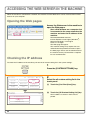
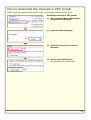

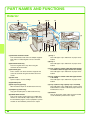
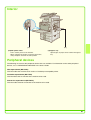
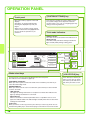

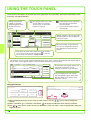
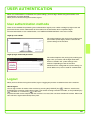
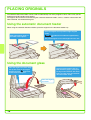
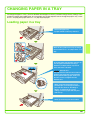

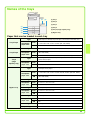
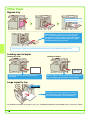

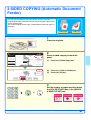
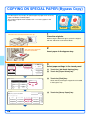
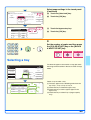
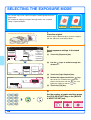
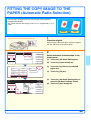

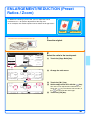
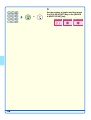
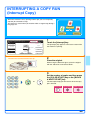
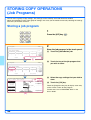

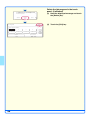
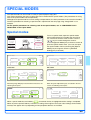
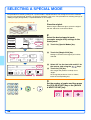

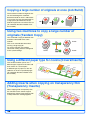
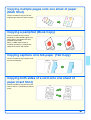
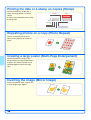
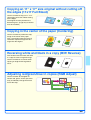
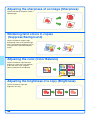
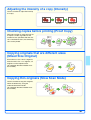

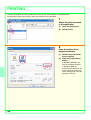


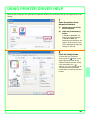
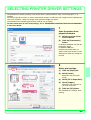
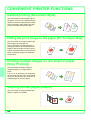
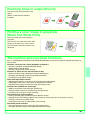
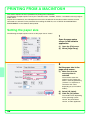

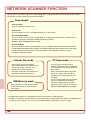
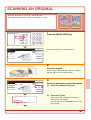
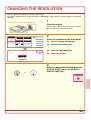
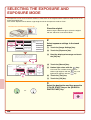

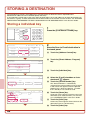
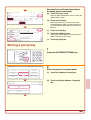
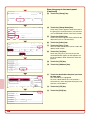
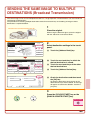
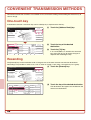
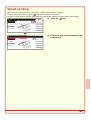
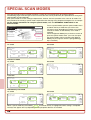
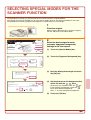

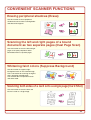
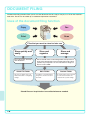
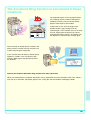
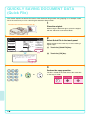
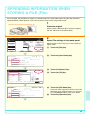
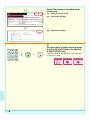
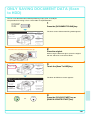


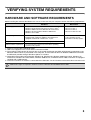
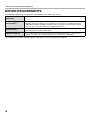
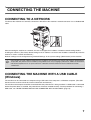

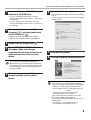
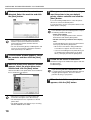


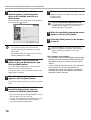
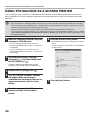

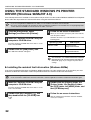
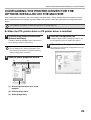

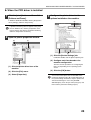
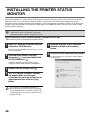


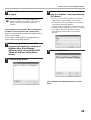
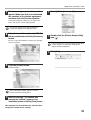
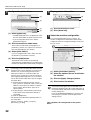
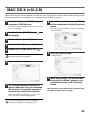
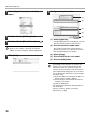

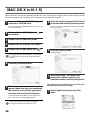

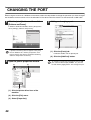
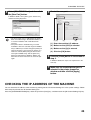


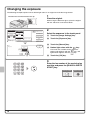
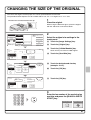
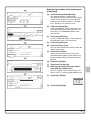
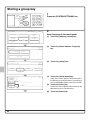
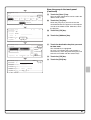
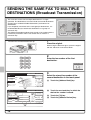
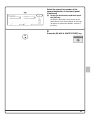
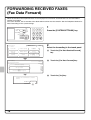
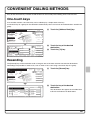
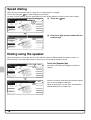
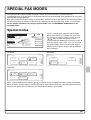
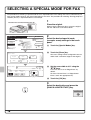
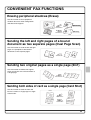
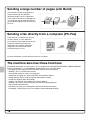


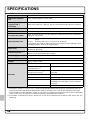

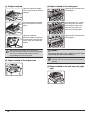
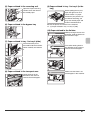
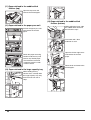


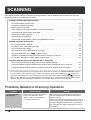


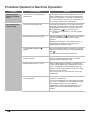
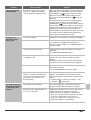
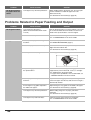

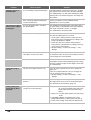
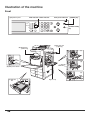



![2 Fare clic sul pulsante [start]](http://vs1.manualzilla.com/store/data/006118559_1-173242b46b2c9da737019e0375b2825a-150x150.png)