1
Organizing pictures and videos
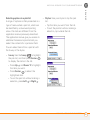
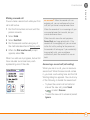
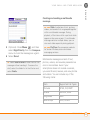
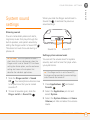
Saving a picture as wallpaper
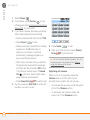
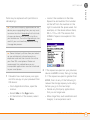
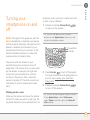
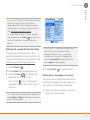
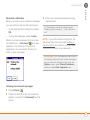
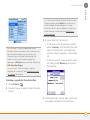
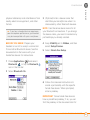
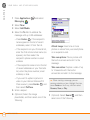
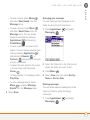
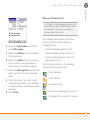
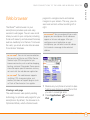
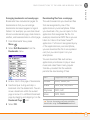
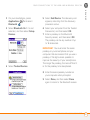
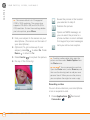
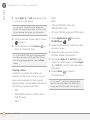
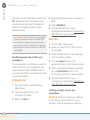
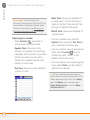
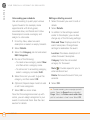
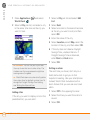
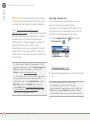
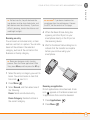
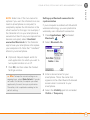
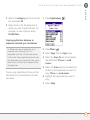
1 Open the album you want to organize.
You can select a picture to use as wallpaper
for the Phone application’s Main View.
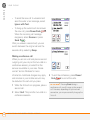
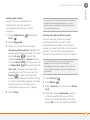
2 Press Menu
.
3 Select Album, and then select Add to
album or Remove from album.
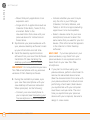
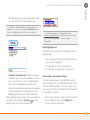
4 Select the pictures or videos to add or
remove, or select Select All to add or
remove the entire album. (A + sign
indicates that you want to add the item.
An X sign indicates that you want to
remove the item.)
6
CHAPTER
YOUR PHOTOS, VIDEOS, AND MUSIC
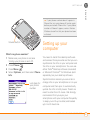
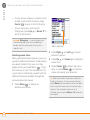
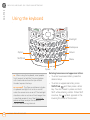
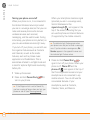
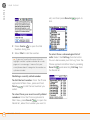
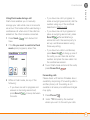
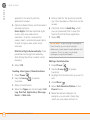
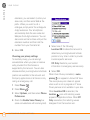
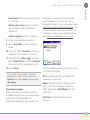
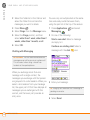
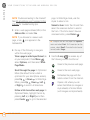
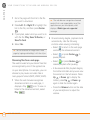
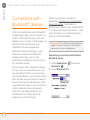
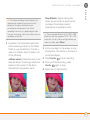
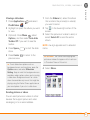
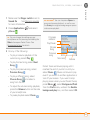
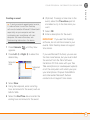
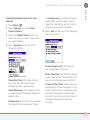
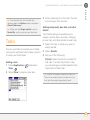
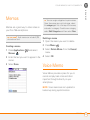
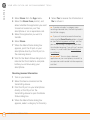
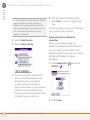
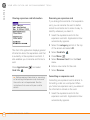
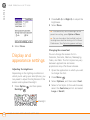
1 Open the picture you want to save as
wallpaper.
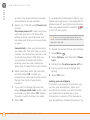
2 Press Menu
.
3 Select Options, and then select Save
as Wallpaper.
4 When the confirmation message
appears, confirm by selecting Yes or
decline by selecting No.
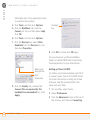
5 Select Add or Remove.
Adding a picture to a contact entry
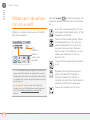
? You can also open the Album
DID YOU KNOW
list from Camera View or Camcorder View by
selecting the icon in the lower-right corner.
Install the Palm® Files application to easily
browse and manage files on an expansion
card. Press Applications, select My Treo,
select the Bonus tab, and then select Files.
TIP
To change the name, add a caption, or
view other picture or video information,
highlight (or open) the item, open the Photo
(or Video) menu, and select Details.
TIP
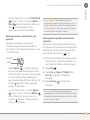
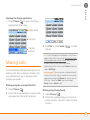
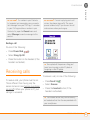
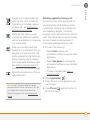
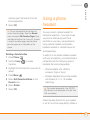
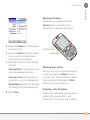
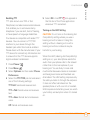
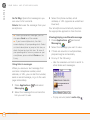
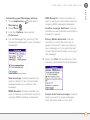
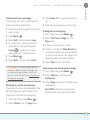
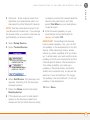
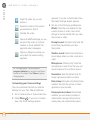
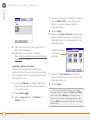
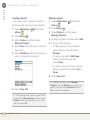
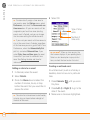
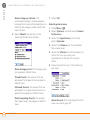
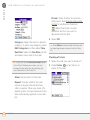
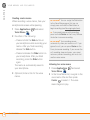
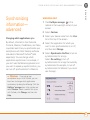
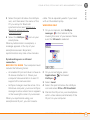
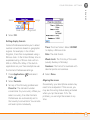
1 Open the picture you want to add to a
contact.
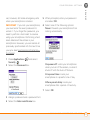
2 Press Menu
.
3 Select Options, and then select Save
as Contact.
4 Select the contact you want to add this
picture to.
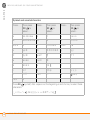
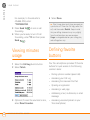
Rotating a picture
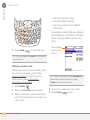
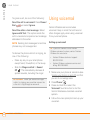
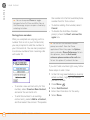
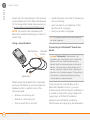
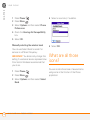
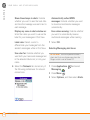
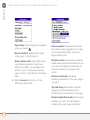
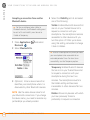
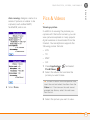
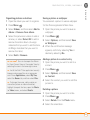
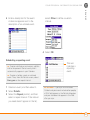
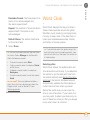
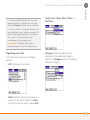
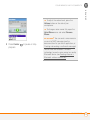
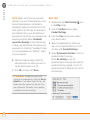
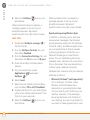
1 Open the picture you want to rotate.
2 Press Menu
.
3 Select Rotate from the Photo menu.
4 Select the orientation.
PICS & VIDEOS
143