1
CHAPTER
9
YOUR APPLICATION AND INFO MANAGEMENT TOOLS
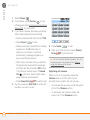
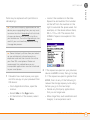
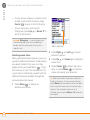
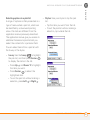
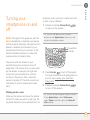
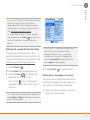
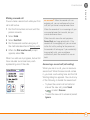
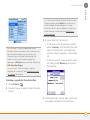
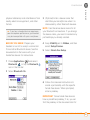
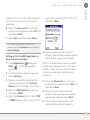
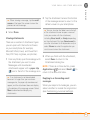
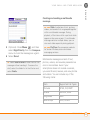
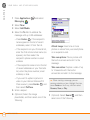
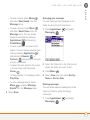
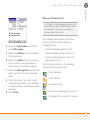
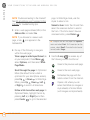
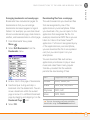
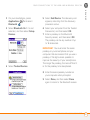
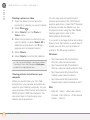
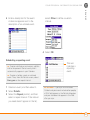
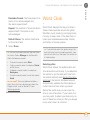
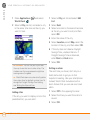
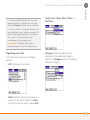
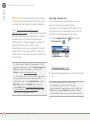
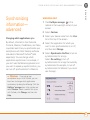
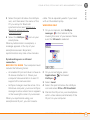
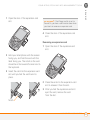
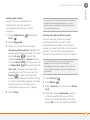
3 Select Beam from the App menu.
4 Select the Beam From pick list, and
select whether the application you want
to beam is located on your Treo
smartphone or on an expansion card.
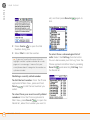
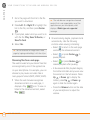
5 Select the application you want to
transfer.
6 Select Beam.
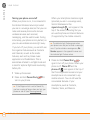
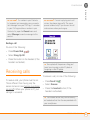
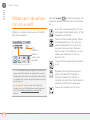
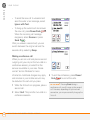
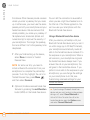
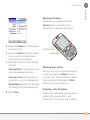
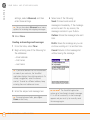
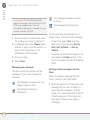
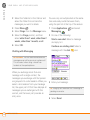
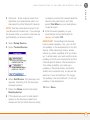
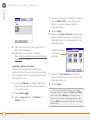
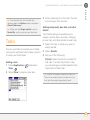
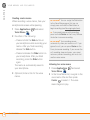
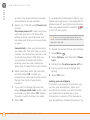
7 When the Beam Status dialog box
appears, point the IR port on your
smartphone directly at the IR port on
the receiving device.
8 Wait for the Beam Status dialog box to
indicate that the transfer is complete
before you continue using your
smartphone.
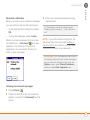
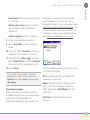
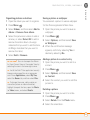
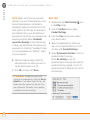
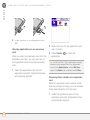
Receiving beamed information
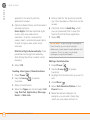
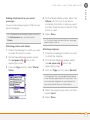
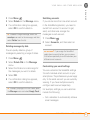
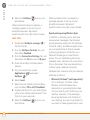
1 Turn on your screen.
2 Select the beam command on the
transmitting device.
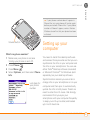
3 Point the IR port on your smartphone
directly at the IR port on the
transmitting device to open the Beam
Status dialog box.
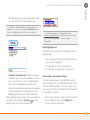
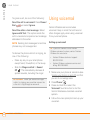
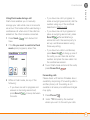
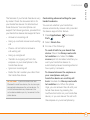
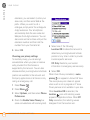
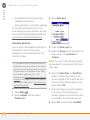
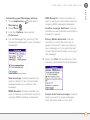
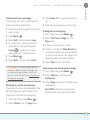
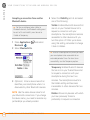
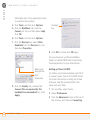
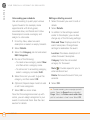
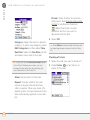
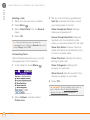
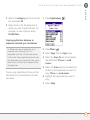
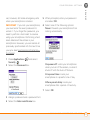
4 When the Beam Status dialog box
appears, select a category for the entry.
190
BEAMING INFORMATION
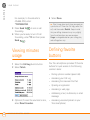
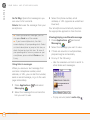
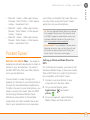
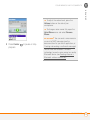
5 Select Yes to receive the information or
No to refuse it.
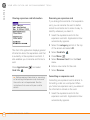
If you do not select a category upon
receiving a beamed item, the item is placed in
the Unfiled category.
TIP
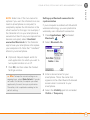
If you can’t receive beamed information,
make sure the Beam Receive option is turned
on (see Optimizing power settings), and that
you are not running a third-party application
that disables beaming. If you still can’t receive
a beam, try a soft reset (see Resetting your
smartphone).
TIP
DID YOU KNOW? You can store a beamed
application on your smartphone, or send it to
an expansion card inserted into the expansion
card slot.