1
CHAPTER 2
Your 4GB Hard Drive
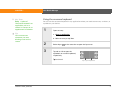
Tip
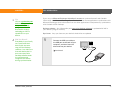
Be sure to take your USB
sync cable with you so
that you can connect your
device to another
computer to synchronize,
use LifeDrive Manager, or
use Drive Mode. It’s a
good idea to take your AC
charger with you as well,
especially if you plan to
use Drive Mode to
transfer files to another
computer.
You can also access the files on the drive or on an expansion card by opening the corresponding
application and browsing to the file.
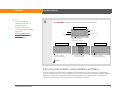
How can I work with information?
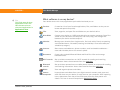
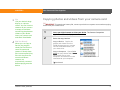
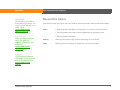
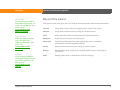
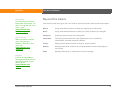
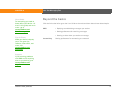
There are three main methods for moving and managing information between your device and a
computer. These methods are discussed in detail in this chapter.
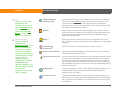
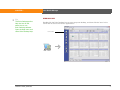
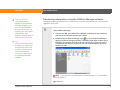
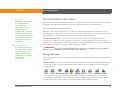
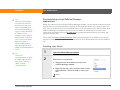
LifeDrive Manager (Windows only) Use LifeDrive Manager to transfer files and folders to your
device’s drive. LifeDrive Manager copies or moves the items you select instantly. You can choose
whether to synchronize items you move using LifeDrive Manager, as well as whether to convert
photos and videos for best viewing on your device.
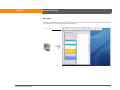
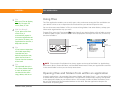
Drive Mode Use Drive Mode when connected to a Mac computer to move files between a
computer and your device’s hard drive. Also use Drive Mode to open, move, or copy files on your
device when it’s connected to a Windows computer that does not have LifeDrive Manager
installed.
While you’re using Drive Mode, you cannot use any other feature of your device.
Synchronization Synchronization updates and backs up information between your device and
your computer. Information entered in one place is automatically updated in the other, and info in
your device’s program memory and on the hard drive is backed up on your computer.
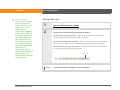
You can synchronize in one of two ways: do a full sync of everything on your device using the sync
button on the USB sync cable, or sync selected items on the hard drive using the LifeDrive
Manager.
You can also synchronize to install applications to your program memory.
LifeDrive from palmOne
36