1
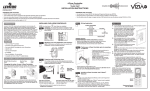
<<NEW>> appears on various
screens as a prompt to create
something new (Area, Profile,
Event, etc.)
x1
AREA
<< NEW >>
Back
x1
Home
All Devices
x1
x1
PROFILE
Stand By
1
Home
Back
Menu
ON
OFF
2 ON
OFF
3 ON
OFF
ON
OFF
ON
OFF
ON
ON
OFF
OFF
ON
ON
OFF
OFF
ON
OFF
selecte
Back (3)
x1
OFF
OFF
OFF
OFF
OFF
OFF
Area
#1
The Filter
is used
when
you wish to view only
checked
Bedroom
devices, or only unchecked
devices from a list.Bathroom
Use the
right arrow button Hallto toggle
between showing devices
checked, unchecked or all (no
selected 3
filter).
Back
(3)
Menu
selected 3
(3) Who Is
Back
ON
Default Profile
Bedroom
Bathroom
Hall
Menu
Stand By
4 ON
Stand By
1 ON
2 ON
3 ON
4 ON
x1
Area #1
Dimmer
Switch
Switch
Check boxes
are used
when multiple selections are
available. Use the
and
x1
buttons to select
and deselect
1
1
from a list. 2
PROFILE
2
<< NEW
>>
3
3
4
Scene 4
Zone
Radio buttons
are used
when an "either/or" single choice
is available. Scroll the selection
box to your choiceBack
and use the Done
button to select.
-RZCPGDefault Profile
1. Area #1
2. Area #2
3. Area #3
4. Area #4
<< NEW >>
Profile #1
Profile #2
12:00 PM
selected 1
Back (3) Who Is
Mon 0 5 .0 1 .2 0 0 6
Dimmer #1
Switch #1
Switch #2
x1
-RZCPGDefault Profile
1. Area #1
2. Area #2
3. Area #3
4. Area #4
Menu
OFF
OFF
OFF
All Devices
Menu
Default Profile
Stand By
x1
x1
All Dev
Menu
-RZCPGDefault Profile
1. Area #1
2. Area #2
3. Area #3
4. Area #4
Save
Default Profile
x1
Cancel
Stand By
Stand By
All Devices
1. All Devices
2. < ON >
3. Default Fade
Mon 0 5 .0 1 .2 0 0 6
1 ON
1 ON
2 ON
1. All Devices
Single brackets2. < ON >
3. Default Fade
designate that more
than one
choice is available. Use the left
Cancel
and right side arrow
buttons Save
to toggle between
choices.
x1
Who Is
Leviton also provides various icons that appear on
the screens to provide quick review of the state
of your network, selections made and to assist in
identification of devices (refer to Icon Description
chart).
3