1
Troubleshooting HyperFabric
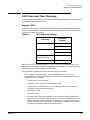
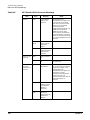
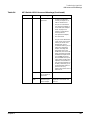
LED Colors and Their Meanings
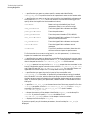
— The adapter is connected to a non-operational adapter in the remote node (in a
node-to-node configuration).
✓
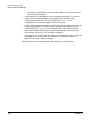
If the connection from the adapter to the corresponding switch port (if a switch is
used) or the corresponding adapter in the remote node (in a node-to-node
configuration) is operational, the “Connected/Traffic,” “Link,” or “Link
Connected/Traffic” LED on the adapter shows as solid green.
✓
If data is flowing between the adapter and the switch port (if a switch is used) or the
corresponding adapter in the remote node (in a node-to-node configuration), the
“Connected/Traffic,” “Link,” or “Link Connected/Traffic” LED shows as flashing
green. Note that data does not start to flow until HyperFabric initialization has
occurred (see “Using the clic_init Command” on page 92).
✓
If the adapter is in an error state that requires it to be replaced, the “Error” LED on
the adapter shows as solid yellow. See “Replacing a HyperFabric Adapter” on
page 125 if you need to replace an adapter.
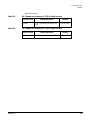
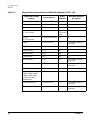
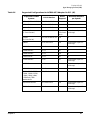
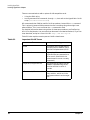
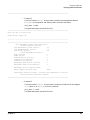
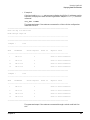
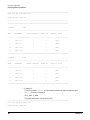
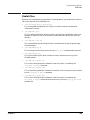
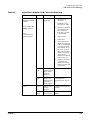
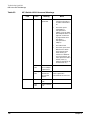
Table 5-2 below summarizes the adapter LED information in a table format.
112
Chapter 5