1
5.
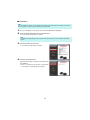
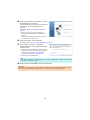
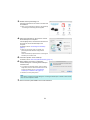
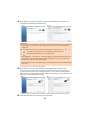
Follow the instructions on the screen to connect
the ScanSnap to the computer.
Click the [Next] button, and follow the instructions on
the screen to connect the ScanSnap to the
computer.
For details, refer to "Connecting the ScanSnap"
(page 9).
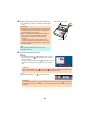
D When the connection check is complete, the
[ScanSnap Wireless Network Setup] dialog box
appears.
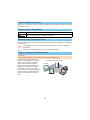
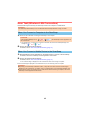
Check the ScanSnap operation before connecting
the ScanSnap to a wireless LAN.
6.
7.
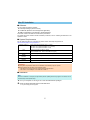
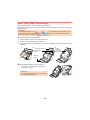
Check the operation of the ScanSnap.
For details, refer to "Scan Test (USB Connection)" (page 11).
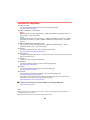
Select whether you want to configure the
wireless settings for connecting the ScanSnap to
a wireless LAN.
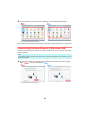
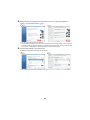
D To configure the wireless settings, click the [Setup
Now] button, and then follow the instructions on the
screen. For details, refer to "Connecting the
ScanSnap to a Wireless LAN" (page 12).
D Otherwise, click the [Later] button.
HINT
If you want to configure the wireless settings for connecting the ScanSnap to a wireless LAN at another
time, refer to the Operator' s Guide.
8.
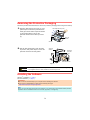
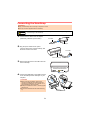
Remove the Setup DVD-ROM from the DVD-ROM drive.
ATTENTION
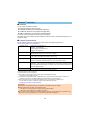
If installation is not completed successfully, click the [Manuals] button in the [ScanSnap Setup] dialog box,
and then the [Troubleshooting (installation)] button, and refer to Troubleshooting (installation).
6