1
Important Safety Instructions
II. Installation Overview
I. Introduction
1) Read these instructions.
2) Keep these instructions.
3) Heed all warnings.
4) Follow all instructions.
5) Do not use this apparatus near water.
6) Clean only with dry cloth.
7) Do not block any ventilation openings. Install in accordance with the manufacturer's instructions.
8) Do not install near any heat sources such as radiators, heat registers, stoves, or
other apparatus (including amplifiers) that produce heat.
9) Do not defeat the safety purpose of the polarized or grounding type plug. A
polarized plug has two blades with one wider than the other. A grounding type plug
has two blades and a third grounding prong. The wide blade or the third prong is
provided for your safety. When the provided plug does not fit into your outlet, consult an electrician for replacement of the obsolete outlet.
10) Protect the power cord from being walked on or pinched particularly at plugs,
convenience receptacles, and the point where they exit from the apparatus.
11) Only use attachments/accessories specified by the manufacturer.
12) Use only with a cart, stand, tripod, bracket, or table specified by the manufacturer, or sold with the apparatus. When a cart is used, use caution when moving
the cart/apparatus combination to avoid injury from tip-over.
13) Unplug this apparatus during lightning storms or when unused for long periods
of time.
14) Refer all servicing to qualified service personnel. Servicing is required when
the apparatus has been damaged in any way, such as power-supply cord or plug is
damaged, liquid has been spilled or objects have fallen into the apparatus, the
apparatus has been exposed to rain or moisture, does not operate normally, or has
been dropped.
Apparatus shall not be exposed to dripping or splashing and no objects filled with
liquids, such as vases, shall be placed on the apparatus.
IR Transmitter
IR Learning Window
Insert Modules
The PXE-DCM+ is a low-voltage device. Never install the PixiePlus in an electrical
back box containing high-voltage wiring. This would cause a serious electrical
danger and violate United States national electrical codes.
1. Assemble Insert Modules
Learning Mode
Activation Switch
Bezel
Preconfigured for Easy Setup
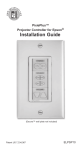
The PixiePlus (PXE-DCM+) Projector Controller for Epson® (ELPSP10) is a singlegang AV control device configured to provide power, source selection, and volume
control of any compatible Epson projector with RS-232. Users who wish to control
an Epson projector with the Projector Controller’s preconfiguration may disregard
the PixiePlus programming instructions.
•
•
•
•
•
•
•
•
•
•
•
•
•
•
Toggling
CAT5 to PixiePlus
PXE-DCM+ 6VDC
Power Supply to Outlet
1 CAT5, CAT5e, or CAT6 Cable (Required)
1 RS-232 Serial Cable (male-female straight DB9) (Required)
1 Leviton Decora™ wall plate (Required. Match to bezel color.)
1 Single-Gang Back Box (Optional. SP Controls recommends using a grounded
back box)
• PixiePlus programming tool (PXE-PGM-TOOL) for reconfiguration of the
PixiePlus RS-232 codes or schedule events (Optional)
This section describes how to reprogram the PixiePlus control codes, which will
not be necessary for most installations. The Projector Controller for Epson is
preconfigured with RS-232 codes that control any compatible Epson projector. The
default codes are:
Default Codes
Power On (RS-232)
Power Off (RS-232)
Computer 1/Computer 2 (toggle) (RS-232)
Video (toggle) (RS-232)
Epson AP-60 Power Toggle (IR)
Projector A/V Mute Toggle (RS-232)
Volume Up (RS-232)
Volume Down (RS-232)
6. Thread the 6 VDC power supply through the opening in the ceiling plate and
plug it into the power supply barrel receptacle.
7. Mount the PixiePlus to a single-gang wall box (not included) or appropriate
mounting location. The inner screw holes on the PixiePlus should be used to
anchor the unit to the wall box. The outer screw holes will be used to affix a
Decora™ wall plate over the face of the PixiePlus.
8. Once all the connections are made, plug in the PixiePlus power supply wall wart
to the electrical box.
The PXE-DCM+ is a low-voltage device. Never install the PixiePlus in an
electrical back box containing high-voltage wiring. This would cause a serious electrical danger and violate United States national electrical codes.
7
audio
PXE-DCM+
video
The PixiePlus DCM interface connects to the ceiling plate (PXE-DCM-EMIT-CAT5232/IR) with a single CAT5 cable.
Discrete
(4-Button)
The ceiling plate provides a female DB9 for RS-232 connection to the Epson projector, using a straight-through RS-232 serial cable (not included). An IR emitter
(included) connects to the ceiling plate with a captive screw connection. The ceiling
plate also includes a connection jack for the wall wart power supply (see page 7).
VOLUME
The single CAT5 cable carries power and control data between the ceiling plate
and the PixiePlus DCM.
1. Install the ceiling plate (PXE-DCM-EMIT-CAT5-232/IR) near the Epson projector.
A standard ceiling-mounted electrical box with AC power must be installed nearby
(provided by electrician).
Blank
Control
To re-enable four-button mode:
Assemble the PixiePlus, including a four-button module, as described in Section III
above. Press and hold any single button in the source selection module while
inserting a paper clip into the programming aperture. The PixiePlus should beep
three times to indicate that four-button mode is now active.
When four-button mode is enabled, both the left and right sides of any one- or twobutton module button should illuminate separately when a source button is
pressed, not in unison. If two neighboring buttons on the four-button pad illuminate
simultaneously, the unit is NOT in four-button mode.
The PixiePlus will now be in learning mode. You may program the PixiePlus or, to
exit learning mode, remove the paper clip.
2. Plug the PXE-DCM-CAT5-ADAPTER into the back of the assembled PixiePlus
DCM.
V. Reprogram PixiePlus cont’d
V. Reprogram PixiePlus cont’d
5. To program a button with a single code: While the PixiePlus is in learning
mode, press the button to be programmed to arm it. It should beep once and slowly blink.
If the room is too bright, the PixiePlus will not enter learning mode. The LED will
glow solid red, the buttons will beep continually when pressed, and they will not
arm for learning. Darken the room or shield the PixiePlus from the ambient light
while learning. Direct sunlight is always too bright.
3. Test Remote and Identify Sweet Spot: Position the remote control a few inches from the IR learning eye (upper right of PixiePlus front).
If the button beeps loudly as soon as you press it, check if the Status LED
is solidly lit. If it is, there may be too much light in the room. Reduce the
ambient light level or shield the PixiePlus from the light source and try again.
Hold the remote control in the sweet spot you found in step 3. Press and hold the
button on the remote for about a second. The status LED should flicker, indicating
that the code is being received. The PixiePlus will beep three times quickly to indicate successful learning.
When you press a key on the remote, the PixiePlus status LED should flicker. As
you move the remote closer or farther from the receiver window, or move off axis
the red flashes will dim and become intermittent. Find a position that consistently
yields clear, regular blinking. This is the "sweet spot."
6
5
4
V. Reprogram PixiePlus cont’d
The armed key will indicate it is ready to learn the first code by flashing once,
pausing, flashing once, and so on.
Hold the remote control in the sweet spot you found in step 3. Press and hold the
button on the remote for about a second. The PixiePlus will beep three times
quickly to indicate successful learning.
Now the button will indicate it is ready to learn the second code by flashing twice,
pausing, flashing twice, and so on.
Program the button, and it will again beep three times to indicate if the code was
successfully learned. Repeat as many times as necessary.
If you do not see the Status LED flicker rapidly, your remote may need new
batteries.
You may press a different button for learning at any time, including buttons that
have already been programmed. If you press a button that is already armed for
learning a second time, it will be disarmed.
When you have programmed the last code in the series, the PixiePlus will beep
quickly three times to indicate the code is successfully learned, and then beep
slowly three more times to indicate that the button has been fully programmed.
Some remotes have several emitting LEDs, which may not be located in
the center of the remote.
If the PixiePlus learns the code, the button will begin flashing rapidly in Verification
Mode. Go to step 7, Verify Learned Keys.
Arming will eventually time out if no IR code is received. You may select a different
key for learning at any time, including keys that are already learned.
To learn a remote control:
Any button may be programmed with any code – it does not have to be the same
as the label silk-screened on the button.
5. Connect the female DB9 on the ceiling plate to the serial control port of the projector with a straight male-to-female RS-232 serial cable (not included).
COMP
V. Reprogram PixiePlus cont’d
To program the PixiePlus you will set it to learning mode, arm each key for IR
learning, and squirt it with the appropriate remote control commands.
4. For use with the AP-60: connect the IR emitter to the two-position captive screw
IR output on the ceiling plate. You may connect the emitter directly, or extend the
IR emitter with a two-conductor cable. Pull the IR cable through the face plate to
the AP-60 and attach the IR emitter bud to the IR receiver window on the speaker
near the microphone nobs. Use the IR Bud Holder to facilitate projector service.
SOURCE
comp
3
V. Reprogram PixiePlus
The PixiePlus controls AV devices by learning and duplicating the IR codes of their
remote controls. A single button may be programmed with as many as four codes.
Multiple codes may be sent as macros or round robin.
IR
Pixie
Board
Be sure the bezel is placed right-side-up. The SP Controls logo should be
right-side-up.
VIDEO
Discrete
(2-Button)
Inserts
Note: You must chose one (and only one) insert module of each type. That is, you
cannot use two source insert modules and no volume module.
Programming Overview
RS-232 Serial Cable
SOURCE
Toggling
Bezel
Required and Optional parts and accessories (not included)
2
Button
Power ON
Power OFF
COMP
VIDEO
AUDIO
BLANK
VOLUME Up
VOLUME Down
OFF
Discrete
SOURCE
Bezels are available in black (PXE-BEZEL-BL) and gray (PXE-BEZEL-GR).
Ceiling Plate
(PXE-DCM-EMIT-CAT5-232/IR)
POWER
ON
1 PixiePlus Circuit Board
6 White Plastic Button Inserts and 7 Rubberized Button Pads
PXE-DCM-RTC Real Time Clock Module
PXE-DCM-CAT5-ADAPTER – PixiePlus CAT5 Output Adapter
PXE-DCM-EMIT-CAT5-232/IR – RJ45-to-DB9/IR Adapter Ceiling Plate
IR Emitter
IR Emitter Bud Holder
1 6VDC Regulated Power Supply
IR Emitter Cable Anchors
2 Bezels (ivory and white)
Installation Guide
PixiePlus ELPSP10 Supplement
Mounting Screws
Paper Clip (for IR-learning)
The PixiePlus may be installed in a single-gang back box (not included).
IV. Wiring PixiePlus to Display Device cont’d
PXE-DCM+ 6VDC
Power Supply
POWER
•
•
•
•
The PixiePlus may be configured with schedule events (security lock, auto power
off, etc.) at specific times and date ranges using the PXE-DCM-RTC Real Time
Clock Module (included). Configuration of schedule events requires the SP
Controls Programming Wand (PXE-PGM-TOOL, sold separately). See
Programming Wand documentation for schedule configuration instructions.
The PixiePlus is designed for use with a Leviton Decora™ wall plate (not included).
3. Connect the PXE-DCM-CAT5-ADAPTER to the PXE-DCM-EMIT-CAT5-232/IR
with a CAT5 cable.
CAT5
RS-232 Serial Cable
Available Insert Modules
Inserts Circuit Board Single-Gang Wall Box
(not included)
The Projector Controller for Epson ships with:
1
Ceiling Plate
(PXE-DCM-EMIT-CAT5-232/IR)
Reprogramming the PixiePlus RS-232 commands requires use of the PixiePlus
programming tool (PXE-PGM-TOOL).
Status LED
PixiePlus Board
IV. Wiring PixiePlus to Display Device
Installation Overview
After selecting the appropriate insert modules, place them against the circuit board
and secure them in place with the bezel.
If you wish to reconfigure the PixiePlus with alternate controls, you may replace
those button modules as needed with buttons that match the control codes you
wish to use. Select the button insert modules that match the design of your remote
control. For example, if your remote control has a single toggling power button,
select the Toggling Power module.
The PixiePlus may be configured with an Inactivity Shutdown Timer (pg. 14) to protect bulb life, or with a Security Lock (pg. 16) to prevent unauthorized use. One
PixiePlus may be used to control multiple projectors in tandem with a 1x2 CAT5
splitter (sold separately).
Electrical Warning
2. Attach Bezel
The Projector Controller for Epson is preconfigured to use the Discrete Power, 4Button Source, and Volume Control button modules. To function with the PixiePlus
preconfiguration codes, these button modules must be used.
Mounting Screws
If it is necessary to reprogram the PixiePlus, the modular button interface and IR
device control codes may be easily reconfigured. Modifying the RS-232 commands
programmed to each button requires the SP Controls Programming Wand (PXEPGM-TOOL, sold separately).
WARNING - To Reduce the Risk of Fire Or Electric Shock, Do Not Expose This
Apparatus To Rain Or Moisture.
III. PixiePlus Installation cont’d
III. PixiePlus Installation
RS-232 Programming
RS-232 commands may be reprogrammed on the PixiePlus with the SP Controls
Programming Wand (PXE-PGM-TOOL). See Programming Wand documetnation
for further instructions.
The PixiePlus may be reprogrammed to reproduce different IR control codes. To
control a device through IR, an IR emitter must be wired from the PixiePlus to the
device under control (see page 7 for more information).
If the PixiePlus successfully learns the code the key will begin flashing quickly to
indicate it is in Verification Mode.
1. Power the PixiePlus: the LED backlights will be illuminated.
4. Round Robin Codes and Macros
2. Enter learning mode: Gently insert a paper clip into the small hole labeled
"insert paperclip to enter learning mode." The PixiePlus will remain in learning
mode while the paper clip remains in the aperture. Removing the paper clip will
return the PixiePlus to normal operation.
Each PixiePlus button may be programmed with either a single command or multiple commands (as many as four). Multiple commands may be sent round robin or
as macros. Round robin buttons send one command per button press. Each time
the button is pressed, it sends the next code in the series. Macro buttons send all
programmed codes each time the button is pressed.
Be gentle with the paper clip to ensure that you do not damage the switch
mechanism.
The Status LED will blink red while the PixiePlus is in learning mode.
Toggling Source Module Between 2-Button and 4-Button Mode (optional)
By default, the PixiePlus is configured to work with a four-button source module. To
use a one- or two-button source modules, you must disable four-button mode.
Be sure that you are not pressing any of the PixiePlus buttons when you insert the
paper clip, or you will toggle the PixiePlus Audio Mode on or off (see Section IV,
Part 5).
To disable four-button mode:
RGB1
Video
RGB
Video
Remote Control
8
9
7. Verify learned keys:
If the PixiePlus is wired to control
the display device before programming, you can verify each code
was successfully learned immediately after programming it. Each
button will remain in verification
mode for 20 seconds before timing
out.
Example - Macro: The COMP input button may be programmed with two commands and configured to macro mode. The COMP button is programmed so that
each time it is pressed it sends the RGB1 input command, followed by the autosync command.
6. To program a button with multiple codes for macro or round robin commands: Put the PixiePlus in learning mode. Quickly press the button you wish to
program one time for each code you want it to learn. The PixiePlus will beep once
for each code it expects to learn.
SOURCE
While the four-button mode is disabled, both the left and right sides of any one- or
two-button module button should illuminate together when the button is pressed. If
only one side of a button on the two-button pad illuminates, the unit is still in fourbutton node.
By default, any button that has been programmed with multiple codes will send
them round robin. To set a button to macro mode, first verify the code, then go to
step 8.
Example - Round Robin: The SOURCE toggle button may be programmed with
four round robin commands to switch between four inputs on the display device.
The single SOURCE button is programmed with all four input commands, and configured to Round Robin mode. Each time the SOURCE button is pressed, it sends
one of the four commands, in the order learned.
Assemble the PixiePlus, including a one- or two-button source module, as
described in Section IV above. Press and hold any single source button while
inserting a paper clip into the programming aperture. The PixiePlus should beep
three times to indicate that four-button mode is now disabled.
The PixiePlus will now be in learning mode. You may program the PixiePlus or, to
exit learning mode, remove the paper clip.
You cannot add a new code to a key that is already programmed. You must reprogram it entirely. If any code fails, the learning sequence for that key is started over.
VIDEO
COMP
Example: If you wish to program a SOURCE button with three codes, set the
PixiePlus to learning mode and quickly press the SOURCE button three times. The
PixiePlus will beep three times to indicate it is ready to learn three codes.
Source Module
10
11
After learning, each button will blink
rapidly to indicate that it is ready for verification. Press the button, and the
PixiePlus will emit the code. The display device should respond appropriately.
If the key is set to round robin or macro mode, it will send the multiple codes as
configured.
Verification is particularly useful for verifying that repeating codes work
properly (e.g., volume ramping).
12